How Suppliers Process Supply Orders via Third-Party Warehouses?
Copy link & title
Update Time: 17 Jun 2026 09:06
Suppliers now can push supply orders (orders from your distributor) to a third-party warehouse, which will handle the packaging and shipping on their behalf. Meanwhile, suppliers can track order statuses more easily, improving business transparency and making order fulfillment more efficient.
Step-by-Step Guide
Step-by-Step Guide
1. Authorize a Third-Party Warehouse
2. Select a Distribution Warehouse
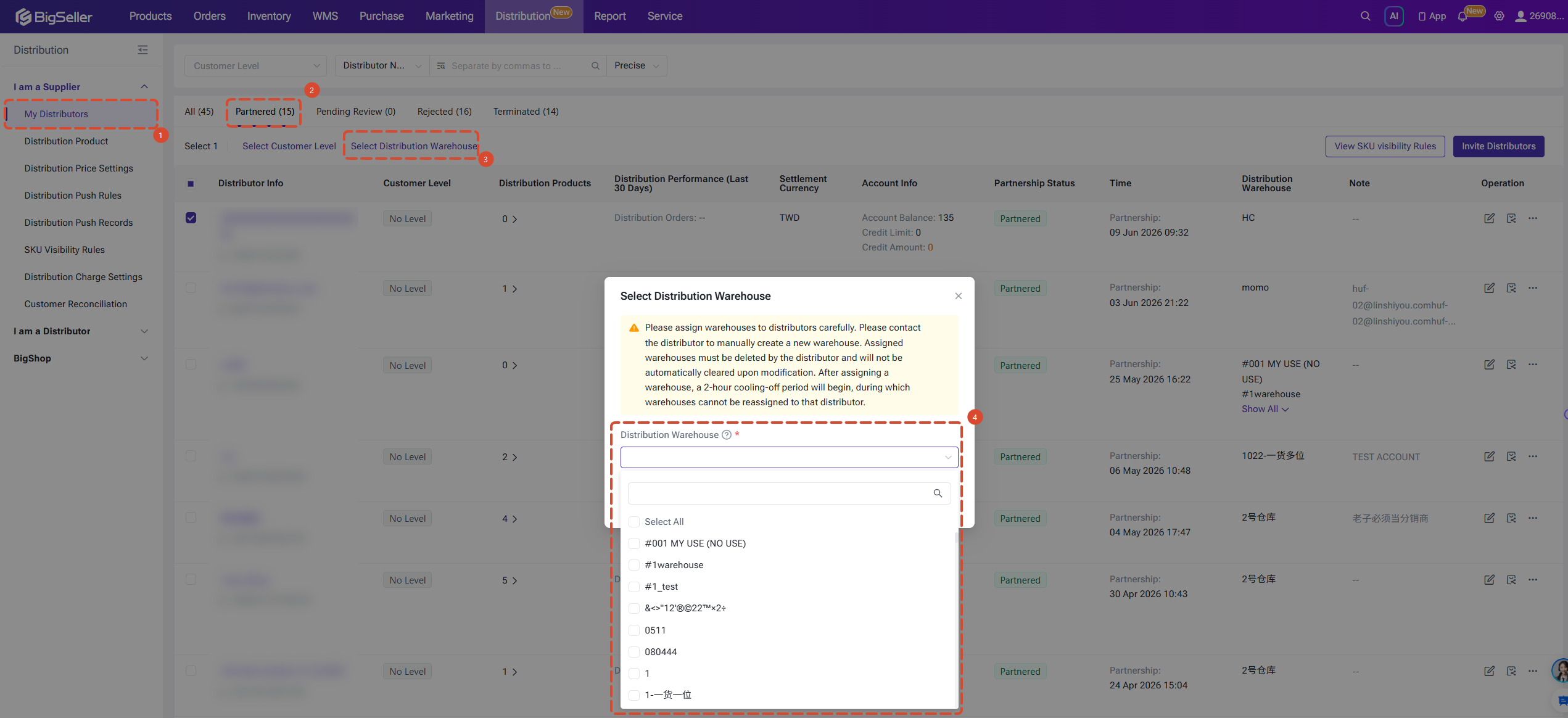
When a supplier accepts a distributor's partnership application or modifies the distribution warehouse, they can select a connected third-party warehouse as the distribution fulfillment warehouse.
Example: Workflow for Modifying a Distribution Warehouse
Go to the menu: My Distributors > Partnered > Select the target distributor > Click Select Distribution Warehouse > Select a warehouse that belongs to a third-party warehouse > Click Confirm.
💡 Notes
Example: Workflow for Modifying a Distribution Warehouse
Go to the menu: My Distributors > Partnered > Select the target distributor > Click Select Distribution Warehouse > Select a warehouse that belongs to a third-party warehouse > Click Confirm.
💡 Notes
- After establishing the initial cooperation, the system will automatically create a warehouse for the distributor.
- If additional distribution warehouses need to be added, distributors must create them manually in the system. It is recommended that suppliers proactively notify their distributors to complete this setup.
3. Push Orders to Third-party Warehouse
Suppliers can follow the standard process to push distribution orders to the third-party warehouse. 👉 [Click here to view the detailed user guide]
Suppliers can quickly filter and locate orders for specific distributors by filtering the BigShop platform or the distributor's name.
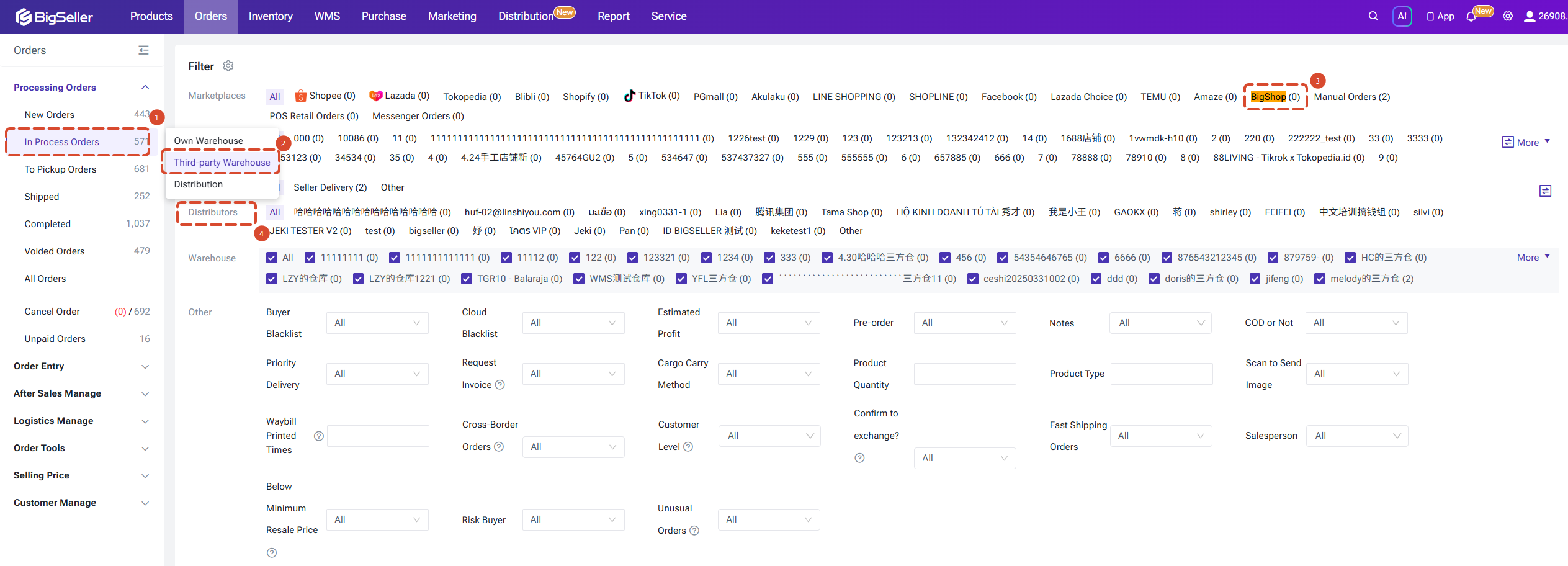
Suppliers can quickly filter and locate orders for specific distributors by filtering the BigShop platform or the distributor's name.
4. Cancel/Withdraw Orders
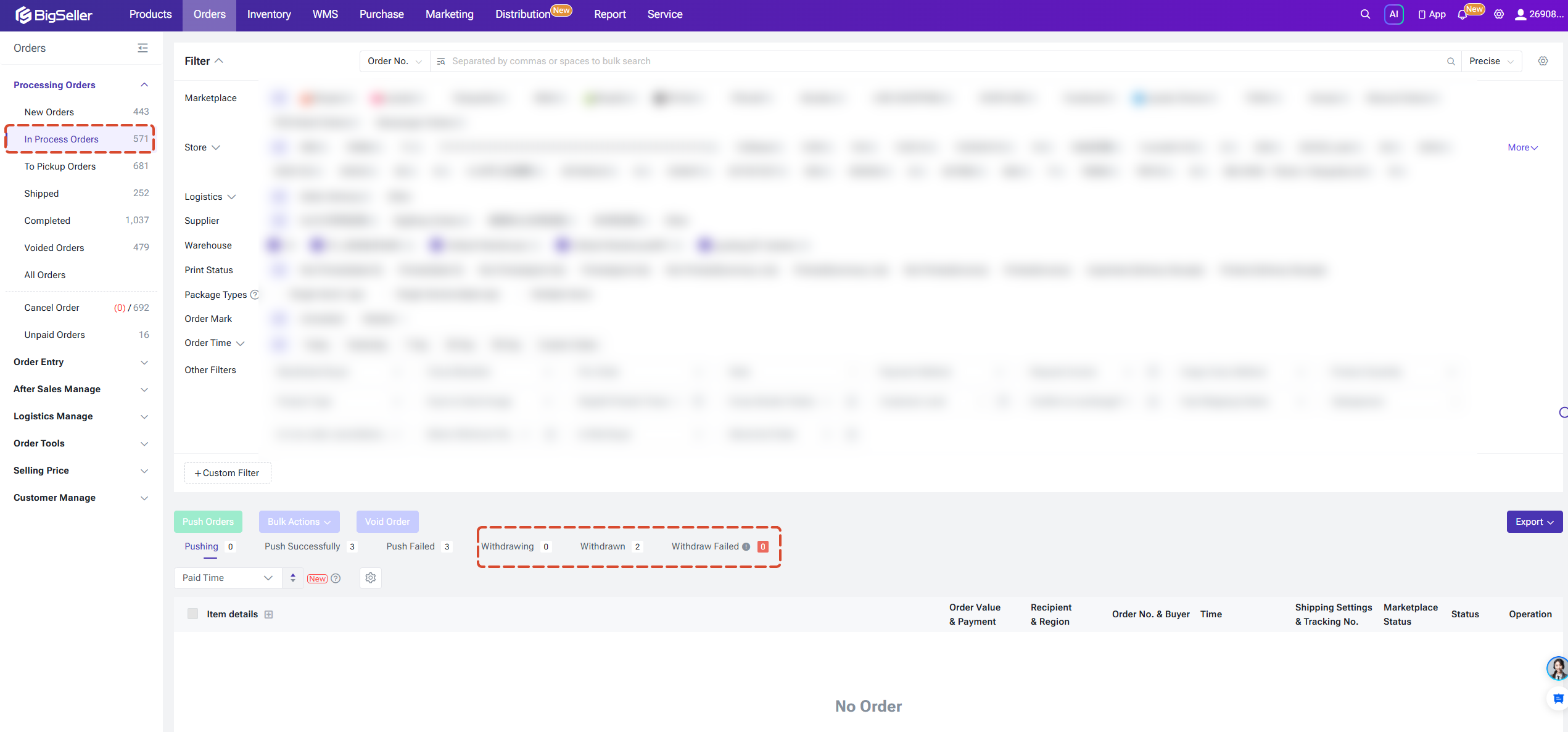
When a distributor withdraw an order, the system will first request a cancellation from the third-party warehouse to return the order to the supplier, and then the supplier will return it to the distributor.
Distributors can check the status via the following path: Order > In Processing Orders > Distribution Orders > View status: withdrawing / withdrawed / Failed to withdraw.
If the system fails to successfully withdraw the order from the third-party warehouse, the withdrawal status on the distributor's end will also update to failed.
Distributors can check the status via the following path: Order > In Processing Orders > Distribution Orders > View status: withdrawing / withdrawed / Failed to withdraw.
If the system fails to successfully withdraw the order from the third-party warehouse, the withdrawal status on the distributor's end will also update to failed.
5. Return Stock-In
Suppliers can follow the standard process to push returned orders to the third-party warehouse, and can also set up automatic updates.
👉 [Click here to view the detailed user guide]
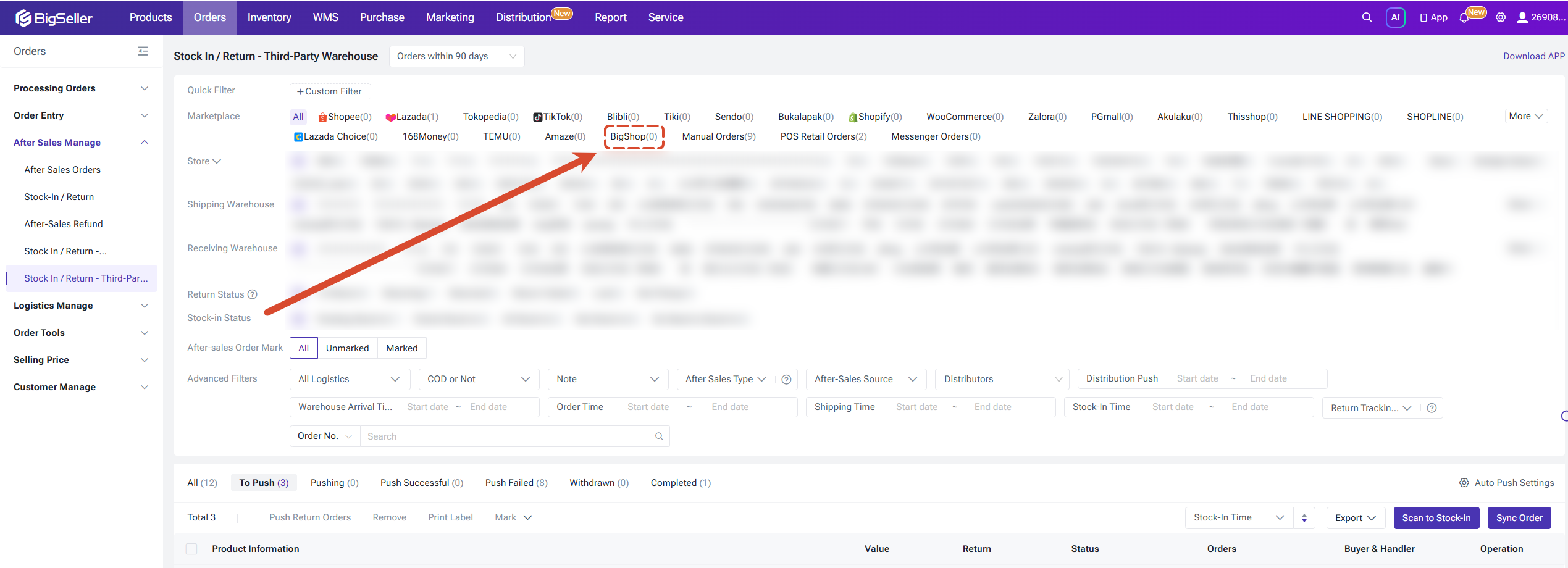
In the Return Stock-In - Third-Party Warehouse menu, suppliers can filter by the BigShop platform to check after-sales orders coming from distributors. The system will also display the distributor's name and the update time of the distributor's after-sales order.
After-Sales Order Cancellation Logic:
👉 [Click here to view the detailed user guide]
In the Return Stock-In - Third-Party Warehouse menu, suppliers can filter by the BigShop platform to check after-sales orders coming from distributors. The system will also display the distributor's name and the update time of the distributor's after-sales order.
After-Sales Order Cancellation Logic:
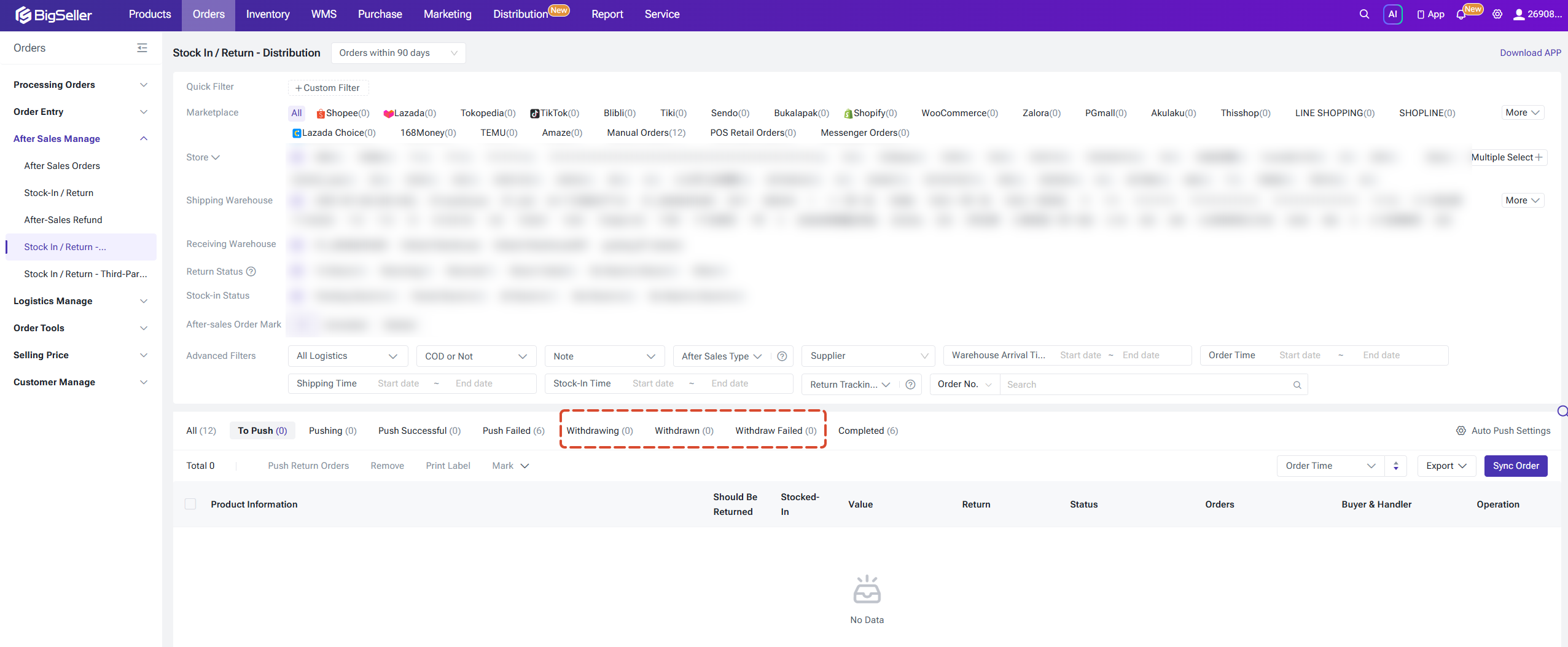
- If a distributor withdraw an after-sales order, the system will first cancel it from the third-party warehouse back to the supplier, and then from the supplier back to the distributor.
- If the cancellation from the third-party warehouse fails, the corresponding status on the distributor's end will also be updated to "Withdraw Failed".
Distributors can check the withdraw status of after-sales orders in the Return Stock-In - Distribution list.
Is this content helpful?
Thank you for your feedback. It drives us to provide better service.
Please contact us if the document can't answer your questions
Related Articles