POS Retail Order Secondary Screen Setting (APP)
Copy link & title
Update Time: 09 Jun 2026 02:26
In POS retail environments, merchants often use dual-screen devices at the checkout counter. The main screen faces the cashier, who uses it to add items, apply discounts, and process payment. The secondary screen faces the customer, displaying real-time cart details and payment information so buyers can follow along without needing to ask.
BigSeller's Secondary Screen feature supports this setup, giving customers full visibility into their cart, pricing breakdown, and transaction confirmation — ensuring a transparent and professional checkout experience.
When idle, the secondary screen plays a customizable slideshow, turning downtime into an in-store advertising opportunity.
Step by Step Instructions
BigSeller's Secondary Screen feature supports this setup, giving customers full visibility into their cart, pricing breakdown, and transaction confirmation — ensuring a transparent and professional checkout experience.
When idle, the secondary screen plays a customizable slideshow, turning downtime into an in-store advertising opportunity.
Step by Step Instructions
Step 1 Go to Secondary Screen Setting
Path: PC > Settings > Order Settings > Non-Platform Order Settings > POS Retail Order Secondary Screen Setting.
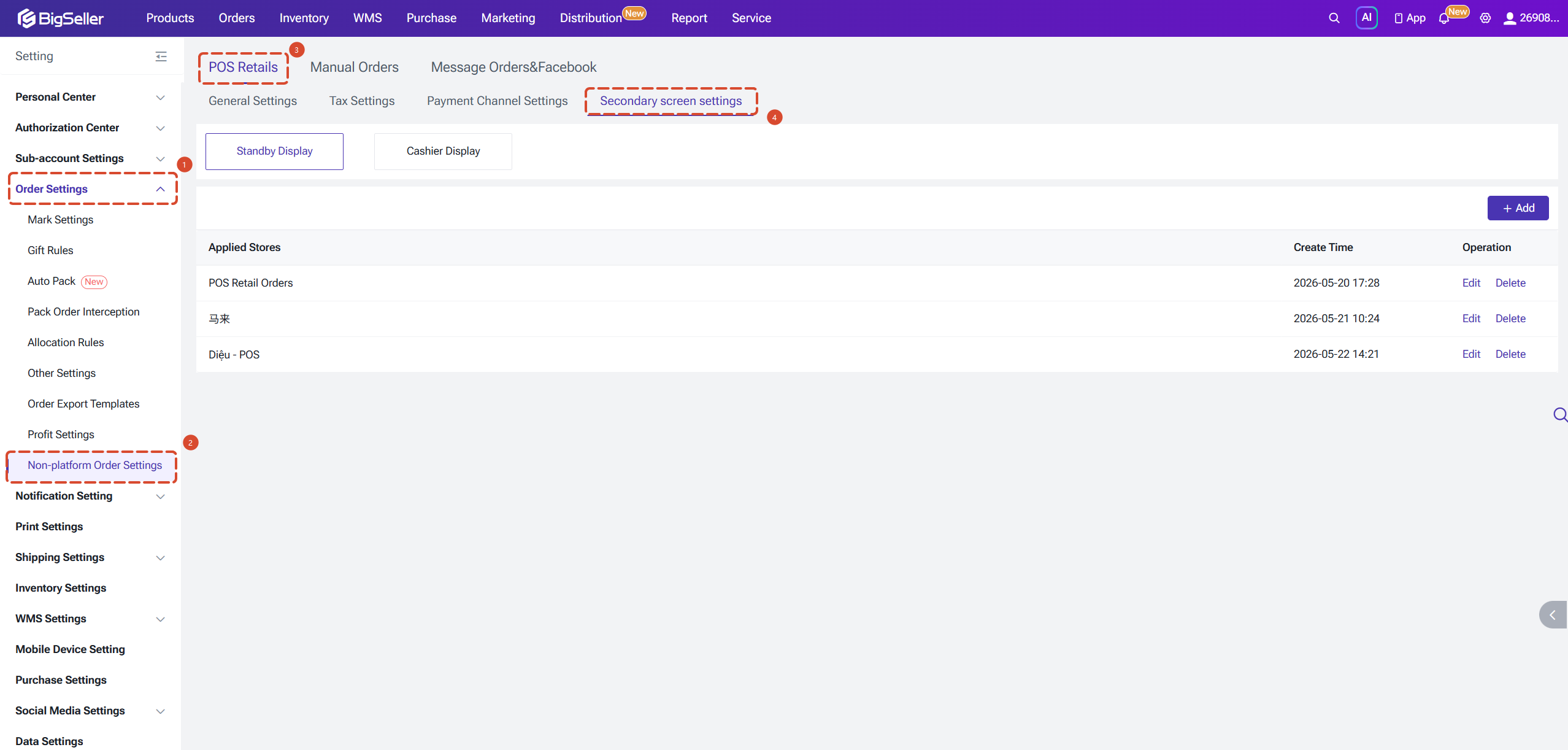
Two display modes are supported:
Two display modes are supported:
- Standby display: The slideshow shown on the secondary screen when no items have been scanned. If no images are configured here, the BigSeller default slideshow will be displayed.
- Checkout display: The configured slideshow will appear on the left side of the secondary screen, while the right side displays the scanned items and pricing information.
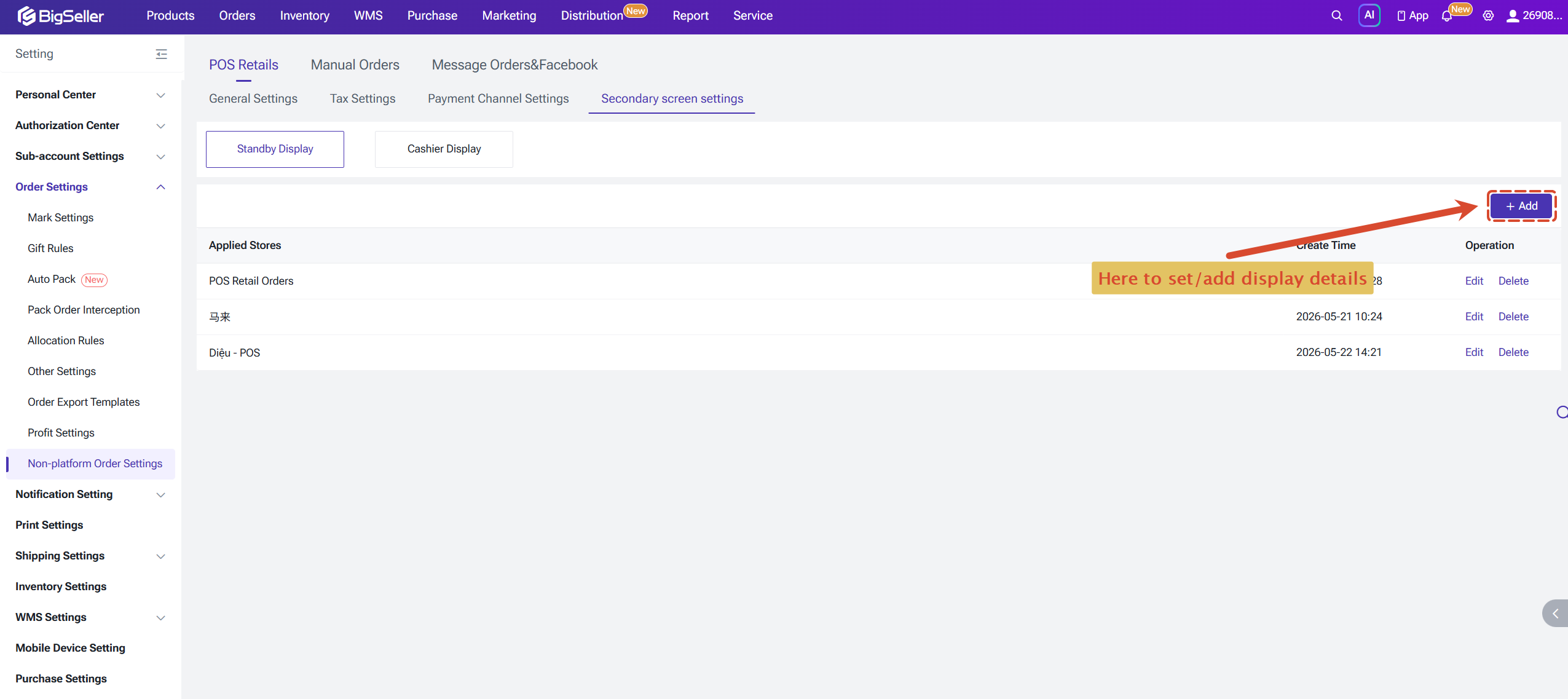
Step 2 Standby Display
For standby display, you can upload up to 5 slideshow images (1920×1018 px). Different slideshows can be configured for different stores.
You can also add a title on your screen, and choose it to be whilte or black.
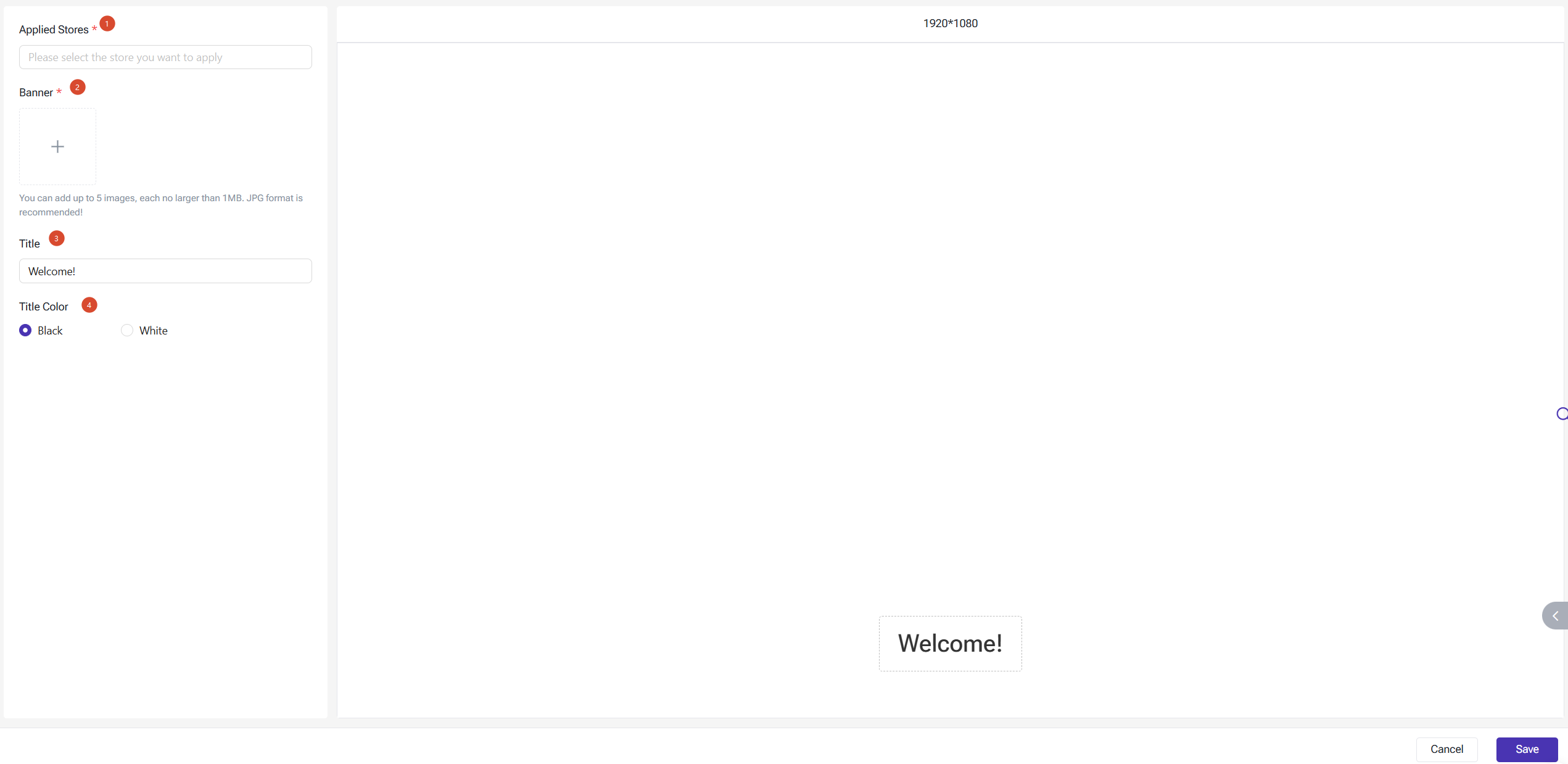
You can also add a title on your screen, and choose it to be whilte or black.
Step 3 Checkout Display
The Checkout Display is divided into two sections that can be configured separately:
- Left side: Upload a slideshow and set a title to display during checkout.
- Right side: Choose which order details are visible to the customer, with separate settings for the during checkout and payment complete states.
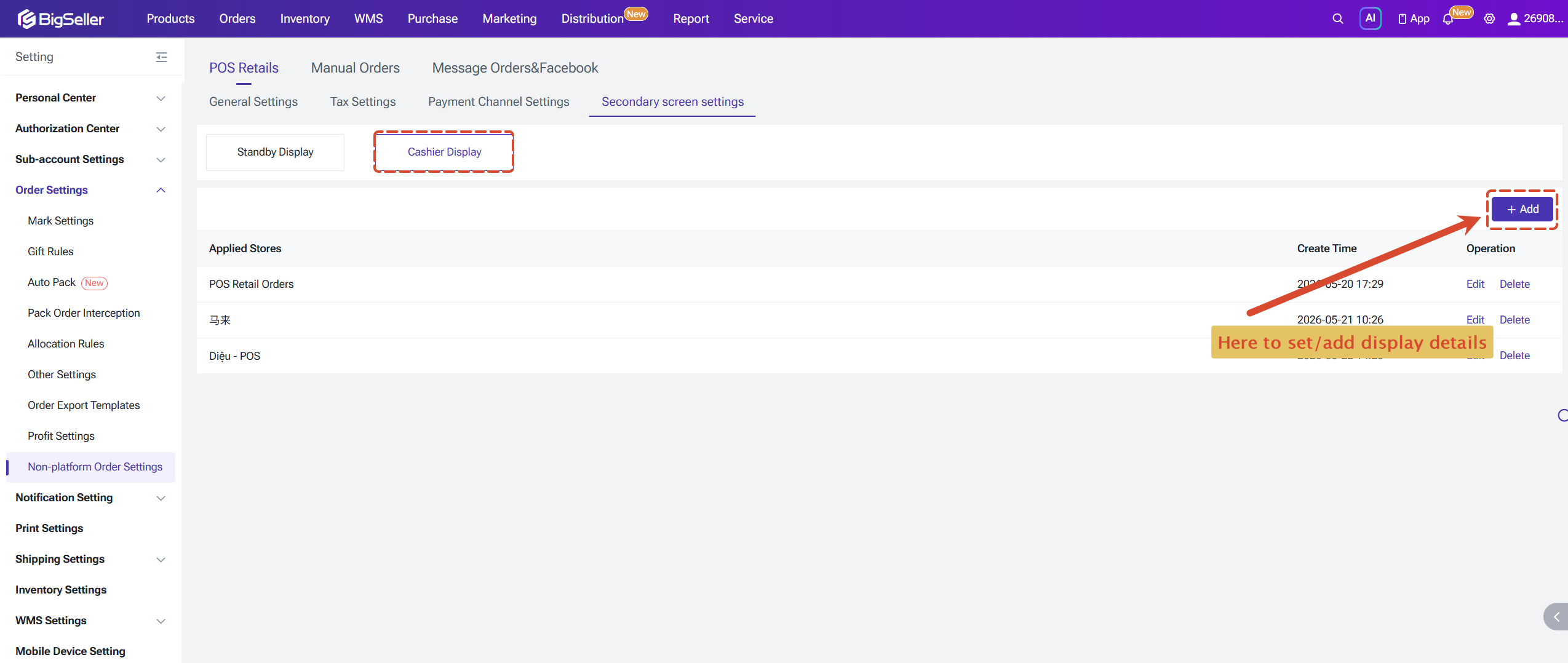
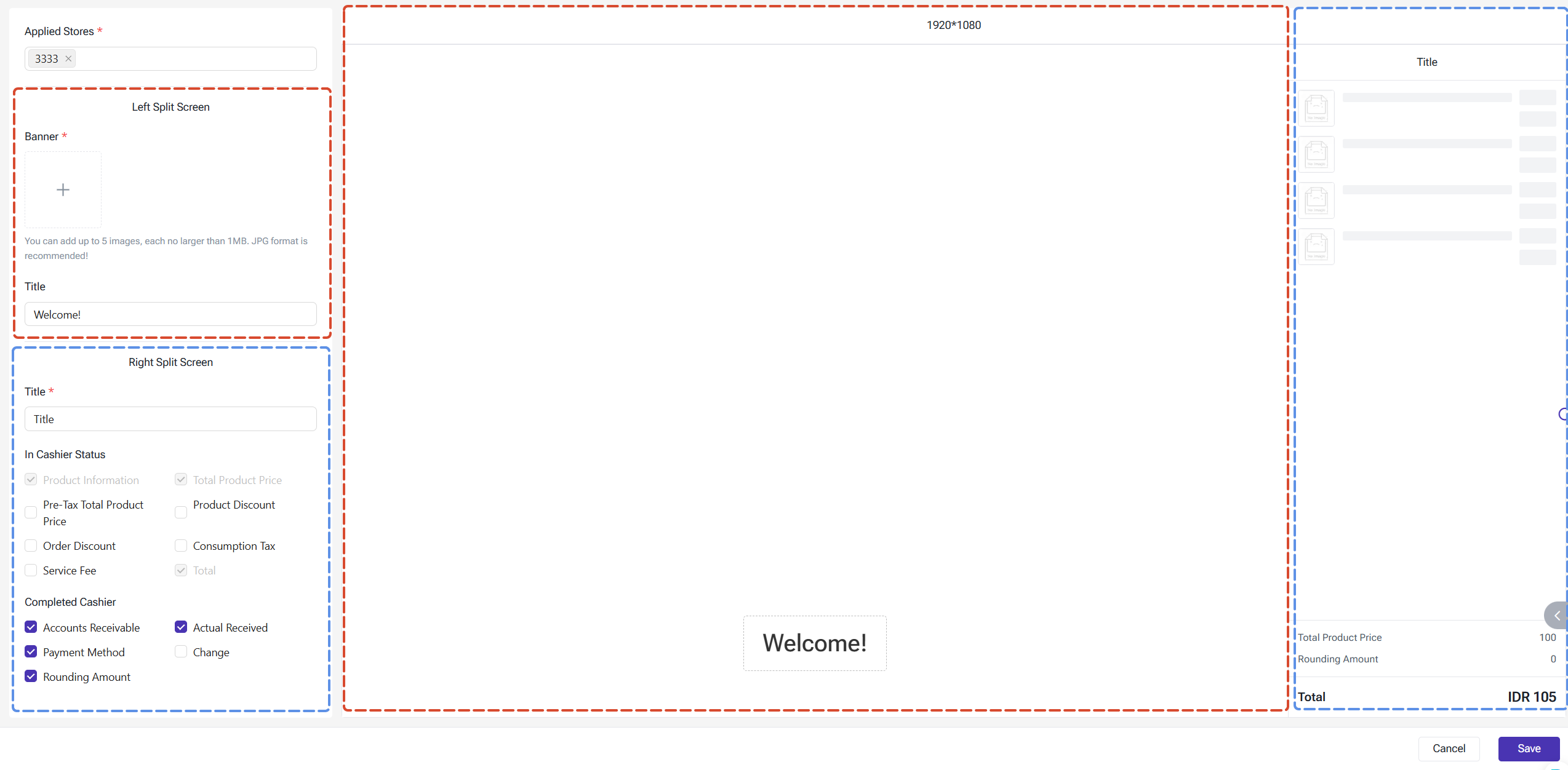
Once configured, open the BigSeller App on a device with a secondary screen and navigate to the POS Retail Order page — the secondary screen settings you have configured will take effect.
Is this content helpful?
Thank you for your feedback. It drives us to provide better service.
Please contact us if the document can't answer your questions
Related Articles