How to Process Distribution After Sales Orders
Update Time: 21 Apr 2026 11:45
BigSeller now supports processing distribution after-sales orders. When a distributor handles a return request, the associated distribution order is automatically added to the Return & Stock-in – Distribution list and pushed to the supplier. The supplier then completes the stock-in process and issues a refund to the distributor.
Currently supported: After-sales orders from Shopee, TikTok, Lazada, and also manual after-sales orders.
With BigSeller's distribution after-sales features, both suppliers and distributors can keep inventory and financials automatically updated in sync with stock-in and refund operations, forming a closed loop.
The basic distribution after-sales order processing flow is shown in the diagram below.
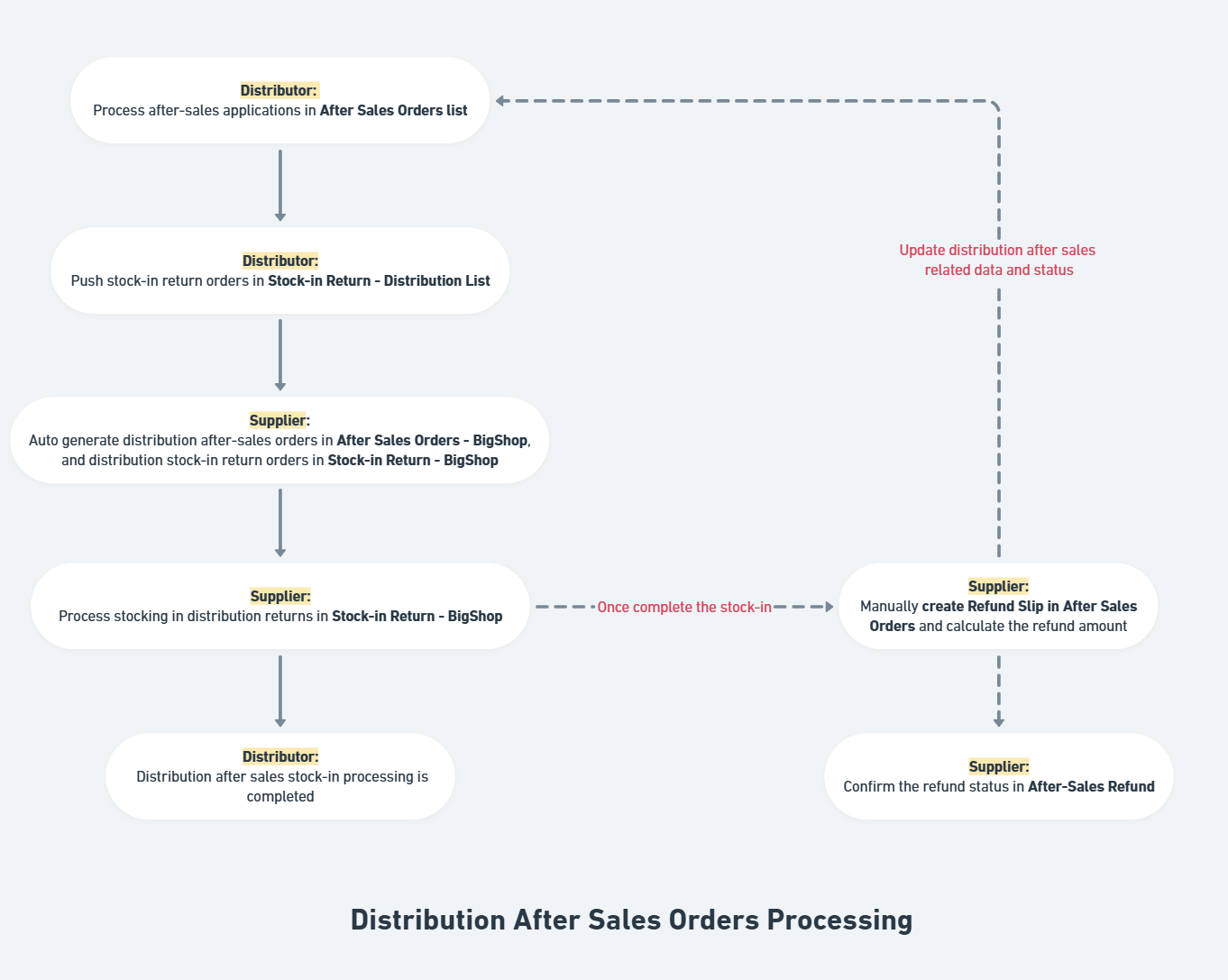
The details are listed as follow:
- If you are a distributor, see Part 1
- If you are a supplier, see Part 2
Part 1 – Distributor: Process After-Sales Orders & Push Returns
As a distributor, you are responsible for handling after-sales applications. Distribution after-sales orders are automatically added to the Return & Stock-in – Distribution list, where you can push them to the supplier.
1. After-Sales Order Processing
Distribution after-sales orders follow the same workflow as regular after-sales orders — no separate process is needed. You can:
- Go to the After Sales Orders list and process orders as usual.
- Use the Shipping Warehouse or Supplier filters to quickly find the relevant distribution orders.
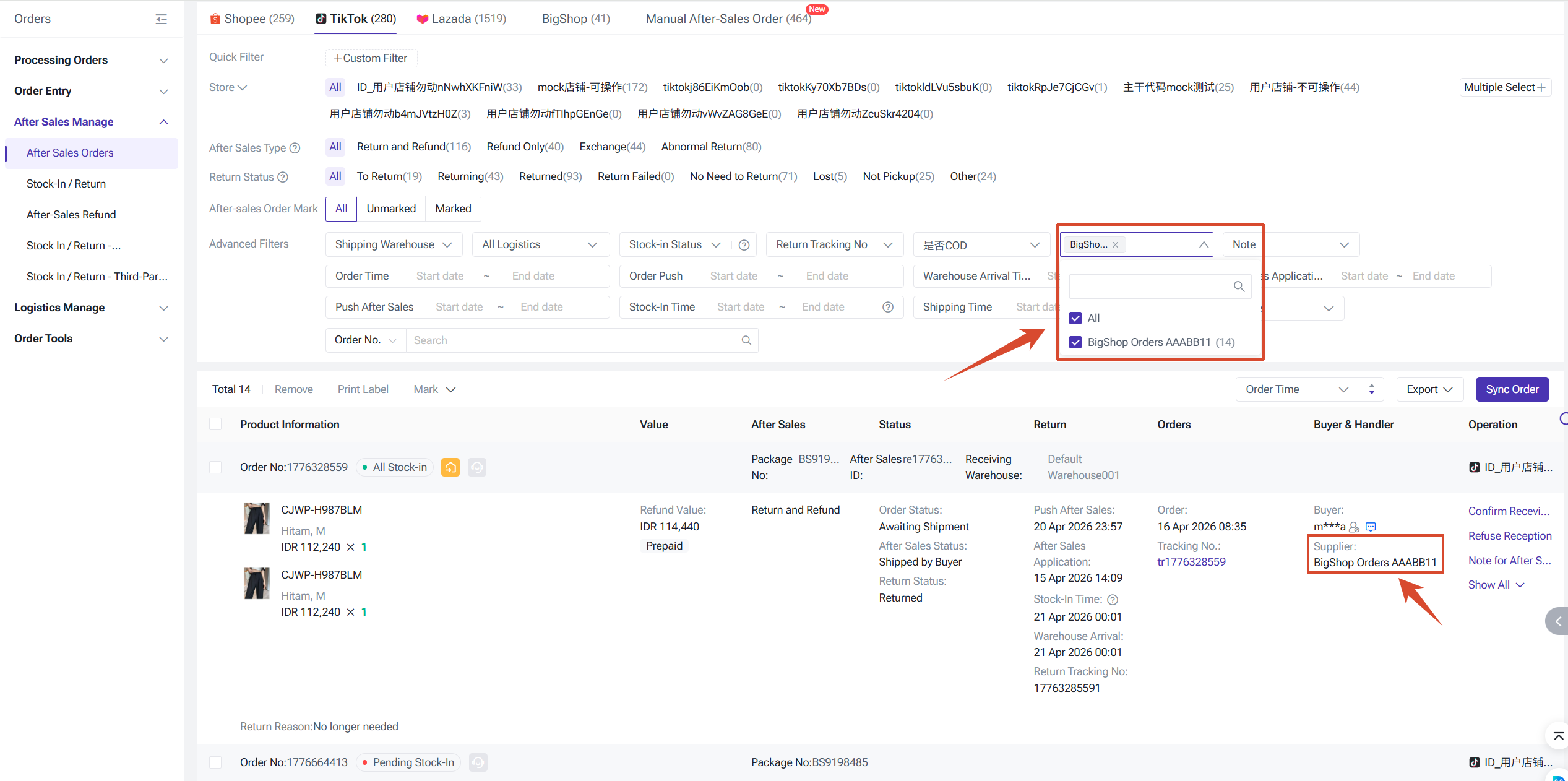
For more instructions of processing after sales orders, you may refer to the two articles:
- Introduction to After Sales Manage & Stock-In Return
- Introduction to Manual After Sales Order (Manual Entry of After-Sales Orders)
2. Return & Stock-in – Distribution: Pushing to Supplier
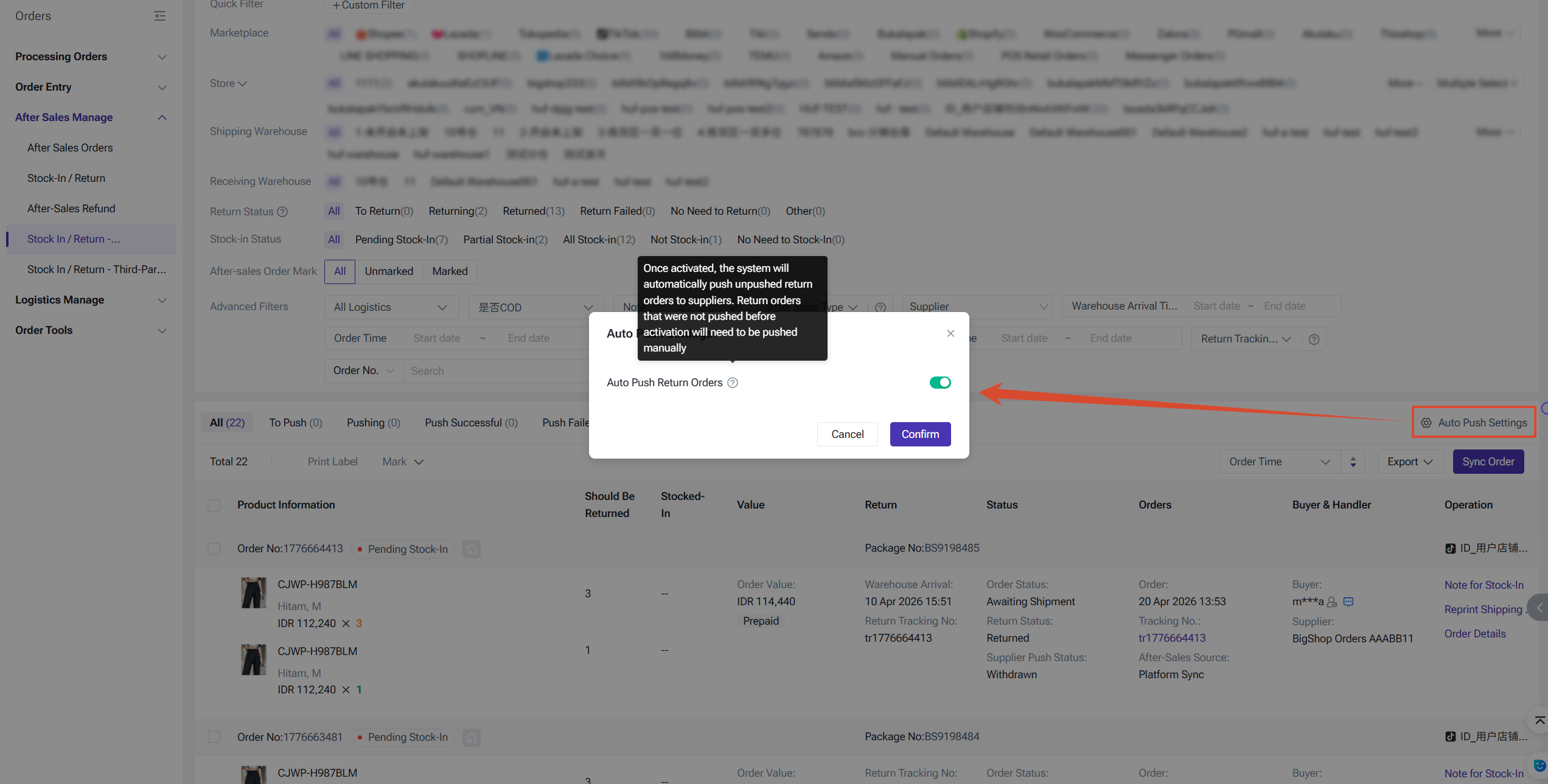
Return & stock-in orders generated from distribution after-sales orders must be pushed to and handled by the supplier. BigSeller provides an auto-push setting. Once enabled, return & stock-in orders will be automatically pushed to the corresponding supplier warehouse. You may also leave auto-push off and manually push orders from the To Push list.
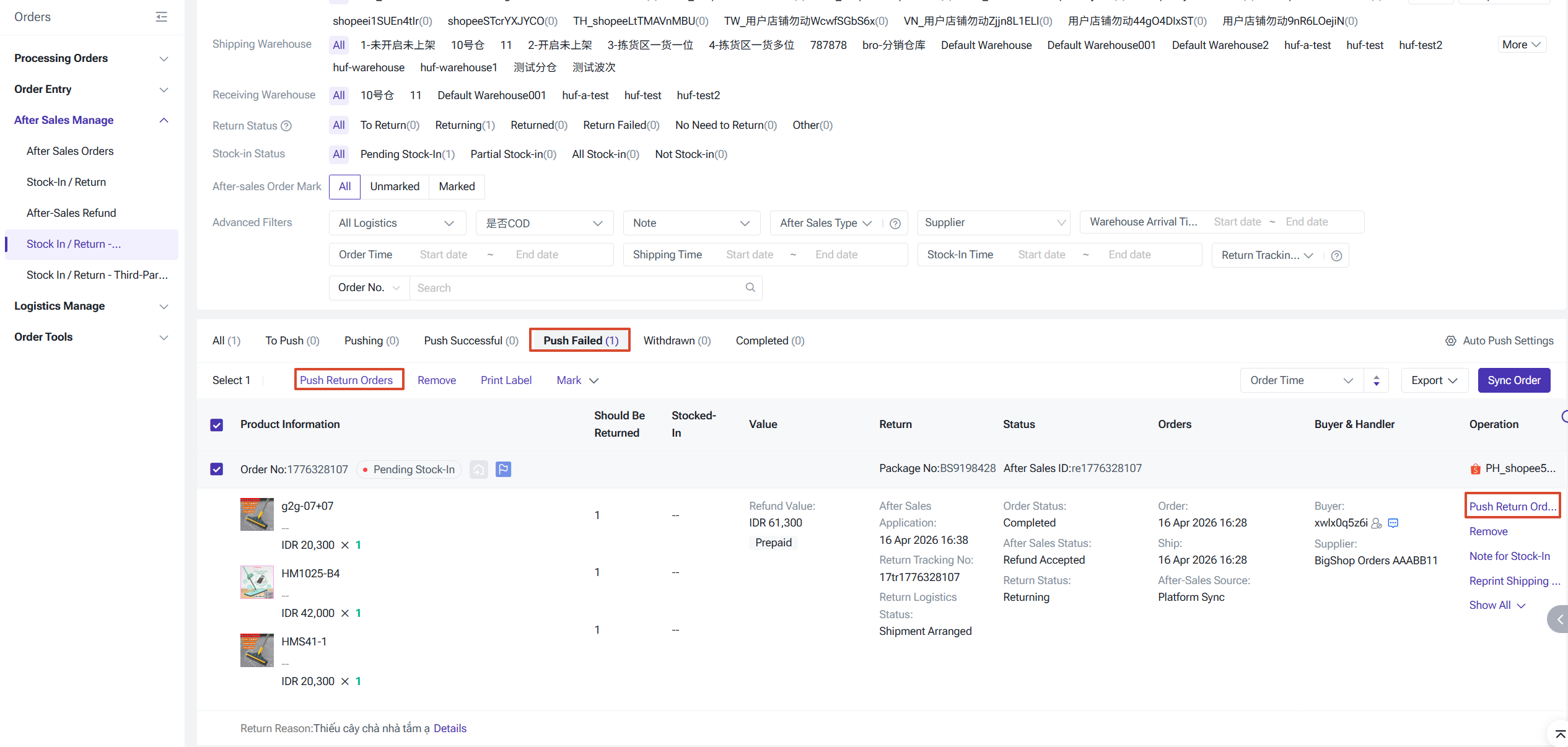
If a push fails (whether auto or manual), you can go to the Push Failed list and select Re-push.
Notes:
- After a partnership is terminated, distribution after-sales orders from the cooperation period can still be pushed to the supplier.
- Orders older than 90 days cannot be pushed.
- Combo SKUs are split into individual sub-SKUs before being pushed.
- If an after-sales application is cancelled, the corresponding order that was pushed to the supplier will be automatically recalled.
Part 2 – Supplier: Process Return Stock-in & Issue Refunds
Once the distributor pushes the after-sales order, the supplier will need to complete the stock-in and issues a refund to the distributor.
1. Viewing After-Sales Orders
After-sales orders pushed by distributors will appear in the After Sales Orders – BigShop page. You can filter by distributor. Please note that the return type on the supplier side will be uniformly displayed as "Return & Refund".
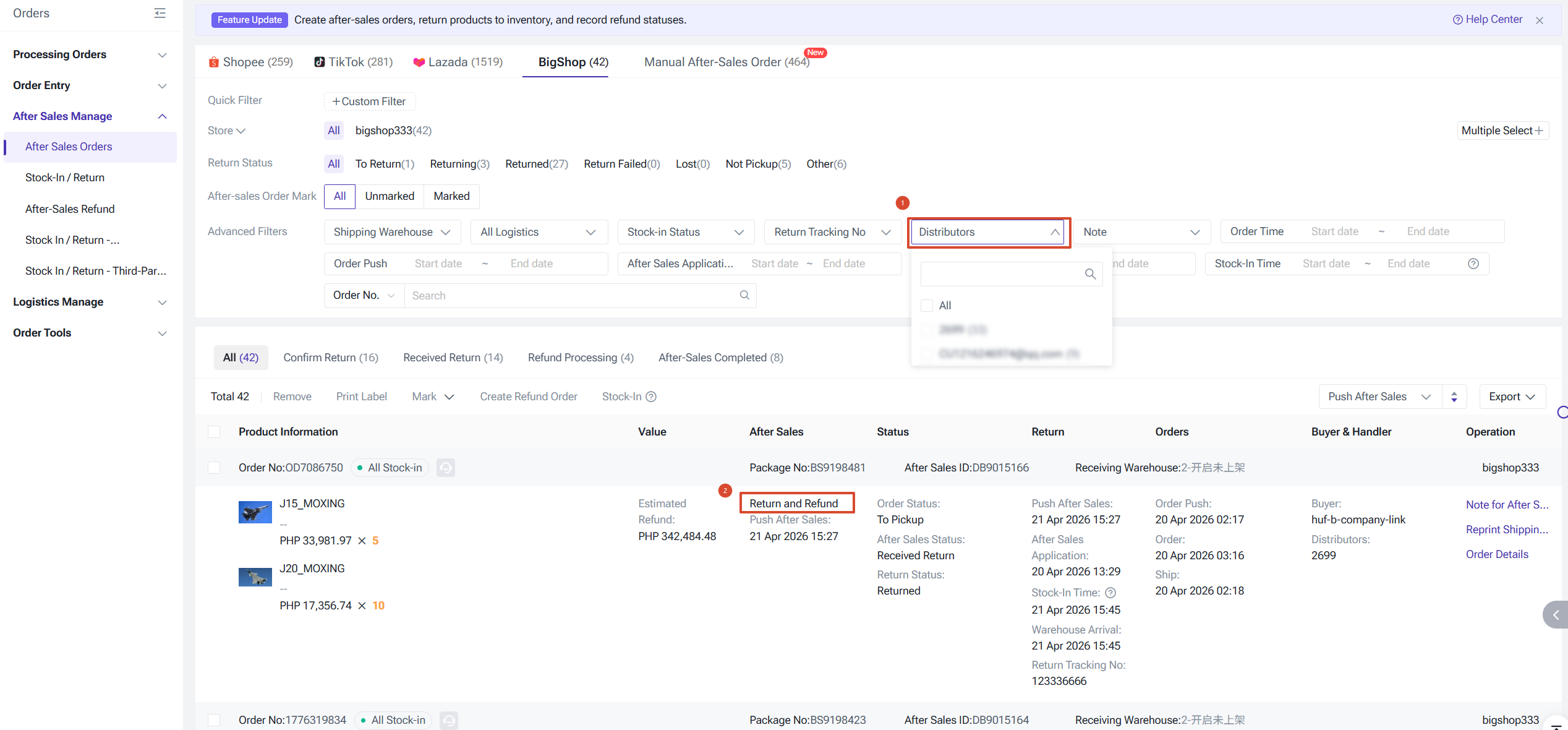
2. Processing Return Stock-in
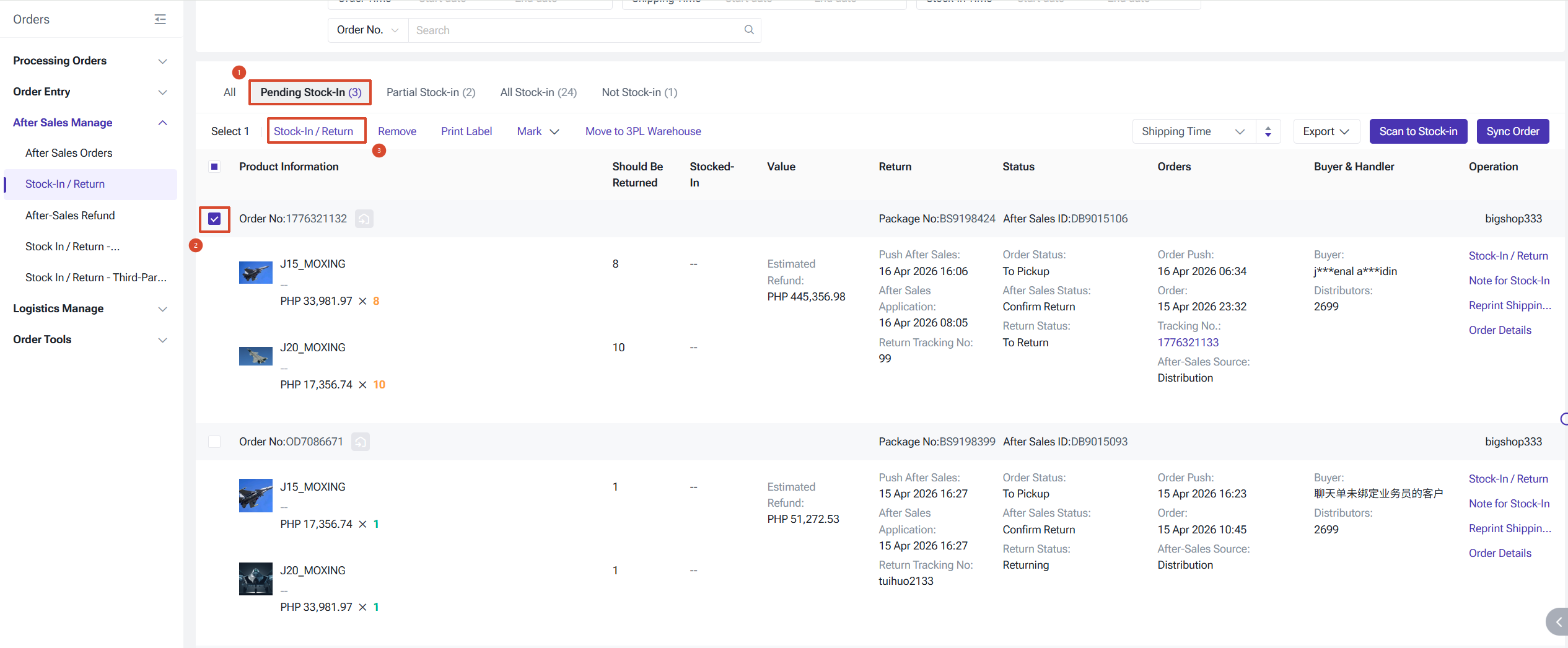
To complete the return stock-in for distribution after-sales orders:
- Go to Return & Stock-in – BigShop list.
- On the Pending Stock-in page, perform the stock-in operation for the relevant orders.
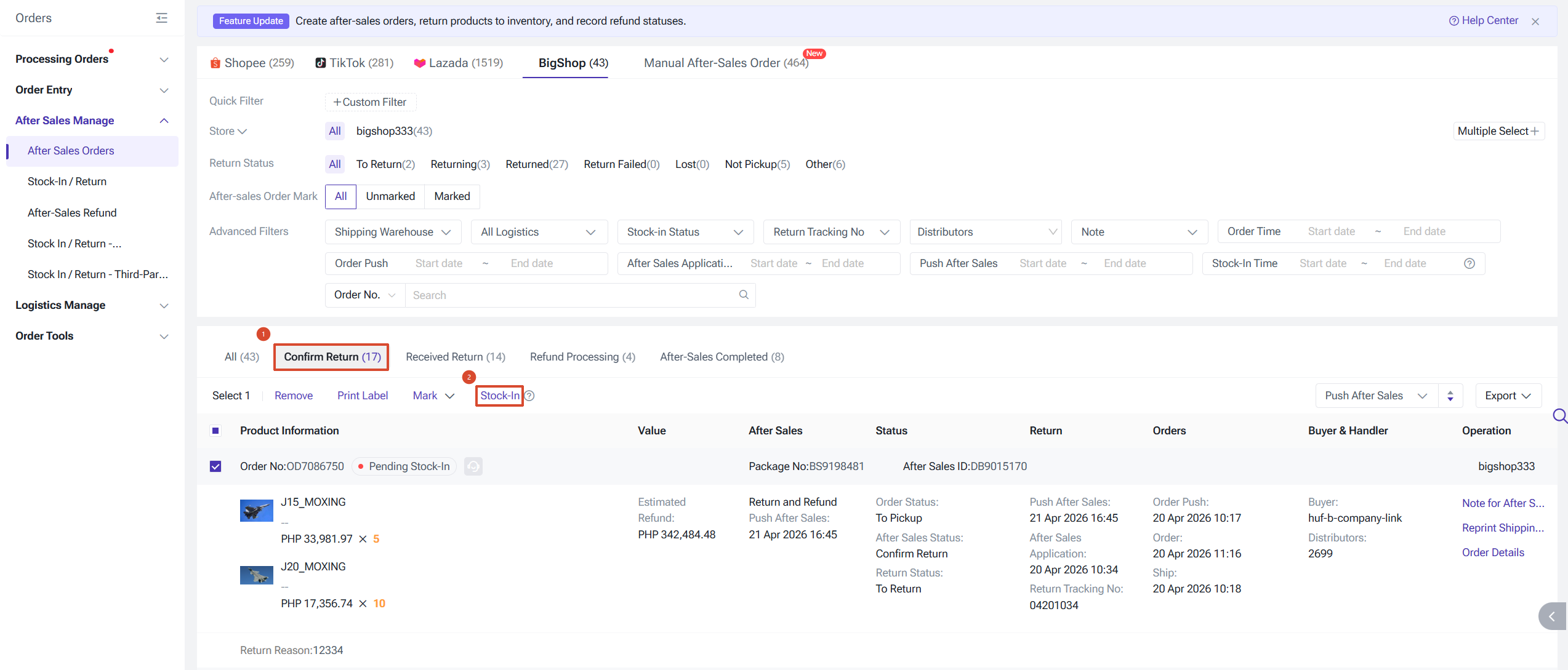
Alternatively, you can go to the After Sales Orders - Confirm Return list, select the after-sales order directly, and perform the stock-in operation. The system will automatically complete the return stock-in, and the order will move to the Received Return list. You can then create a refund order from there.
Notes:
1) Distribution after-sales orders cannot be moved to third-party warehouses.
2) The estimated refund amount is calculated as follows:
- Abnormal return order: Stock-out order amount – Distribution fee – Return handling fee
- Platform after-sales order: Unit price at shipment × Quantity – Return handling fee
- Manual after-sales order: Unit price at shipment × Quantity – Return handling fee
3. Creating a Refund
After the stock-in is completed, go to the Received Return page to create a refund order.
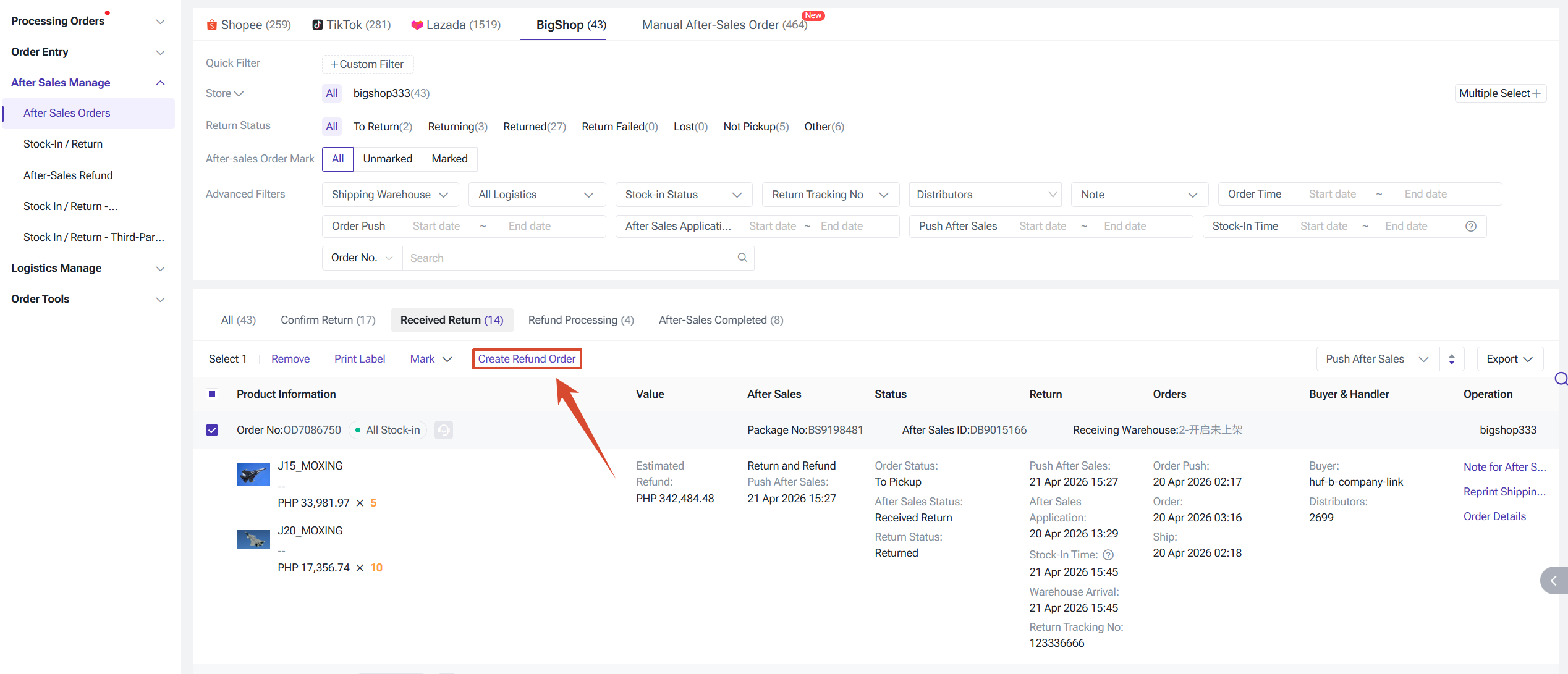
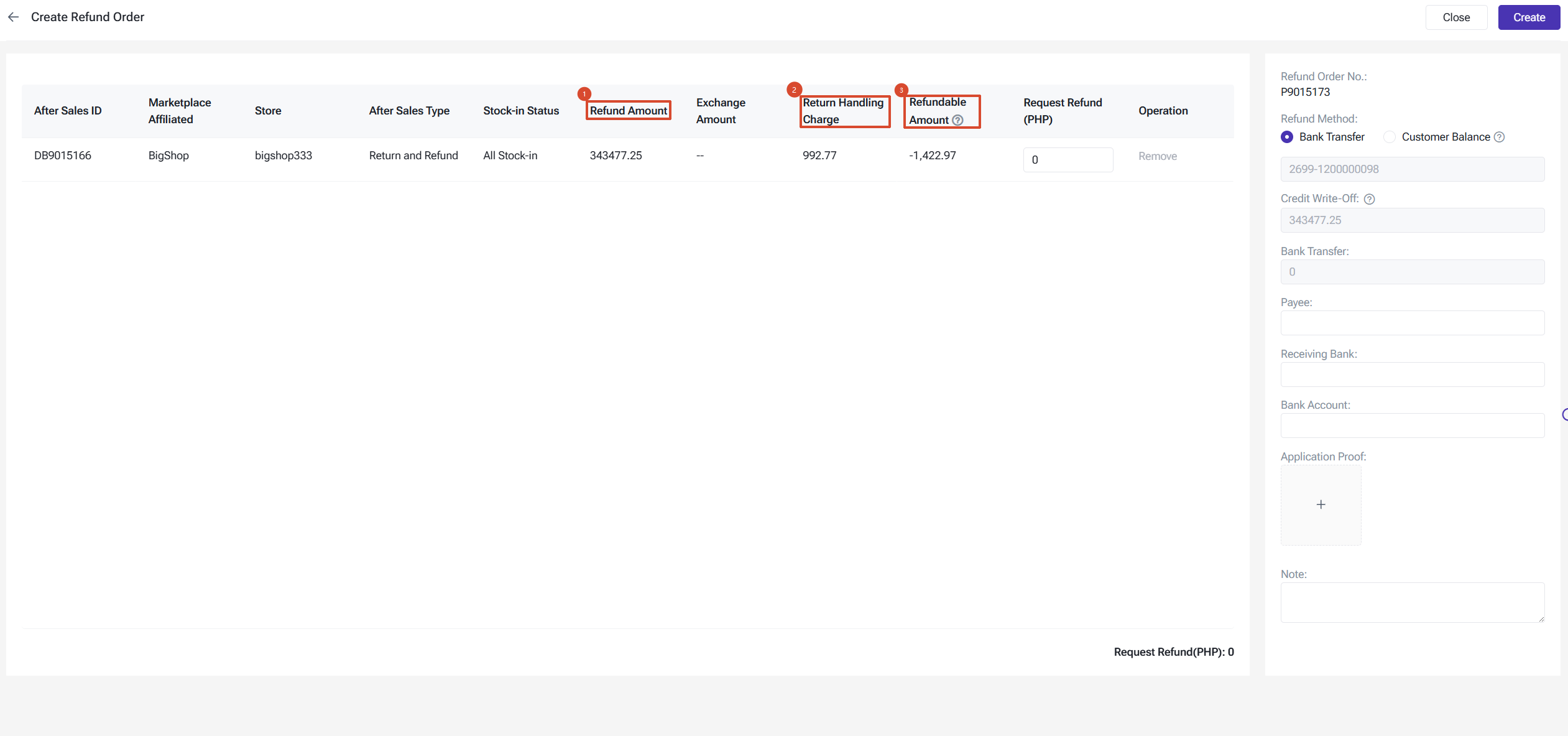
When creating a refund order, pay attention to the following three fields:
- Return Amount: Based on the unit price of the item at the time of the original shipment, not the cost price at the time of stock-in.
- Return Handling Fee: Sourced from the "Return Handling Fee Settings" (Distribution Charge Setting). This field is only shown on refund orders generated via BigShop.
- Refundable Amount = Return Amount – Unsettled amount on original order – Exchange amount – Return handling fee (Return handling fee deduction applies to BigShop only)
4. Completing the Refund
When choosing a refund method:
- Customer Balance: Once the refund order is created, the after-sales order is automatically marked as completed. And the amount will be refunded to the customer's account balance, which they can use toward their next purchase.
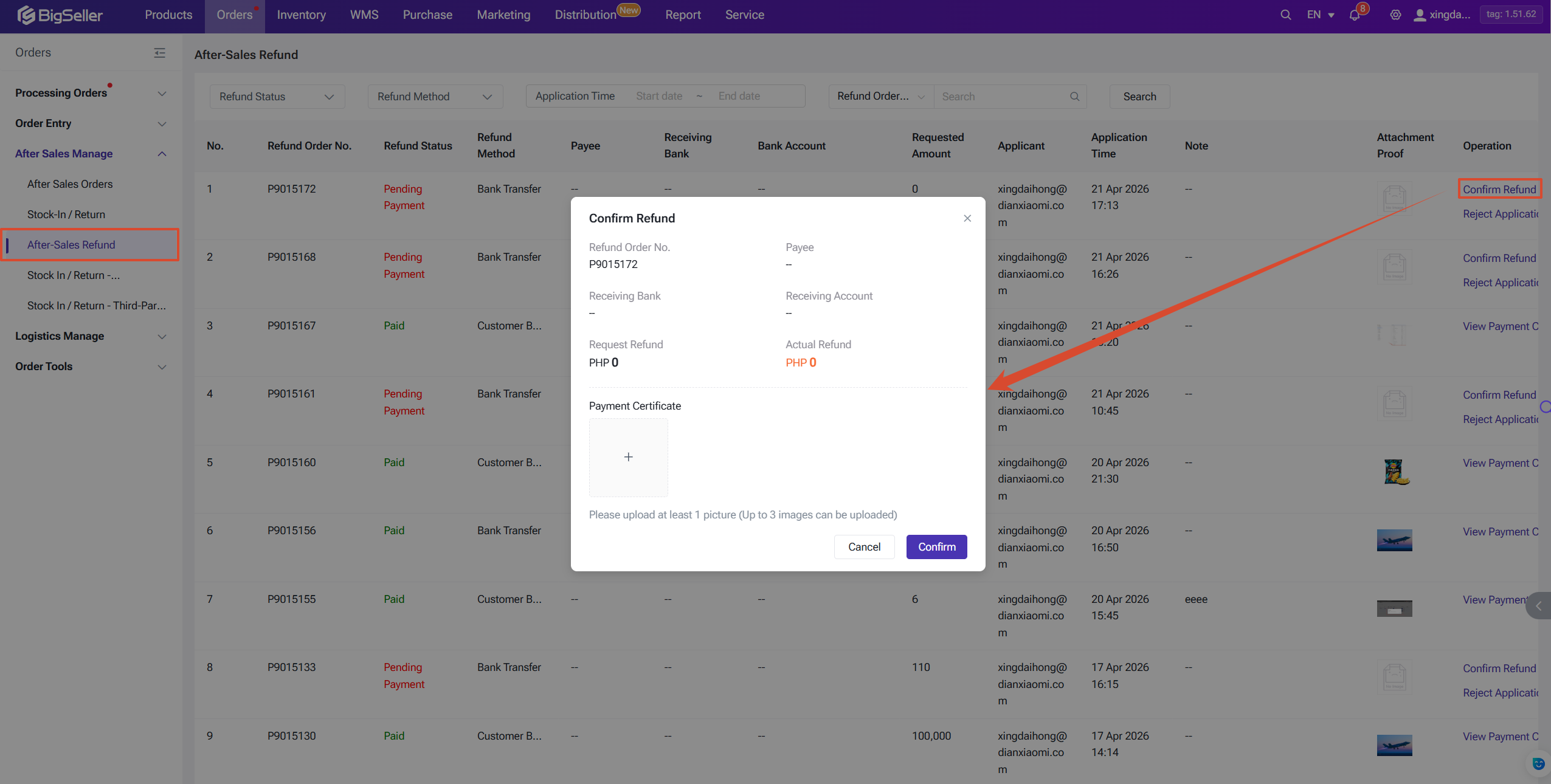
- Bank Transfer: Fill in the relevant bank details, then go to the After-Sales Refund page to confirm receipt and view payment proof.
Is this content helpful?
Thank you for your feedback. It drives us to provide better service.
Please contact us if the document can't answer your questions