Temporary Storage Shelf: What Is It & How to Use It
Copy link & title
Update Time: 02 Sep 2026 04:21
A Temporary Storage Shelf is an interim shelf for stock that has been received but not yet put away to an official shelf. This guide explains what it is and how to use it in BigSeller.
With a Temporary Shelf, you can:
In practice, a Temporary Shelf serves as the "waiting area" between receiving and put-away: received goods are stored here first, and moved to official shelves later when you are ready to arrange the put-away.
1. Number of Temporary Shelves
Temporary Shelves are automatically created by the system based on the warehouse type, as follows:
2. Temporary Shelf Management Rules
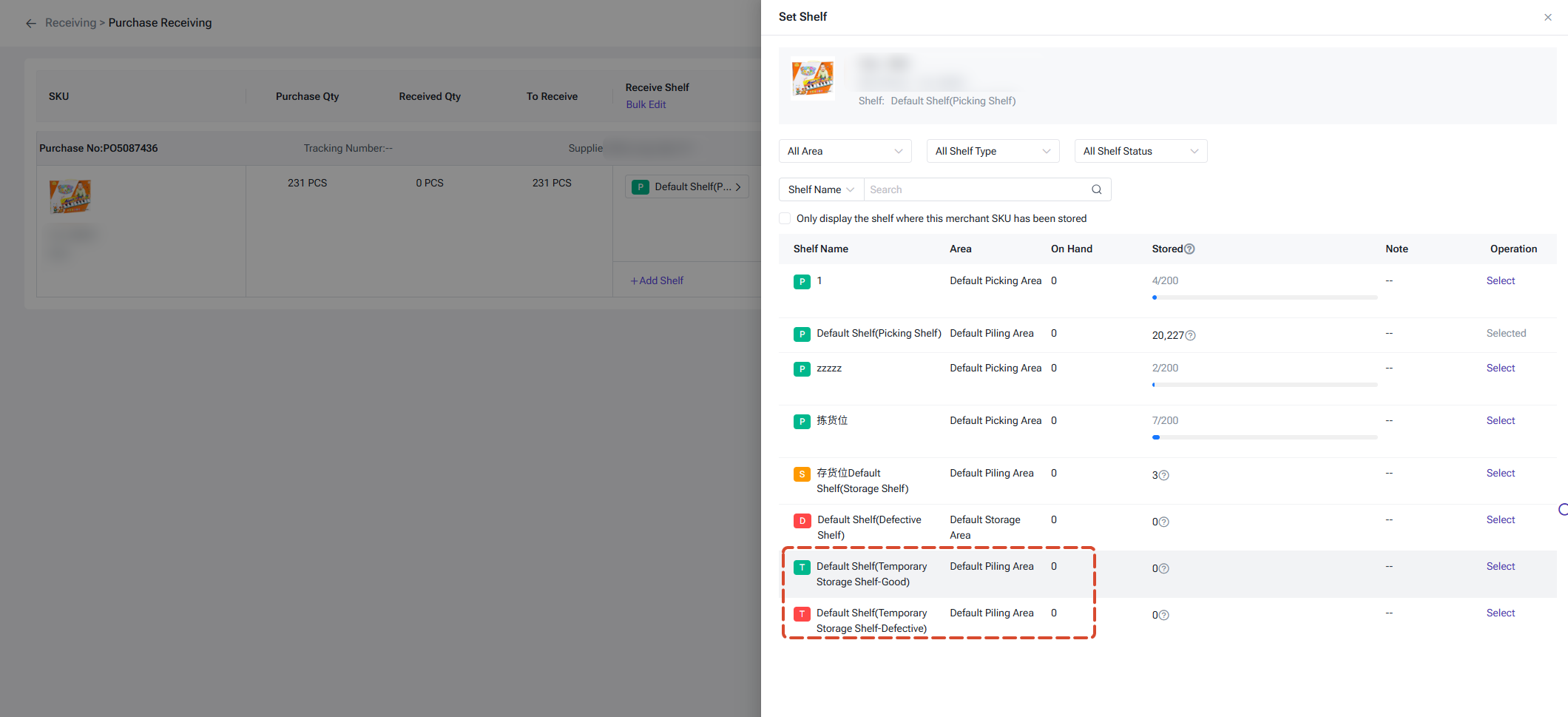
Step 1: During receiving/stock-in, select Temporary Shelf (e.g., Temporary Shelf (Good Products)) in the shelf-setting pop-up and confirm the stock-in;
Step 2: After stock-in succeeds, the stock is counted in the SKU's Whole Warehouse Unstored Inventory in that warehouse and can be stored for later processing;
Step 3: When ready, execute Store (this is to add SKU on official shelf) for the SKU in the Inventory List, select the official shelf to move into, and enter the quantity;
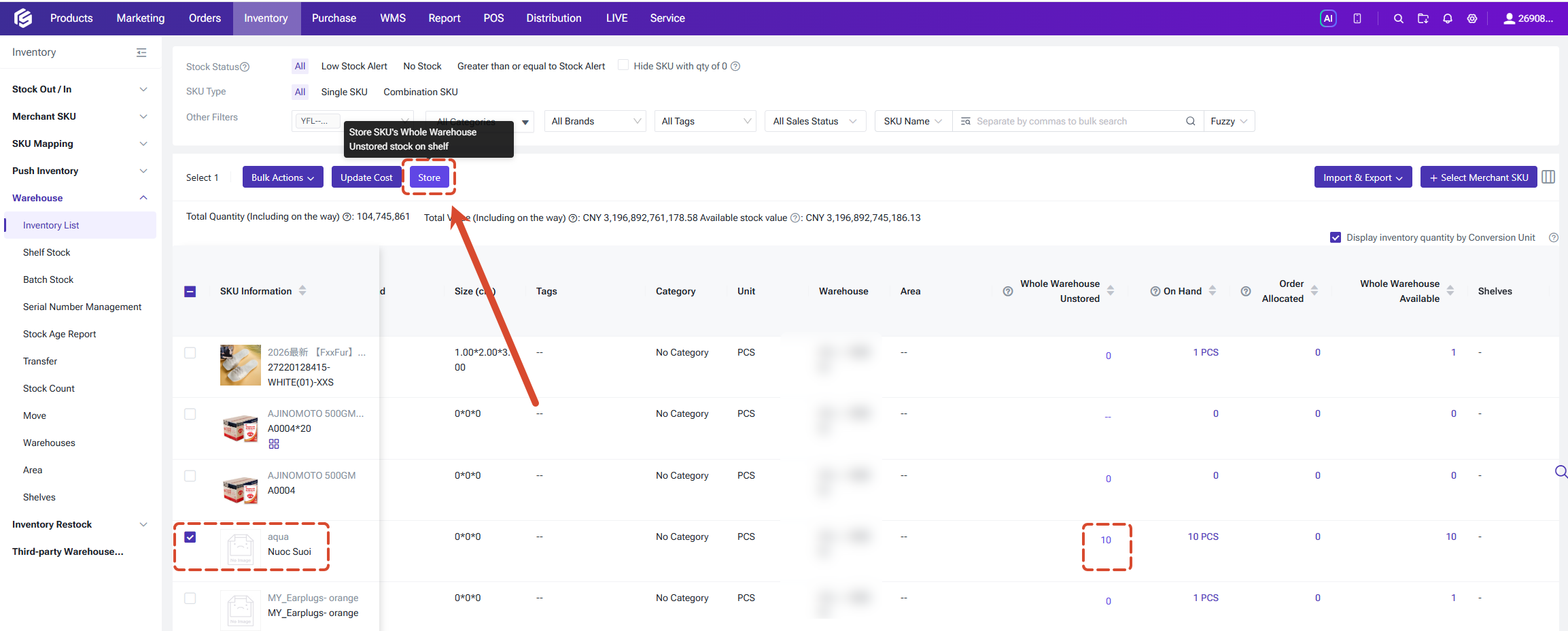
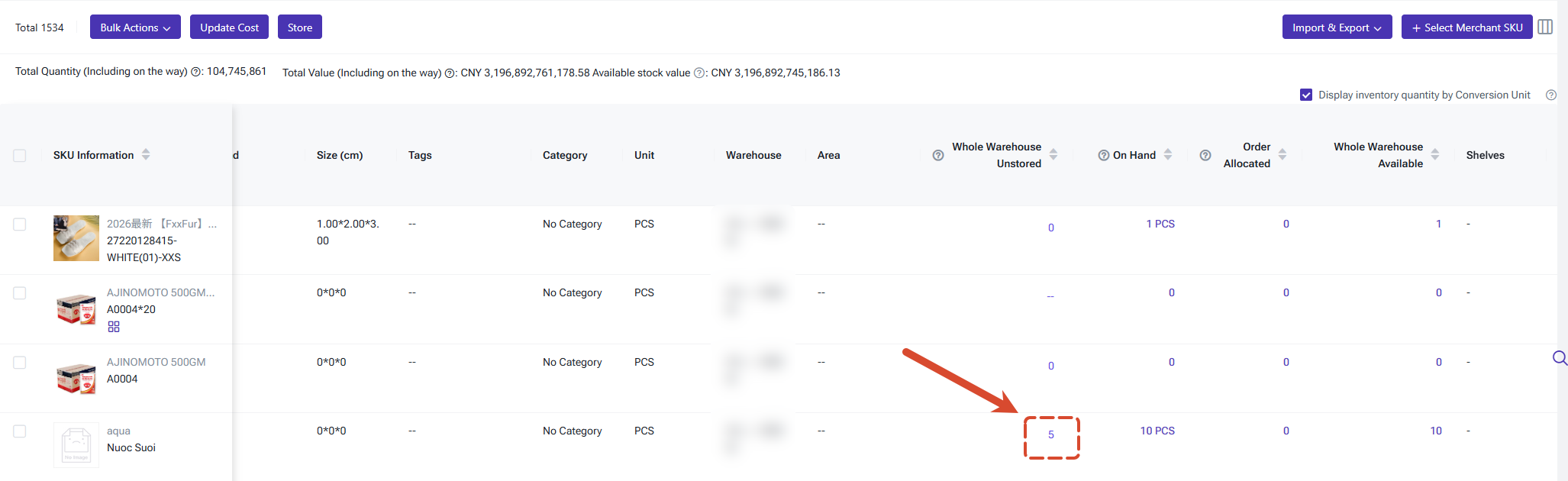
Step 4: After step 3 succeeds, the Whole Warehouse Unstored Inventory is deducted accordingly, the available stock on the official shelf increases, and the corresponding batch is generated.
Scenario 2: Daily Stock Movement / Shelf Change
Step 1: Open Shelf Change in the APP, and scan or select the source shelf, or directly scan the SKU (the two input fields have no order restriction);
Step 2: After scanning the SKU, the system automatically brings up the SKU's shelf information (switching is supported in 1 SKU Multiple Shelves warehouses);
Step 3: Enter the adjustment quantity, scan or select the new target shelf, and confirm to complete the Shelf Change.
Scenario 3: Let the System Recommend the Receiving Shelf
Step 1: Set the Shelf Recommendation strategy for the warehouse in the Warehouse List (configure Receiving/Stock-in and Stock-in Return separately);
Step 2: Once set, the recommended shelf is automatically brought up at the corresponding stock-in entry, taking effect on both PC and APP.
The following stock-in entries support stocking goods into a Temporary Shelf (when the warehouse is a 1 SKU 1 Shelf warehouse with Unstored Inventory Management enabled, or a 1 SKU Multiple Shelves Warehouse):
During stock-in, the Shelf Recommendation rules configured in the Warehouse List for Receiving/Stock-in and Stock-in Return take effect automatically; when setting the shelf, you can directly select a Temporary Shelf.
2. Inventory Change Logic
After stock-in to a Temporary Shelf, inventory changes as follows:
When Stock-in Return selects a Temporary Shelf:
💡 Note: To perform Store/On Shelf Successfully,
In the warehouse creation/edit page of the Warehouse List, set the Shelf Recommendation for the warehouse:
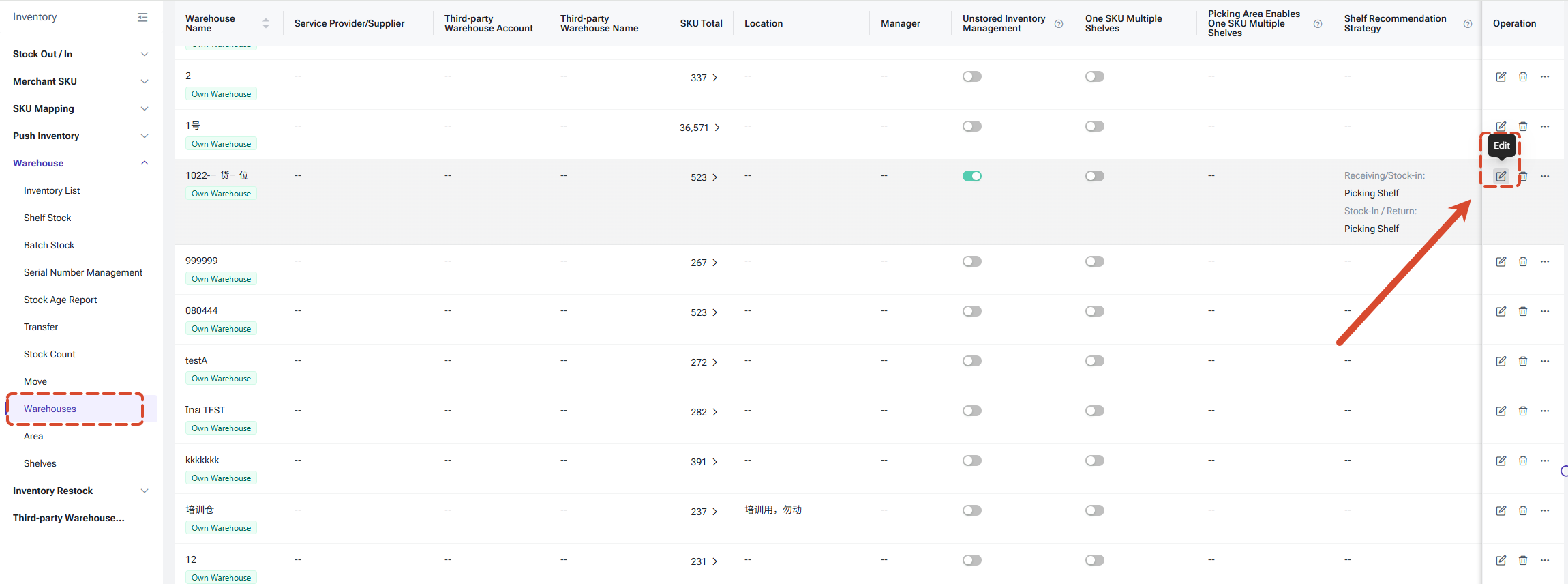
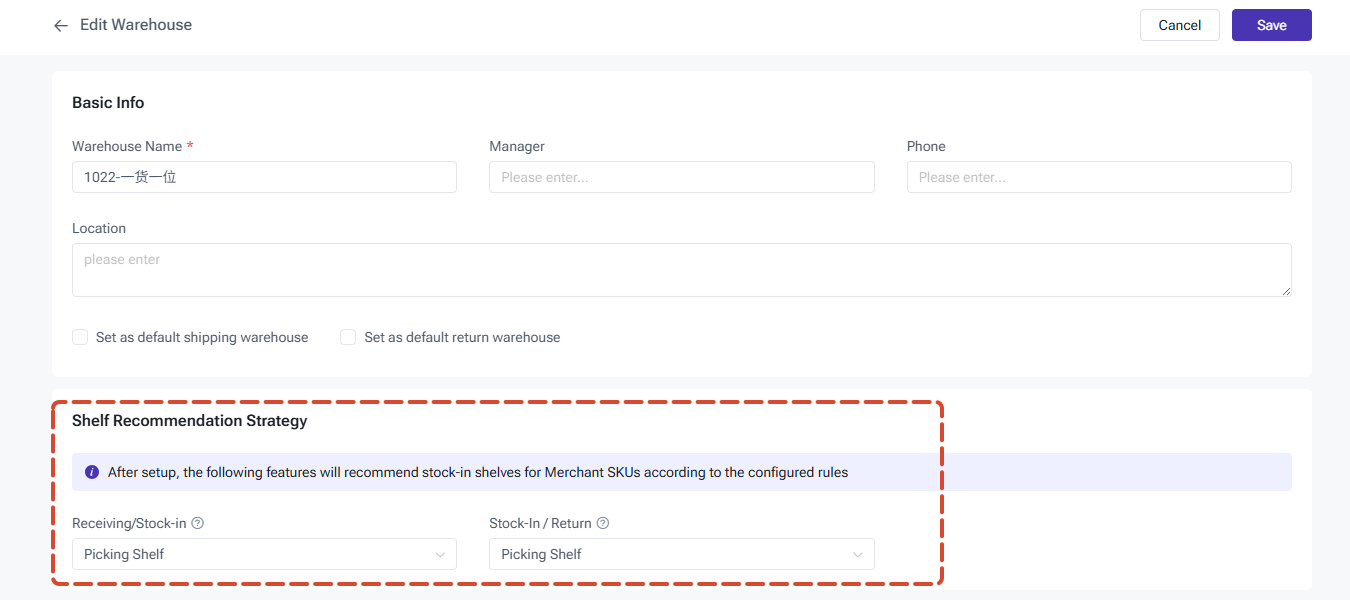
The settings take effect on both PC and APP synchronously, and each warehouse that needs the strategy must be configured separately.
1. Recommendation Options
With a Temporary Shelf, you can:
- Store received stock at receiving, tracked as Whole Warehouse Unstored Inventory;
- Put it away (by Store/On Shelf feature) to official shelves later so it becomes available for picking and shipping;
- Use the Shelf Recommendation Strategy to auto-fill shelves at stock-in;
- Move stock with the optimized Shelf Change flow in the APP.
What Is a Temporary Storage Shelf?
A Temporary Storage Shelf (or temporary shelf in short) is an interim shelf used to temporarily hold stock that has been received but not yet put away to an official shelf. It can be either a physical location or a virtual shelf without a physical location.In practice, a Temporary Shelf serves as the "waiting area" between receiving and put-away: received goods are stored here first, and moved to official shelves later when you are ready to arrange the put-away.
1. Number of Temporary Shelves
Temporary Shelves are automatically created by the system based on the warehouse type, as follows:
- 1 SKU 1 Shelf warehouse (Unstored Inventory Management enabled): supports only 1 Temporary Shelf; the system automatically creates 1 default Temporary Shelf;
- 1 SKU Multiple Shelves Warehouse: supports 2 Temporary Shelves, namely Temporary Shelf (Good Products) and Temporary Shelf (Defective Products); the system automatically creates 2 default Temporary Shelves.
2. Temporary Shelf Management Rules
- A Temporary Shelf filter is added to the shelf list for quick identification;
- The name of a Temporary Shelf can be modified;
- Temporary Shelves cannot be deleted or cleared ;
- Temporary Shelves do not participate in picking, stock-out, or other in-warehouse operations, and the shelf inventory page does not display their relationships.
How to Use It: Quick Start
Scenario 1: Store at Receiving, Then Store/Add on Shelf (Standard Flow)Step 1: During receiving/stock-in, select Temporary Shelf (e.g., Temporary Shelf (Good Products)) in the shelf-setting pop-up and confirm the stock-in;
Step 2: After stock-in succeeds, the stock is counted in the SKU's Whole Warehouse Unstored Inventory in that warehouse and can be stored for later processing;
Step 3: When ready, execute Store (this is to add SKU on official shelf) for the SKU in the Inventory List, select the official shelf to move into, and enter the quantity;
Step 4: After step 3 succeeds, the Whole Warehouse Unstored Inventory is deducted accordingly, the available stock on the official shelf increases, and the corresponding batch is generated.
Scenario 2: Daily Stock Movement / Shelf Change
Step 1: Open Shelf Change in the APP, and scan or select the source shelf, or directly scan the SKU (the two input fields have no order restriction);
Step 2: After scanning the SKU, the system automatically brings up the SKU's shelf information (switching is supported in 1 SKU Multiple Shelves warehouses);
Step 3: Enter the adjustment quantity, scan or select the new target shelf, and confirm to complete the Shelf Change.
Scenario 3: Let the System Recommend the Receiving Shelf
Step 1: Set the Shelf Recommendation strategy for the warehouse in the Warehouse List (configure Receiving/Stock-in and Stock-in Return separately);
Step 2: Once set, the recommended shelf is automatically brought up at the corresponding stock-in entry, taking effect on both PC and APP.
How to Store Received Stock on a Temporary Shelf
1. Applicable EntriesThe following stock-in entries support stocking goods into a Temporary Shelf (when the warehouse is a 1 SKU 1 Shelf warehouse with Unstored Inventory Management enabled, or a 1 SKU Multiple Shelves Warehouse):
- Manual Stock-in: by SKU, by order;
- Scan-to-Receive: Purchase Receiving, Transfer Receiving;
- Stock-in Return, Scan Stock-in, Manual After-sales Order - Confirm & Stock In.
During stock-in, the Shelf Recommendation rules configured in the Warehouse List for Receiving/Stock-in and Stock-in Return take effect automatically; when setting the shelf, you can directly select a Temporary Shelf.
2. Inventory Change Logic
After stock-in to a Temporary Shelf, inventory changes as follows:
- Stock-in to Temporary Shelf (Good Products): Whole Warehouse Unstored Inventory (Good) increases, and available and on-hand warehouse stock increase accordingly; no batch is created until Store (Add SKU on Shelf operations) succeeds;
- Stock-in to Temporary Shelf (Defective Products): Whole Warehouse Unstored Inventory (Defective) increases, defective stock and on-hand warehouse stock increase, while available warehouse stock remains unchanged; no batch is created until Store (Add SKU on Shelf operations) succeeds;
- A successful stock-in generates an Inventory Update Record (at the warehouse, SKU, and shelf level); no batch inventory update record is generated.
When Stock-in Return selects a Temporary Shelf:
- If the original batch cannot be found: the stock is handled as a new batch, and the batch is generated at put-away;
- If the original batch is found: the originally deducted quantity is recorded in the Whole Warehouse Unstored Inventory under the original batch and restores the original batch's stock after Store (Add SKU on Shelf operations); the excess quantity is handled as a new batch.
How to Store/Add On Shelf Stock to Official Shelves
Store/On Shelf is the operation of moving Whole Warehouse Unstored Inventory to official shelves (Picking Shelf, Storage Shelf, etc.). Only after Store/On Shelf can the stock participate in picking, stock-out, and other downstream operations.- PC: a Store function is added to the Inventory List, supporting single and bulk operations;
- APP: a To Be On Shelf List is added to On Shelf page, centrally displaying the SKUs to be put on shelf (SKU name, code, pending quantity, warehouse, etc.) for easy review and item-by-item processing.
💡 Note: To perform Store/On Shelf Successfully,
- The SKU's Whole Warehouse Unstored Inventory must be greater than 0;
- The target shelf must exist in the current warehouse
- The SKU must not be under stock counting
- If the target shelf already holds 200 SKU types and does not contain the current SKU, the shelf must be cleared first
- In 1 SKU 1 Shelf and Picking Shelf 1 SKU 1 Shelf warehouses: if the SKU's currently associated picking shelf has on-hand stock greater than 0, the stock can only be put away to the original associated picking shelf; when the original picking shelf's stock is 0, a new shelf can be selected
- The quantity moved in cannot exceed the Whole Warehouse Unstored Inventory
How to Set the Shelf Recommendation Strategy
To reduce shelf selection during stock-in, you can set a Shelf Recommendation strategy at the warehouse level, and the system automatically brings up the recommended shelf at the corresponding stock-in entry.In the warehouse creation/edit page of the Warehouse List, set the Shelf Recommendation for the warehouse:
- Receiving/Stock-in recommendation: applies to Manual Stock-in, Scan-to-Receive, Purchase Receiving, and Transfer Receiving;
- Stock-in Return recommendation: applies to Stock-in Return, Scan Stock-in, and Manual After-sales Order - Confirm & Stock In.
The settings take effect on both PC and APP synchronously, and each warehouse that needs the strategy must be configured separately.
1. Recommendation Options
- No Shelf Specified: the shelf is automatically determined by the original rules;
- Storage Shelf: the first Storage Shelf by shelf-name order for the SKU; otherwise, the default Storage Shelf;
- Picking Shelf: the first Picking Shelf by shelf-name order for the SKU; otherwise, the default Picking Shelf;
- Temporary Shelf (Good Products): use the Temporary Shelf (Good Products);
- Temporary Shelf (Defective Products): use the Temporary Shelf (Defective Products).
- When this feature goes live, the Shelf Recommendation strategy for existing warehouses is initialized automatically:
- Warehouses with Unstored Inventory Management enabled: both Receiving/Stock-in and Stock-in Return default to Picking Shelf;
- 1 SKU Multiple Shelves warehouses: both Receiving/Stock-in and Stock-in Return default to No Shelf Specified.
Optimizations on Shelf Change (APP)
Shelf Change is used for daily stock movement, shelf arrangement, and on-site error correction. The operation flow has been optimized as follows:- No scanning order restriction: upon entering the page, you can scan the source shelf first or the SKU first; the two input fields have no order restriction, and scanning the original shelf first is no longer mandatory;
- Automatic shelf display: after scanning the SKU, the system automatically brings up the SKU's shelf information and supports switching;
- Multi-shelf switching: in 1 SKU Multiple Shelves warehouses, when the list contains only 1 SKU and that SKU has more than one shelf relationship, scanning the SKU pops up the SKU's other shelf information so you can directly switch the source shelf for this adjustment without interrupting the entered SKU list;
- Scan order setting: you can set the default focused input field when entering the page (scan shelf first then SKU, or scan SKU first then shelf).
Where Temporary Shelves Cannot Be Used
Temporary Shelves are used only for temporary storage after receiving and do not participate in regular in-warehouse operations. In the following scenarios, the system filters out Temporary Shelves or blocks operations:- When setting shelves in the Inventory List or Shelf Inventory (selecting a new shelf), Temporary Shelves are not selectable;
- Temporary Shelves are not selectable in stock-out and in-warehouse operations such as Manual Stock-out, Transfer, Stock Move, and Restock Storage
- Stockcount tasks (by SKU, by shelf, by warehouse) automatically filter out Temporary Shelves;
- When importing relevant documents on PC/APP, filling in a Temporary Shelf is blocked;
- When scanning shelves in APP Manual Stockxount or scanning shelves in Shelf Change, scanning a Temporary Shelf is not allowed
- The SKU details in Inventory Query do not display Temporary Shelf data.
- To make the stock on a Temporary Shelf available, execute Store/On Shelf first to move it to an official shelf.
Is this content helpful?
Thank you for your feedback. It drives us to provide better service.
Please contact us if the document can't answer your questions