How to Manage Virtual Products on BigSeller?
Copy link & title
Update Time: 20 Jul 2026 10:52
A Virtual Product refers to a product that does not require physical inventory management or shipping, such as e-books, software activation codes, services, or courses.
By setting up Virtual Products in BigSeller, you can filter them during the order fulfillment process to calculate your package types more accurately and streamline your warehouse operations.
Important Notes
1. Virtual products currently is a whitelist-only feature. Please contact BigSeller Customer Service to enable it for your account.
2. Once the whitelist is enabled, all your existing Merchant SKUs will be recorded as physical SKUs by default.
3. Moreover, when creating or generating Merchant SKUs via the following methods, the system will automatically classify them as physical products:
By setting up Virtual Products in BigSeller, you can filter them during the order fulfillment process to calculate your package types more accurately and streamline your warehouse operations.
Important Notes
1. Virtual products currently is a whitelist-only feature. Please contact BigSeller Customer Service to enable it for your account.
2. Once the whitelist is enabled, all your existing Merchant SKUs will be recorded as physical SKUs by default.
3. Moreover, when creating or generating Merchant SKUs via the following methods, the system will automatically classify them as physical products:
- Generating Merchant SKUs based on Store SKUs.
- Inventory Settings > Automatically Create Merchant SKU.
- Creating Merchant SKUs via Excel Import.
- Generating Merchant SKUs from 3rd-Party Warehouse distribution products.
- Distribution > Add/Claim Merchant SKU.
How to Create a Virtual Product?
Step 1: Navigate to the Merchant SKU Page
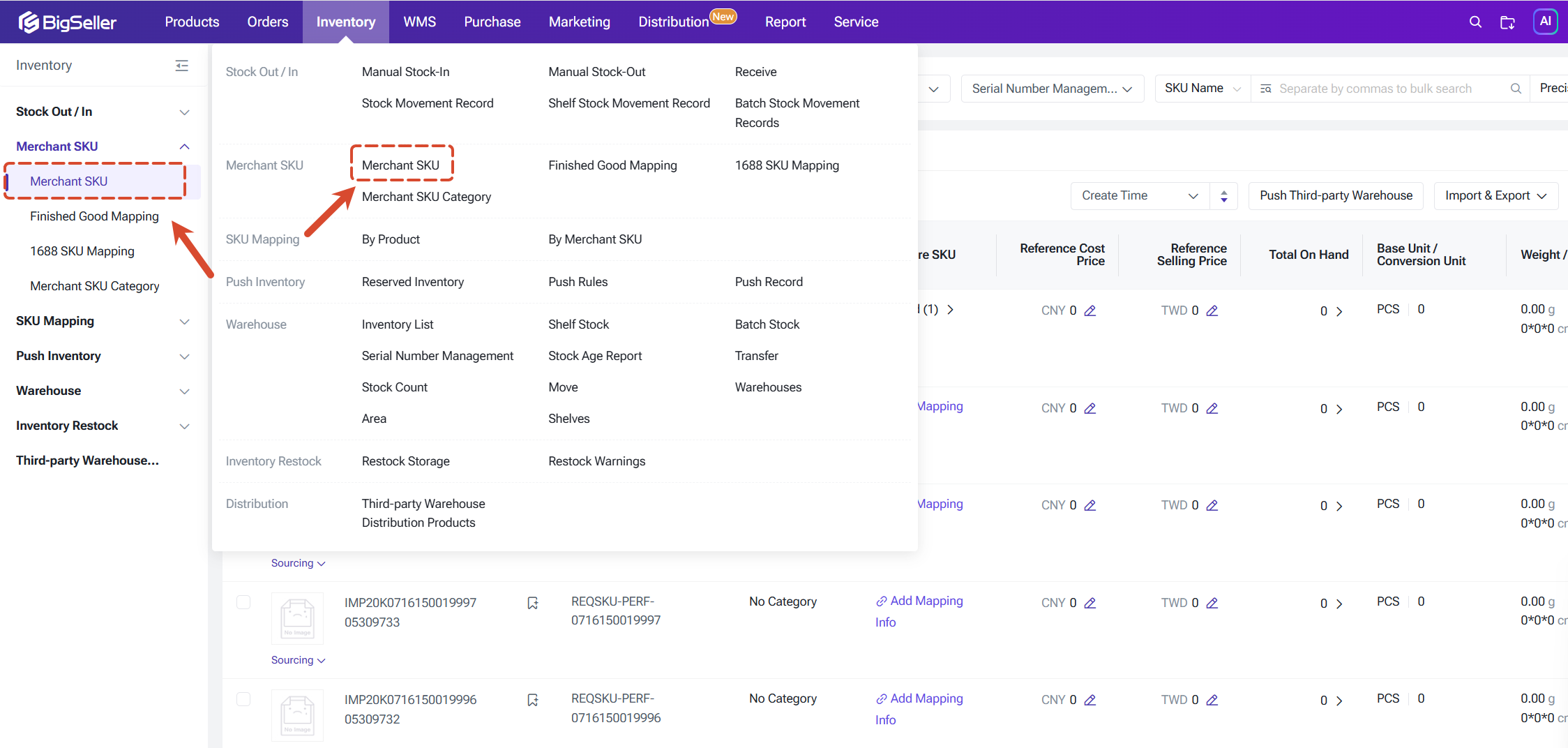
Go to Inventory > Merchant SKU.
Step 2: Add a Merchant SKU
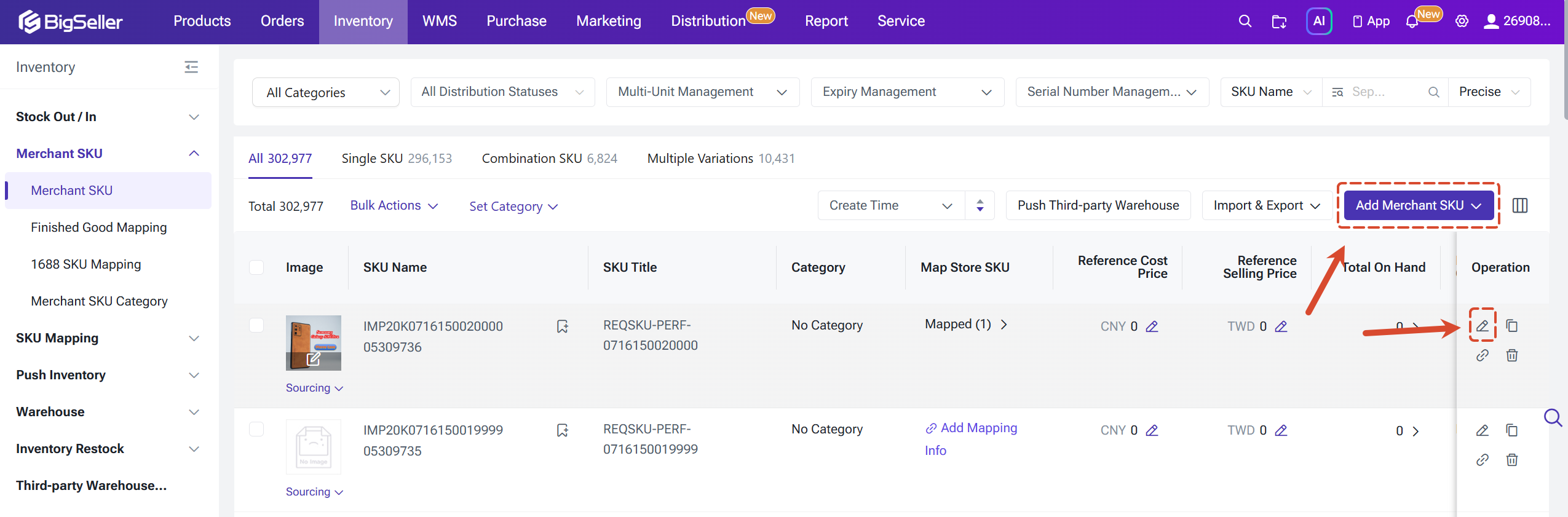
To create a new one: Click + Add SKU.
Step 3: Select SKU Type
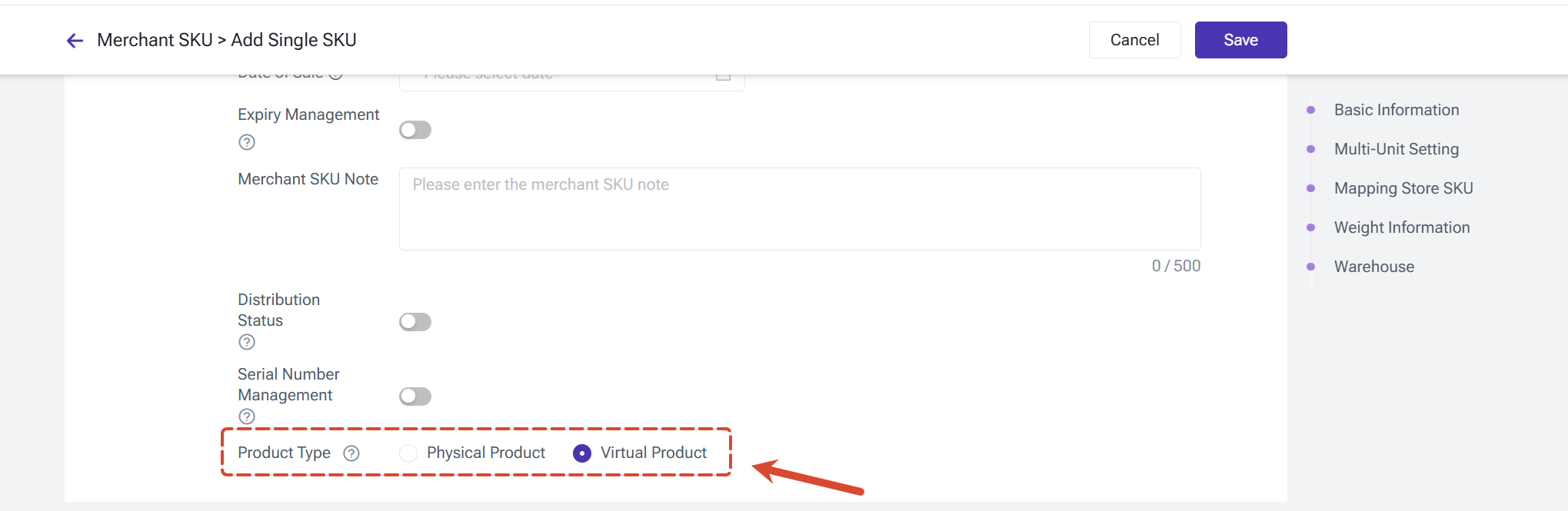
In the basic information section, locate the SKU Type field and select Virtual Product. Fill in the remaining required details and click Save.
Go to Inventory > Merchant SKU.
Step 2: Add a Merchant SKU
To create a new one: Click + Add SKU.
Step 3: Select SKU Type
In the basic information section, locate the SKU Type field and select Virtual Product. Fill in the remaining required details and click Save.
Order Processing
1. Packing Orders
When an order contains only Virtual Products, it will automatically move to the "Shipped" list after being packed.
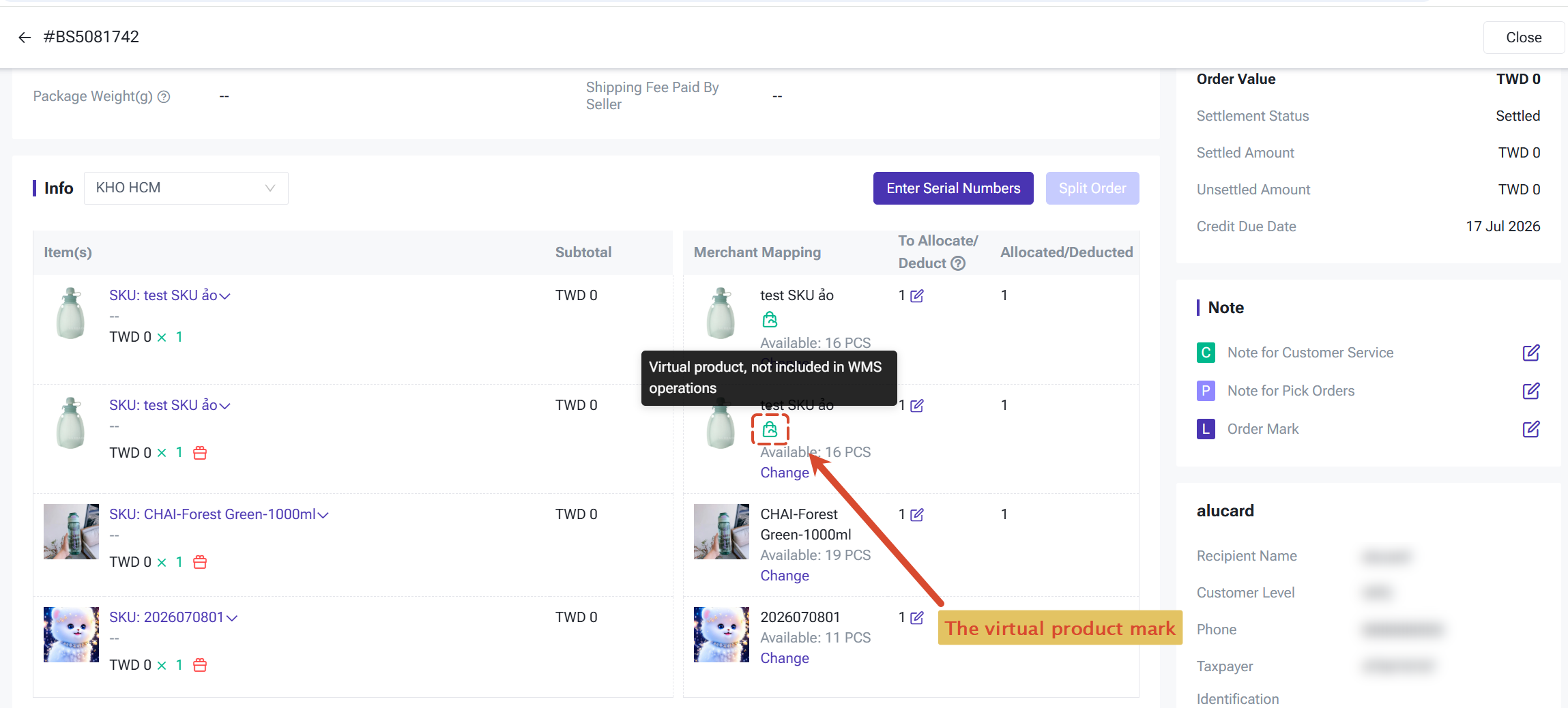
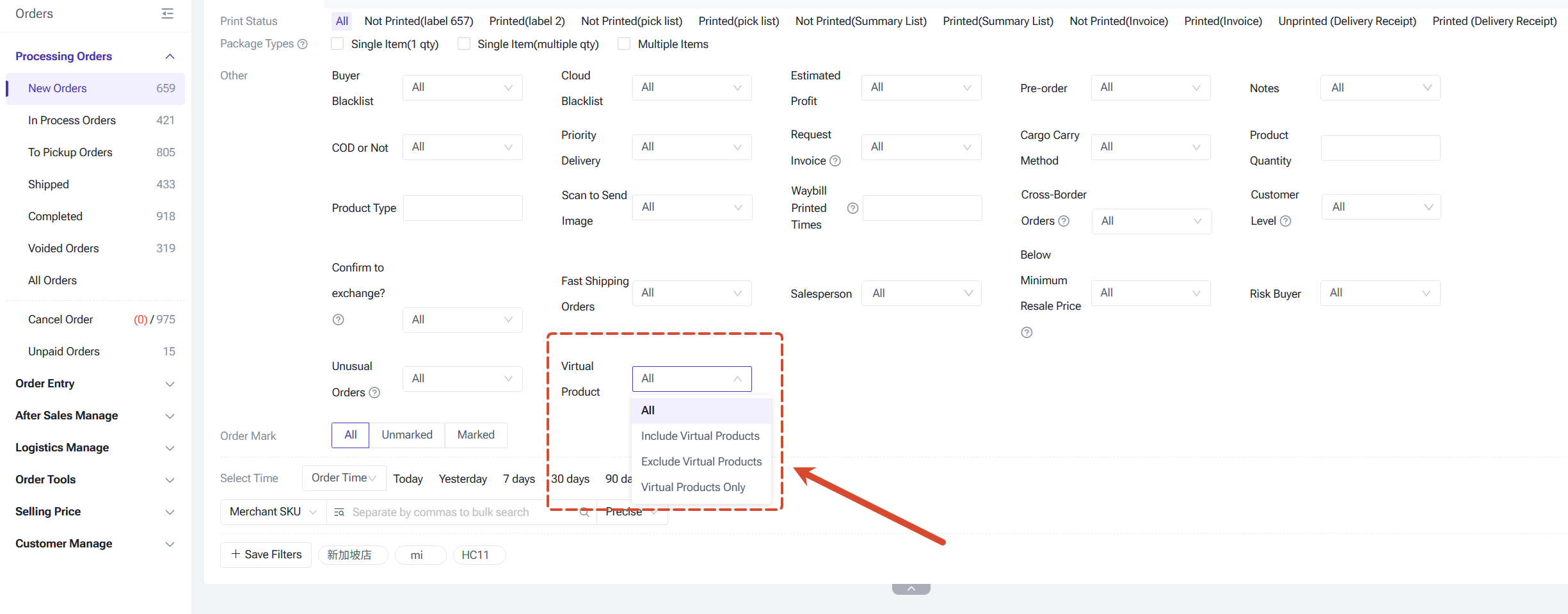
Virtual Products can also be filtered in New Orders & In Processing Orders lists
2. In Processing Orders
When an order contains only Virtual Products, it will automatically move to the "Shipped" list after being packed.
Virtual Products can also be filtered in New Orders & In Processing Orders lists
2. In Processing Orders
- All types of printable documents in the order list will display Virtual Products. When an order is shipped, the inventory for the Virtual Merchant SKU will be deducted normally.
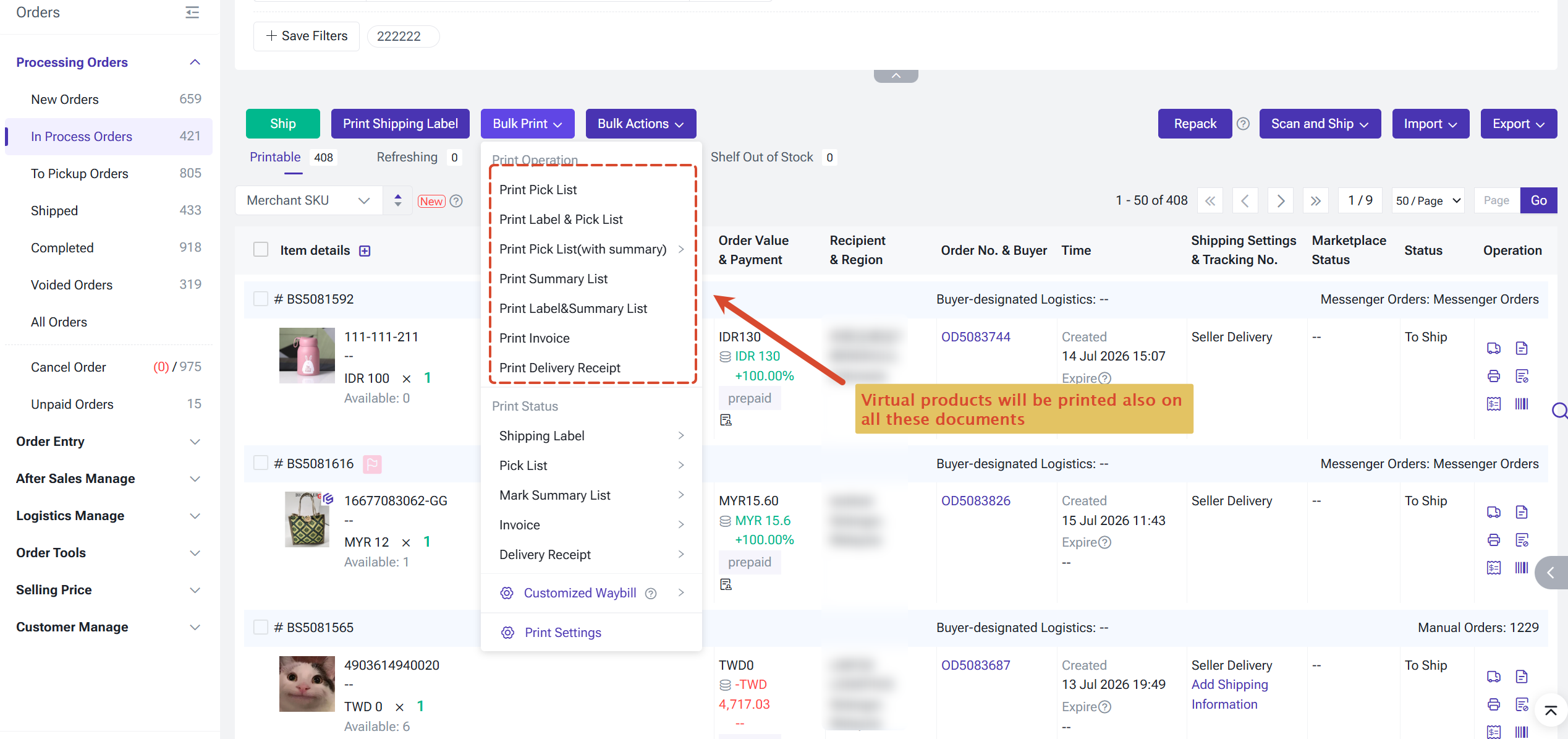
- When an order contains Virtual Products, the system will filter out and hide the Virtual Products during the Scan to Inspect process.
- Virtua Products will also not participate in the Wave process. Therefore, printing Pick Lists or Summary Lists within a Wave will not display Virtual Products, but printing Shipping Labels within a Wave will still display Virtual Products.
Package Types
When an order is synced to BigSeller, the system will automatically detect the product types within the order and handle them based on the scenarios below:
1. When the order contains ONLY Virtual Products
The system will identify the package type based on the quantity and variety of the Virtual Products:
1. When the order contains ONLY Virtual Products
The system will identify the package type based on the quantity and variety of the Virtual Products:
- Example 1: The order contains Virtual Merchant SKU - A * 1. The package type will be classified as Single Item & Single Quantity.
- Example 2: The order contains Virtual Merchant SKU - A * 2. The package type will be classified as Single Item & Multiple Quantity.
- Example 3: The order contains Virtual Merchant SKU - A * 1 + B * 1. The package type will be classified as Multiple Items.
2. When the order contains BOTH Virtual and Physical Products
The system will filter out (exclude) the Virtual Products first, and then calculate the package type based solely on the remaining physical products.
The system will filter out (exclude) the Virtual Products first, and then calculate the package type based solely on the remaining physical products.
- Example: A package contains A * 1 and B * 1, where Product B is a Virtual Product. The system will filter out Product B, leaving only A * 1. Therefore, the package type will be calculated as Single Item & Single Quantity.
Is this content helpful?
Thank you for your feedback. It drives us to provide better service.
Please contact us if the document can't answer your questions