How to Manage Defective Product Inventory in BigSeller?
Update Time: 28 May 2026 12:06
BigSeller's inventory feature has been updated to support independent management of good product and defective product inventory within a warehouse.
By introducing a new Defective Shelf type, sellable items are strictly separated from unsellable items — such as damaged goods, returns, and items that failed quality inspection — eliminating the risk of accidentally shipping defective products and enabling more refined, standardized warehouse operations.
Before getting started, please familiarize yourself with the following terms:
- Good Products: Items that are in good condition, fully functional, and meet sales standards. These correspond to the current Available Stock in the system.
- Defective Products: Items with physical damage, functional failures, severely damaged packaging, or those that have exceeded warranty or expiration limits. Defective product inventory is excluded from order stock allocation, completely eliminating the risk of accidental shipment.
- Defective Shelf: A newly introduced shelf type. Once a SKU is stored in a Defective Shelf, that portion of inventory is automatically recognized as defective stock. When moved out, it automatically reverts to good product inventory. The One SKU Multiple Shelves feature is supported.
Note: The warehouse must have One SKU Multiple Shelves enabled before defective product inventory management can be used.
Once One SKU Multiple Shelves is enabled, the system automatically creates a default defective shelf — Default Shelf (Defective Shelf) — under the Default Storage Area, which is ready to use immediately. Warehouses that previously had One SKU Multiple Shelves enabled will have this default shelf retroactively created.
Once quality management is enabled, inventory is calculated as follows:
- Whole Warehouse Available = On Hand Stock - Allocated - Defective Stock - Promotion Reserved
- On Hand Stock = Whole Warehouse Available + Allocated + Defective Stock + Promotion Reserved
Any changes to defective stock (e.g. shelf movements) will automatically trigger an inventory refresh and inventory push.
Step-by-Step Instructions
1. Creating a Defective Shelf
- Single creation: Select Defective Shelf from the shelf type dropdown.
- Import to create: Enter "Defective Shelf" in the Shelf Type column of the import template.
- Import to update: Modifying the shelf type of an existing shelf is not supported; the shelf type will remain unchanged after the update.
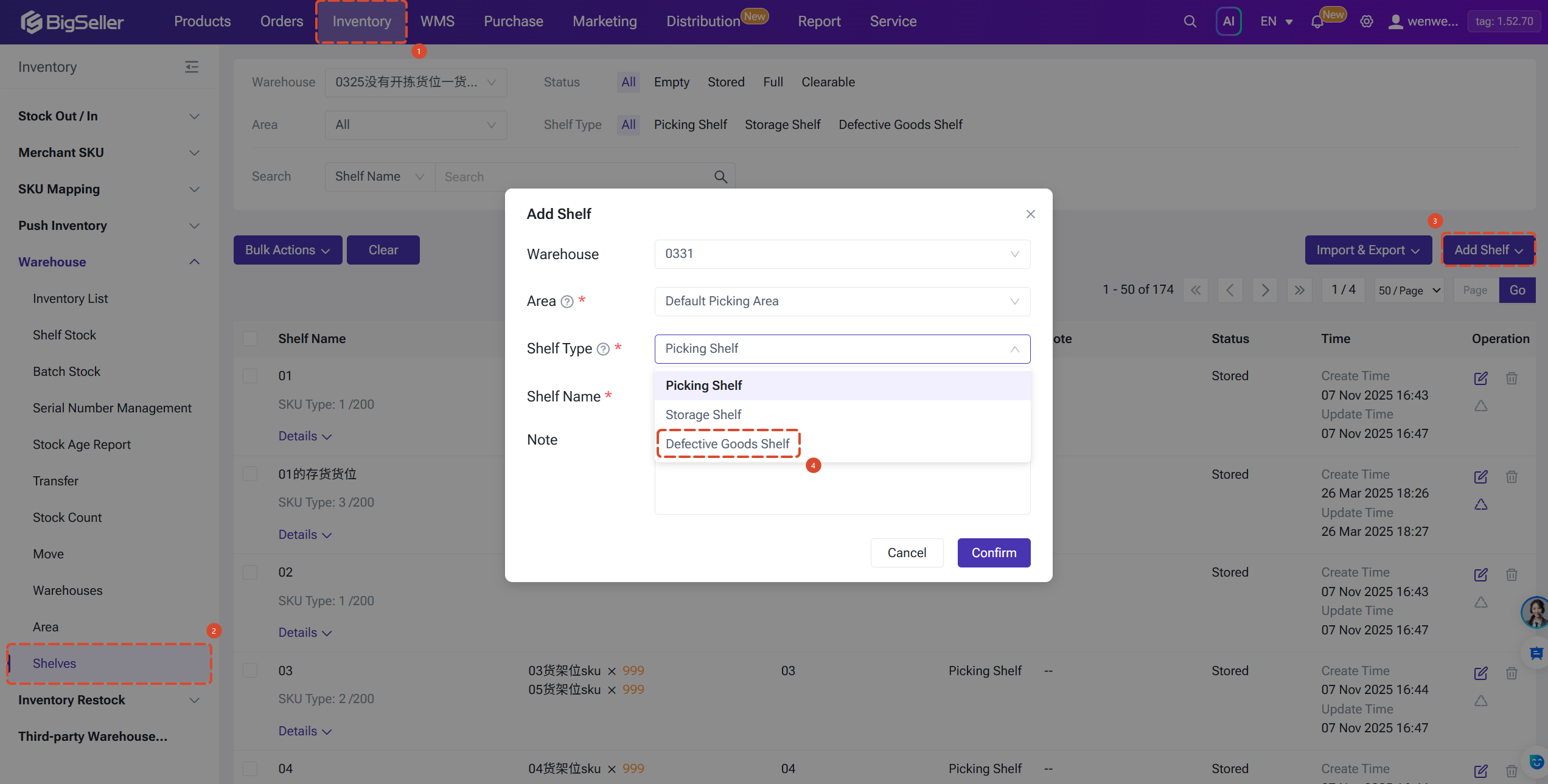
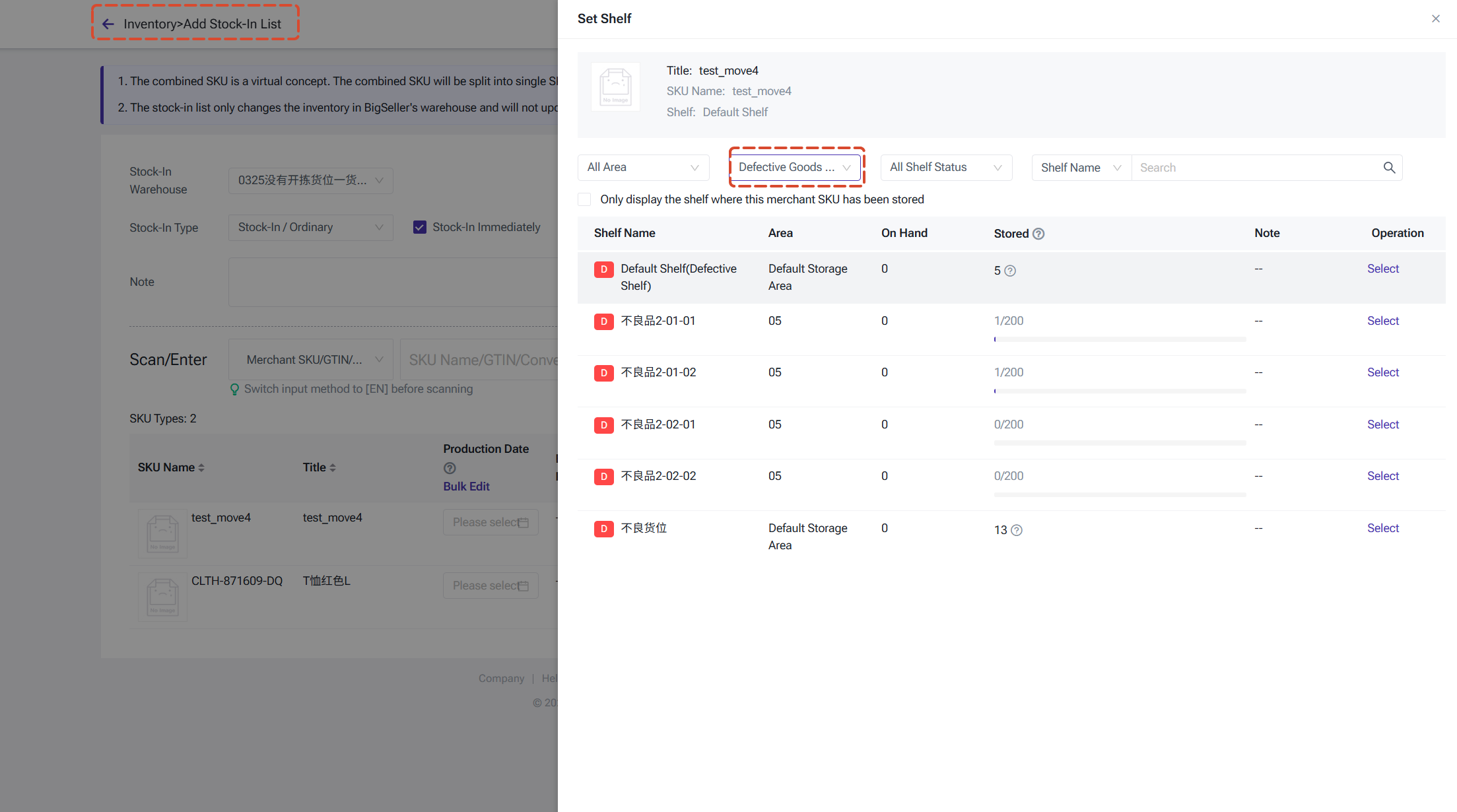
2. Stock In to a Defective Shelf
- Manual Stock-In
- Scan to Receive, Purchase Receiving, Transfer Receiving
- Stock-In / Return, Scan to Stock-In
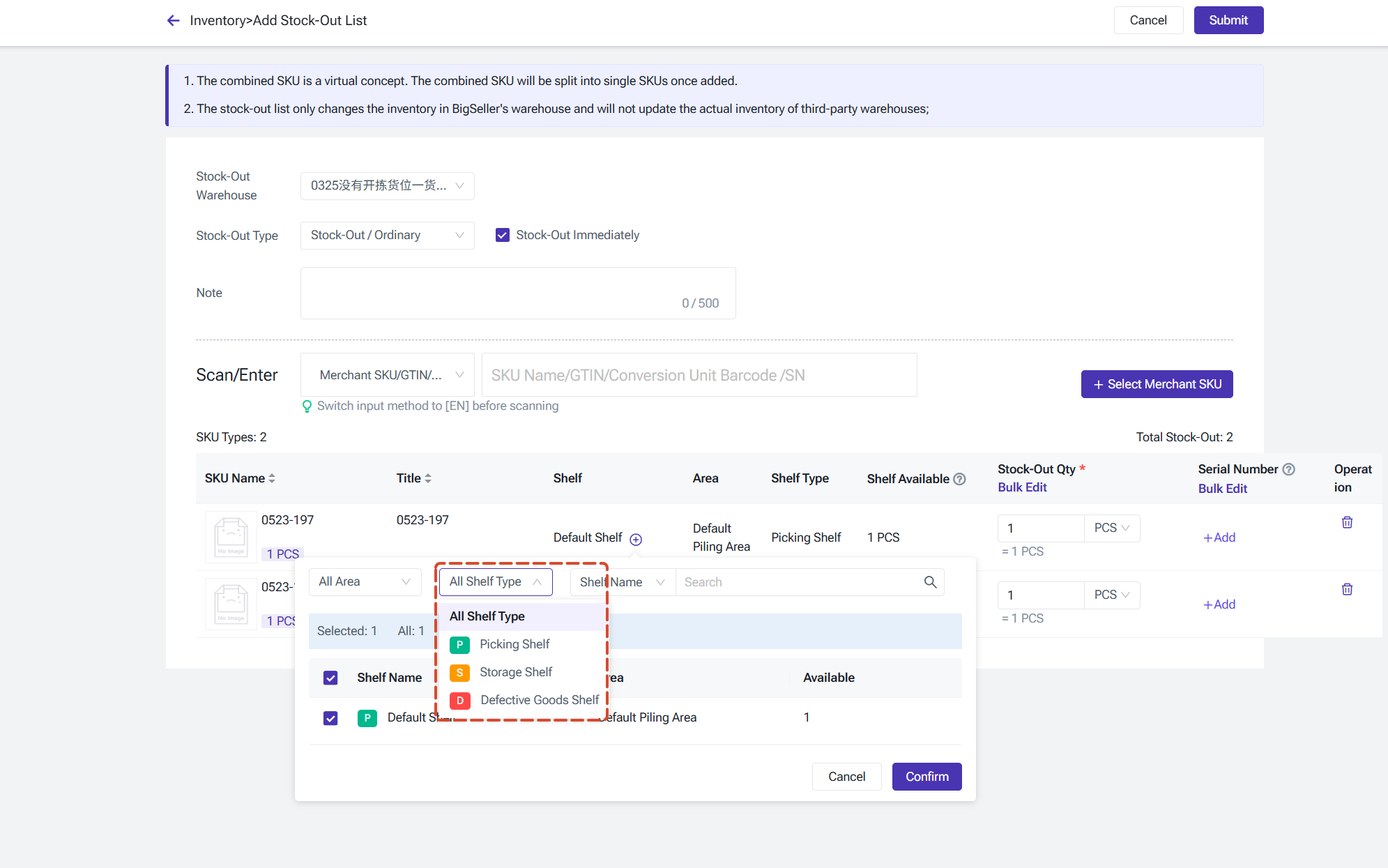
3. Stock Out from a Defective Shelf
Note: Stock-Out / Sales uses good product inventory only. Defective Shelf inventory does not participate in order allocation or deduction.
4. Converting Between Good and Defective Stock
- Defective to Good: Move the SKU from a Defective Shelf to a Picking Shelf or Storage Shelf. The inventory automatically converts to available stock.
- Good to Defective: Move the SKU from a Picking Shelf or Storage Shelf to a Defective Shelf. The inventory automatically converts to defective stock.
Navigation path: Inventory > Move List (PC) / Move on APP
5. Viewing Defective Stock
- Defective Stock: The defective quantity for that SKU in the current warehouse.
- Total Defective Cost: The cost amount corresponding to the defective stock.
- Whole Warehouse Unstored Details: Expandable to view unshelved quantities for both good and defective products.
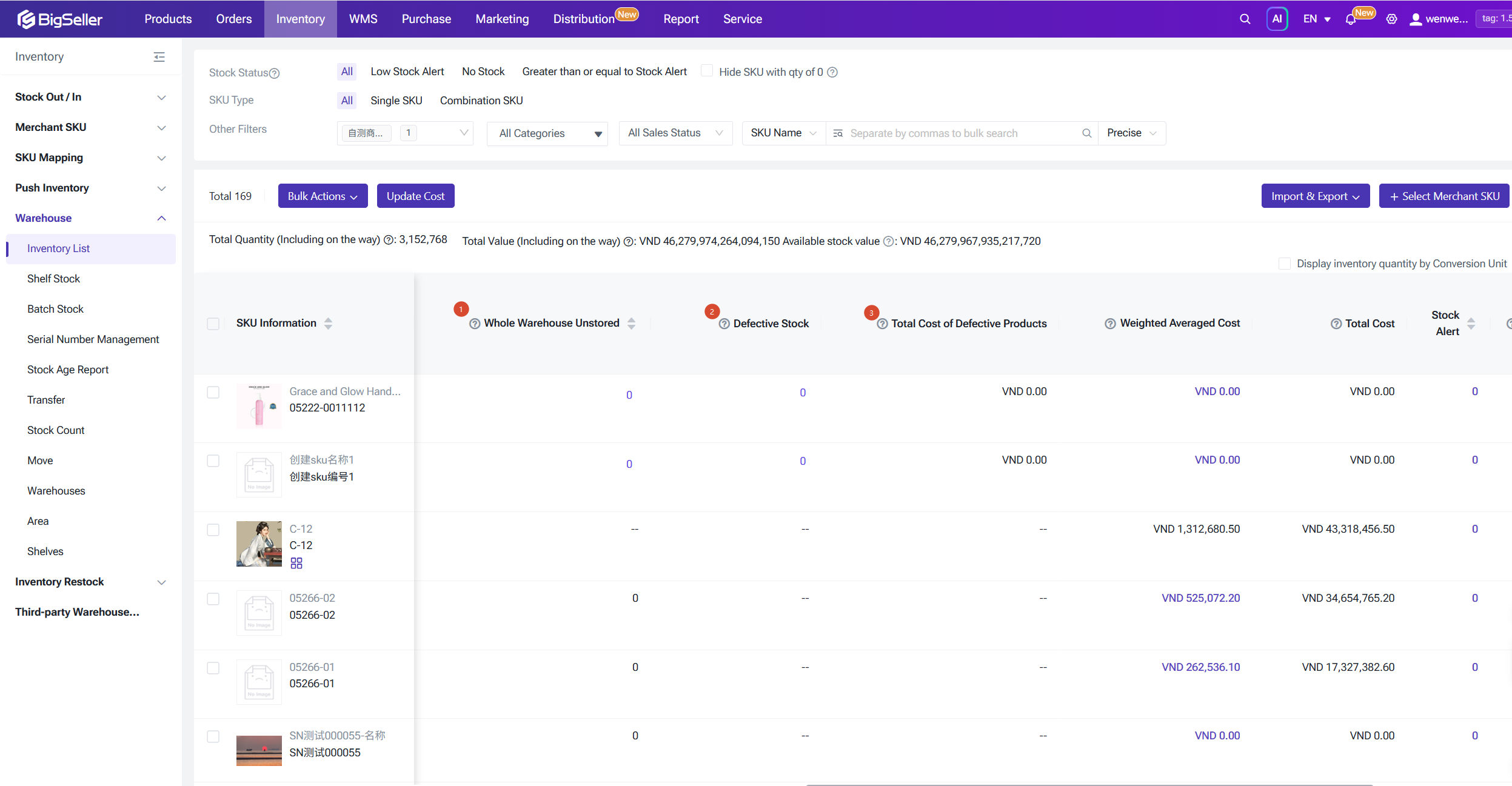
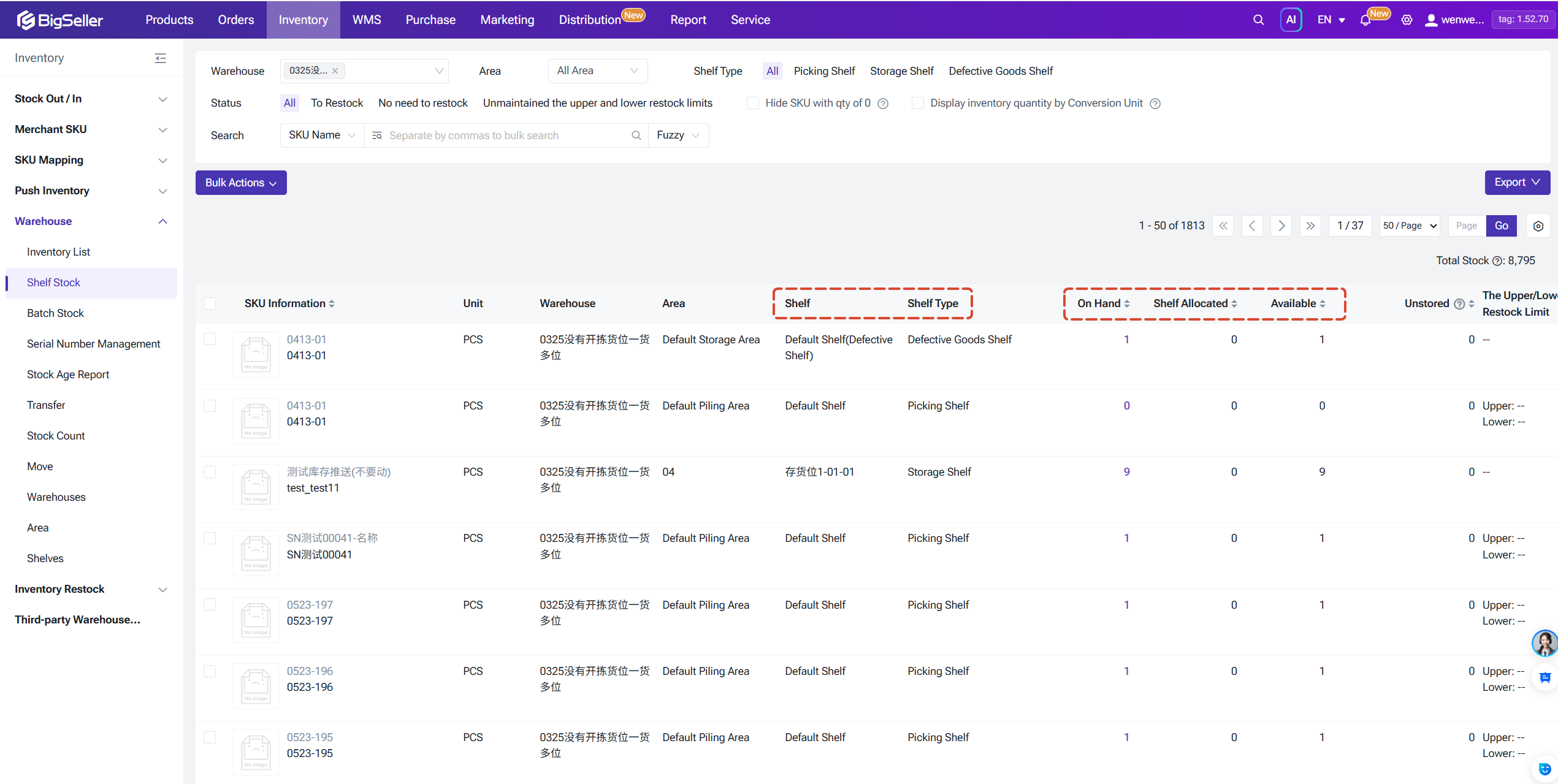
Defective Shelf inventory details can also be viewed within the Shelf Stock page, with shelf type clearly labeled.
Important Notes
- This feature requires One SKU Multiple Shelves to be enabled for the warehouse.
- Syncing defective stock from third-party warehouses is not supported in this release.
- The One SKU Multiple Shelves toggle in the warehouse list cannot be self-enabled by users in this release; the existing activation process remains in place.
- When performing a stocktake on a Defective Shelf, the validation rule — "stocktake quantity cannot be less than Allocated + Promotion Reserved" — does not apply, to prevent incorrect blocking.
Is this content helpful?
Thank you for your feedback. It drives us to provide better service.
Please contact us if the document can't answer your questions