BigSeller Print Plugin — Troubleshooting Handbook
Update Time: 21 Apr 2026 05:46
This article summarizes common errors and solutions encountered by sellers when using the BigSeller print price difference feature. You can work through each solution in order before escalating to technical support.
1. Browser Not Detecting the Plugin
Root cause: The plugin is being blocked by browser security settings, Windows Firewall, or third-party security software.
Solution 1 — Update browser site permissions
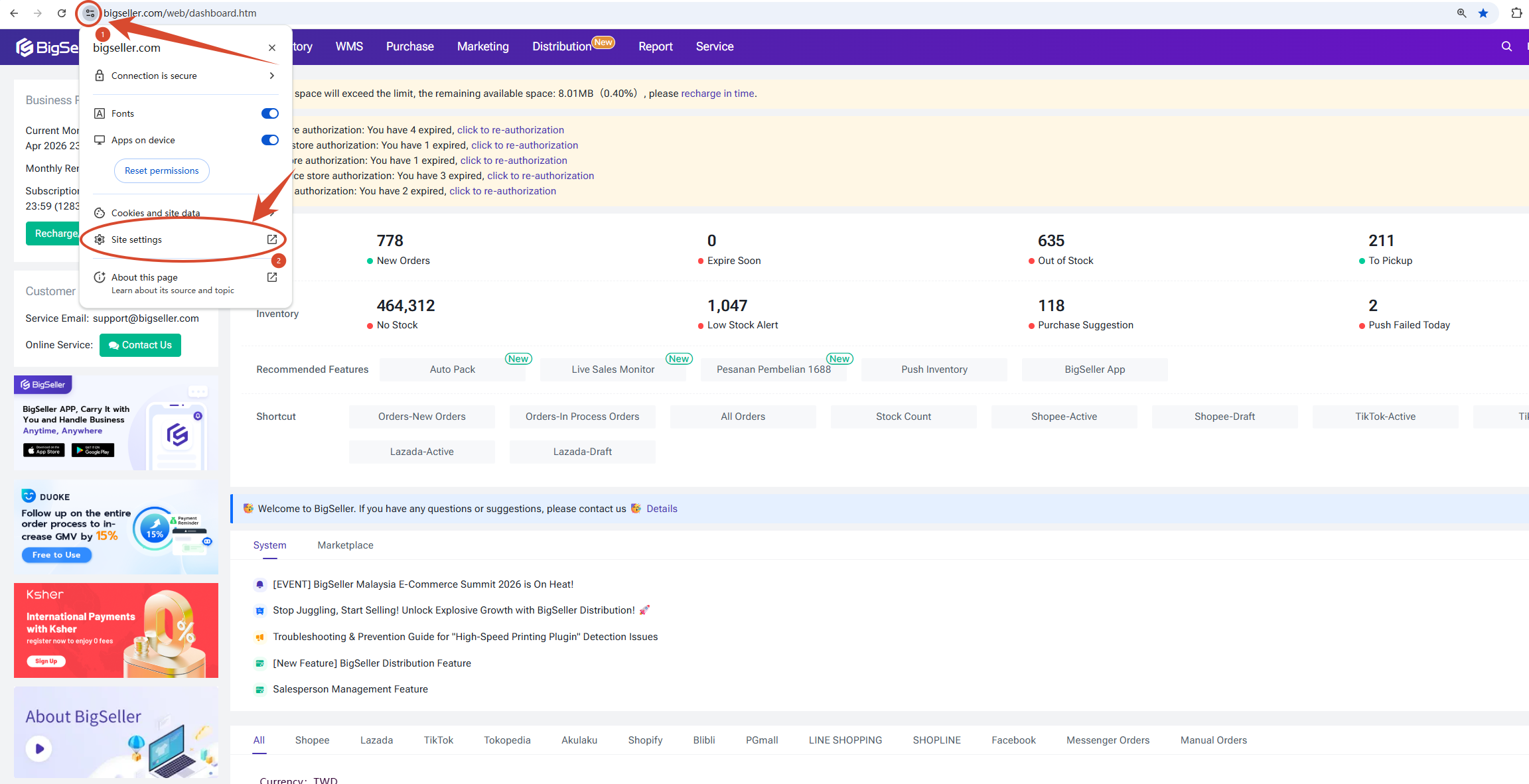
1) Open your browser and go to Settings → Privacy & Security → Site Settings. You can also copy and paste this link on your browser to quick jump:
chrome://settings/content/siteDetails?site=https%3A%2F%2Fwww.bigseller.com%2F
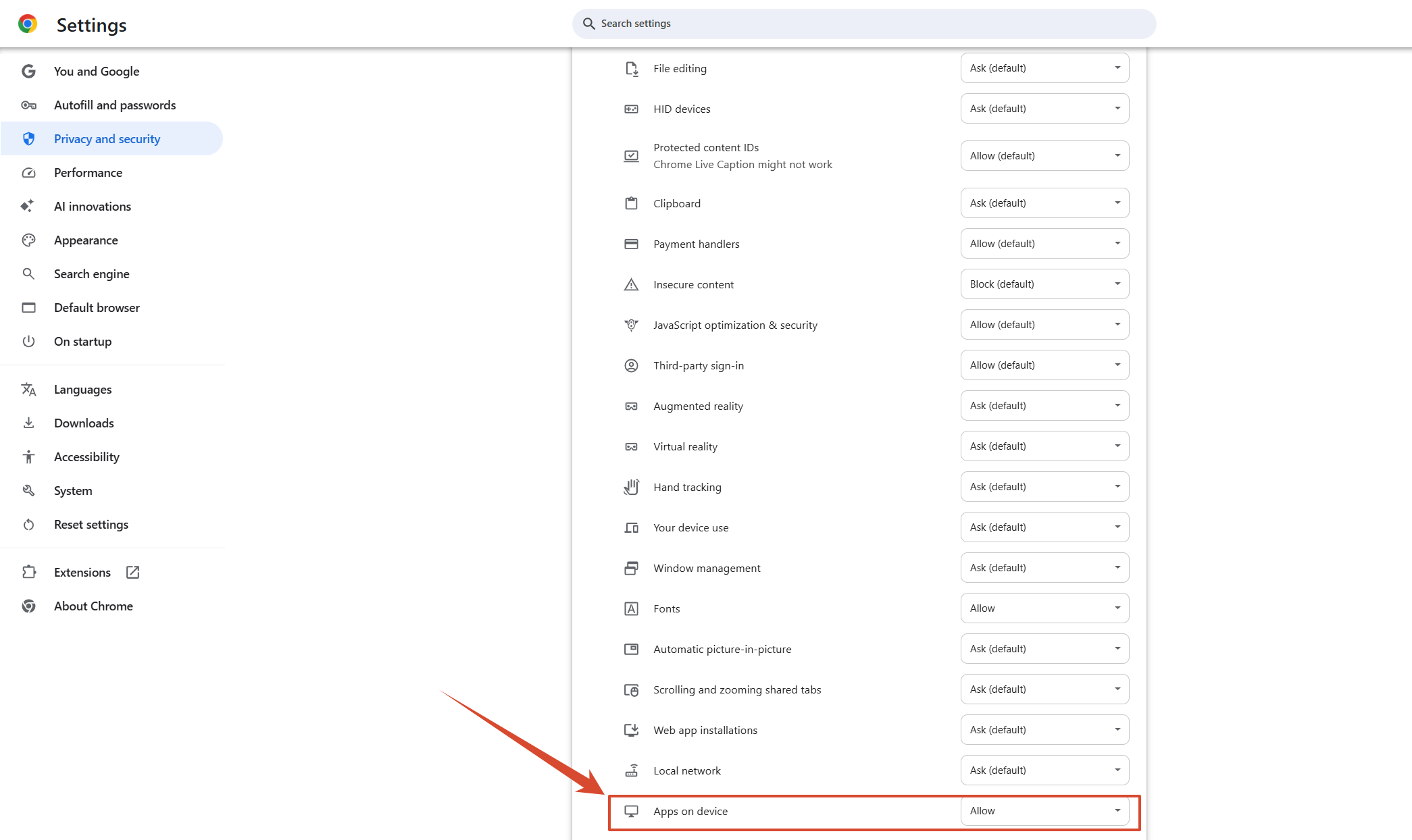
2) Under the site's permissions, set "App On Device access" to Allow.
3) Retry printing. If the issue continues, try Solution 2.
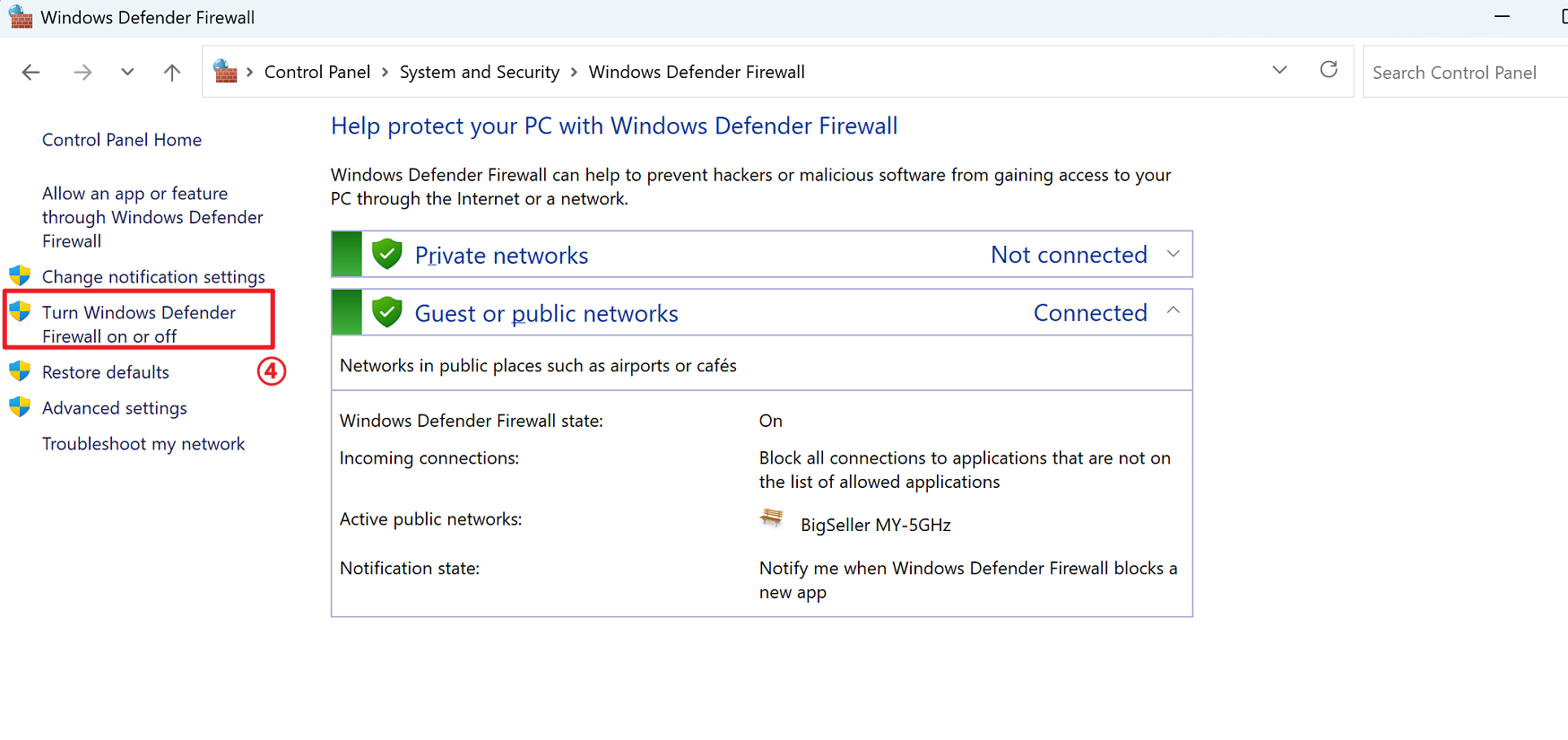
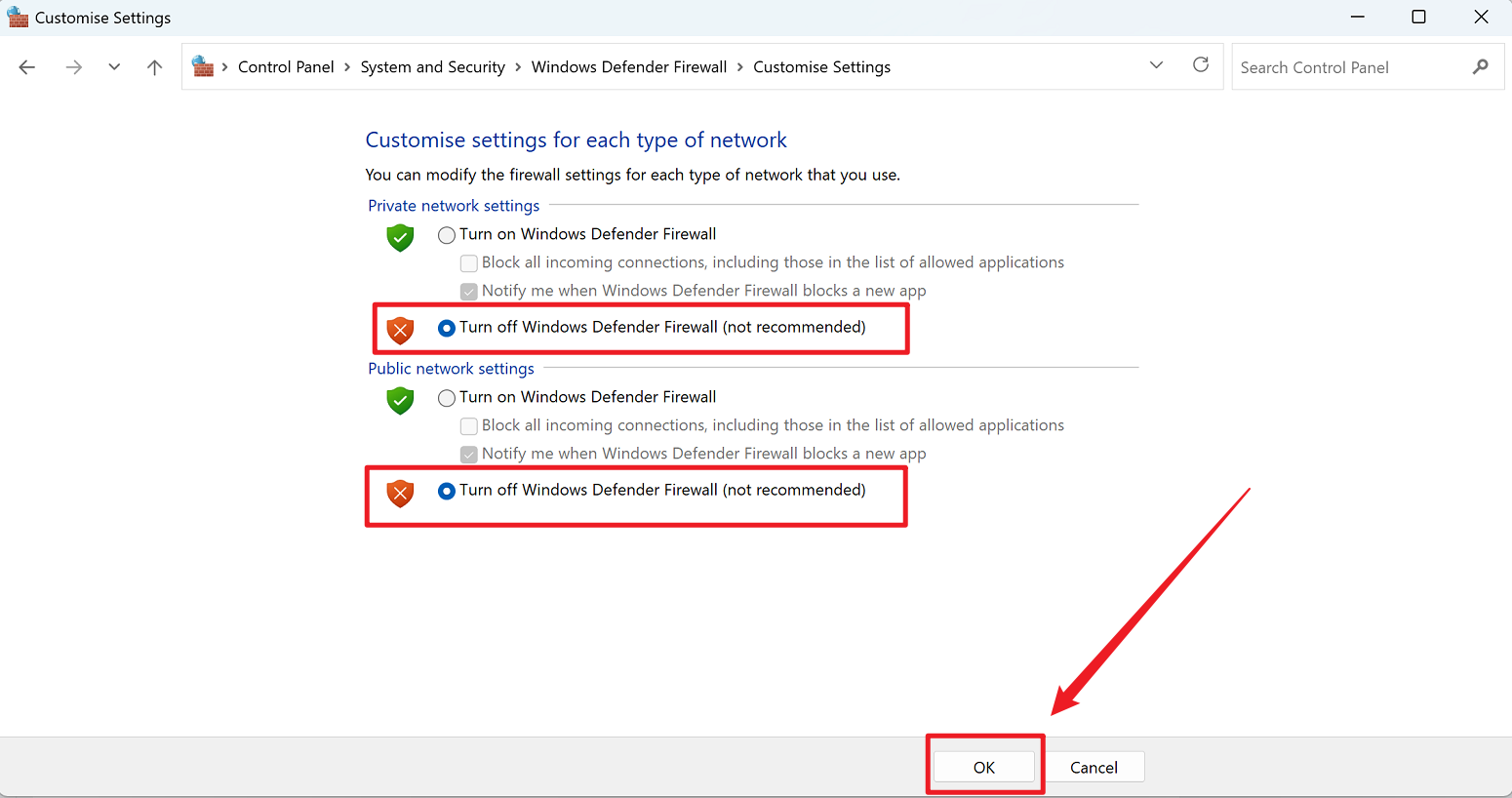
Solution 2 — Disable Windows Firewall
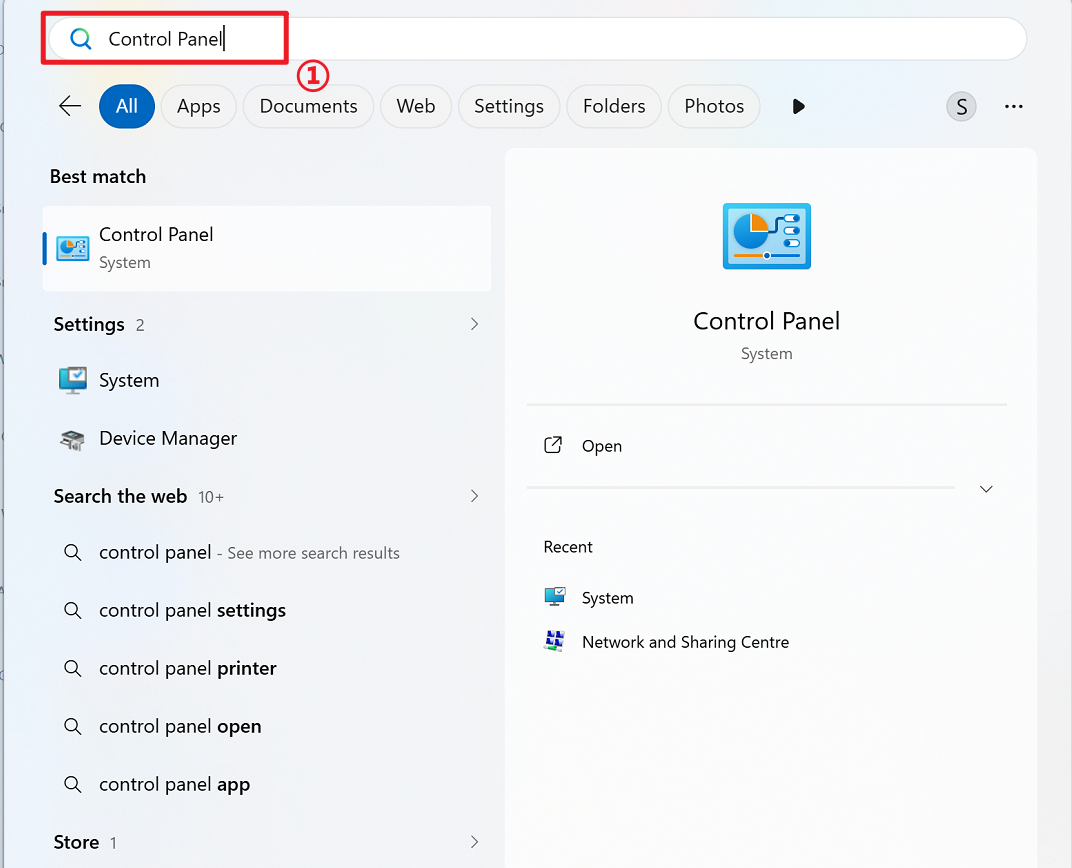
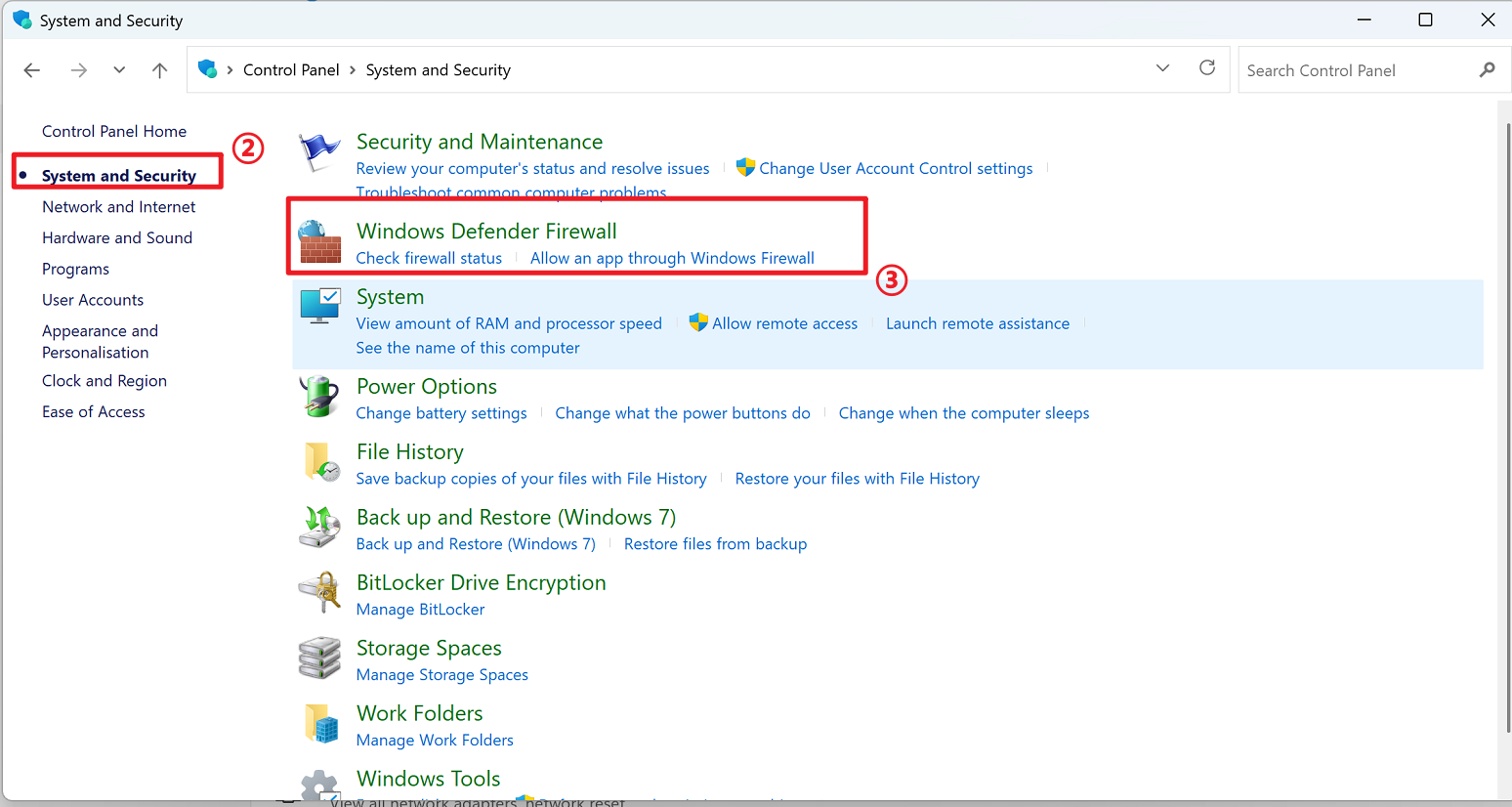
1) Open Control Panel → System and Security → Windows Defender Firewall.
2) Click "Turn Windows Defender Firewall on or off".
3) Select "Turn off" for both network profiles and click OK.
4) Re-enable the firewall once the issue is resolved.
Solution 3 — Exit third-party security software (e.g. 360 Security Guard)
1) Right-click the security software icon in the system tray (bottom-right taskbar).
2) Select Exit and confirm when prompted.
3) Retry printing.
2. Plugin Installation Failure
Symptom: Plugin opens but immediately shows the error "Couldn't load main class".
Root cause: Missing dependency files after installation, or a Windows account name containing Chinese characters that corrupts the installation file path.
Solution 1 — Uninstall and reinstall the plugin
1) Open Control Panel → Programs → Programs and Features.
2) Right-click BigSeller Print Plugin and choose Uninstall.
3) Download and reinstall the latest version from BigSeller.
Solution 2 — Disable Unicode UTF-8 or use an English Windows account
1) In the Windows search bar, type "unicode" and open "Choose a language for non-Unicode programs".
2) Uncheck "Use Unicode UTF-8 for worldwide language support" and restart if prompted.
3) If the error persists, create a new Windows account with an English-only username and use the plugin from that account.
3. Slow Paper Output
Applies when: The plugin is confirmed to be sending jobs to the printer normally.
Root cause: Print speed set too low, a printer hardware issue, or insufficient printer hardware specifications.
Solution 1 — Increase print speed
1) Open Printer Preferences → Printer Configuration → Print Settings.
2) Locate the Print Speed option and set it to a higher value.
3) Save and run a test print.
Solution 2 — Restart the printer
1) Power the printer off, wait 30 seconds, and power it back on. High-volume printing can cause the buffer to fill and slow output.
Solution 3 — Contact the printer manufacturer
1) If the issue persists after restarting, contact the manufacturer's support for hardware diagnosis.
Solution 4 — Upgrade to a higher-speed printer
1) If throughput requirements consistently exceed the printer's rated speed, consider replacing it with a faster model.
4. Printer Not Printing (No Paper Output)
Root cause: Labels were not pushed to the printer queue, the connection is loose, or the wrong printer instance is selected.
Solution 1 — Check the printer queue
1) Open the printer queue and check whether print jobs are listed.
2) If the queue is empty, the job push has failed. Check the BigSeller print log for errors and submit it to the technical team if needed.
Solution 2 — Check the physical connection
1) Make sure the USB or network cable is firmly connected on both ends.
2) Print a test page from Printer Properties → Print Test Page to confirm the connection.
Solution 3 — Confirm the correct printer instance
1) If multiple printer instances appear (e.g. one labelled "…Copy 1"), try each to identify the active one. Delete unused duplicate instances to prevent future confusion.
5. Blank Pages Printing
Root cause: Content placed outside the printable area at the top of the label, or insufficient disk space on the system or plugin drive.
Solution 1 — Check label content placement
1) Open the label preview and check if any content sits at or above the very top edge. If so, reposition it within the printable area and reprint.
Solution 2 — Free up disk space
2) Check available space on the Windows system drive (C:\) and the drive where the plugin is installed. Delete unnecessary files if either drive is full or nearly full, then retry.
6. Cache Clearing Gets Stuck
Root cause: A large number of cached label files causes the in-plugin clear operation to time out.
Solution 1 — Manually delete the temp folder
1) Close the plugin.
2) Navigate to the plugin's installation directory, e.g. D:\BigSeller Print Plugin\temp.
3) Delete all files inside the temp folder.
4) Relaunch the plugin.
Note: Only delete files inside the temp subfolder — do not delete the folder itself or any files outside it.
Is this content helpful?
Thank you for your feedback. It drives us to provide better service.
Please contact us if the document can't answer your questions