🔥[NEW] App POS Retail after-sales orders
Update Time: 06 Jan 2026 08:45
Introduction: The objective is to implement the POS system that integrates sales and after-sales processes on your mobile Apps, improving store efficiency, data traceability, and customer trust through faster, more transparent transactions and after-sales resolutions.
Page Optimization
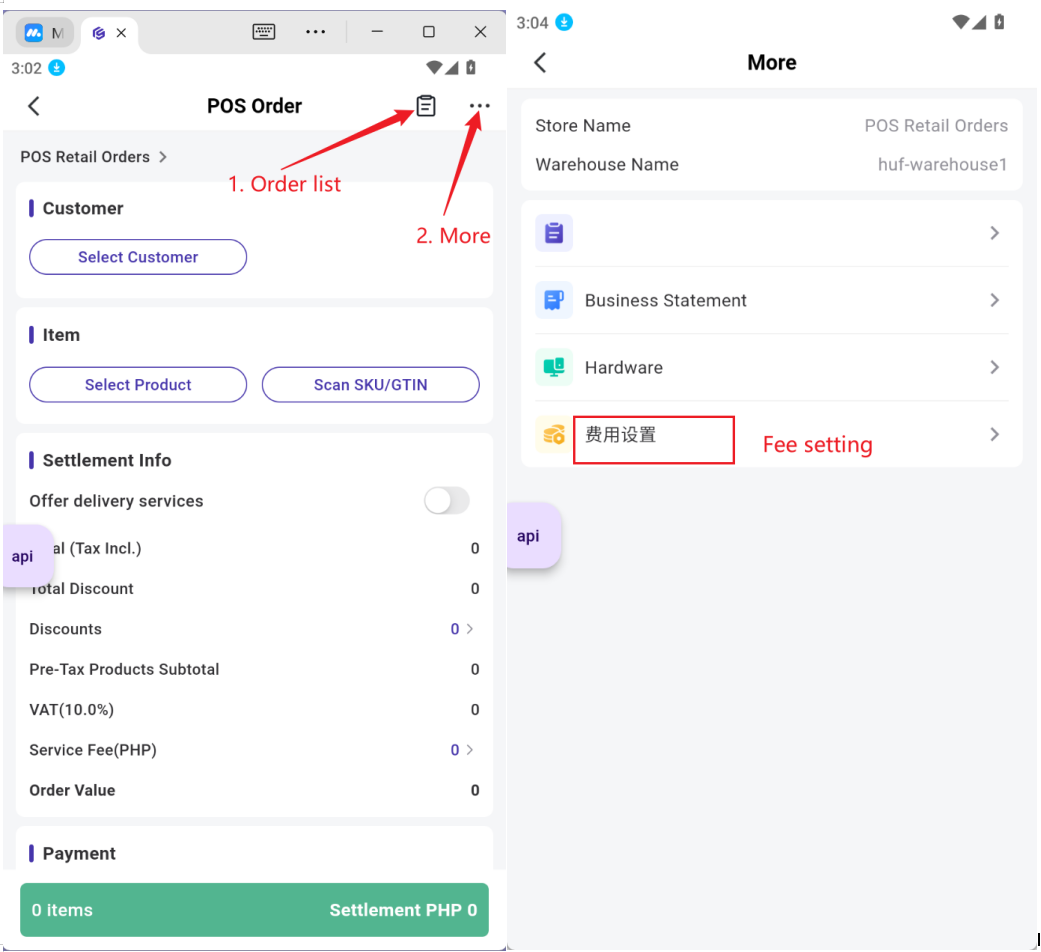
Setting: POS Orders > Click More > Fee Settings: Two new configuration options have been added: Calculate VAT for after-sales order and After-sales orders service fee calculation
Calculation Logic:
Calculate VAT for after-sales order: the refund amount = After-sales SKU Amount + VAT.
After-sales orders service fee calculation: the refund amount = After-sales SKU Amount + Service Fee.
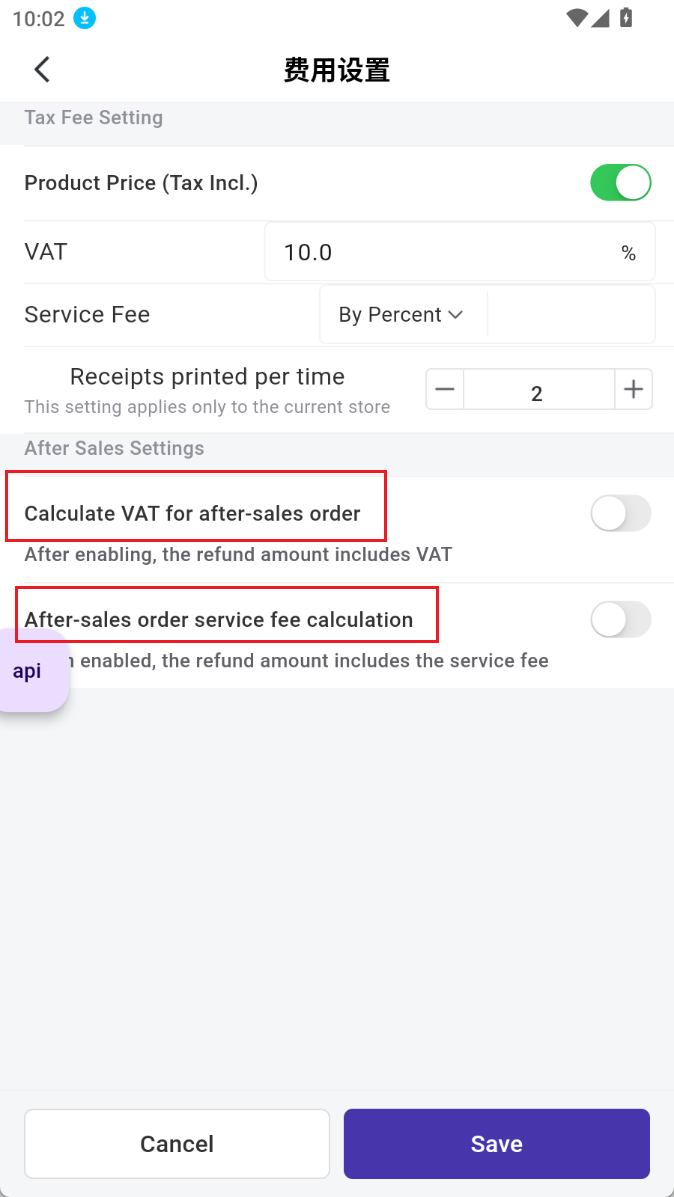
Click the order list to process return, refund and exchange, and after-sales to view the details.
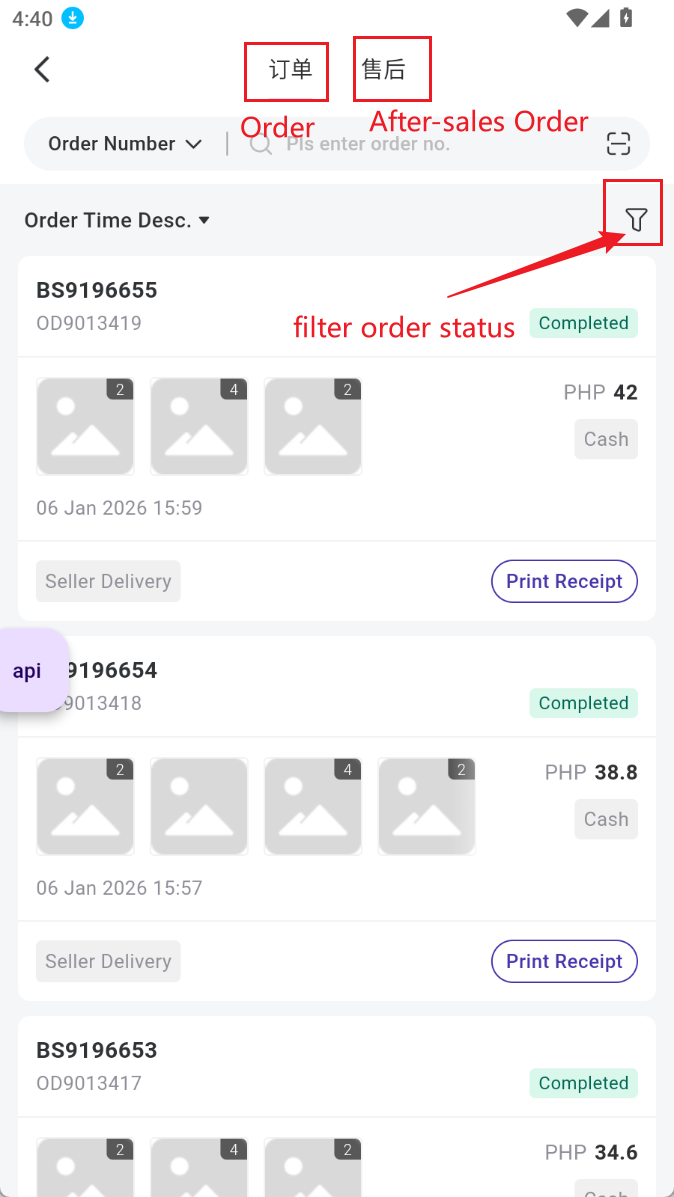
How to create POS after-sales orders
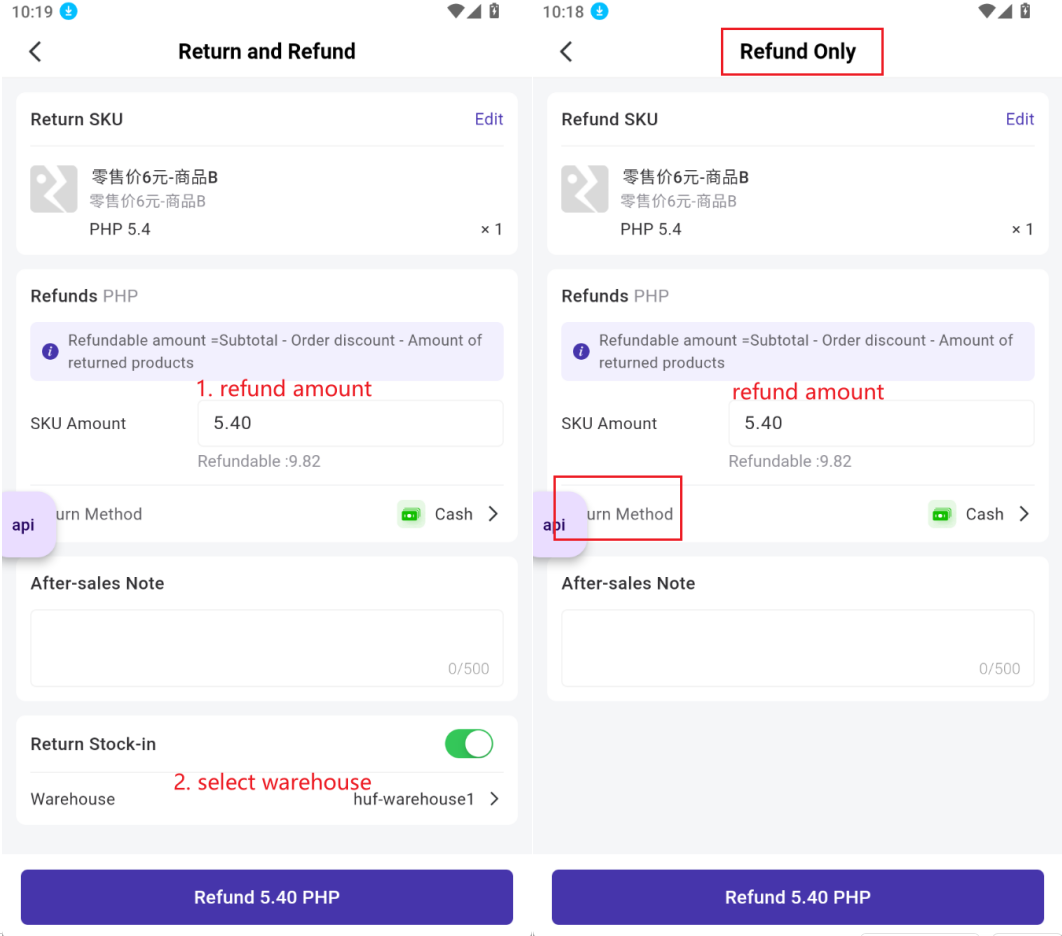
1. Return Process (Return & Refund)
a. Select return items and input quantity, and enable full order return if it meets the conditions.
b. Confirm the refund amount.
c. Enable/disable return warehouse processing and select a warehouse.
d. Click the refund amount to enter the refund page.
e. Choose the refund method and confirm the refund.
f. The after-sales status will automatically change to Completed, and the page will display refund details and total refund amount.
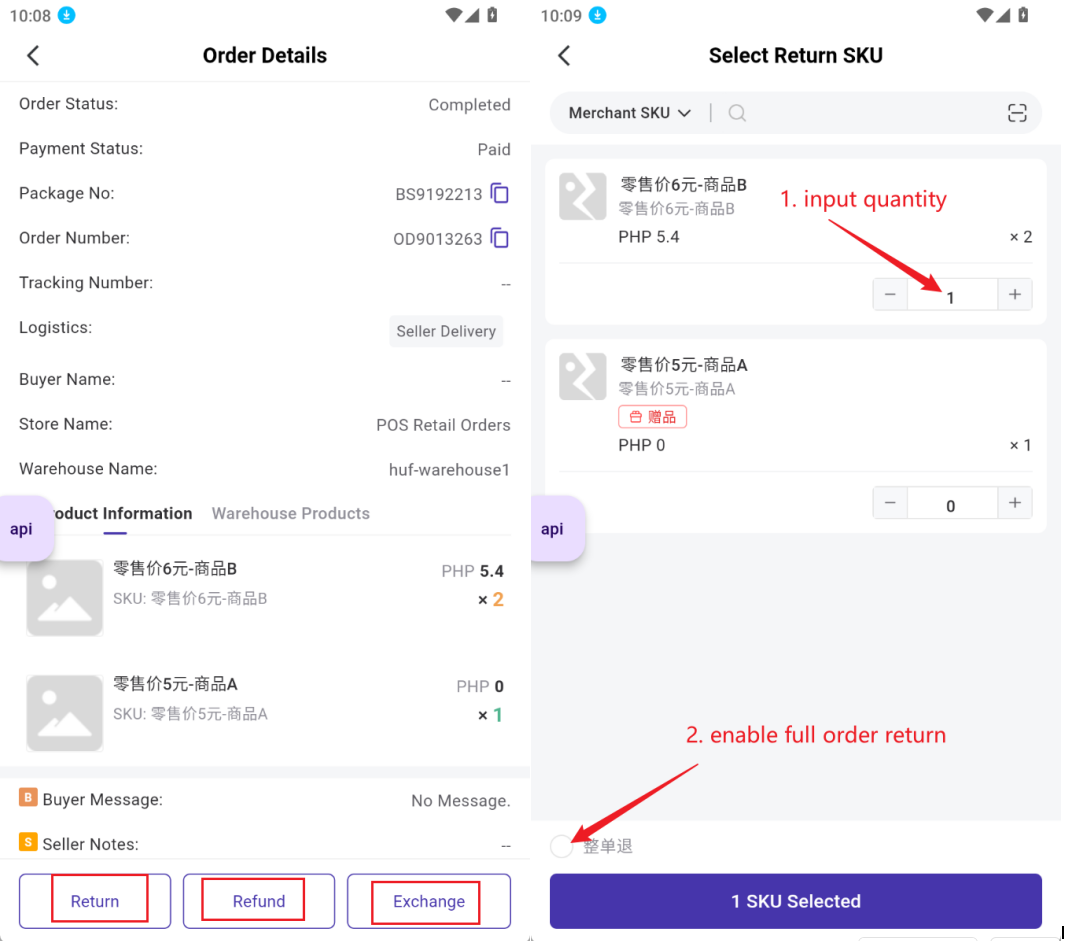
2. Refund Process (Refund Only)
a. Select refund items and input quantity, and enable full order return if it meets the conditions.
b. Click the refund amount to enter the refund page.
c. Choose the refund method and confirm the refund.
d. The page will display refund details and total refund amount.
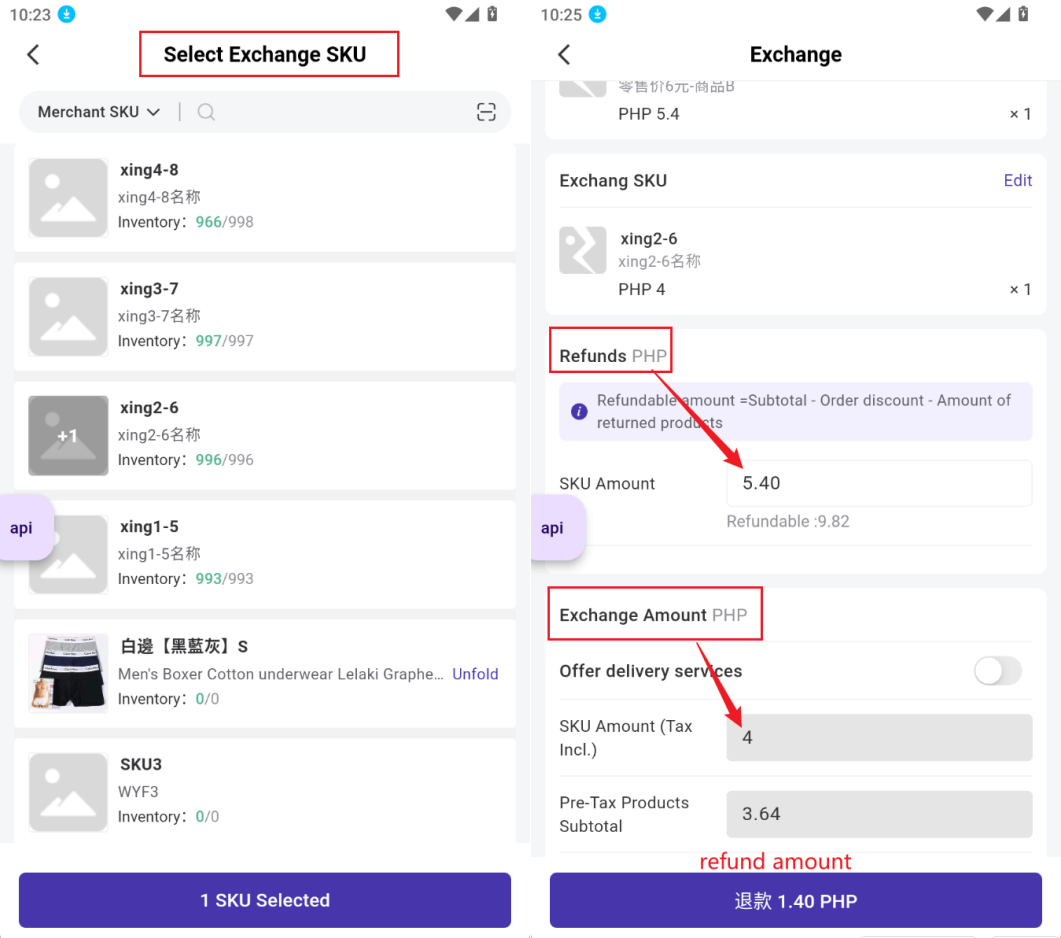
3. Exchange (Return & Exchange)
a. Select return items and input quantity, or enable full order return.
b. Enter the exchange page to select exchange items and quantities.
c. The page will display cost details for both returned and exchanged items.
d. Enable/disable return warehouse processing and select a warehouse.
- If the return item amount is greater than the exchange item amount, the button will show Refund, click to choose the refund method.
- If the return item amount equals the exchange item amount, the button will show Complete, click to finalize the after-sales process.
- If the return item amount is less than the exchange item amount, the button will show Receive Payment, click to proceed to the payment method page.
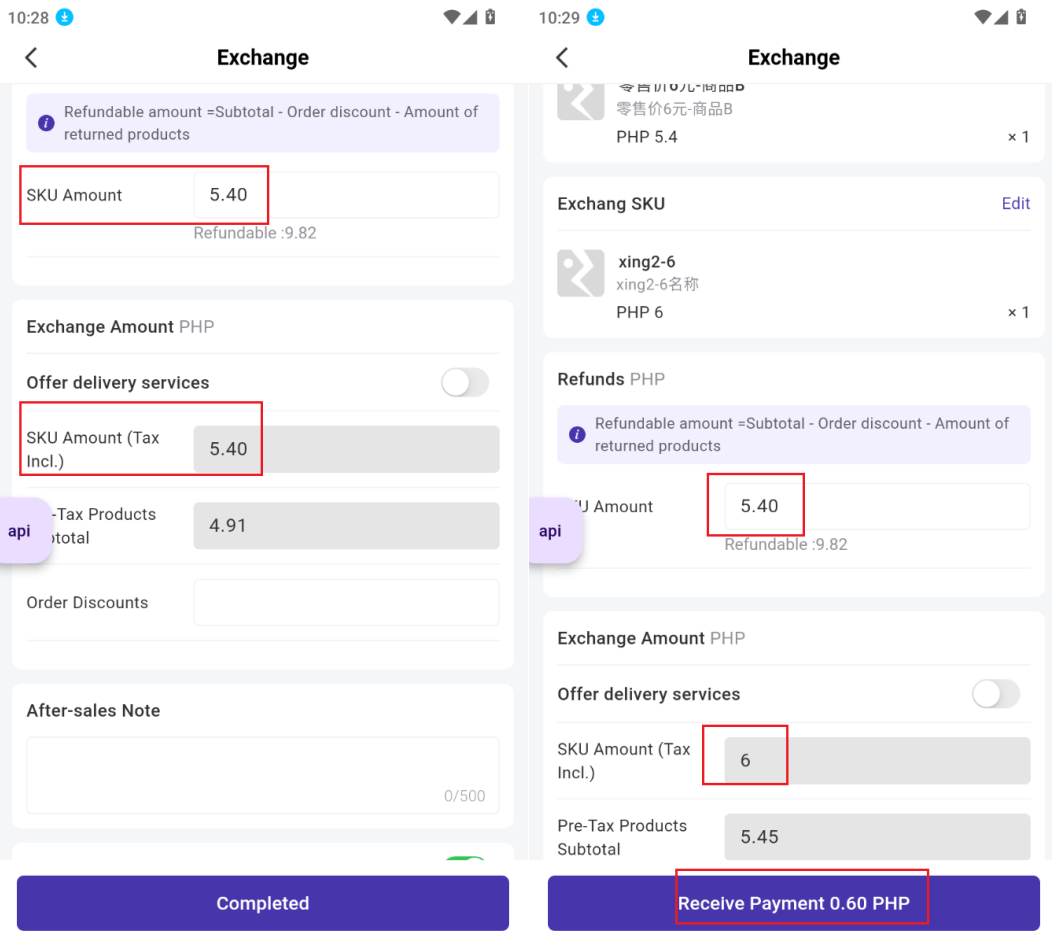
e. After confirming the refund or payment, the return items will generate stock in and be processed into the warehous The exchange items will generate a POS order.
💡Note: The order status will be determined based on whether the delivery switch is enabled, if not enabled, the order status will be Completed. If enabled, the order status will be displayed under the New Orders list.
Permission Settings: A new POS Order (After-Sales) permission has been added to the order module.
Is this content helpful?
Thank you for your feedback. It drives us to provide better service.
Please contact us if the document can't answer your questions