What is Facebook Live Dashboard?
Copy link & title
Update Time: 13 Aug 2026 09:18
The Facebook Live Dashboard is an operations workspace built for livestream commerce. It brings product management, comment monitoring, automatic order capture, order processing, and performance statistics together into a single page — so you can run an entire livestream without switching between systems.
It is designed for sellers who sell via Facebook live streams, as well as team members handling customer service and operations.
How to Access the Live Dashboard?
Option 1: Automatic entry after creating a livestream
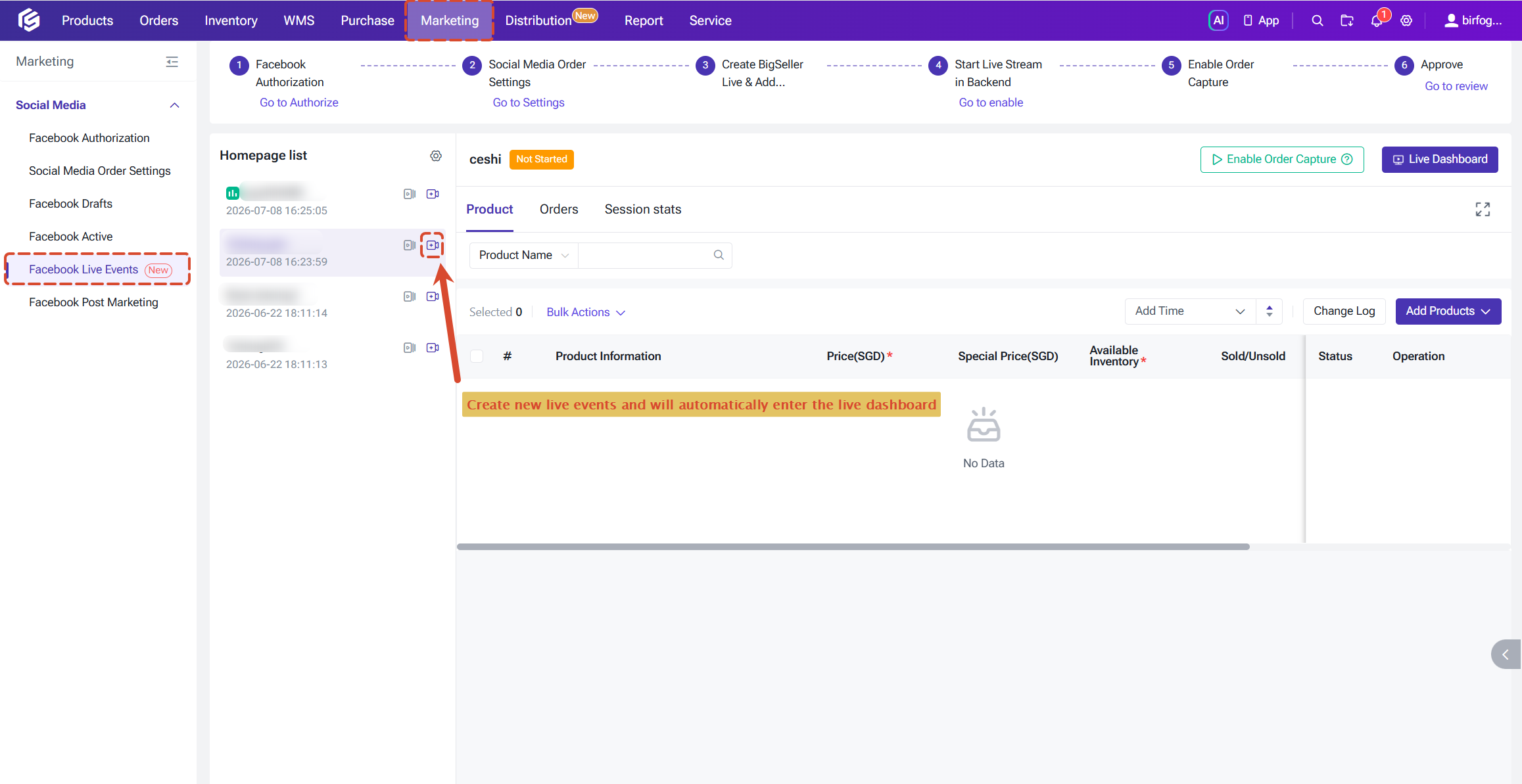
Go to Marketing > Facebook Live Events, click Create Lives and complete the setup. You will be redirected to the Live Dashboard of the new livestream automatically.
Option 2: Enter from the livestream list
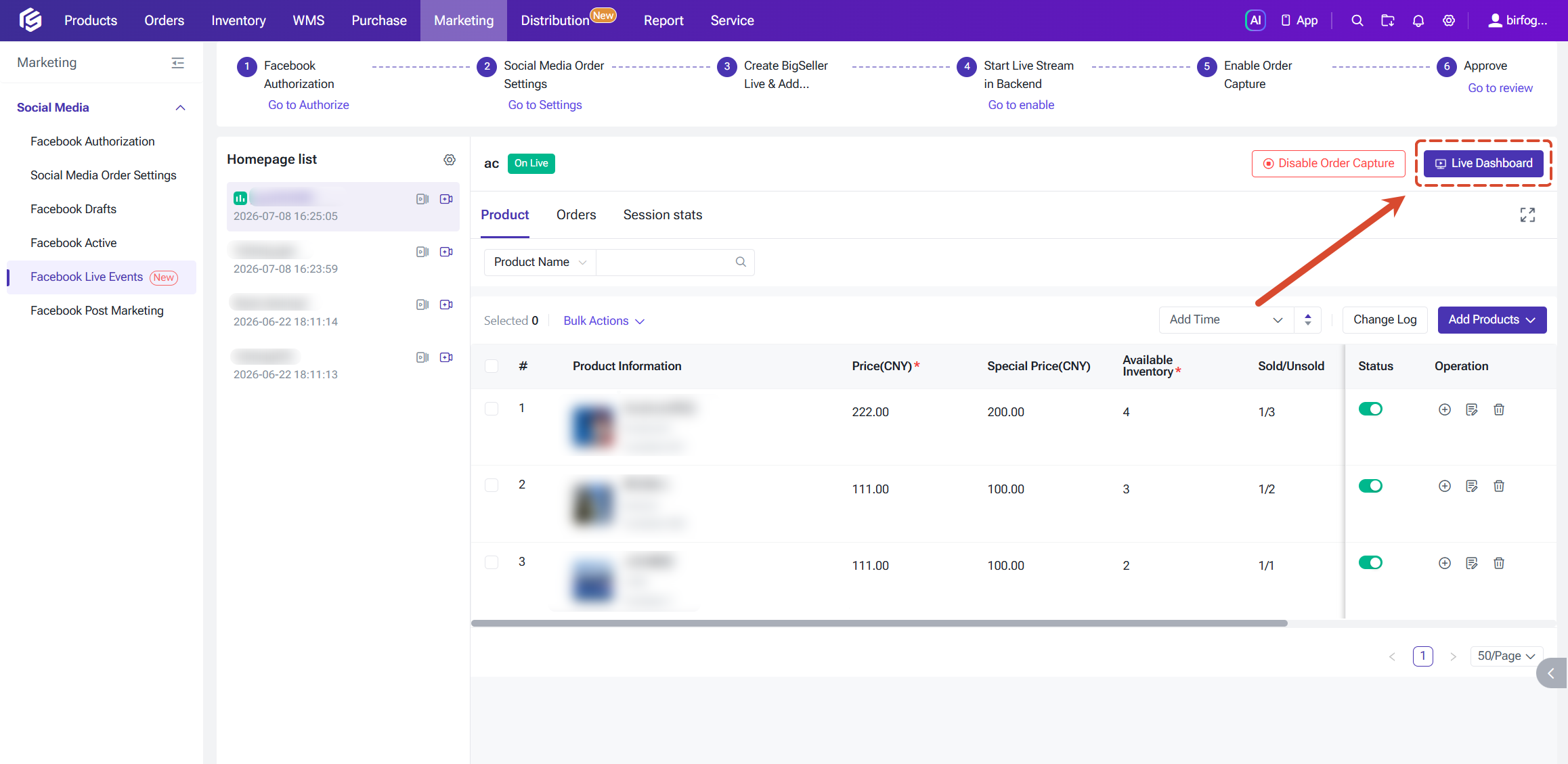
In the livestream list, click Live Dashboard next to the livestream status to access the corresponding session. Past livestreams also keep this entry, so you can review previous sessions at any time.
Everything in the Live Dashboard revolves around three stages of a livestream: prepare products before going live, handle comments and orders during the stream, and review data after it ends. Following this flow will keep your livestream operations smooth and well organized.
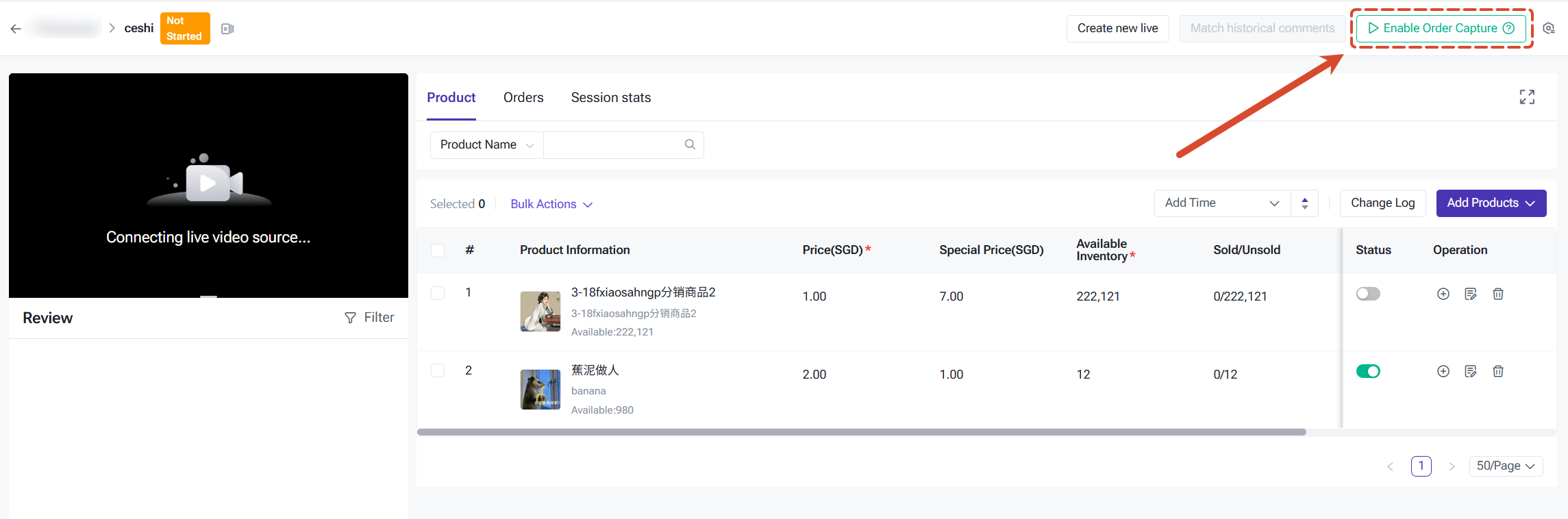
Click Enable Order Capture at the top of the Live Dashboard. The system will start monitoring comments in real time, and an order will be created automatically once a comment matches a product keyword.
Comment Status Indicators
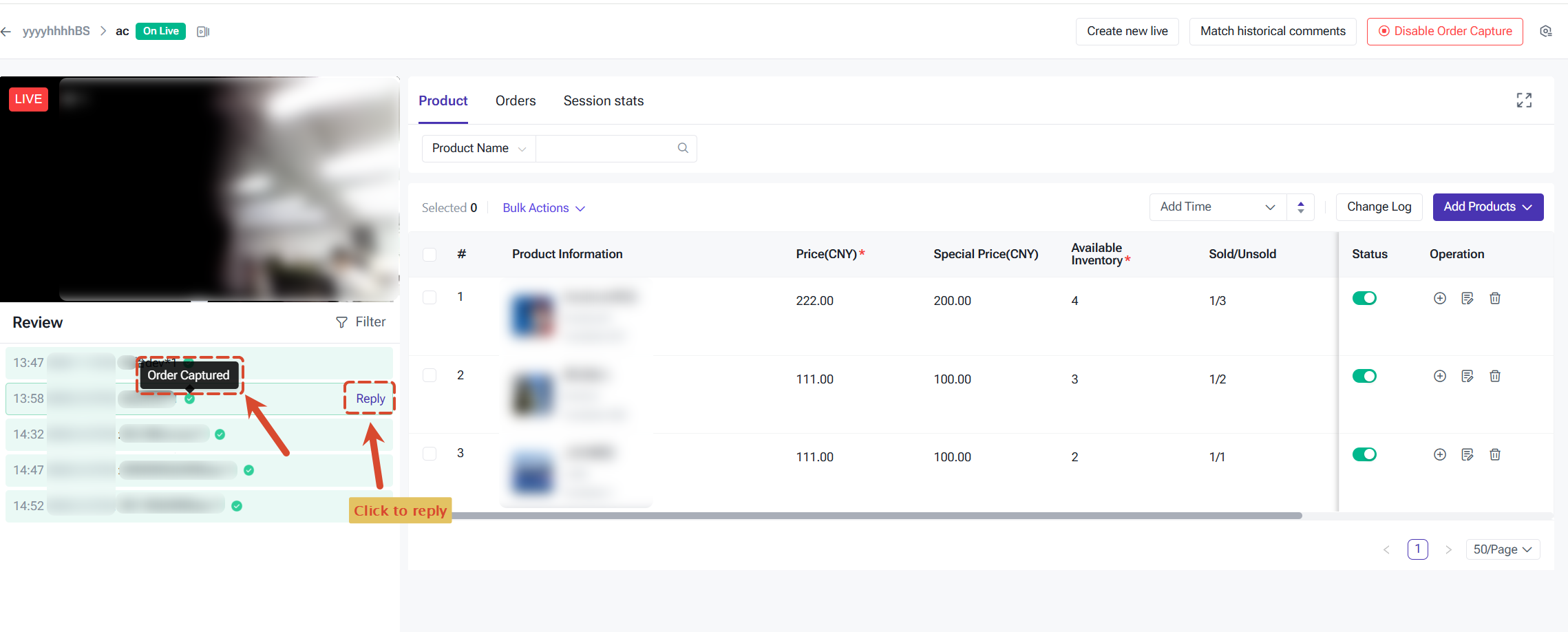
Comments are displayed in real time in the comment section, each tagged with a status indicator showing the capture result:
Reply to Buyers
Double-click a buyer's message to quote and reply to it. Type your message and click Send to stay engaged with your buyers in real time.
Catch Up on Missed Orders
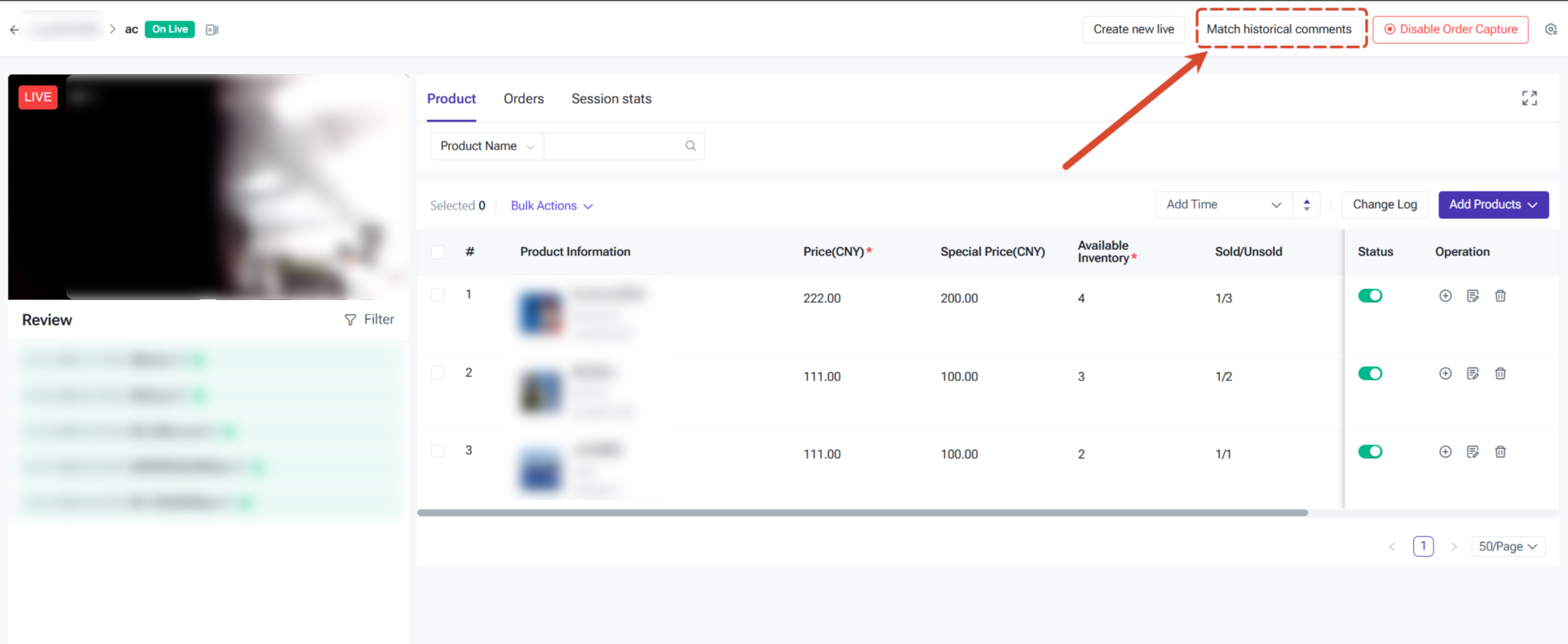
If you did not enable order capture at the beginning of the stream or adjusted keywords later, click Match Historical Comments. The system will rescan unprocessed comments in this session using the current product keywords and generate orders accordingly.
Process Orders
Once orders are generated, review and process them in the Orders tab. This tab lists all orders of the current session (including auto-captured orders, Webhook orders, and manually added orders), sorted by creation time in descending order, with the latest order at the top.
Order statuses: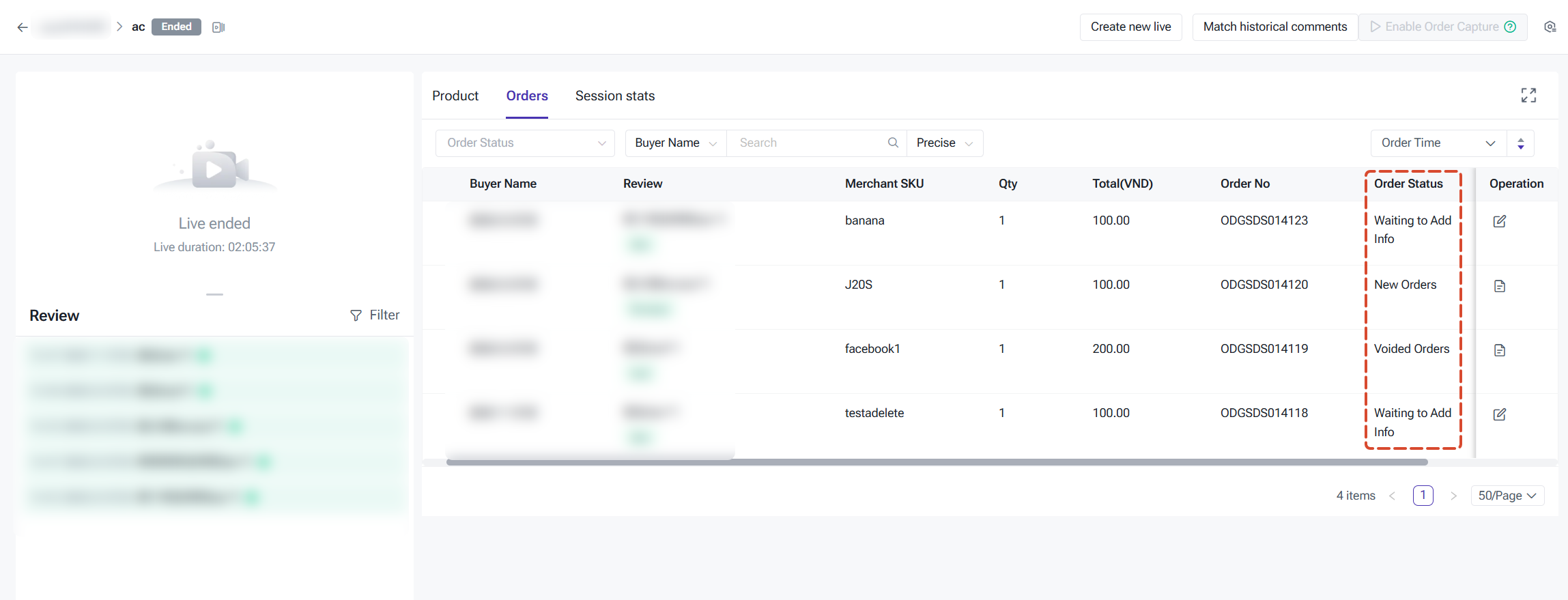
Common order operations:
Permissions cover page access, product management, order processing, and data viewing. Entries, buttons, or tabs without permission are automatically hidden or greyed out to prevent unauthorized operations.
Recommended permission allocation by role: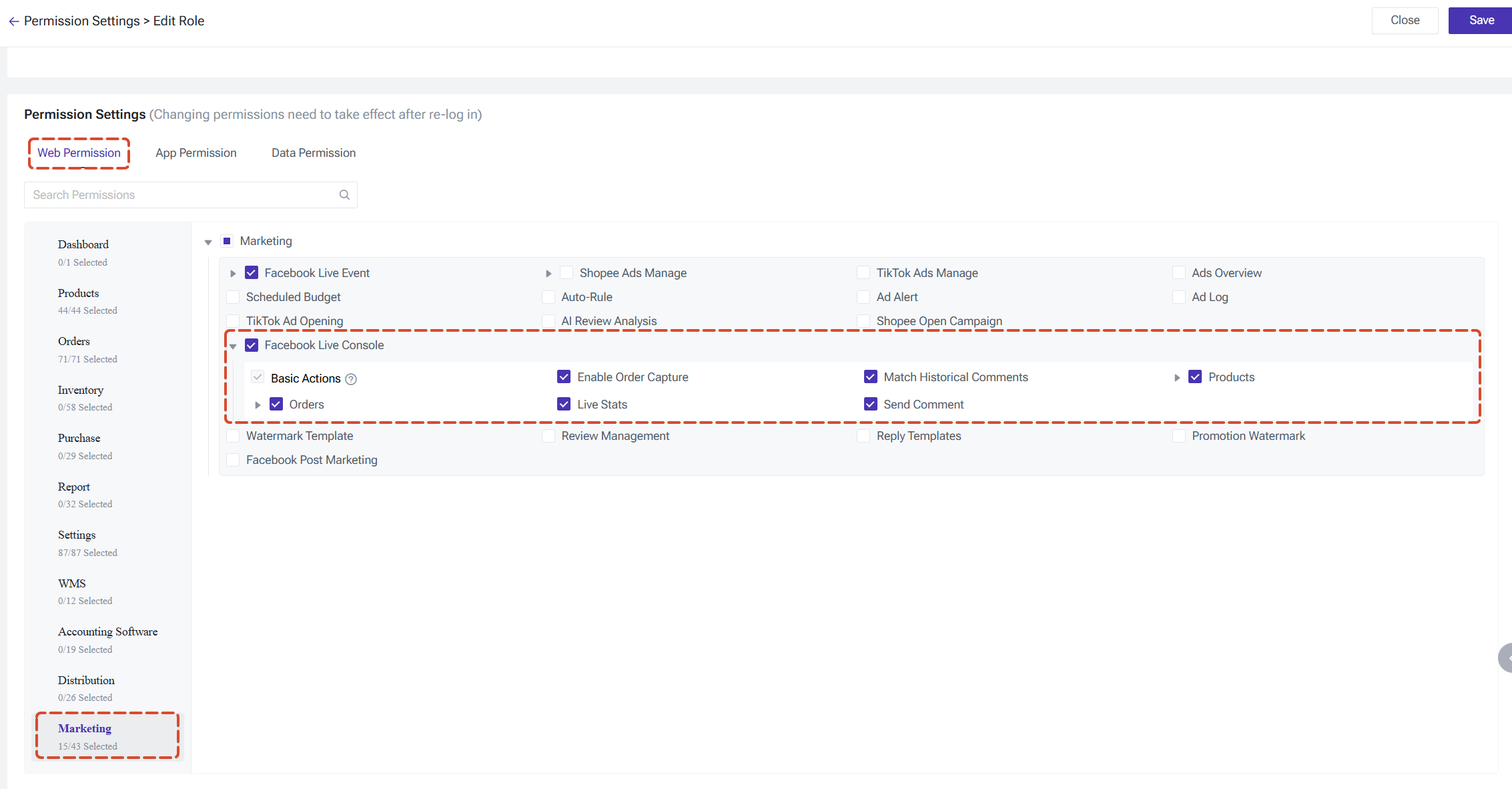
It is designed for sellers who sell via Facebook live streams, as well as team members handling customer service and operations.
How to Access the Live Dashboard?
Option 1: Automatic entry after creating a livestream
Go to Marketing > Facebook Live Events, click Create Lives and complete the setup. You will be redirected to the Live Dashboard of the new livestream automatically.
Option 2: Enter from the livestream list
In the livestream list, click Live Dashboard next to the livestream status to access the corresponding session. Past livestreams also keep this entry, so you can review previous sessions at any time.
Everything in the Live Dashboard revolves around three stages of a livestream: prepare products before going live, handle comments and orders during the stream, and review data after it ends. Following this flow will keep your livestream operations smooth and well organized.
Before the Livestream: Add Products
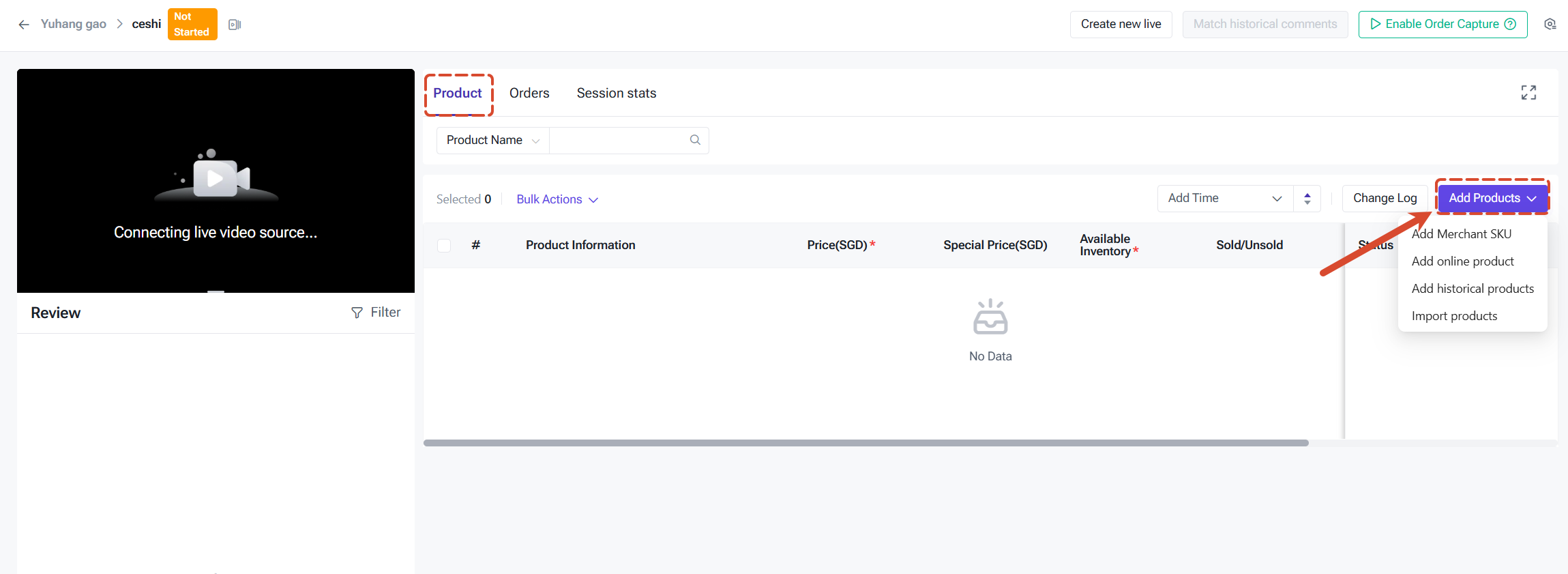
Before going live, you can go to the Products tab to add the products for this session. Click Add Product and choose the method that fits your situation:
- Add Merchant SKU: Picking existing SKUs from your Merchant SKU lists
- Add Online Product: Adding products already published in your online store
- Add Historical Product: Reusing products from previous livestreams
- Import Products: Bulk import via Excel template, ideal for large-scale listing
- Keyword: An order is generated automatically when a buyer's comment contains the keyword (e.g., product A01 corresponds to keyword "A01"). Keywords must be unique within the same livestream;
- Purchase Limit: The maximum quantity a single buyer can purchase, helping prevent bulk hoarding;
- Special Price: Orders are charged at the promotional price during capture, so please confirm it in advance;
- Available Stock: Orders cannot be captured when stock is insufficient. Please make sure stock is sufficient before going live.
During the Livestream: Enable Order Capture, Manage Comments & Orders
Enable Order CaptureClick Enable Order Capture at the top of the Live Dashboard. The system will start monitoring comments in real time, and an order will be created automatically once a comment matches a product keyword.
Comment Status Indicators
Comments are displayed in real time in the comment section, each tagged with a status indicator showing the capture result:
- Order Captured: Comment matched a keyword and passed all checks; order created successfully
- Insufficient Stock: Keyword matched, but stock is insufficient (overselling disabled); no order created
- Over Purchase Limit: Purchase quantity exceeds the product's purchase limit
- Duplicate Keyword: Buyer sent the same keyword repeatedly within the keyword window
Reply to Buyers
Double-click a buyer's message to quote and reply to it. Type your message and click Send to stay engaged with your buyers in real time.
Catch Up on Missed Orders
If you did not enable order capture at the beginning of the stream or adjusted keywords later, click Match Historical Comments. The system will rescan unprocessed comments in this session using the current product keywords and generate orders accordingly.
Process Orders
Once orders are generated, review and process them in the Orders tab. This tab lists all orders of the current session (including auto-captured orders, Webhook orders, and manually added orders), sorted by creation time in descending order, with the latest order at the top.
Order statuses:
- Waiting to Add Info / Pending Review: The order has been created and is waiting for missing information or seller review;
- Rejected / Cancelled: The order has not entered the fulfillment flow;
- New Orders, In Processing, To Pickup, etc.: The order has passed review and entered the standard fulfillment flow, seamlessly integrated with the order management system.
Common order operations:
- Edit Quantity / Price: Modify the order quantity or use Edit Price. The system validates the purchase limit and stock in real time, and the total amount updates automatically;
- Cancel Order: Cancel single or multiple orders at once. A cancellation reason is required. After cancellation, the product's sold quantity and purchase limit data are automatically restored;
- Add Order Manually: For scenarios such as buyer private messages or failed capture, fill in the buyer name and quantity to create an order directly.
After the Livestream: Performance Review
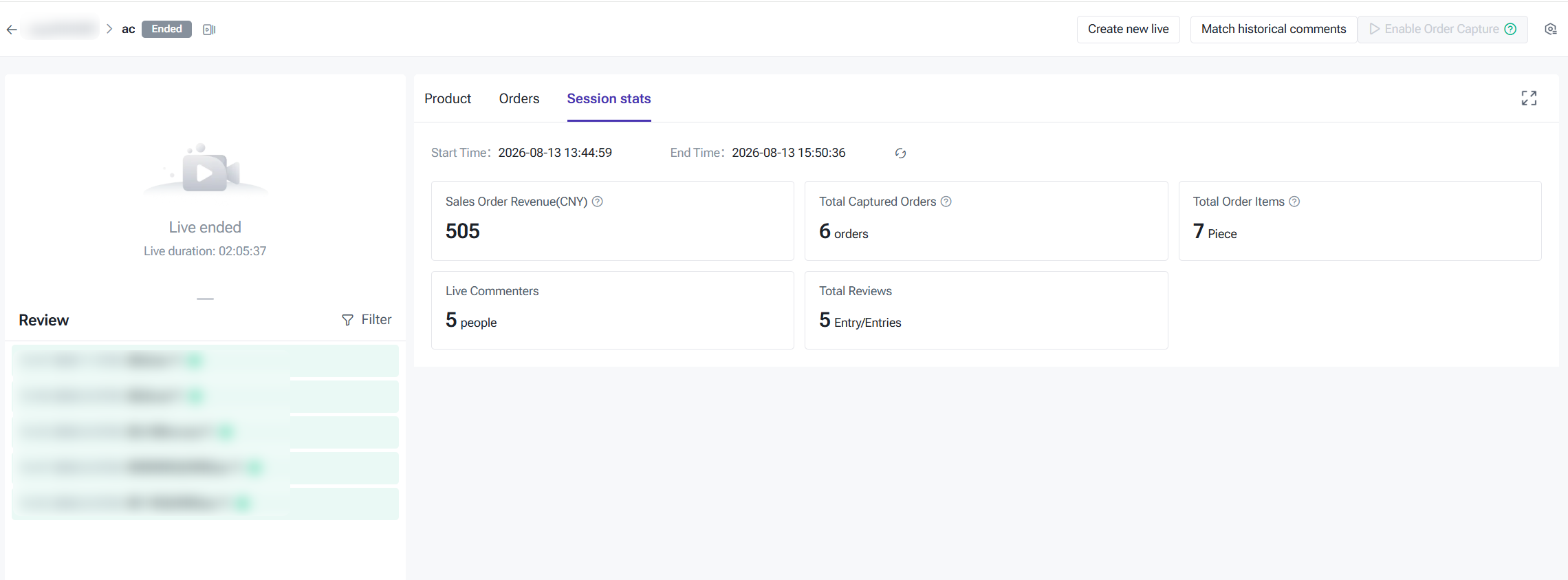
The Session Stats tab shows key metrics of the current session in real time, which you can use to review performance after the stream:- Sales Order Revenue: Total value of all valid orders in this session;
- Total Captured Orders: Total orders from auto capture, Webhook, and manual addition;
- Total Order Items: Total quantity of products across all valid orders;
- Live Commenters / Total Comments: Indicators of livestream engagement.
Team Collaboration: Role Permissions
For multi-member livestream operations, you can configure Facebook livestream permissions for team members under Edit Role.Permissions cover page access, product management, order processing, and data viewing. Entries, buttons, or tabs without permission are automatically hidden or greyed out to prevent unauthorized operations.
Recommended permission allocation by role:
- Customer Service / Order Taker: Product viewing, capture results, order processing;
- Operator / Host: Product editing, enabling order capture, statistics;
- Administrator: Full permissions, responsible for product export and matching historical comments.
Is this content helpful?
Thank you for your feedback. It drives us to provide better service.
Please contact us if the document can't answer your questions