How to manage Shopee Vouchers on BigSeller?
Copy link & title
Update Time: 27 Jul 2026 12:17
Managing Shopee vouchers across multiple stores can be time-consuming. With BigSeller, you can create, sync, and manage Shopee vouchers in one place, making promotion setup faster and more efficient.
With BigSeller, you can:
With BigSeller, you can:
- Monitor all store vouchers status and details easily
- Copy vouchers to quickly create similar campaigns
- Enable Auto Renew to keep long-term promotions running automatically
1. Create Shopee Voucher
Creating a voucher in BigSeller only takes a few steps. You can choose the suitable voucher type, configure discount rules, and set where the voucher will be displayed based on your marketing goals.
Go to: Products > Shopee > Voucher > Create Voucher
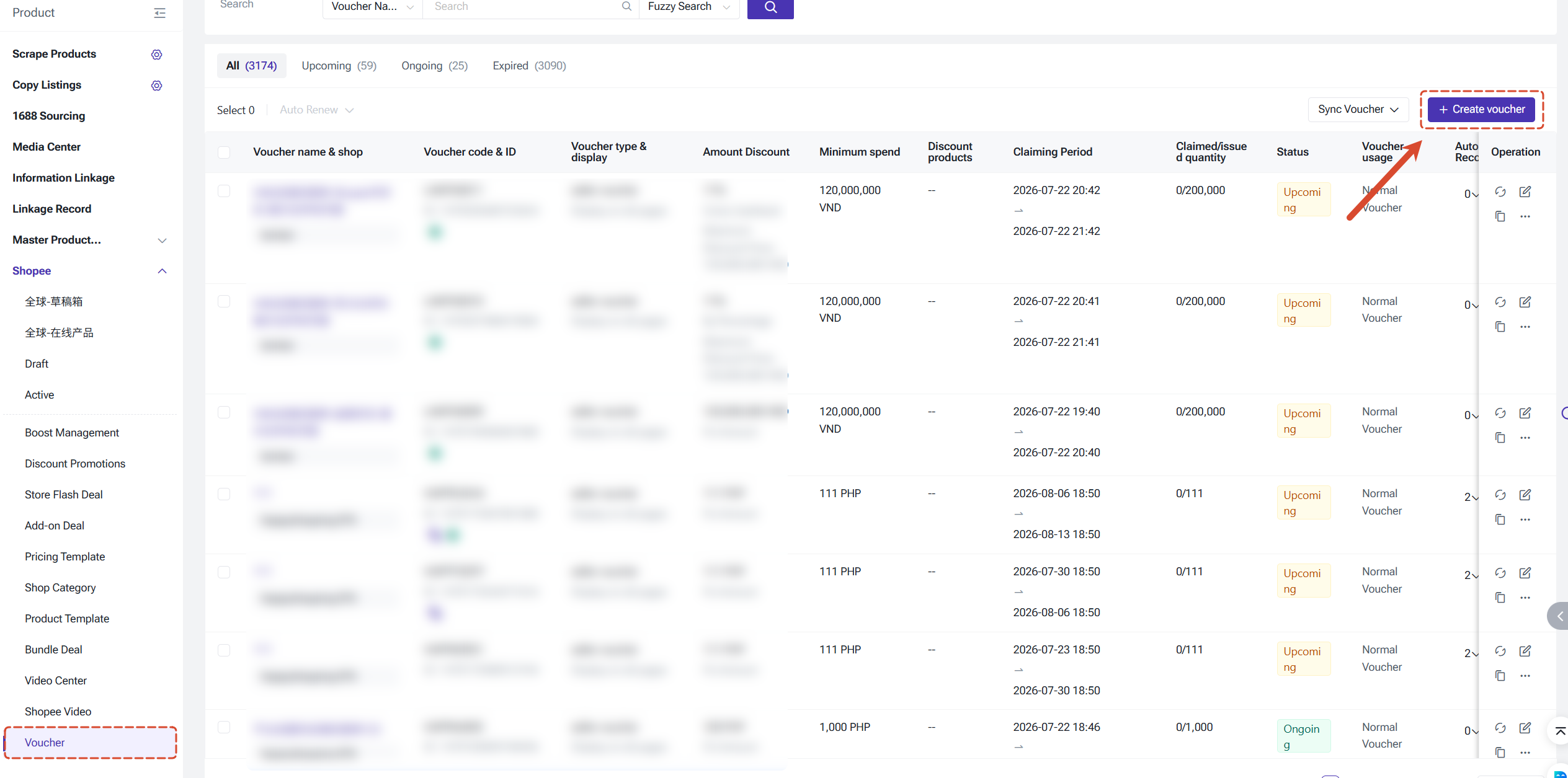
1.1 Select Store and Voucher Type
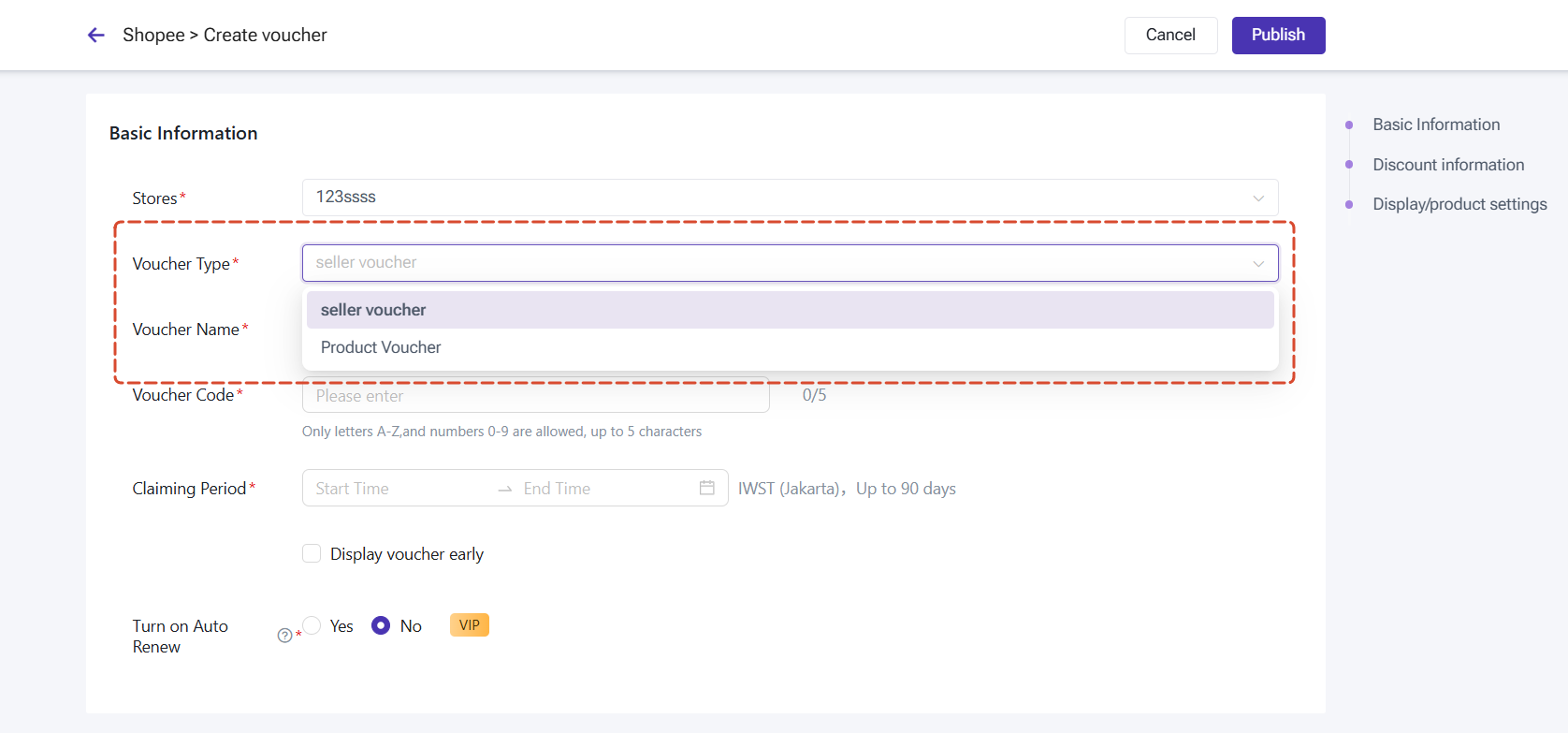
First, select the Shopee store where you want to create the voucher.
Based on your promotion strategy, you can choose from two voucher types:
BigSeller supports two voucher types:
Shop Voucher
Applies to products across the entire store.
Suitable for:
Go to: Products > Shopee > Voucher > Create Voucher
1.1 Select Store and Voucher Type
First, select the Shopee store where you want to create the voucher.
Based on your promotion strategy, you can choose from two voucher types:
BigSeller supports two voucher types:
Shop Voucher
Applies to products across the entire store.
Suitable for:
- Store-wide promotions
- New customer campaigns
- General discount activities
Product Voucher
Applies to selected products only.
Suitable for:
Applies to selected products only.
Suitable for:
- Best-selling product promotion
- New product launch
- Inventory clearance
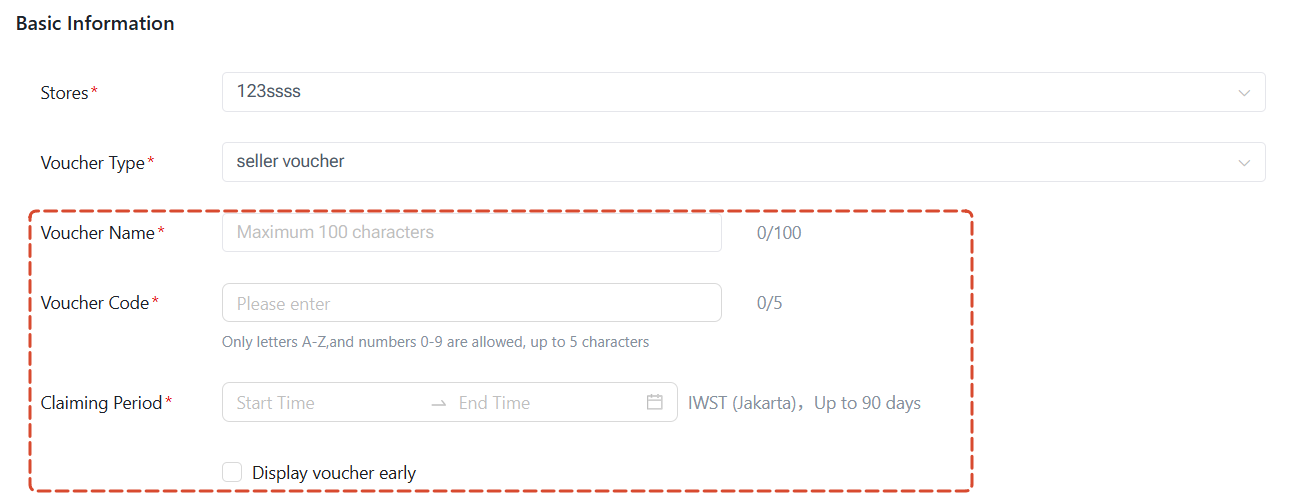
1.2 Set Voucher Information
After selecting the voucher type, configure the basic voucher information.
Voucher Name
Enter a voucher name to help you identify and manage your campaigns more easily.
For example:
- Weekend Sale
- New Customer Voucher
The maximum length is 100 characters.
Voucher Code
Set a voucher code that buyers can use during checkout.
Requirements:
Voucher Code
Set a voucher code that buyers can use during checkout.
Requirements:
- Only English letters and numbers are supported
- Maximum length is 5 characters
Example:
- SAVE5
Voucher Claiming Period
Set when the voucher becomes available and expires.
Notes:
Set when the voucher becomes available and expires.
Notes:
- The maximum voucher duration is 90 days.
- The end time must be later than the start time.
- The time zone follows the store time zone.
- You can also select whether to display the voucher early
1.3 Set Discount Rules
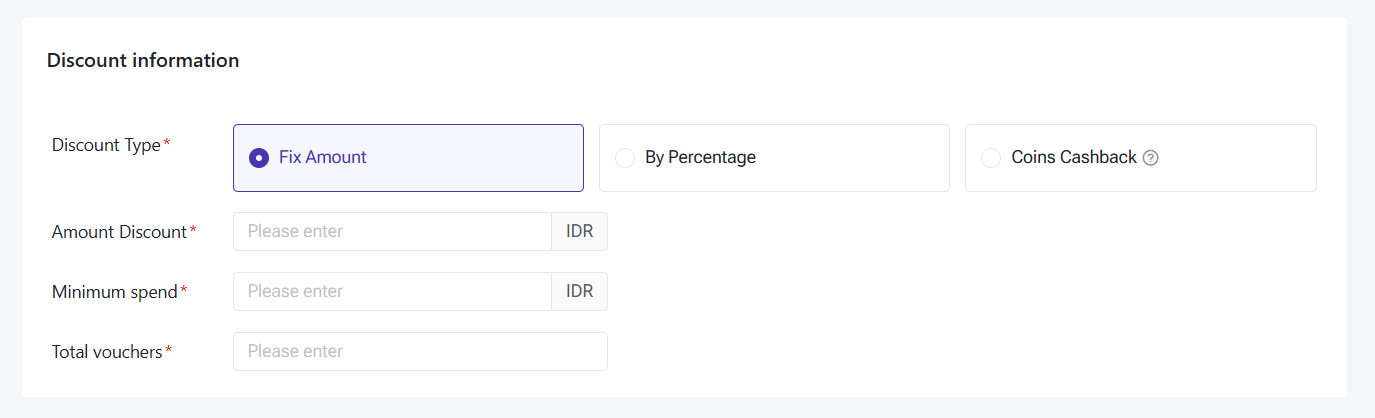
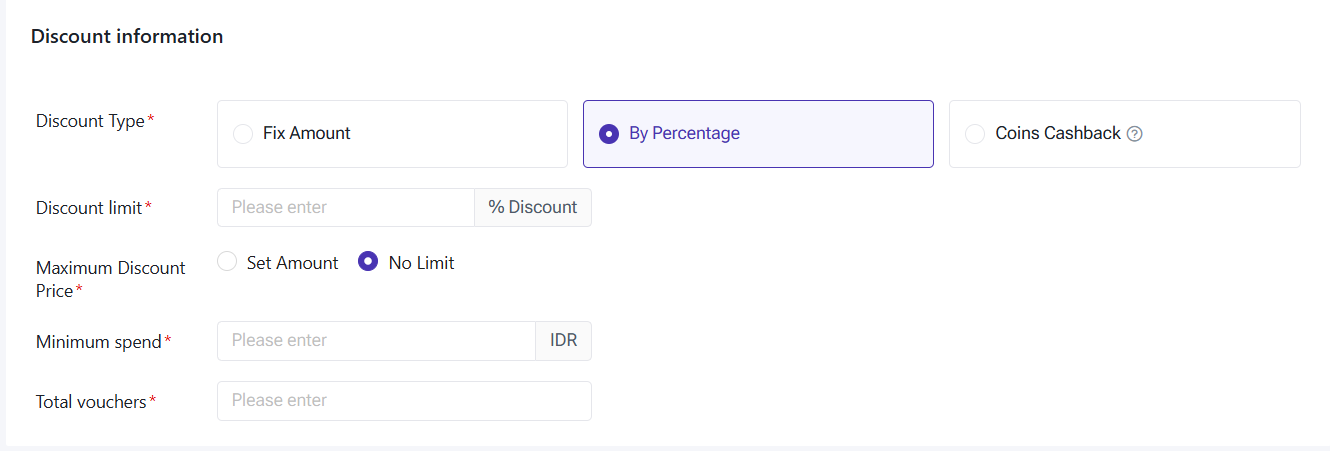
The discount setting determines how buyers receive benefits when using the voucher. Choose the discount method that best matches your campaign goals.
BigSeller supports three discount types:
1) Fix Amount
Offer buyers a fixed discount amount.
Example:
Get RM10 off with a minimum spend of RM100.
You can configure:
- Discount amount
- Minimum spend
- Voucher quantity
2) By Percentage
Offer buyers a percentage discount based on their order amount.
Example:
- Get 10% OFF, capped at RM20.
You can configure:
- Discount percentage
- Maximum discount amount
- Minimum spend
- Voucher quantity
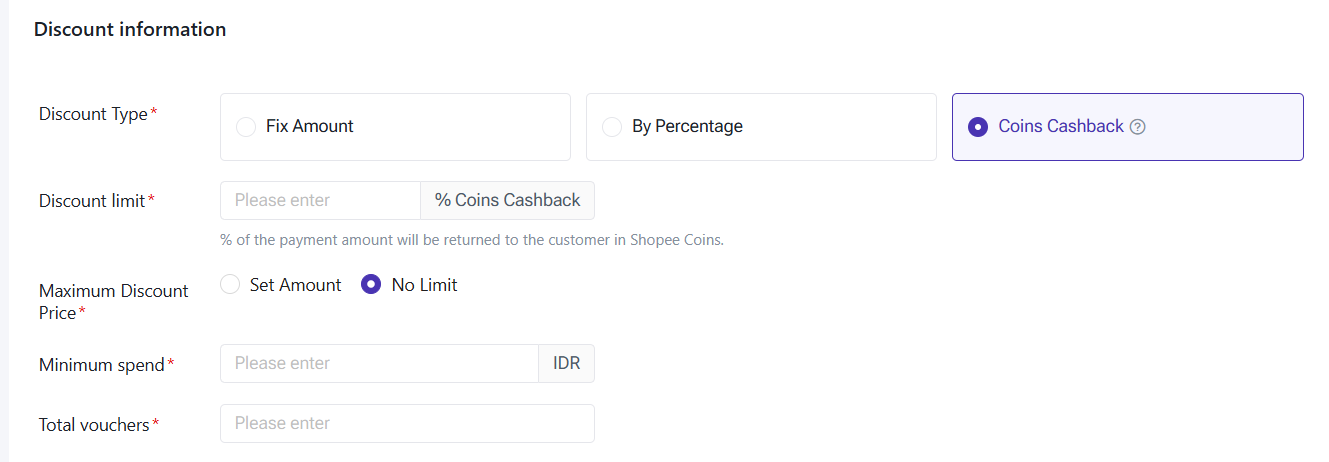
3) Shopee Coins Cashback
Reward buyers with Shopee Coins after they use the voucher.
Note:
- The Shopee Coins cost is covered by sellers.
1.4 Set Voucher Display Channels
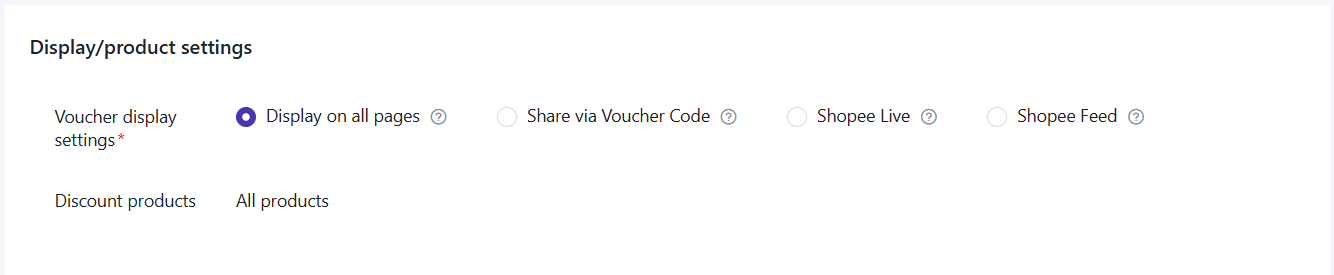
Choosing the right display channel helps increase voucher visibility and reach more potential buyers.
You can display vouchers through the following channels:
1) Display on All Pages
The voucher will appear on:
- Store homepage
- Product pages
- Cart page
Suitable for increasing voucher exposure during regular promotions.
2) Share via Voucher Code
Buyers can only use the voucher through the voucher code.
Suitable for:
2) Share via Voucher Code
Buyers can only use the voucher through the voucher code.
Suitable for:
- Influencer campaigns
- Community promotions
- Private traffic marketing
3) Shopee Live
Display vouchers during Shopee Live sessions to encourage buyers to place orders while watching live streams.
4) Shopee Feed
Display vouchers through Shopee Feed to engage followers and attract more traffic.
Display vouchers during Shopee Live sessions to encourage buyers to place orders while watching live streams.
4) Shopee Feed
Display vouchers through Shopee Feed to engage followers and attract more traffic.
2. Manage Shopee Voucher
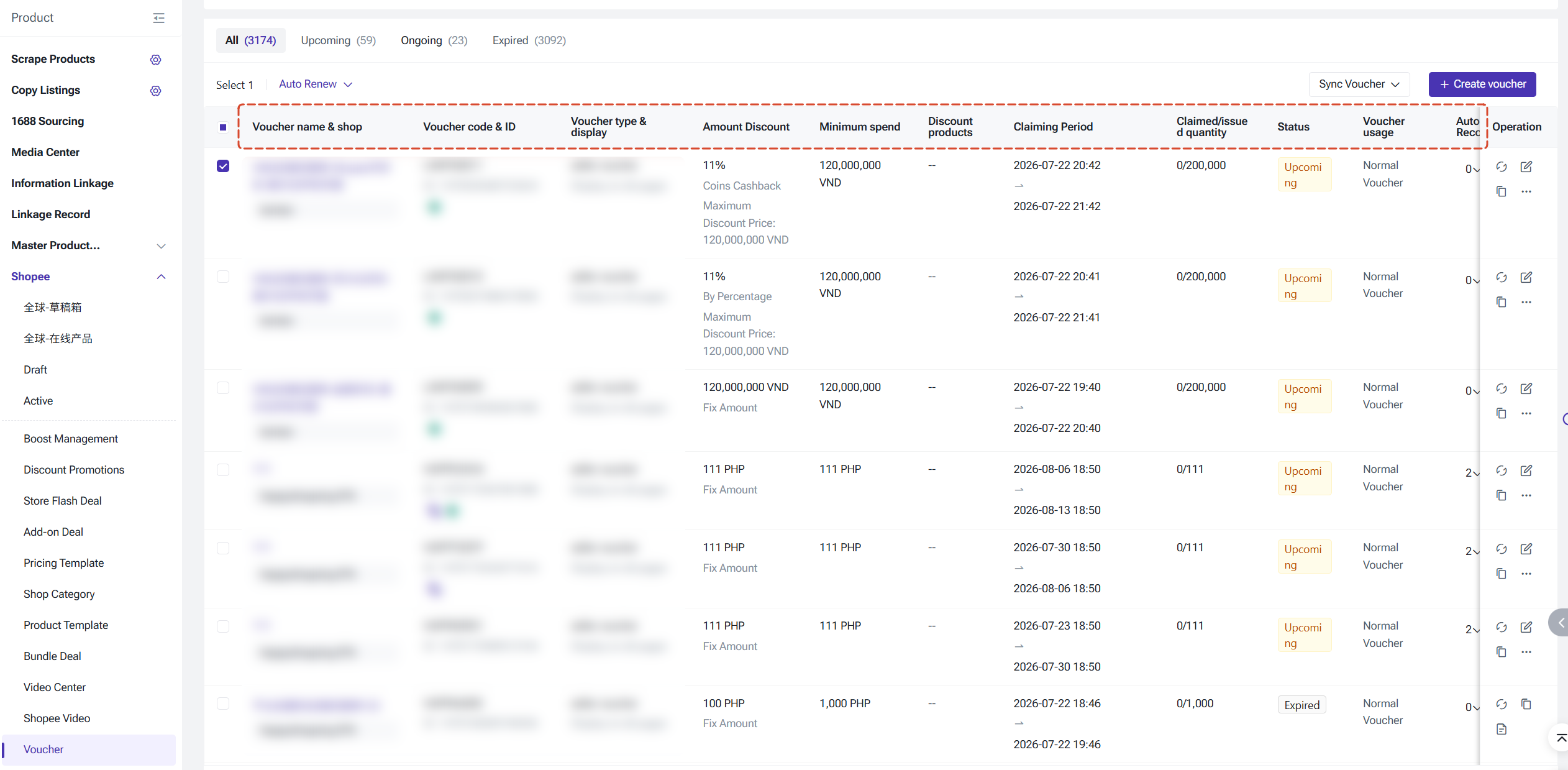
After creating vouchers, you can manage all Shopee vouchers from BigSeller without switching between different Seller Centers.
Go to: Products > Shopee > Voucher
2.1 View Voucher Details
Click a voucher to view detailed information. By checking voucher details in one place, you can quickly understand your ongoing promotions and make timely adjustments.
2.2 Voucher Actions
BigSeller provides multiple actions to help you manage vouchers efficiently.
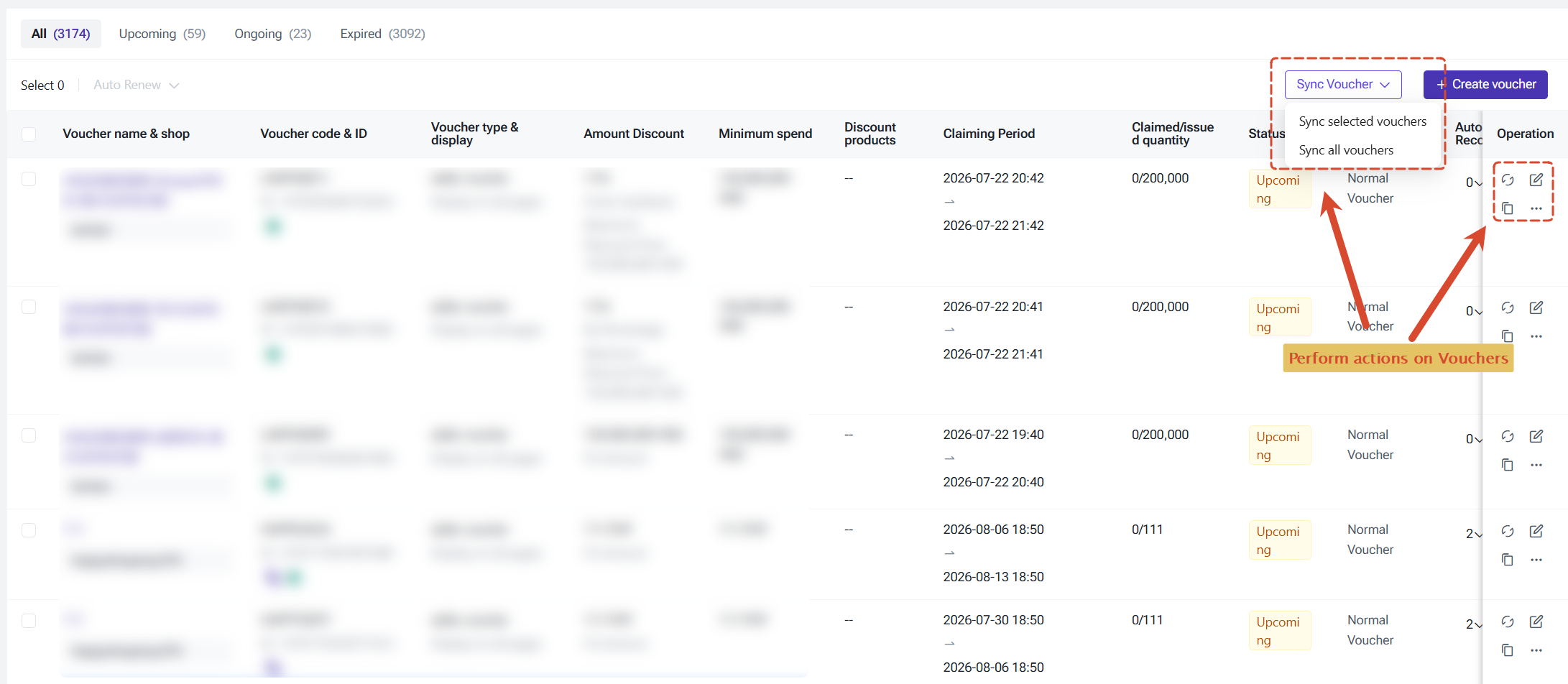
1) Sync Voucher
Sync the latest voucher information from Shopee Seller Center.
You can:
Go to: Products > Shopee > Voucher
2.1 View Voucher Details
Click a voucher to view detailed information. By checking voucher details in one place, you can quickly understand your ongoing promotions and make timely adjustments.
2.2 Voucher Actions
BigSeller provides multiple actions to help you manage vouchers efficiently.
1) Sync Voucher
Sync the latest voucher information from Shopee Seller Center.
You can:
- Sync selected vouchers
- Sync all vouchers
2) Copy Voucher
Copy an existing voucher configuration to quickly create a new voucher.
This is useful for:
Copy an existing voucher configuration to quickly create a new voucher.
This is useful for:
- Recurring promotions
- Similar discount campaigns
- Seasonal events
3) Delete Voucher
You can delete vouchers with Upcoming status.
4) End Voucher
You can end an ongoing voucher before its original expiration time.
After ending the voucher, buyers can no longer claim or use it.
2.3 Auto Renew Voucher
For sellers who run continuous promotions, manually recreating vouchers can be repetitive.
With Auto Renew, BigSeller can automatically create a new voucher when the current voucher expires based on your settings, helping you maintain ongoing campaigns with less manual work. Please note that only vouchers created on BigSeller can be auto renewed.
Auto Renew is suitable for:
You can delete vouchers with Upcoming status.
4) End Voucher
You can end an ongoing voucher before its original expiration time.
After ending the voucher, buyers can no longer claim or use it.
2.3 Auto Renew Voucher
For sellers who run continuous promotions, manually recreating vouchers can be repetitive.
With Auto Renew, BigSeller can automatically create a new voucher when the current voucher expires based on your settings, helping you maintain ongoing campaigns with less manual work. Please note that only vouchers created on BigSeller can be auto renewed.
Auto Renew is suitable for:
- Long-term store promotions
- Daily traffic campaigns
- Continuous marketing activities
You can configure:
- Renew based on the original voucher duration
- Renew until a specified end date
The newly created voucher will inherit the settings from the original voucher.
You can enable auto renewal for vouchers on Single Edit page or by Bulk Actions.
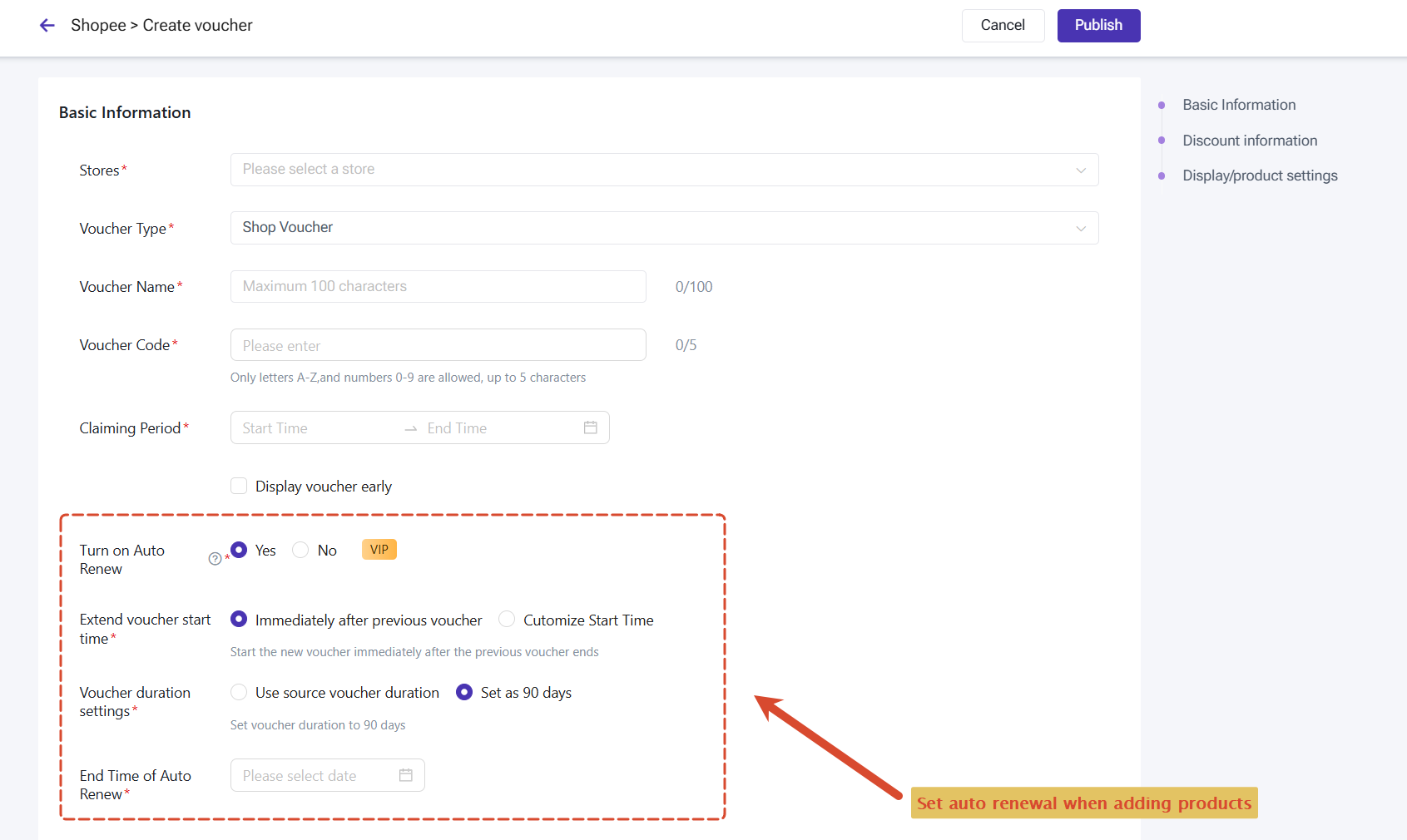
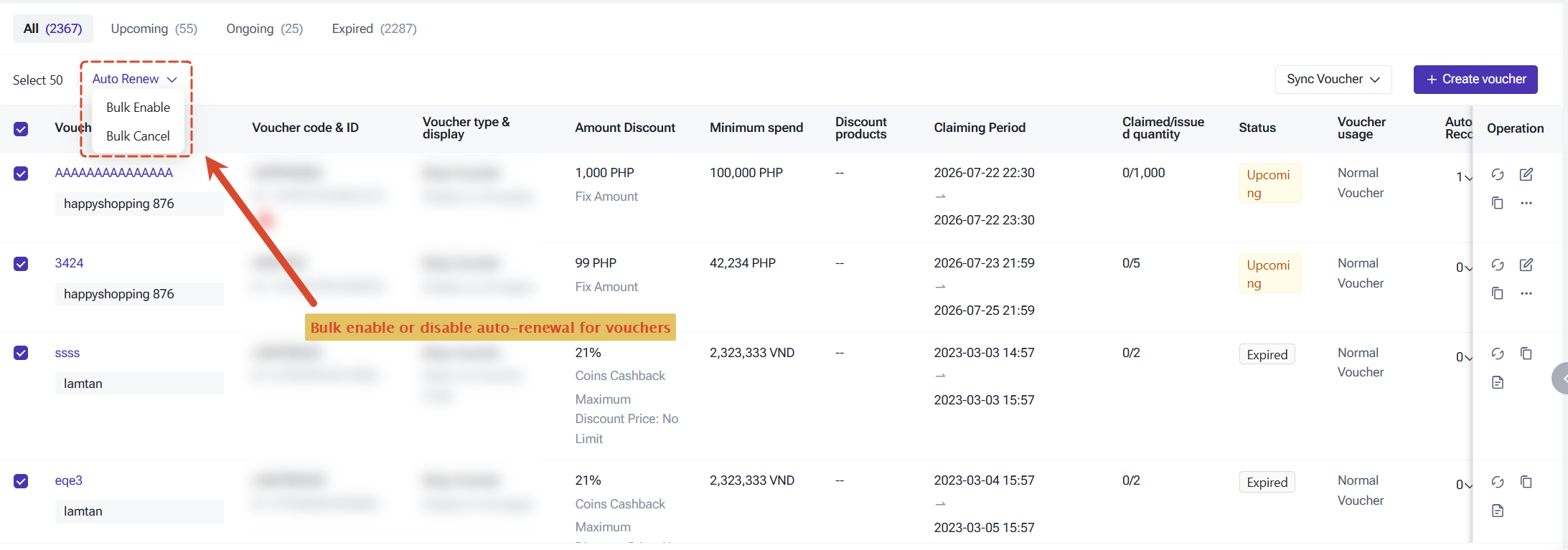
You can enable auto renewal for vouchers on Single Edit page or by Bulk Actions.
3. Notes
- The maximum voucher duration is 90 days.
- Product Voucher requires selected products before it can be activated.
- Voucher codes support English letters and numbers only, with a maximum length of 5 characters.
- Vouchers created through Auto Renew will inherit the original voucher settings.
- Available editing options may vary depending on voucher status.
- Some voucher settings may be restricted by Shopee platform rules.
Is this content helpful?
Thank you for your feedback. It drives us to provide better service.
Please contact us if the document can't answer your questions