How to use Ads Alert Rules?
Copy link & title
Update Time: 17 Jun 2026 10:59
You can now configure ad alert rules on BigSeller so that when an ad meets the trigger conditions, an alert is automatically triggered and sent to the relevant personnel via notification, helping to avoid wasted ad spend or underperformance against expected ad metrics.
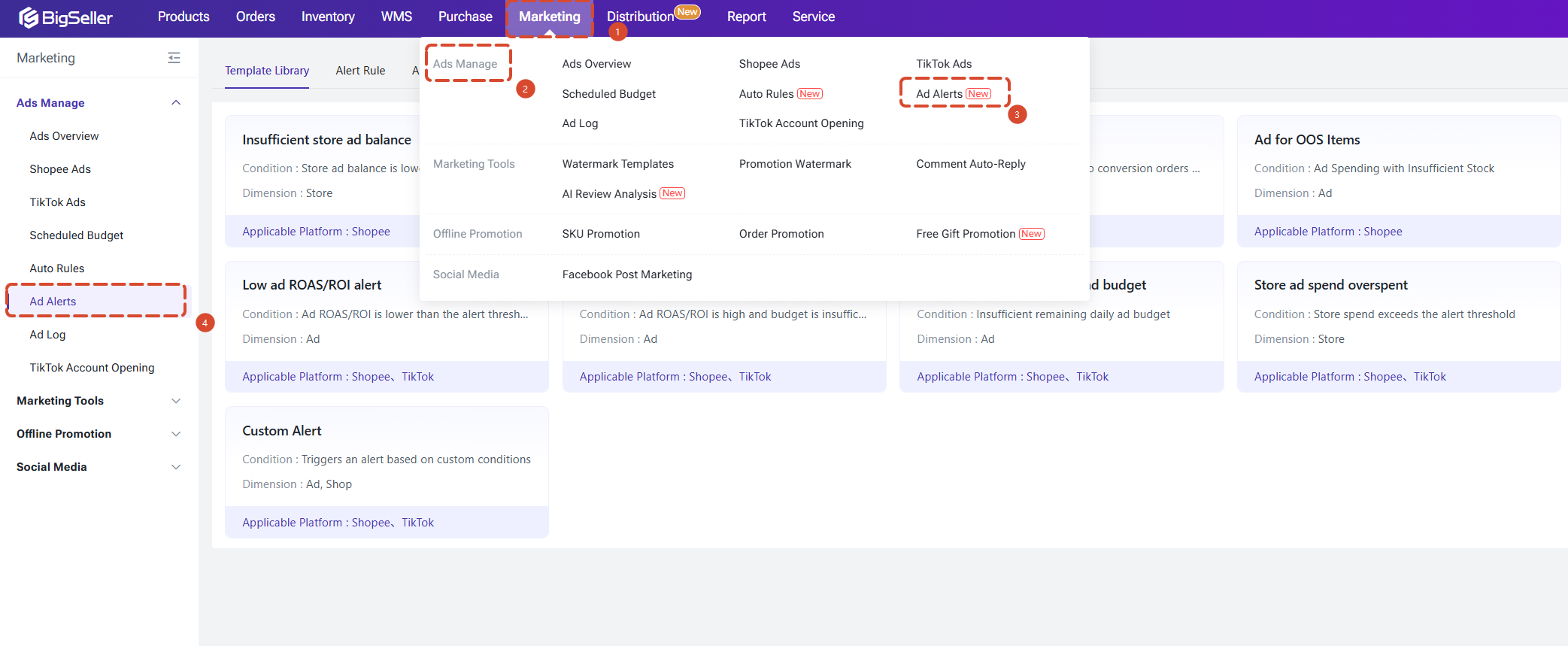
You may find this feature in Marketing > Ads Manage > Ads Alert. Currently only the Shopee and TikTok Ads are supported.
Step by Step Guide
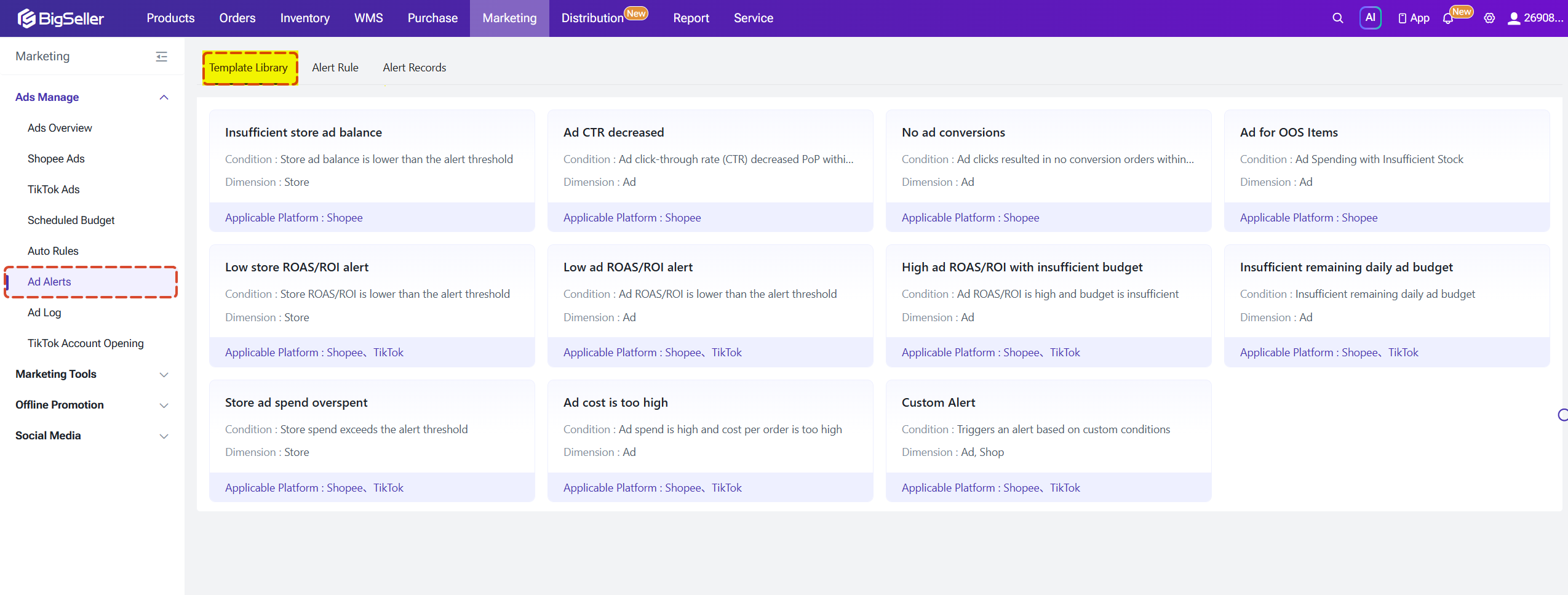
The system provides 10 preset templates plus one custom template. You can select the template you need based on the system's templates to set up alert rules.
Rule setup
Using insufficient store ad balance as an example:
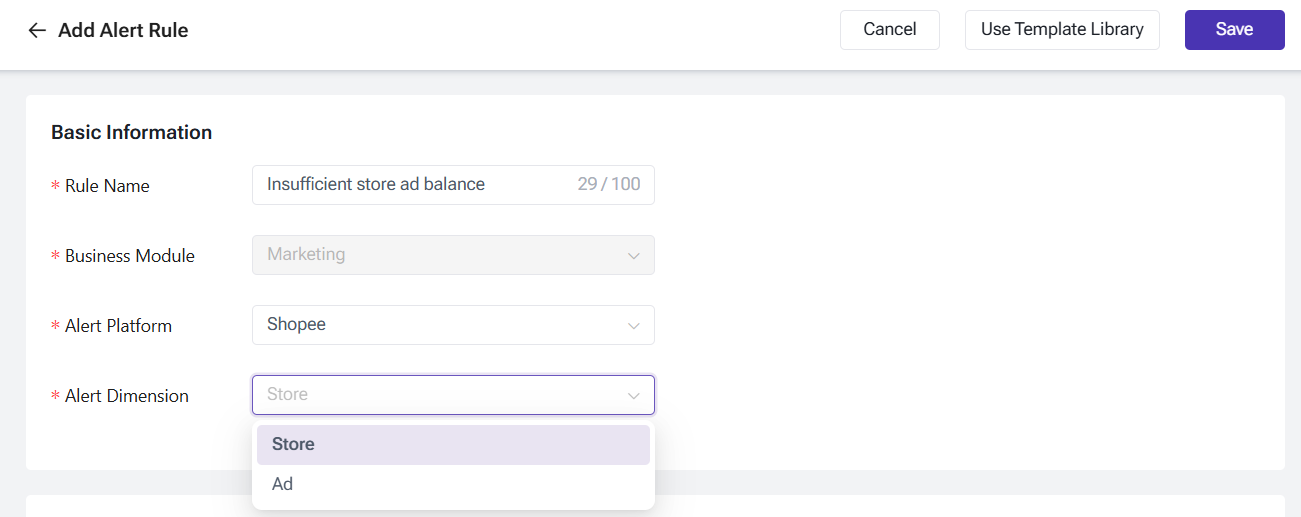
Step 1: Select a template > Fill in basic information
Ad alerts are divided into two dimensions: shop-level and ad-level
Step 2: Set rule conditions
You can set up to 5 trigger conditions. If multiple conditions are set, all conditions must be met for the rule to trigger.
Example: Trigger the alert rule when the shop's ad balance today is less than 20 RM.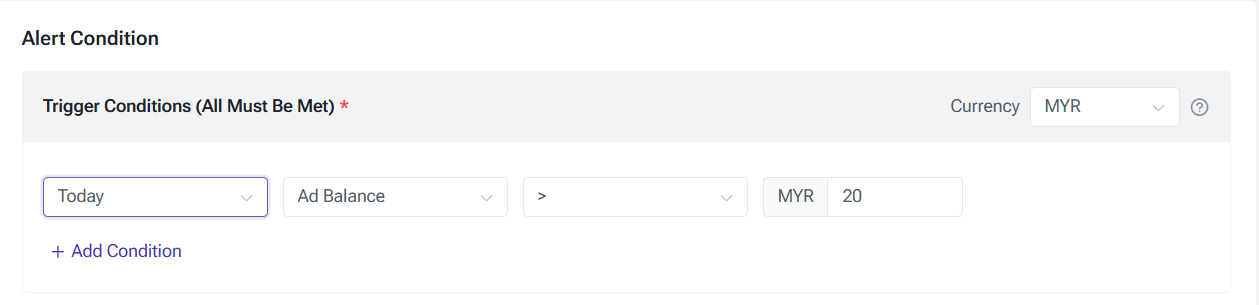
Step 3: Set alert targets
When Shop dimension is selected, the alert target is the platform shop(s); when Ad dimension is selected, the alert target is the specific ad(s).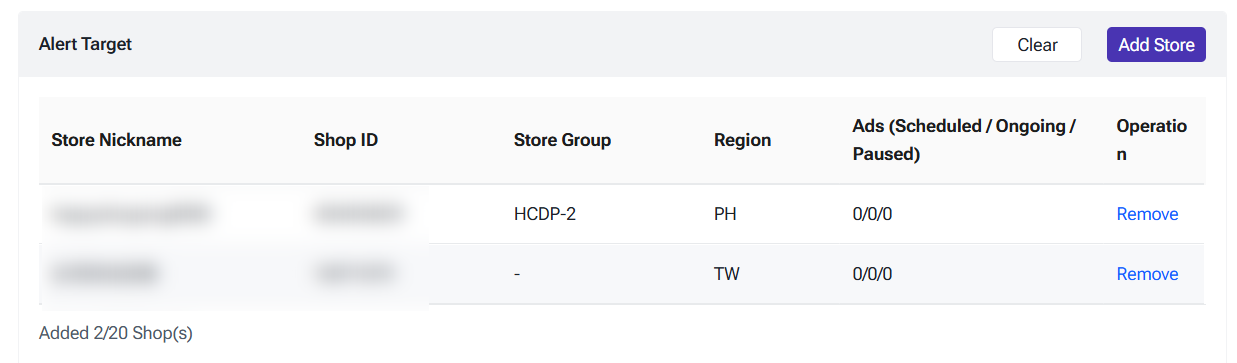
Step 4: Set execution frequency
You can choose to run the rule daily, weekly, or monthly.

Step 5: Set notification recipients and channels
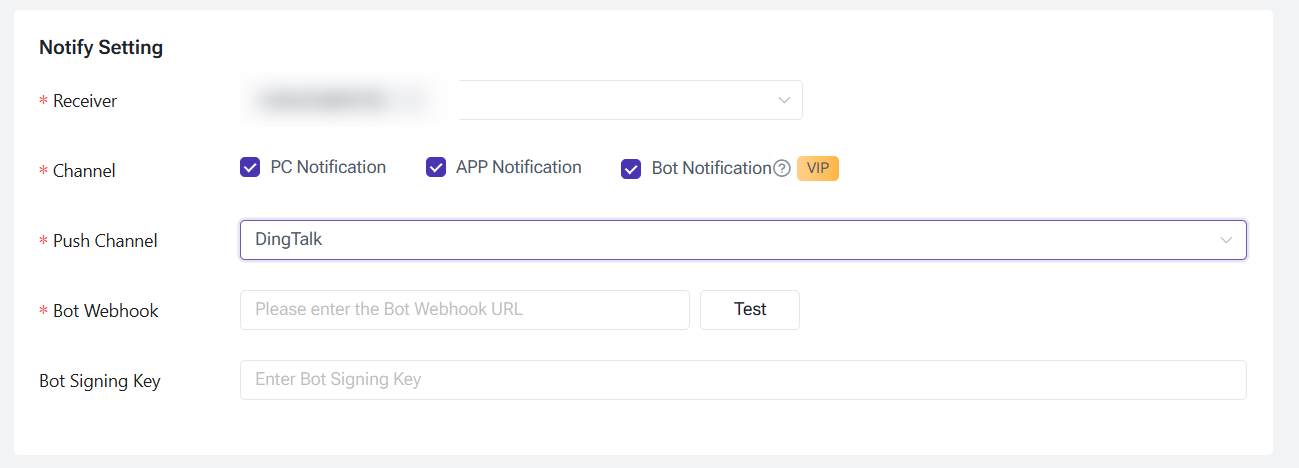
When a shop or ad meets the conditions set in the alert rule, the system will send an alert notification. You can choose the receiver and the notification types: PC notifiction, APP notification and Bot Notification.
When bot notification is enabled, alerts can be pushed via webhook URL, with options for Feishu, DingTalk, or WeCom.
Once configured, the alert will be pushed as a notification message.
You may find this feature in Marketing > Ads Manage > Ads Alert. Currently only the Shopee and TikTok Ads are supported.
Step by Step Guide
The system provides 10 preset templates plus one custom template. You can select the template you need based on the system's templates to set up alert rules.
Rule setup
Using insufficient store ad balance as an example:
Step 1: Select a template > Fill in basic information
Ad alerts are divided into two dimensions: shop-level and ad-level
- If you select Shop dimension, the alert rule will apply to all ads under the selected shop(s).
- If you select Ad dimension, the alert rule will only apply to the selected ad(s).
Step 2: Set rule conditions
You can set up to 5 trigger conditions. If multiple conditions are set, all conditions must be met for the rule to trigger.
Example: Trigger the alert rule when the shop's ad balance today is less than 20 RM.
- Time range options: Today, Last 3 days, Last 7 days, Last 14 days, Last 30 days.
- Shop-level alert metrics include: Ad Balance, Views, Click Rate, Conversions, Conversion Rate, Products Sold, Sales Amount, Spend, ROAS, Cost per Conversion.
- Ad-level alert metrics include: Daily Budget, Product Stock, Spend, Spend-to-Budget Ratio, Sales Amount, Clicks, Views, Click Rate, Conversions, Conversion Rate, Products Sold, Cost per Conversion, ACOS, ROAS.
Step 3: Set alert targets
When Shop dimension is selected, the alert target is the platform shop(s); when Ad dimension is selected, the alert target is the specific ad(s).
- Up to 20 shops can be added.
- Up to 50 ads can be added for TikTok, and up to 200 ads for Shopee.
Step 4: Set execution frequency
You can choose to run the rule daily, weekly, or monthly.
Step 5: Set notification recipients and channels
When a shop or ad meets the conditions set in the alert rule, the system will send an alert notification. You can choose the receiver and the notification types: PC notifiction, APP notification and Bot Notification.
When bot notification is enabled, alerts can be pushed via webhook URL, with options for Feishu, DingTalk, or WeCom.
Once configured, the alert will be pushed as a notification message.
Is this content helpful?
Thank you for your feedback. It drives us to provide better service.
Please contact us if the document can't answer your questions