Connect stores to BigSeller - TikTok Shop Global Store
Update Time: 30 Oct 2025 04:04
You can connect your TikTok store from both BigSeller and TikTok Shop Seller Center.
-
When authorizing Tiktok Shop, if unable to access the authorization page. Please enable the VPN software before operating the authorization.
-
BigSeller supports order processing, product publishing, inventory push, and other functions after authorizing the global store.
-
If you need to authorize multiple stores (Tiktok Shop accounts), after each successful authorization, please first log out the account of the authorized store in the Seller Center, and then proceed to authorize a new Tiktok Shop store.
-
When authorizing from the BigSeller authorization page, there is no need to perform IP isolation when logging into the store. You can authorize directly. BigSeller is authorized through the official platform interface.
1. How to Connect TikTok Global Store
Method 1: Authorize From BigSeller
Step 1: Login BigSeller > Setting > Authorization Center > Store Authorization, select TikTok Shop > Add New Store > fill in a TikTok store nickname > click Connect;
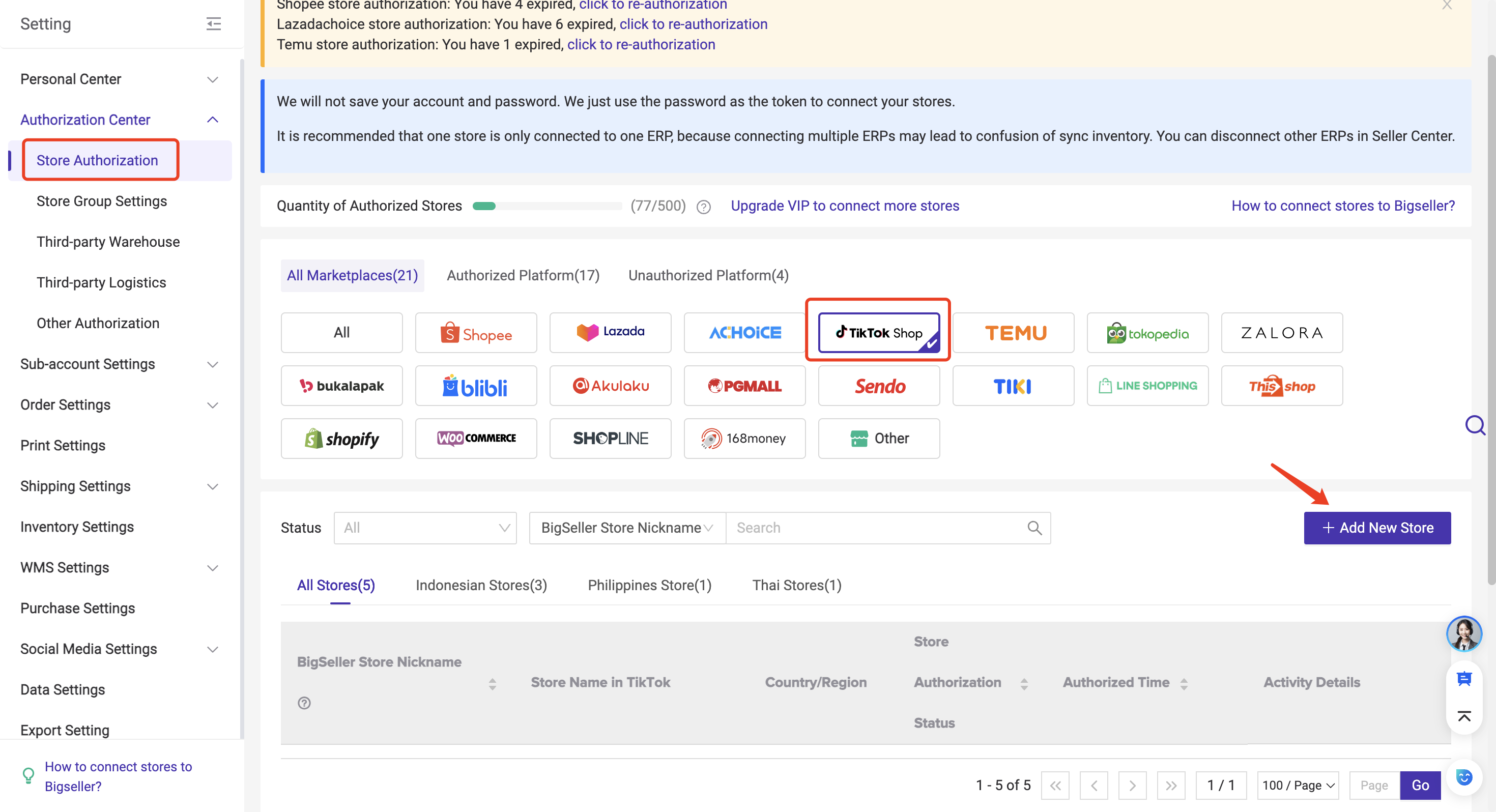
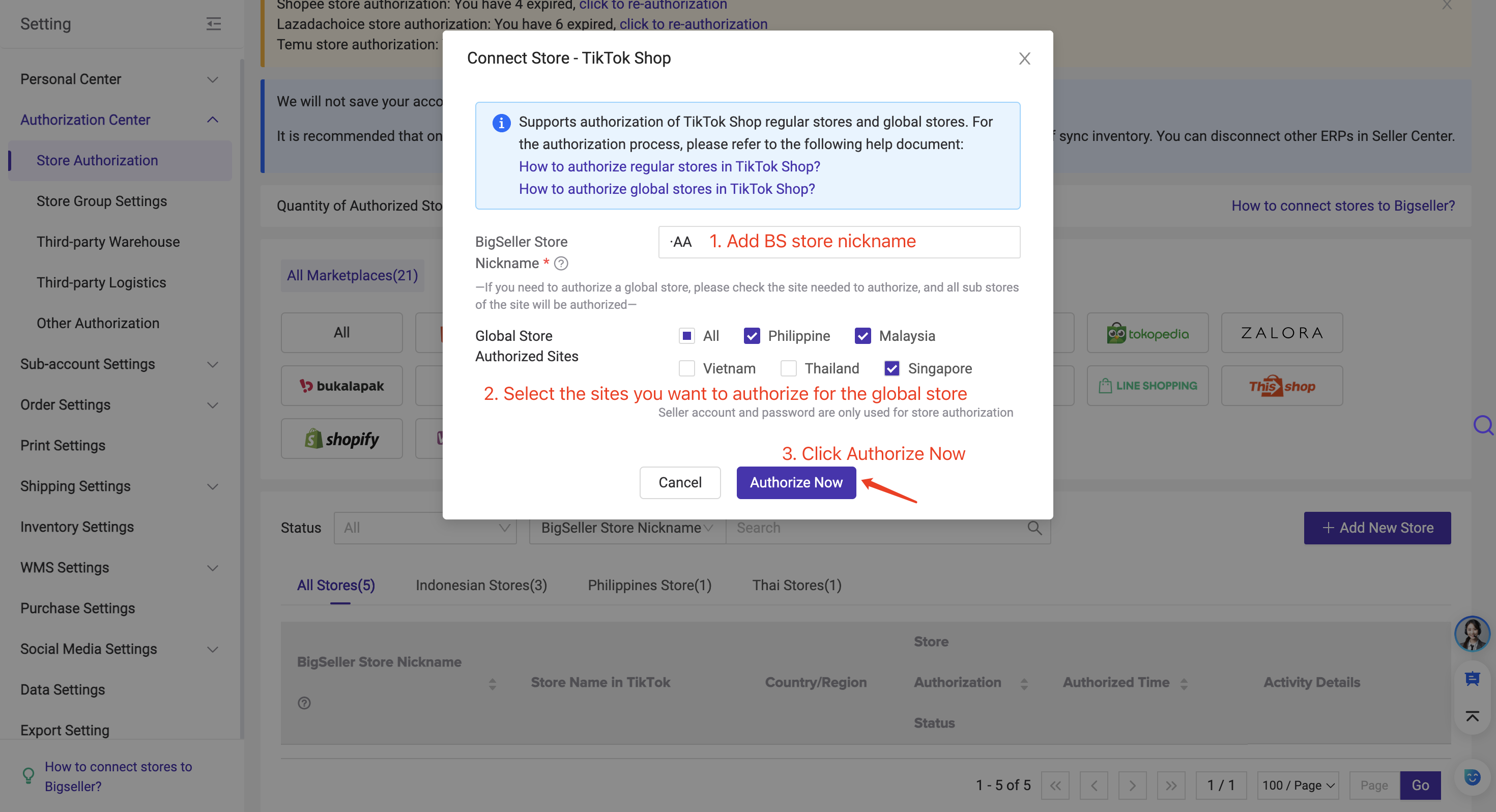
You can select the sites you want to authorize by checking the boxes. Once selected, all sub-stores under that site will be authorized to your BigSeller account. If no sites are selected, all sub-stores across all sites will be authorized in bulk to your BigSeller account.
-
Sub-stores under the TikTok Global Store count towards store limits, while the Global Store itself does not.
-
Authorizing at least one sub-store allows access to product information for the corresponding Global Store. If you don’t want sub-accounts to view Global Store details, you can disable the TikTok Global Store Page permission in role settings.
-
The BigSeller Name entered in the authorization pop-up will be used as the Global Store nickname. Sub-store nicknames will be automatically generated by adding a sequence number to the Global Store nickname.
-
Example: If you set the Global Store nickname as AA, sub-stores will be named AA01, AA02, etc.
-
You can later modify sub-store nicknames on the Store Authorization page. However, changing the Global Store nickname requires re-authorizing the store.
-
-
Users who have already authorized TikTok Global Store sub-stores on BigSeller must re-authorize to use the Inventory Push feature.
If there is no response after you click Connect, Please go to Google Settings and select OpenDNS or Google (Publish DNS).

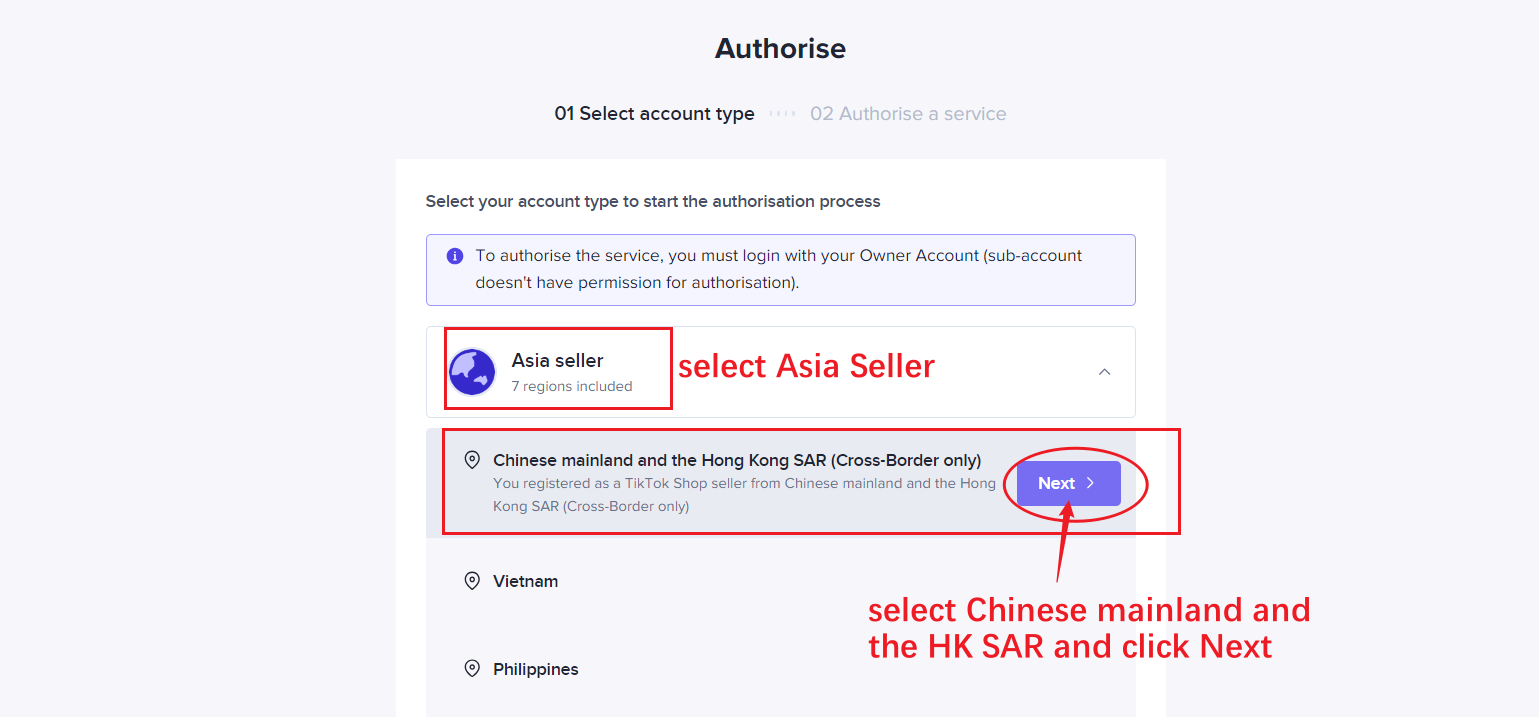
Step 2: Select your account type > click Next
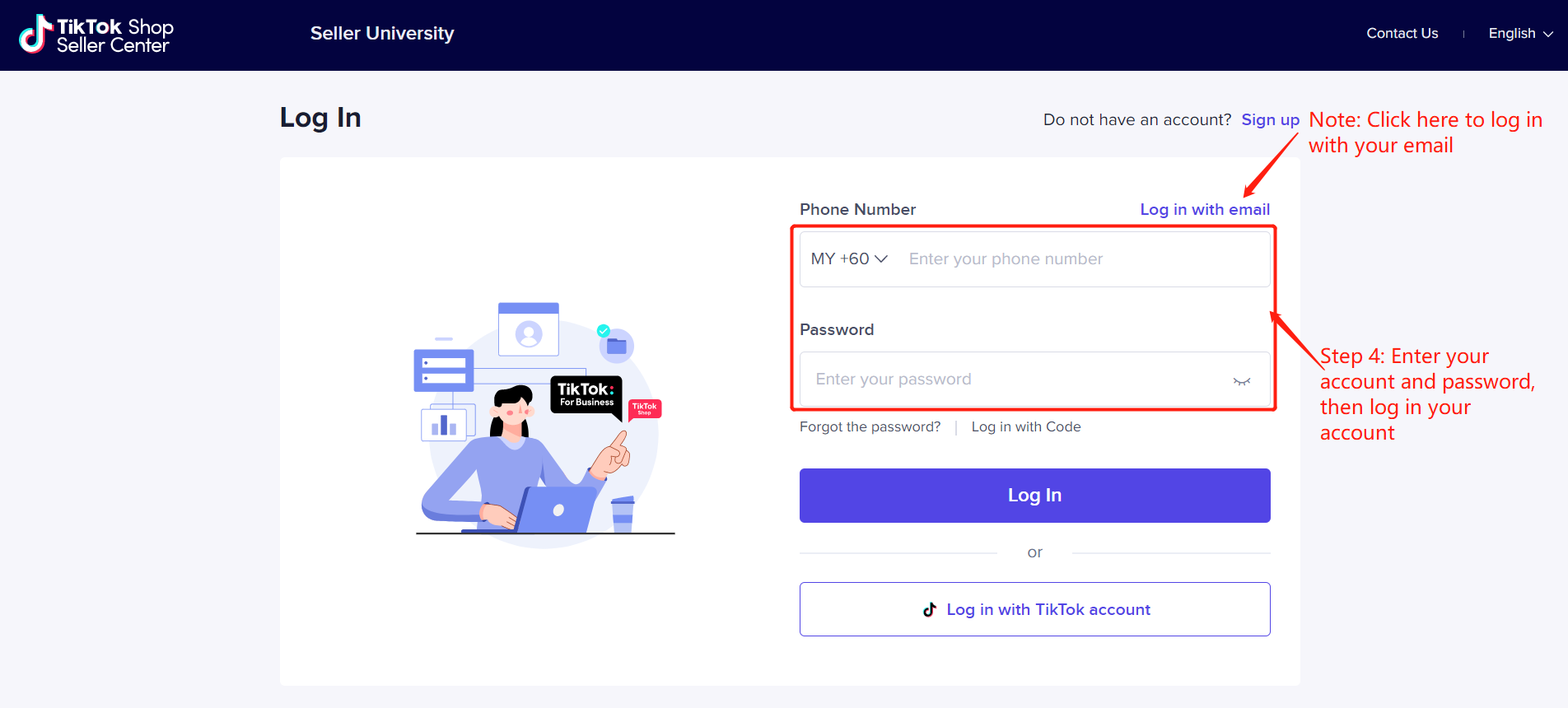
Step 3: Enter your TikTok Shop account and password, and log in to your account.
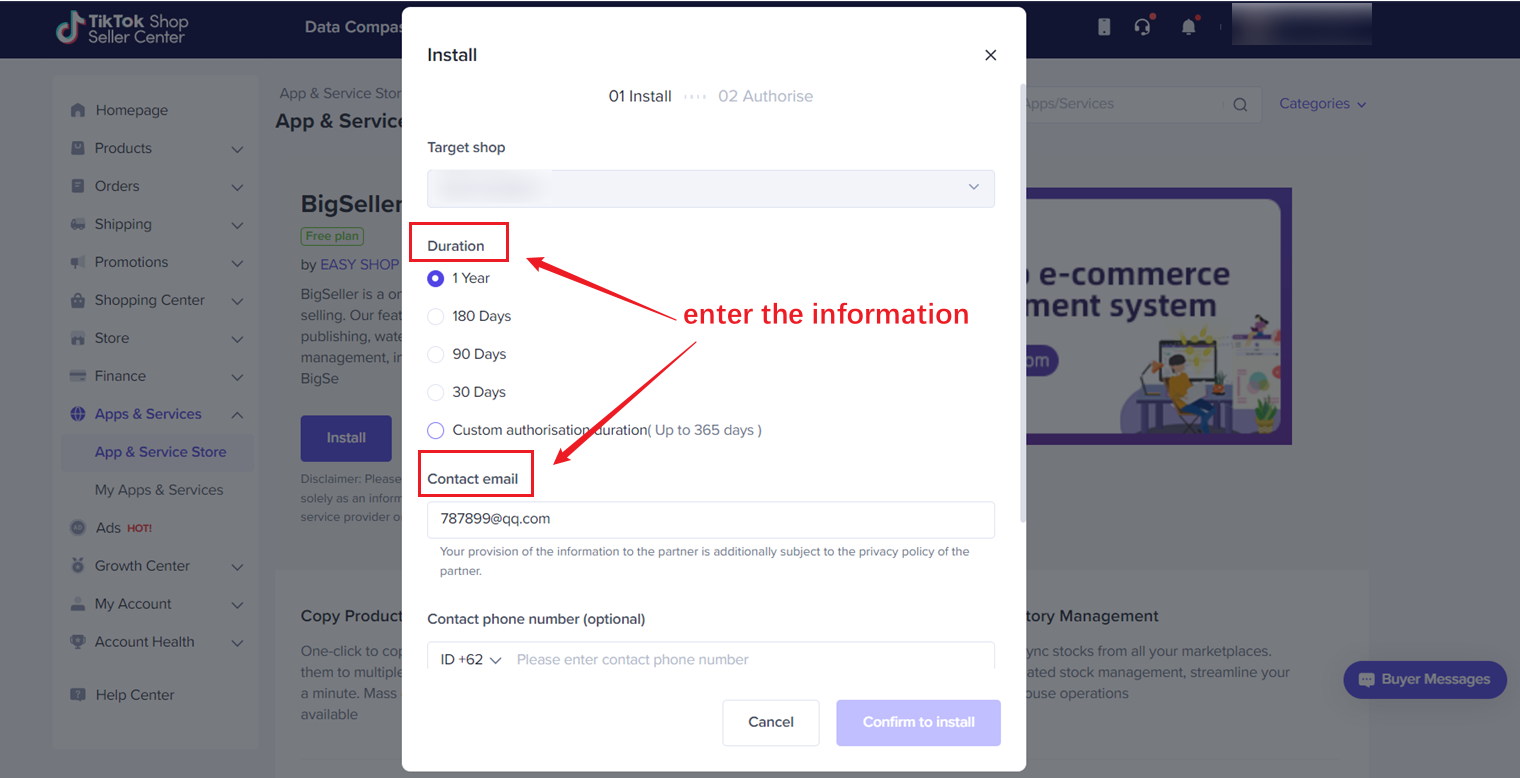
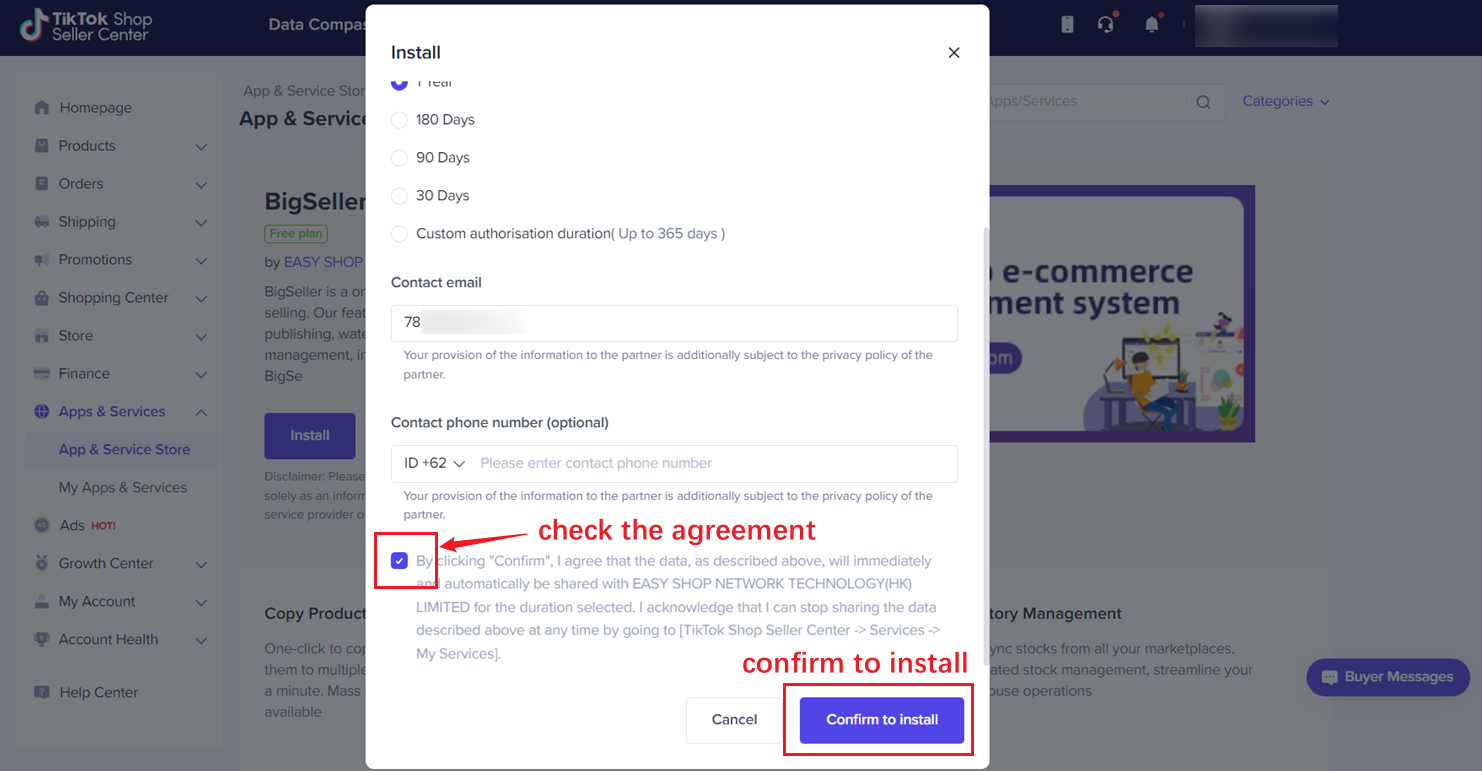
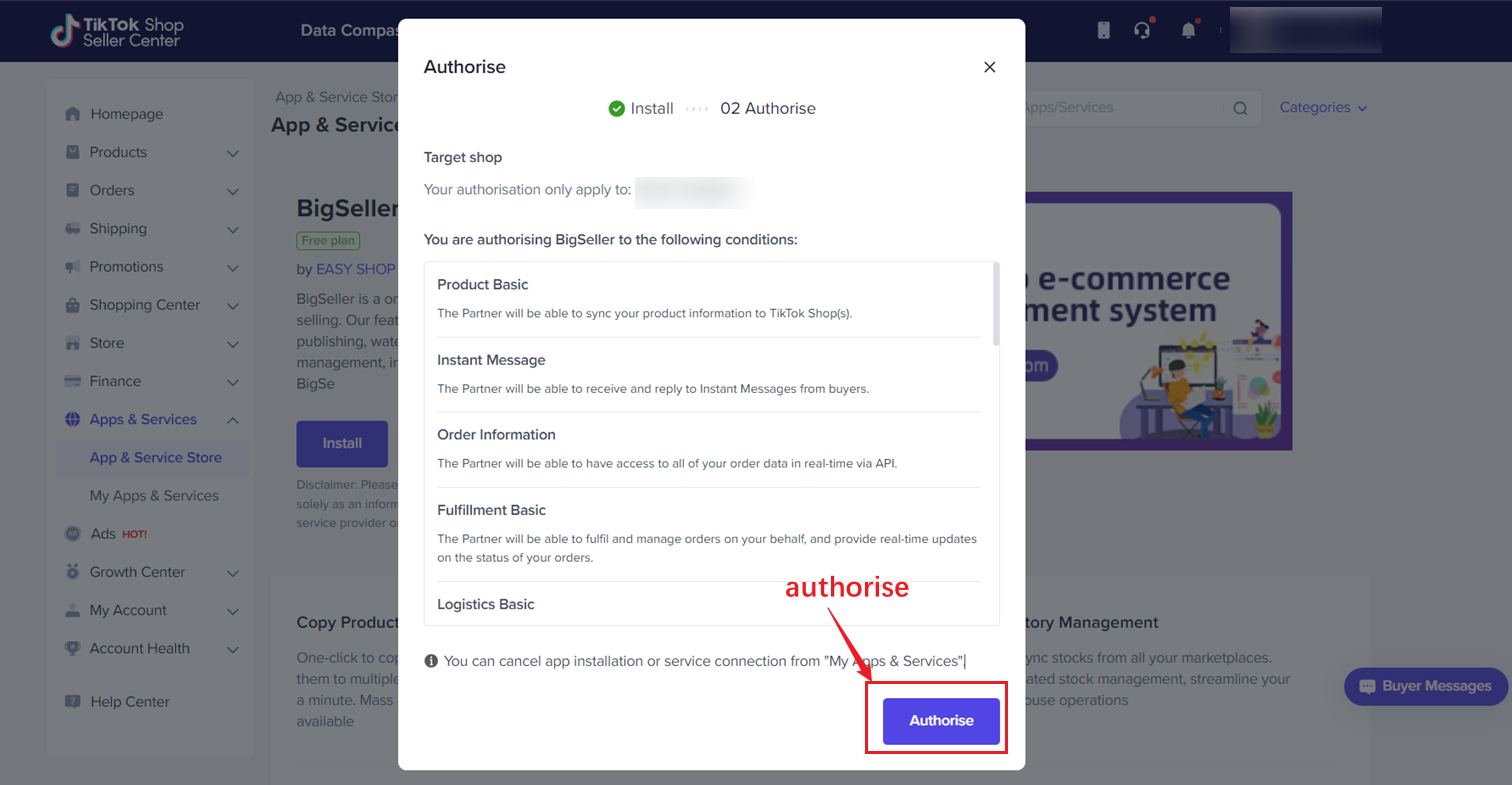
Step 4: Go to APP & Services - APP & Service Store > Select BigSeller > click Install > Fill in the authorization information and click Confirm to Install > Authorise

Method 2: From TikTok Shop seller center
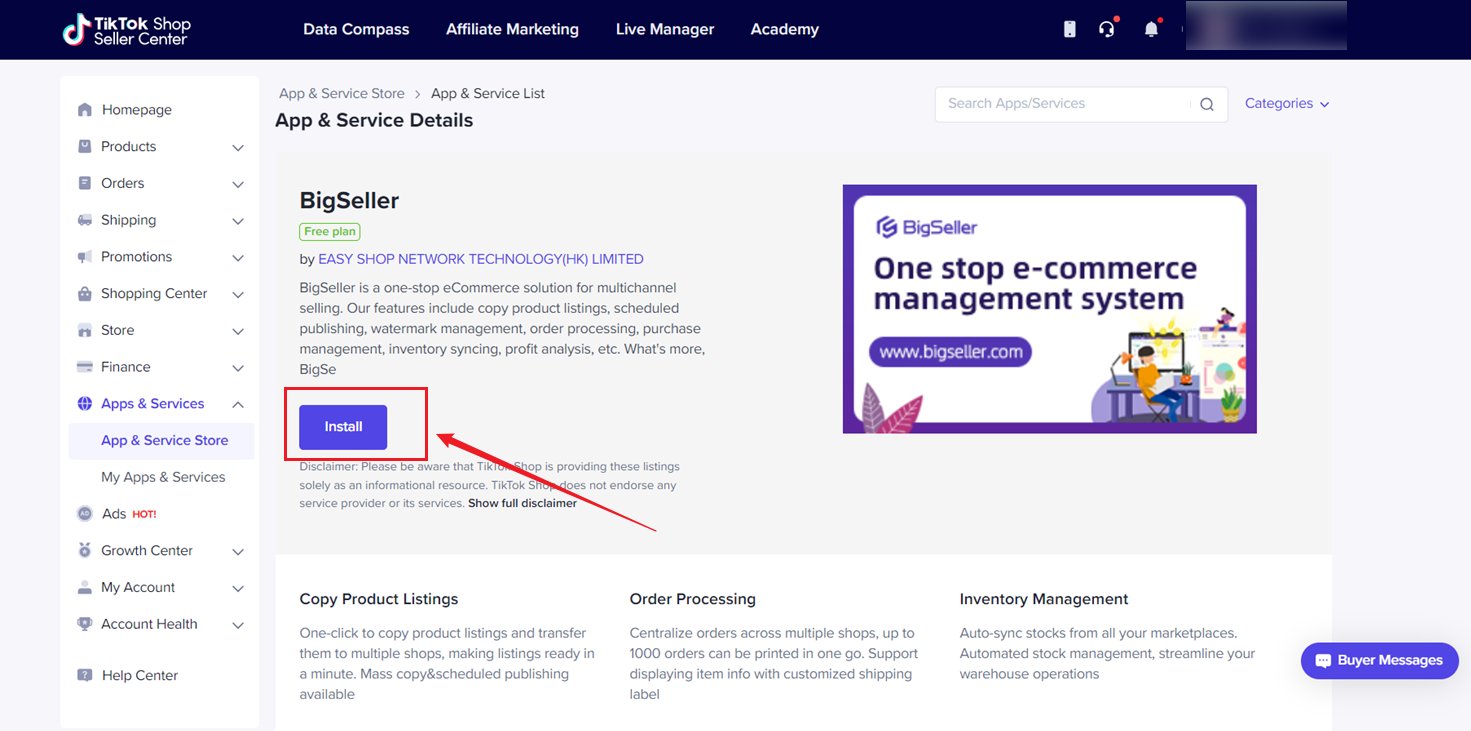
Step 1: Login to TikTok Shop Seller Center > Navigate to APP & Services - APP & Service Store > Select BigSeller
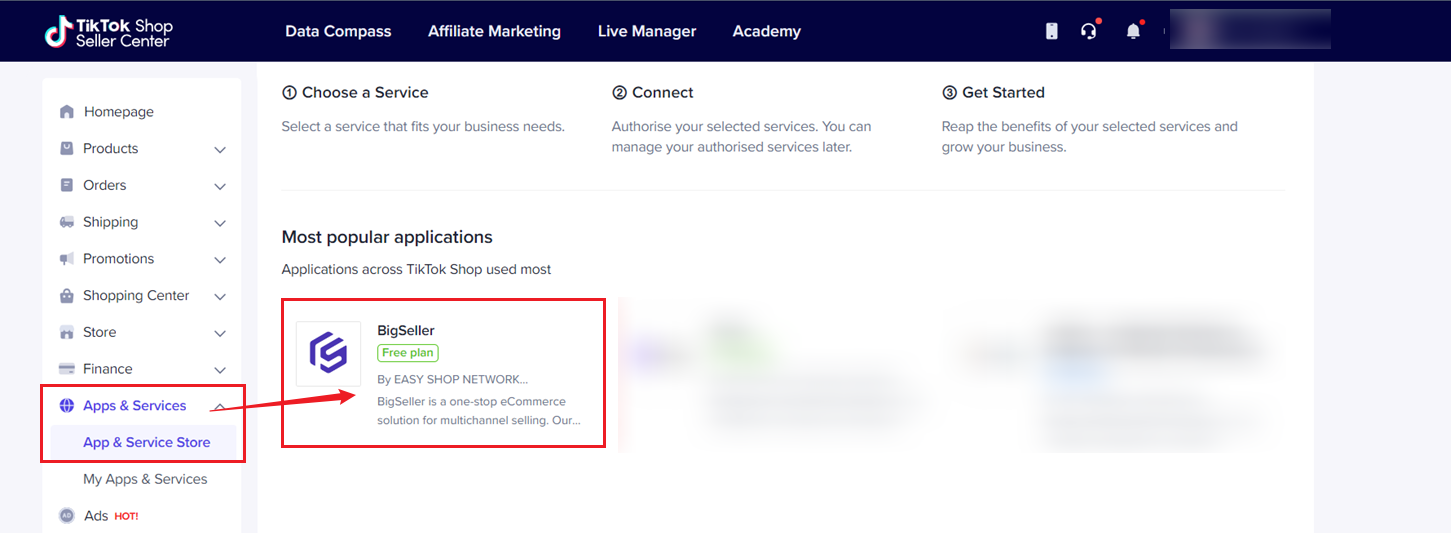
Step 2: click Install to BigSeller
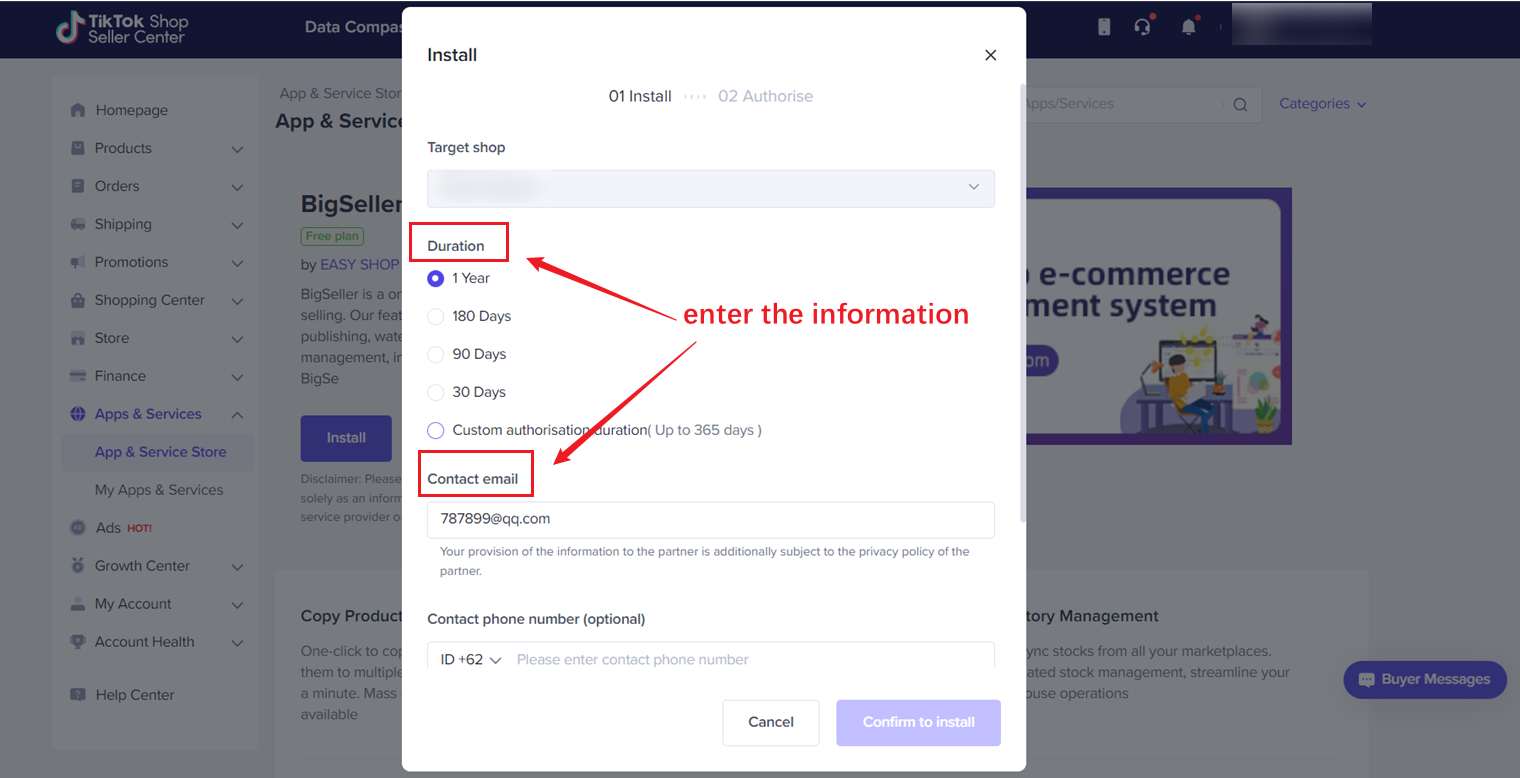
Step 3: Fill in the authorization information and click Confirm to Install > Authorise
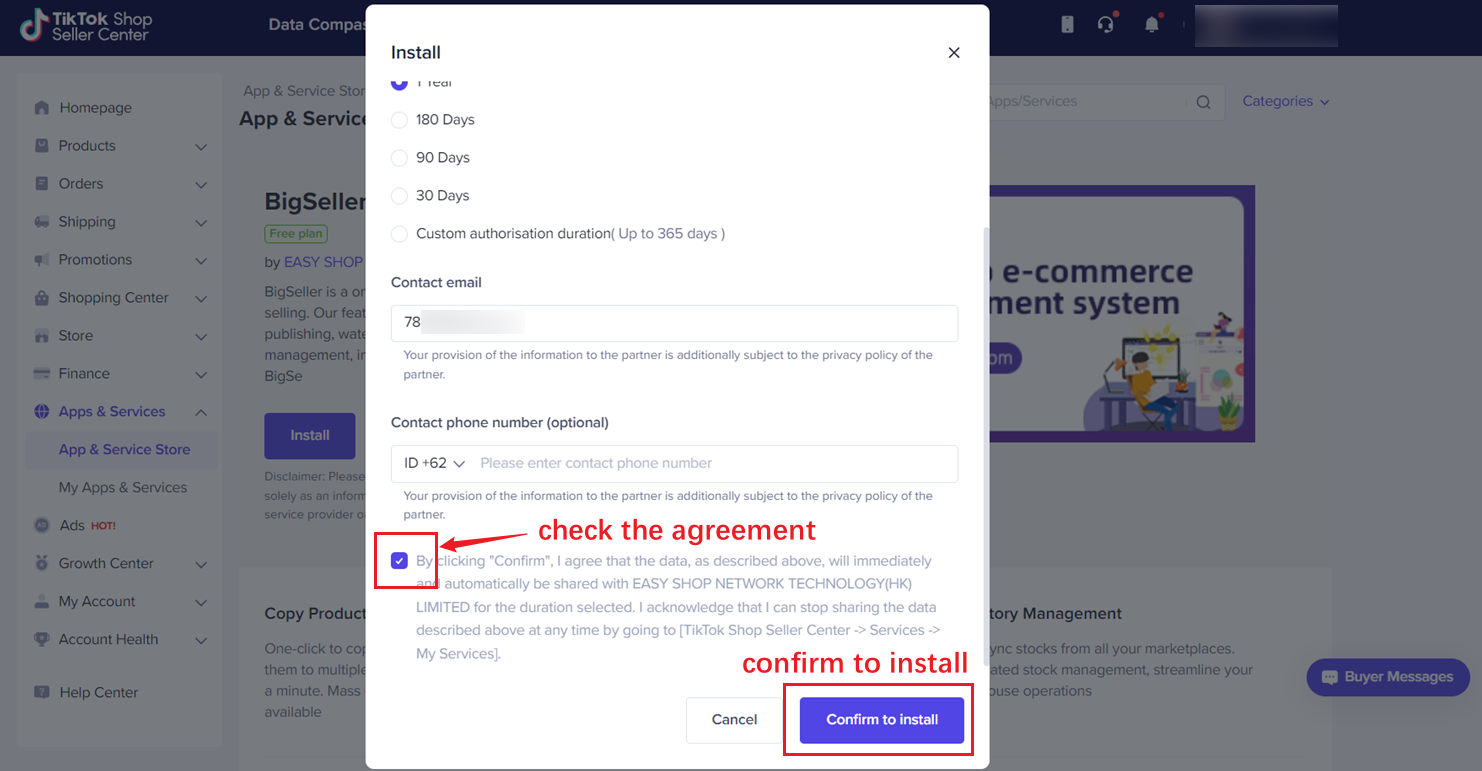
After authorizing, you could manage store products, process orders, push the inventory, check data analysis...
2. How to Publish Products to TikTok Global Store
TikTok is updating how sellers publish products between global stores and local (Sub) stores. There are two publishing methods:
Method 1: Global >> Local (Current Way)
- You can only view live products of your Global Store on BigSeller's Active page. Publish products from BigSeller is not supported.
- If your store still follows this method, you can continue using it as before — no changes needed.
Method 2: Local >> Local (New Way)
- If your global store has been updated, you can create and manage products directly in your Local Stores using BigSeller, without going through the Global Store.
- You can also copy products from one Local Store to another easily using BigSeller ERP.
3. Frequently Asked Questions
Q1: How can I authorize different sub-stores under the same site to different BigSeller accounts?
A1: First, authorize all sub-stores under the site to one BigSeller account. Then, go to the Seller Center and unbind the sub-stores that need to be authorized to another account. Finally, authorize the site again using the second BigSeller account.
A2: Please follow the steps below to resolve it:

First, go to [Seller Center] to confirm whether your store and warehouse status are normal.
If the warehouse status is normal, go to BigSeller → [Inventory Push Rules] → Edit, synchronize the platform warehouse, and then try again.
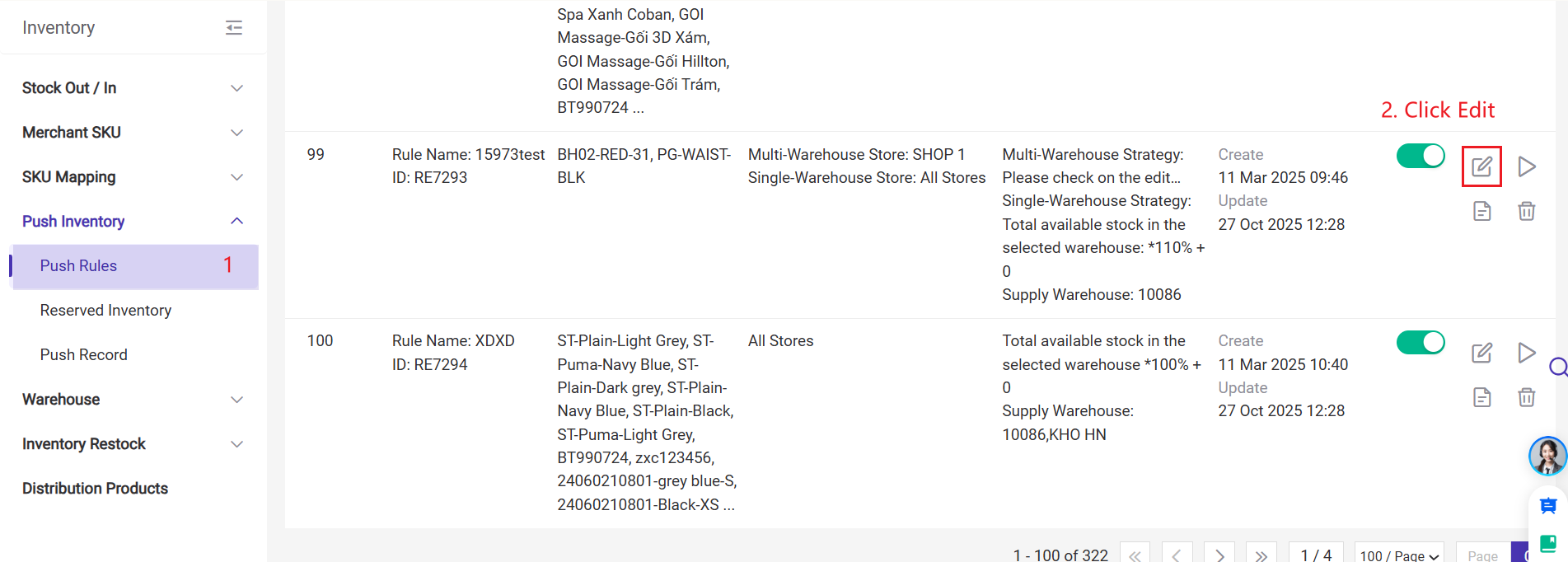
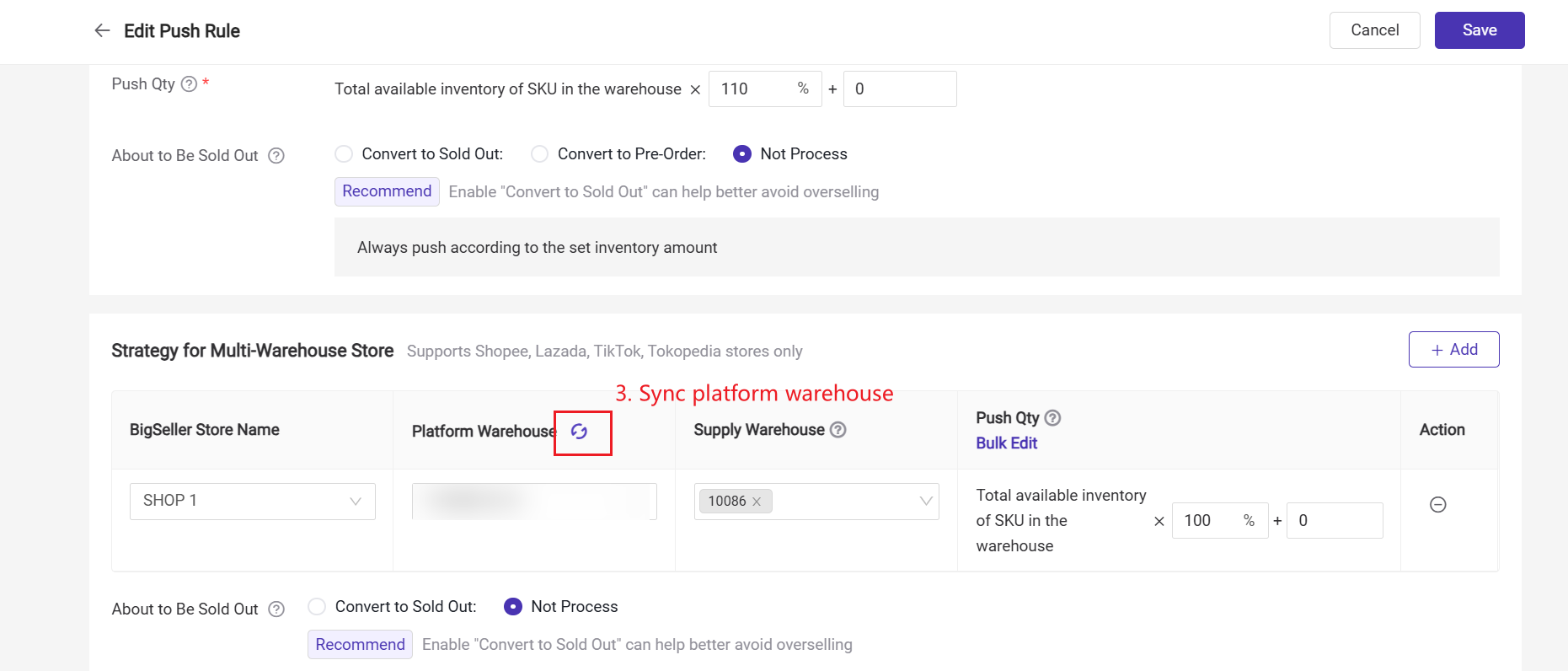
Step 3: Modify Warehouse
If the store is not banned and the warehouse status is normal but synchronization still fails, go to [Inventory Push Rules] and change the platform warehouse.
Step 4: Cross-Border Warehouse Handling
If your store previously used [Local Warehouse] for shipping and now encounters the “Invalid platform warehouse status” error, go to the corresponding push rule under the Global Store, change the platform warehouse to the matching [Cross-Border Overseas Warehouse], save, and re-push.
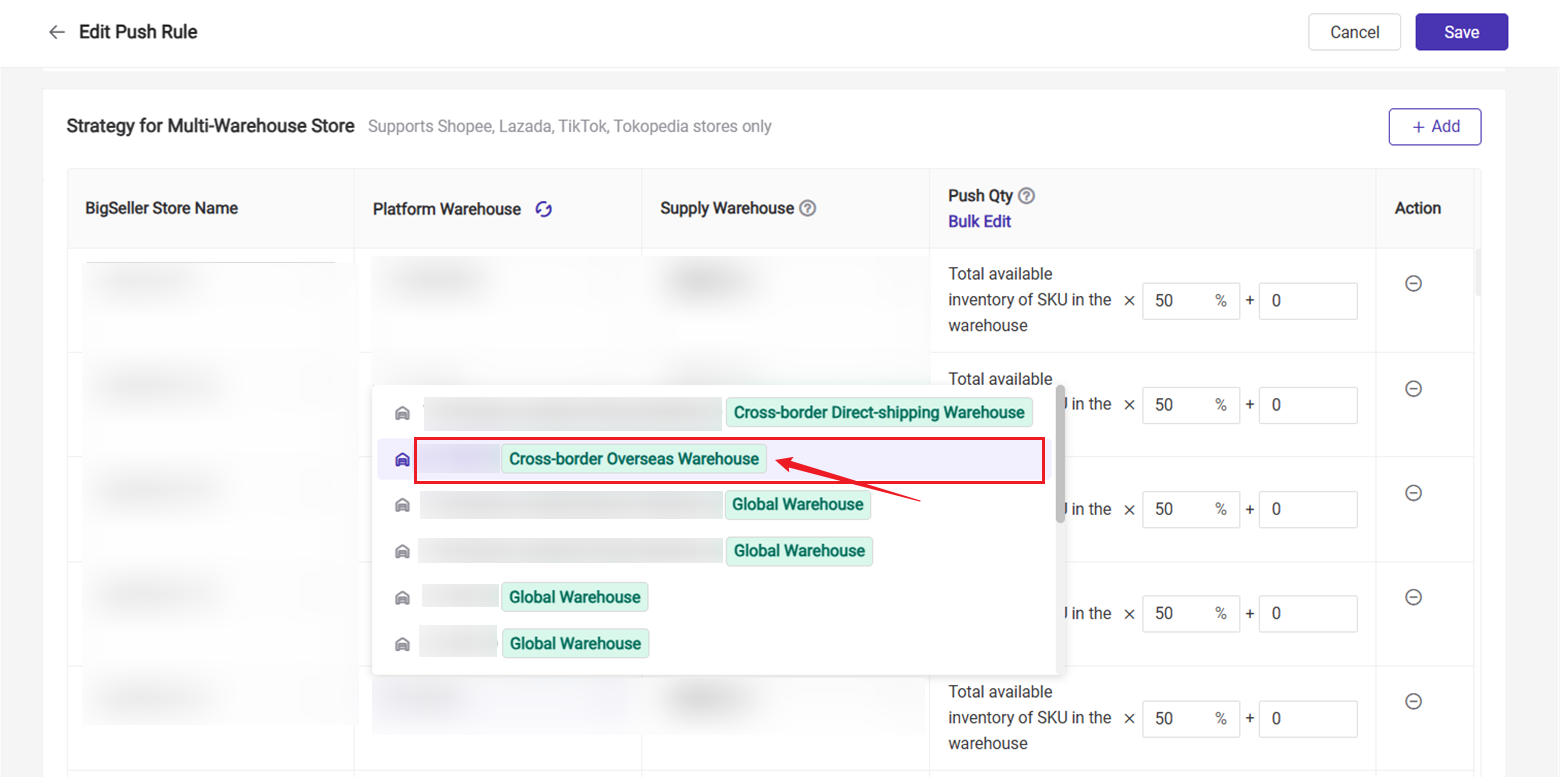
Additional Notes:
1) Platform warehouses that did not previously produce synchronization errors do not need modification.
2) If you are using a Cross-Border Direct Shipping Warehouse, you can continue to use the warehouse labeled [Global Warehouse] — no modification is required.
Is this content helpful?
Thank you for your feedback. It drives us to provide better service.
Please contact us if the document can't answer your questions