BigSeller Distribution: I am a Supplier
Copy link & title
Update Time: 07 Aug 2026 05:30
BigSeller's Distribution feature is designed to help you grow your distribution network without adding extra warehousing or operational pressure. Once set up, you can:
- Manage distributor relationships systematically — handle onboarding, qualification review, and tiered partner management all in one place.
- Control pricing flexibly — set different distribution prices by distributor tier or by individual SKU.
- Track orders in real time — stay on top of every distribution order from push to delivery.
- Simplify reconciliation — let the system handle billing calculations and credit period tracking automatically so your cash flow stays transparent.
Before you start, the following points need to be noticed:
1) Account & Plan Requirements
1) Account & Plan Requirements
- The Distribution module has two roles: Supplier and Distributor. As a supplier, you need to be on plan V2 or above. Your distributors can be on any plan. Order quotas are deducted on both sides.
- You'll need the Inventory module enabled on your account. BigSeller checks this automatically when you try to activate Distribution and will walk you through enabling Inventory first if it's not already on.
- Make sure you have the Distribution permission set. If the Distribution menu isn't showing up, reach out to your main account administrator and ask them to grant access in Permission Management.
2) Complete the Onboarding Guide
To use the Distribution feature in BigSeller, you can fill out the application to become a supplier. Once your application is approved by the system, you can officially begin configuring your distribution -- supplier settings.
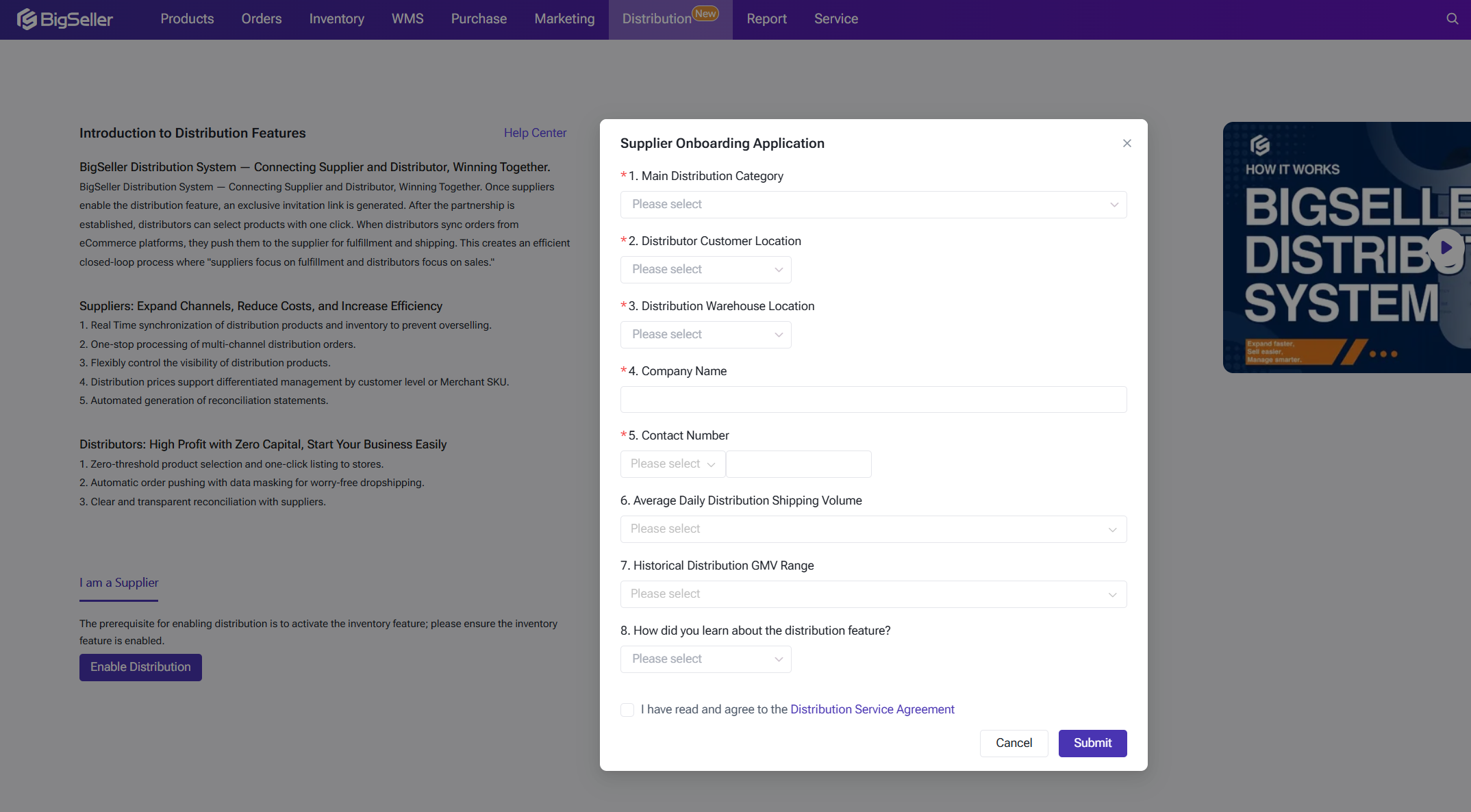
- After activation, the system enters a 6-step onboarding guide. Complete all steps before going live:
- Set the base currency for distribution (e.g. MYR, IDR, VND, THB)
- Add distribution products (at least 1 SKU)
- Confirm the inventory sync rule (full-quantity push is the only option currently)
- Confirm BigShop information (Settings → Store Authorization → BigShop)
- Configure distribution pricing (by customer level or by SKU)
- Set distribution fees (handling fees, logistics fees, etc.)
3) Risk & Suggestions
Running a distribution operation comes with a few risks worth thinking through before you go live. Here's what we've seen come up most often, and how to handle them:
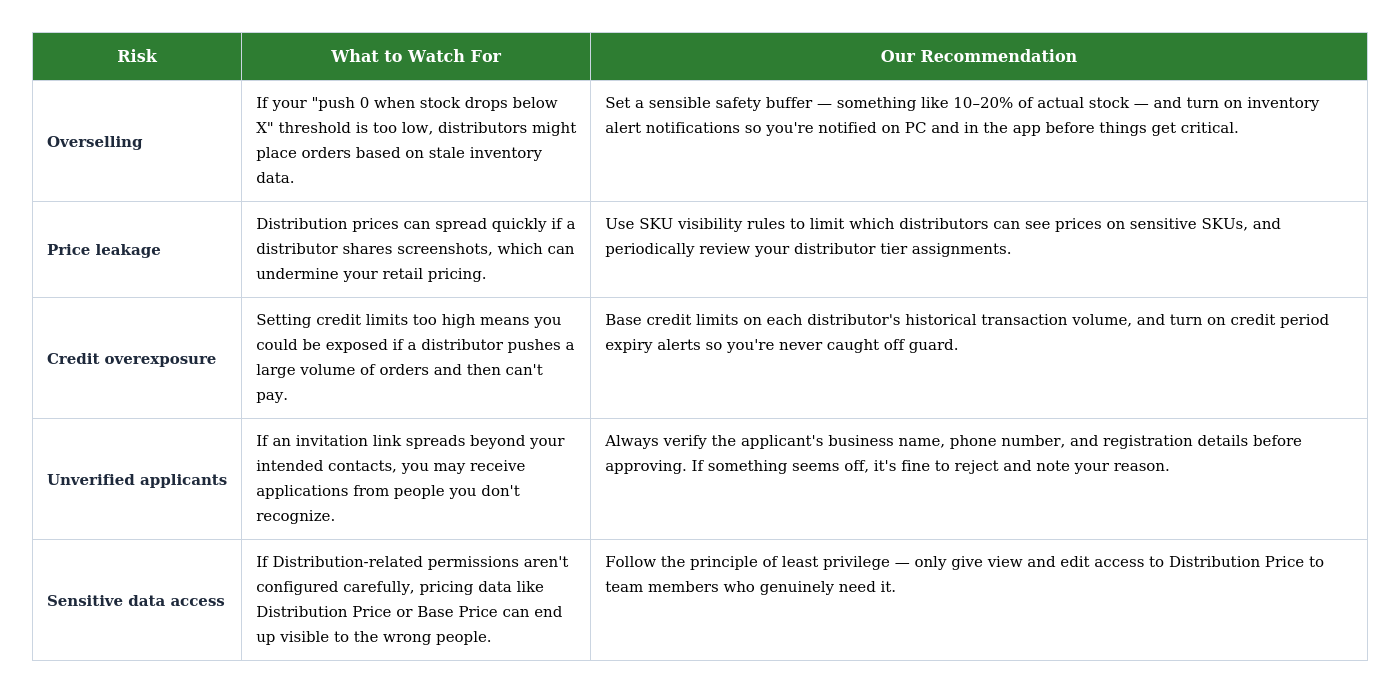
Running a distribution operation comes with a few risks worth thinking through before you go live. Here's what we've seen come up most often, and how to handle them:
After getting familiar with the above information, you may officially start your distribution business as a supplier.
1. Linking & Approving Distributors
The way this works: you generate an invitation link and share it with your prospective distributor through any channel you like. They use the link to submit a partnership application in BigSeller, and you review and approve it on your side to establish the relationship.
Step 1: Generating an Invitation Link
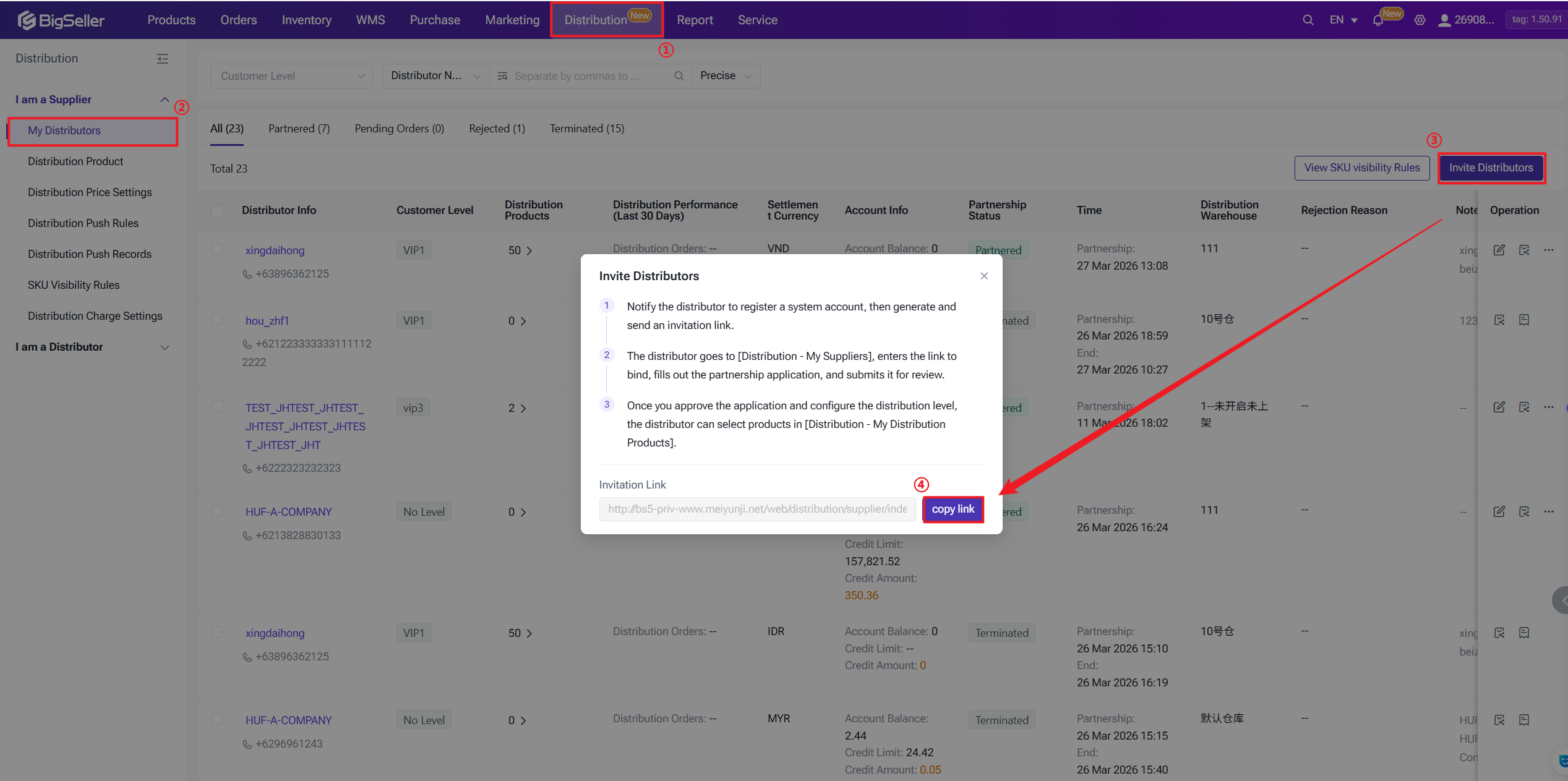
You can head to Distribution → I Am a Supplier →My Distributors and click the Invite Distributor button to open the dialog. Click Copy Link and send it to your prospective distributor — WeChat, WhatsApp, email, whatever works best. On their end, they'll log in to BigSeller, go to Distribution → My Suppliers, paste the link to connect with you, fill out the partnership application, and submit it for your review.
Also you can share your BigShop Promo Link to your distributors, for quick product claiming and partnership connection. For detailed instruction, you may refer to this: How to Manage My BigShop?
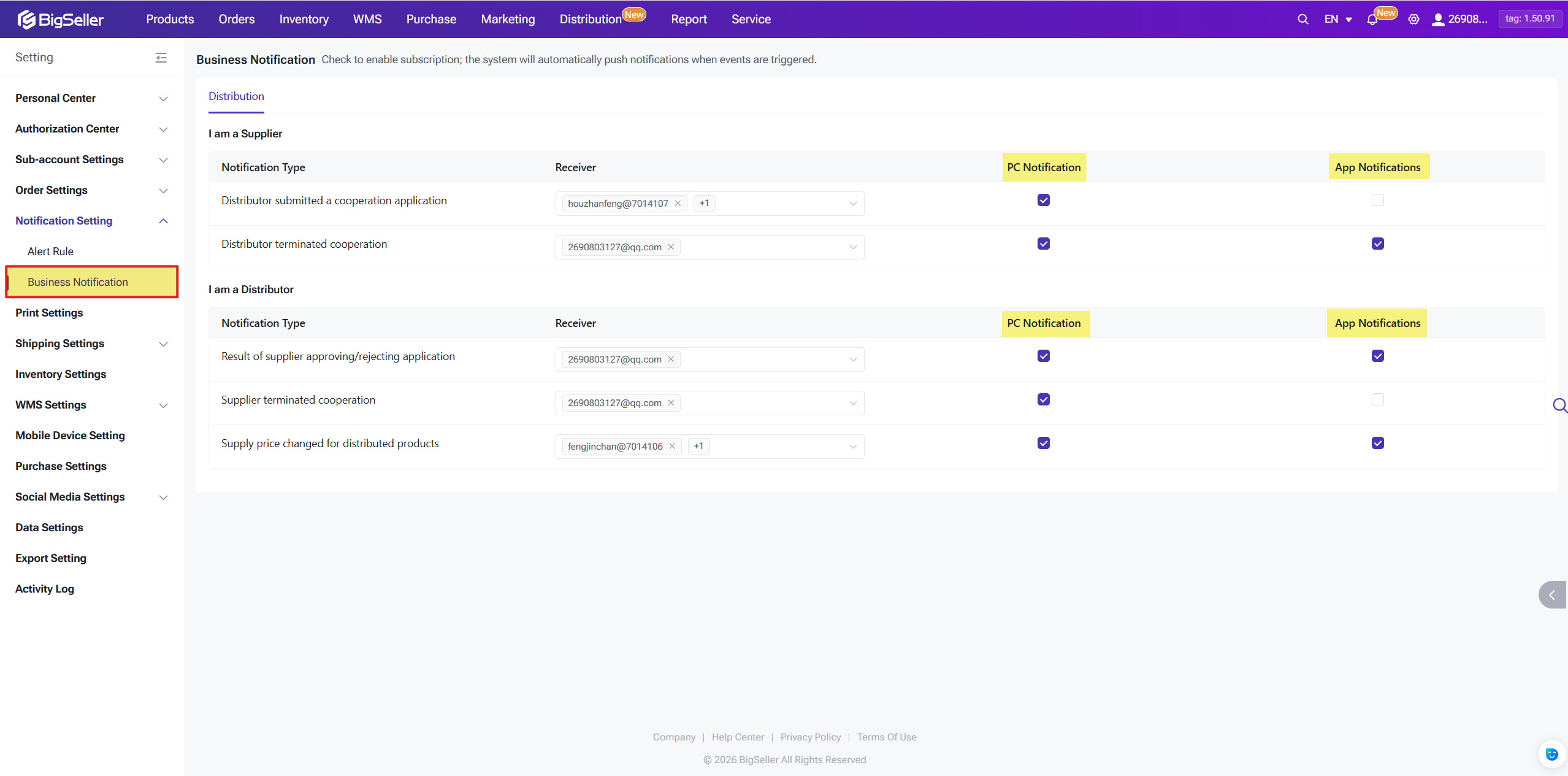
Note: We recommend checking the notification subscription option so you'll receive PC in-app messages and app push notifications whenever a distributor submits an application or terminates a partnership.
Step 2 Approving an Application
Distributors who have submitted a partnership application will be added to the 'Pending Review' list. When you're reviewing a Pending Review application, you'll need to fill in a few important fields. Take your time with these — some of them can't be changed later:
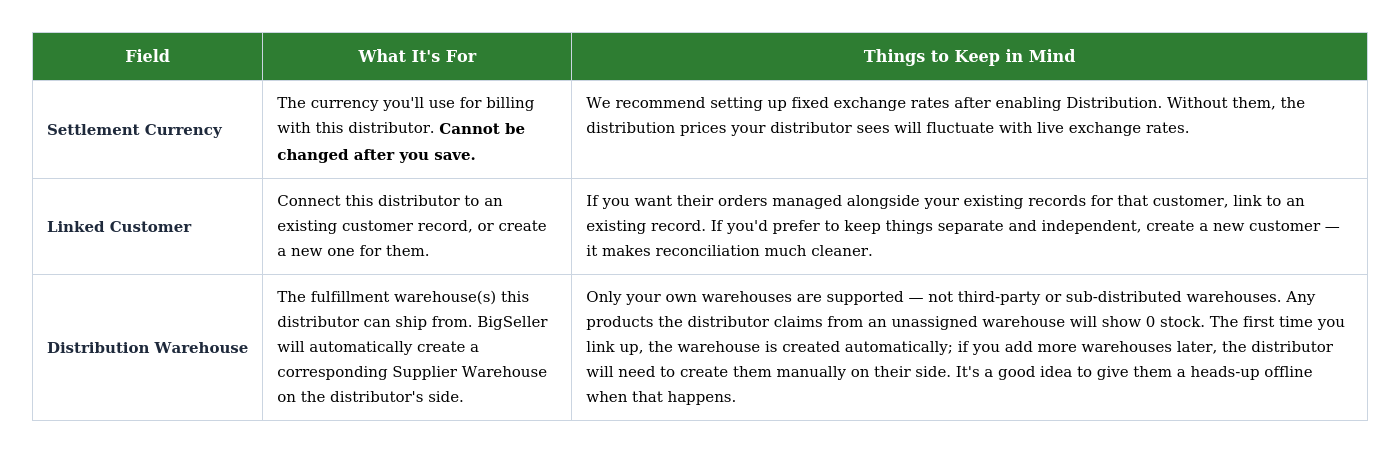
Note: Please double-check the linked customer, settlement currency, and warehouse before saving. If you make a mistake on the customer or currency, the only way to fix it is to terminate the partnership and start over — and that requires the distributor's account balance and credit balance to be cleared to zero first.
If you're rejecting an application, we'd encourage you to fill in a Rejection Reason. The system sends it to the distributor automatically, and it saves everyone a round of follow-up messages.
Distributor Status Reference
Step 1: Generating an Invitation Link
You can head to Distribution → I Am a Supplier →My Distributors and click the Invite Distributor button to open the dialog. Click Copy Link and send it to your prospective distributor — WeChat, WhatsApp, email, whatever works best. On their end, they'll log in to BigSeller, go to Distribution → My Suppliers, paste the link to connect with you, fill out the partnership application, and submit it for your review.
Also you can share your BigShop Promo Link to your distributors, for quick product claiming and partnership connection. For detailed instruction, you may refer to this: How to Manage My BigShop?
Note: We recommend checking the notification subscription option so you'll receive PC in-app messages and app push notifications whenever a distributor submits an application or terminates a partnership.
Step 2 Approving an Application
Distributors who have submitted a partnership application will be added to the 'Pending Review' list. When you're reviewing a Pending Review application, you'll need to fill in a few important fields. Take your time with these — some of them can't be changed later:
Note: Please double-check the linked customer, settlement currency, and warehouse before saving. If you make a mistake on the customer or currency, the only way to fix it is to terminate the partnership and start over — and that requires the distributor's account balance and credit balance to be cleared to zero first.
If you're rejecting an application, we'd encourage you to fill in a Rejection Reason. The system sends it to the distributor automatically, and it saves everyone a round of follow-up messages.
Distributor Status Reference
- Pending Review:The distributor has submitted their application and is waiting for you to act. You can approve or reject certain applications.
- Partnered: You've approved the application and the relationship is active. You can edit their info, view certain details, or terminate the partnership.
- Rejected: You rejected the application. You can delete the record, and the distributor can re-apply.
- Terminated: You ended the partnership. You can view the history info, and existing billing data is kept.
Step 3: Managing Active Distributors
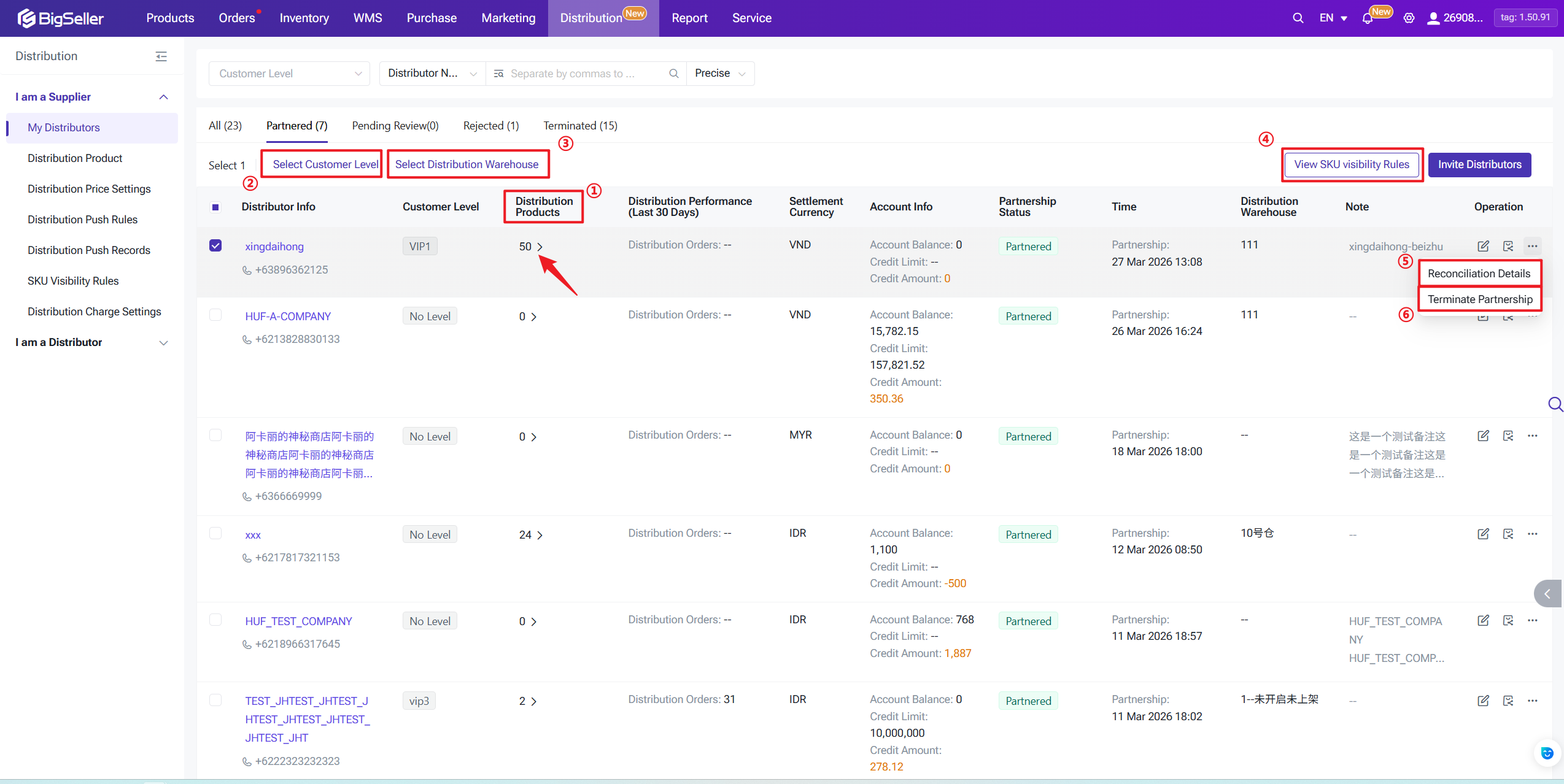
Once a distributor is in Partnered status, you have a range of tools to manage the relationship:
- ① View Distribution Products: See which products this distributor has claimed
- ② Change Level: Update the distributor's level, which changes the pricing they receive. You can also go to Marketing > Customer Manage > Customer Level to check the whole customer level setting.
- ③ Change Distribution Warehouse: Add or update the fulfillment warehouses this distributor can use
- ④ View SKU Visibility Rules: Check the product visibility configuration that applies to this distributor
- ⑤ Reconciliation Details: Review the full billing history between you and this distributor — pushes, recalls, manual entries, refunds, all of it
- ⑥ Terminate Partnership: Ends the relationship immediately. The distributor's available stock will pushed to 0 and they can no longer push new orders. Orders that had already allocation stock before termination are unaffected and can still be fulfilled. All existing billing data and historical orders are preserved.
Delete is only available for Rejected application records. You can't delete Partnered or Terminated records, or any customer you've previously worked with.
2. Managing Distribution Products
As a supplier, you can bring any SKU in your product library into the distribution catalog, set a base price, configure distribution pricing, and control exactly which distributors can see each product.
2.1 Adding & Managing Distribution Products
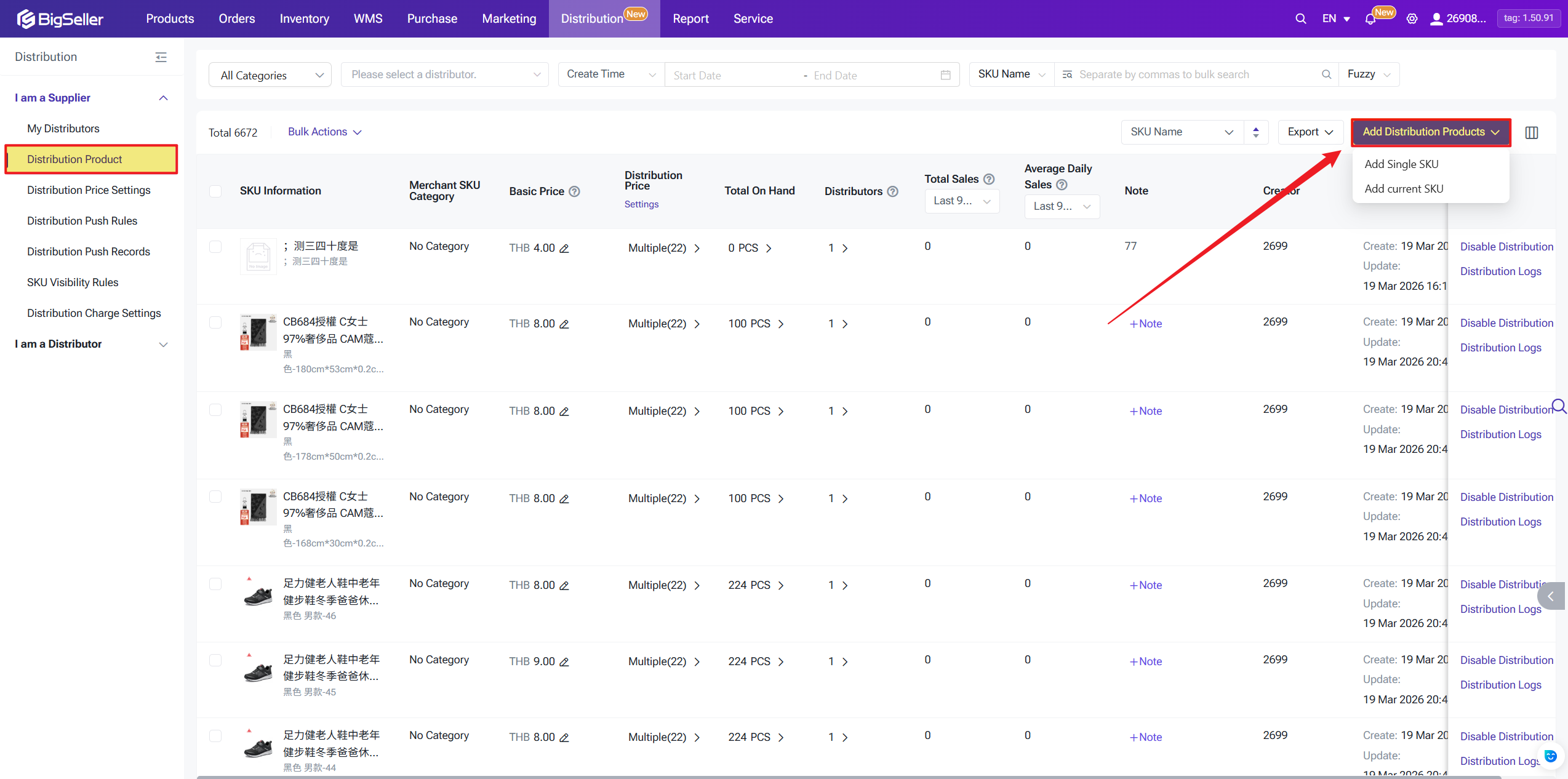
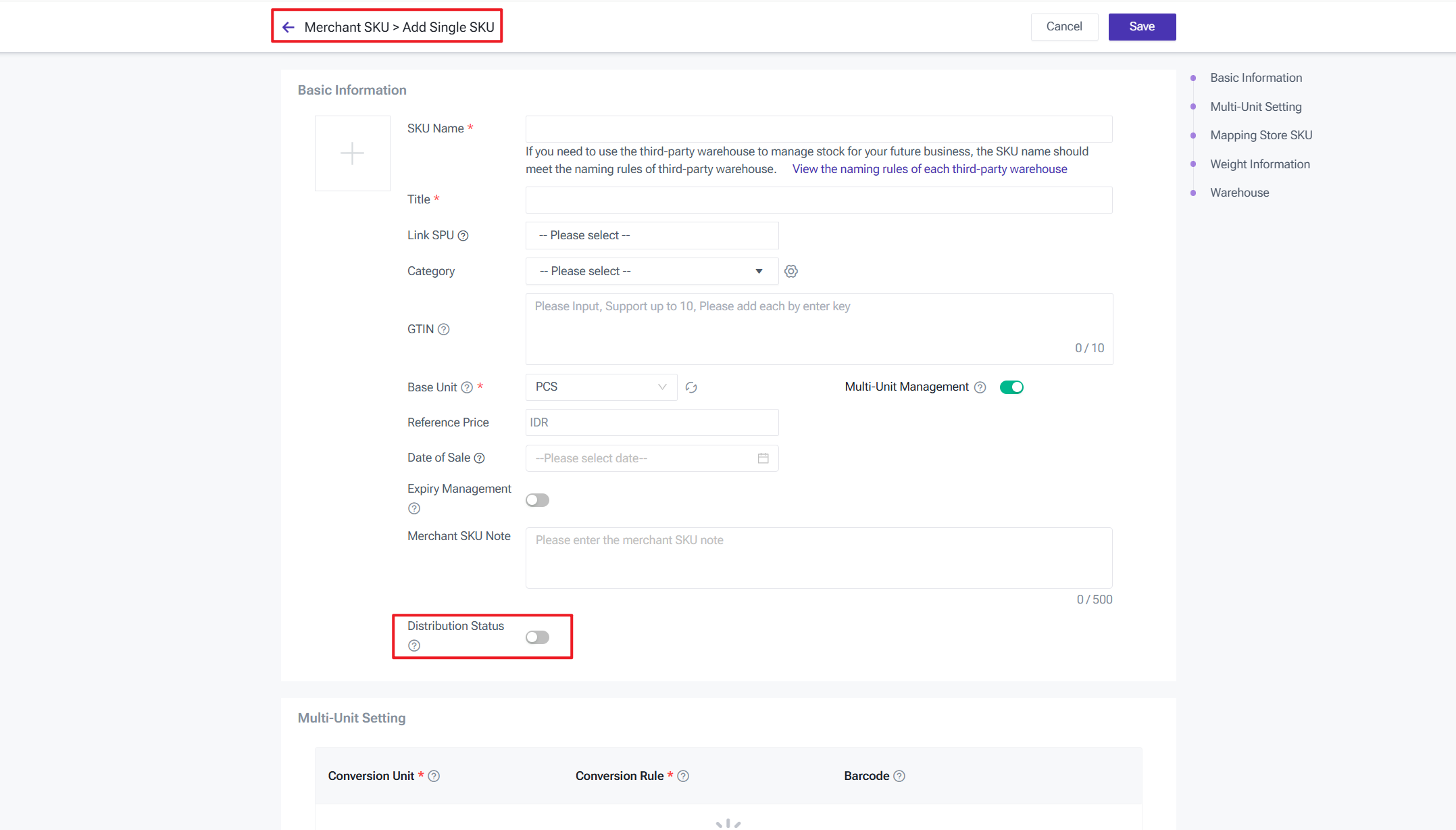
You can add up to 3000 distribution products (Merchant SKU) in total (If you need more SKUs to be added in, please contact our customer service for whitelist qualification). Combination SKUs are not supported. There are two ways to add products to your distribution catalog:
- From the Distribution Product page — add a single SKU directly, or bulk-select existing SKUs to enable distribution on them all at once.
- From the Merchant SKU page — import SKUs with distribution enabled, or create a new SKU and turn on distribution as part of the setup.
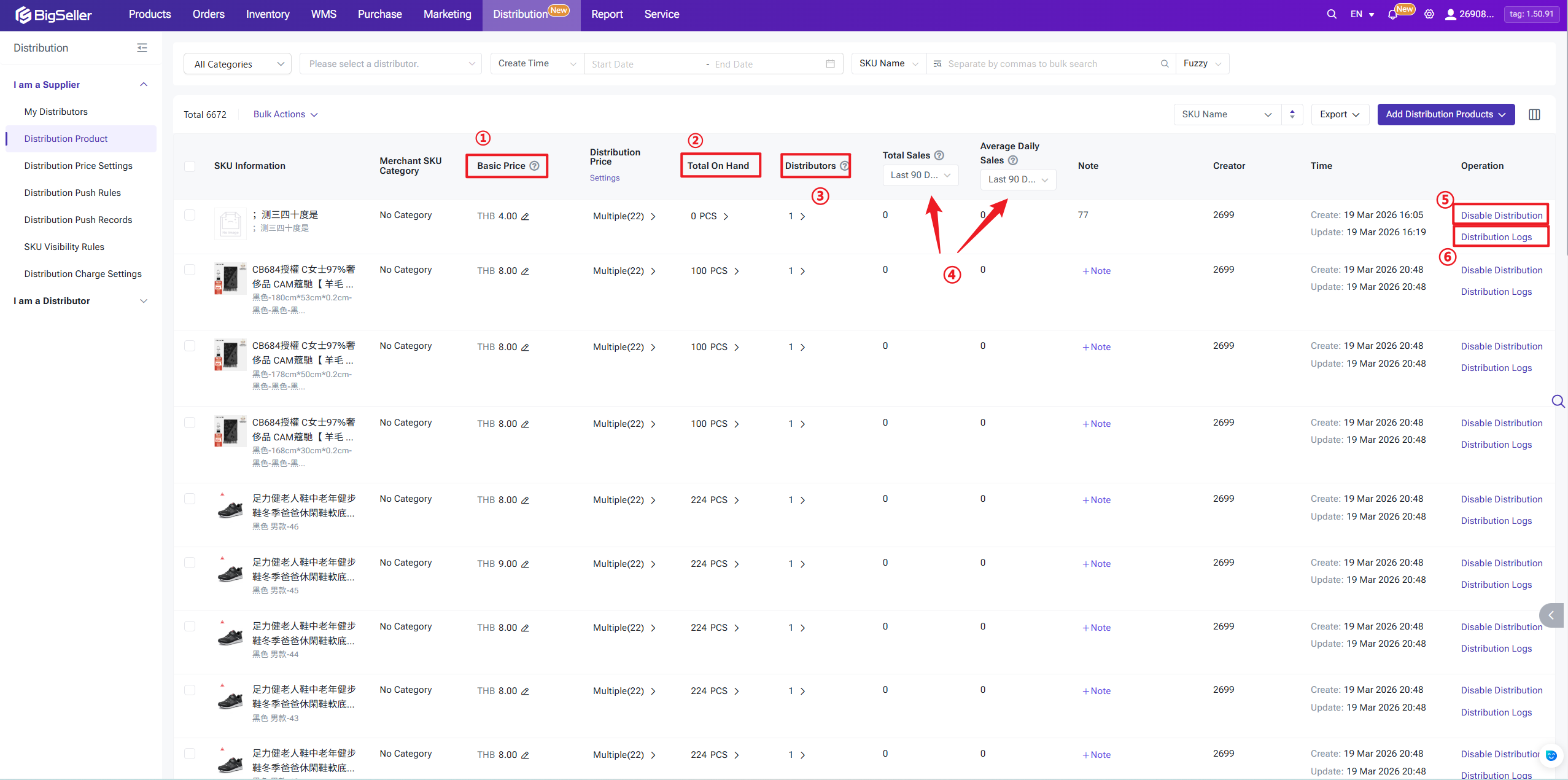
What you can do on the Distribution Product page:
- Edit Base Price: Update prices inline, or use Bulk Actions to edit multiple SKUs at once
- Total On-Hand Stock: Combined on-hand quantity across all warehouses; click to see a per-warehouse breakdown
- Total Sales / Daily Avg: Distribution order sales over the last 3/7/15/30/60/90 days, excluding cancelled orders. If the product hasn't been on sale for the full window yet, the calculation uses the actual number of days since the first sale.
- Disable Distribution: Removes this product from distribution and pushes the available stock to 0 for all your distributors. Note: if the product hasn't finished syncing to distributors' unclaimed lists yet, you won't be able to disable it quite yet.
- Distributors (Detail): Shows how many active and terminated distributors have ever claimed this product. You can enable or disable distribution for individual distributors from here.
- Distribution Log: See a full history of distributor claim/stop events, as well as when you've enabled or disabled distribution for this product
2.2 SKU Visibility Rules
SKU visibility rules give you control over which distributors can see which products in your catalog — essentially managing each distributor's access to your distribution inventory.
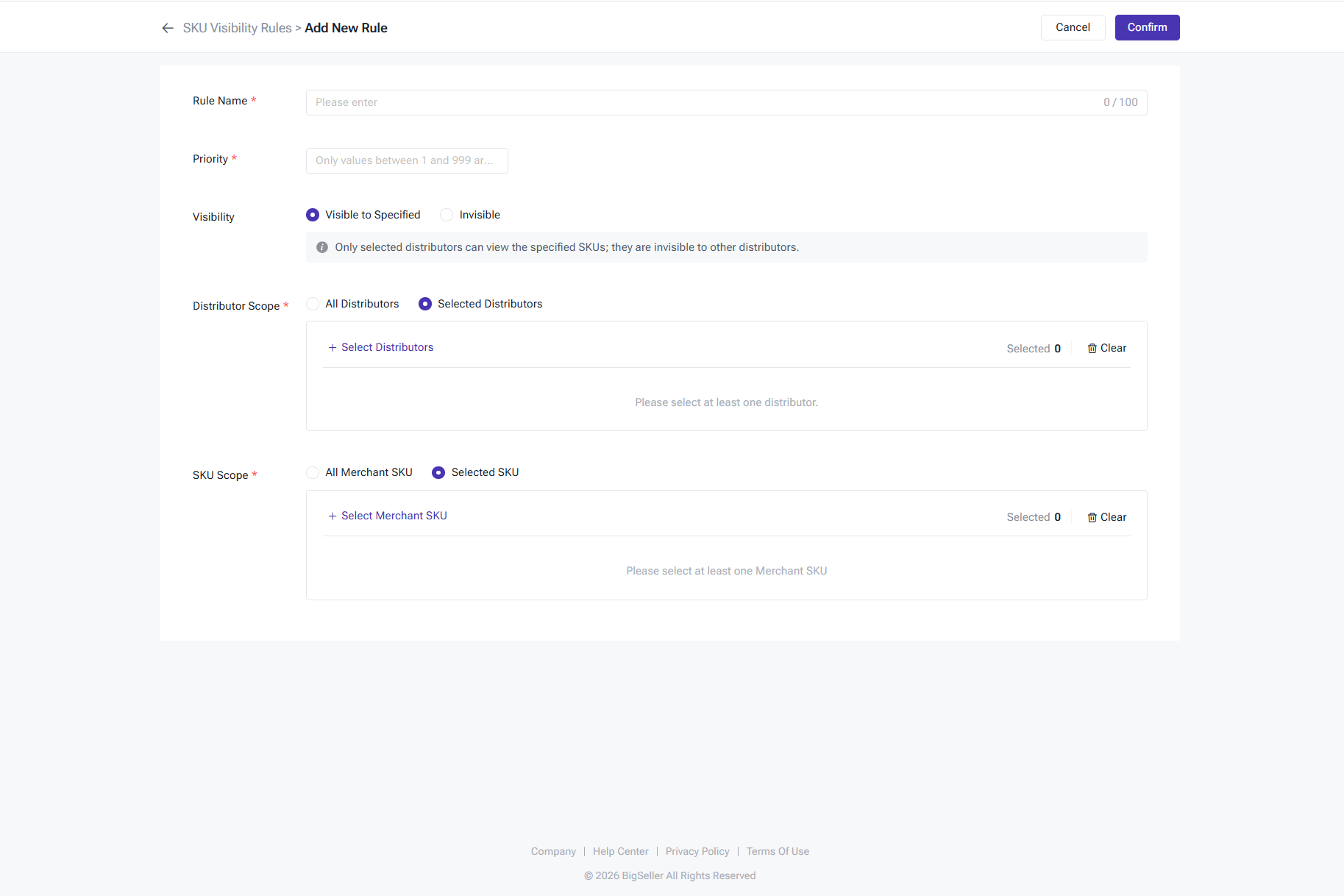
Head to SKU Visibility Rules → Add New Rule. You can set visibility in the following ways:
Head to SKU Visibility Rules → Add New Rule. You can set visibility in the following ways:
- Visible to specific distributors only — only the distributors you select can see the specified products; everyone else can't
- Hidden from specific distributors — hide selected products from selected distributors, while all other distributors can see them as normal
- By distributor scope — make products visible to all distributors, or only to distributors of a specific level
- By product scope — apply the rule to all products, or to specific products only
You can create up to 100 rules. Rules are prioritized by number — lower numbers win. For any given distributor, only their single highest-priority matching rule applies.
When you disable a product from distribution, the distributor's stock for that product is pushed to 0. That said, if they already have open orders for that product, those orders can still be pushed and fulfilled as normal. Distributors cannot re-enable distribution on a product they've claimed — sub-distribution is not allowed.
When you disable a product from distribution, the distributor's stock for that product is pushed to 0. That said, if they already have open orders for that product, those orders can still be pushed and fulfilled as normal. Distributors cannot re-enable distribution on a product they've claimed — sub-distribution is not allowed.
2.3 Pricing & Fee Configuration
On BigSeller, you can centrally manage distribution prices and shipping costs for all your distribution products, significantly improving the efficiency of your cost and profit calculations.
1) Distribution Pricing
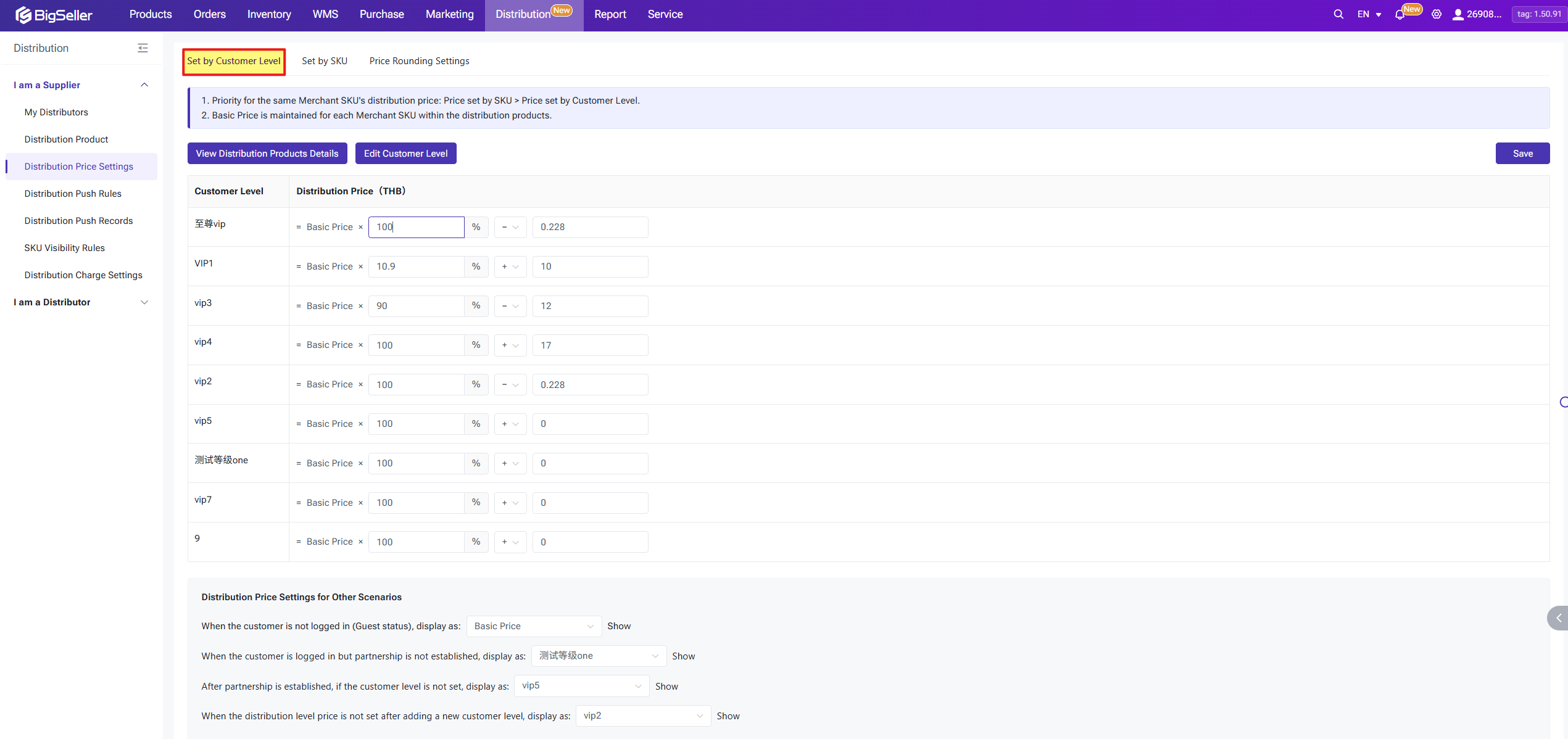
Distribution price on BigSeller can be set by customer level, or by SKU and SKU-level price always takes priority over the customer-level rule for that same SKU.
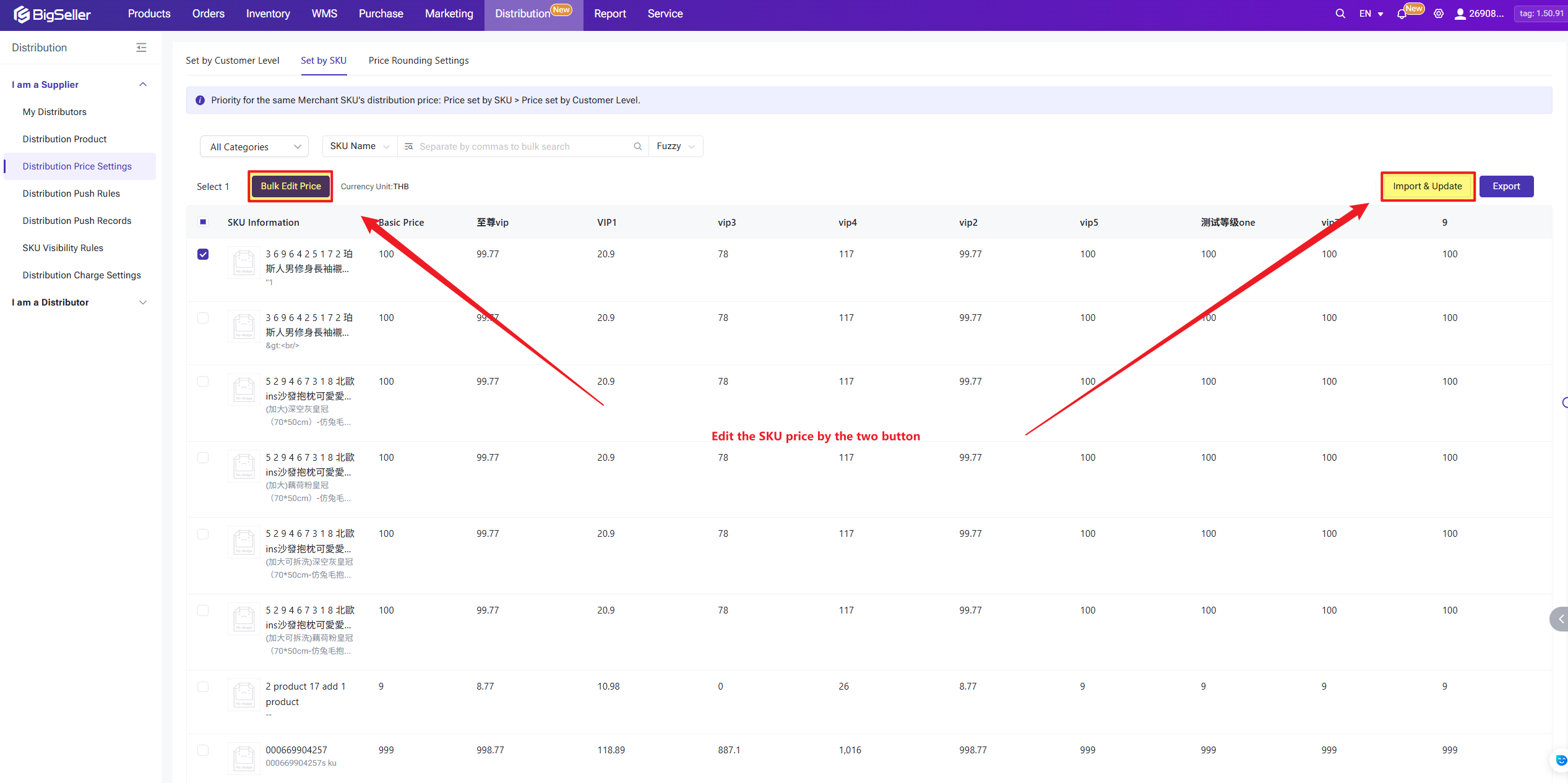
BigSeller lets you set up to 10 distributor levels, each with its own pricing rules. This gives you fine-grained control over what different distributor groups pay.
You can also set the rounding rules: choose how calculated prices get rounded: round up, round down, standard rounding, or round to 2 decimal places. This only affects the distribution price display seen by the distributor.
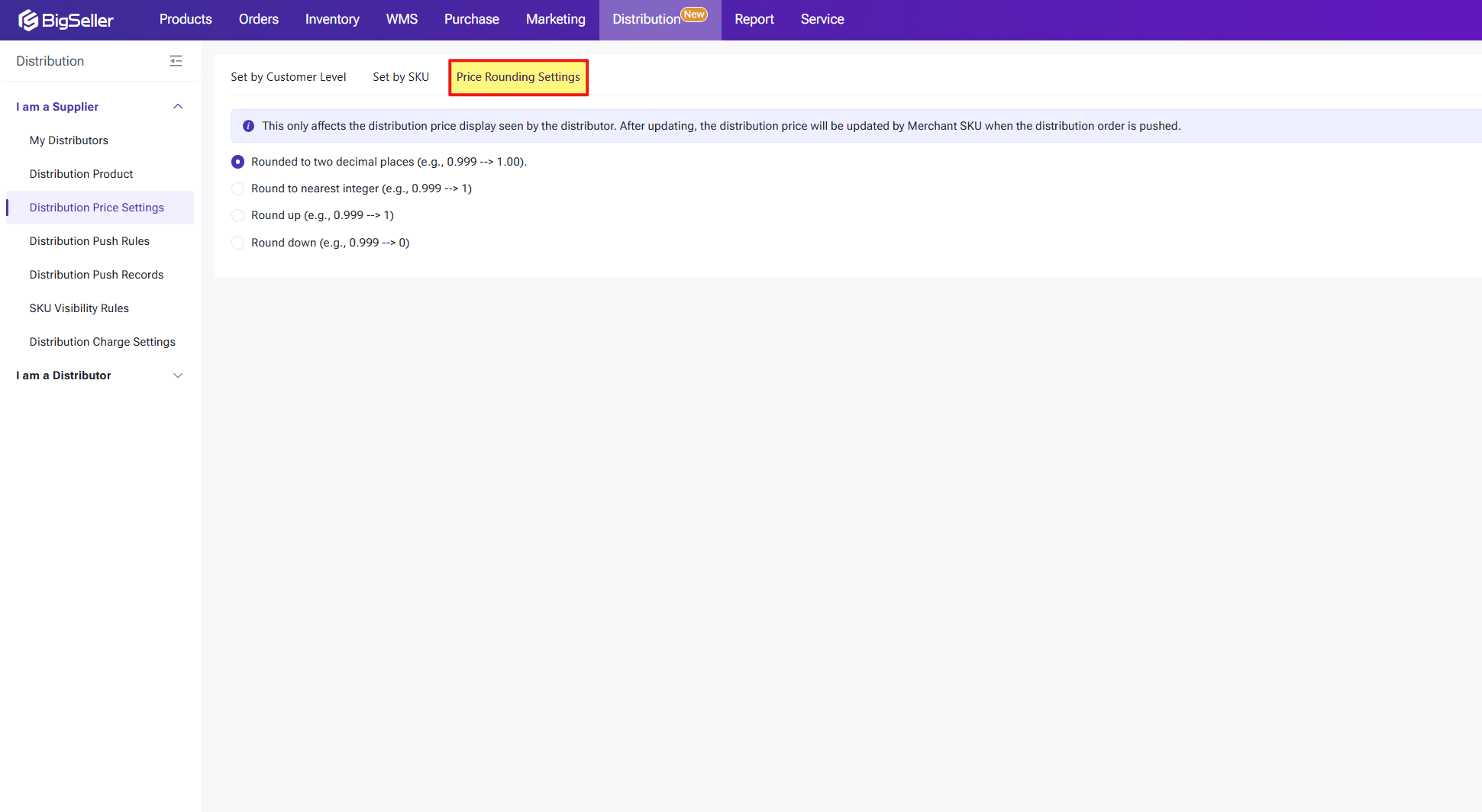
A quick edge case to be aware of: if a distributor currently sees a price of 1.00 and you switch the rounding from "round down" to "round up," their displayed price won't change immediately — it still shows 1.00. But when the next order syncs, the price updates to 2.00 and that's what gets used for billing. The maximum difference between rounding methods is 1.00 per unit.
2) Distribution Charge
Distribution fees are calculated automatically when a distributor pushes an order and are logged in the reconciliation records. Fees fall into two categories: fees on forward orders and fees on after-sale orders.
1) Distribution Pricing
Distribution price on BigSeller can be set by customer level, or by SKU and SKU-level price always takes priority over the customer-level rule for that same SKU.
BigSeller lets you set up to 10 distributor levels, each with its own pricing rules. This gives you fine-grained control over what different distributor groups pay.
You can also set the rounding rules: choose how calculated prices get rounded: round up, round down, standard rounding, or round to 2 decimal places. This only affects the distribution price display seen by the distributor.
A quick edge case to be aware of: if a distributor currently sees a price of 1.00 and you switch the rounding from "round down" to "round up," their displayed price won't change immediately — it still shows 1.00. But when the next order syncs, the price updates to 2.00 and that's what gets used for billing. The maximum difference between rounding methods is 1.00 per unit.
2) Distribution Charge
Distribution fees are calculated automatically when a distributor pushes an order and are logged in the reconciliation records. Fees fall into two categories: fees on forward orders and fees on after-sale orders.
- Stock-out Shipping Charge: Charged per package or per SKU quantity each time an order is pushed.
- Logistics Cost: Charged when the distributor selects Self-Arranged Shipping (not applicable on Temu), where you are responsible for arranging the carrier.
- Stock-in Return Charge: Charged per package or per SKU quantity when processing a return
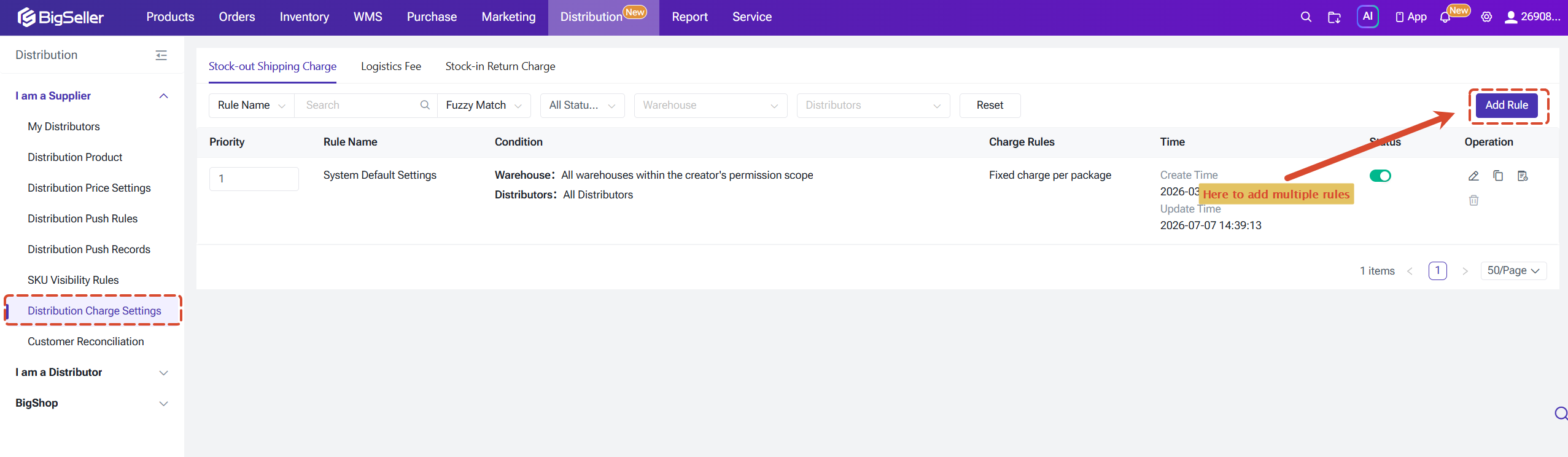
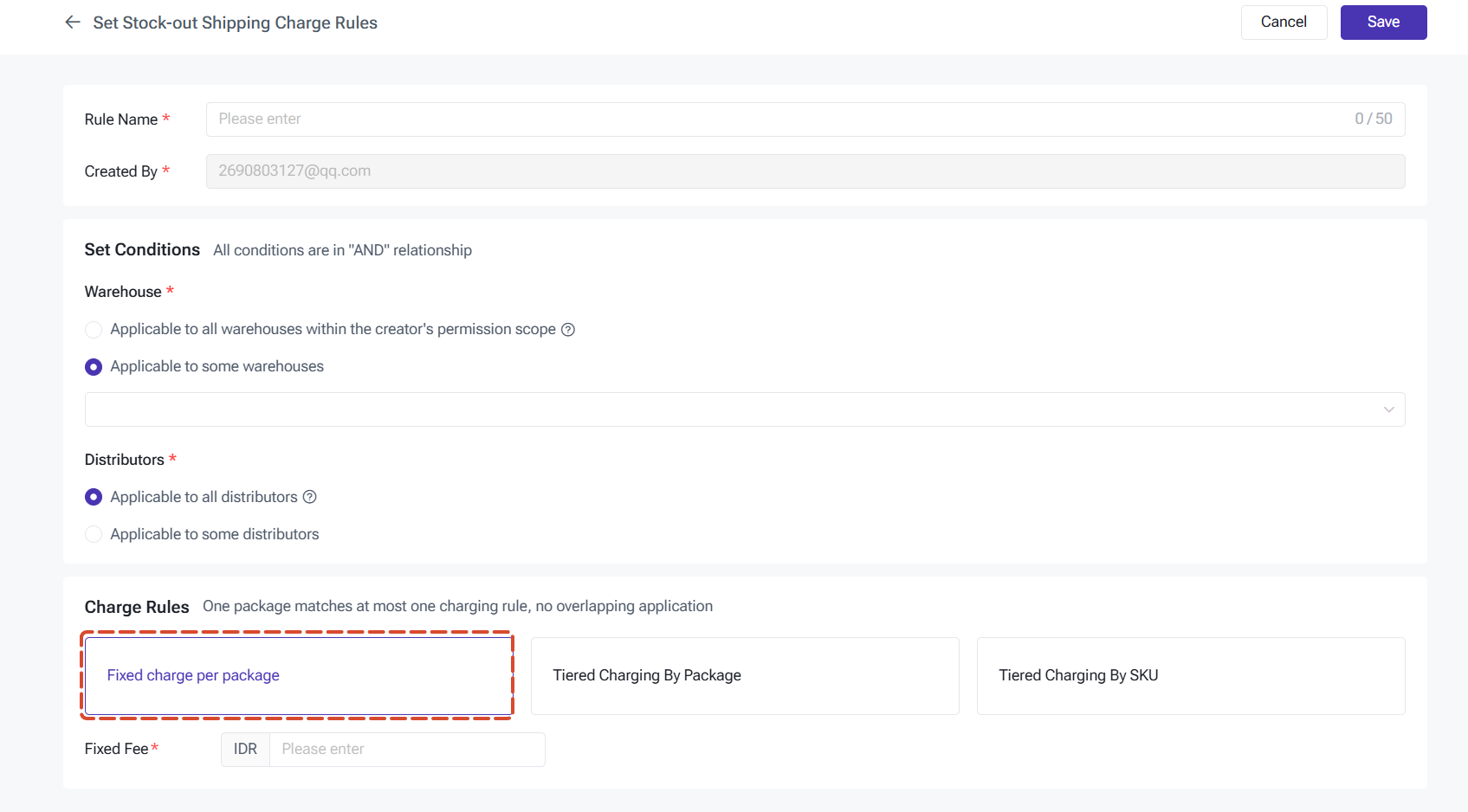
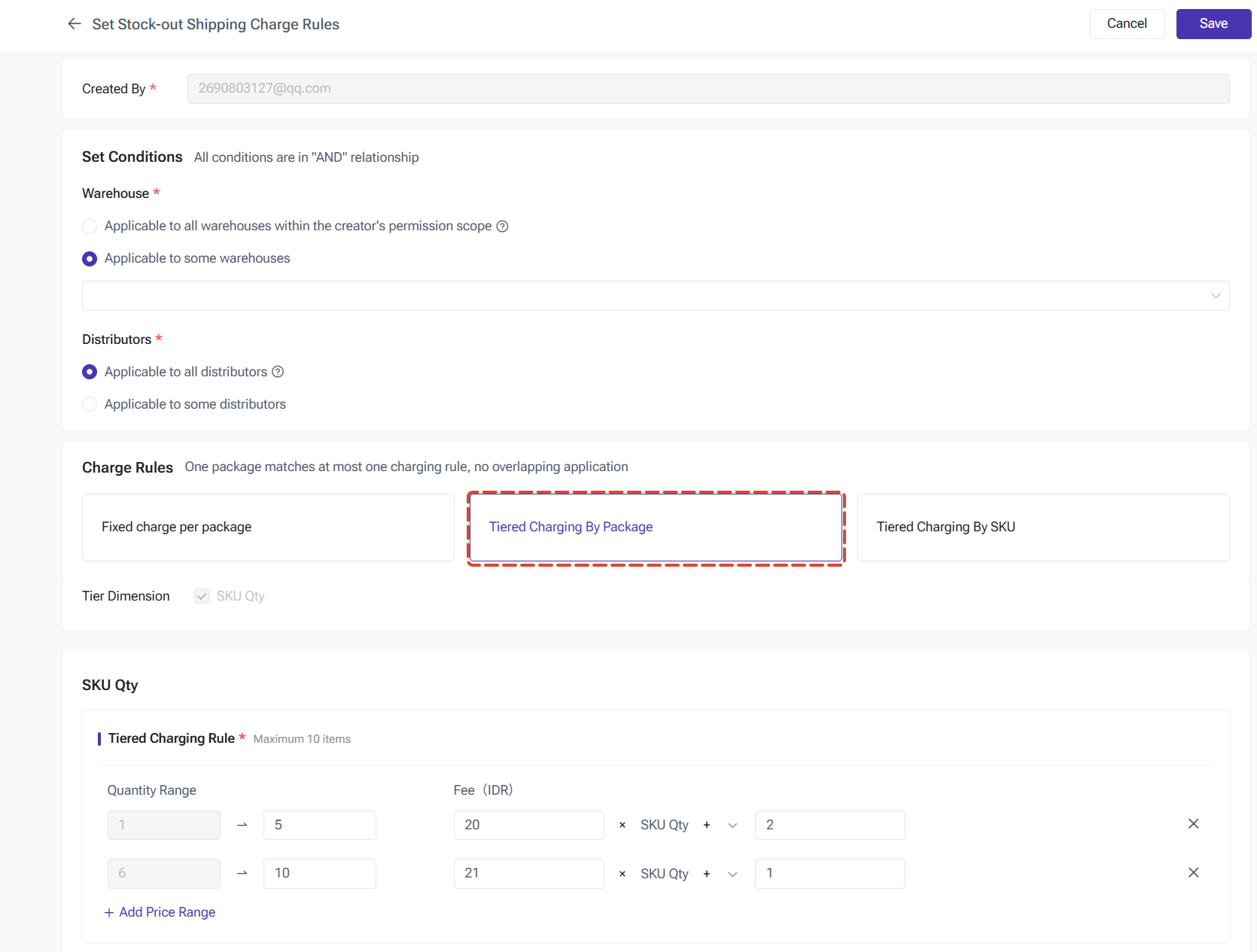
For each of the three fee types above, you can create multiple rules and choose one of three pricing methods for each rule:
- Fixed fee per package: charges a flat amount for every package that matches the rule.
- Tiered charging by package: sets a unit price for ranges of total SKU quantity in the package (fee = unit price for the range × SKU quantity ± a fixed adjustment).
- Tiered charging by SKU: lets you select specific SKUs and set tiered pricing for each one individually, so different SKUs can be charged at different rates within the same package. The package's total fee is the sum of the fees for all matched SKUs.
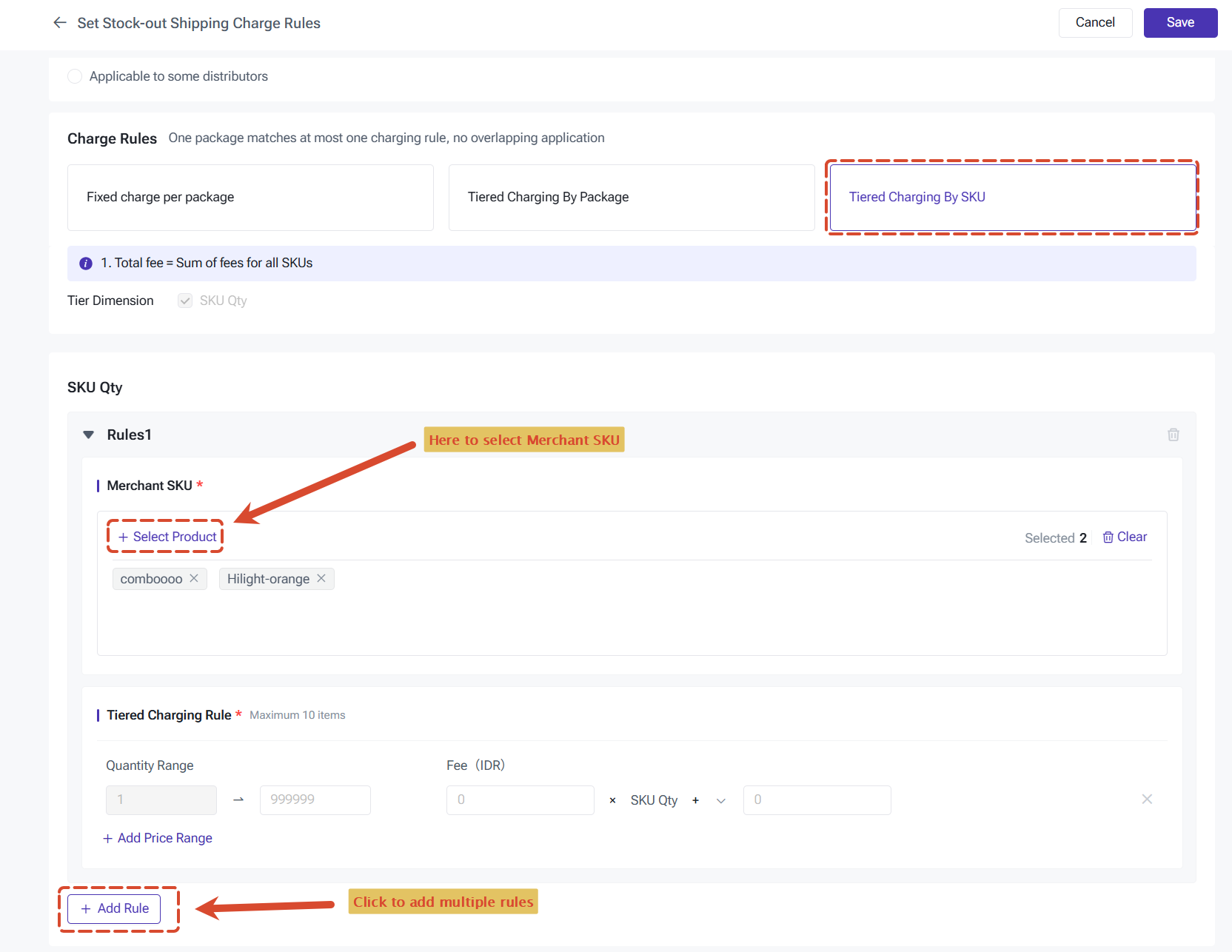
Moreover, if a distributor withdraws an order, they will receive a full refund: SKU quantity × distribution price + Stock-out Shipping Charge + Logistics Cost
Note: If a distributor selects “Self-Delivery” (excluding the Temu platform) when arranging an order, the system will consider that the supplier is responsible for contacting logistics and placing the order once it is pushed to them. The supplier will charge the distributor a logistics shipping fee, with the specific amounts set by the supplier (that is, the Logistics Cost). If the distribution order selects “Platform Logistics” or “3PL,” the supplier will no longer contact logistics to place the order and will not charge the distributor any logistics fees.
3. Inventory Sync
The inventory sync rules control how your warehouse stock gets pushed to your distributors in real time. Getting this right helps ensure distributors always have accurate stock figures and prevents overselling.
1) Setting Up Inventory Push Rules
When you first set up Distribution, the system creates one default push rule that covers all your distribution products and all your distributors. It pushes available stock from each distribution warehouse to the corresponding Supplier Warehouse on each distributor's side, one-to-one.
The distribution push rule setting is the same as normal push rules, but only "Other Settings" part can be edited.
Head to I am a Supplier > Distribution Push Rules to check.
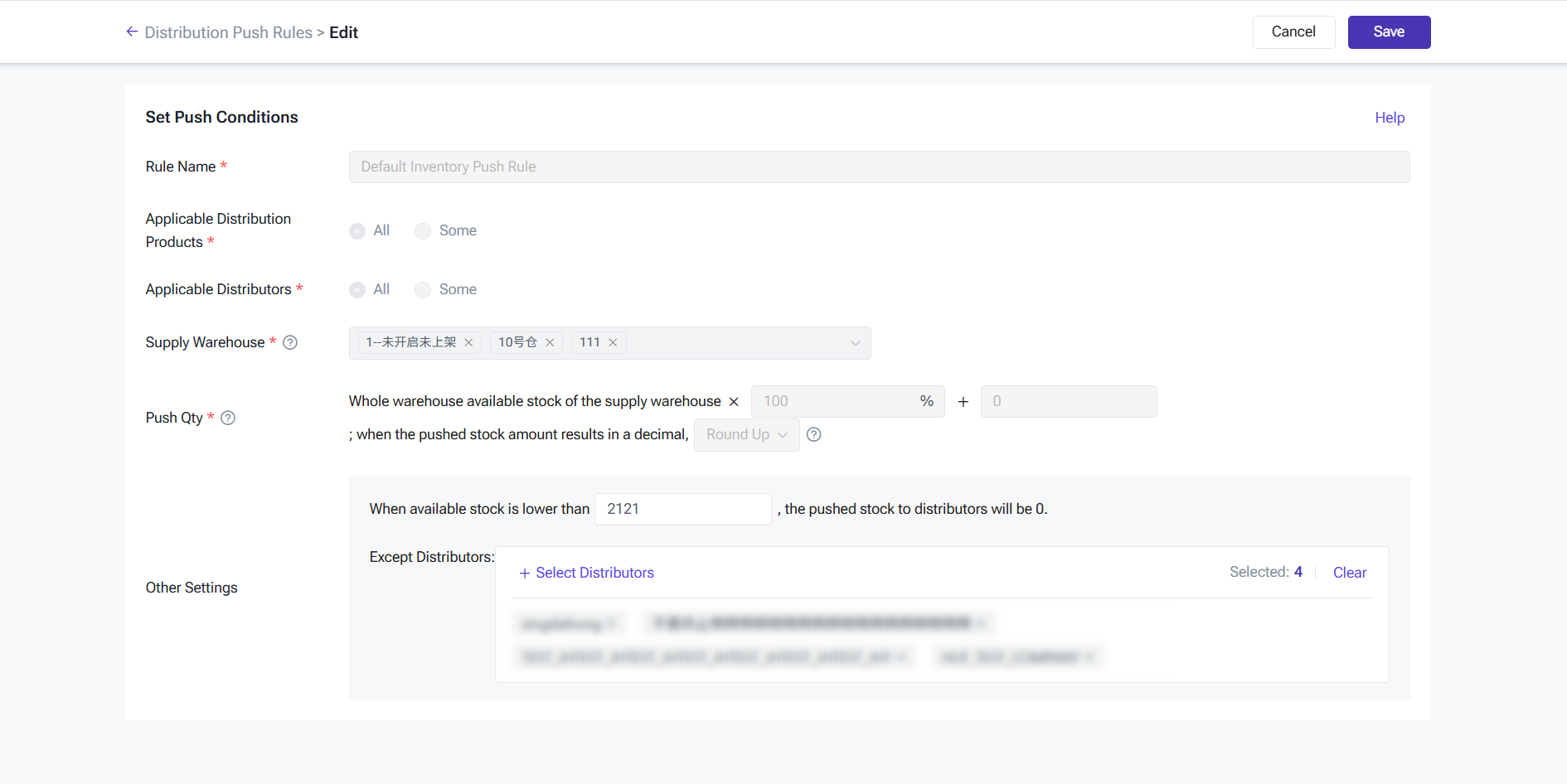
⚠️ When a distributor successfully pushes an order, the corresponding SKU stock on your side is allocated automatically. Once the distributor cancels and you confirm, the allocated stock is released back to available. Supplier Warehouse-type warehouses are read-only views for distribution data. They don't support manual stock-in, transfers, or other warehouse operations, and they're excluded from replenishment calculations.
2) Viewing Inventory Push Logs
You can review inventory push history at the distribution product + distributor level in Distribution Push Records page, which shows the latest push result for each combination. Click Details to dig into the full push history.
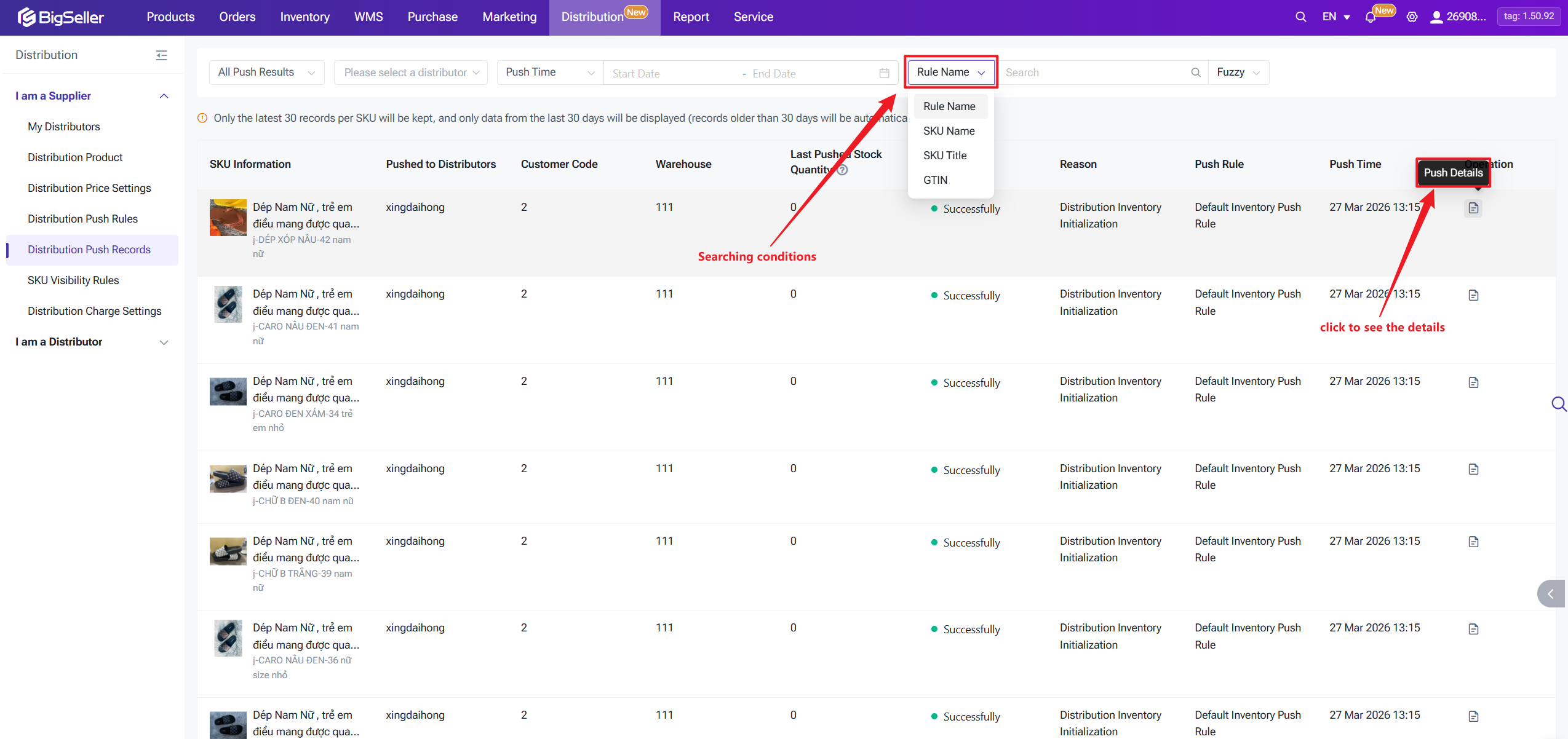
⚠️ Only the most recent 30 push records are kept per distribution product, and any records older than 30 days within that set are also removed.
1) Setting Up Inventory Push Rules
When you first set up Distribution, the system creates one default push rule that covers all your distribution products and all your distributors. It pushes available stock from each distribution warehouse to the corresponding Supplier Warehouse on each distributor's side, one-to-one.
The distribution push rule setting is the same as normal push rules, but only "Other Settings" part can be edited.
Head to I am a Supplier > Distribution Push Rules to check.
⚠️ When a distributor successfully pushes an order, the corresponding SKU stock on your side is allocated automatically. Once the distributor cancels and you confirm, the allocated stock is released back to available. Supplier Warehouse-type warehouses are read-only views for distribution data. They don't support manual stock-in, transfers, or other warehouse operations, and they're excluded from replenishment calculations.
2) Viewing Inventory Push Logs
You can review inventory push history at the distribution product + distributor level in Distribution Push Records page, which shows the latest push result for each combination. Click Details to dig into the full push history.
⚠️ Only the most recent 30 push records are kept per distribution product, and any records older than 30 days within that set are also removed.
4. Order Processing
When a distributor pushes an order to you, it shows up automatically in your New Orders queue as a Supply Order. From there, you handle picking, label printing, and shipping. Push Time here is the time when the distributor pushed the order — different from when the original platform order was placed
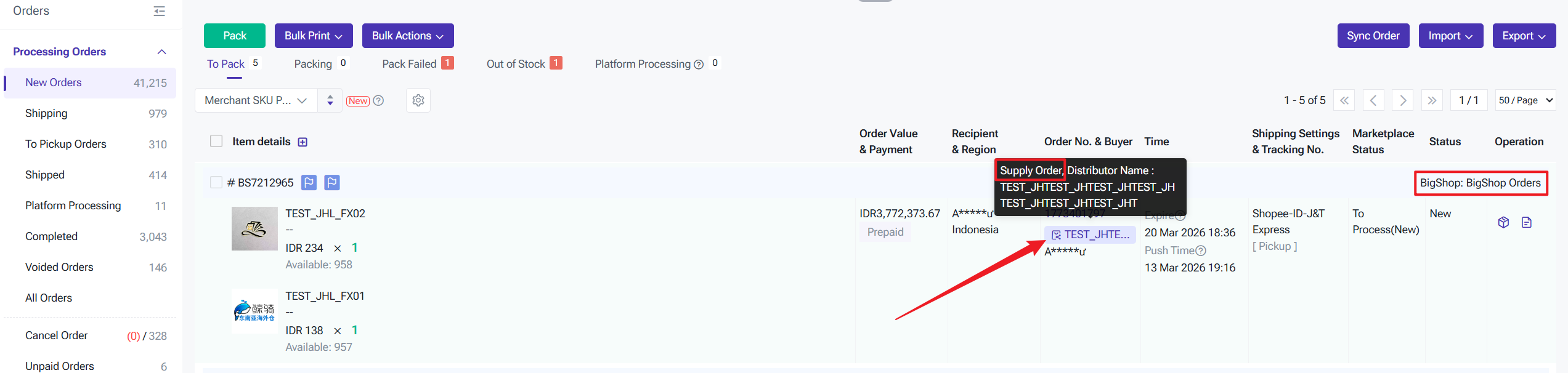
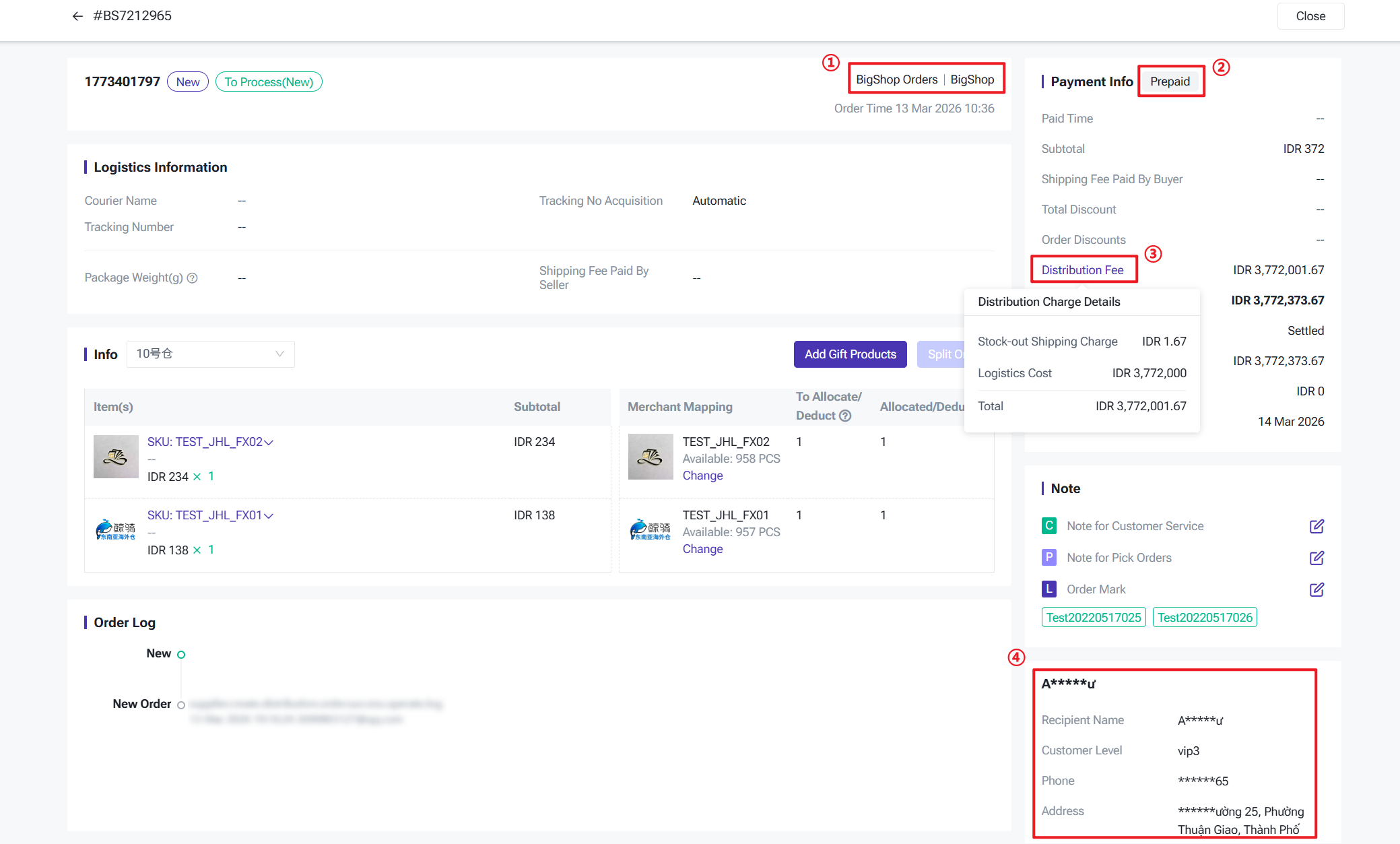
There are certains points you need to notice:
There are certains points you need to notice:
- Store Source: Distribution orders come through the BigShop platform and display the store name
- Payment Method: Always shown as Prepaid — this isn't the end buyer's actual payment method
- Distribution Fee: Hover to see the breakdown, stock-out shipping fee + logistics fee
- Recipient Info: The end buyer's name, phone, and address from the original order. Encrypted for Platform Logistics, 3PL, and Temu Self-Delivery orders. Unencrypted for Self-Arranged Shipping so you can book the carrier directly.
1) What You Can and Can't Do with Supply Orders
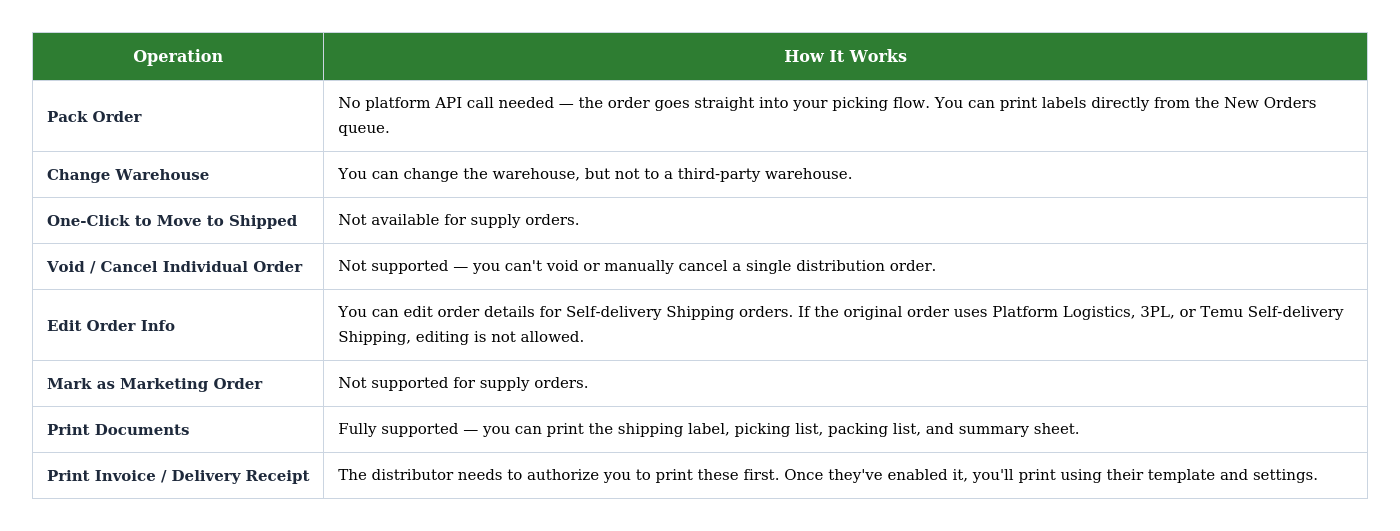
Once a supplier receives a pushed order from a distributor, the overall order fulfillment process is essentially the same as a normal order. However, for 'Supply Orders,' please pay attention to the following specific operations.
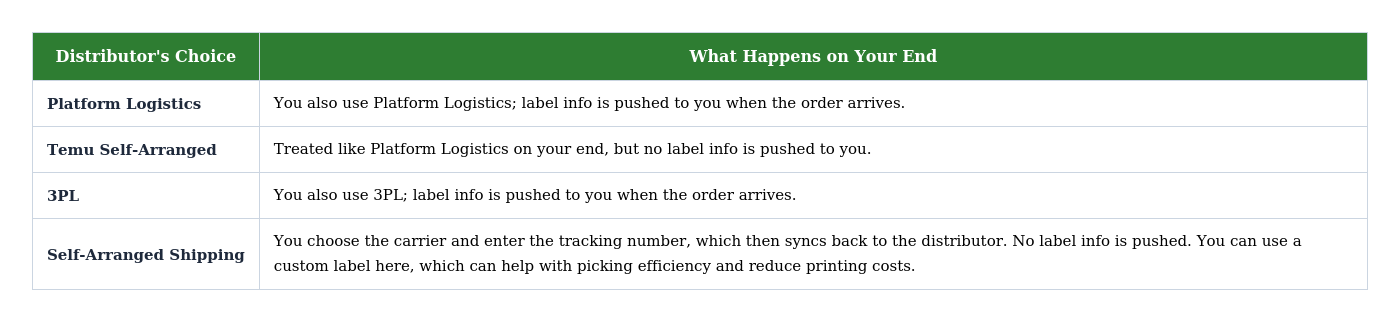
How the distributor's logistics choice flows through to your side:
💡When batch-printing supply orders, High-Speed Print is the better choice. If you use Standard Print, you can only batch-print orders from the same platform — cross-platform batching isn't supported. Filter by carrier first if you need to batch-print a large set of orders.
2) Handling Withdrawals & Cancellations
Distributors may withdraw their pushed orders when their orders got cancelled by buyers. There are mainly 3 scenarios, and the changes happened on your end also mentioned below:
- Distributor Withdrawal — successful: You release the allocated stock. The system generates a refund reconciliation record and the fees are automatically returned to the distributor's balance. Both sides' order statuses stop syncing, and the order moves into your Cancelled list.
- Distributor Withdrawal — failed: Nothing changes on your end automatically. The distributor will need to reach out to you offline to sort things out and make sure no one takes an unnecessary financial hit.
- Order enters Cancelled status: Label printing and stock-in returns are both supported. Items default to returning to the original shipping warehouse.
3) Order Automation Tools
For supplier orders, BigSeller automation tools applications are listed as follows:
- Auto-Pack: Supported. If the store source is set to all BigShop stores, the logistics selection is disabled — any BigShop order is treated as supporting auto-arrange regardless of the shipping method.
- Mark Rule: Supported, but marketing-order mark is not available for supply orders.
- Allocation Rule: The order maps directly to the distribution order's assigned warehouse. Gift rules on the distributor's side are applied before the push; they don't run again on your end.
- Shipping Rules: Third-party logistics rules are supported for BigShop Self-delivery Shipping orders.
- Auto Tool: If the supplier enabled Auto Tool, after the distributor click Ship for the order and it moves to To Pickup list. The supplier order will also move to To Pickup Orders or Shipped lists similarly.
5. Billing & Reconciliation
The Customer Reconciliation report is where you manage all the financial flows between you and each of your distributors — balance top-ups, credit period settings, and transaction history.
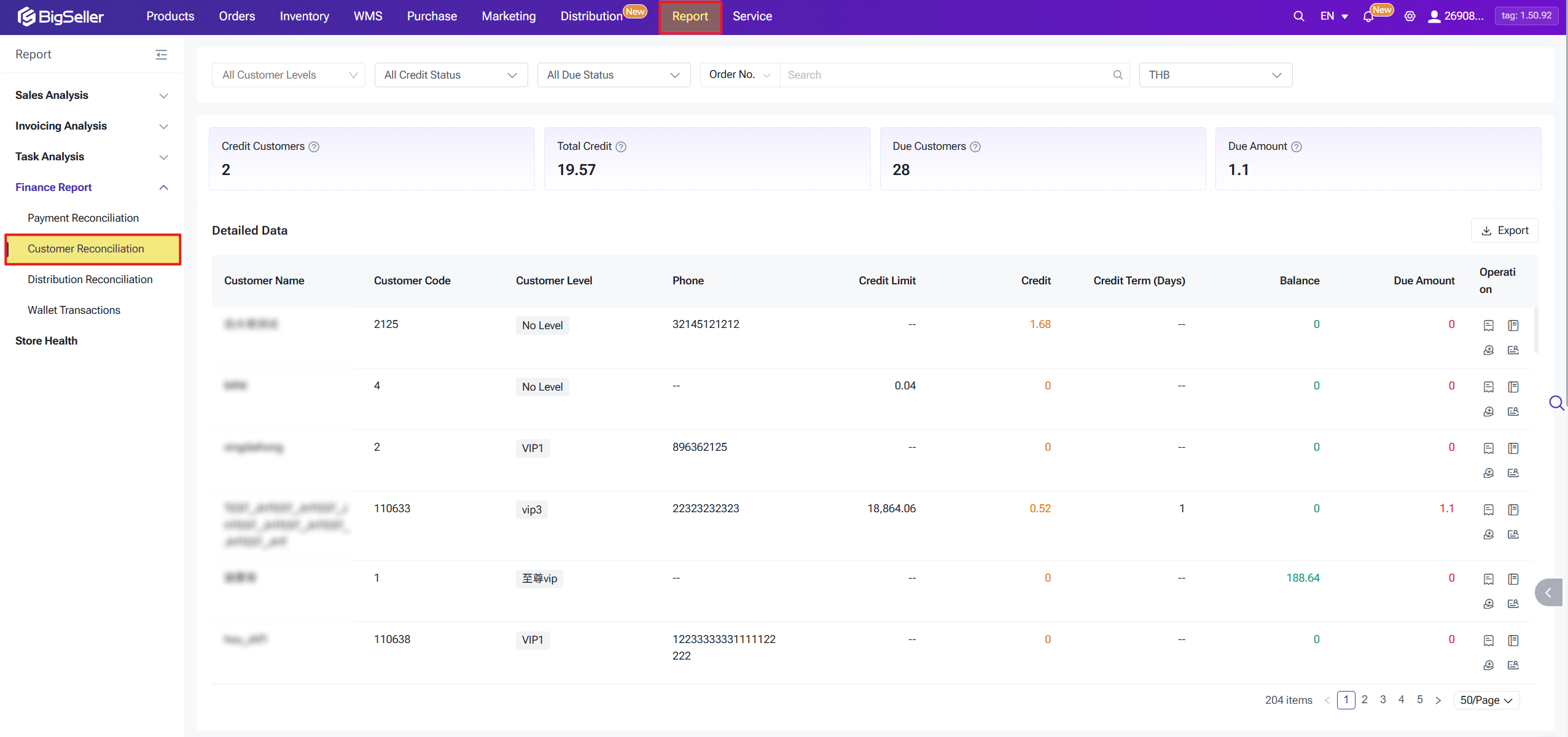
You can adjust balances and credit amounts manually at any time. Distributors can't top up their own balance — that always needs to be done on your end. Reconciliation records are generated automatically whenever any of the following happens:
You can adjust balances and credit amounts manually at any time. Distributors can't top up their own balance — that always needs to be done on your end. Reconciliation records are generated automatically whenever any of the following happens:
- A distributor pushes an order (charge generated)
- A distributor recalls an order (refund generated)
- A return refund is processed (after-sale)
- You make a manual bookkeeping entry
Each record shows the package number, document number, amount, and transaction ID. If there are records in different currencies, they're all converted to the settlement currency for display.
⚠️ For every transaction, one reconciliation record is created on each side — one on yours and one on the distributor's. The numbers will always match.
Currency conversion in the reconciliation summary follows the fixed exchange rate first, live rate as fallback rule. We recommend configuring fixed exchange rates in System Settings if you want stable, predictable billing figures month to month.
6. FAQ
Q1 — How do I bulk-update distribution prices across all my products?
The easiest way is to use the price import template: go to Distribution → I Am a Supplier → Distribution Product → Import. You can fill in SKU-level prices in the template and upload to overwrite existing prices. Before you do, it's worth exporting your current prices first as a backup — just in case.
Q2 — I approved a distributor but they're telling me they can't see any distribution products. What's going on?
There are a few things worth checking:
1. Has this distributor been restricted by a SKU visibility rule?
2. Are the relevant products actually in Distribution Enabled status?
3. Have you assigned this distributor a distribution warehouse?
If all three look fine and the products still aren't showing up, please get in touch with BigSeller support.
Q3 — My pricing is set up correctly, but a distributor is seeing a price of 0 or something that looks wrong. How do I troubleshoot this?
Two common causes:
1. Check both your Customer-level pricing and your SKU-level pricing — one of them may have a gap or misconfiguration.
2. There might be a currency mismatch between your distribution base currency and the settlement currency, causing a conversion error. Take a look at your exchange rate settings and price rounding configuration.
Q4 — A distributor says they pushed an order but I haven't received it. What should I do?
Start by asking the distributor to check the order status on their end:
The easiest way is to use the price import template: go to Distribution → I Am a Supplier → Distribution Product → Import. You can fill in SKU-level prices in the template and upload to overwrite existing prices. Before you do, it's worth exporting your current prices first as a backup — just in case.
Q2 — I approved a distributor but they're telling me they can't see any distribution products. What's going on?
There are a few things worth checking:
1. Has this distributor been restricted by a SKU visibility rule?
2. Are the relevant products actually in Distribution Enabled status?
3. Have you assigned this distributor a distribution warehouse?
If all three look fine and the products still aren't showing up, please get in touch with BigSeller support.
Q3 — My pricing is set up correctly, but a distributor is seeing a price of 0 or something that looks wrong. How do I troubleshoot this?
Two common causes:
1. Check both your Customer-level pricing and your SKU-level pricing — one of them may have a gap or misconfiguration.
2. There might be a currency mismatch between your distribution base currency and the settlement currency, causing a conversion error. Take a look at your exchange rate settings and price rounding configuration.
Q4 — A distributor says they pushed an order but I haven't received it. What should I do?
Start by asking the distributor to check the order status on their end:
- If it shows Pushing — the system is still processing it; give it a moment.
- If it shows Push Failed — ask them to retry from their side.
- If it keeps failing, check two things: ① whether the partnership is still in Partnered status, and ② whether the SKU mapping between both sides is set up correctly.
Q5 — A distributor's credit period has expired but we haven't settled yet. Will that block their orders?
An expired credit period by itself doesn't block orders. What actually blocks orders is an insufficient account balance or a maxed-out credit limit. That said, once the period expires it's a good time to reach out to your distributor to settle up and reconcile any outstanding amounts. If their credit limit is fully used, the next push will be blocked automatically.
A few other things that can also block orders: the SKU isn't set to Distribution Active, you're out of stock, the partnership isn't in Partnered status, or your order quota has been reached.
Q6 — I want to offer one of my larger distributors a better price on specific products. What's the best way to do that?
You have two options:
1. Upgrade their level to one that already has a more favorable price configured.
2. Go to Distribution Product and set a SKU-level standalone price for the specific SKUs you want to discount, tied to that distributor's tier.
We'd generally recommend option 2 if you want precise control over individual products without changing the distributor's tier globally.
Q7 — I've terminated a partnership with a distributor. What happens to our billing history and credit records?
Here's what changes after termination:
1. The distributor's available stock is pushed to 0. They can no longer sync new orders to BigSeller — though any orders they'd already synced before termination can still be pushed to you.
2. All existing billing and credit period data is preserved so both of you can complete final settlement.
3. Every product they had claimed will change to Inactive status.
Your reconciliation data isn't going anywhere — you can still access the full history through Transaction Details at any time.
Is this content helpful?
Thank you for your feedback. It drives us to provide better service.
Please contact us if the document can't answer your questions