How to Create Offline Promotions (POS Retail Orders)?
Copy link & title
Update Time: 26 Feb 2026 02:27
BigSeller has launched the Offline Promotion feature! This tool supports customizable discount thresholds, tiered discounts, and free gift rules. It is designed to adapt to various marketing scenarios such as daily traffic generation, holiday big sales, inventory clearance, and new product launches.
You can access this feature through two paths:
You can access this feature through two paths:
- Orders > Order Entry > POS Retail Orders > Offline Promotion
- Marketing > Offline Promotion
💡Important Notes:
- This feature is only supported for POS Retail Orders.
- When creating SKU or Order promotions, you cannot create a new promotion for the same time range if there are already "Paused" or "Pending" promotions.
- For the same product(SKU) under the same store, only one promotion can be active during a specific time range.
- Promo Priority: SKU Discount/Tiered Discount > Manual Product Discount > Order Discount/Tiered Discount > Order Coupon > Free Gift.
- Main accounts can view all promotions; sub-accounts can only view promotions for stores they have permission to access.
Offline Promotions are categorized into three types: SKU Promotion, Order Promotion, and Free Gift Promotion.
1. SKU Promotion
SKU Promotions are applied at the product/SKU level. The discount is triggered when specific items in the order meet the promo criteria.
Step 1: Create a SKU Promotion
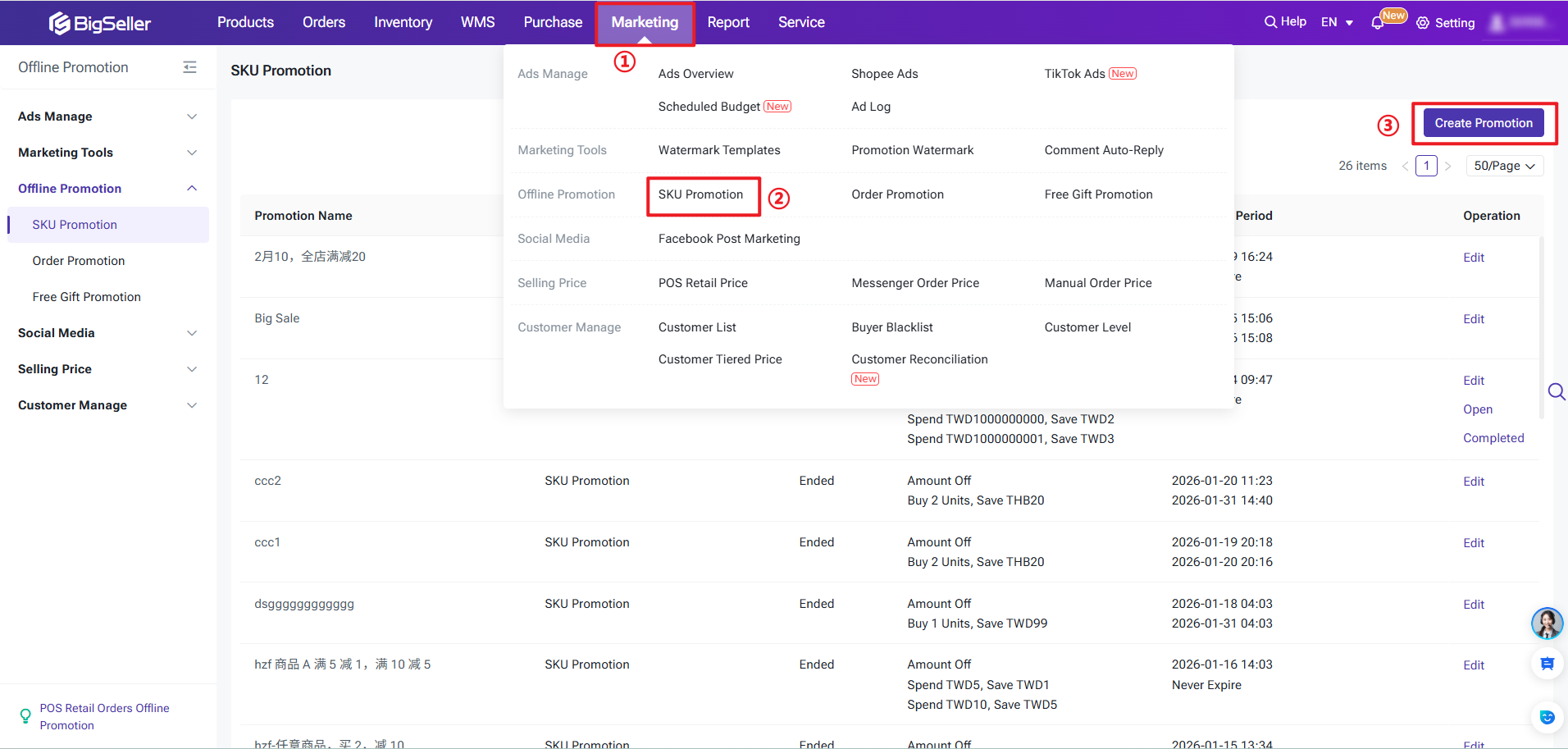
Step 2: Fill in Details
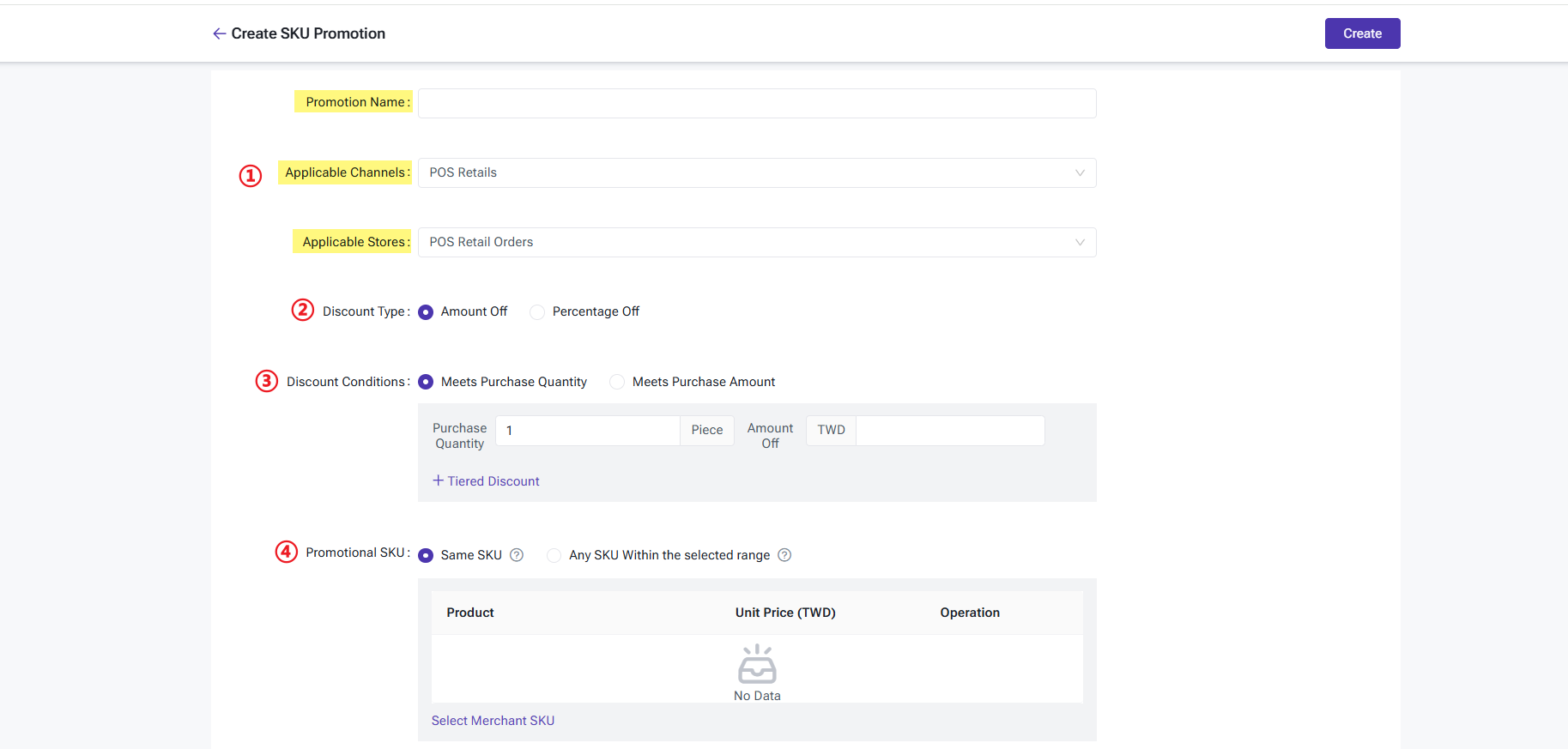
① Basic Information
Step 1: Create a SKU Promotion
Step 2: Fill in Details
① Basic Information
- Promotion Name: Enter a custom name for the promotion.
- Applied Channel: Currently supports POS Retail Orders only.
- Applied Store: Select the POS retail store created in BigSeller.
② Discount Type:
- Amount Off: Deduct a specific charge amount when the quantity/amount threshold is met.
- Percentage Off: Apply a percentage discount when the quantity/amount threshold is met
③ Discount Conditions
- Meet Purchase Quantity: Buy X units to get a discount/amount off. You can set up to 5 tiers; each tier's quantity must be higher than the previous one.
- Meet Puechase Amount: Spend X amount to get a discount/amount off. You can set up to 5 tiers; each tier's amount must be higher than the previous one.
④ Promotion SKU
- Same SKU:The promotion only applies if the same selected product meets the criteria individually.
- Any SKU:The promotion takes effect when any selected SKU meets the conditions. The discount will be allocated proportionally based on each SKU's amount.
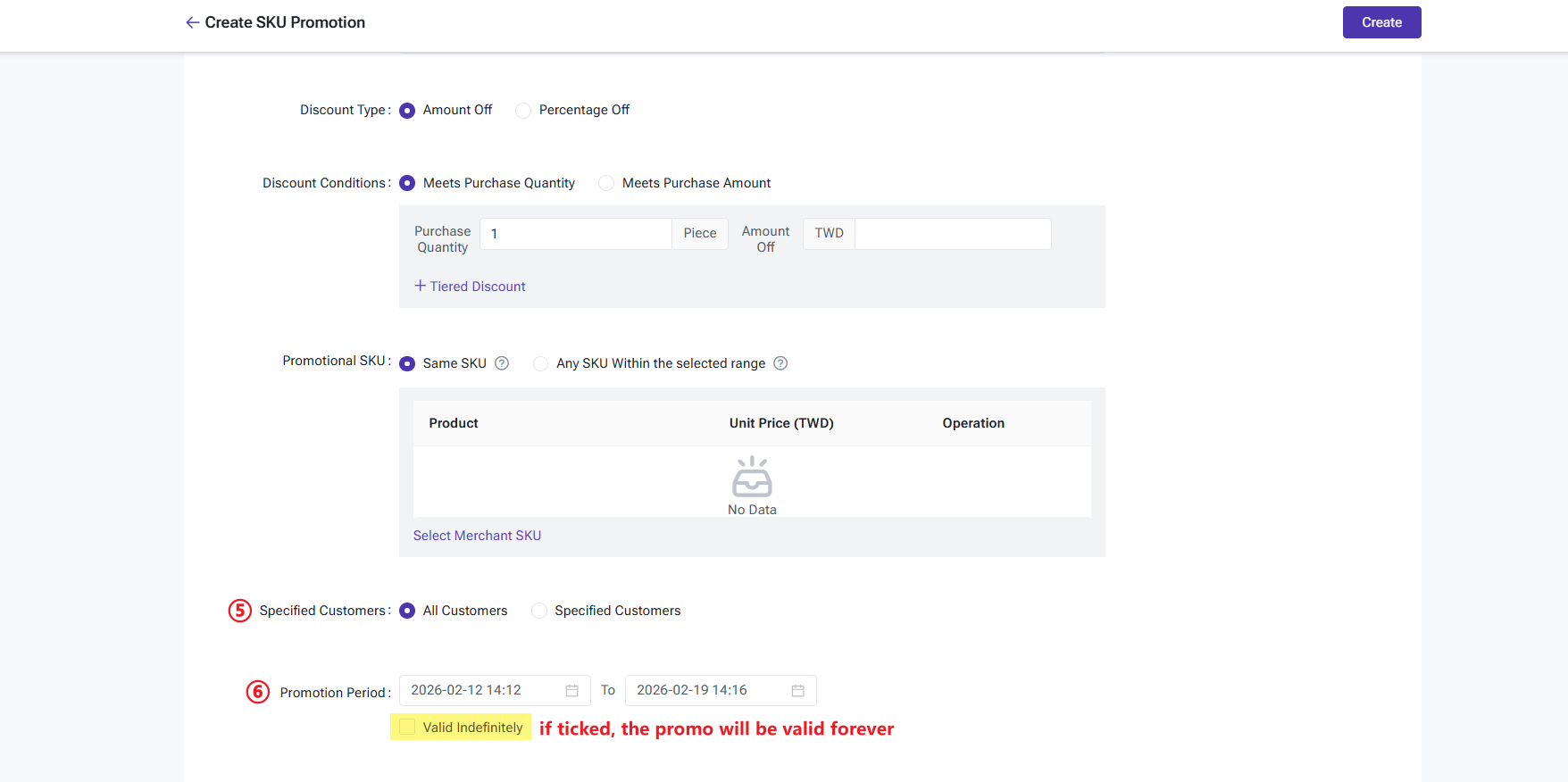
⑤ Targeted Customers:
- All Customers: Active for everyone.
- Specified Customers: Only selected customers can enjoy the discount.
⑥ Promotion Period:
- Set a specific date range or select Long-term validity.
2. Order Promotion
Order Promotions are triggered when the total order meets the criteria (Quantity or charge amount).
Step 1: Create an Order Promotion
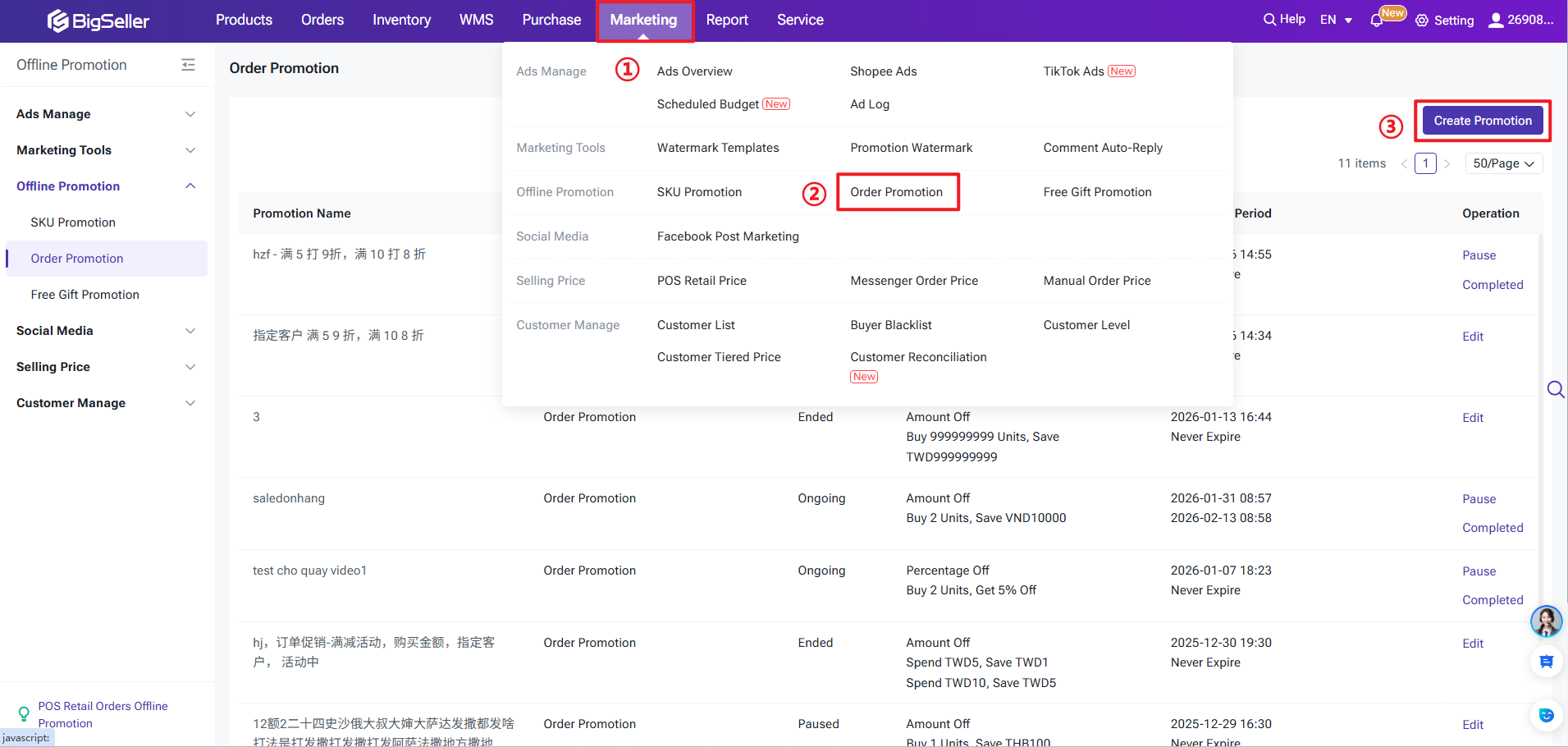
Step 2: Fill in Details
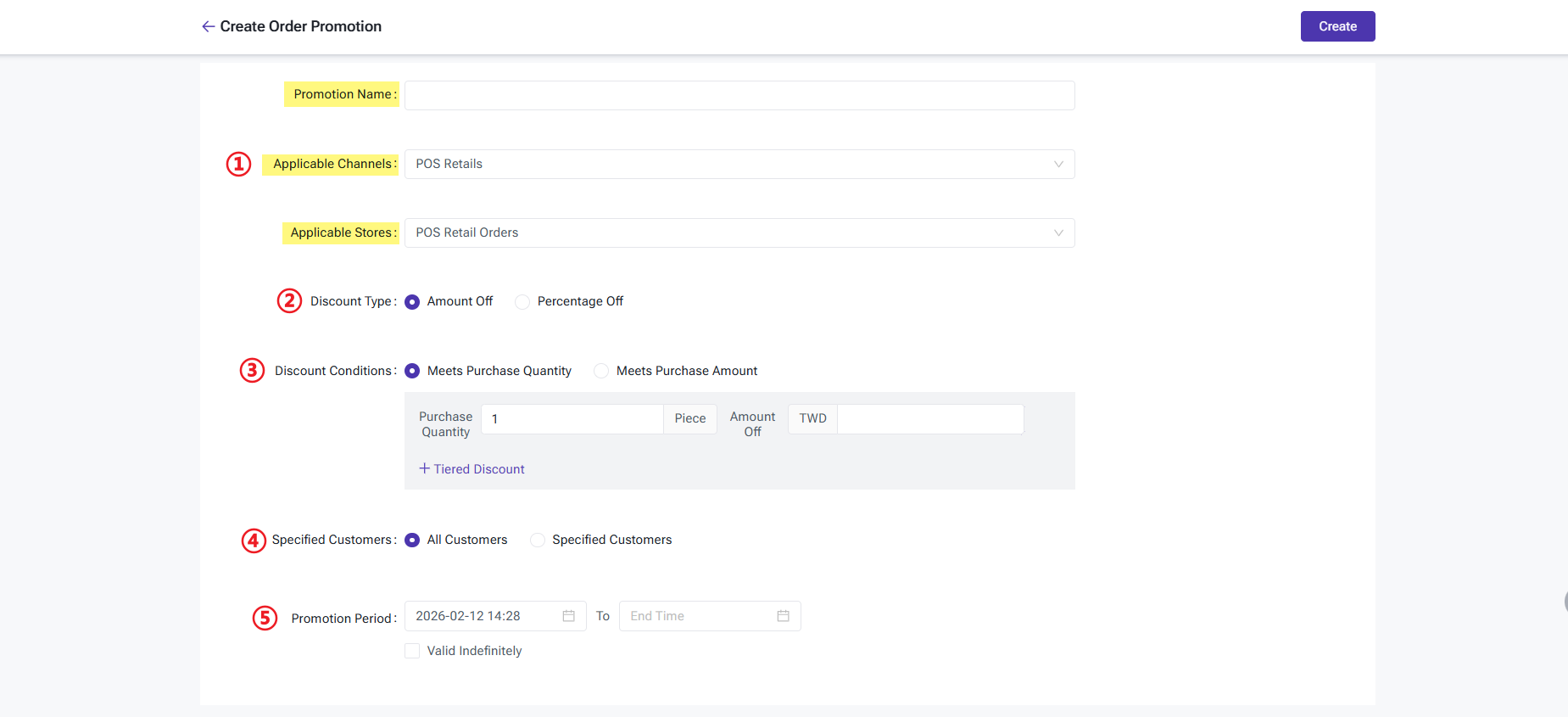
The setup for Basic Info, Discount Type, Conditions, Targeted Customers, and Promotion Period follows the same logic as the SKU Promotion but applies to the total order value.
Step 1: Create an Order Promotion
Step 2: Fill in Details
The setup for Basic Info, Discount Type, Conditions, Targeted Customers, and Promotion Period follows the same logic as the SKU Promotion but applies to the total order value.
3. Free Gift Promotion
A Free Gift Promotion is triggered when a buyer's order meets specific criteria (Quantity or charge amount).
- 🔥New Feature: You can now set up Tiered Gifting for a specified range of products to drive higher order values!
Step 1: Create a Free Gift Promotion
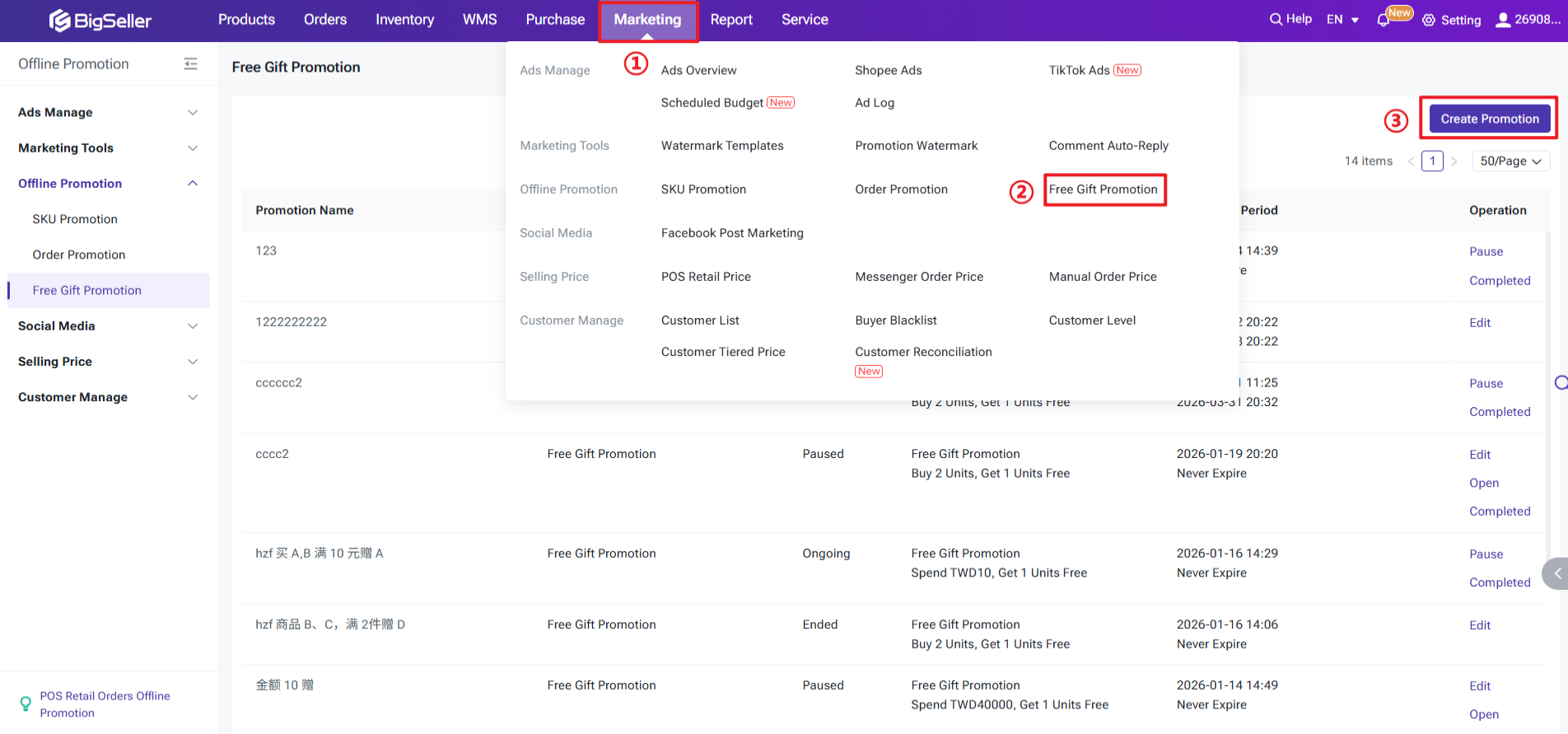
Step 2: Fill in details
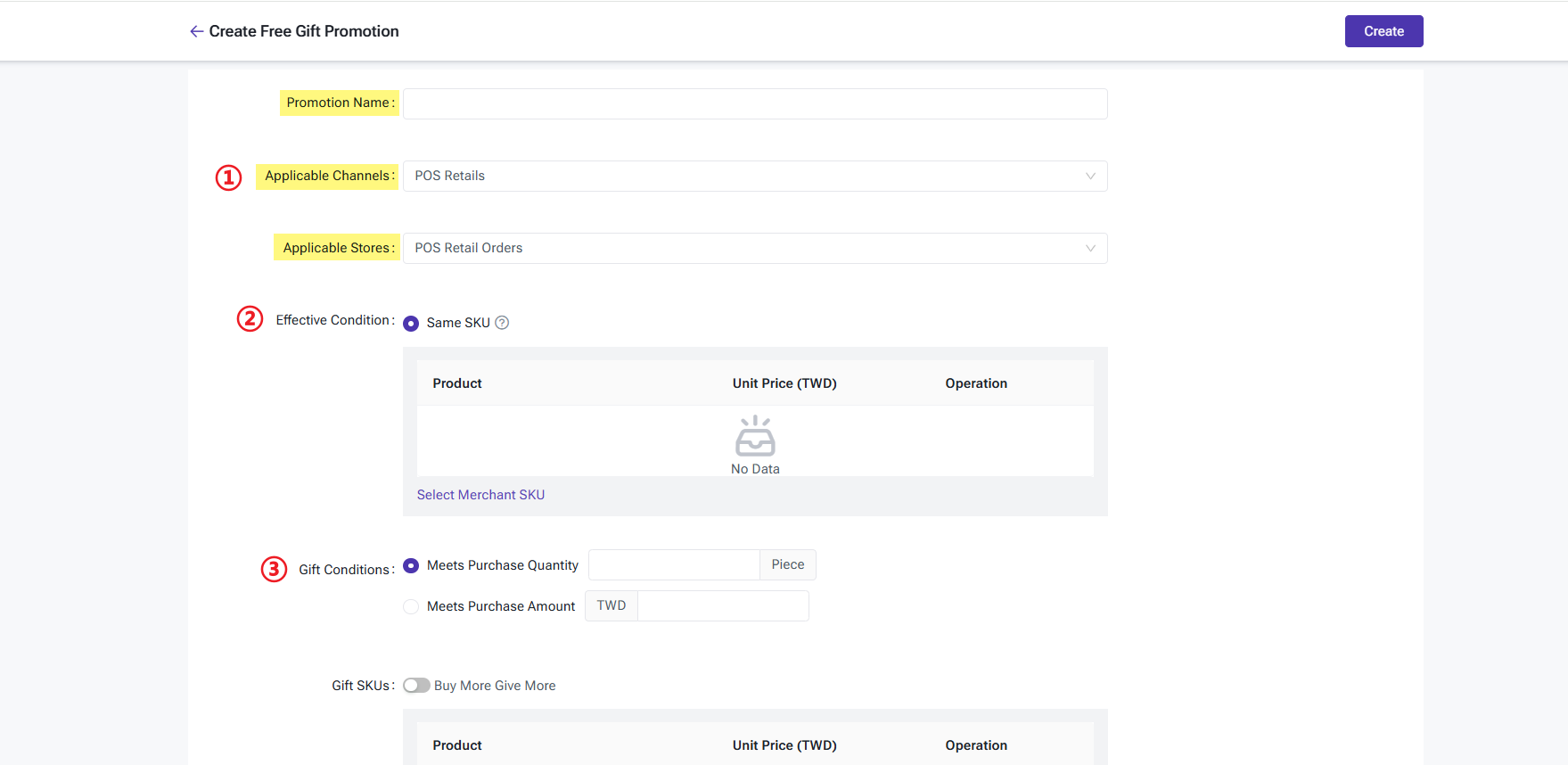
① Basic Information (Same as above)
② Promotion Type
- Spend & Get Promo: A traditional gift rule where meeting a single threshold (Quantity or Amount) triggers a specific gift.
- Tiered Gifting (Mobile App Exclusive): You can set multiple requirement tiers. When a tier is met, eligible items in the shopping cart are automatically converted into "Gifts."
⚠ IMPORTANT:
a) Priority: The system prioritizes the highest tier. If the highest tier’s gift is unavailable, the system moves to the next highest tier. If a higher tier becomes available, the lower-tier gift is invalidated and reverts to a regular product.
b) Exclusion Rule: Tiered Gifting is mutually exclusive with other product-level promotions. A single Merchant SKU can only be active in one promotion per store/time range. However, within a Tiered Gifting activity, a product can simultaneously act as both the "Main Product" and the "Gift."
a) Priority: The system prioritizes the highest tier. If the highest tier’s gift is unavailable, the system moves to the next highest tier. If a higher tier becomes available, the lower-tier gift is invalidated and reverts to a regular product.
b) Exclusion Rule: Tiered Gifting is mutually exclusive with other product-level promotions. A single Merchant SKU can only be active in one promotion per store/time range. However, within a Tiered Gifting activity, a product can simultaneously act as both the "Main Product" and the "Gift."
② Effective Condition
- Same SKU: The rule is checked against each selected product individually.
- Any SKU Selected: The promotion triggers when any combination of selected Merchant SKUs meets the conditions. (Note: Tiered Gifting only supports this activation mode).
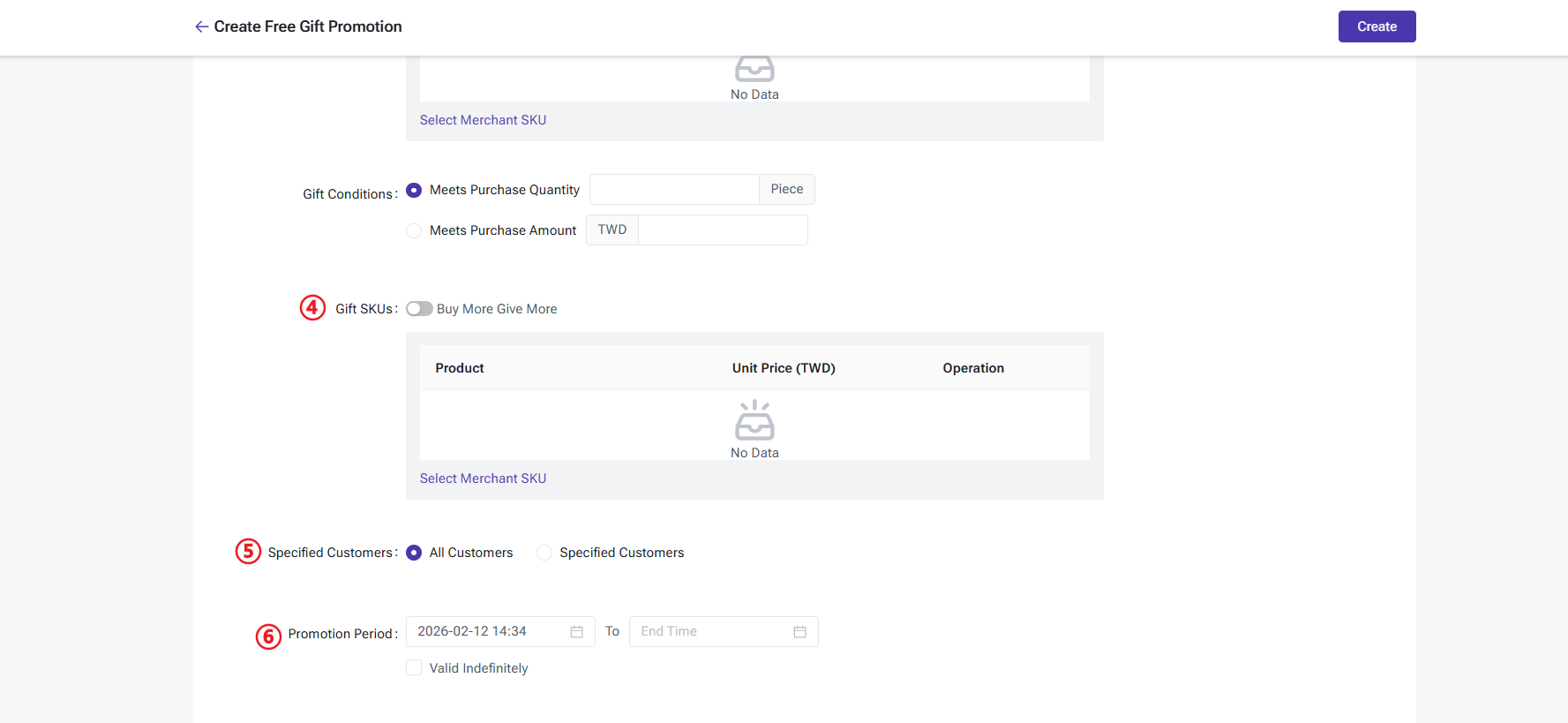
③ Gift Condition
- Meets Purchase Quantity
- Meets Purchase Amount
④ Gift SKUs
- Buy More Give More: If enabled, gifts multiply with the purchase. For example: If buying 1 unit of Merchant SKU A gets 1 unit of Merchant SKU B, then buying 2 units of A will result in 2 units of B.
⑤ Targeted Customers & ⑥ Promotion Period (Same as above)
Is this content helpful?
Thank you for your feedback. It drives us to provide better service.
Please contact us if the document can't answer your questions