How to Translate the Product Infomation Quickly? (Translation)
Update Time: 25 Nov 2025 03:01
- Translation Objects: product title, description, variation and image;
- Available Areas: Scrape Product Page, Active Page (Single Edit / Bulk Edit), Draft Page (Single Edit / Bulk Edit)
- Available Languages: Malay / English / Indonesian / Thai / Vietnamese / Traditional Chinese;
- The translation would cost your Bigcoins. (What is BigCoin?)
- Text Translation— 2000 characters /1 BigCoin;
- Image Translation— 3 images /1BigCoin
1. Advanced Translation (Product Name and Description):
Automatically detects the source language and translates it into the selected target language.
Step 1: Go to [Scrape Products], [Draft] or [Active] page.
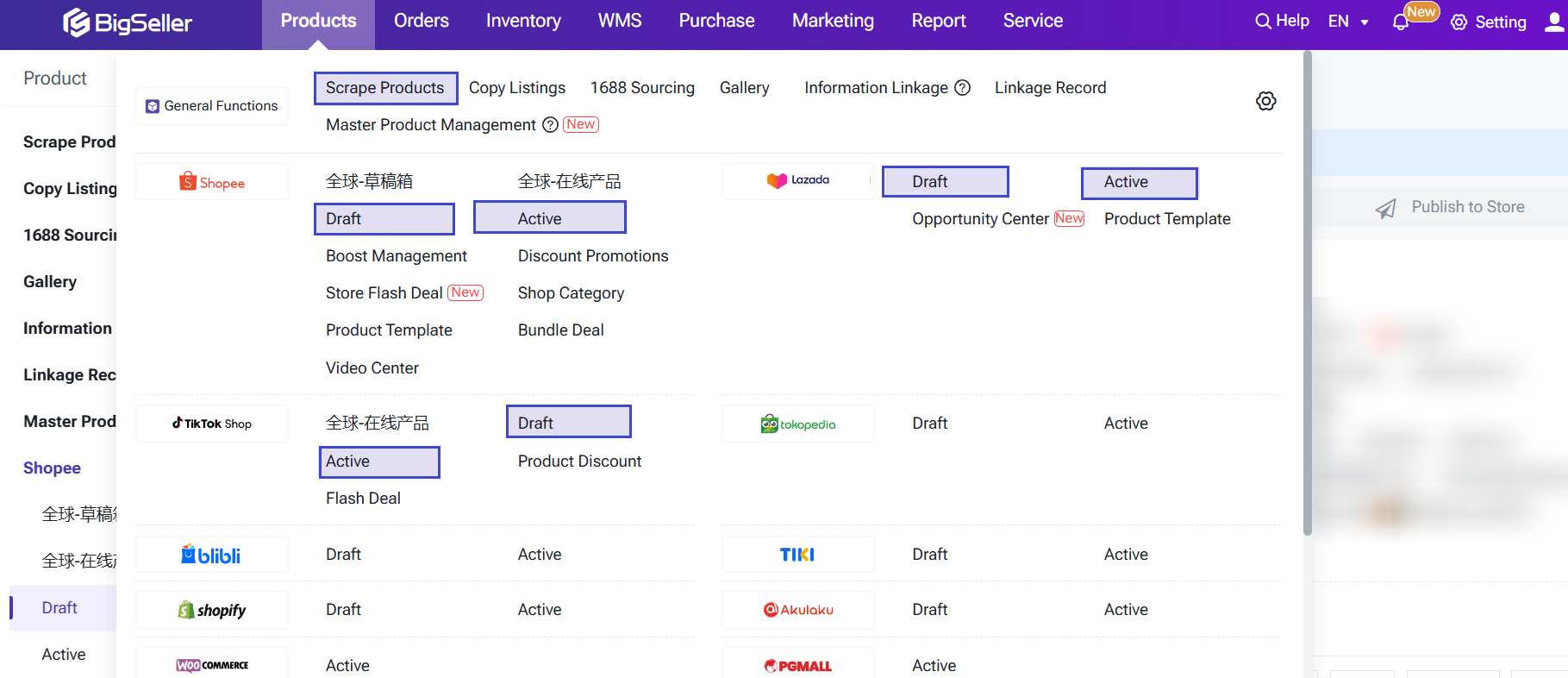
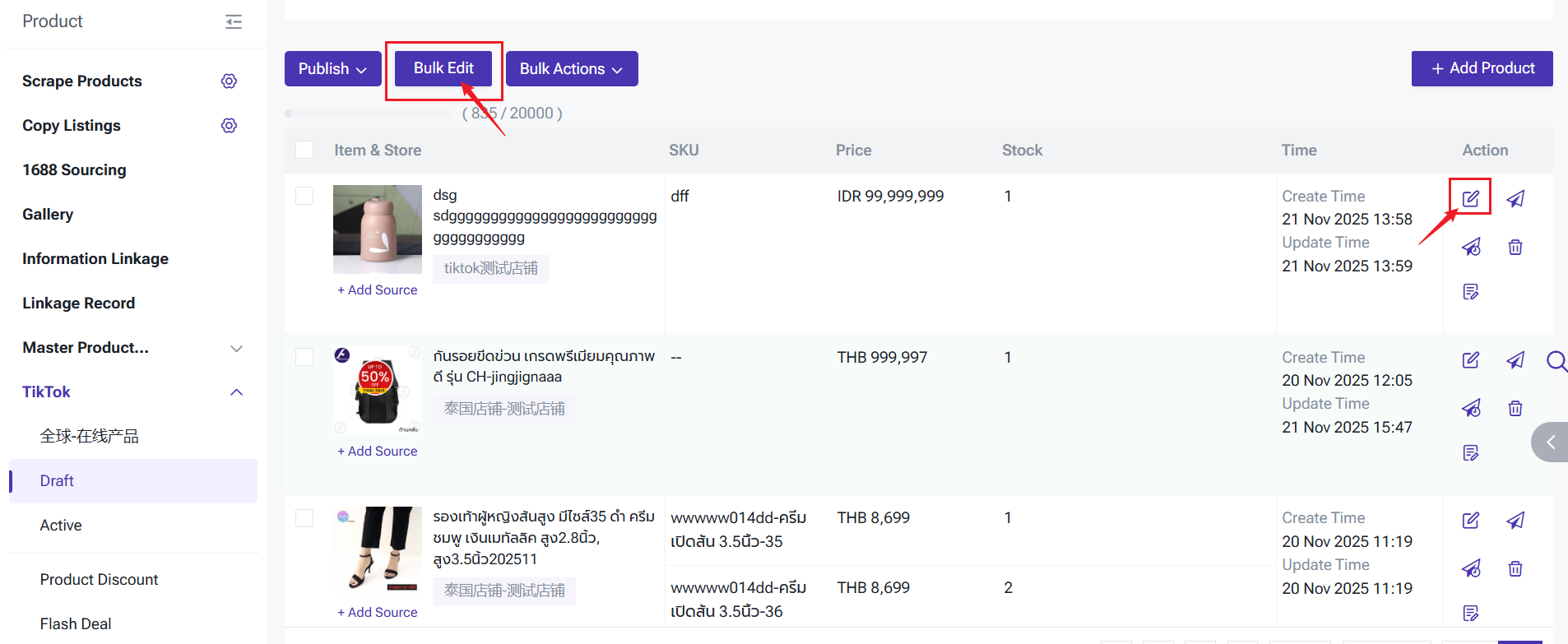
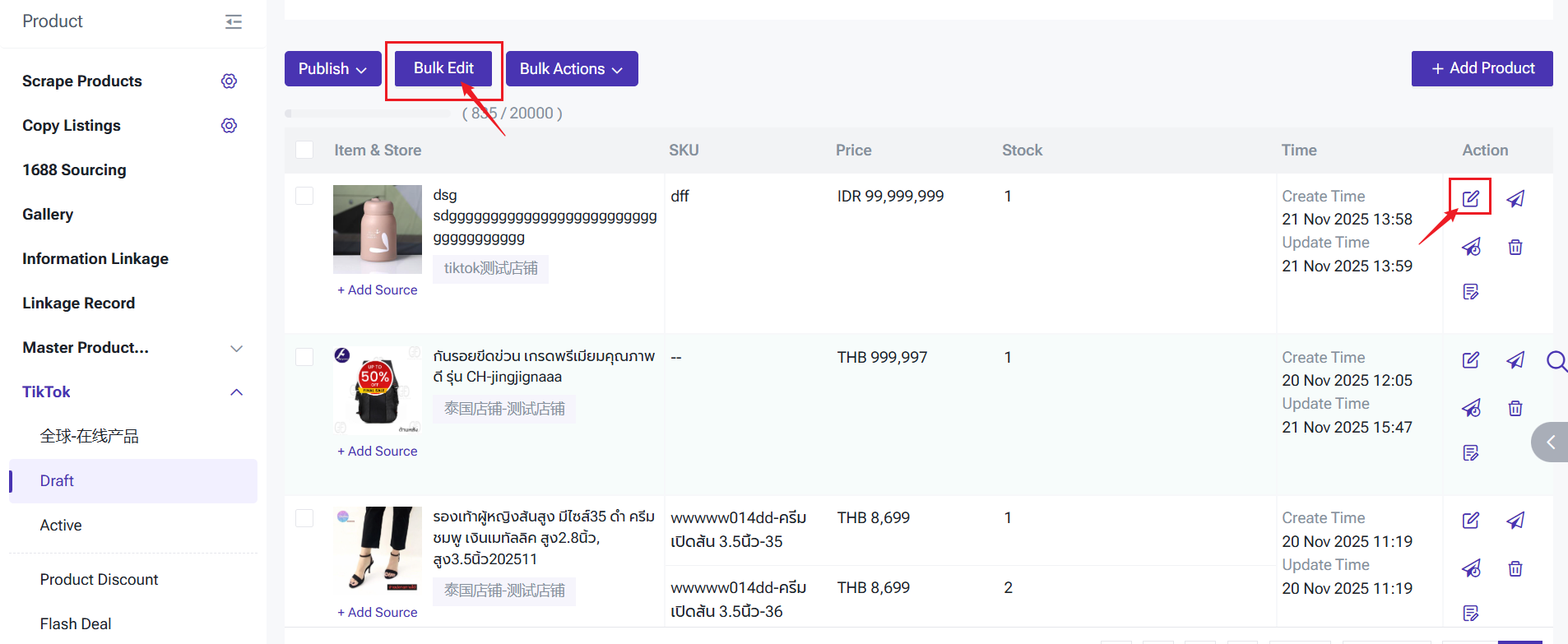
Step 2: Enter the product editing page (Single Edit / Bulk Edit)
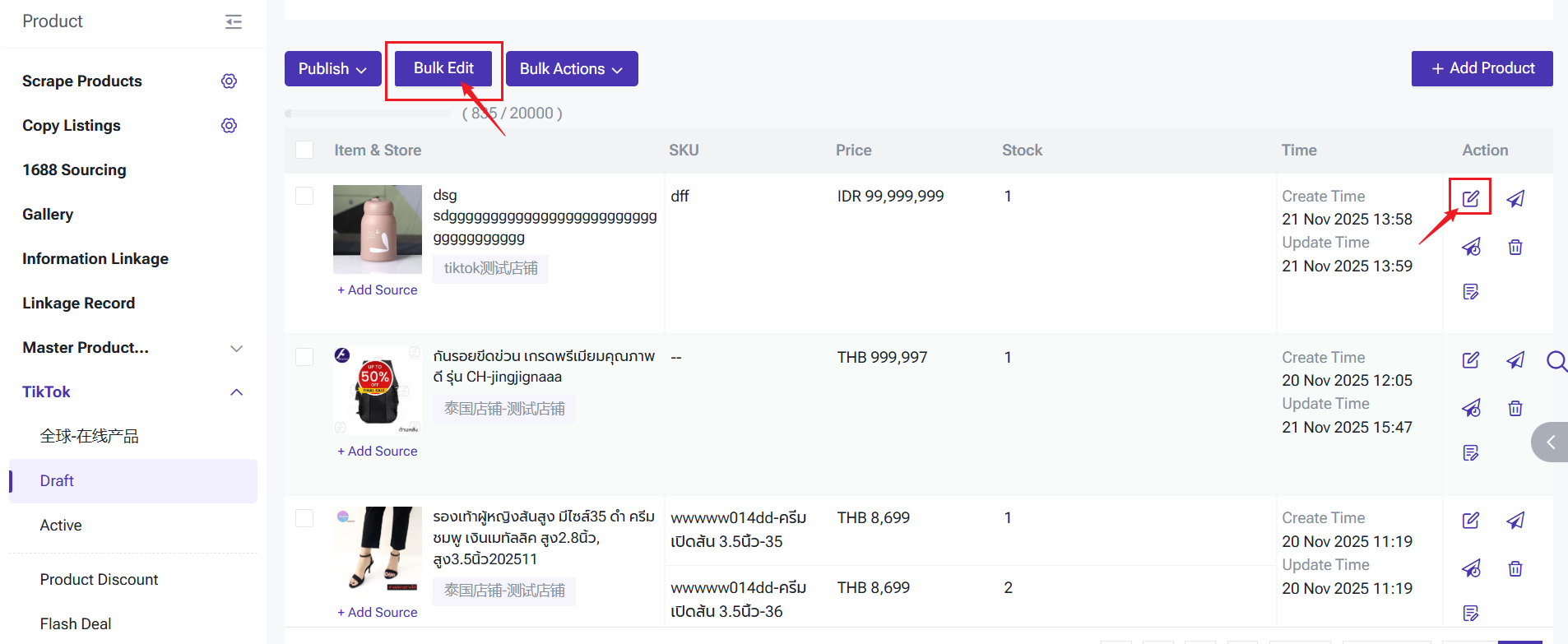
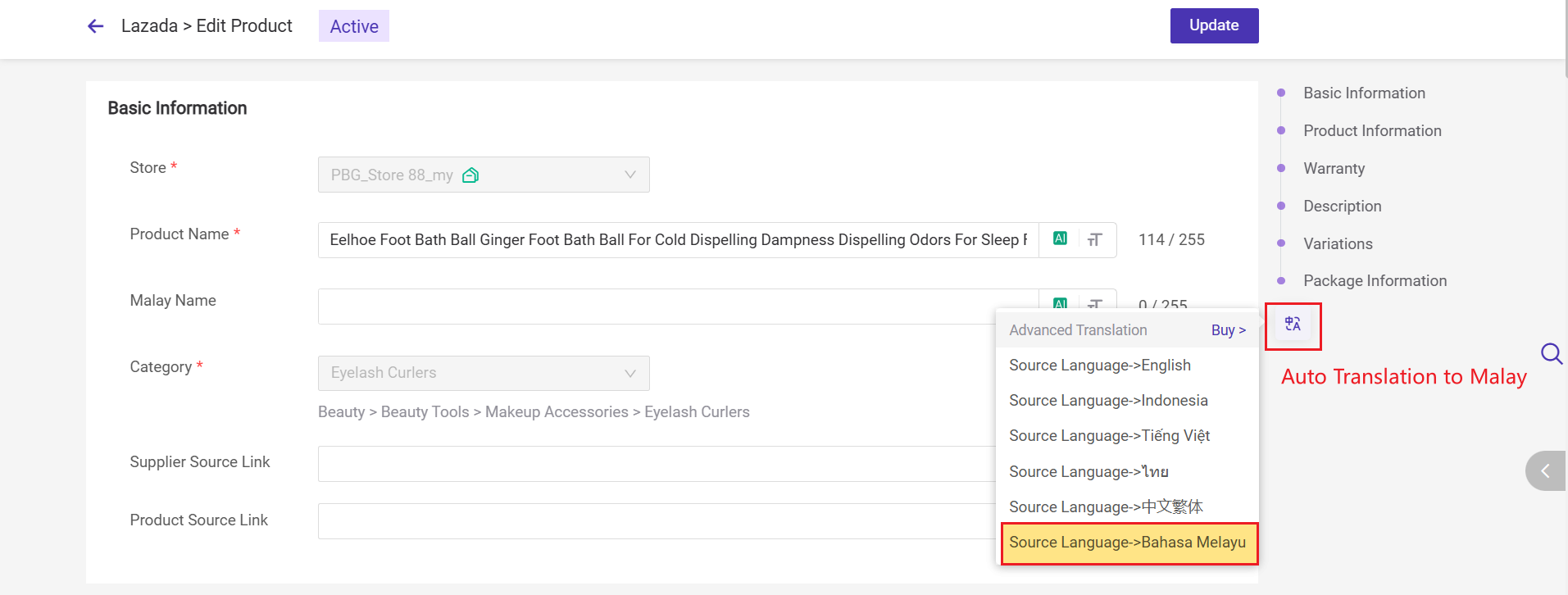
Step 3: Click the advance translation button and select the target language you want to translate into.
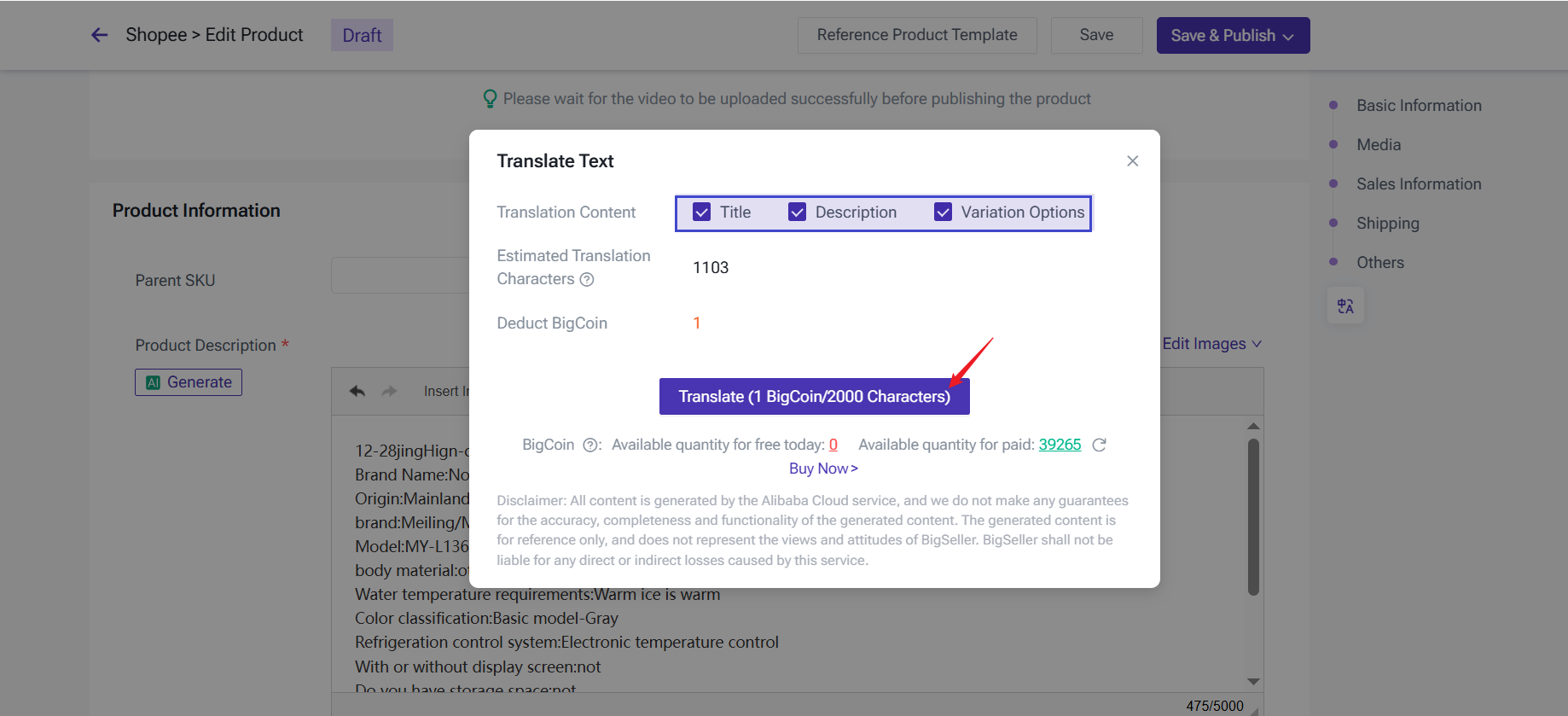
Step 4: Select the content you want to translate—Title, Description, or Variation Options. The system will display the total amount of BigCoin required. After clicking ‘Translate’, the translated text will be automatically applied to the input fields.
2. AI Product Description Generation
Step 1: Go to [Scrape Products], [Draft] or [Active] page.
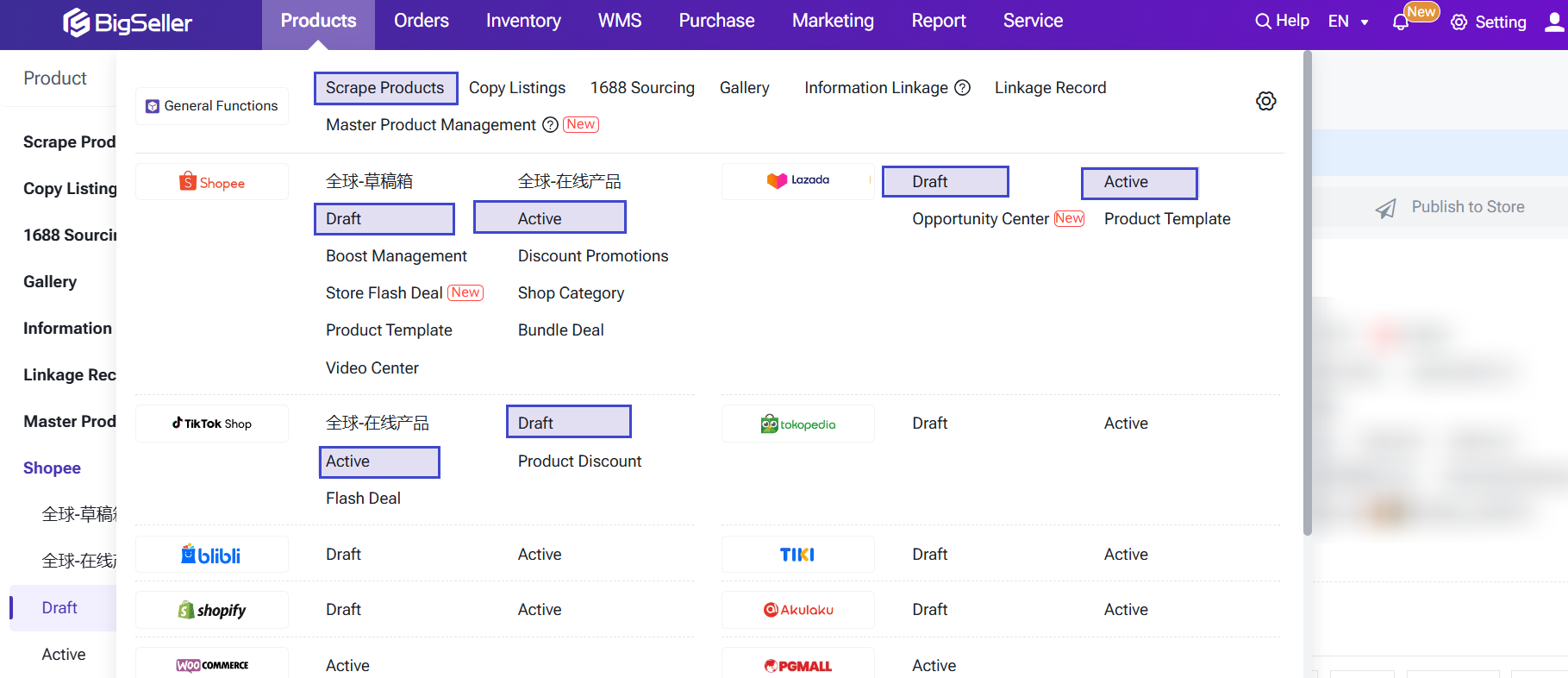
Step 2: Enter the product editing page (Single Edit / Bulk Edit)
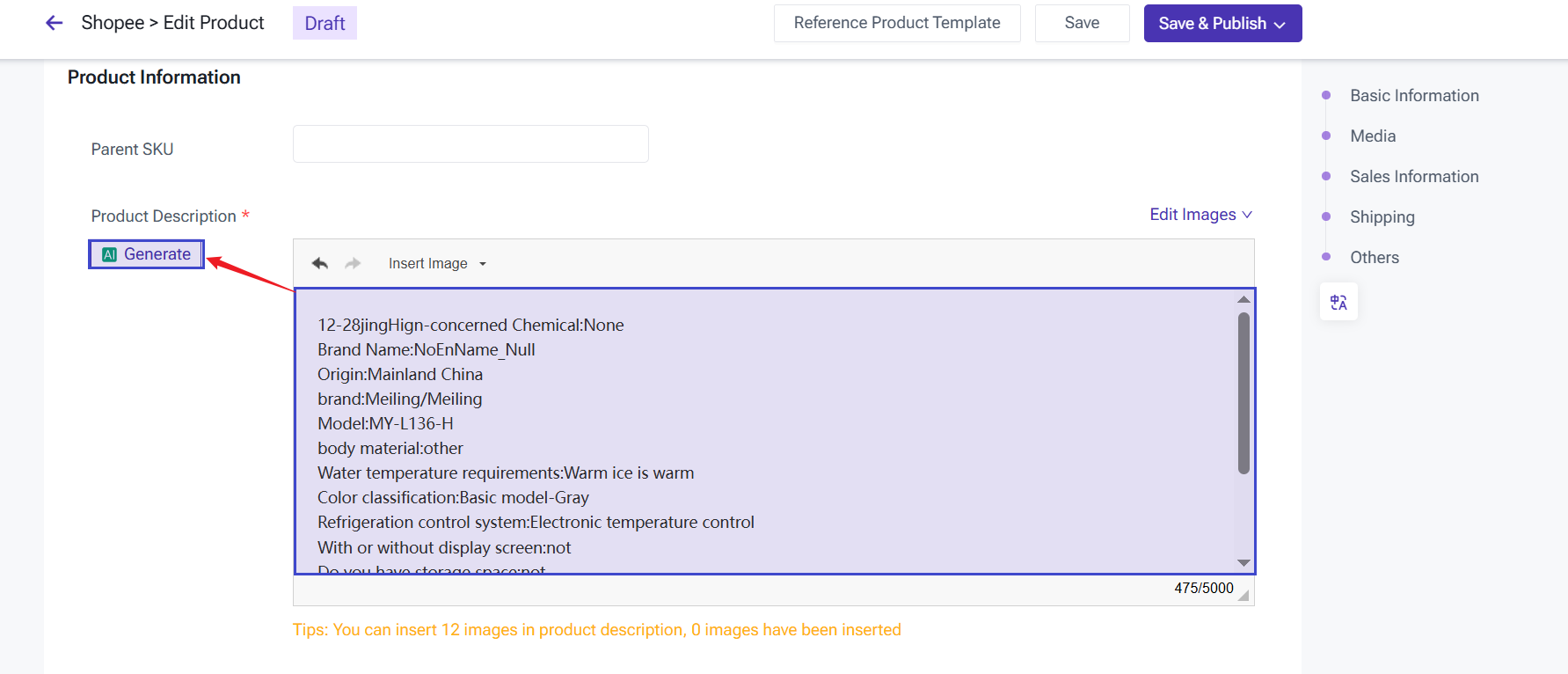
Step 3: Locate the input box under Product Information > Description, then click AI Generate on the left
Step 4: Enter product-related keywords and the target language. Each generation costs 5 BigCoin. After clicking "Generate", the result will appear on the right, and you can click "Apply" to apply it with one click.
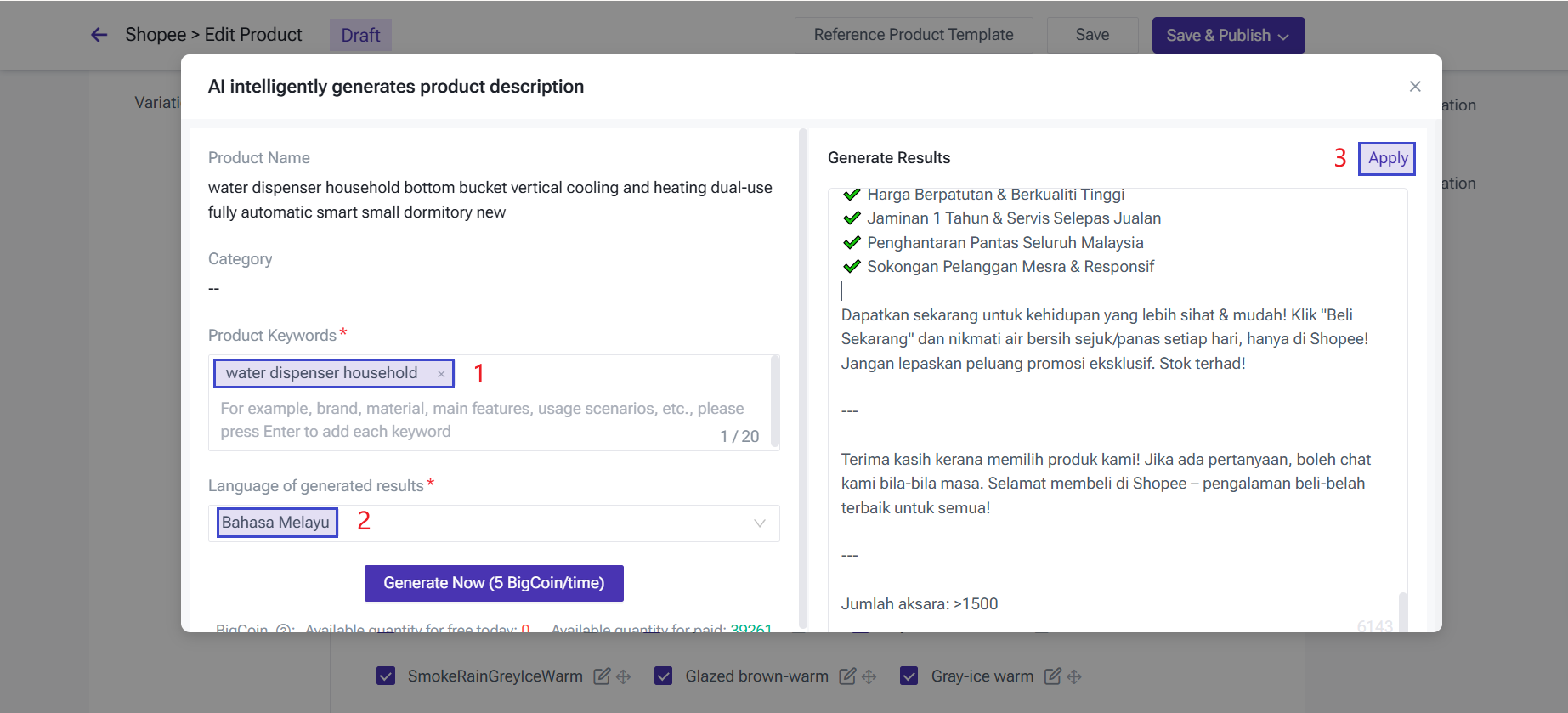
After applying, the current product description will be updated(only the text will be updated.
3. AI Product Name Generation
Step 2: Enter the product editing page (Single Edit / Bulk Edit)
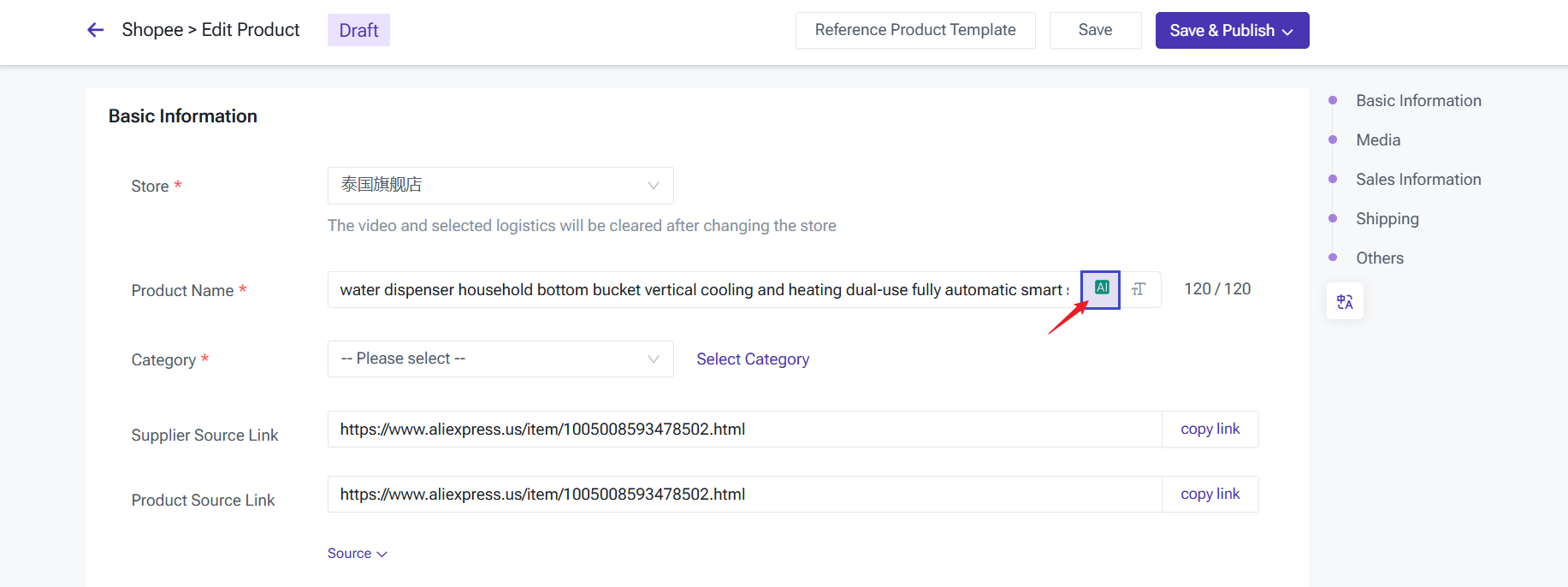
Step 3: Click the AI generation icon on the right side of the Product Name input box.
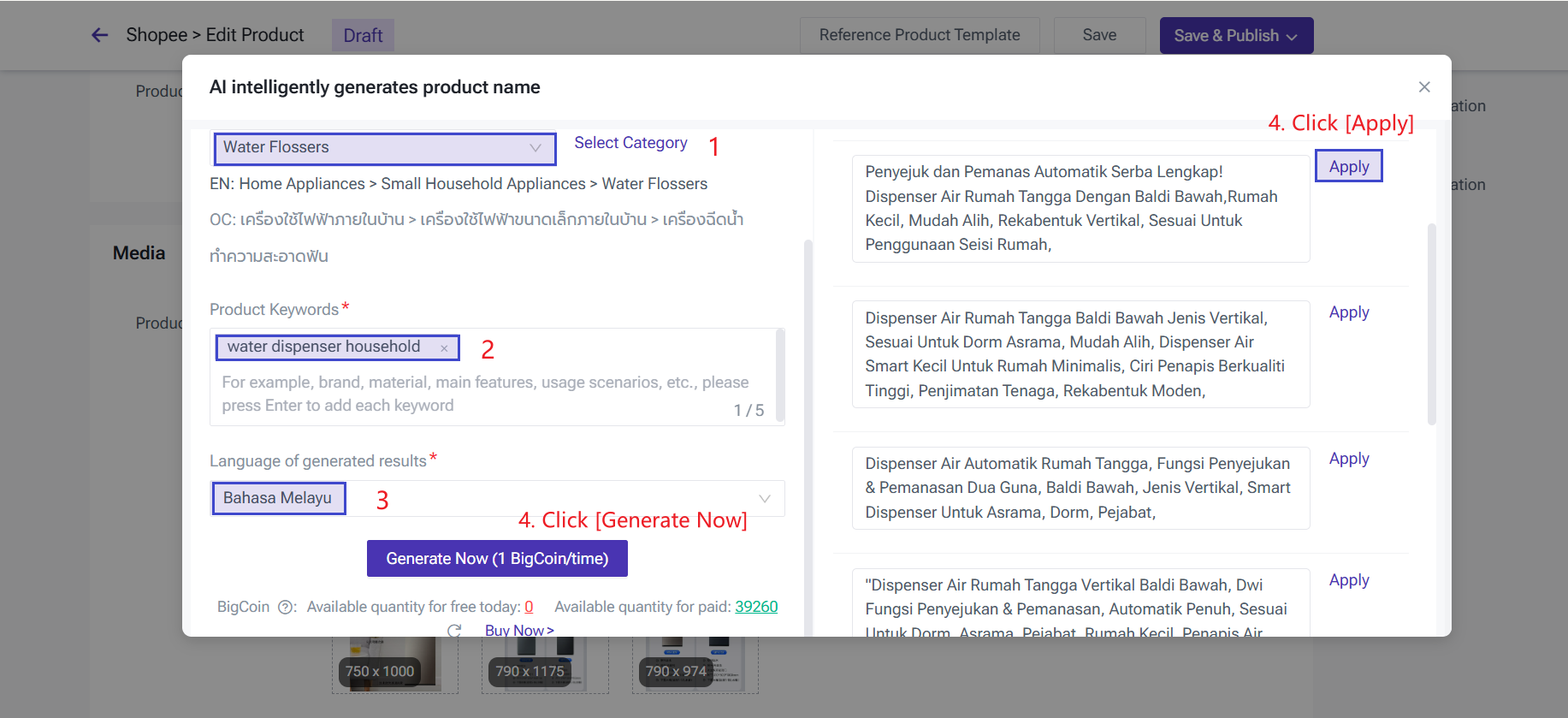
Step 4: Select the product category, enter a set of keywords and the target language for translation, then click "Generate". (Each Product Name generation costs 1 BigCoin.)
4. Image Translation (Upgraded)
Step 1: Go to [Scrape Products], [Draft] or [Active] page.
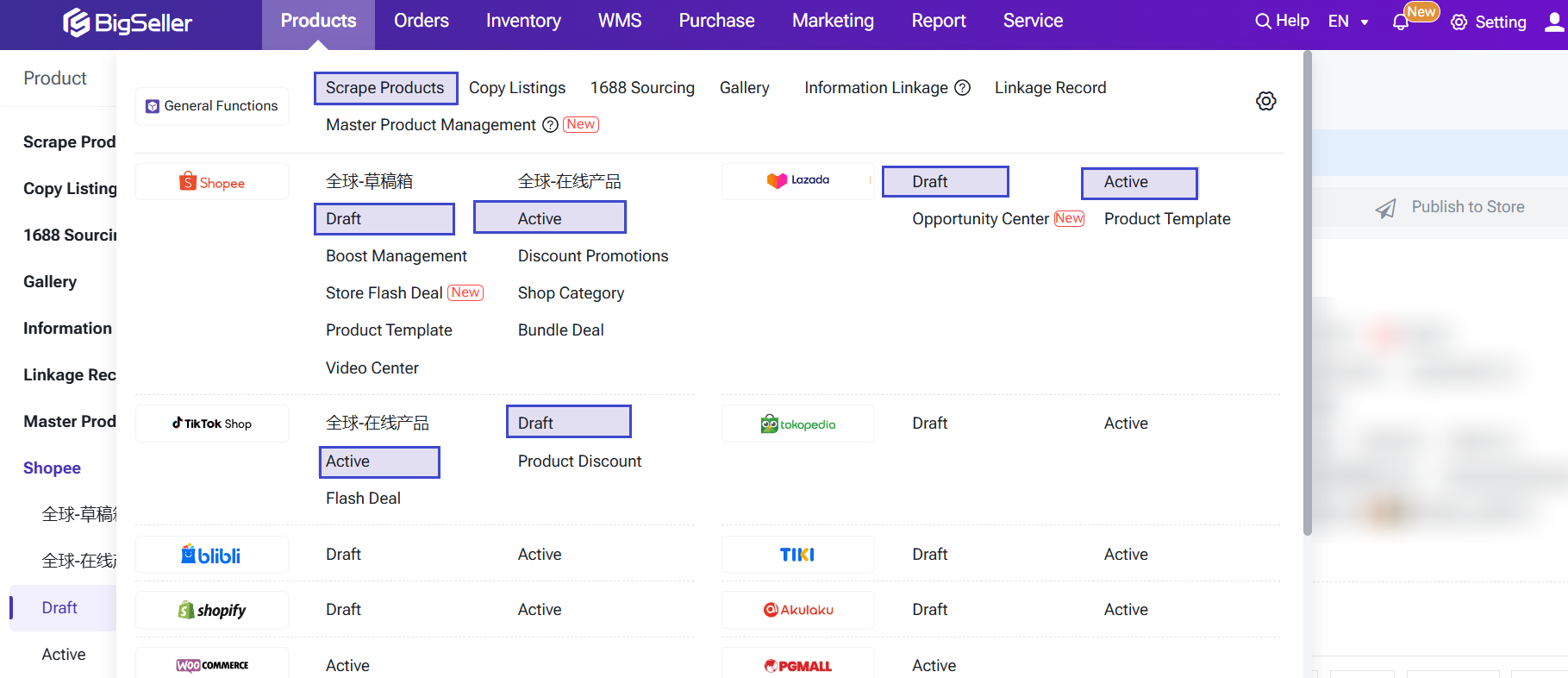
Step 2: Enter the product editing page (Single Edit / Bulk Edit)
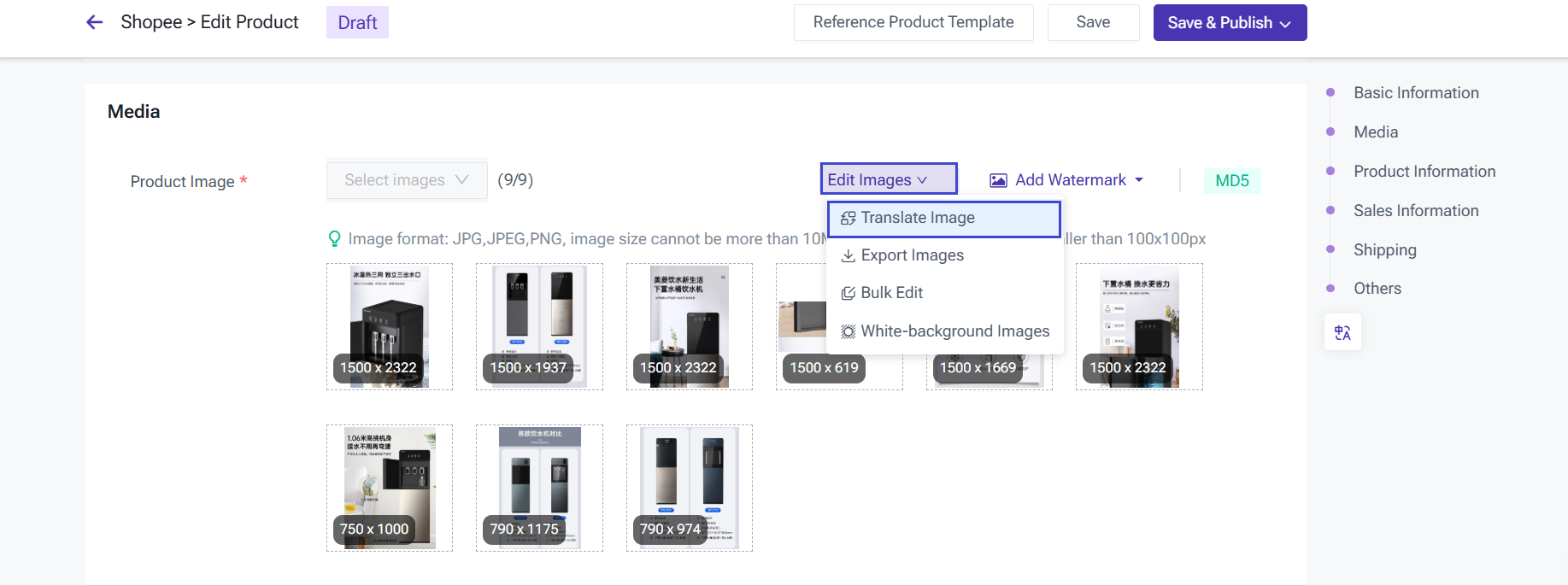
Step 3: Go to Media > the section where you add product images, then click Edit Image > Translate Image.
Step 5: Select the images you want to translate, choose your preferred translation engine, set the source and target languages, and click [Translate].
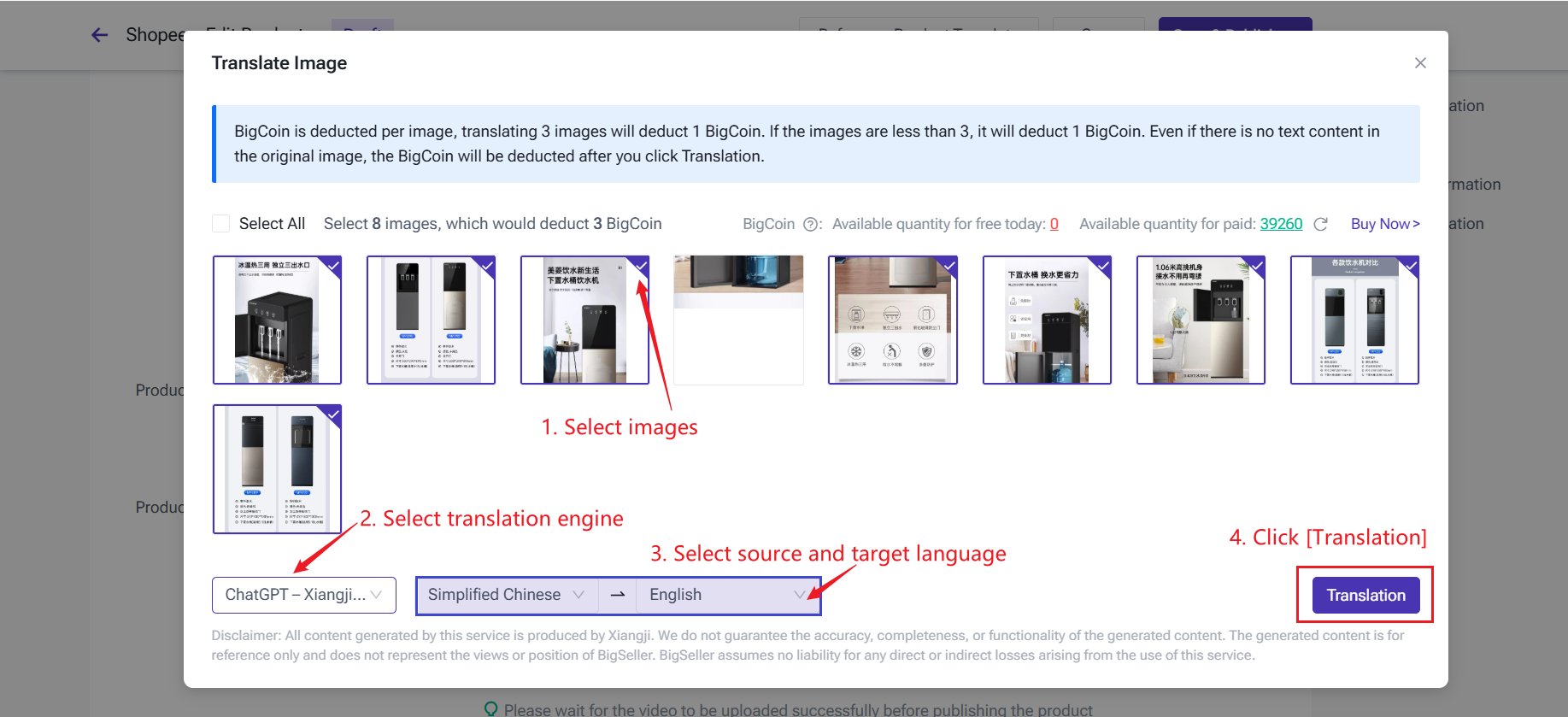
Note: BigCoin is deducted per image. Translating 3 images deducts 1 BigCoin. If fewer than 3 images are translated, 1 BigCoin will still be deducted. Even if the original image contains no text, BigCoin will be deducted once you click "Translate".
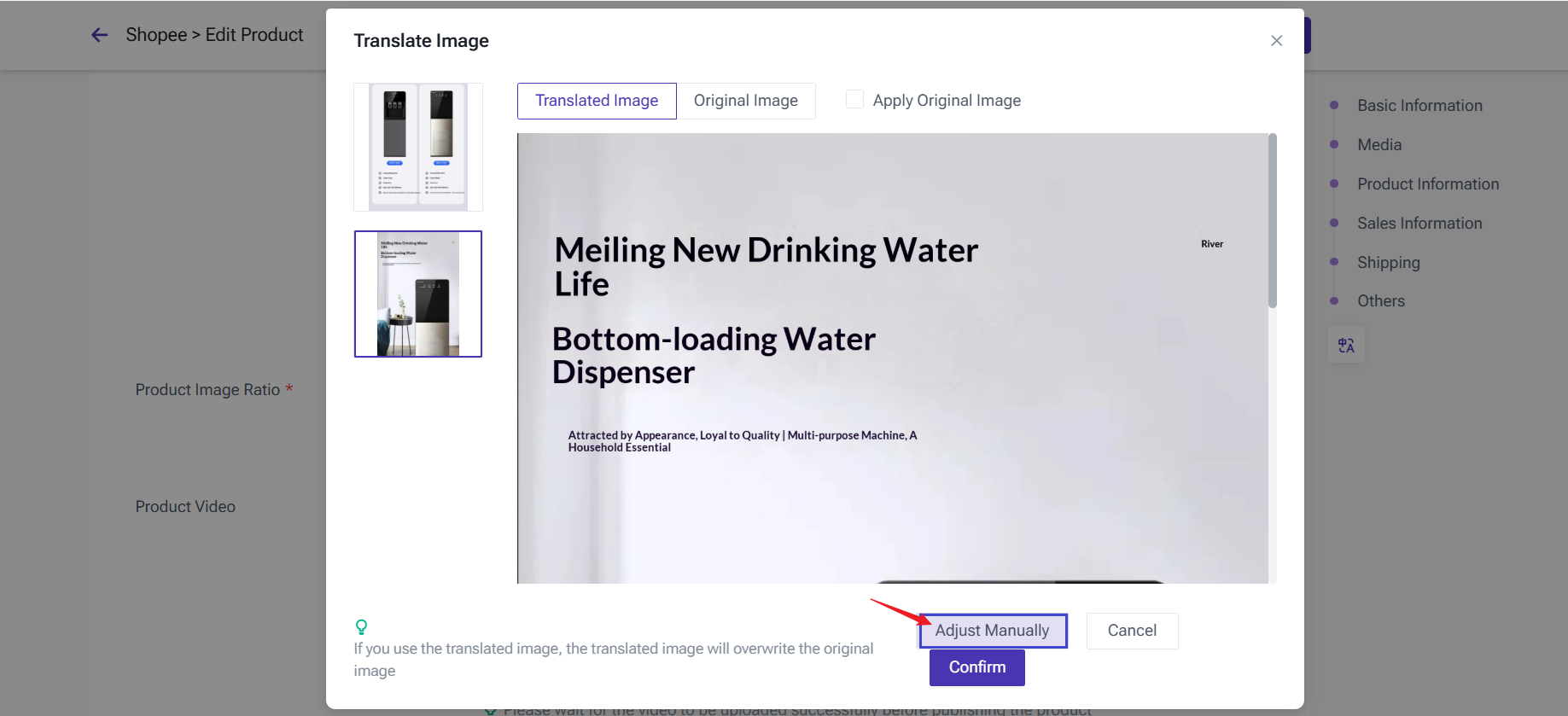
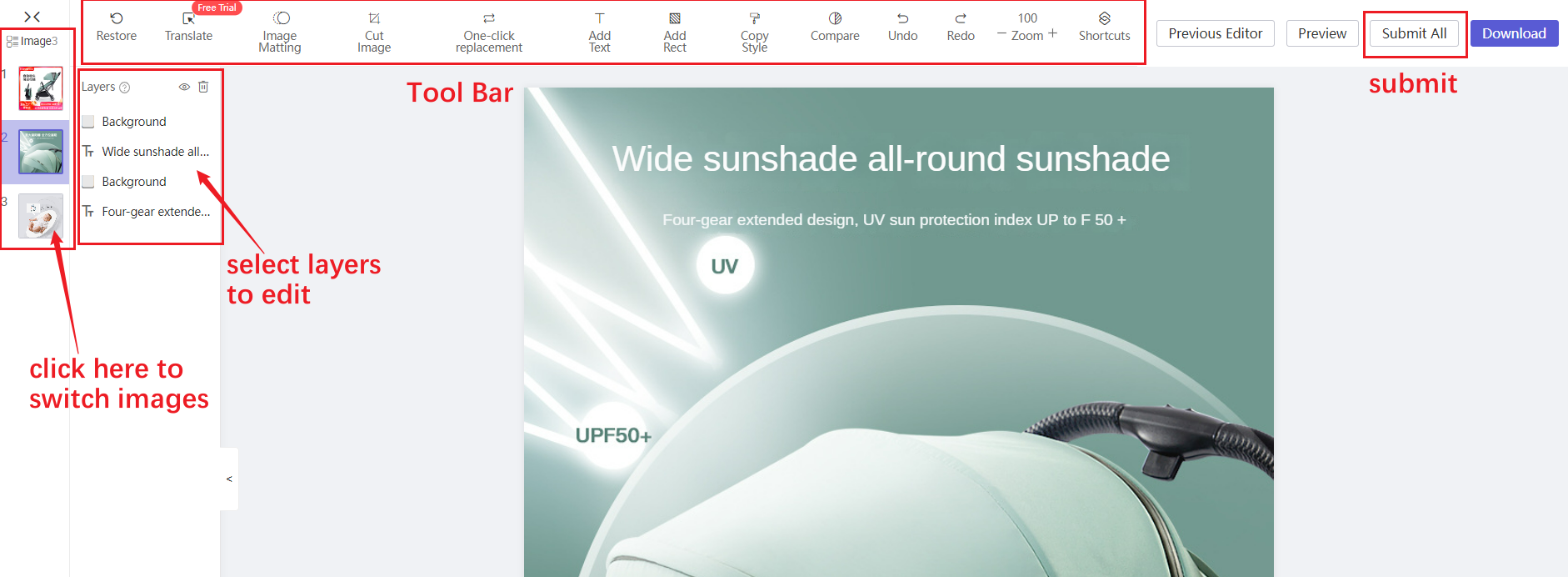
Step 6: After the translation is completed, you can also manually modify it.
-
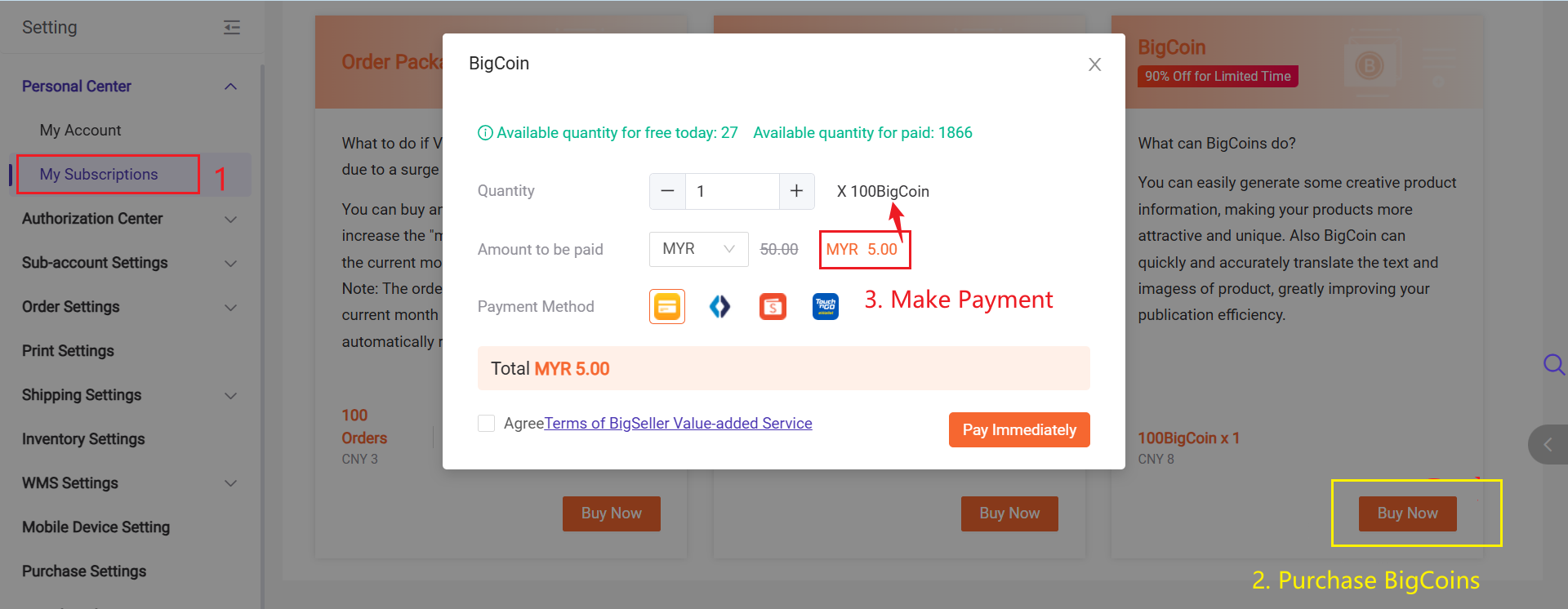
BigSeller provides a daily amount of free BigCoins based on your VIP subscription level. You can check the exact amount on the My Subscription page.
- The free BigCoins are only valid for the current day and do not accumulate.
- If you need more BigCoins, you can purchase them in the More Services section on the My Subscription page.
Is this content helpful?
Thank you for your feedback. It drives us to provide better service.
Please contact us if the document can't answer your questions