How to Set Up and Use Shopee Pricing Templates?
Copy link & title
Update Time: 14 Apr 2026 08:08
BigSeller's new Shopee Pricing Template allows you to create standardized price structures based on product cost, market commissions, shipping fees, and other expenses. By supporting custom formulas and parameters, these templates flexibly meet the pricing needs of different platforms and sites. Once configured, you can apply these templates across various scenarios, enabling precise profit management.
1. How to Set Up a Pricing Template
Path: Go to Shopee > Pricing Template > Create Template.
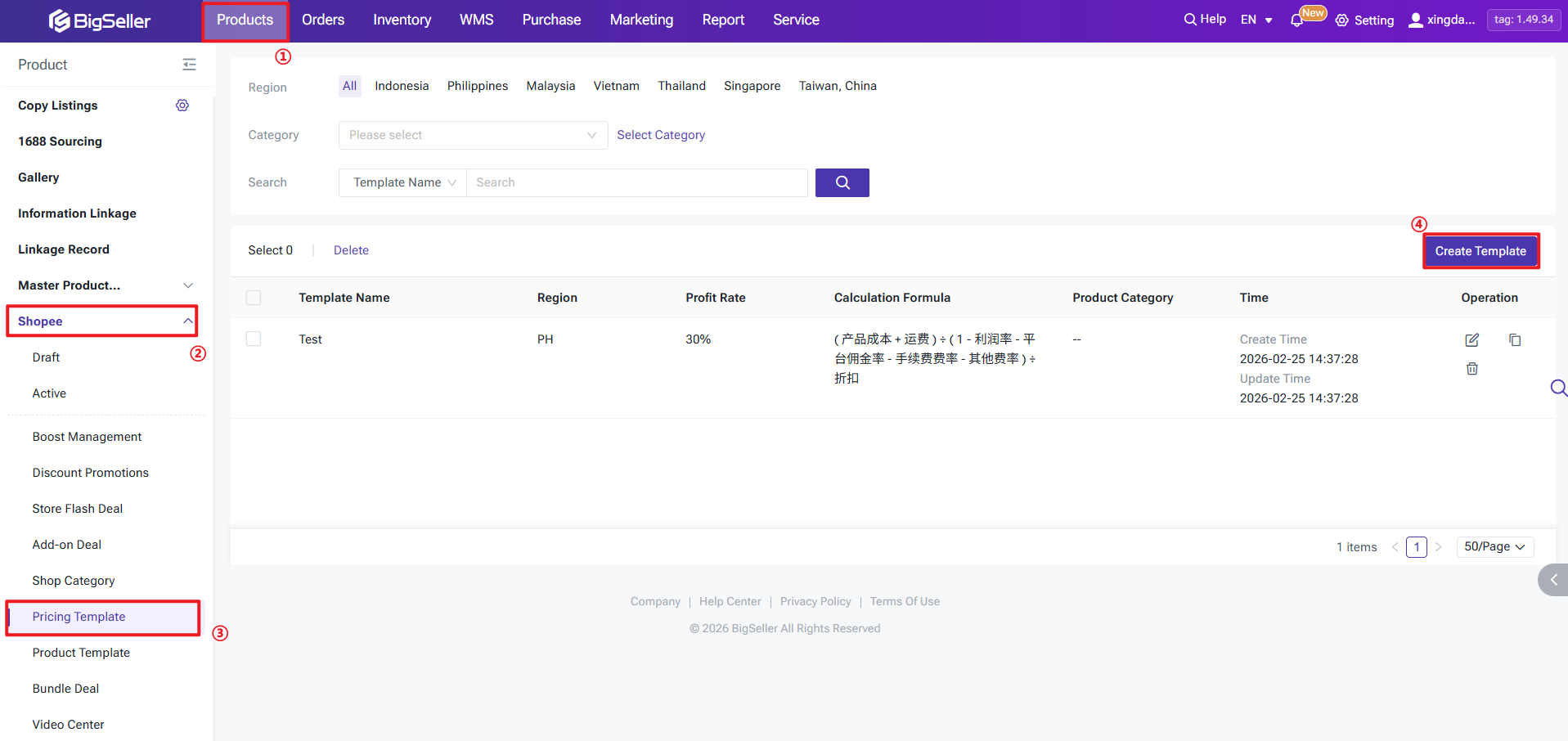
Step 1: Basic Information
Fields marked with a red "*" are required.
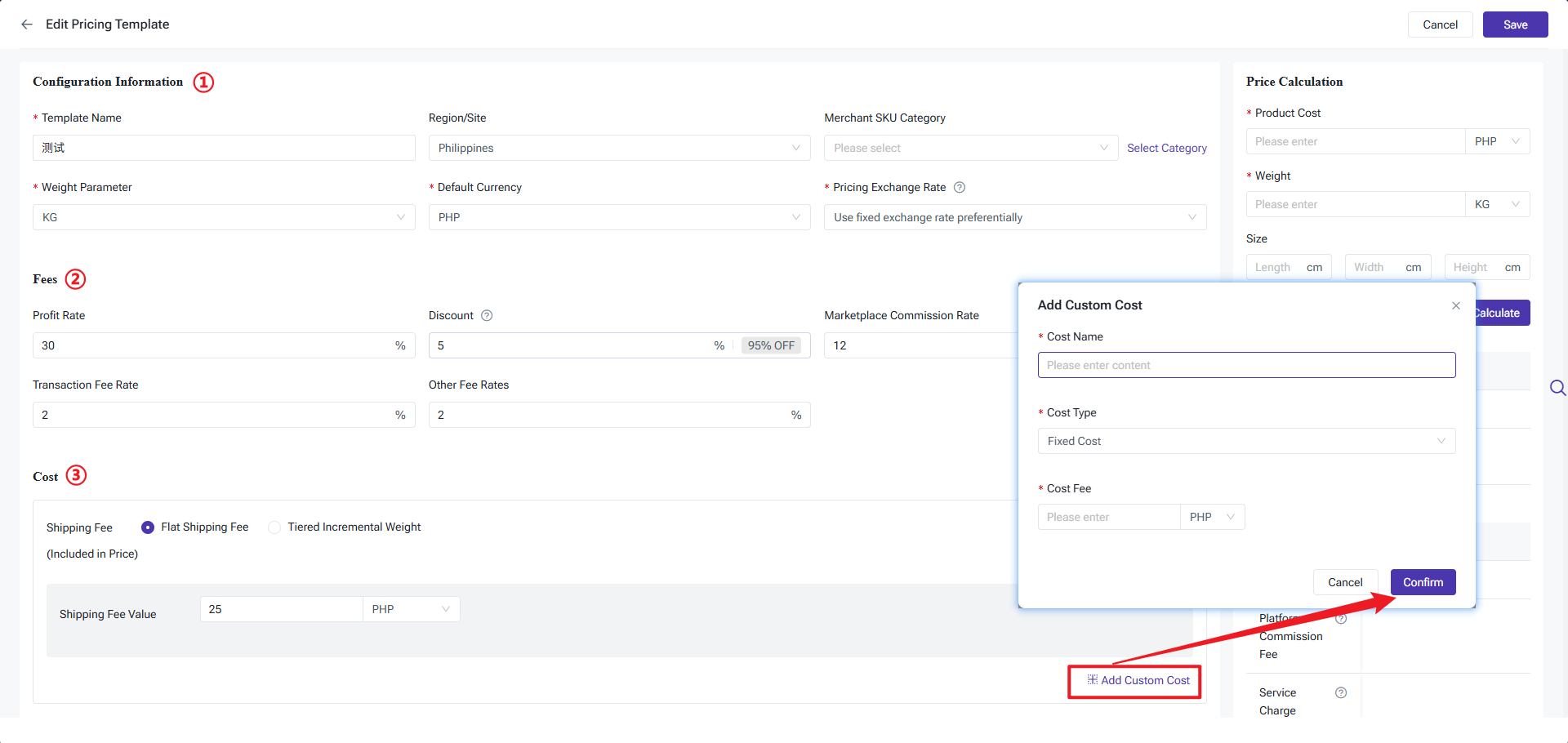
① Configuration Information
- Region/Site & Category: Optional. If filled, the template will only apply to the specified country and product category.
- Weight Unit: Choose between Grams (g) or Kilograms (kg).
- Currency & Exchange Rate: Set the default currency and rate. When using real-time rates, the rate on the actual calculation day will apply. If using a fixed rate, please configure the exchange rate relationship in advance.
② Fees
- Discount: If a discount is entered, the declared price generated by this template will be the pre-discount price. After the product is listed, you must create or join a Shopee activity with an equivalent discount.
- Commissions & Transaction Fees: Enter necessary rates based on your actual business requirements to ensure accurate charge calculations.
③ Cost
- Shipping Cost: The system displays shipping as a fixed cost component, which will be included in the final listing price. You can choose between two modes:
a) Flat Shipping: Set a fixed, uniform shipping value.
b) Tiered Shipping: Shipping = Initial Weight Fee + (Incremental Weight / Incremental Unit) * Incremental Price.
b) Tiered Shipping: Shipping = Initial Weight Fee + (Incremental Weight / Incremental Unit) * Incremental Price.
- Custom Costs: You can manually add other custom cost items as needed.
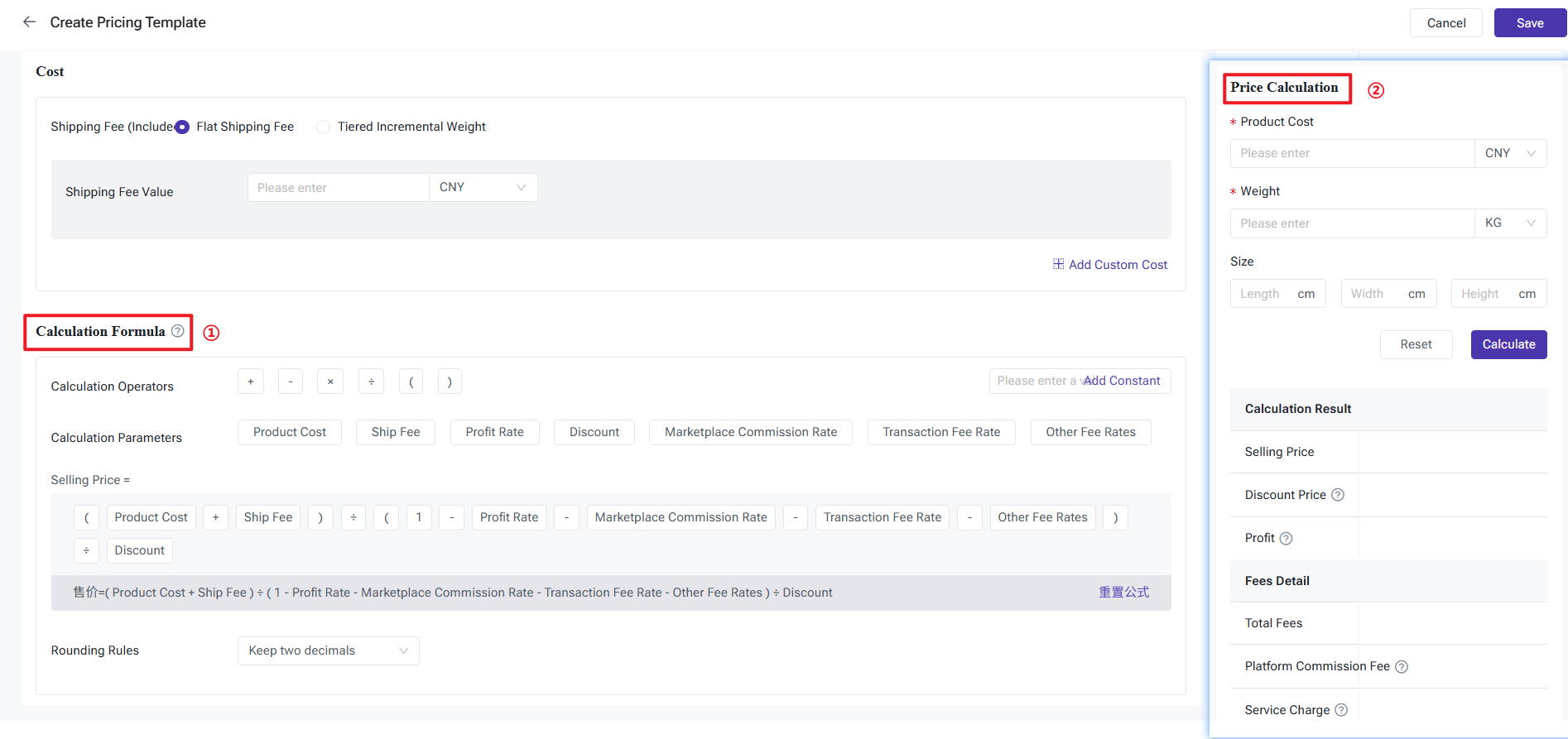
 Step 2: Configure Calculation Formula & Run Pre-calculation
The recommended formula provided by the system is:
- Selling Price = (Product Cost + Shipping) / (1 - Profit Margin - Commission Rate - Transaction Fee Rate - Other Fees) / Discount
You can also customize the price calculation formula as needed. Click the symbols and parameters above to add them to the formula, or click those within the formula below to remove them.
After setting up the formula, you can enter the Product Cost and Weight in the Price Calculation section. Click Calculate to preview the template calculation results and ensure the final pricing meets your expectations.
After setting up the formula, you can enter the Product Cost and Weight in the Price Calculation section. Click Calculate to preview the template calculation results and ensure the final pricing meets your expectations.
2. How to Use Pricing Templates
Pricing templates can currently be applied in the following scenarios:
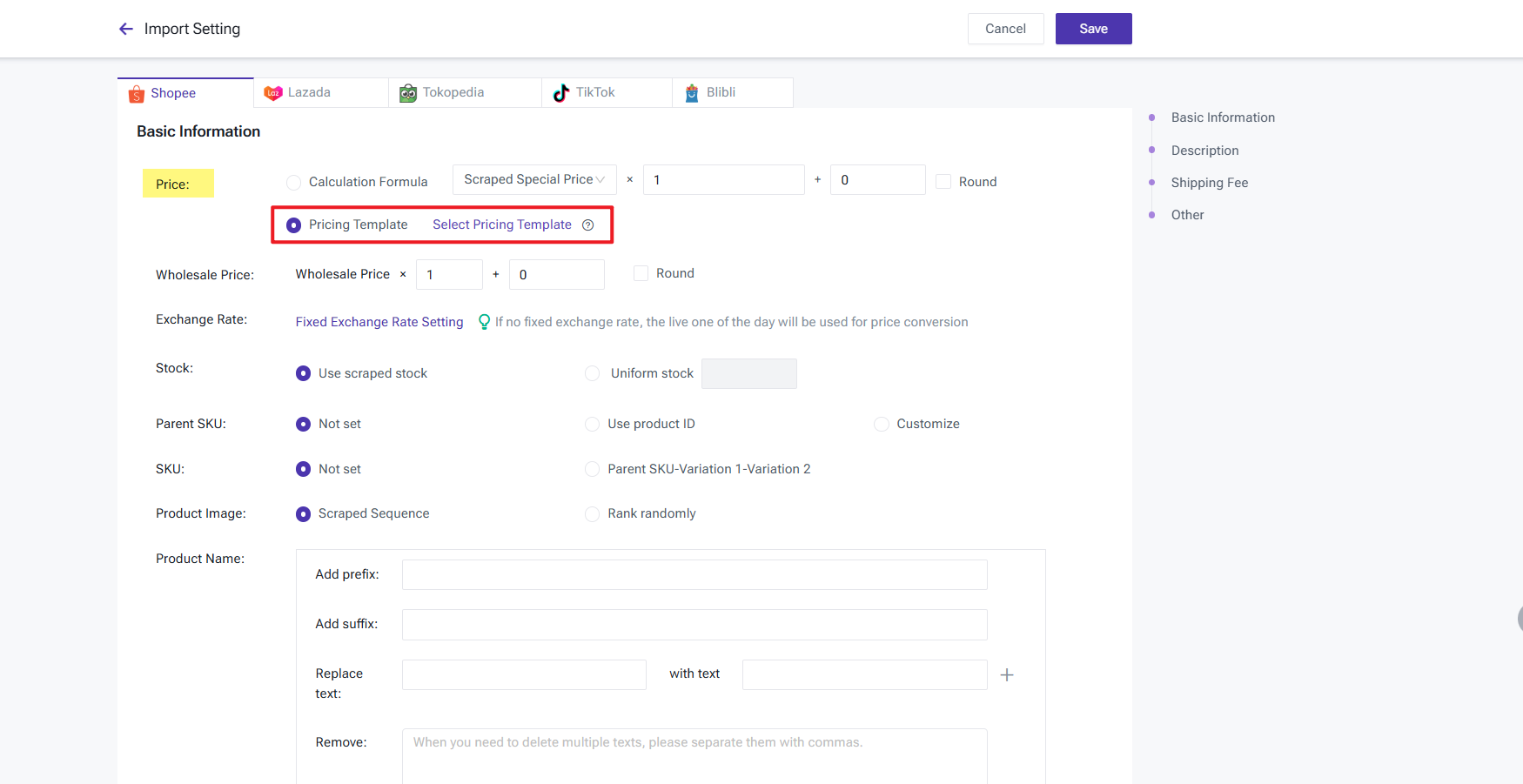
- Scraping & Claiming Shopee Products: Use the original scraped price as the Product Cost for calculation. The scraped dimensions and weight will be included, and the exchange rate will follow the template configuration.
- Product Editing: Supports Single Edit, Batch Edit, and Batch Price Change.
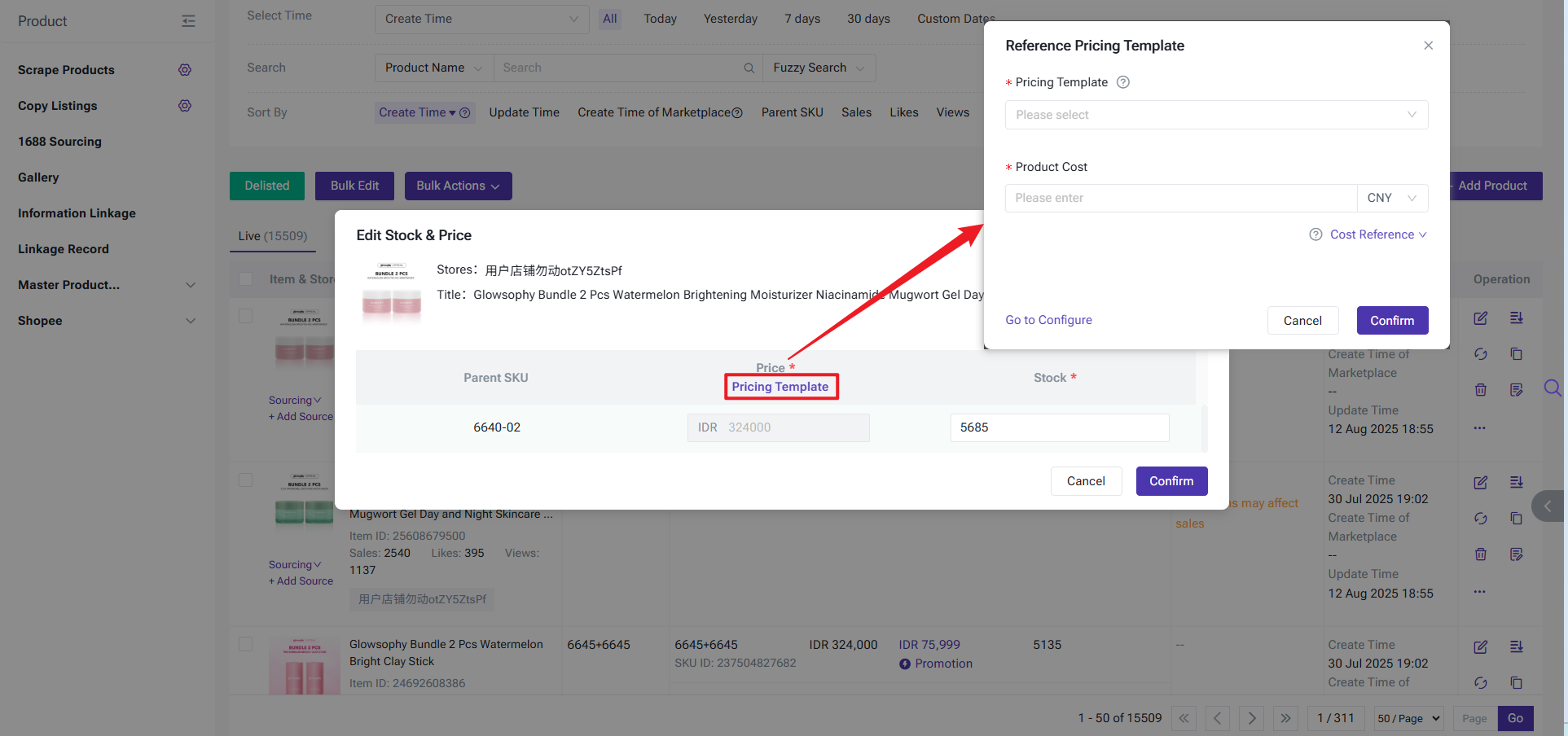
3. Shopee Price Calculator (New)
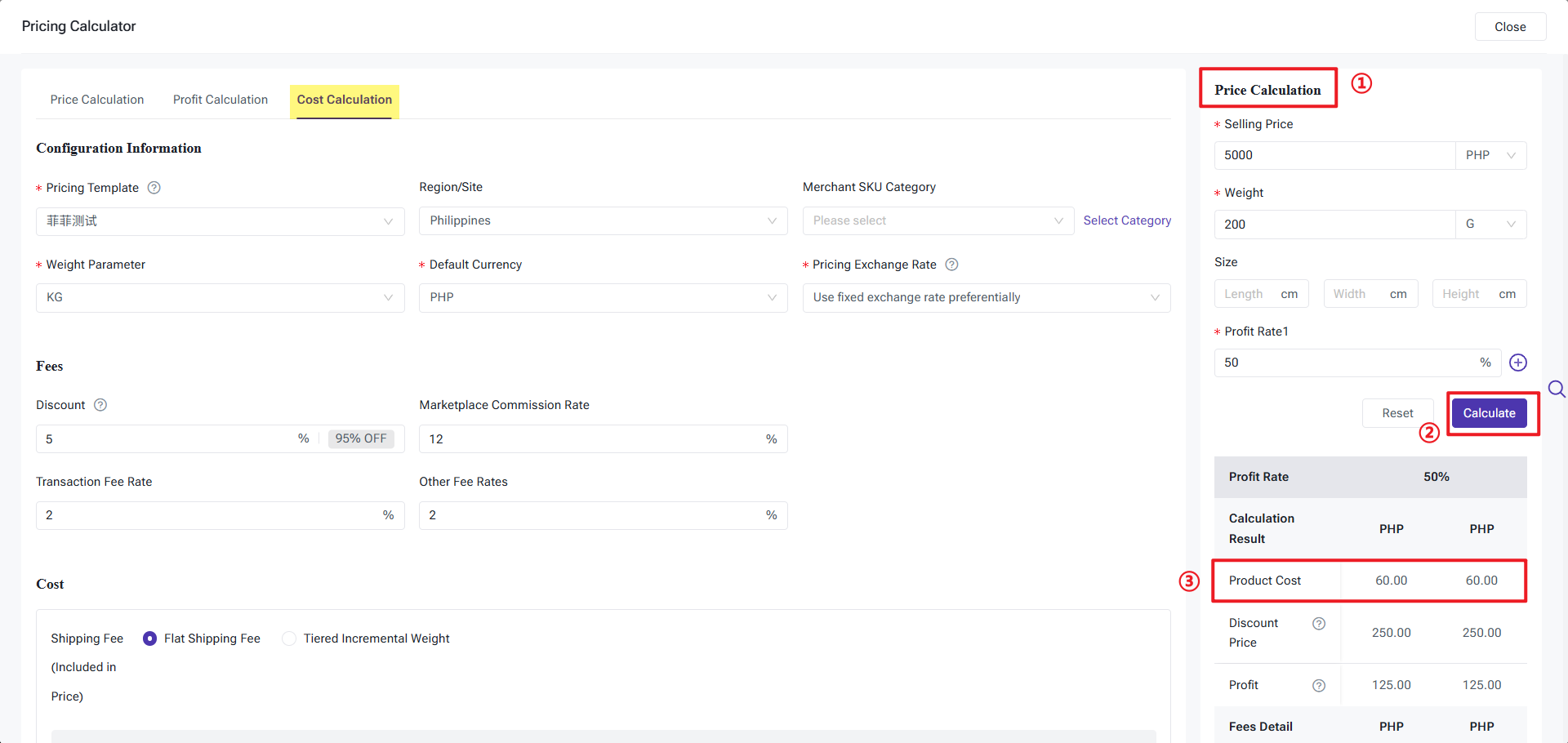
The built-in Price Calculator eliminates the need for tedious manual Excel calculations. It supports one-click referencing of your Pricing Templates, allowing you to reverse-calculate profit or cost based on the selling price.
You can find the Price Calculator on the following pages:
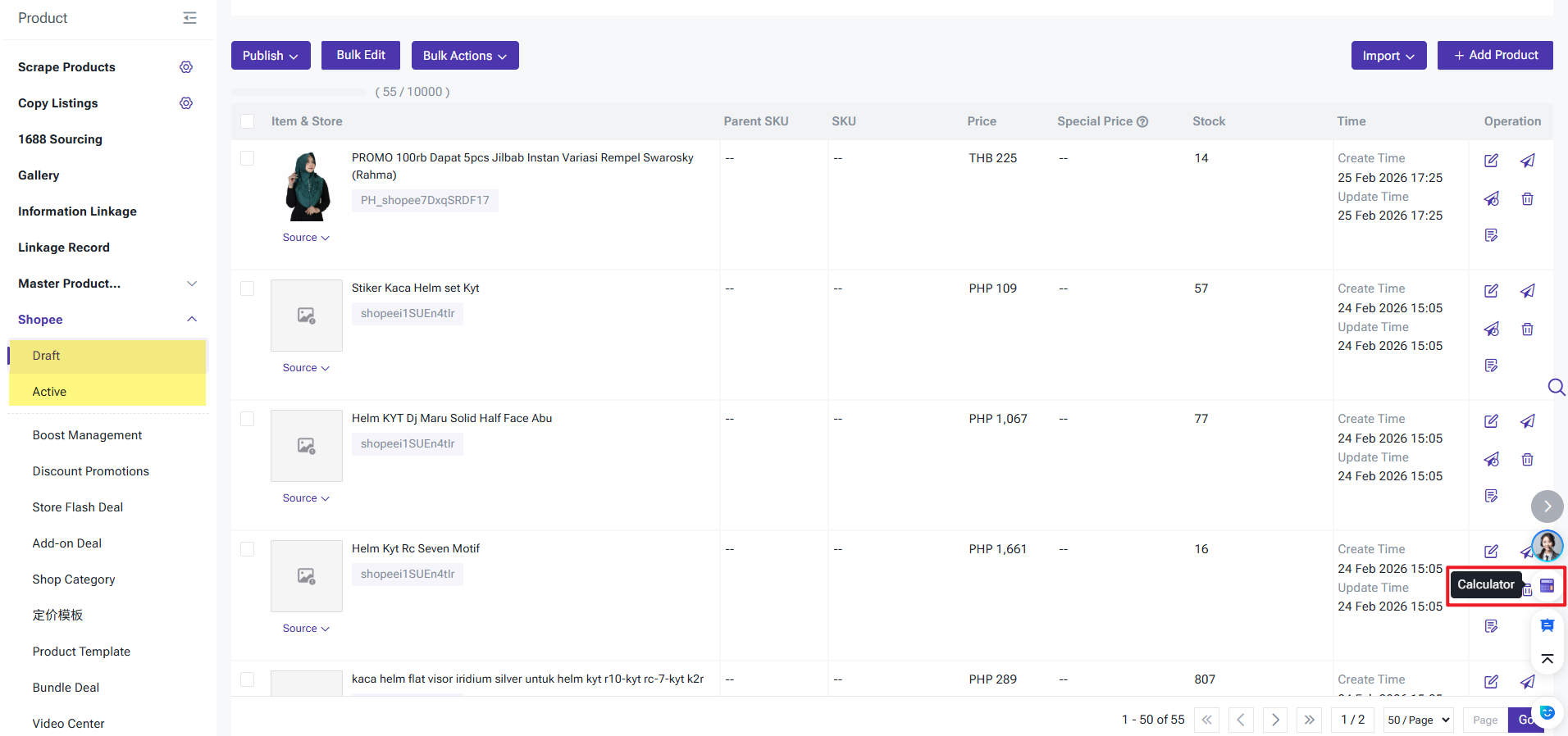
You can find the Price Calculator on the following pages:
- Shopee Drafts: List Page & Product Edit Page.
- Shopee Active Products: List Page & Product Edit Page.
By configuring parameters (shipping, commissions, etc.) or importing a Pricing Template, you can perform the following:
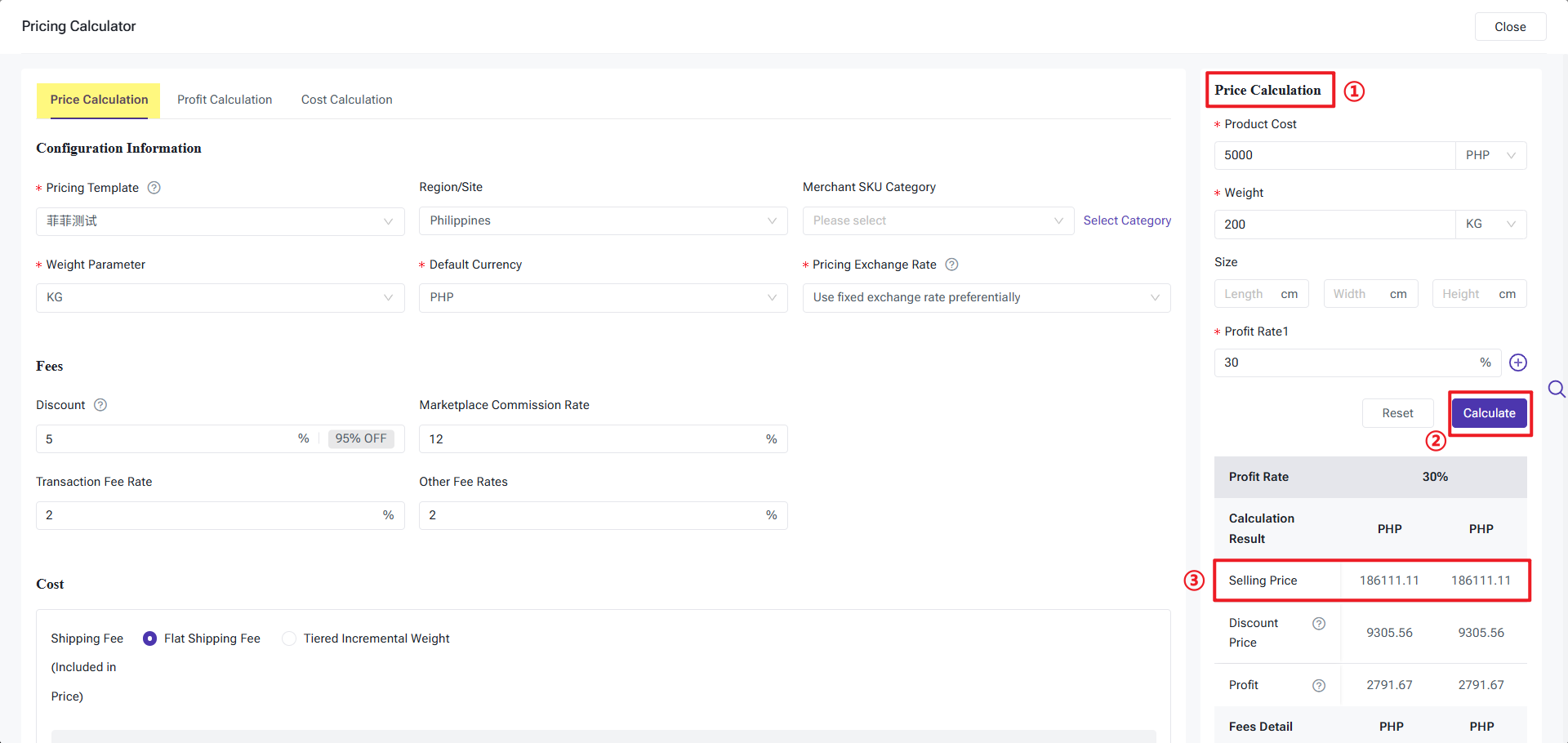
- Selling Price Calculation: Set the product cost, weight, and target profit margin to calculate the Estimated Selling Price and profit.
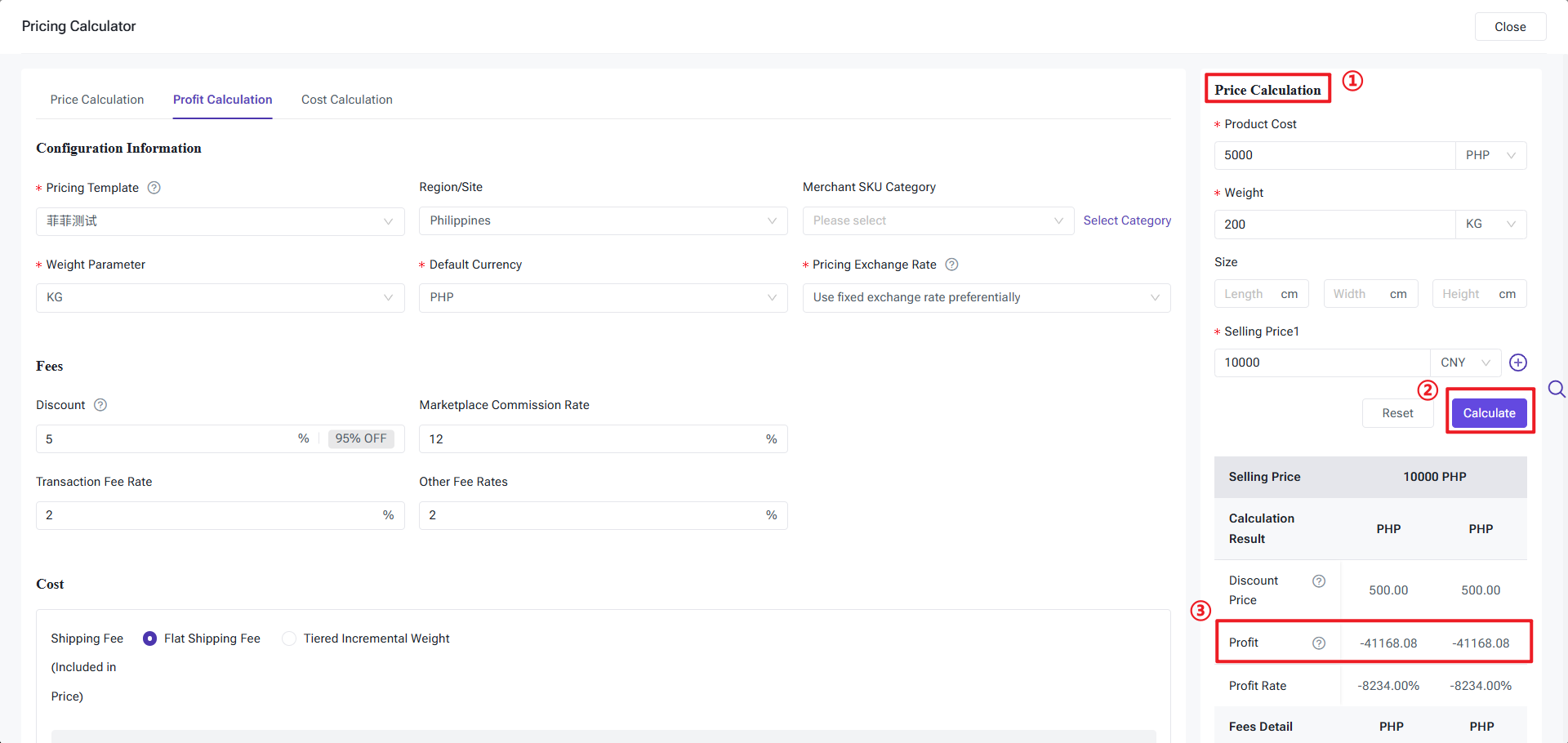
- Profit Calculation: Set the product cost, weight, and selling price to calculate the Estimated Profit and profit margin.
- Cost Calculation: Set the selling price, weight, and target profit margin to reverse-calculate the allowable Product Cost.
Is this content helpful?
Thank you for your feedback. It drives us to provide better service.
Please contact us if the document can't answer your questions