How to Create Shopee Add-on Deals in BigSeller?
Copy link & title
Update Time: 11 Feb 2026 06:18
The Shopee Add-on Deal is a powerful promotional tool designed to drive cross-selling and increase your average order value. It consists of two types: Add-on Discounts and Gift with Min. Spend.
By using BigSeller, you can centrally create and manage these deals across multiple stores. Additionally, BigSeller supports Auto-Renewal, ensuring your Add-on deals continue seamlessly without manual intervention.
💡Important Notes
By using BigSeller, you can centrally create and manage these deals across multiple stores. Additionally, BigSeller supports Auto-Renewal, ensuring your Add-on deals continue seamlessly without manual intervention.
💡Important Notes
- Stock Availability: Products that are "Sold Out" cannot be added to an Add-on Deal.
- Exclusivity: A product cannot be set as both a "Main Product" and an "Add-on/Gift Product" within the same activity.
1. Steps to Create Shopee Add-on Deal
BigSeller supports to quick create Add-on Deals and batch opertaions to manage.
Step 1: Navigate to the Add-on Deal Module
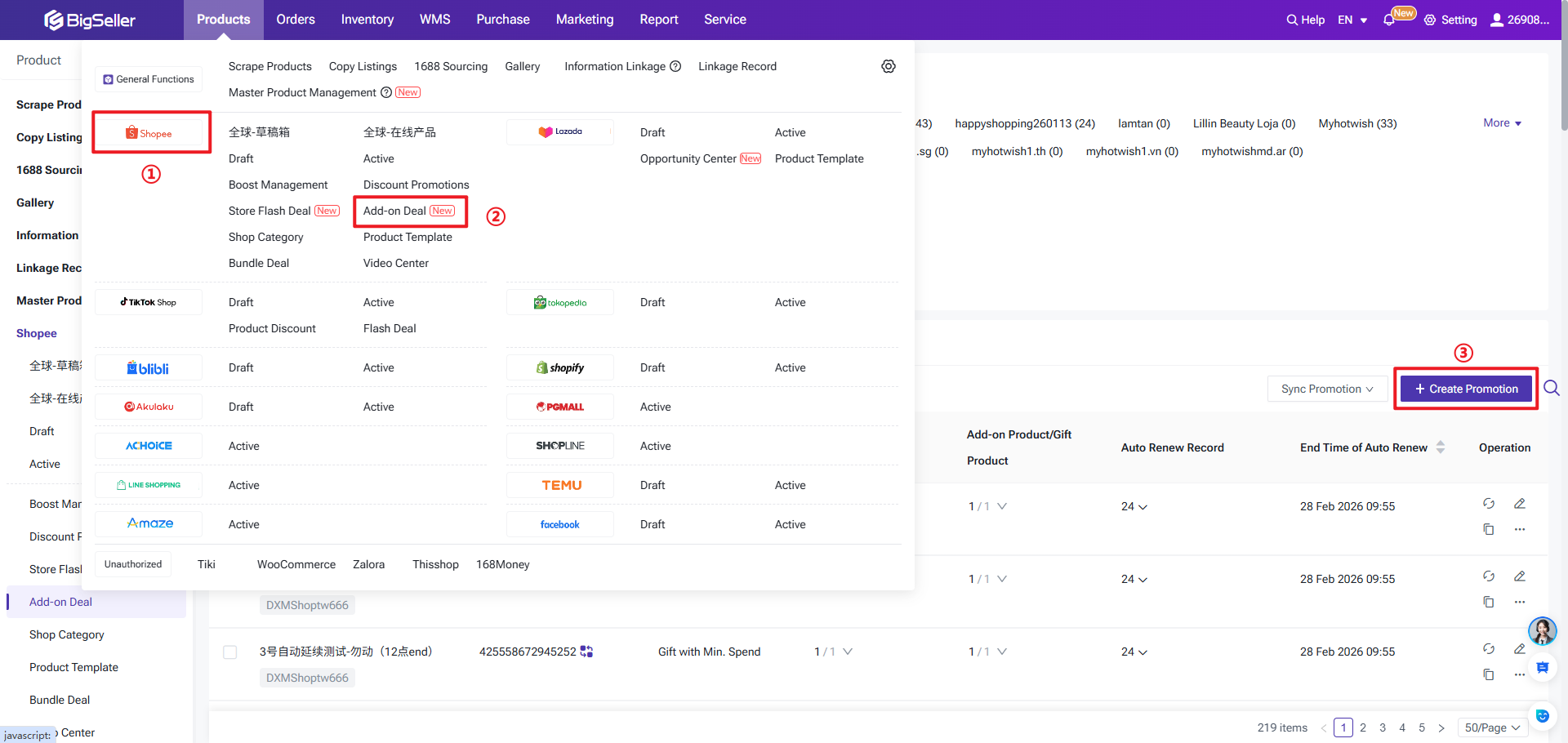
Sellers can go to Product > Shopee > Add-on Deal to create new promortions
Step 1: Navigate to the Add-on Deal Module
Sellers can go to Product > Shopee > Add-on Deal to create new promortions
Step 2: Create Promotion & Fill Basic Information
Click Create Promotion and complete the following fields:
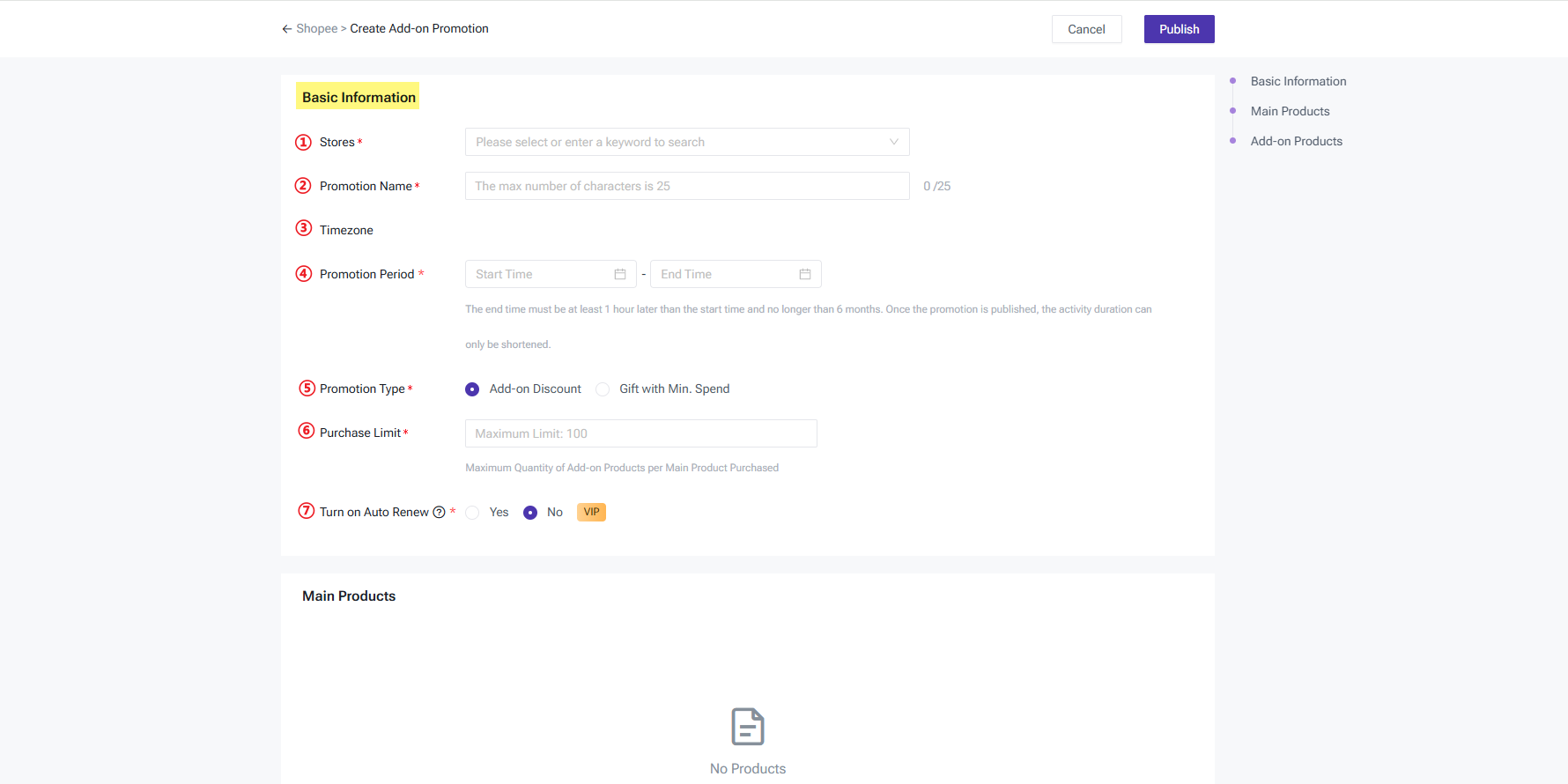
- Store: Select the authorized Shopee store.
- Promtion Name: Enter a custom name for your internal reference.
- Time Zone: Defaults to the time zone of the selected store site.
- Promotion Period: Set the start and end time. The duration must be at least 1 hour and cannot exceed 6 months. Once published, the period can only be shortened, not extended.
- Promotion Type: Select either Add-on Discount or Gift with Min. Spend.
- Purchase Limit: The maximum number of add-on products a buyer can purchase per main product (Limit: 100).
- Auto-Renewal: If enabled, the system will automatically extend the promotion upon expiration based on your preset rules. [Click here to learn more].
2. Steps to Configure Promotion Types
Depending on your selected type, follow the specific rules below:
2.1 Add-on Discount
Buyers can purchase "Add-on Products" at a discounted price after buying a "Main Product."
- Main Product Limit: Up to 100 products. At least one main product must be enabled to publish the activity.
- Restriction: Products already added as "Main Products" cannot be added as "Add-on Products."
You can follow the steps below to complete the settings:
① Select the promotion type as Add-on Discount
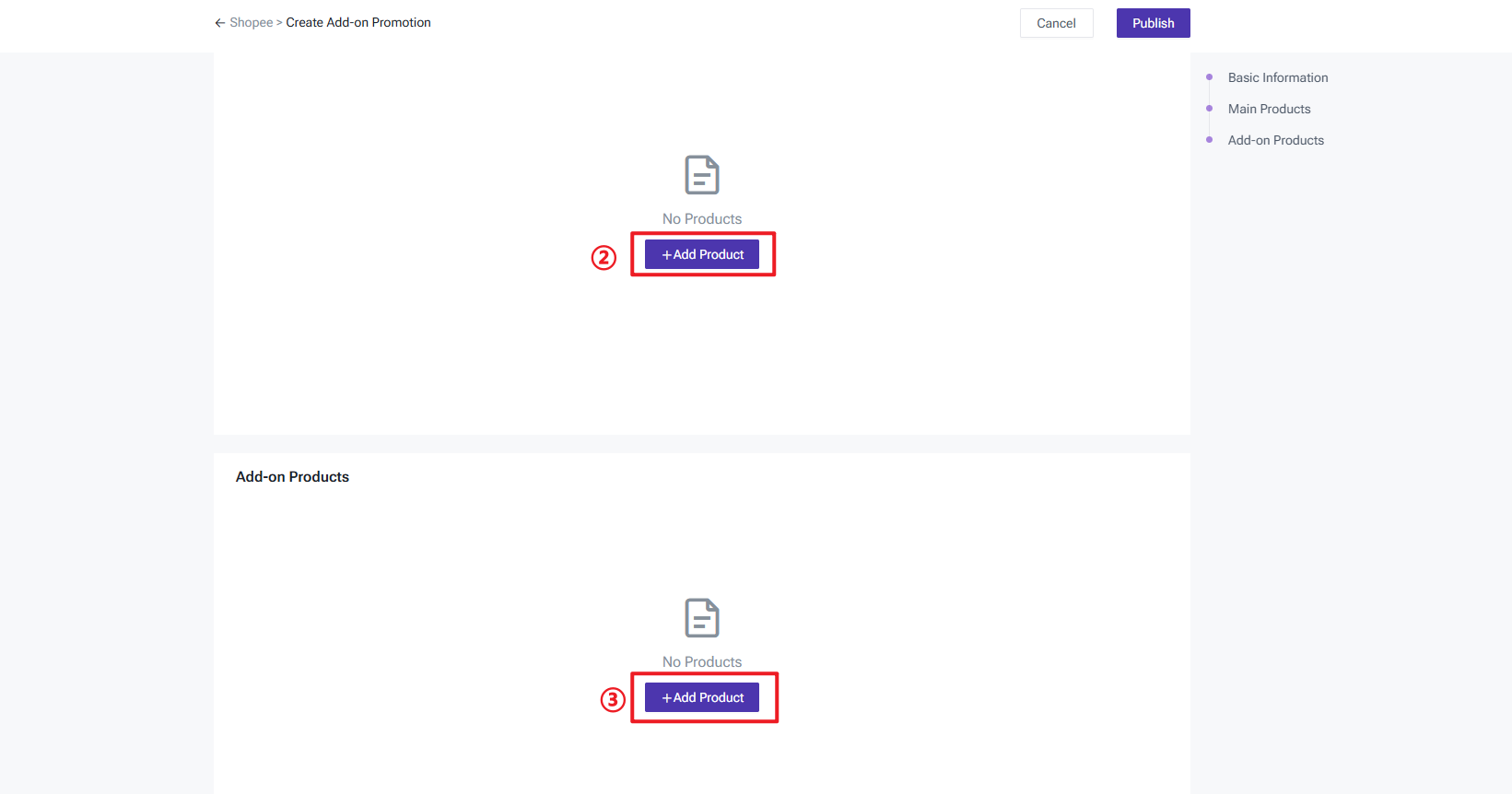
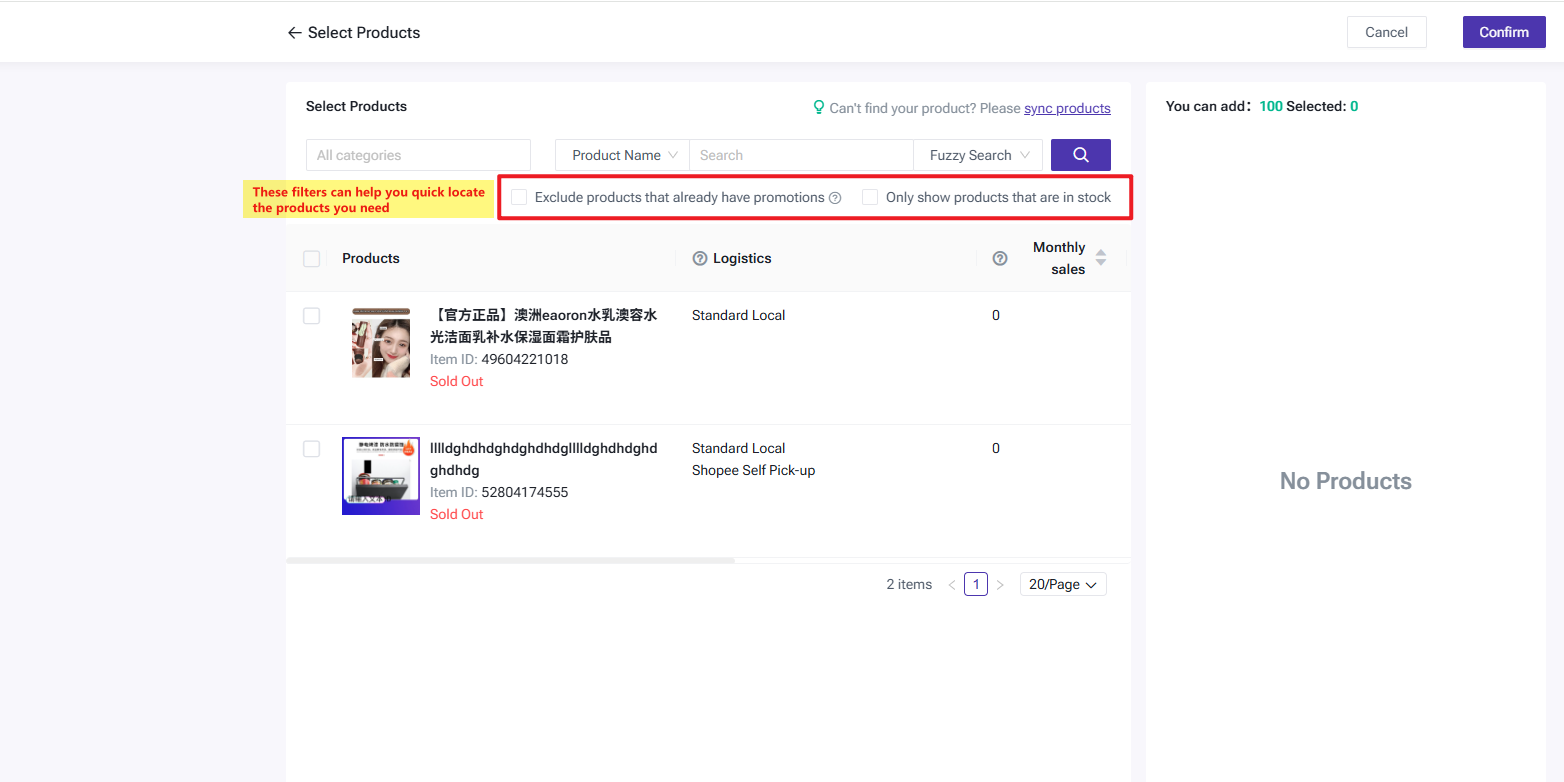
② Select Main Product
③ Select Add-on Product
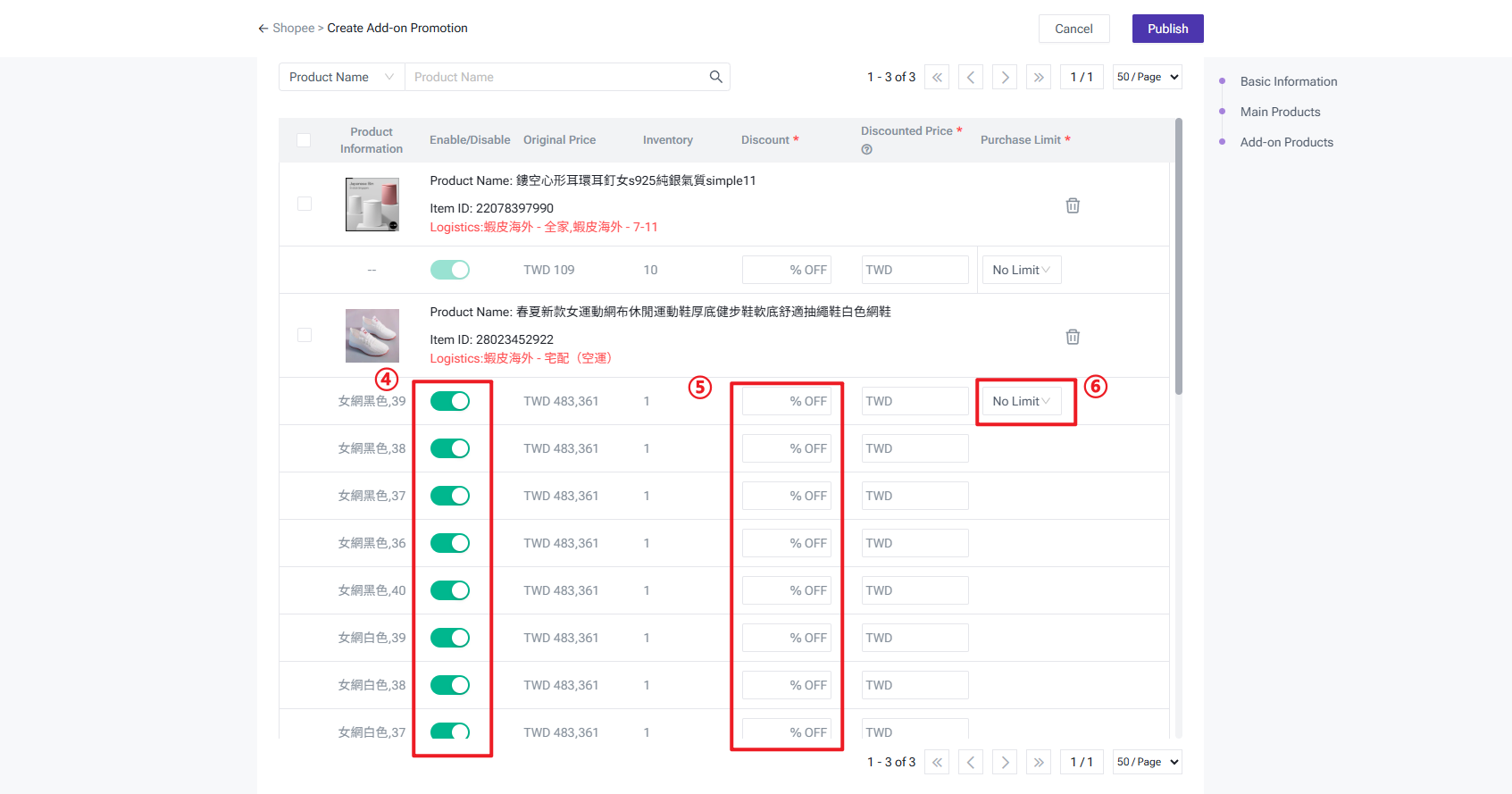
④ Enable variation discounts
⑤ Set the discount details
⑥ Select whether to set a purchase limit
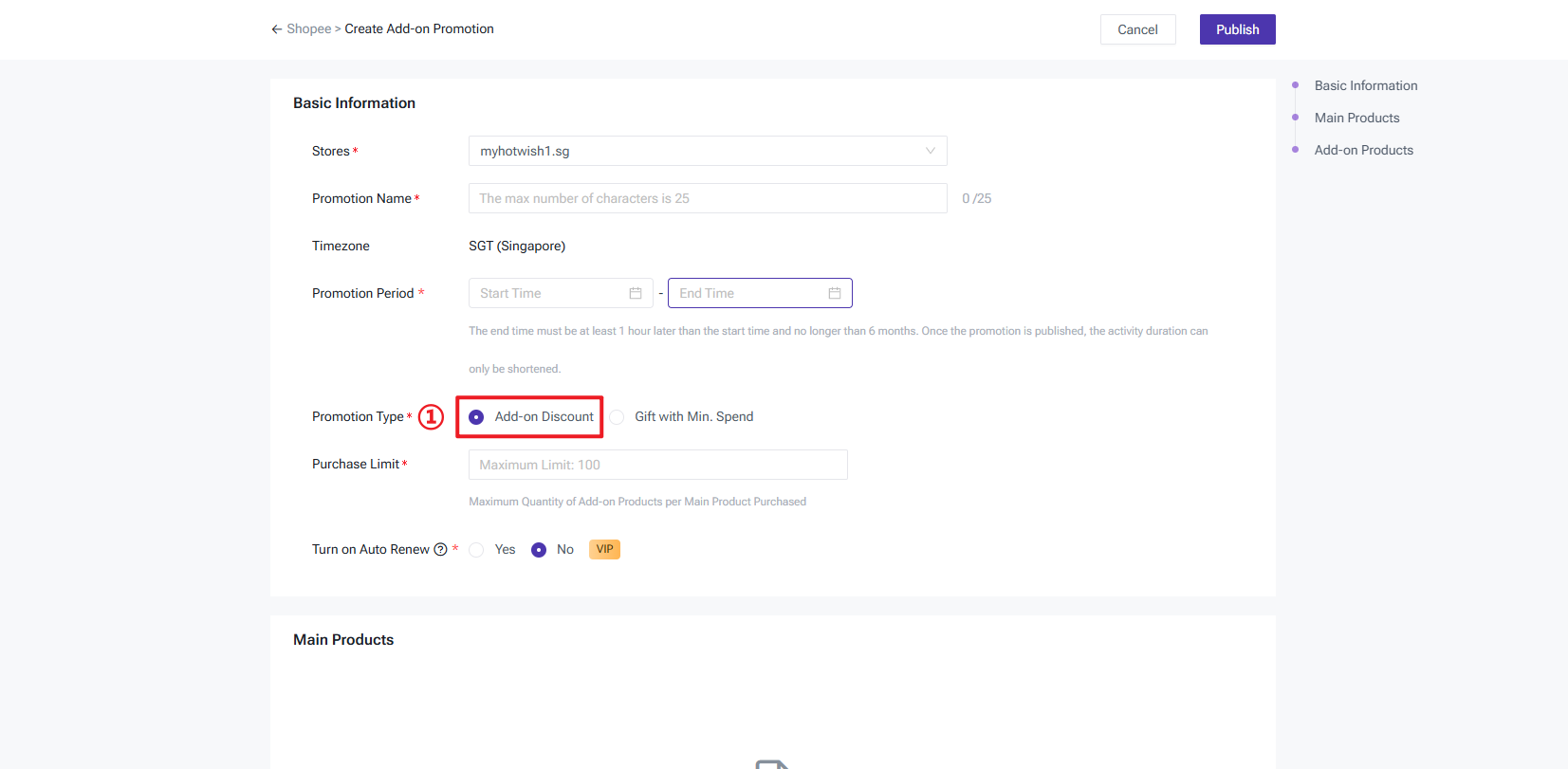
① Select the promotion type as Add-on Discount
② Select Main Product
③ Select Add-on Product
④ Enable variation discounts
⑤ Set the discount details
⑥ Select whether to set a purchase limit
2.2 Gift with Min. Spend
Buyers receive free gifts once their order reaches a specific charge amount (minimum spend).
- Gift Rule: The number of redeemable gifts cannot exceed the number of enabled variations of the gift product.
- Example: If a gift product has 5 active variations, the "Gift Rule" can offer a maximum of 5 gifts.
You can follow the steps below to complete the settings:
① Select the promotion type as Gift with Min. Spend
② Set the gift rule: Spend a minimum charge of X amount to receive X number of gifts
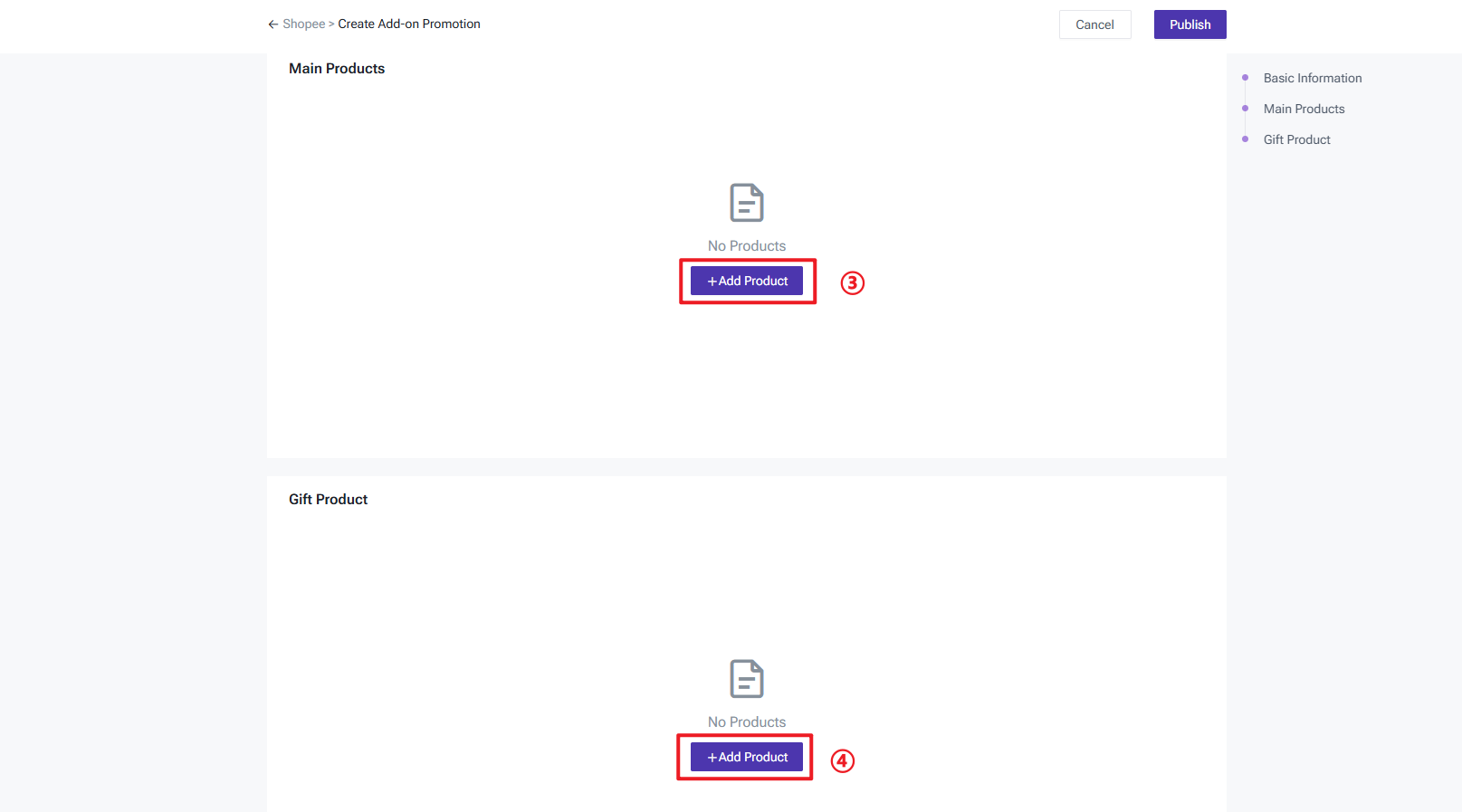
③ Add Main Products (The gift will only be triggered if the order contains these products)
④ Select Gift Products
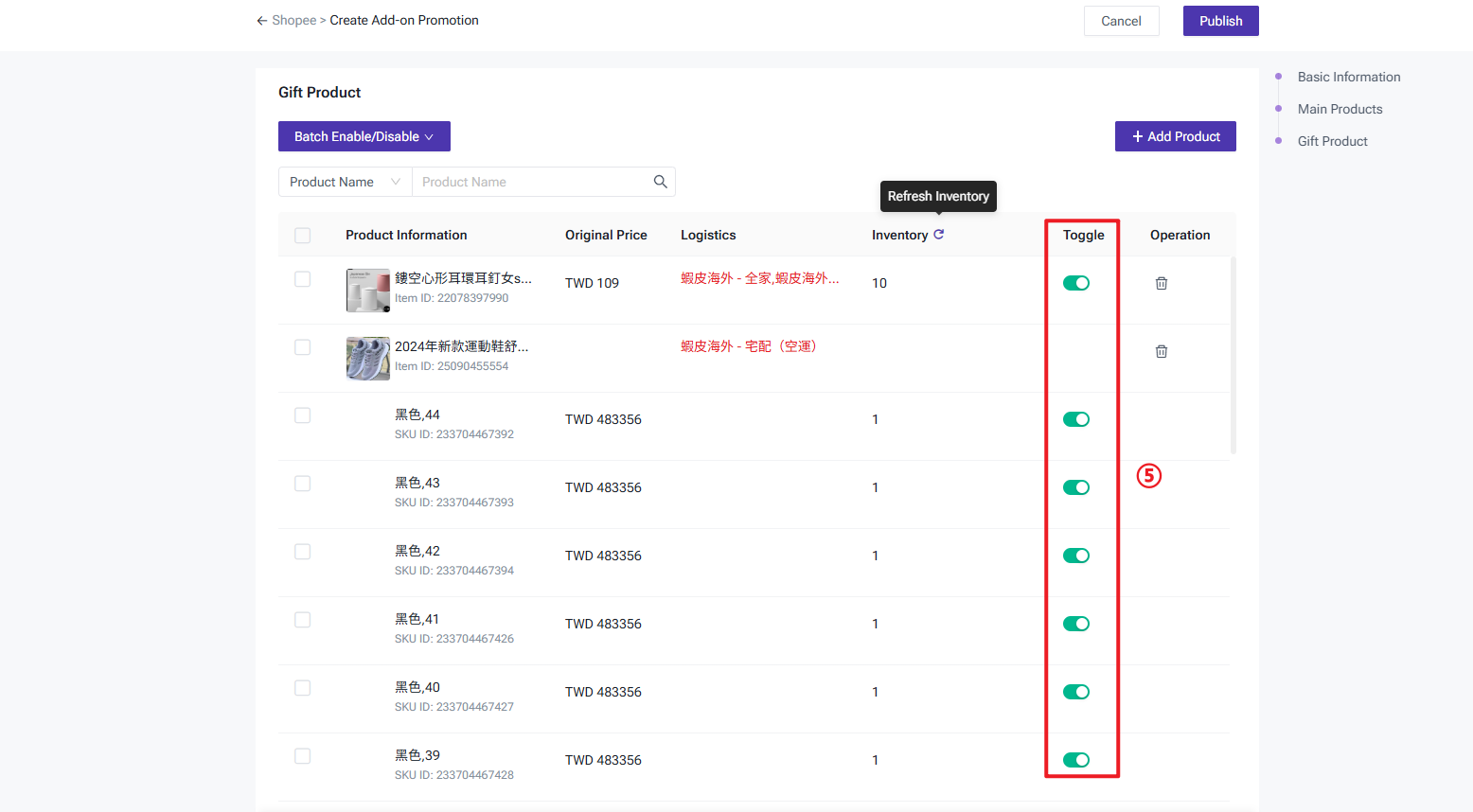
⑤ Enable the switch for the gift products; only enabled items can be offered as gifts
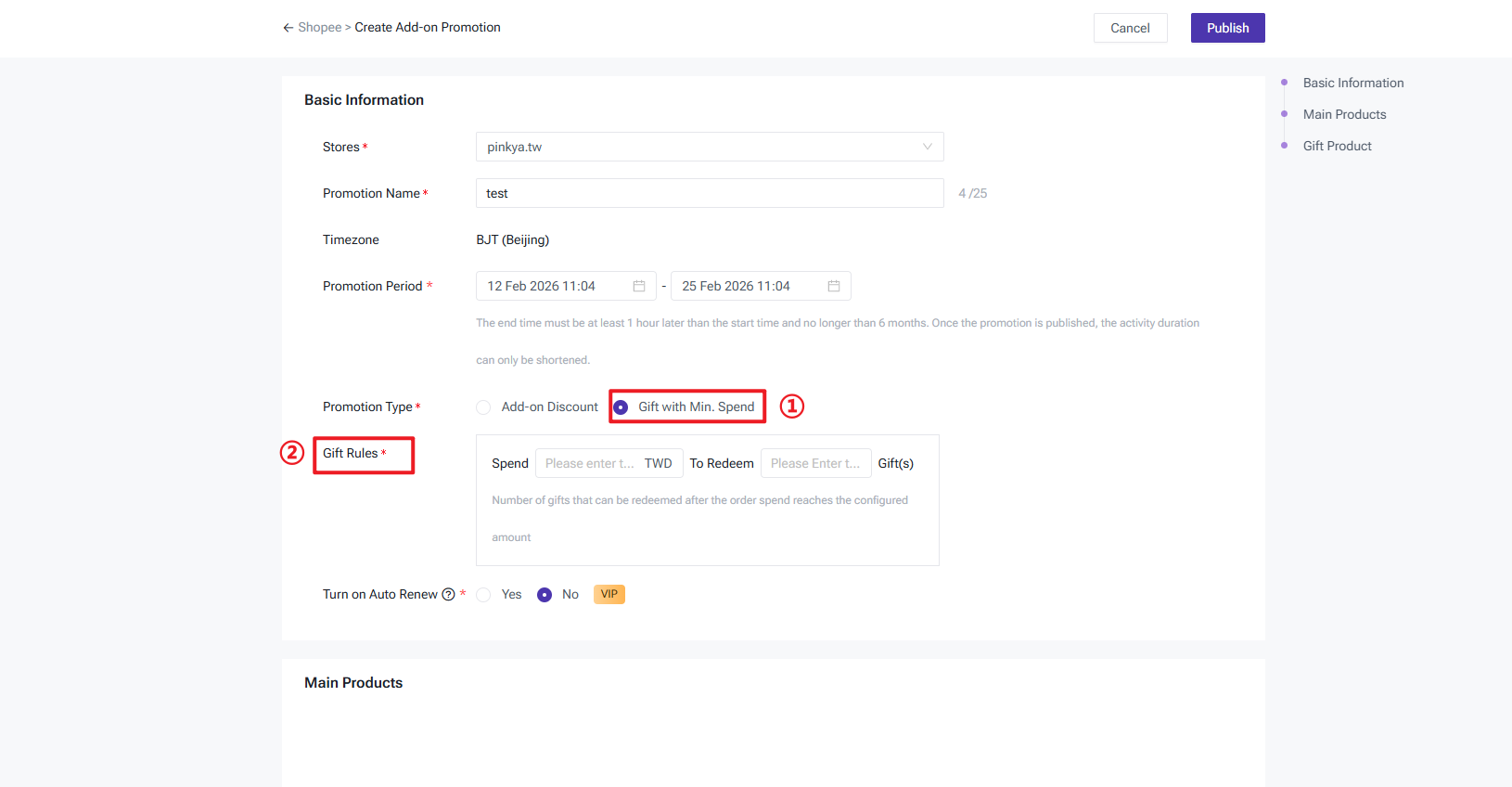
① Select the promotion type as Gift with Min. Spend
② Set the gift rule: Spend a minimum charge of X amount to receive X number of gifts
③ Add Main Products (The gift will only be triggered if the order contains these products)
④ Select Gift Products
⑤ Enable the switch for the gift products; only enabled items can be offered as gifts
Is this content helpful?
Thank you for your feedback. It drives us to provide better service.
Please contact us if the document can't answer your questions