Introduction to Purchase Plan
Update Time: 26 May 2026 12:46
In the past, when you created a Purchase Order (PO) in the system, you had to assign the whole order to only one supplier and one warehouse.
The new Purchase Plan feature makes this process much more flexible. Instead of managing everything by the whole order, you can now manage your stock requests item by item (by each Merchant SKU). This feature helps sellers in three main ways::
- Mix and match warehouses and suppliers: When planing your stock, you can choose different warehouses and different suppliers for each SKU in the exact same list.
- Auto-split Combination SKUs: If you sell bundled products (Combination SKUs), the system will automatically break them down into their individual parts (sub-SKUs) when you create a plan. You do not need to calculate the numbers by hand.
- Easy teamwork: Your operations team can focus on deciding "what to buy and how many to buy." Later, your purchase team can easily combine these requests and create final Purchase Orders based on the suppliers and warehouses.
Before getting started, you need to know some key terms in this feature:
- Plan Order No.: This is a unique number (for example, PRXXXXXXX) that the system creates every time you submit or import a list of purchase requests. It groups your current session together.
- Purchase Plan No.: This is the smallest unit that the system tracks. Every unique Merchant SKU will get its own independent PP Number, so you can track each item separately.
- Purchase Orders: This is the final document that you send to your supplier. Your purchase team generates this order after they select and combine different purchase plan items.
With this information in mind, you can now start learning how to use the Purchase Plan feature.
How the Purchase Plan Changes Its Status
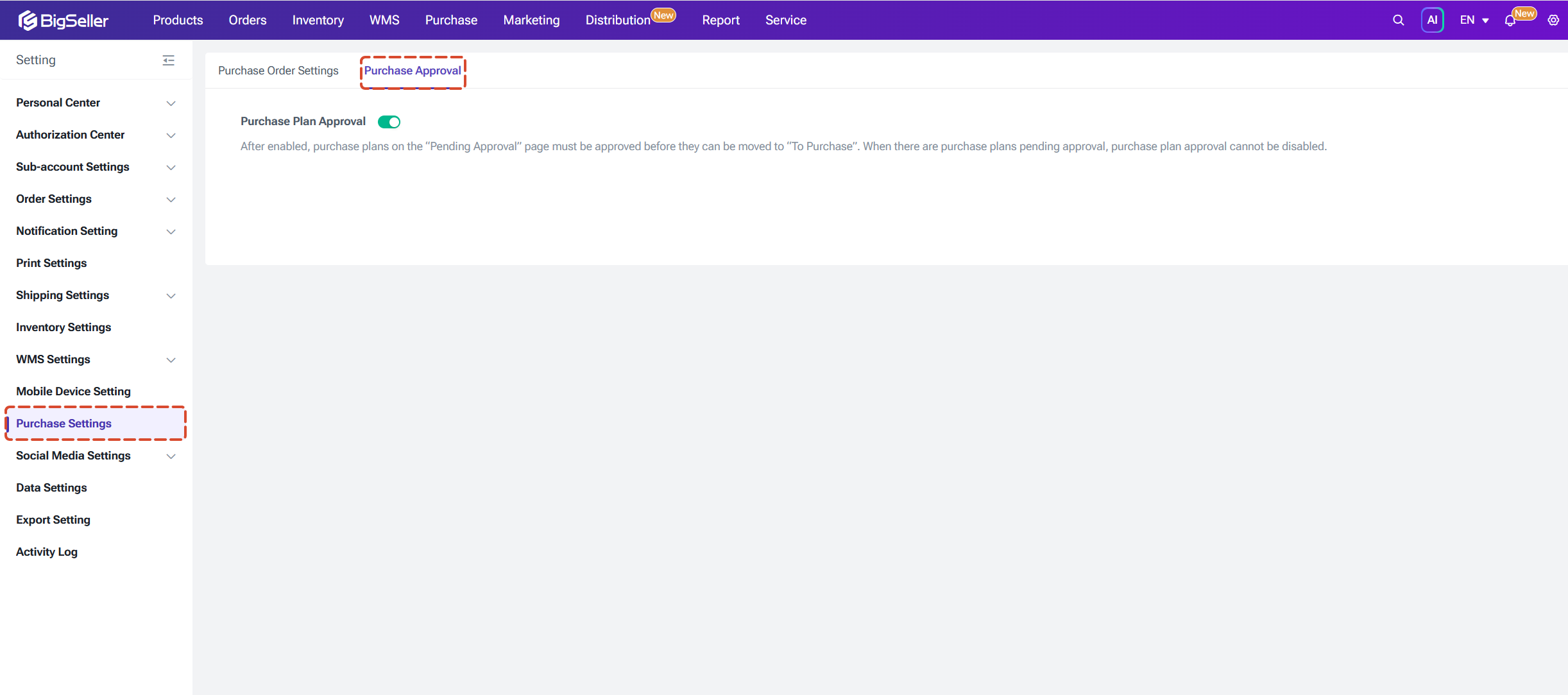
Your system administrator (BigSeller main account) can turn the "Purchase Plan Approval" on or off. This setting decides how your items move through the system:
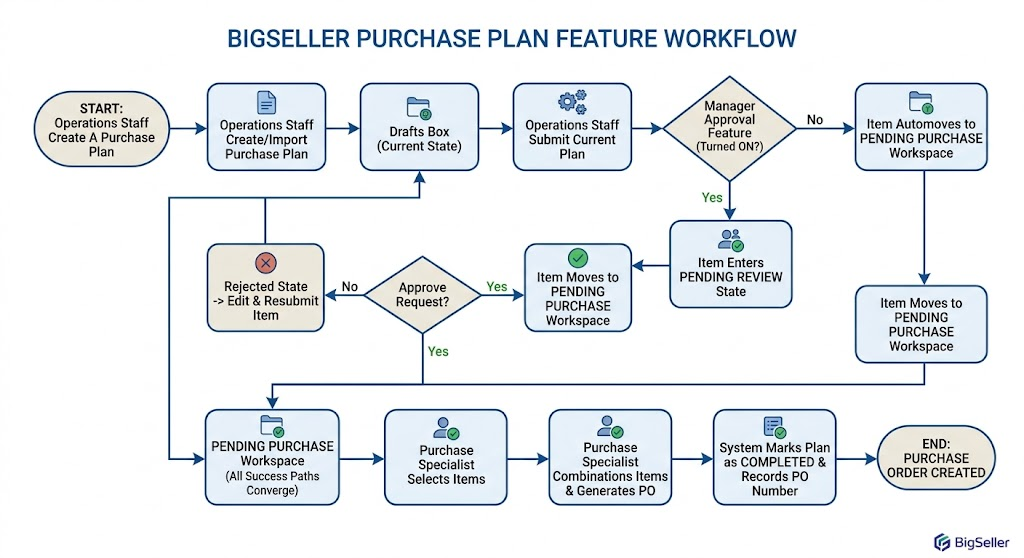
The whole process is as follows:
Description of Each Status
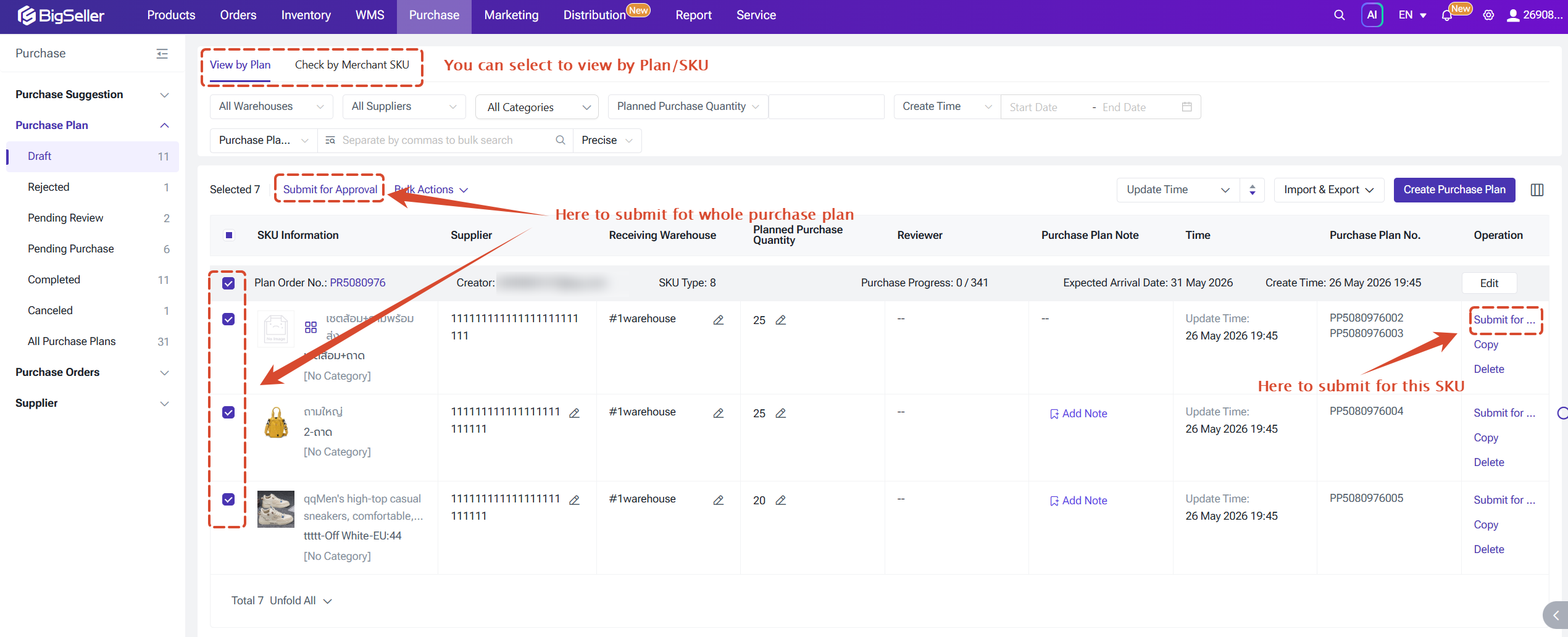
Drafts Box:This is where all new or imported purchase plans stay first. You can freely change the purchase numbers, warehouses, and suppliers here.
Pending Review: (Only active when approval is turned on) When you submit a plan, the system locks the fields and waits for the manager to check it.
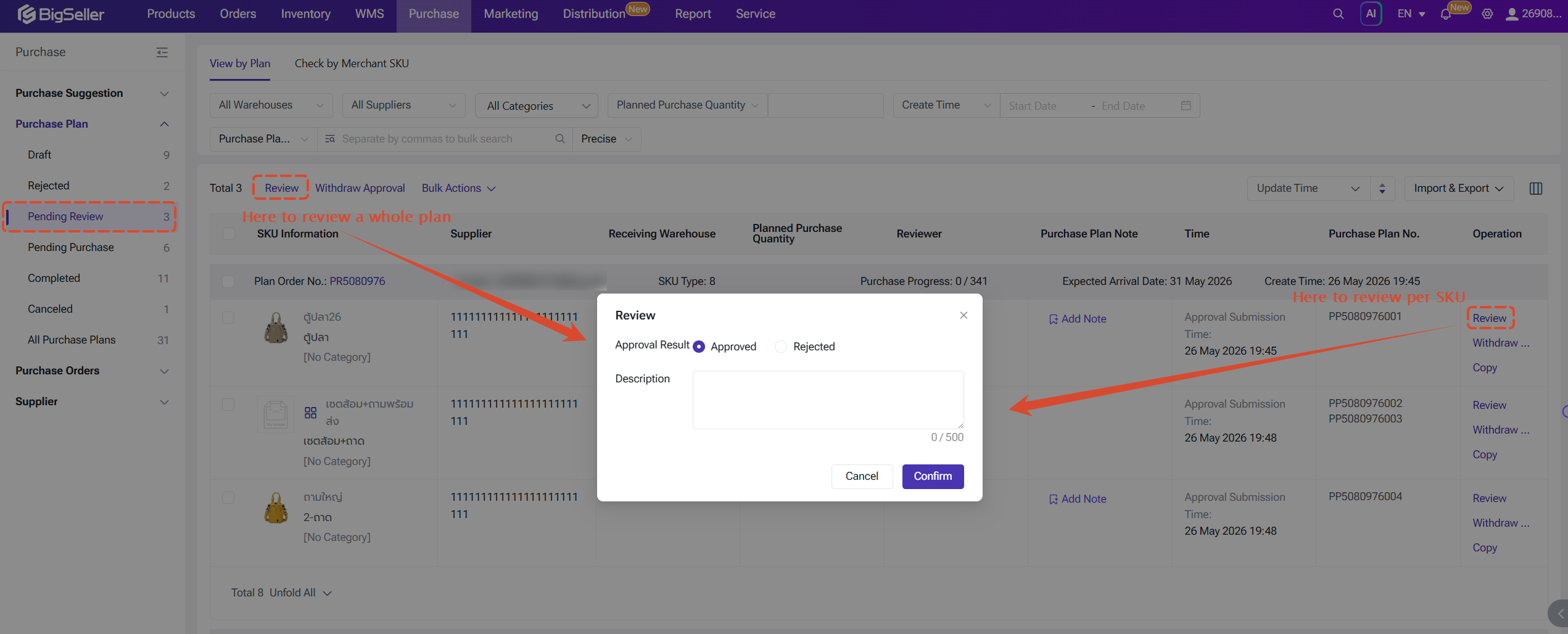
Rejected: (Only active when approval is turned on) If your manager says no, the item comes here. You can fix the details and submit it again.
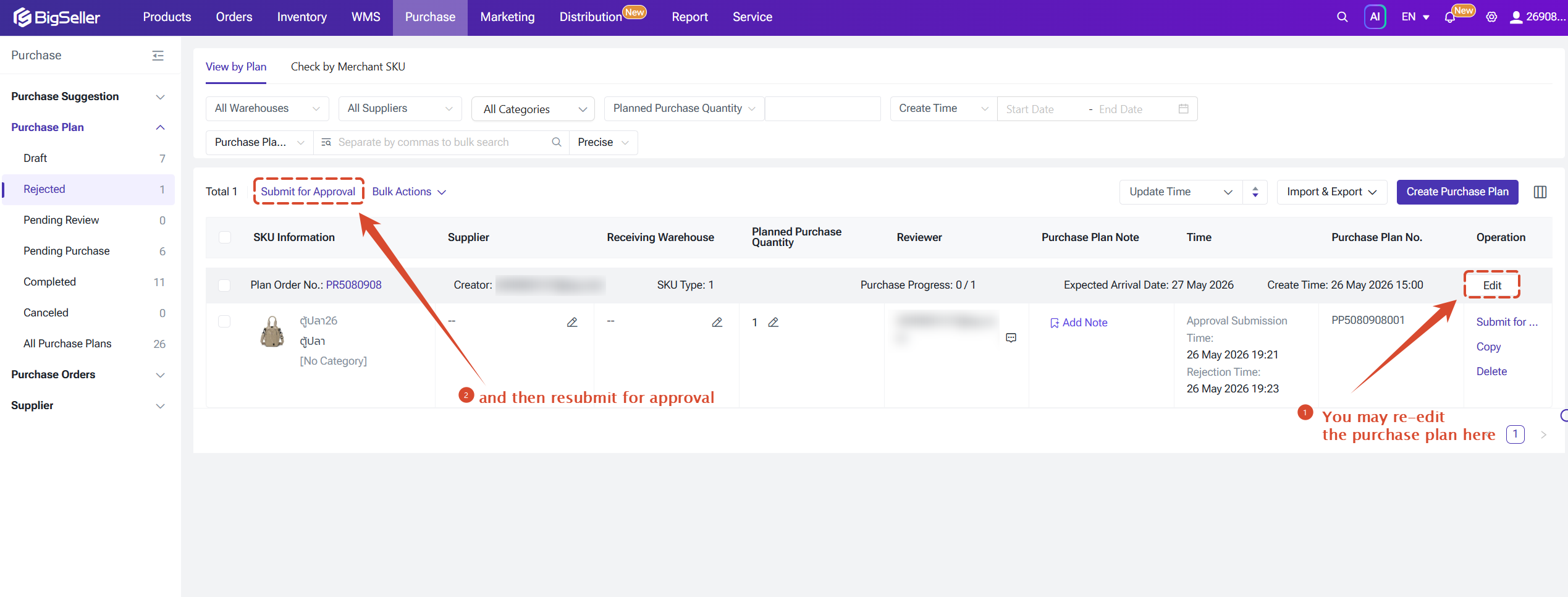
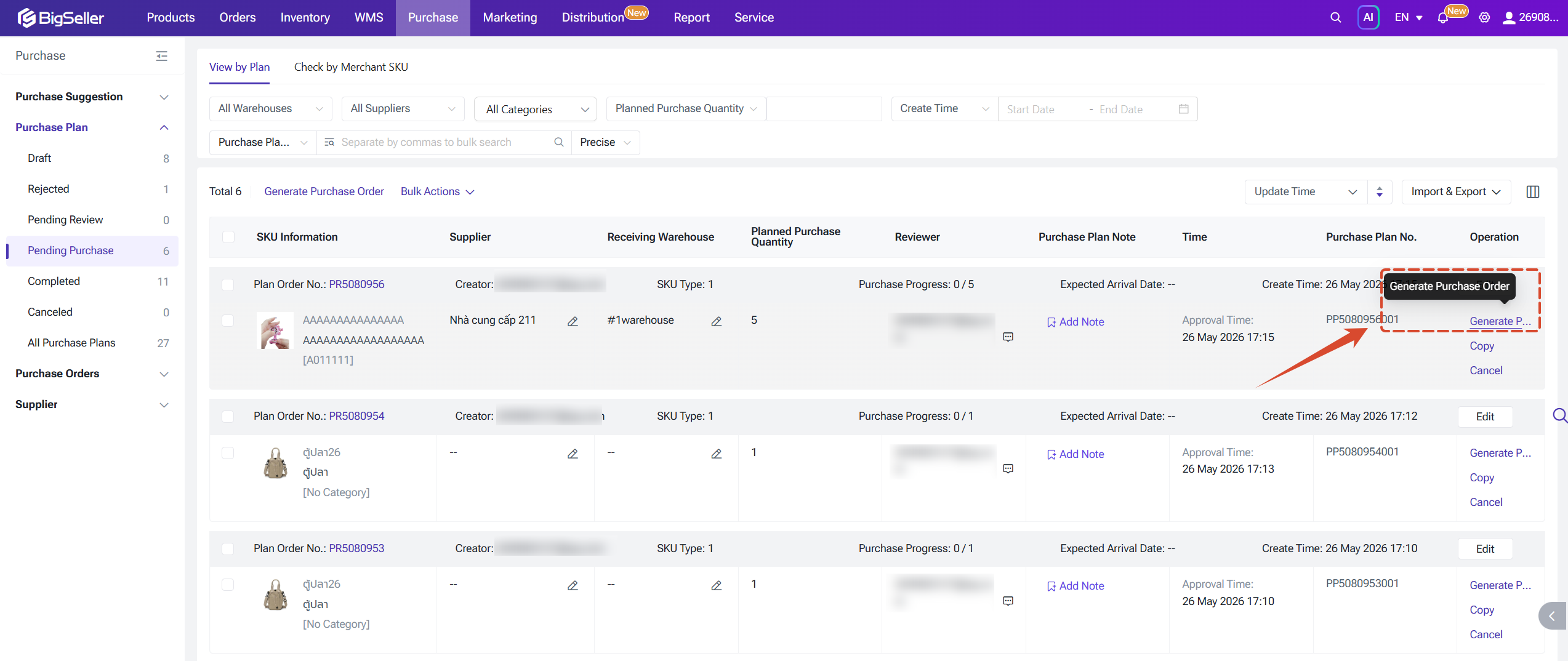
Pending Purchase: This is the workspace for your purchase team. They can look at this list, filter what they need, add missing details, and group items together.
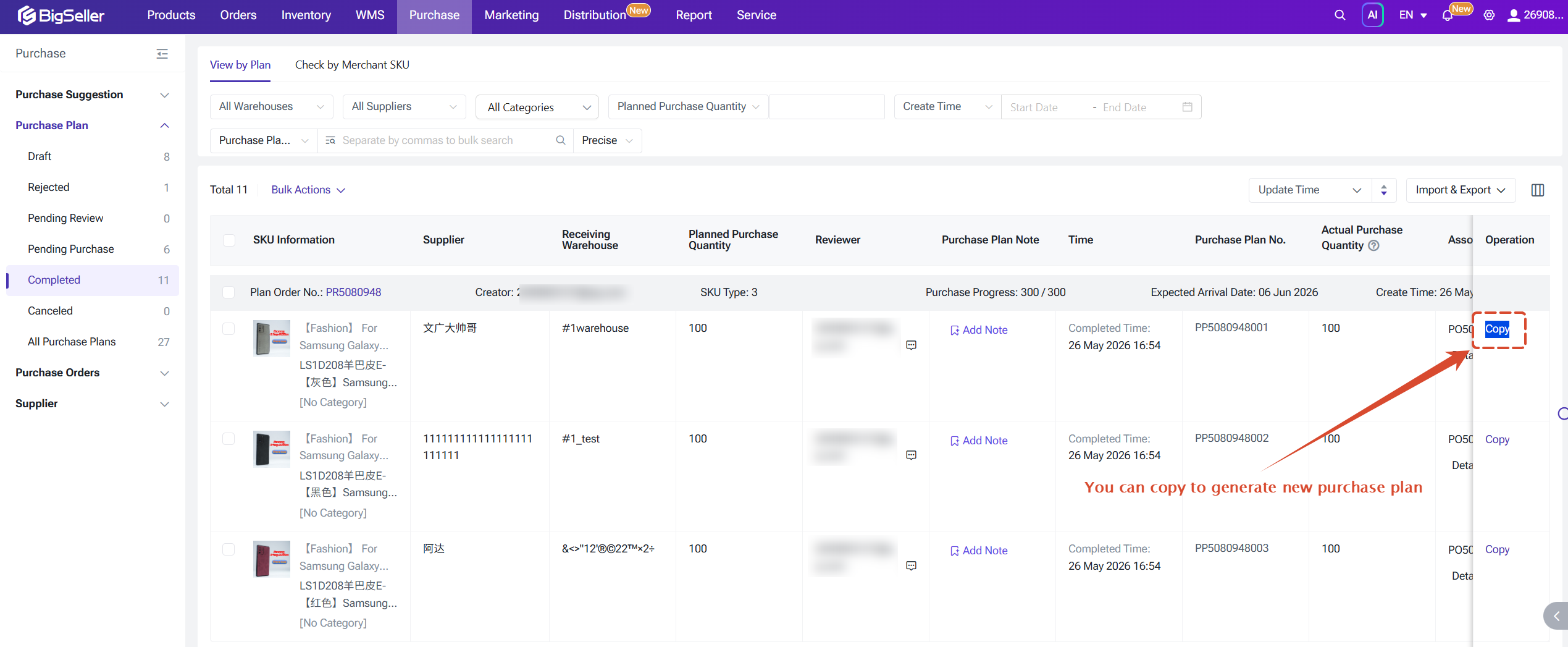
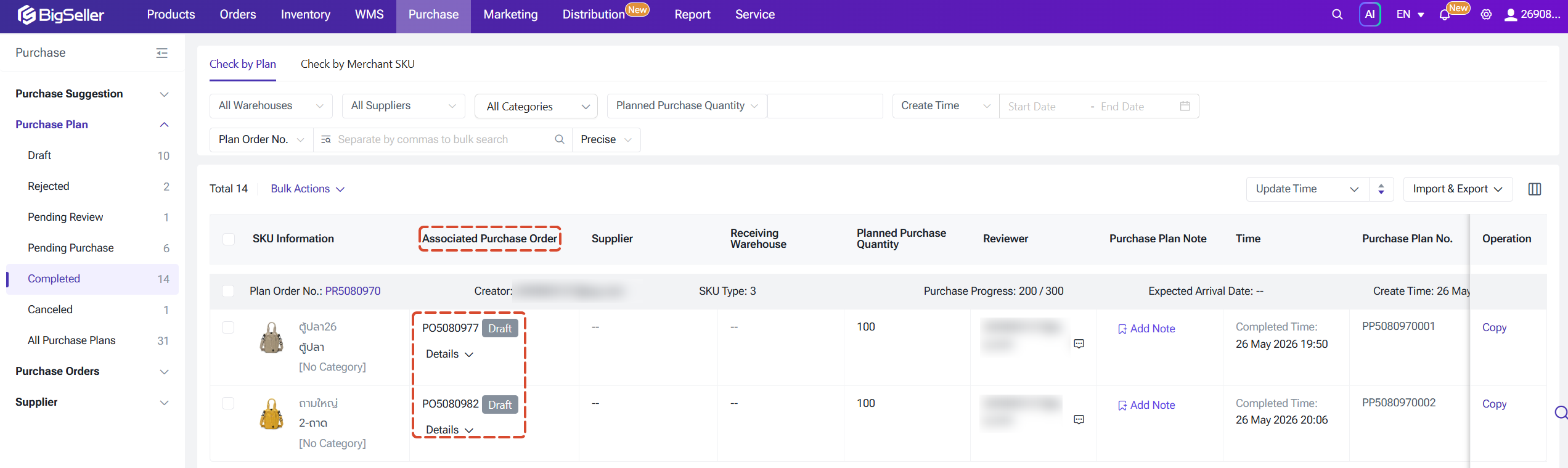
Completed: When your purchase team successfully converts a plan item into a final Purchase Order or a 1688 document, the system changes the status to "Completed" and closes the plan.
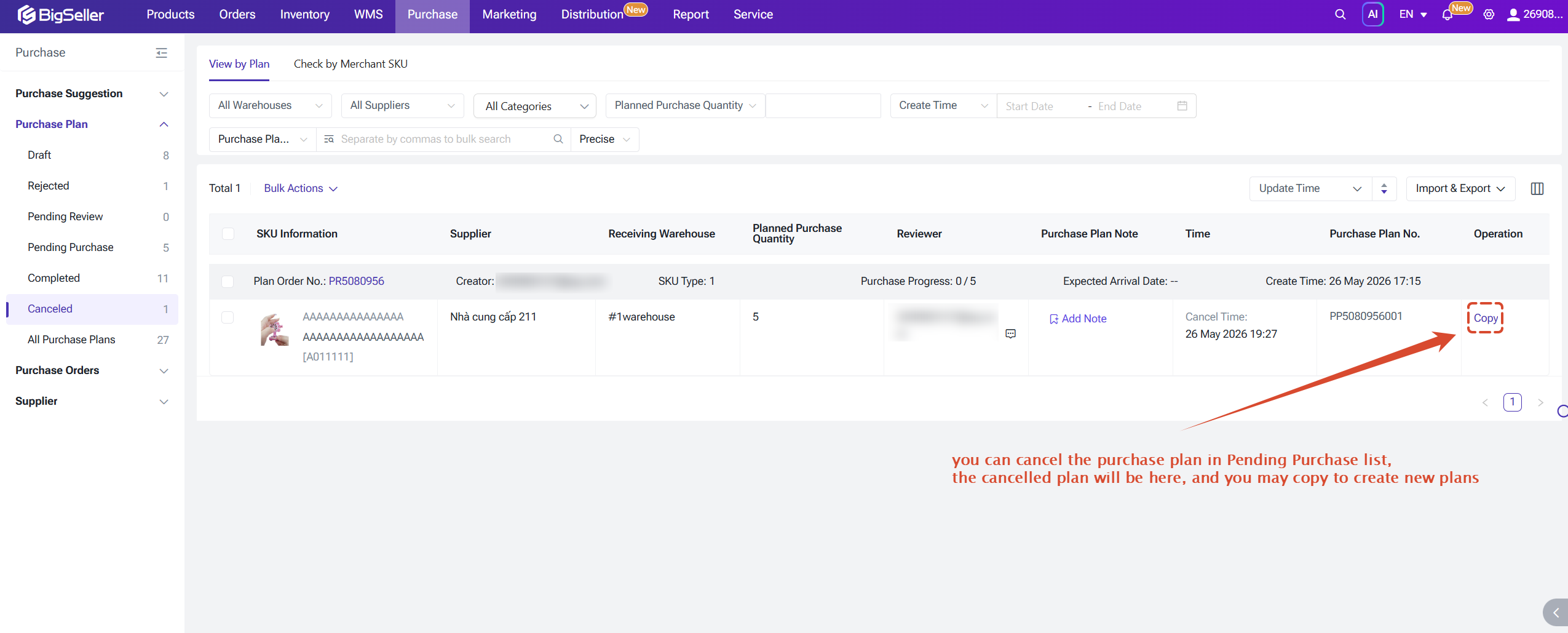
Cancelled: You can use this status to stop a plan item manually if your business plans change.
How to Use This Feature Step-by-Step
Step 1: Create a Purchase Plan
Sellers can add their stock needs into BigSeller in two ways:
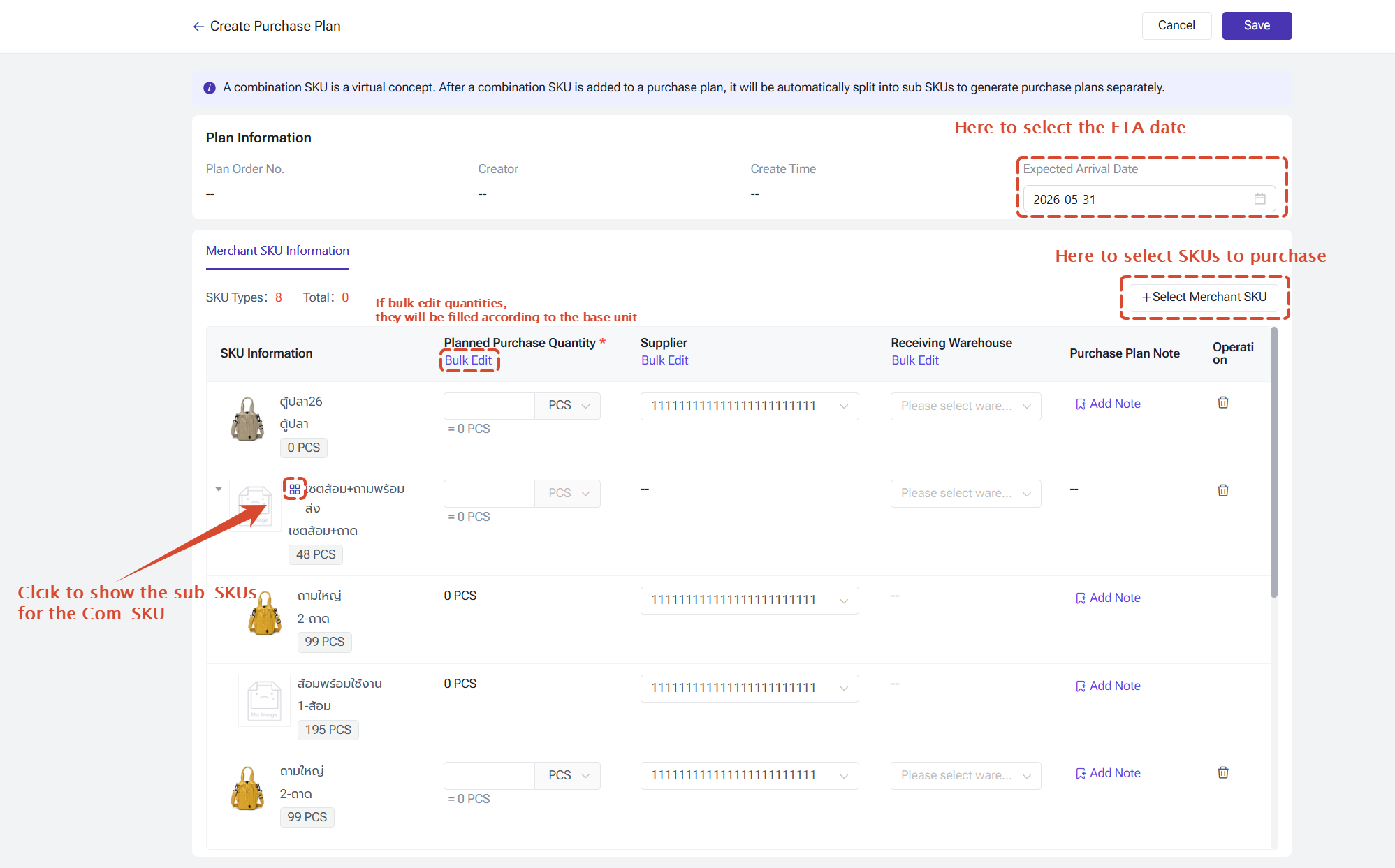
Create Manually: Go to Purchase > Purchase Plan, and click Create Purchase Plan. Pick your expected arrival date and add your Merchant SKUs. If you already mapped a default supplier to this SKU in your system, BigSeller will automatically fill in that supplier for you.
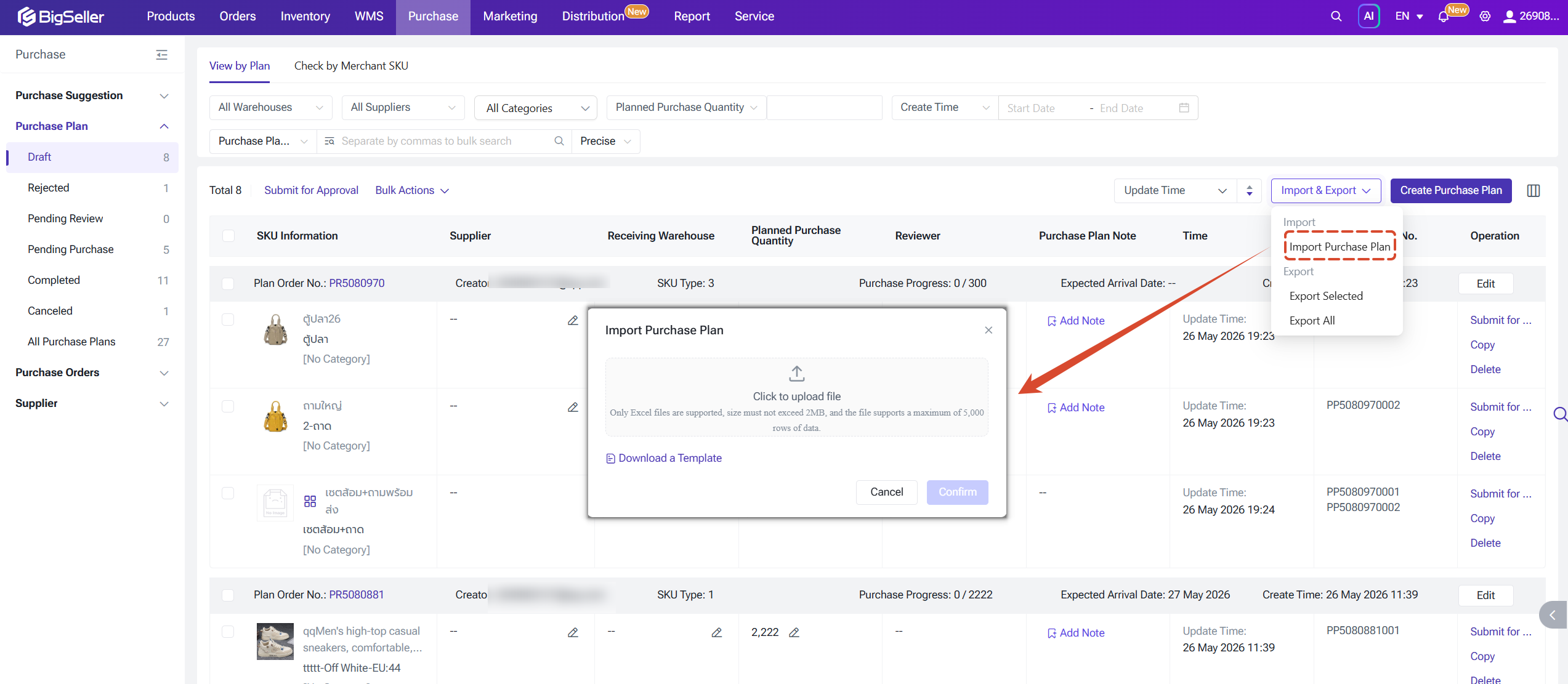
Import by Excel: Download the official Excel template from the page. You can upload up to 5,000 rows at one time, and the system will save them directly into your Drafts Box.
Rule for Combination SKUs:
- If you add a Combination SKU, BigSeller will not purchase that bundle directly. Instead, the system automatically breaks down the bundle into its individual sub-SKUs based on your map settings. The system then calculates the correct quantity using this rule: Component Quantity × Planned Bundle Order Volume.
Once the purchase plan is created, its status will transition according to the workflow described above.
Step 2: Combine Items and Generate Purchase Orders
Once the purchase plan moves to Pending Purchase tab, your team can select here the items they want to buy, and clicks Generate Purchase Order.
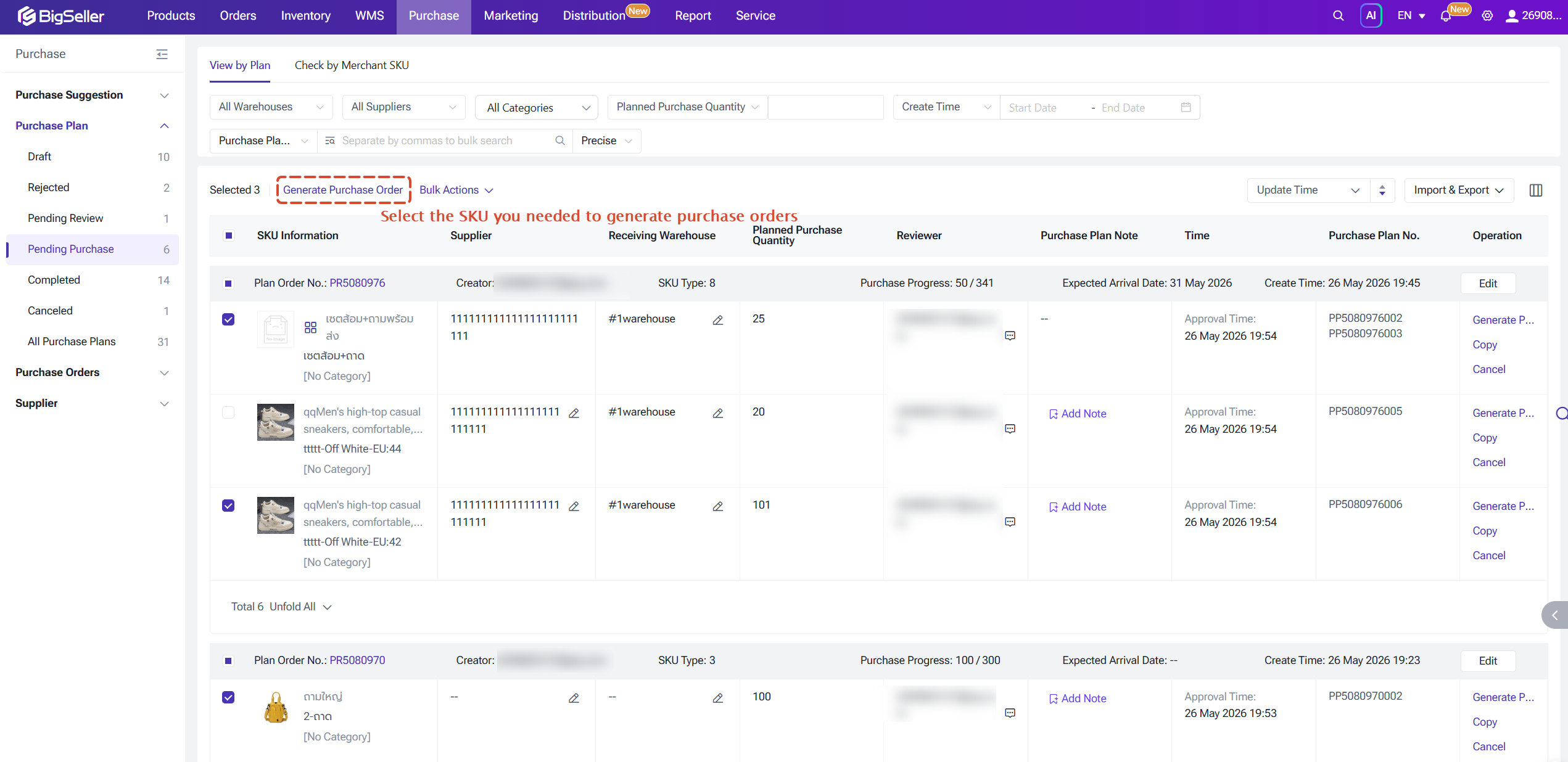
Once clicked, you will need to supplement certain required fields:
- If the operations team left the supplier or warehouse blank, the purchase specialist can edit and add those details here in bulk.
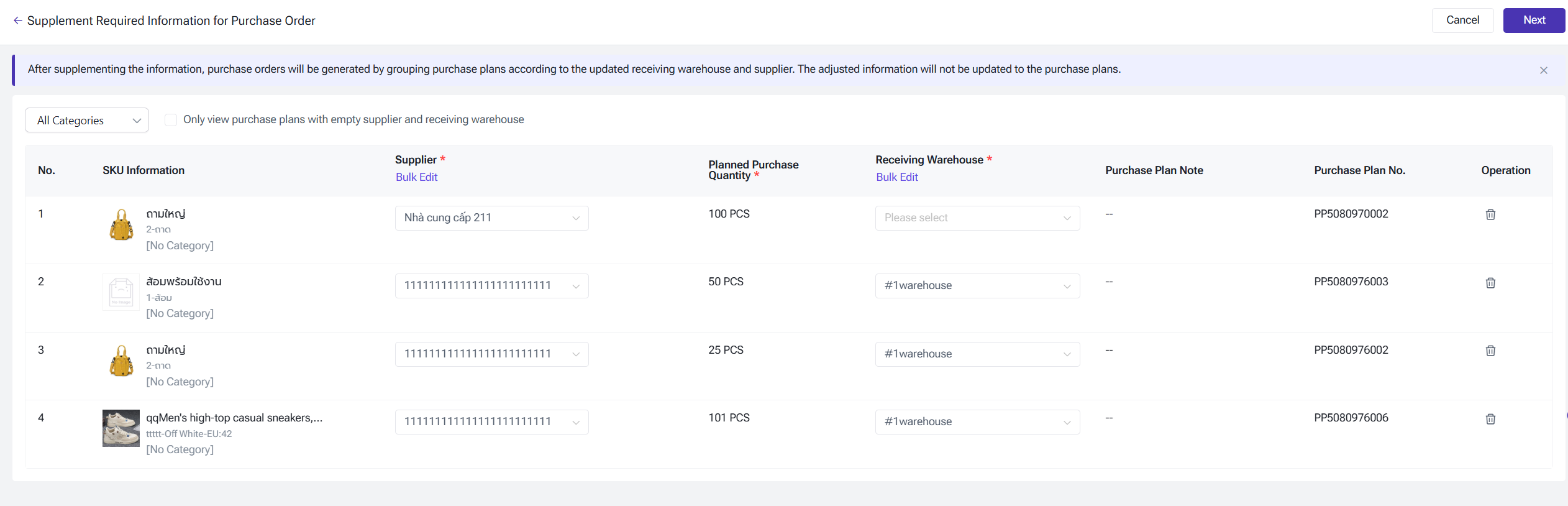
The system will automatically group your items based on the combination of [Receiving Warehouse] + [Supplier].
- Example: If you select 10 different SKU lines, and 3 of them need to go to "Warehouse A" and come from "Supplier X", the system will automatically merge these 3 lines into just one final Purchase Order preview line and add up their total numbers.
1688 Integration: If your items connect to a 1688 supplier, the system will move those items to a special 1688 preview page and automatically bring in your saved 1688 buyer account and delivery address.
Step 3: Set Up Your Charge Fee Settings
On the Generate Purchase Order Preview page, you can choose how to divide future logistics or extra charges among your products:
Allocated by Quantity: Item Charge = ( SKU Quantity ÷ Total Order Items Quantity ) × Total Charge Fee
Divide by Value (Cost): Item Charge = ( SKU Total Money Value ÷ Total Order Money Value ) × Total Charge Fee
Allocated by Volume: The system uses the product size data from your system to divide the fee proportionally.
DiAllocated by Weight: The system uses the product weight data from your system to divide the fee proportionally.
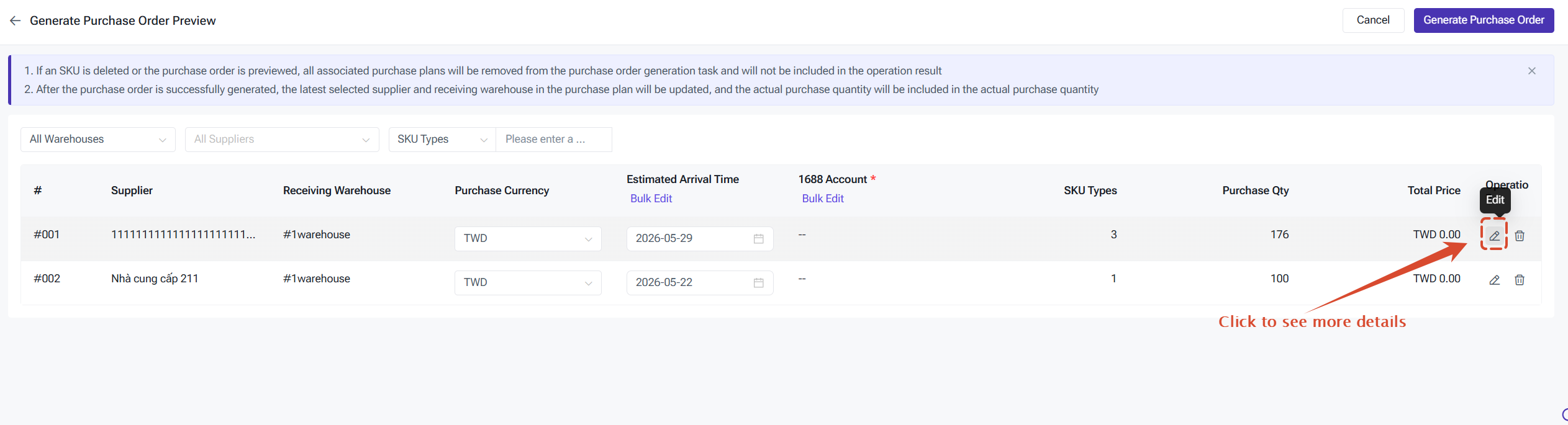
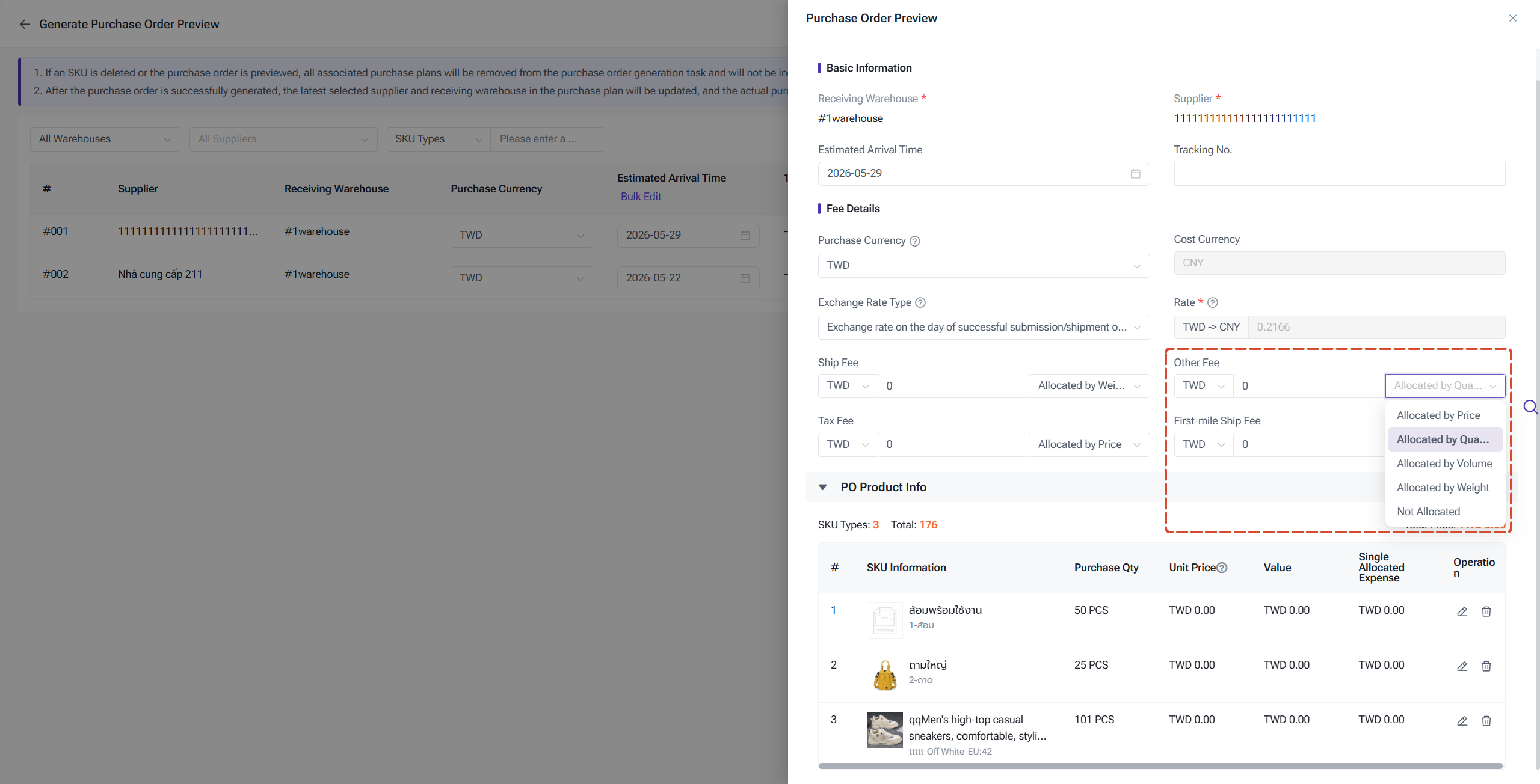
After you check everything and click save, BigSeller will create the official Purchase Order (PO). At the same time, the system will automatically mark the Purchase Plan item as Completed and record the new PO number in the history logs.
Automated System Notifications
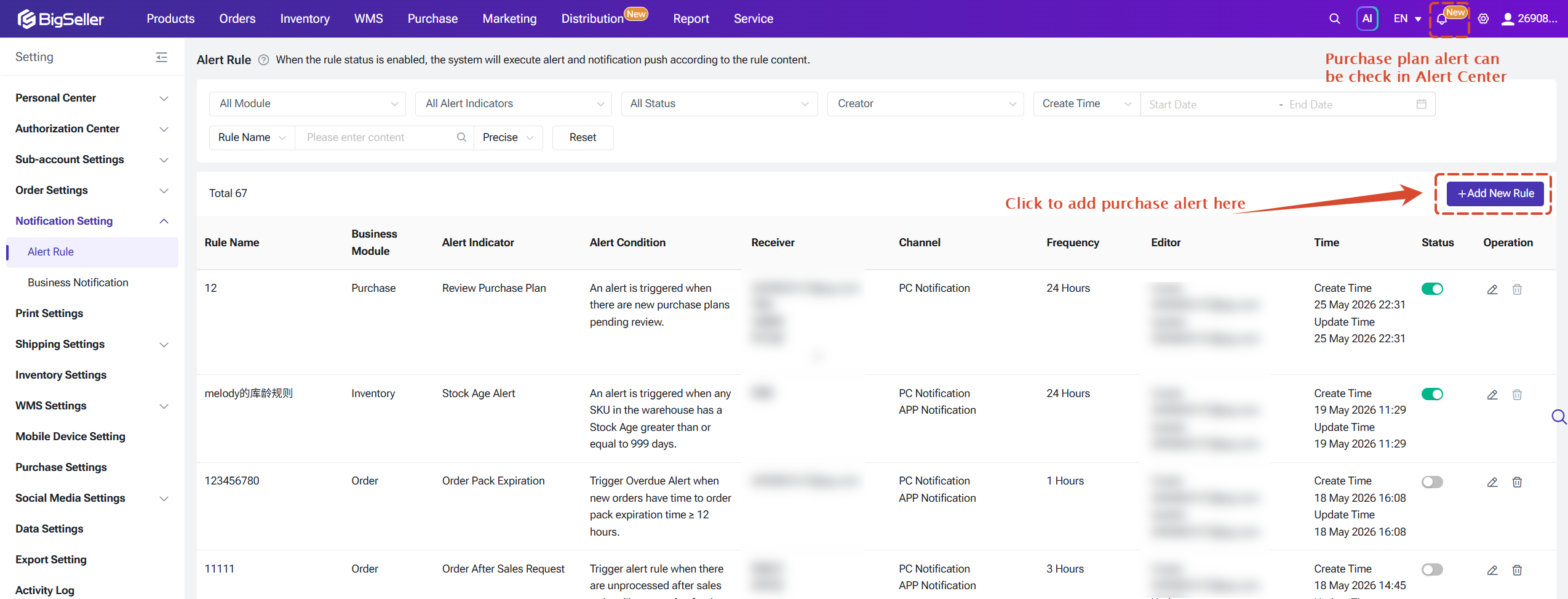
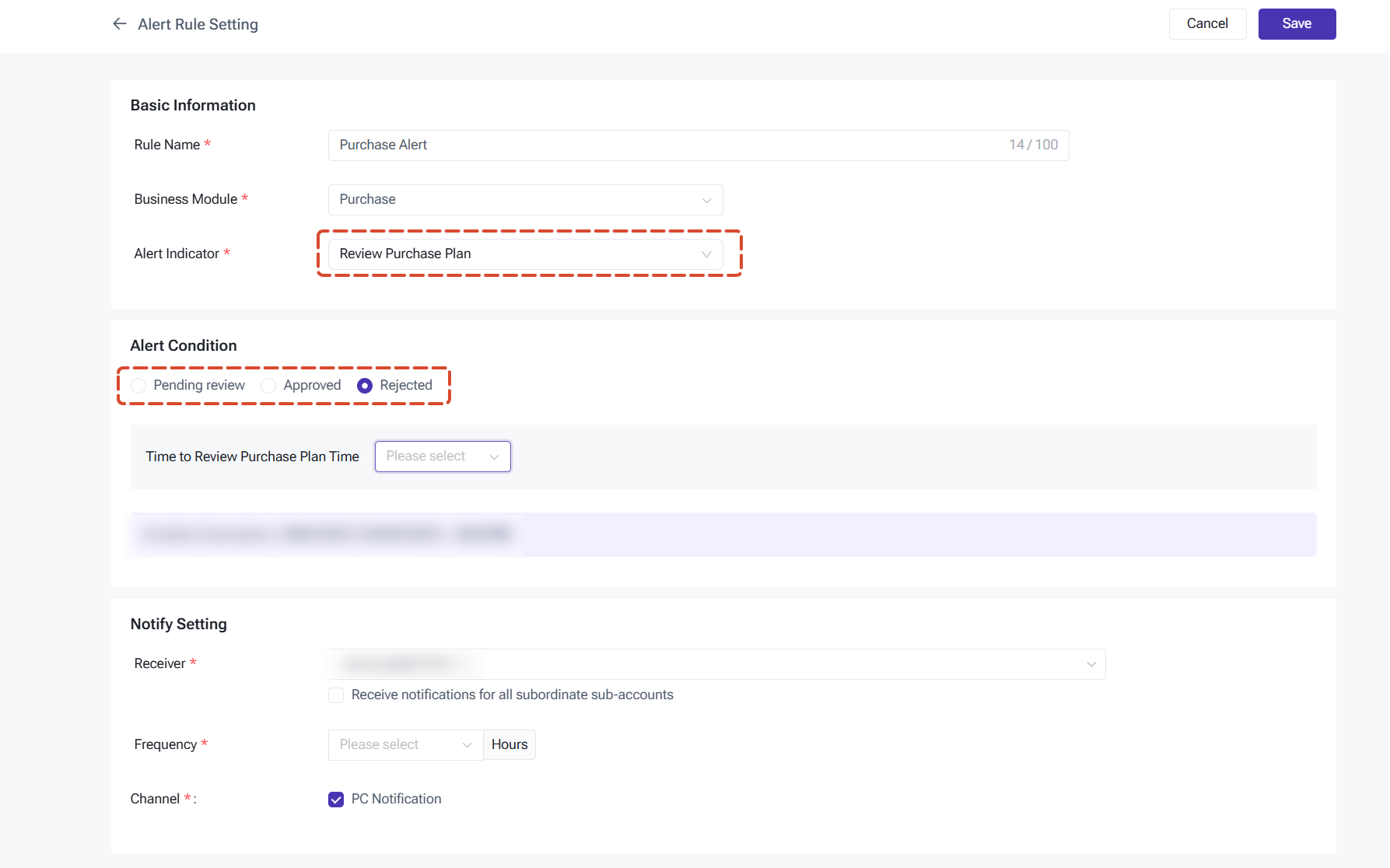
To keep your internal team on the same page, BigSeller sends out automated alerts when important steps happen:
- Approval Alerts: The system sends a notice to the manager's dashboard as soon as an operator submits a plan.
- Status Change Alerts: The system sends a notice to the operations team and purchase team when a manager approves or rejects a plan line.
Is this content helpful?
Thank you for your feedback. It drives us to provide better service.
Please contact us if the document can't answer your questions