How to Add Custom Fees in Profit Report?
Copy link & title
Update Time: 02 Jun 2026 07:53
Say goodbye to the limitations of just three fixed expense categories — Ads, Rent, and Others!
BigSeller's Profit Report now fully supports Custom Fee management, giving you the flexibility to define any operational cost — from payroll and warehouse fees to utilities — and allocate them precisely across your stores using multiple apportionment methods. True profit visibility, finally within reach.
This update addresses all of the above through three new modules:
BigSeller's Profit Report now fully supports Custom Fee management, giving you the flexibility to define any operational cost — from payroll and warehouse fees to utilities — and allocate them precisely across your stores using multiple apportionment methods. True profit visibility, finally within reach.
This update addresses all of the above through three new modules:
- Custom Fee Type Management + Flexible Allocation Rules + Fee Allocation Records.
Where to Find These Features?
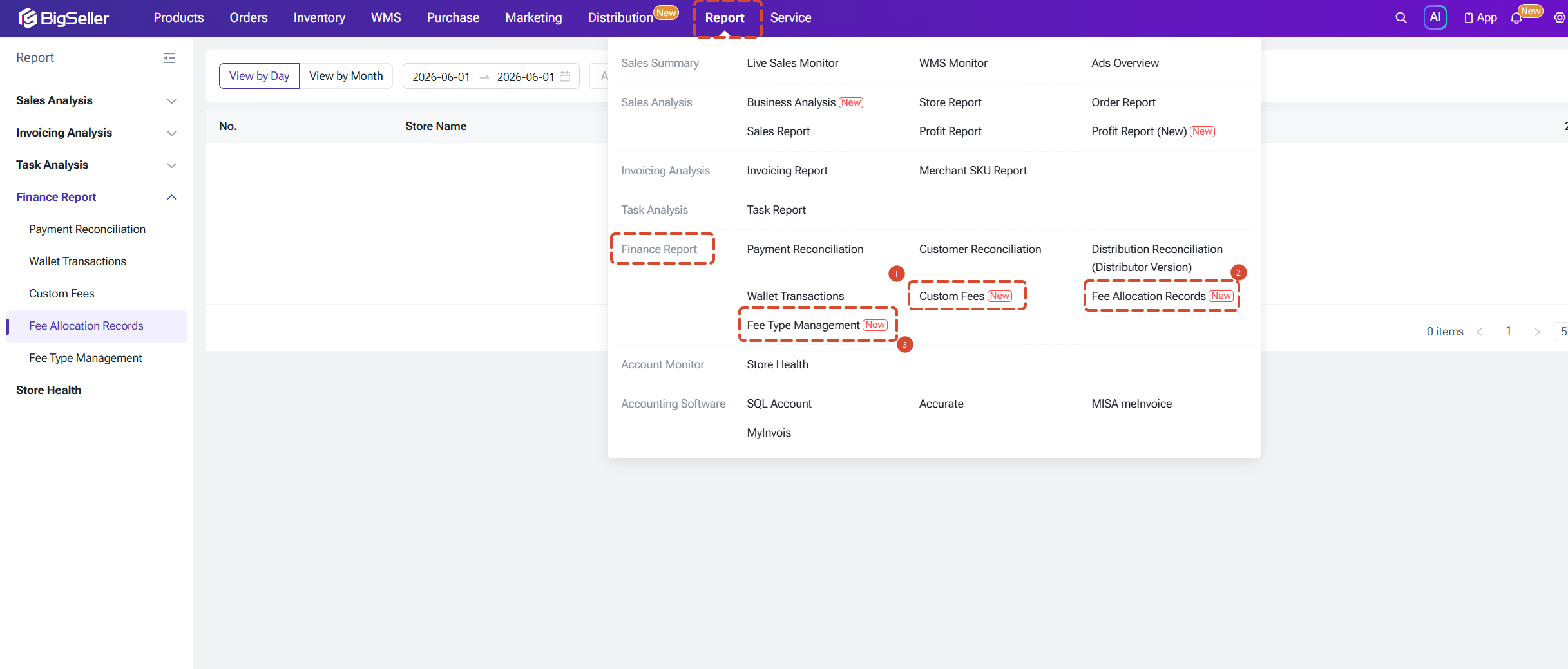
All three new modules are located under the Financial Report menu in BigSeller:
All three new modules are located under the Financial Report menu in BigSeller:
- Financial Report > Wallet Transaction (below) → Custom Fee
- Financial Report > Custom Fee (below) → Fee Allocation Records
- Financial Report > Fee Apportionment Records (below) → Fee Type Management
1. Fee Type Management
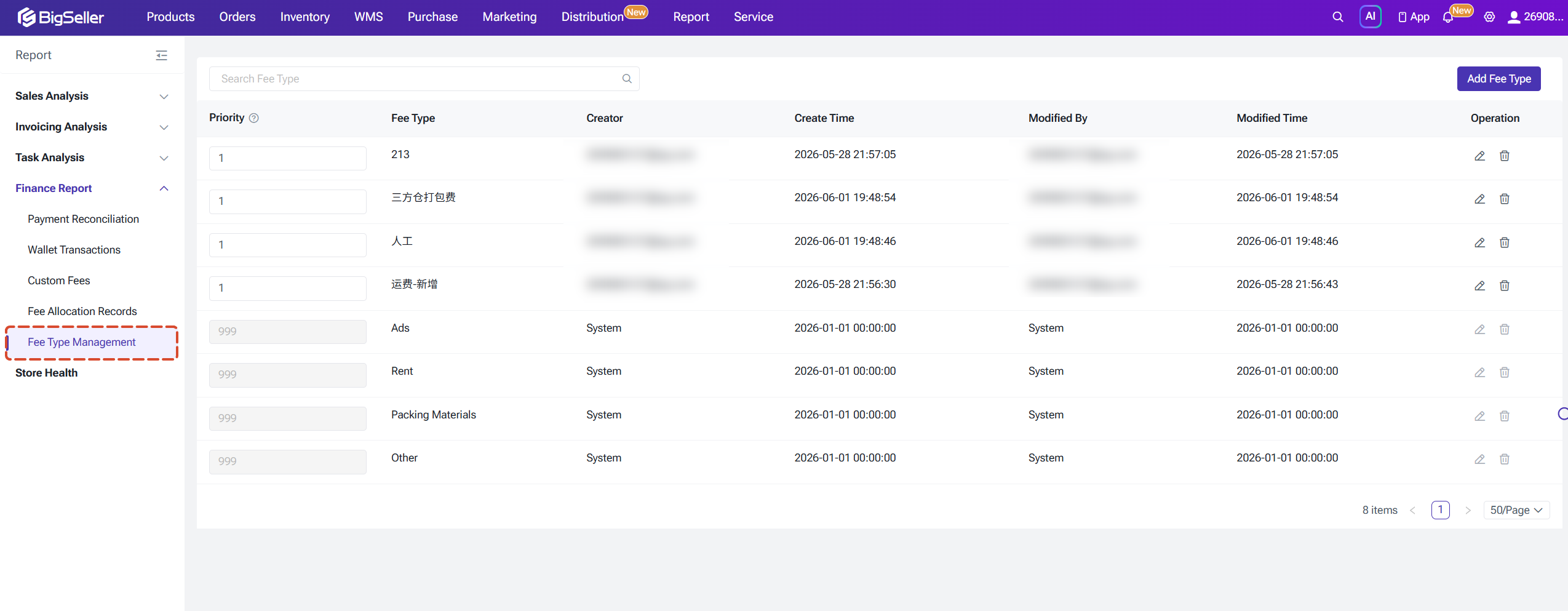
Before adding Custom Fees, we recommend setting up your fee categories first in Fee Type Management.
1.1 What Is a Fee Type?
A fee type is the category label for a Custom Fee — for example, "Payroll," "Warehouse Fee," or "Utilities."
The system includes four built-in default types — Ads, Rent, Packaging Materials, and Others — which cannot be edited or deleted. You can create additional types as needed.
1.1 What Is a Fee Type?
A fee type is the category label for a Custom Fee — for example, "Payroll," "Warehouse Fee," or "Utilities."
The system includes four built-in default types — Ads, Rent, Packaging Materials, and Others — which cannot be edited or deleted. You can create additional types as needed.
- 💡 Key Value: Fee types are managed centrally and shared across Custom Fees, Fee Allocation Records, and the Store Profit Report. Renaming a type takes effect globally — no need to update records one by one.
1.2 Add a Fee Type
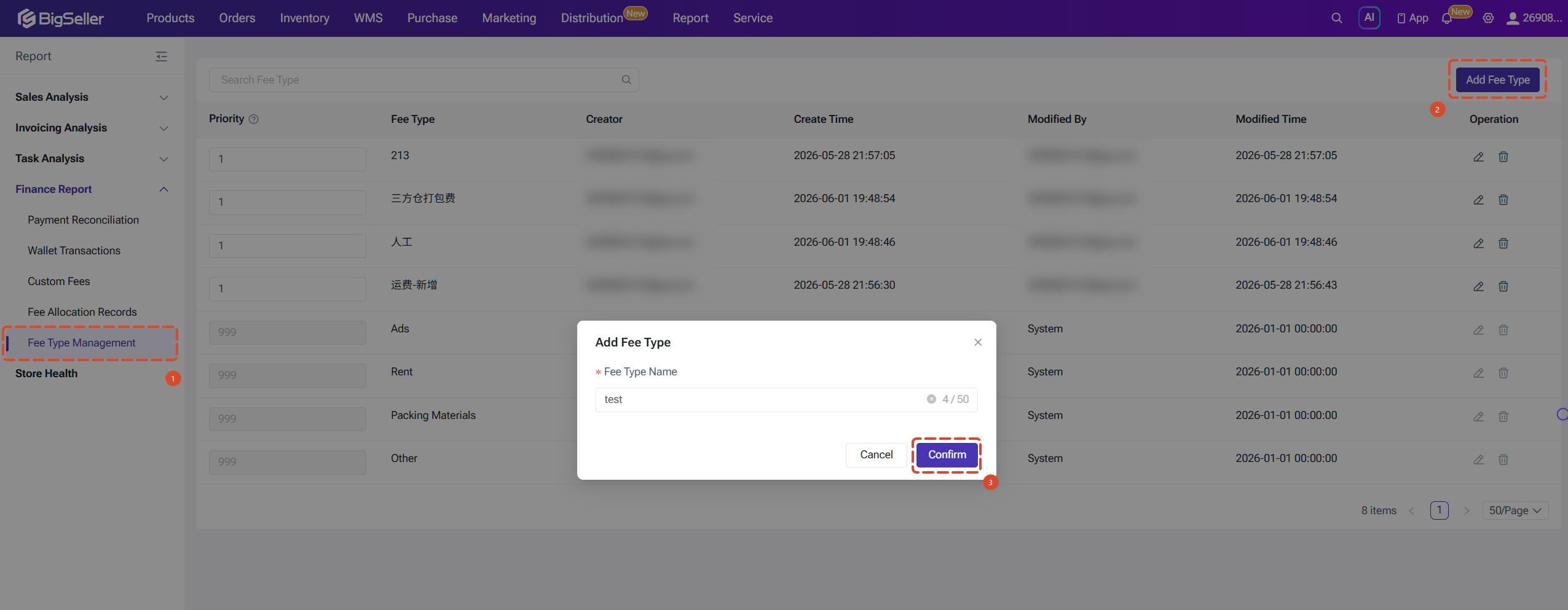
Path: Financial Report > Fee Type Management > Click "New Fee Type" in the top-right corner
Notes:
- Enter the fee type name in the pop-up (max 50 characters), then click Save
- Each account (puid) can create a maximum of 50 fee types. Once the limit is reached, no further types can be added
- Fee type names must be unique within the same account
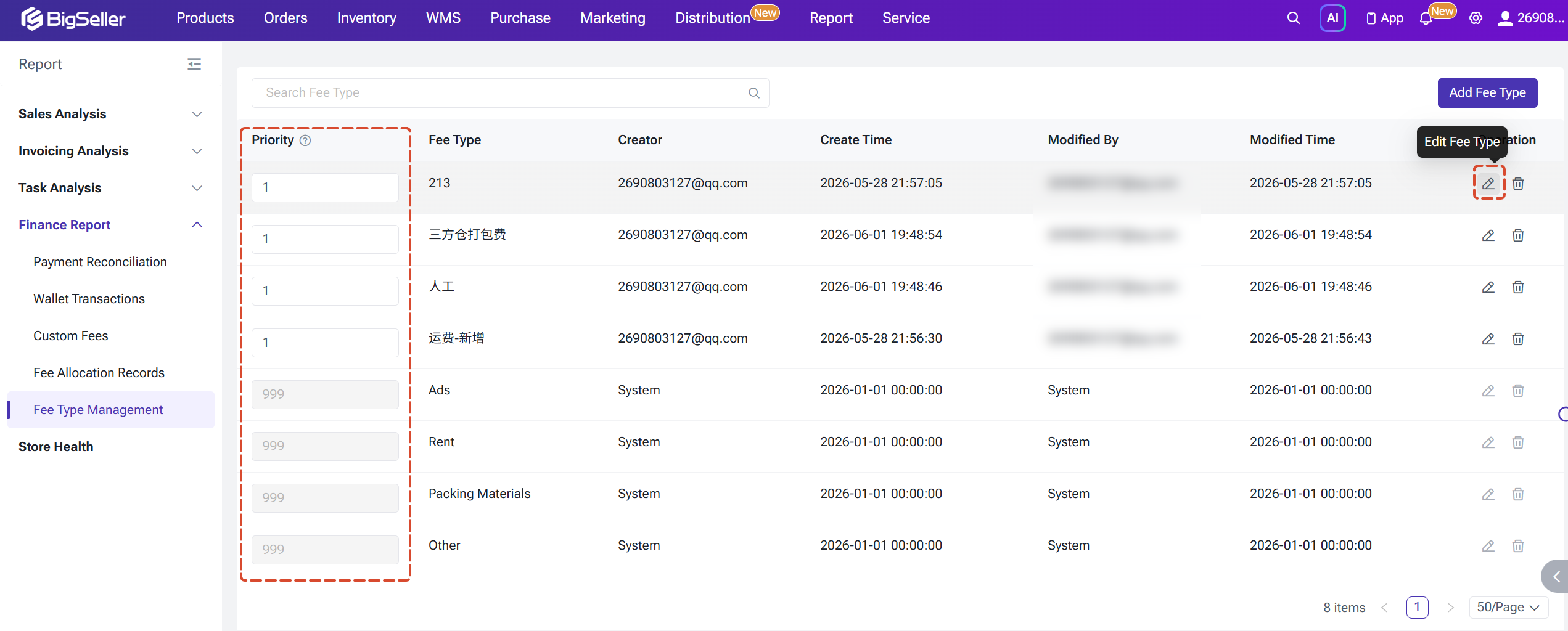
You can click the Edit button in the Actions column to rename a fee type. After renaming, all associated Custom Fees, Fee Apportionment Records, and Store Profit Report entries will automatically reflect the new name.
The fee type list supports setting a priority (lower number = higher priority). Priority determines the display order in the fee type dropdown when creating or editing a Custom Fee.
2. Custom Fee
The Custom Fee module provides a centralised place to enter and manage operational costs. Core actions include: Add, Edit, Search, Delete, Bulk Import, and Set Allocation Scope.
Each Custom Fee record represents a cost that needs to be allocated across stores according to a defined rule.
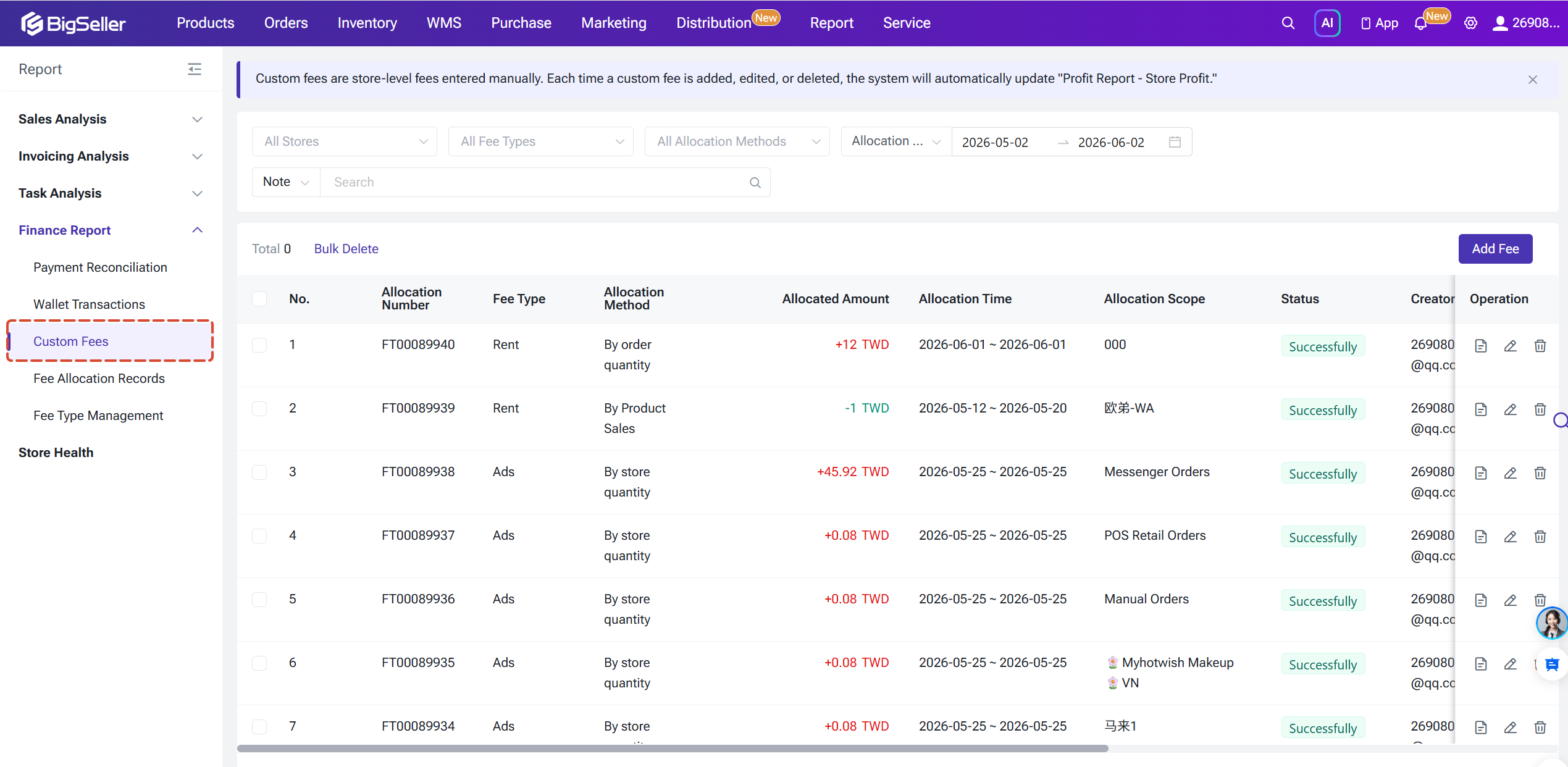
2.1 Add a Custom Fee
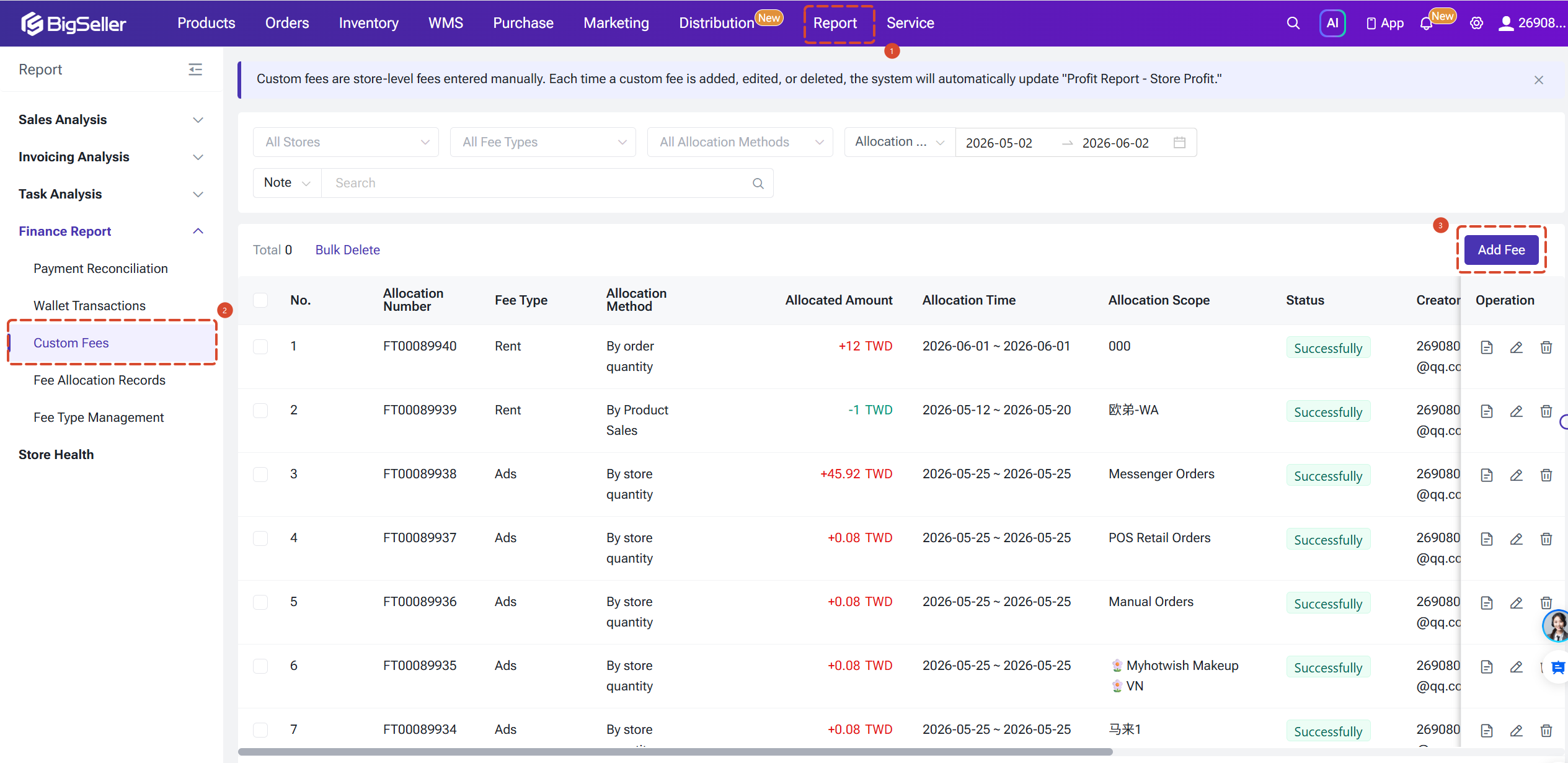
Entry Point 1: Click "Add Fee" in the top-right corner of the Custom Fee page
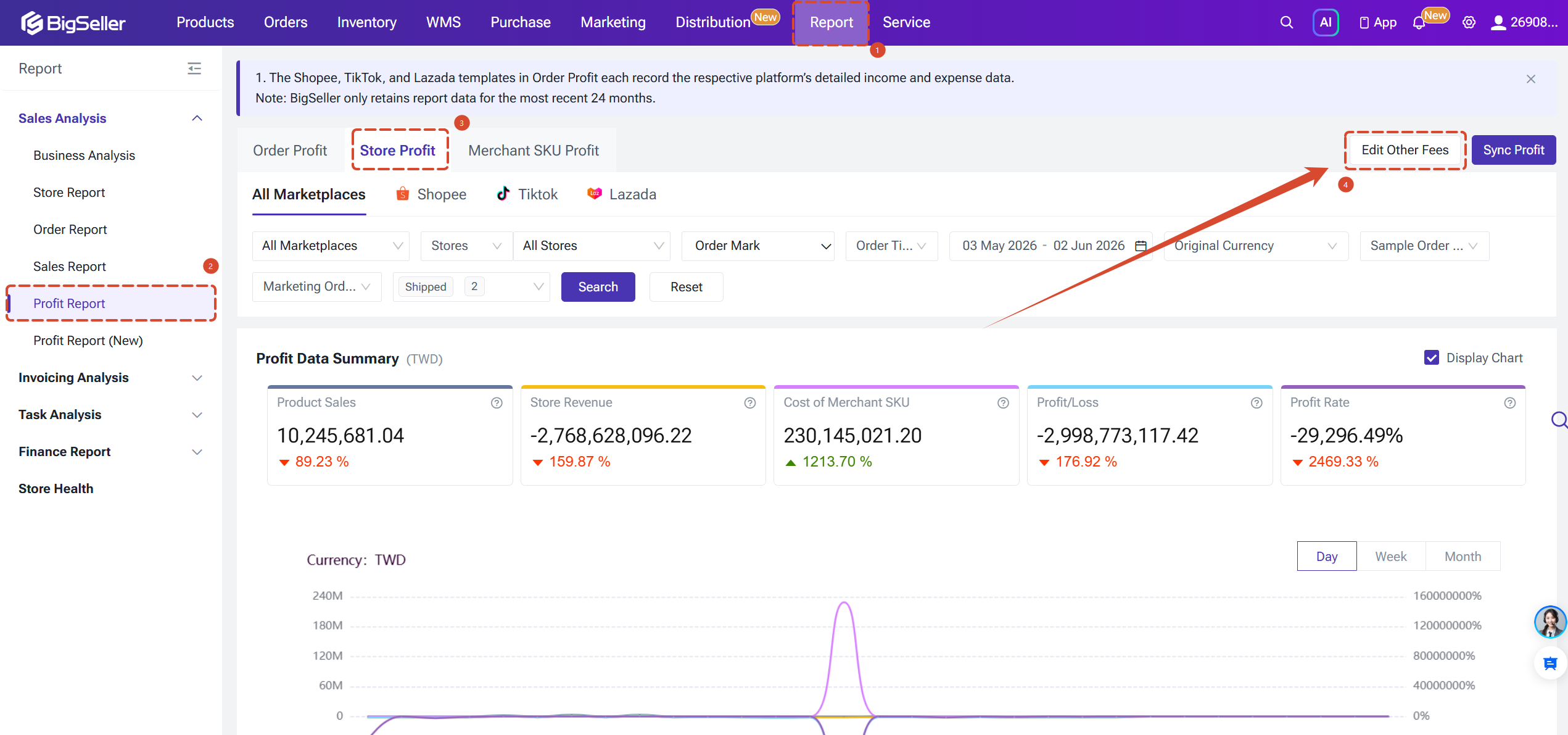
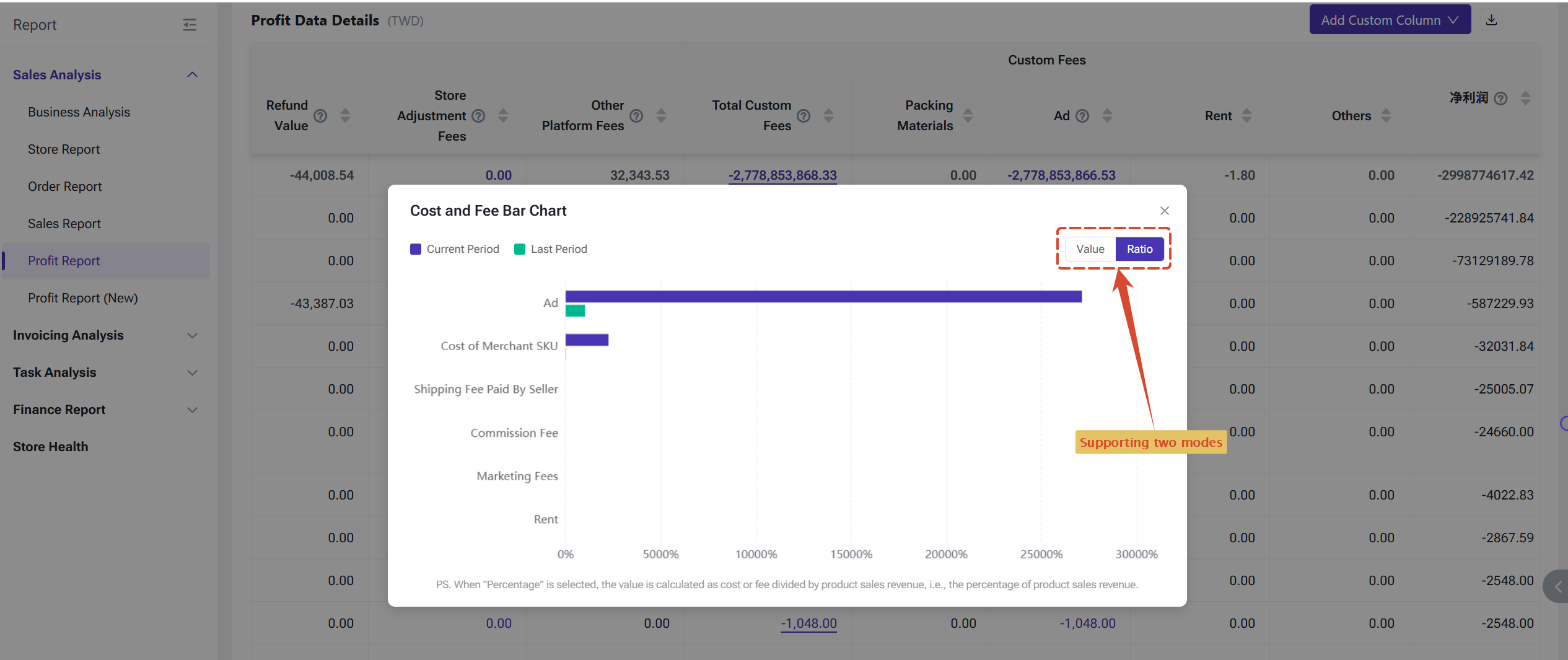
Entry Point 2: In the Store Profit Report, click a Custom Fee cell to open the Cost & Fee Bar Chart pop-up, then click "Add Fee" in the top-right corner
Field details:
Each Custom Fee record represents a cost that needs to be allocated across stores according to a defined rule.
2.1 Add a Custom Fee
Entry Point 1: Click "Add Fee" in the top-right corner of the Custom Fee page
Entry Point 2: In the Store Profit Report, click a Custom Fee cell to open the Cost & Fee Bar Chart pop-up, then click "Add Fee" in the top-right corner
Field details:
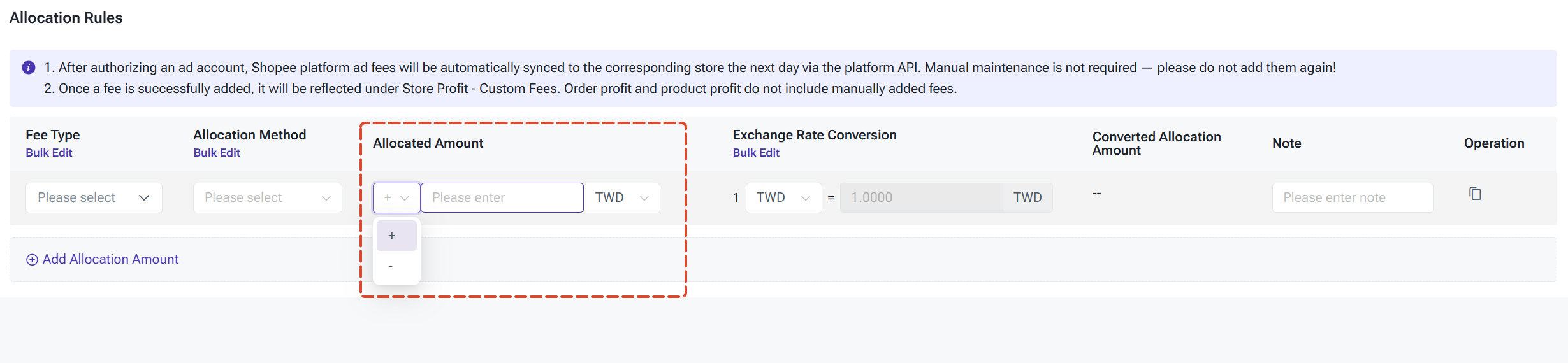
- Allocation Time (Required) Select the time period this fee applies to. Note: Future dates cannot be selected.
- Apportionment Scope (Required) Select the stores to include in the apportionment.

① Fee Type (Required): Select from the dropdown. Options include system built-in types and any custom types you've created. If you need a new type, click "Add Fee Type" directly within the dropdown.
② Allocation Method (Required): Four methods are available — choose the one that best reflects how costs are shared across your stores:
- By Product Sales: Allocates costs proportionally based on each store's share of total product sales
- By Product Sales Qty: Allocates costs proportionally based on each store's share of total units sold
- By Order Qty: Allocates costs proportionally based on each store's number of orders
- By Store Qty: Splits costs evenly across all selected stores
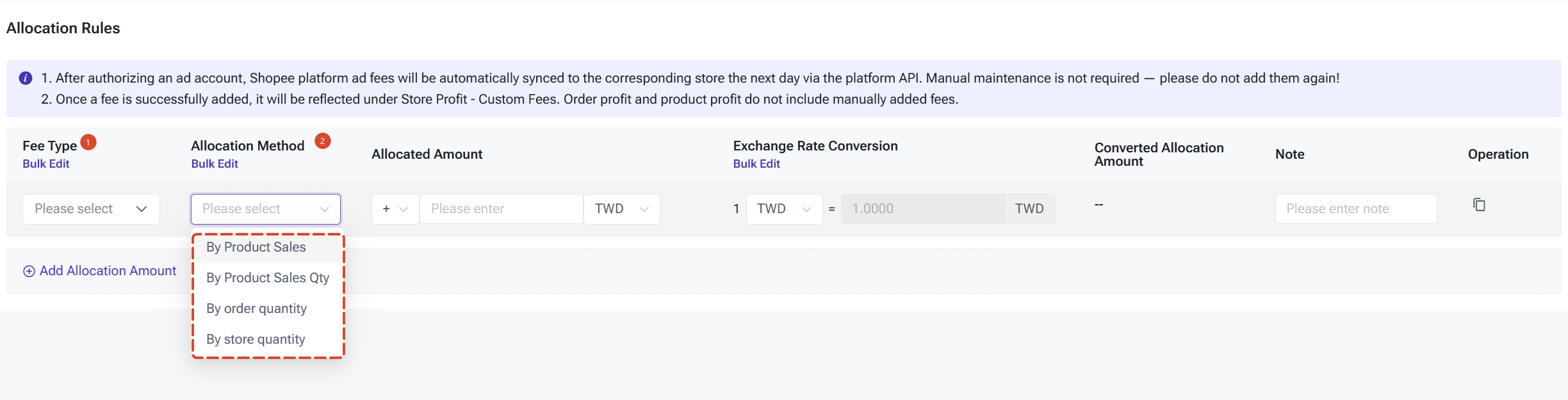
③ Allocation Amount (Required): Multiple lines of amounts are supported, each with an Add (+) or Deduct (−) direction and a currency selection. The system automatically totals all lines into a single apportionment amount.
- Currency conversion uses your configured fixed exchange rate first; if not set, the real-time rate from today (or yesterday if today's rate is unavailable) is applied
- Negative amounts are supported (e.g. for reversal entries)
2.2 Edit a Custom Fee
Click the Edit button in the Actions column. The Fee Type field cannot be changed. All other fields are freely editable.
⚠️ Note: After editing, the system will retroactively recalculate the Store Profit Report and update the related Fee Apportionment Records. Deleting a fee also retroactively recalculates Store Profit and removes the corresponding Fee Allocation Records.

3. Fee Allocation Records
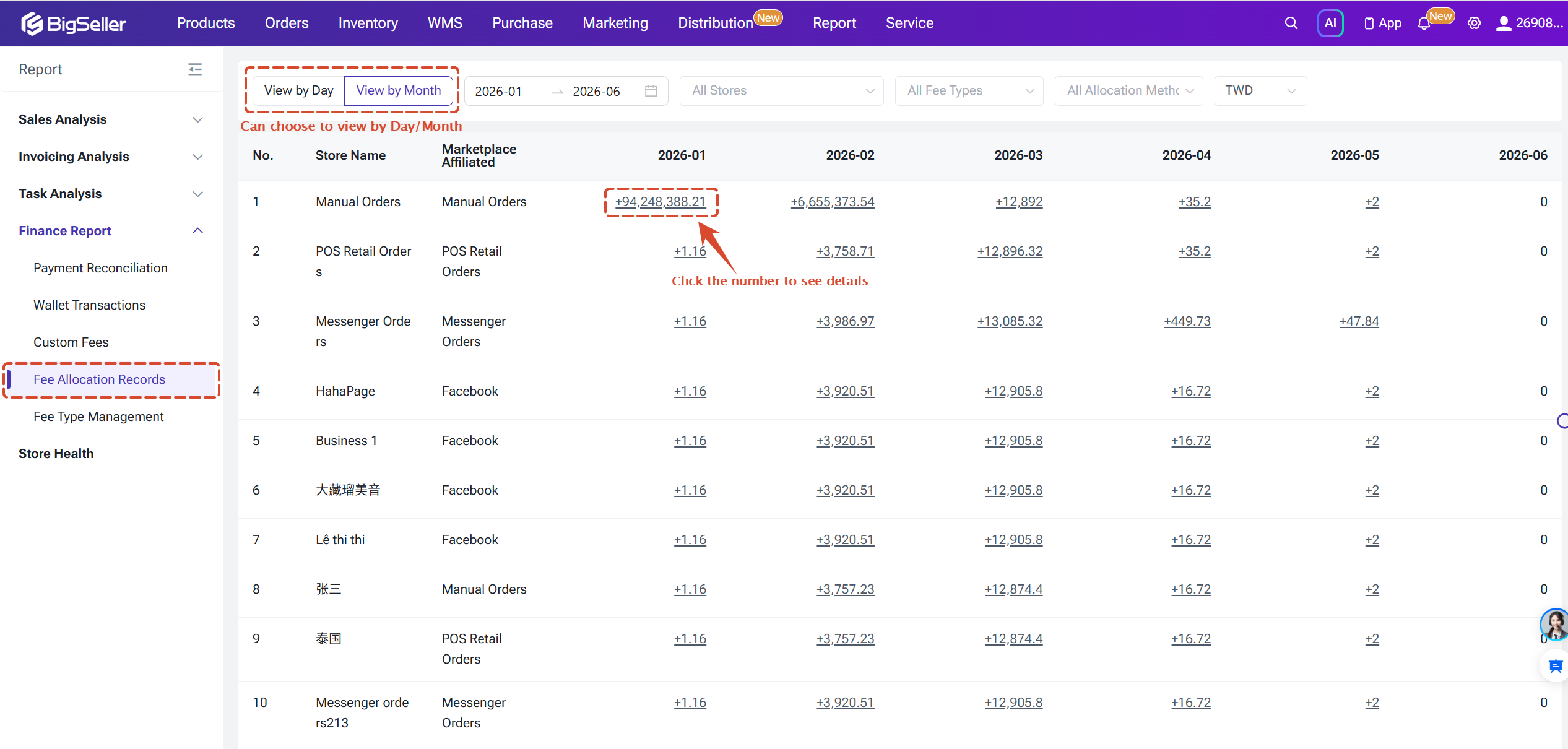
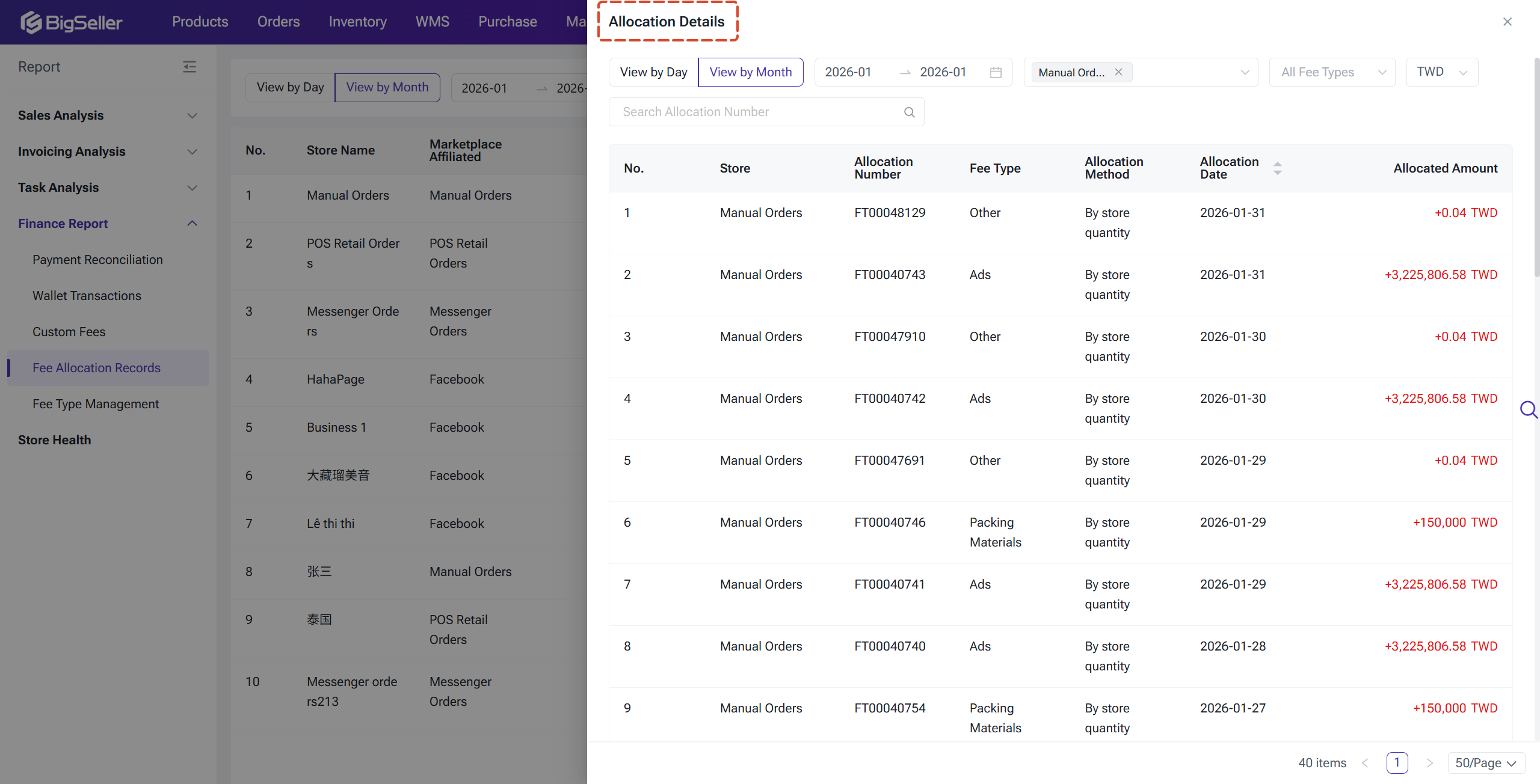
The Fee Allocation Records page gives you full visibility into how each Custom Fee is distributed to individual stores — solving the long-standing frustration of "set it but can't see it."
4. Changes in Store Profit Report
4.1 Total Custom Fee Column
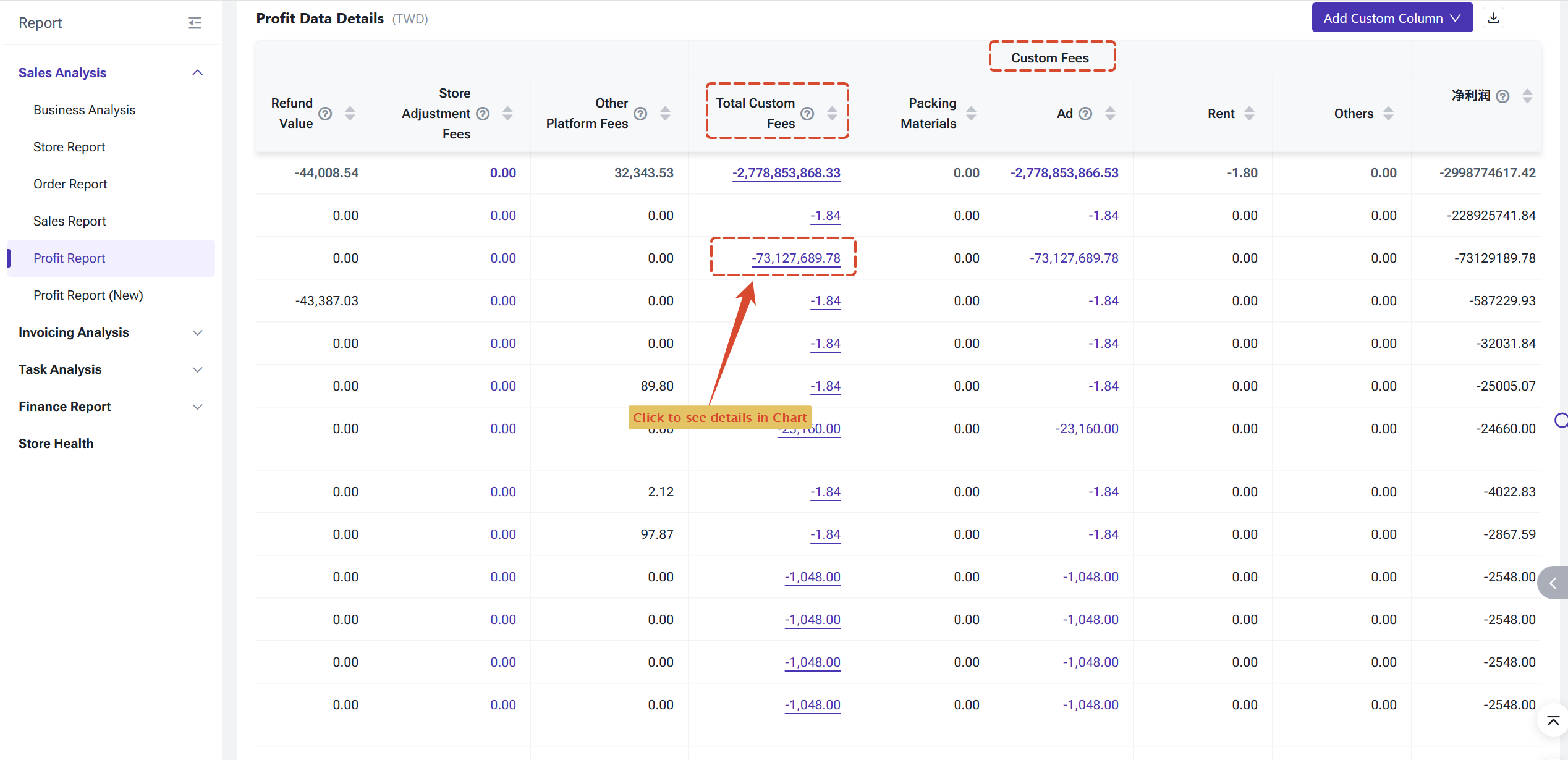
In the Store Profit Report, the previous "Other Fees" top-level column header has been renamed to "Custom Fee", and a new "Total Custom Fee" summary column has been added.
In the Store Profit Report, the previous "Other Fees" top-level column header has been renamed to "Custom Fee", and a new "Total Custom Fee" summary column has been added.
- Total Custom Fee = Shopee Ad Fees + System Built-in Custom Fees + Manually Created Custom Fees. Note: Although Shopee ad fees are not manually created, they are included under "Total Custom Fee" for a unified cost overview.
- The Total Custom Fee column is shown by default, included in column settings, and available for export
- Clicking a Total Custom Fee cell directly opens the Cost & Fee Bar Chart pop-up
Important Note
- When building custom calculated fields, only system built-in fee types (Packaging Materials, Ads, Rent, Others) can be used in Custom Column formulas. Manually created fee types are not supported.
Is this content helpful?
Thank you for your feedback. It drives us to provide better service.
Please contact us if the document can't answer your questions