How to Authorize QNE in BigSeller
Copy link & title
Update Time: 03 Nov 2026 06:34
According to Philippine Bureau of Internal Revenue (BIR) requirements, e-commerce sellers must use BIR-certified accounting or invoicing software by December 31, 2026, to issue electronic invoices to buyers and make them available to the BIR upon request. Non-compliance may result in penalties.
Integrating QNE with BigSeller helps you:
- Stay Compliant: Automatically generate compliant invoices based on the actual amount paid by buyers and report them to reduce tax risks.
- Streamline Accounting: Create customer payment records and sales invoices in BigSeller with one click, then sync them to QNE. Inventory, general ledger, and accounts receivable records are updated automatically.
- Keep Data Accurate: Import CSV files from other accounting software or pull product, warehouse, store, and expense data directly from BigSeller.
1. What is QNE
QNE is a provider of accounting and business management software primarily serving Southeast Asia, especially Malaysia and the Philippines:- Its core mission is to help small and medium-sized enterprises automate financial processes, ensure tax compliance, and gain real-time business insights.
- Its cloud-based accounting software, N3 AI Accounting, automatically updates inventory, records general ledger entries, and tracks receivable/payable accounts when invoices are issued.
2. How to Authorize QNE
Before using the integration features, you must register for a QNE account and authorize it in BigSeller.Step 1: Register for QNE
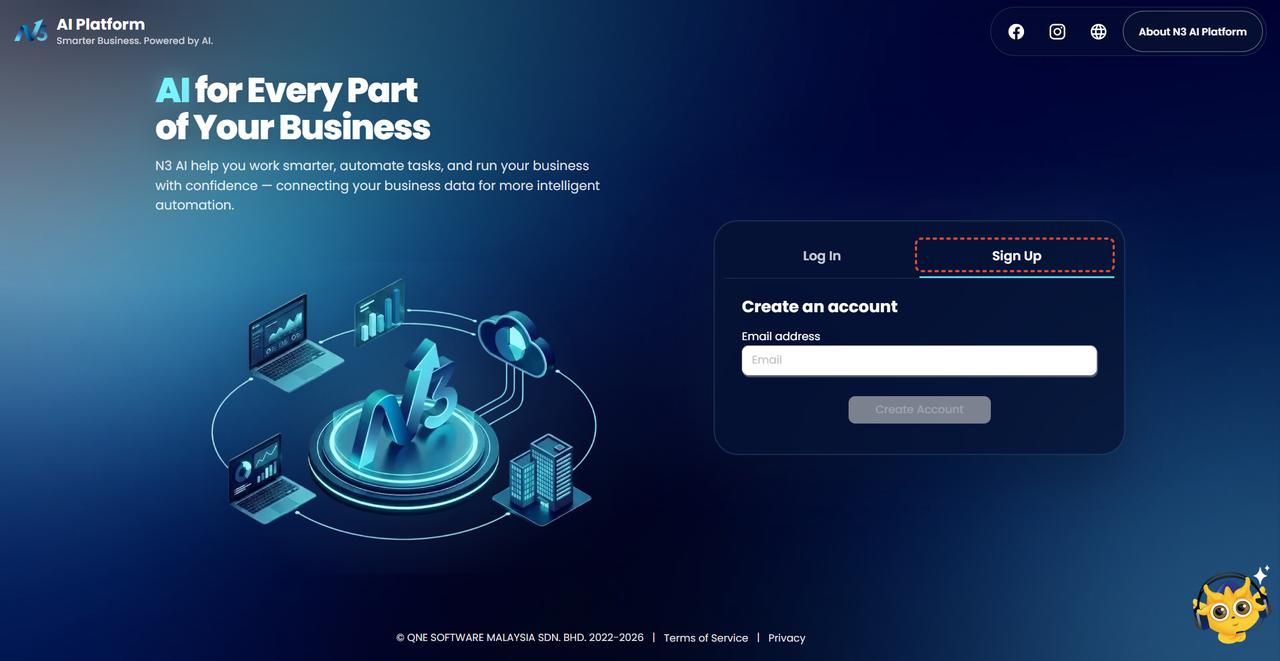
- Visit the QNE website and click Sign Up: https://n3.qne.cloud/passport/register#
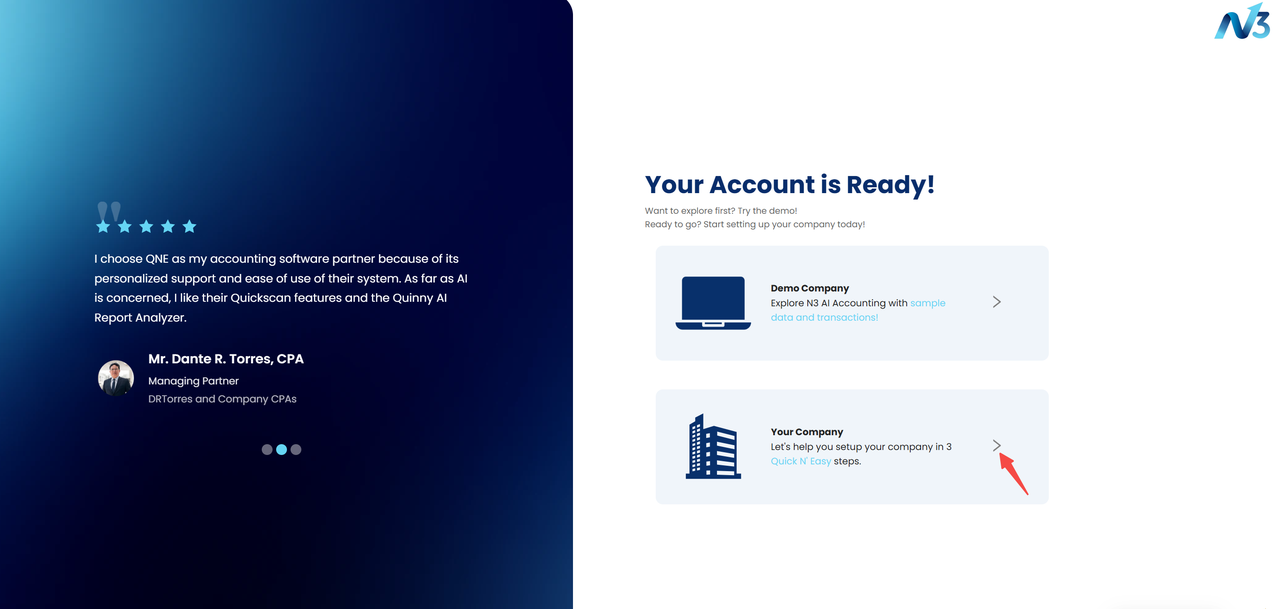
- Set up your company.
- Purchase a suitable plan.

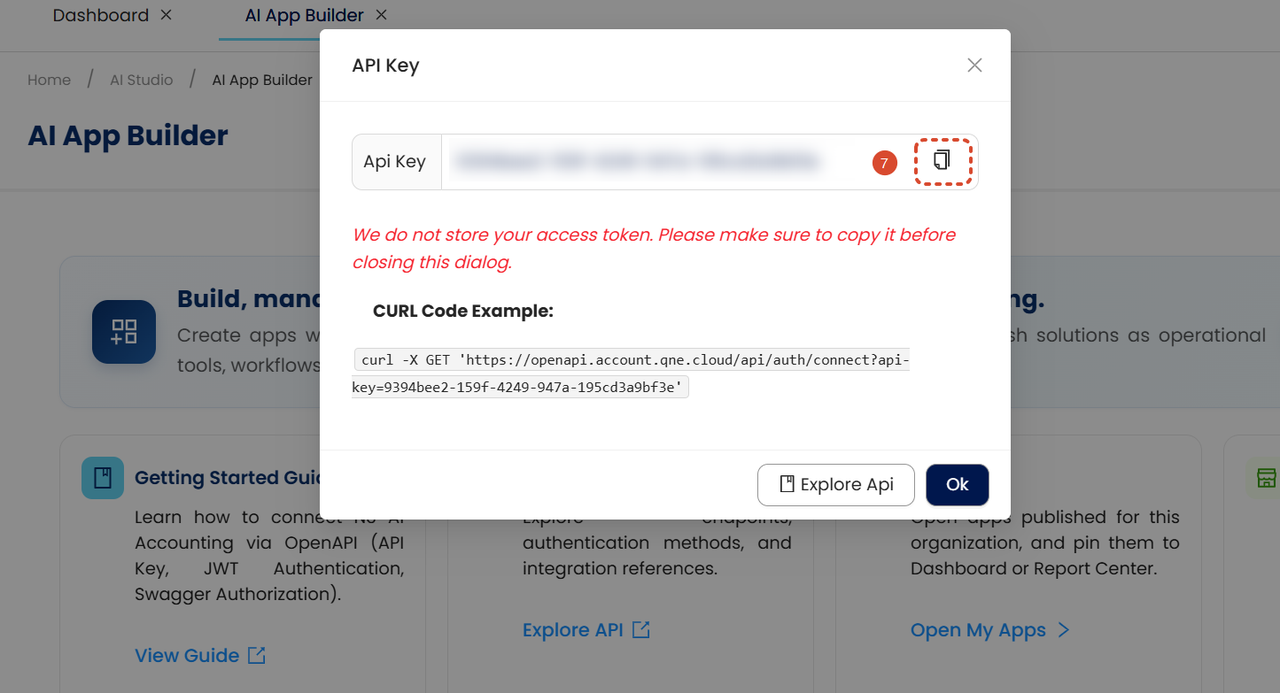
Step 2: Generate and Link Your API Key
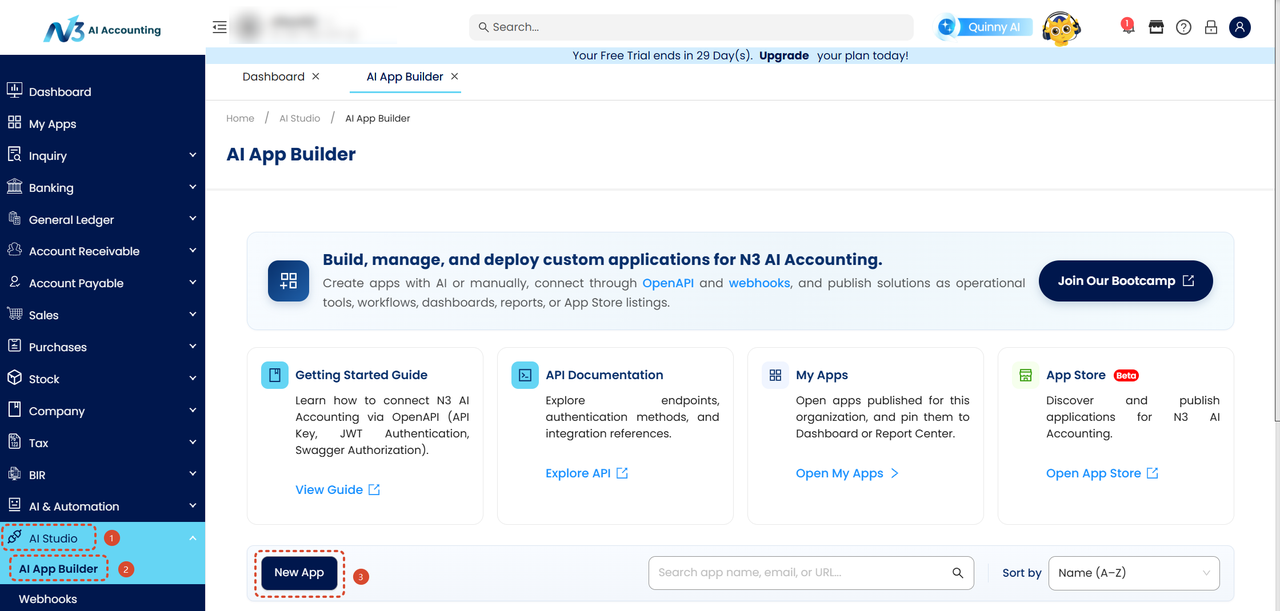
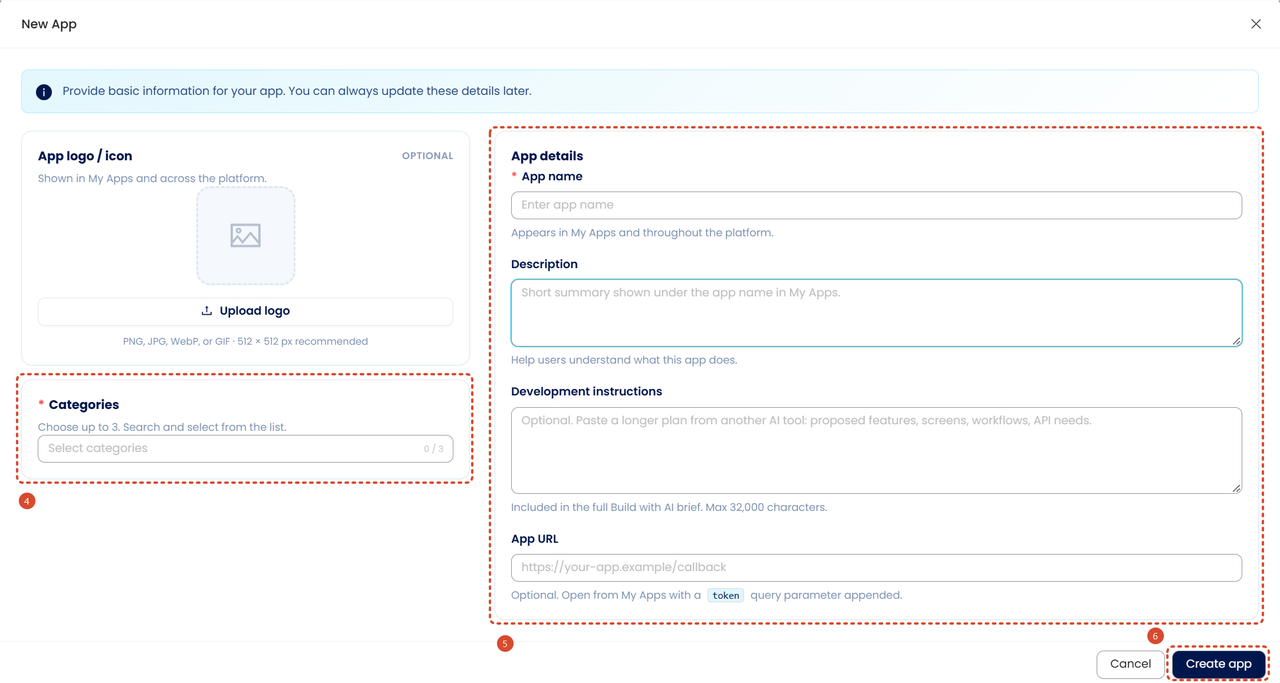
- Go to AI Studio > AI App Builder and create a New App.
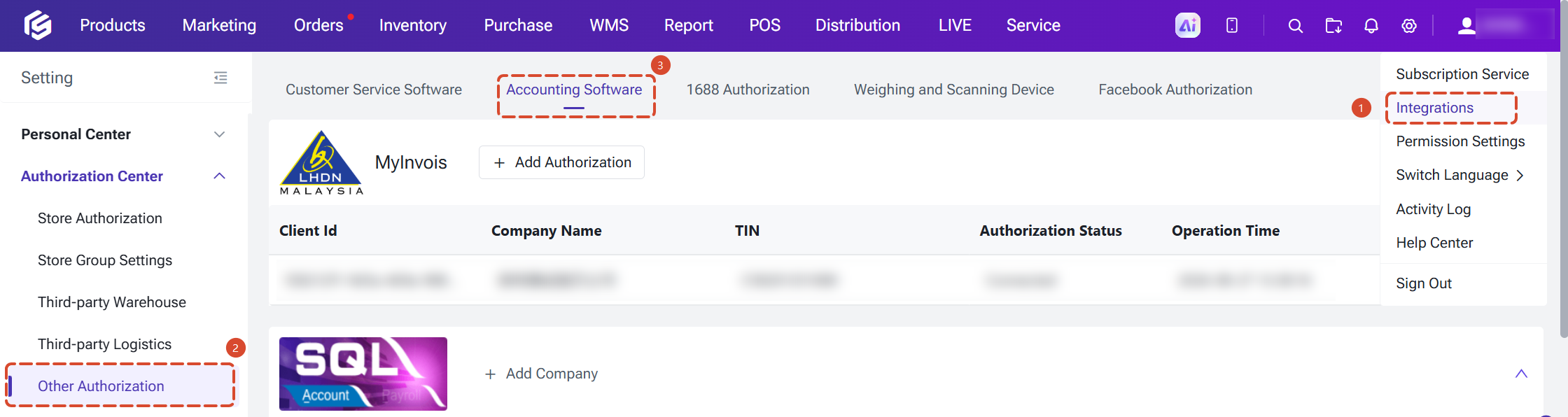
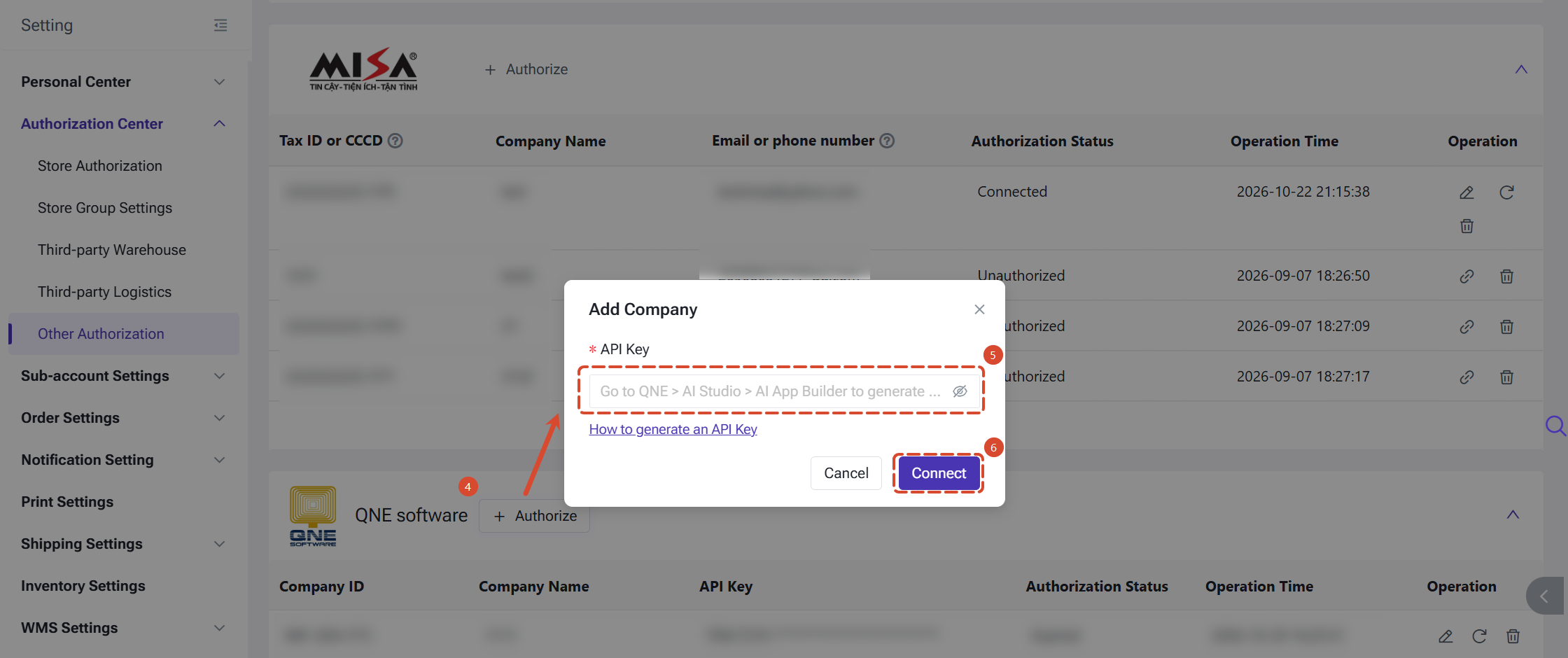
- Go to Integrations > Other Authorization > Accounting Software > QNE, enter the API Key, and authorize the connection.
Important Notes
-
Token Validity: Tokens are valid for 24 hours and refresh automatically every 23 hours.
-
Refresh Failures: The system retries up to five times. If all attempts fail, the authorization status changes to Expired.
- QNE Inactivity: If you do not log in to QNE for more than 30 days, the authorization status will change to Expired 24 hours after the system refreshes the token. You will then need to authorize QNE again.
FAQs
Q1: What does "Invalid API Key" mean when I authorize it?
It usually means the API Key was copied incorrectly. You can check that you've pasted the full API Key without extra spaces. If you're still not sure, you can generate a new one in QNE and try again.
Q2: My authorization shows "Expired." What can I do?
This usually happens when automatic refreshes fail several times in a row, or when you haven't logged in for more than 30 days. You can click the refresh button in your authorization list to try again. If it still doesn't work, you can generate a new API Key in QNE and edit your authorization.
Q3: I forgot to save my API Key. What should I do?
QNE only shows the API Key once, so you'll need to generate a new one in QNE. After that, you can edit your authorization in BigSeller and enter the new Key.
It usually means the API Key was copied incorrectly. You can check that you've pasted the full API Key without extra spaces. If you're still not sure, you can generate a new one in QNE and try again.
Q2: My authorization shows "Expired." What can I do?
This usually happens when automatic refreshes fail several times in a row, or when you haven't logged in for more than 30 days. You can click the refresh button in your authorization list to try again. If it still doesn't work, you can generate a new API Key in QNE and edit your authorization.
Q3: I forgot to save my API Key. What should I do?
QNE only shows the API Key once, so you'll need to generate a new one in QNE. After that, you can edit your authorization in BigSeller and enter the new Key.
Is this content helpful?
Thank you for your feedback. It drives us to provide better service.
Please contact us if the document can't answer your questions