How to Export Data from Other ERP Systems
Update Time: 12 Nov 2026 09:32
Malaysia ERP Platform
1. SiteGiant ERP
Step 1: Export Product Data
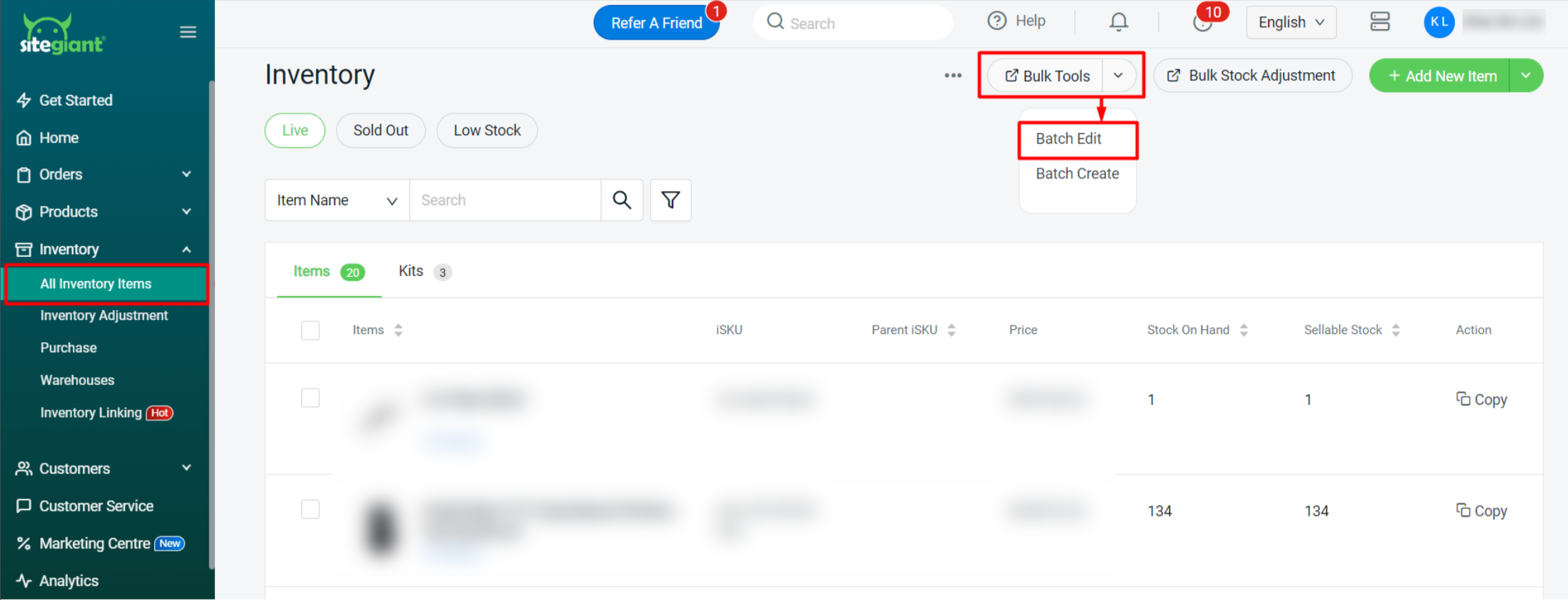
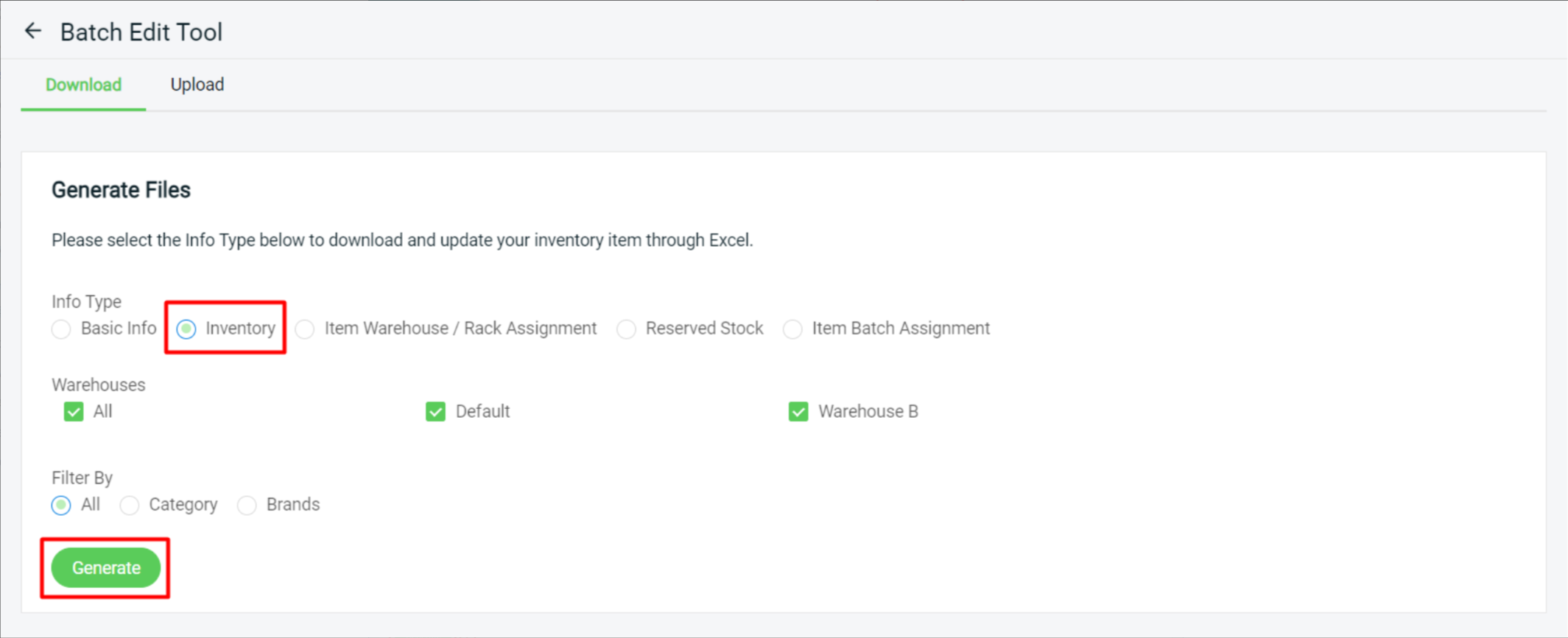
Single SKU & Combination SKU: SiteGiant Home Page > Inventory > All Inventory Items > Bulk Tools > Batch Edit > Select Inventory and click Generate
Step 2: Export Shelf Data
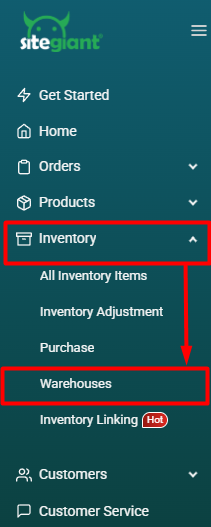
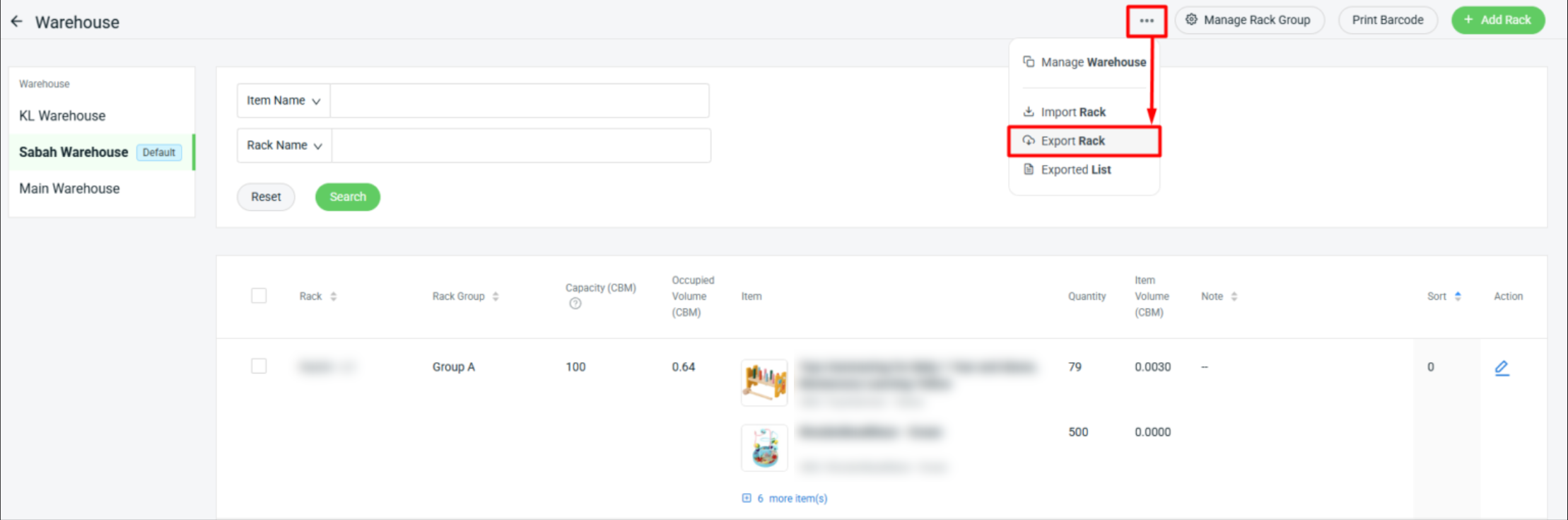
Go to: SiteGiant Home Page > Inventory > Warehouse > Select your warehouse and export
Indonesia ERP Platforms
1. Desty ERP
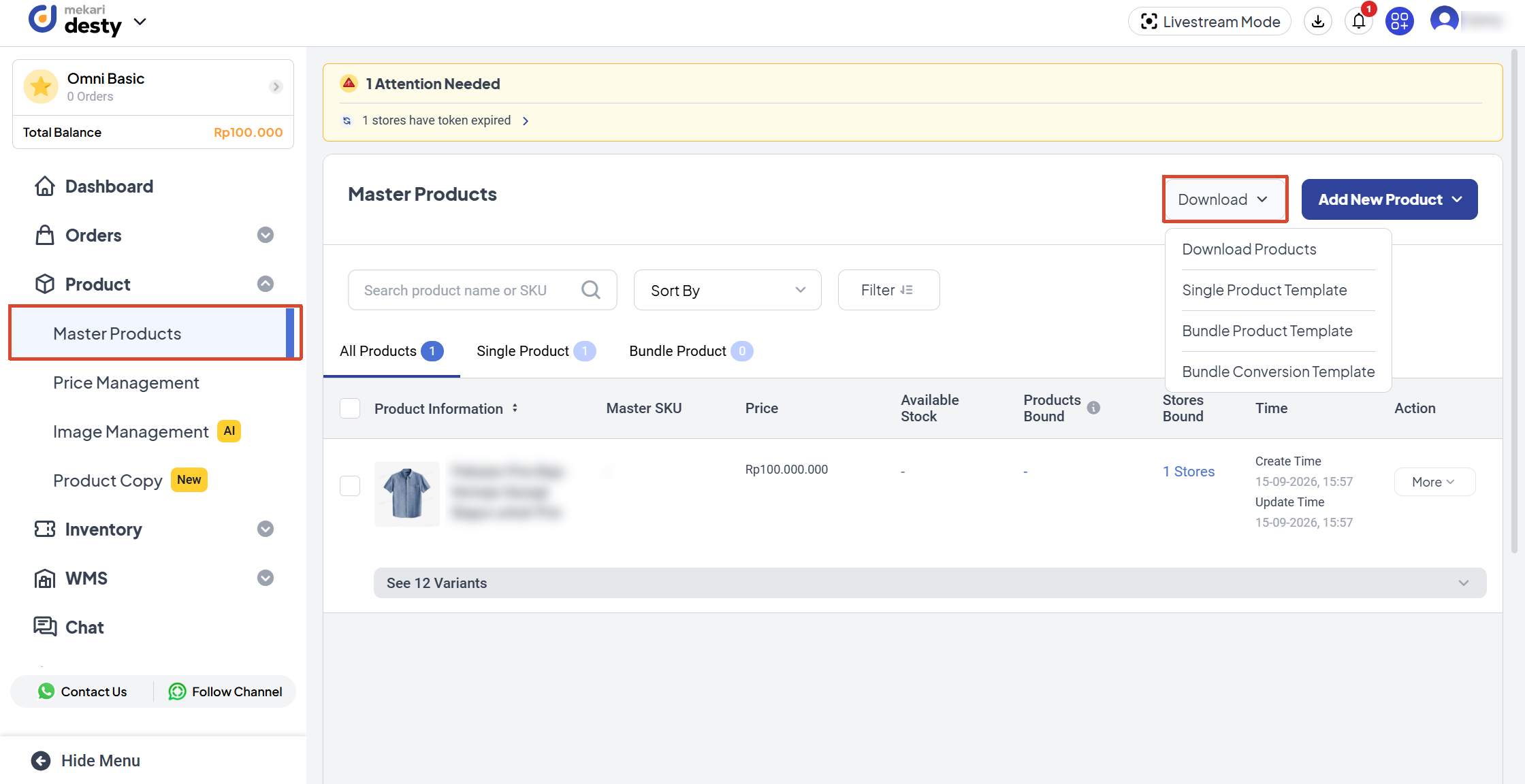
Single SKU: Desty Home Page > Product > Master Products > Download
Step 2: Export Shelf Data
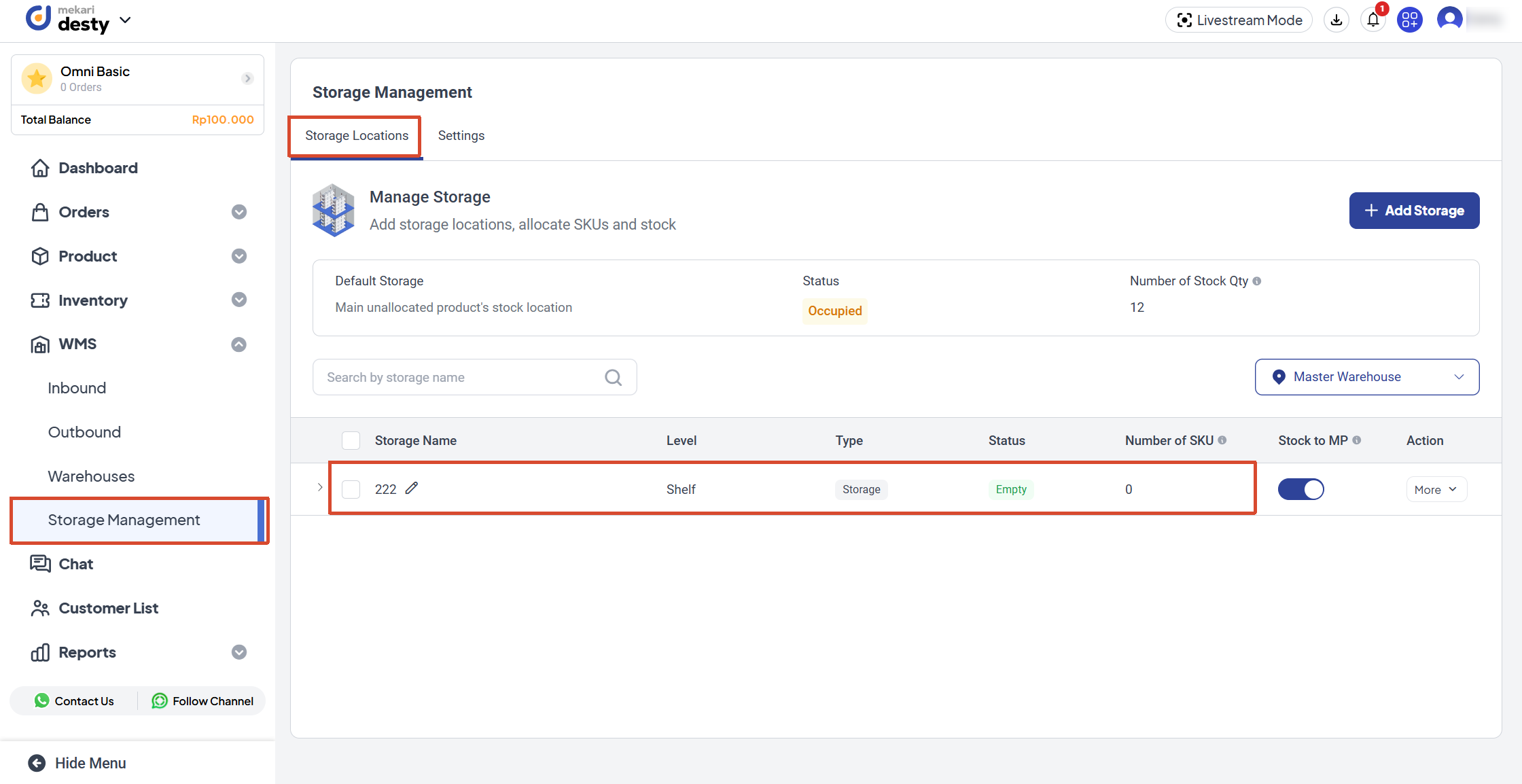
Go to: Desty Home Page > WMS > Storage Management > Storage Locations > Copy Column Information
Please note:
- This feature is only supported by One SKU One Shelf.
- Imports for One SKU Multiple Shelves will fail due to the lack of shelf location type mapping.
Step 3: Export Stock Data
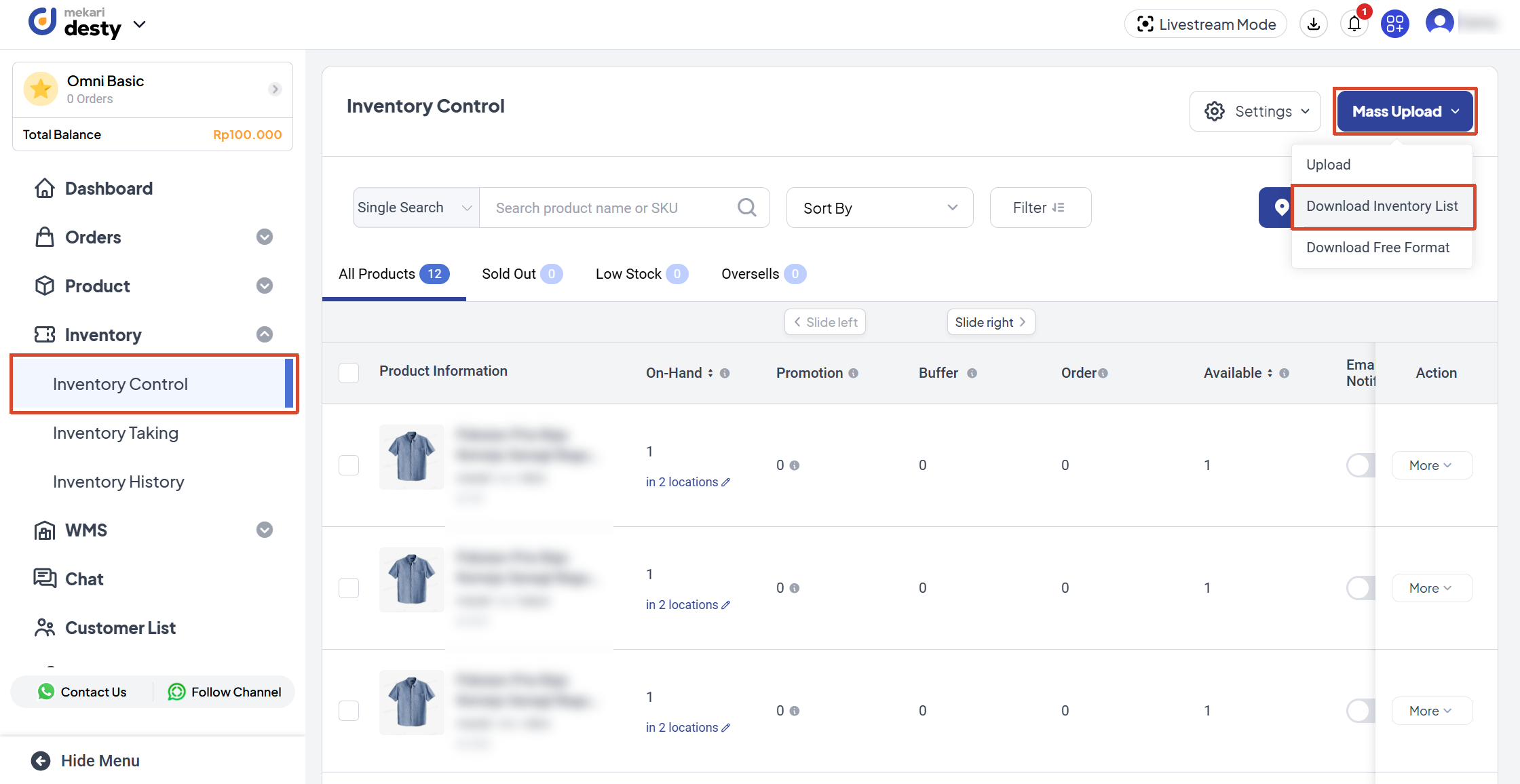
Go to: Desty Home Page > Inventory > Inventory Control > Mass Upload > Download Inventory List
2. Ginee ERP
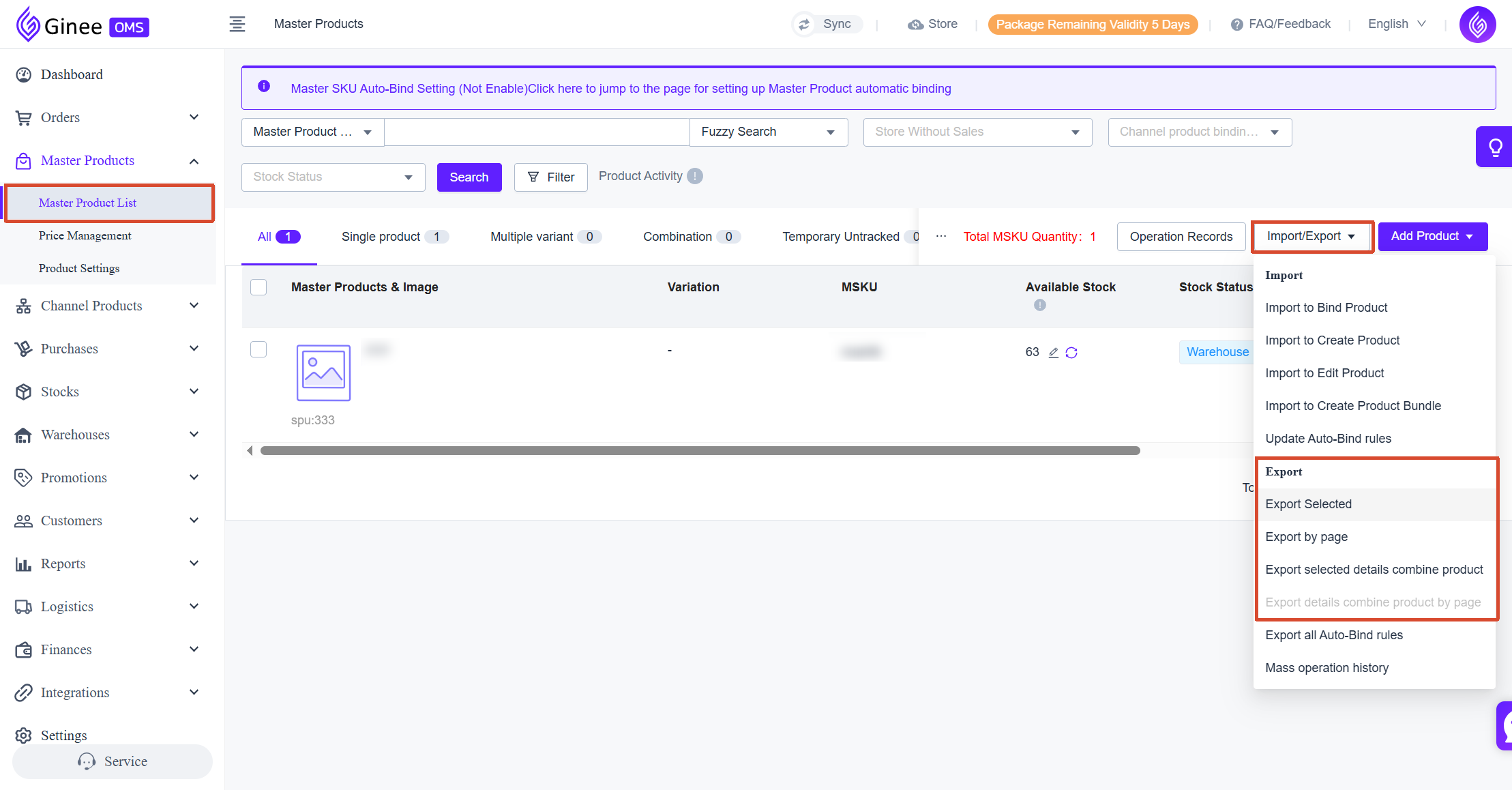
Single SKU: Ginee Home Page > Master Products > Master Product List > Import/Export > Export
Step 2: Export Shelf Data
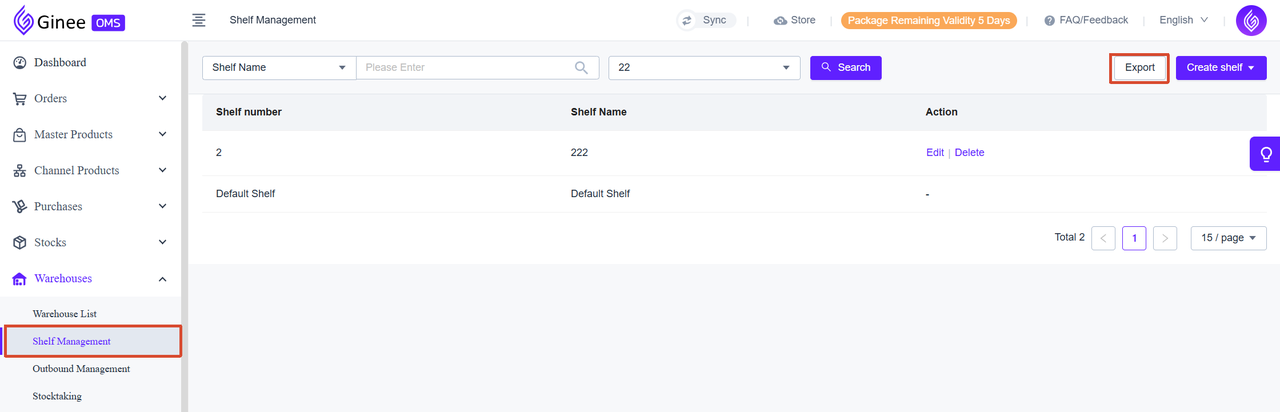
Go to: Ginee Home Page > Warehouses > Shelf Management > Export
After exporting the shelf location information, you need to manually add a column named Area to the spreadsheet. You can copy the area information from BigSeller and paste it into the new column.
Please note:
- This feature is only supported by One SKU One Shelf.
- Imports for One SKU Multiple Shelves will fail due to the lack of shelf location type mapping.

Step 3: Export Stock Data
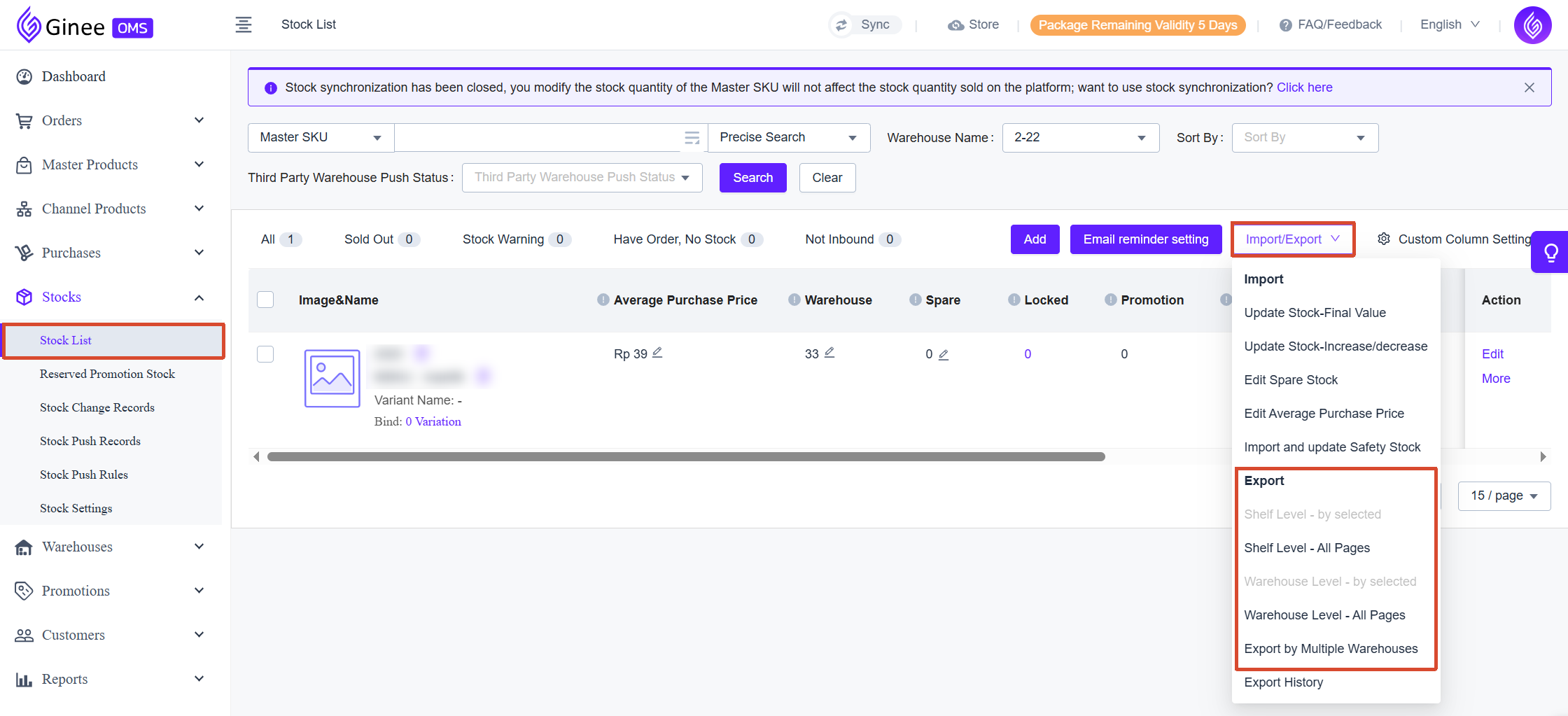
Go to: Ginee Home Page > Stocks > Stock List > Import/Export > Export
3. Jubelio ERP
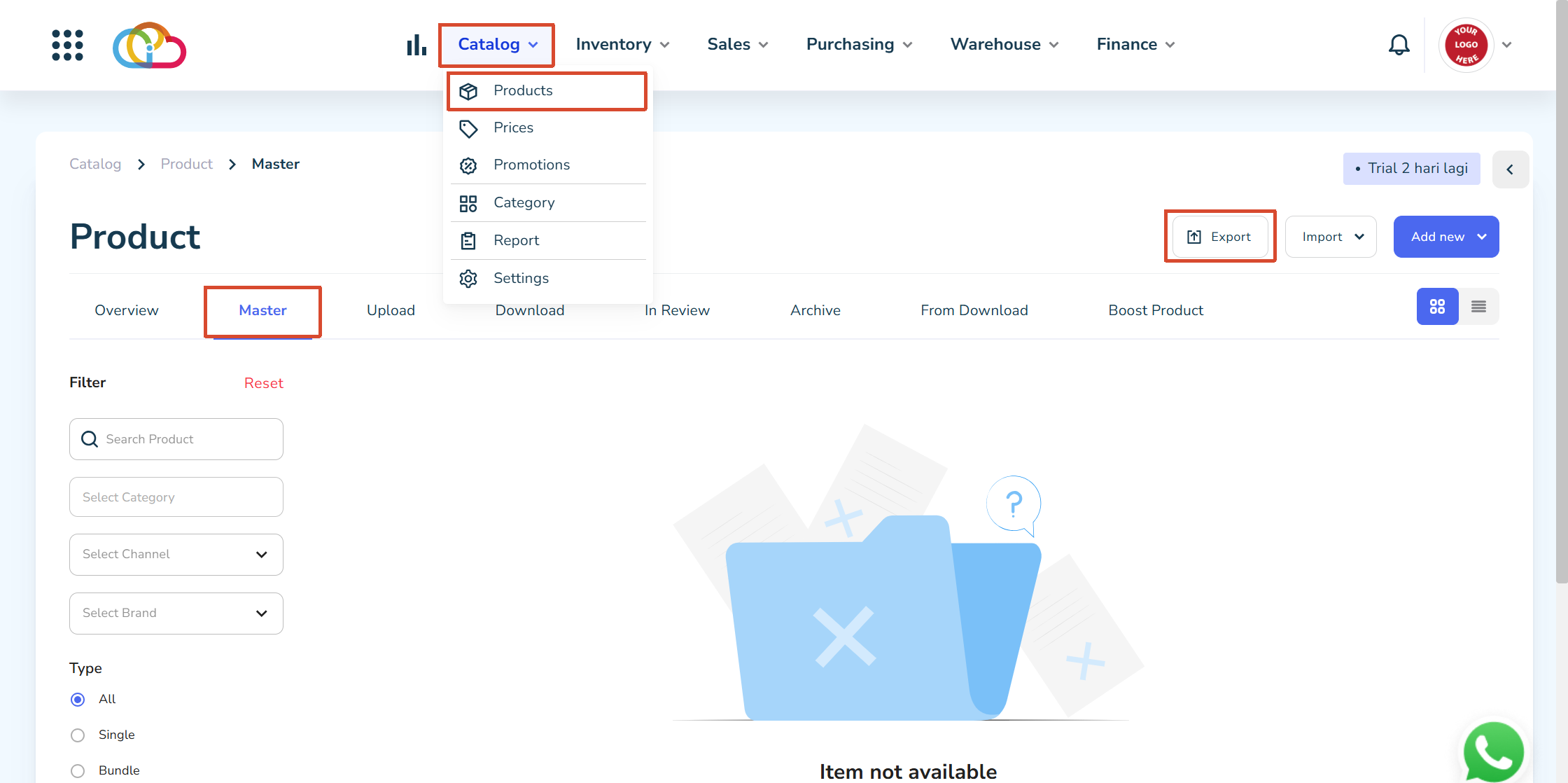
Single SKU: Jubelio Home Page > Catalog > Products > Master > Export
Thailand ERP Platforms
1. JST ERP
Step 1: Export Product Data
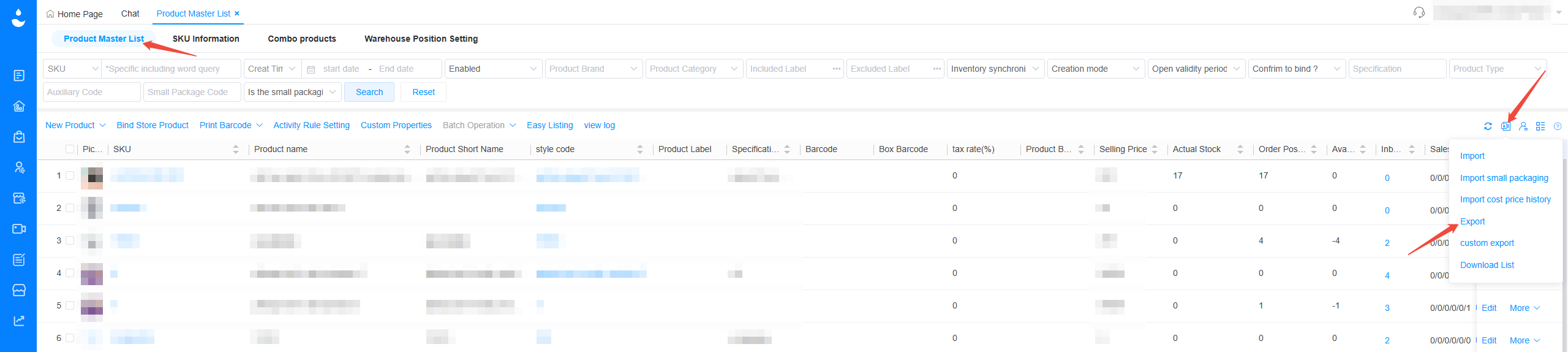
Single SKU: JST Home Page > Product Master List > Export
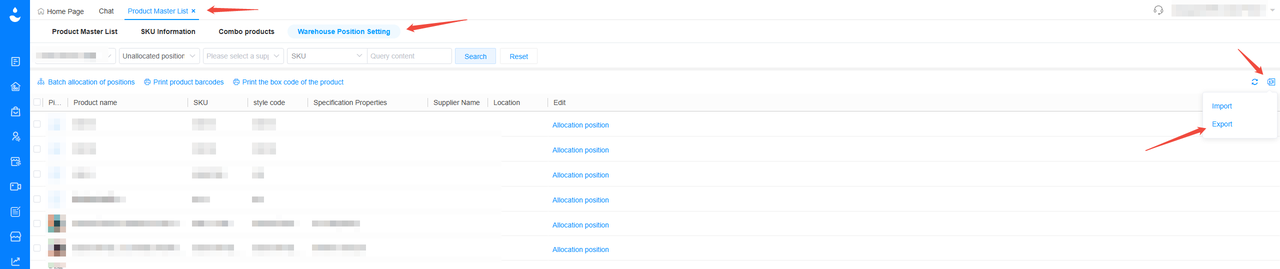
Step 2: Export Shelf Data
Go to: JST Home Page > Product Master List > Warehouse Position Setting > Export
After exporting the shelf location information, you need to manually add a column named Area to the spreadsheet. You can copy the area information from BigSeller and paste it into the new column.
Please note:
- This feature is only supported by One SKU One Shelf.
- Imports for One SKU Multiple Shelves will fail due to the lack of shelf location type mapping.
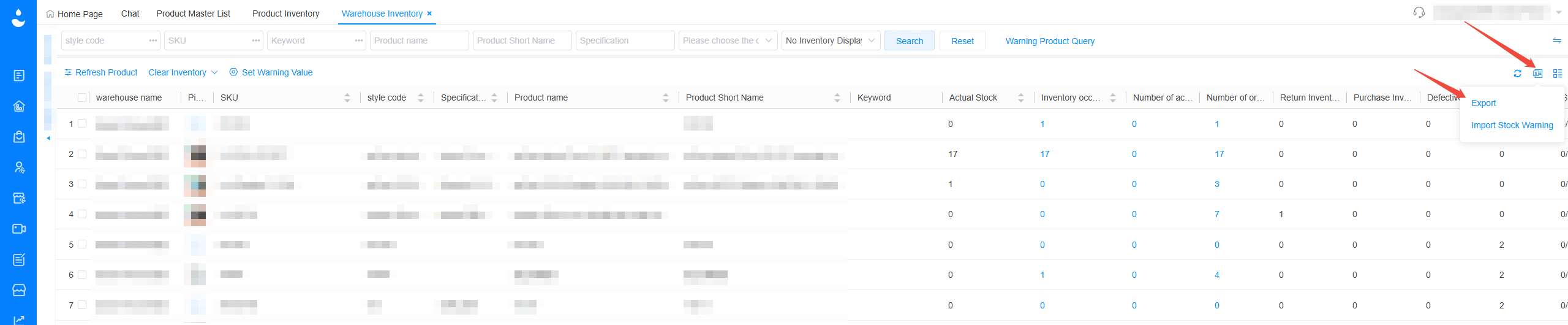
Step 3: Export Stock Data
Go to: JST Home Page > Warehouse Inventory > Export
Please check whether SKU Cost Itemized Records (Cost Breakdown) is enabled in BigSeller:
1. If enabled: Users can select the cost details from JST and map them to the corresponding cost in BigSeller.
2. If disabled: Direct import is not supported.
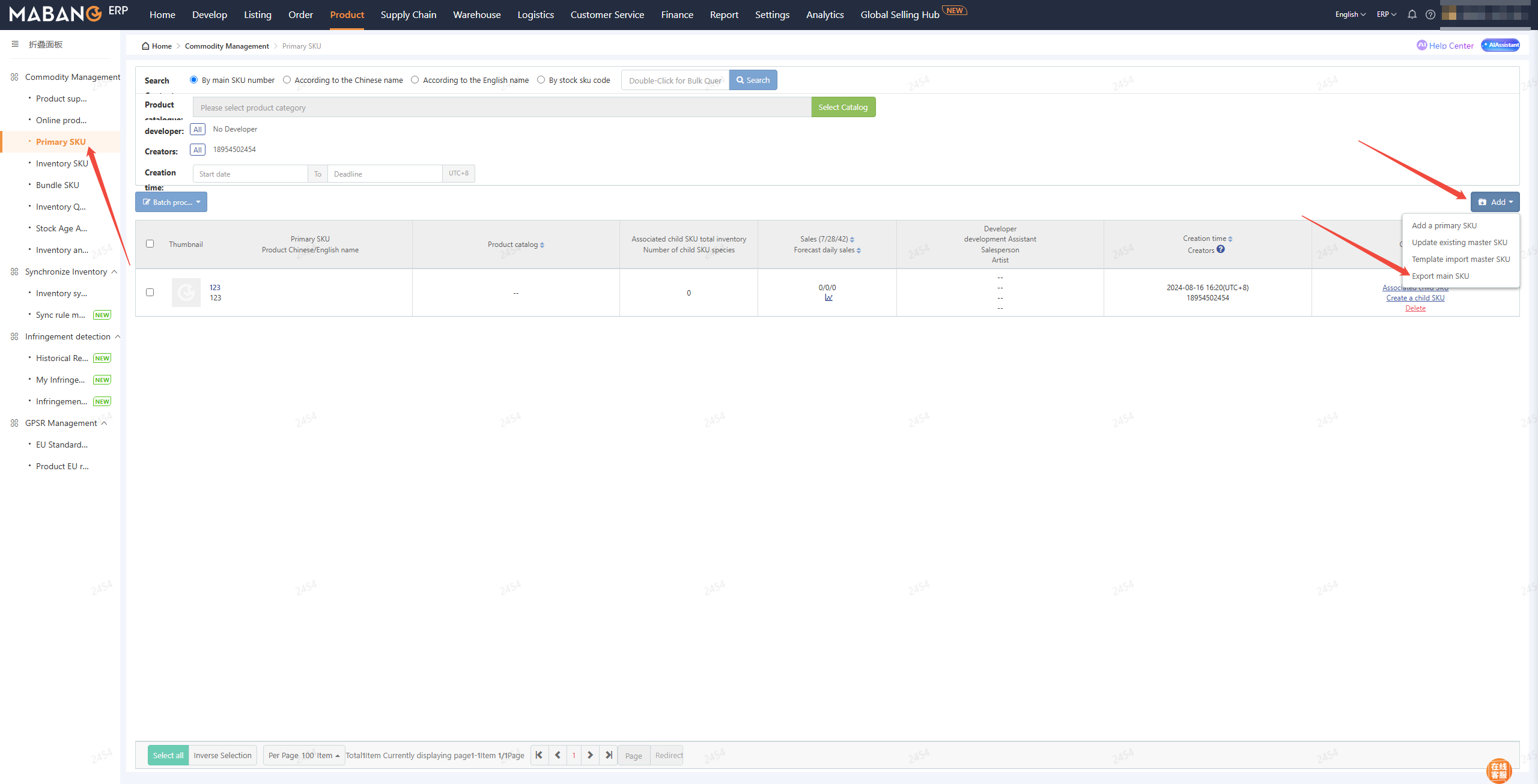
2. 马帮 ERP (Mabang)
Single Data: Mabang Home Page > Product > Primary SKU > Add > Export main SKU
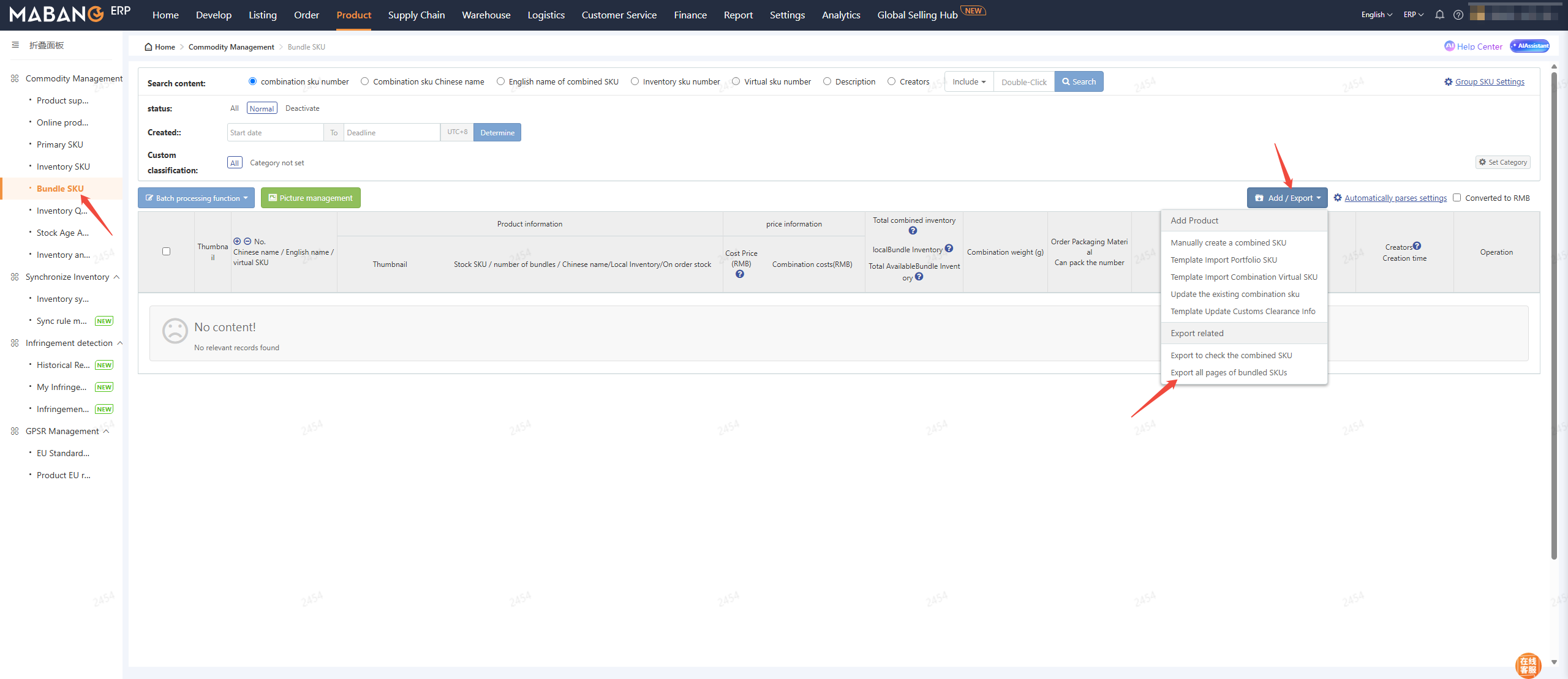
Combination SKU: Mabang Home Page > Product > Bundle SKU > Add/Export > Export all pages of bundled SKUs
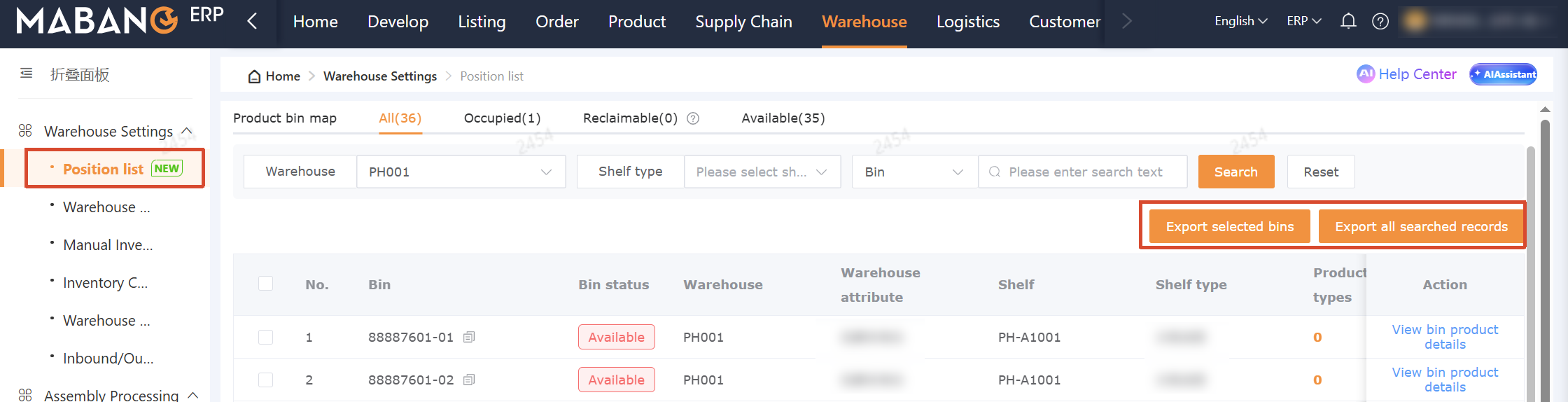
Step 2: Export Shelf Data
Go to: Mabang Home Page > Warehouse > Warehouse Settings > Position List > Export
Please note:
- This feature is only supported by One SKU One Shelf.
- Imports for One SKU Multiple Shelves will fail due to the lack of shelf location type mapping.
3. 妙手 ERP
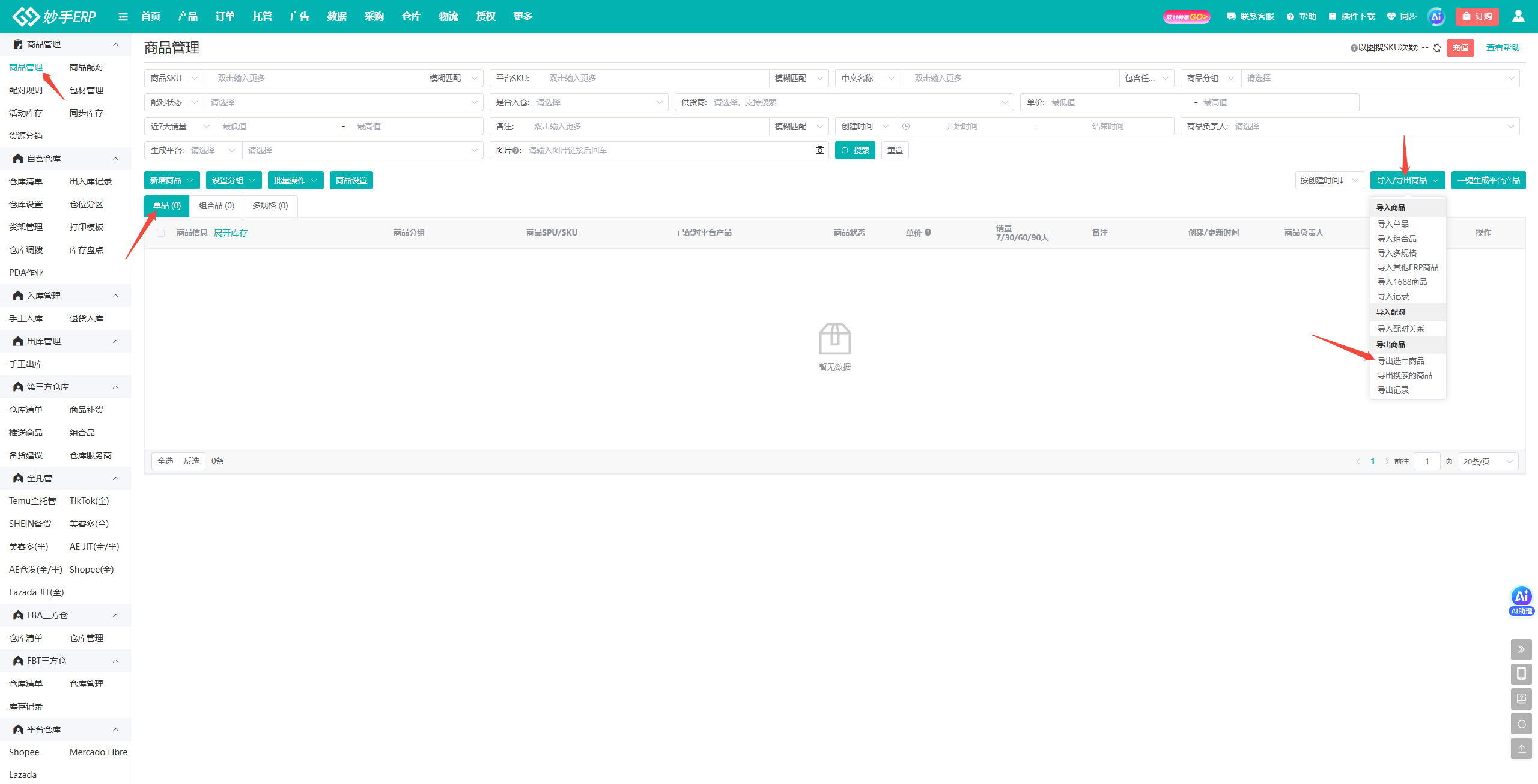
Single SKU: 妙手 ERP 页面 > 商品管理 > 单品 > 导入/导出商品 > 导出选中商品
Please note:
- BigSeller supports only one warehouse per import.
- If multiple warehouses appear in the same cell in the exported product data, you need to manually remove the extra warehouses.
- If no warehouse is selected, the weighted cost cannot be imported and must be added late.
Step 2: Export Shelf Data
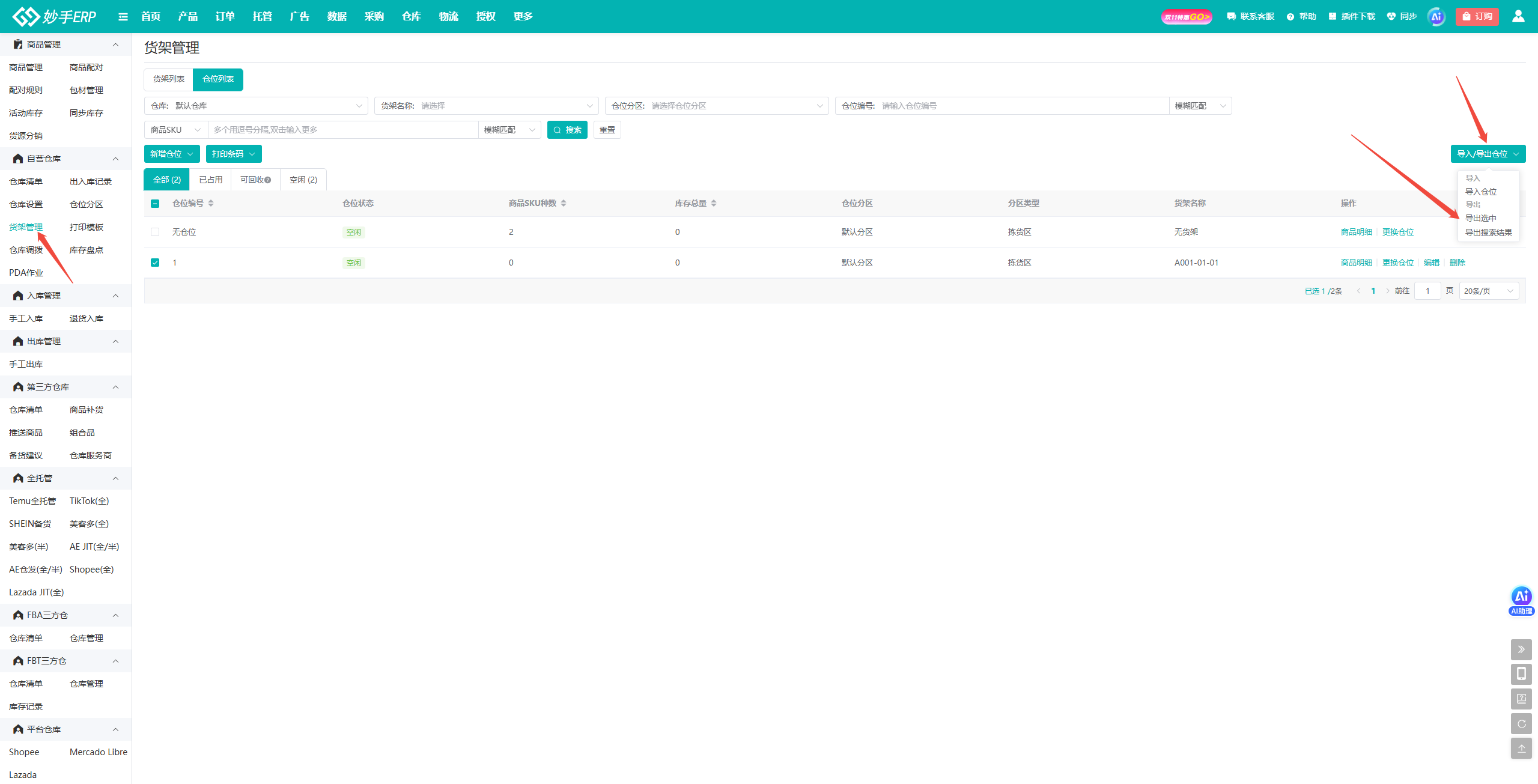
Go to: 妙手 ERP 页面 > Depot > Product location > Product location > Operation > Export data
Please note:
- This feature is only supported by One SKU One Shelf.
- Imports for One SKU Multiple Shelves will fail due to the lack of shelf location type mapping.
Vietnam ERP Platforms
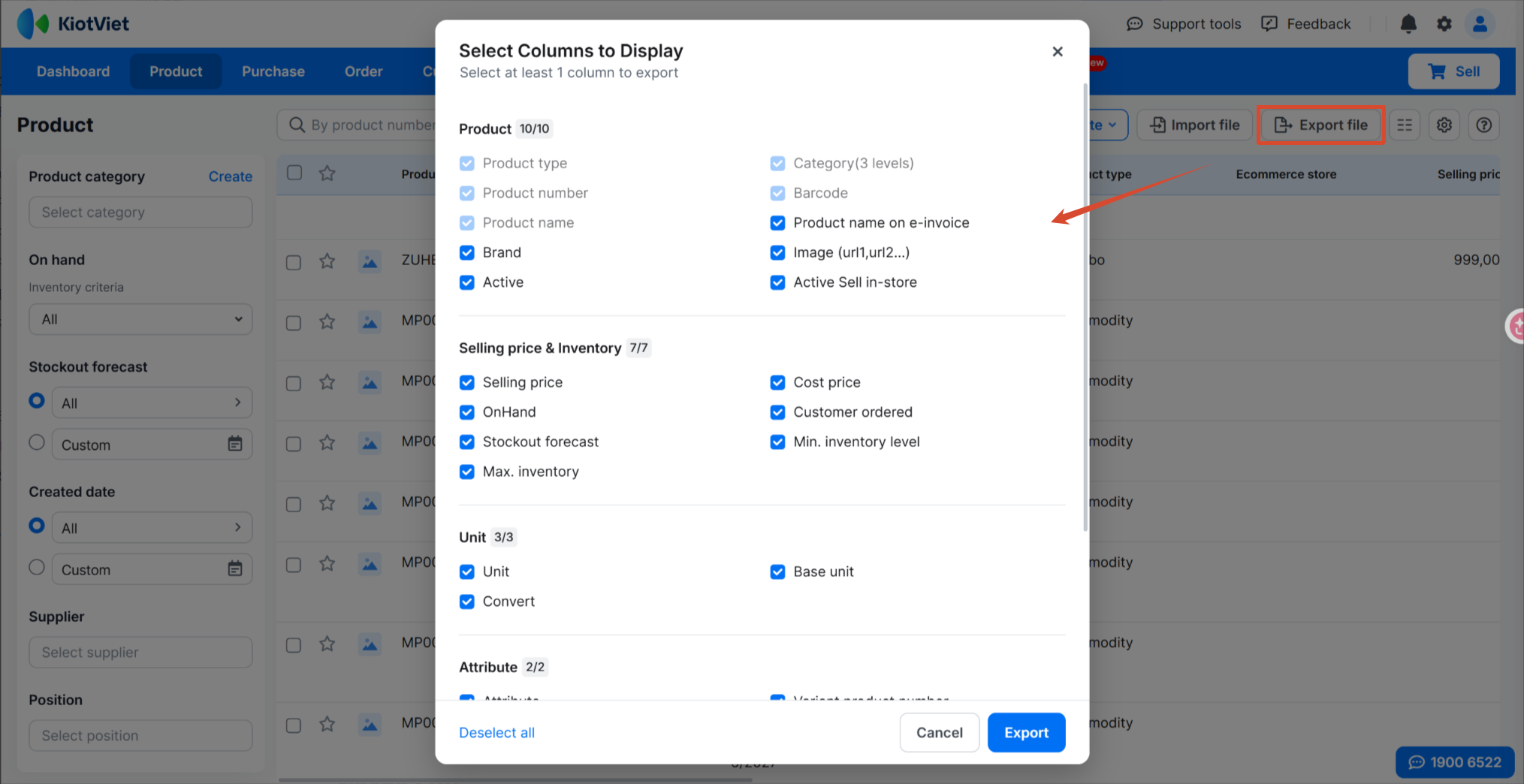
1. Kiotviet ERP
Single SKU: Kiotviet Home Page > Product > Export file
2. Nhanh ERP
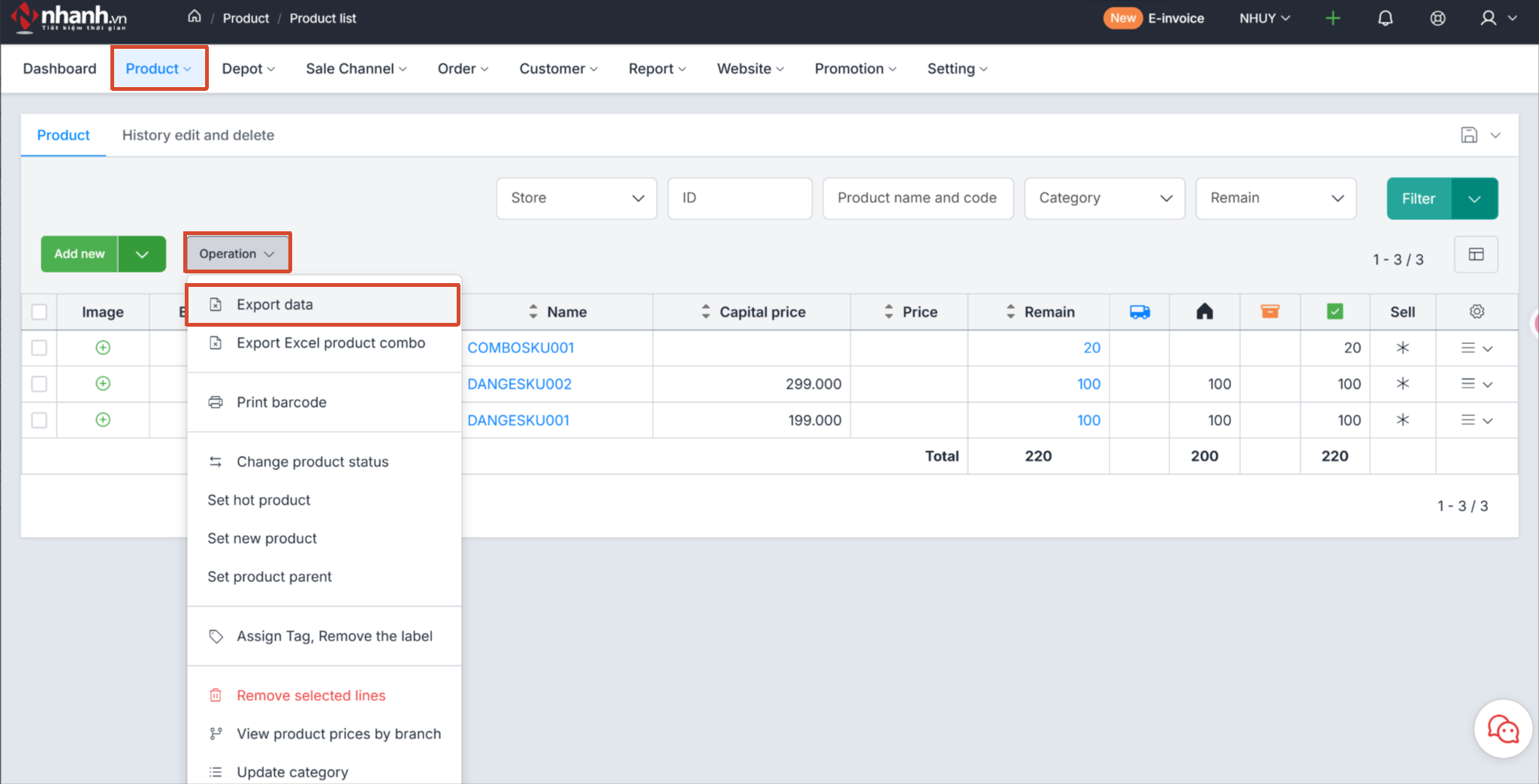
Single SKU: Nhanh Home Page > Product > Operation > Export data
Step 2: Export Shelf Data
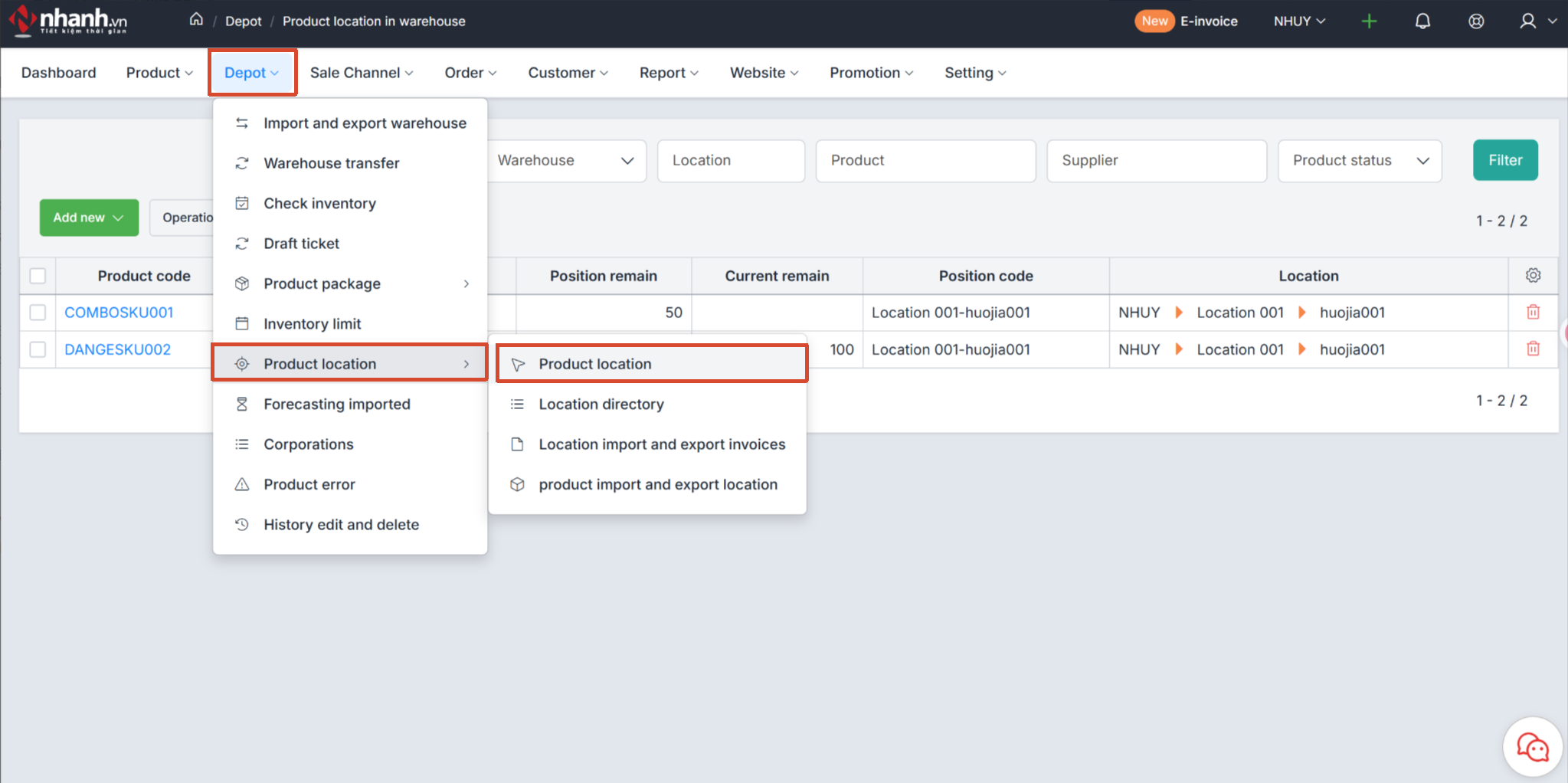
Go to: Nhanh Home Page > Depot > Product location > Product location > Operation > Export data
After exporting the shelf location information, you need to manually add a column named Area to the spreadsheet. You can copy the area information from BigSeller and paste it into the new column.
Please note:
- This feature is only supported by One SKU One Shelf.
- Imports for One SKU Multiple Shelves will fail due to the lack of shelf location type mapping.
3. Salework ERP
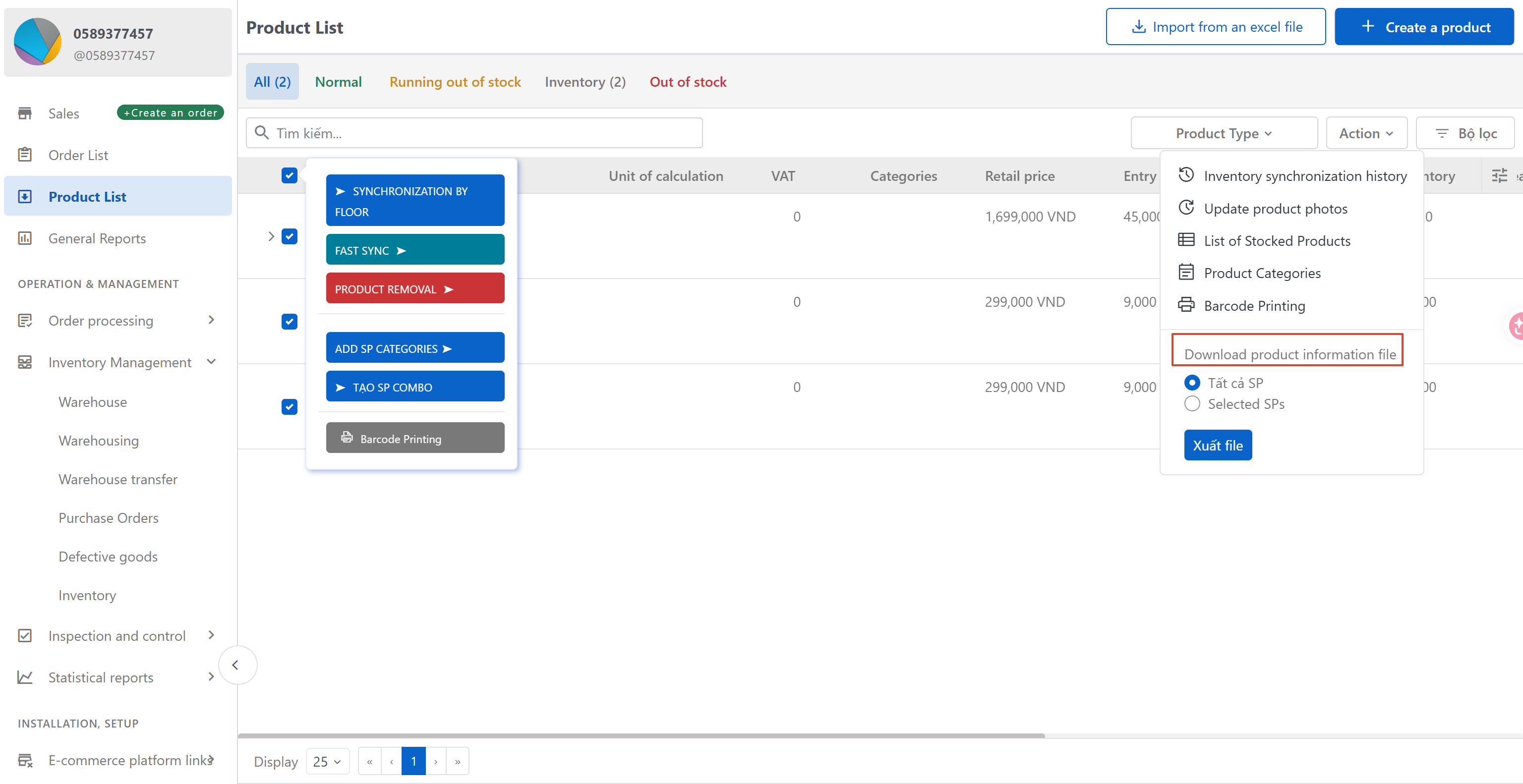
Single SKU: Salework Home Page > Product List > Action > Download product information file
Step 2: Export Shelf Data
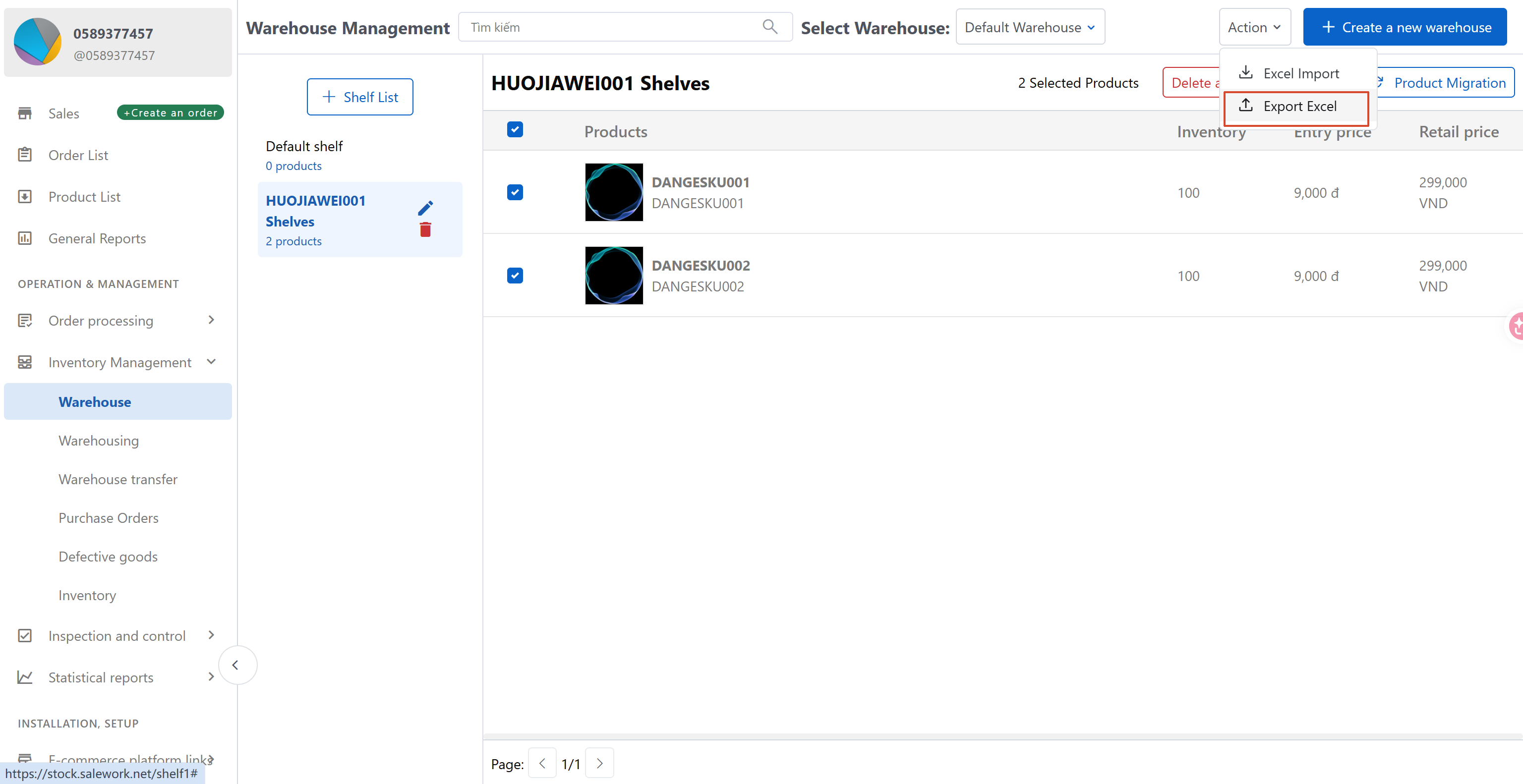
Go to: Salework Home Page > Inventory Management > Warehouse > Action > Export Excel
After exporting the shelf location information, you need to manually add a column named Area to the spreadsheet. You can copy the area information from BigSeller and paste it into the new column.
Please note:
- This feature is only supported by One SKU One Shelf.
- Imports for One SKU Multiple Shelves will fail due to the lack of shelf location type mapping.
4. Sapo ERP
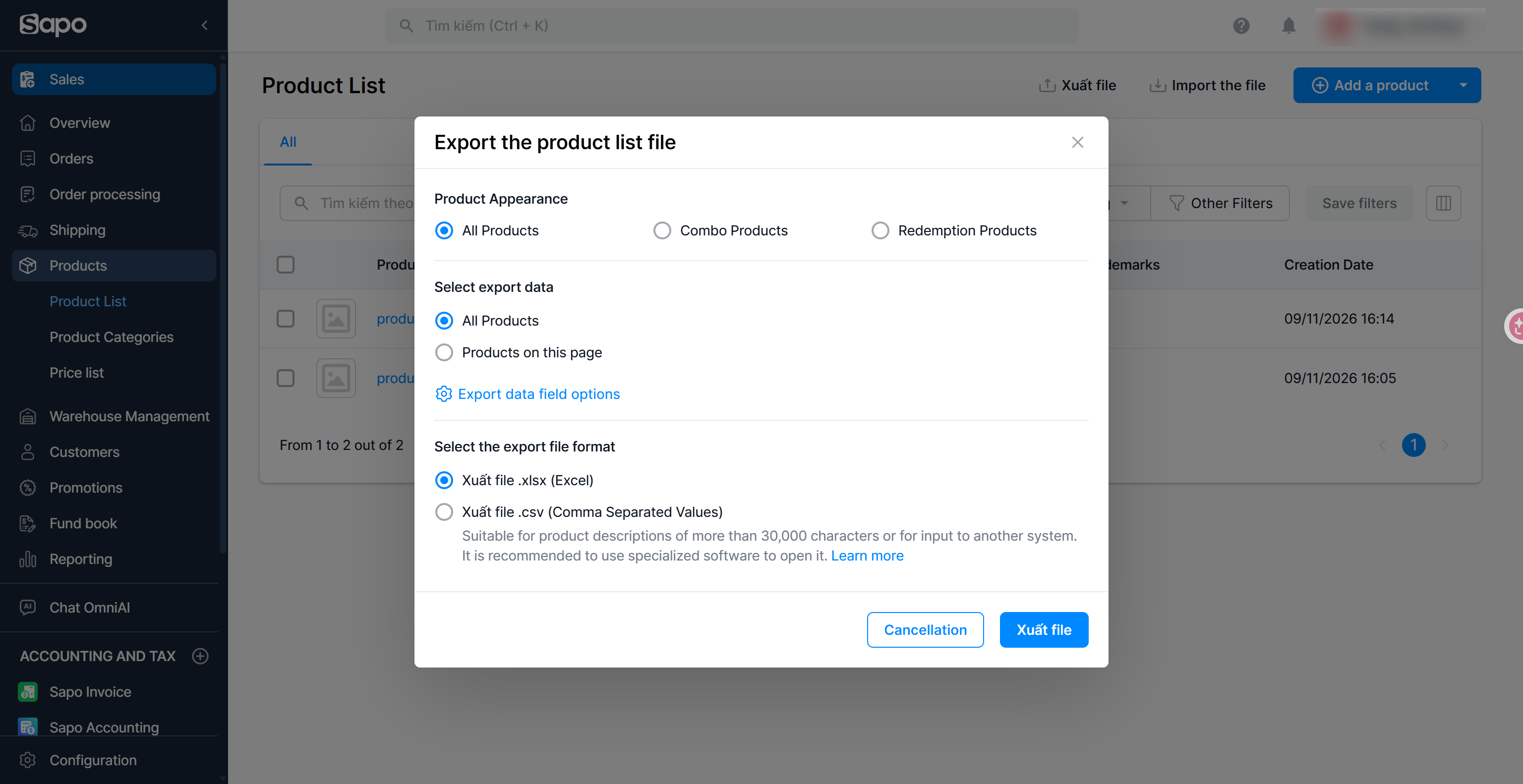
Single SKU: Sapo Home Page > Products > Product List > Export file (Xuất file)
Is this content helpful?
Thank you for your feedback. It drives us to provide better service.
Please contact us if the document can't answer your questions