How to Use ERP Migration
Copy link & title
Update Time: 12 Nov 2026 09:25
With ERP Migration, all you need to do is upload the Excel files exported from your previous ERP. BigSeller will match your fields, check the data, and import everything in bulk for you.
1. Step-by-Step Guide
Step 0: Export your data from your previous ERP
Log in to the ERP you used before and export the data you'd like to move over. Please save the files in Excel format. For detailed instructions, please refer to How to Export.
Step 1: Choose your previous ERP
1. Go to System Settings > ERP Migration.
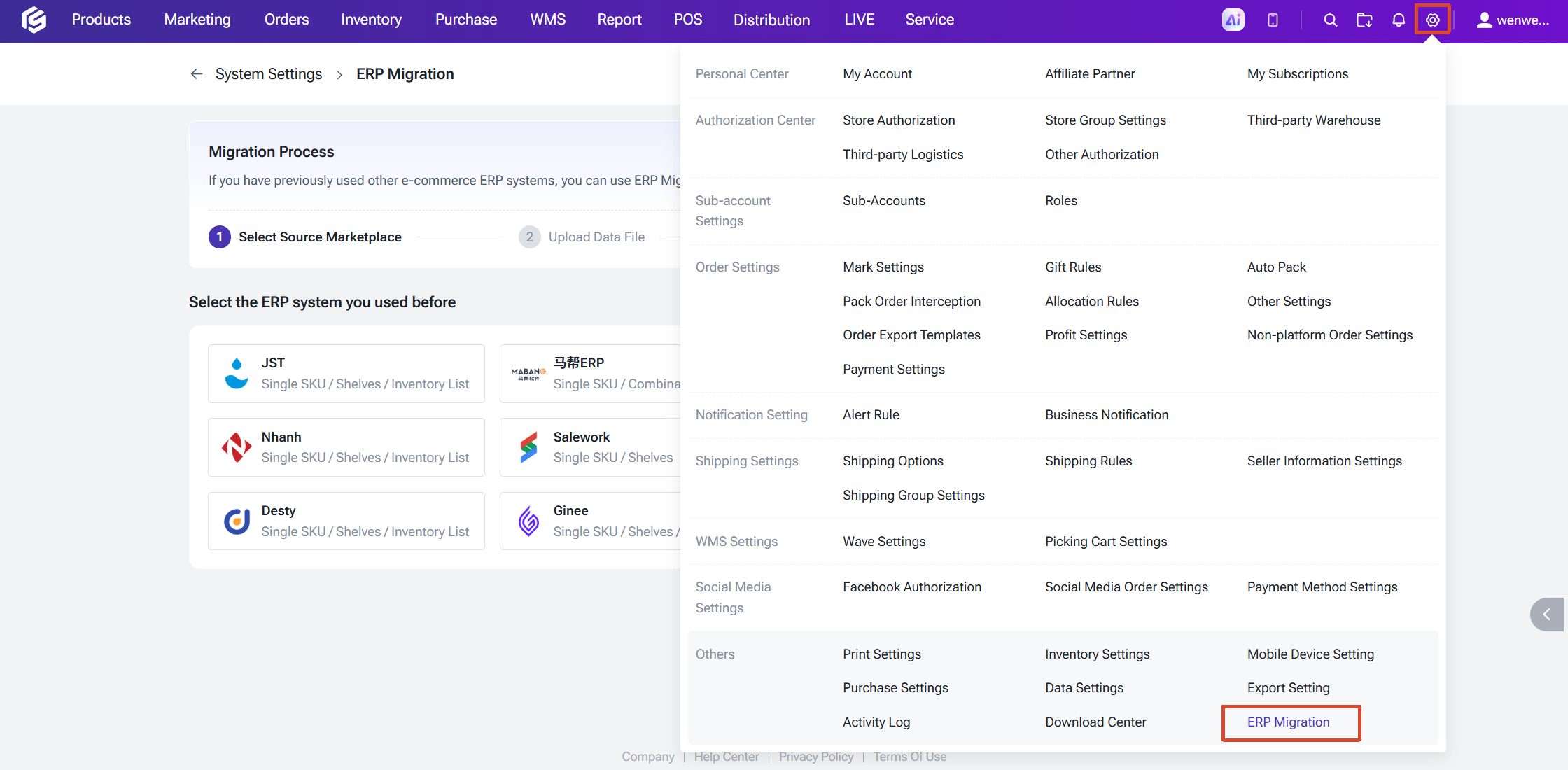
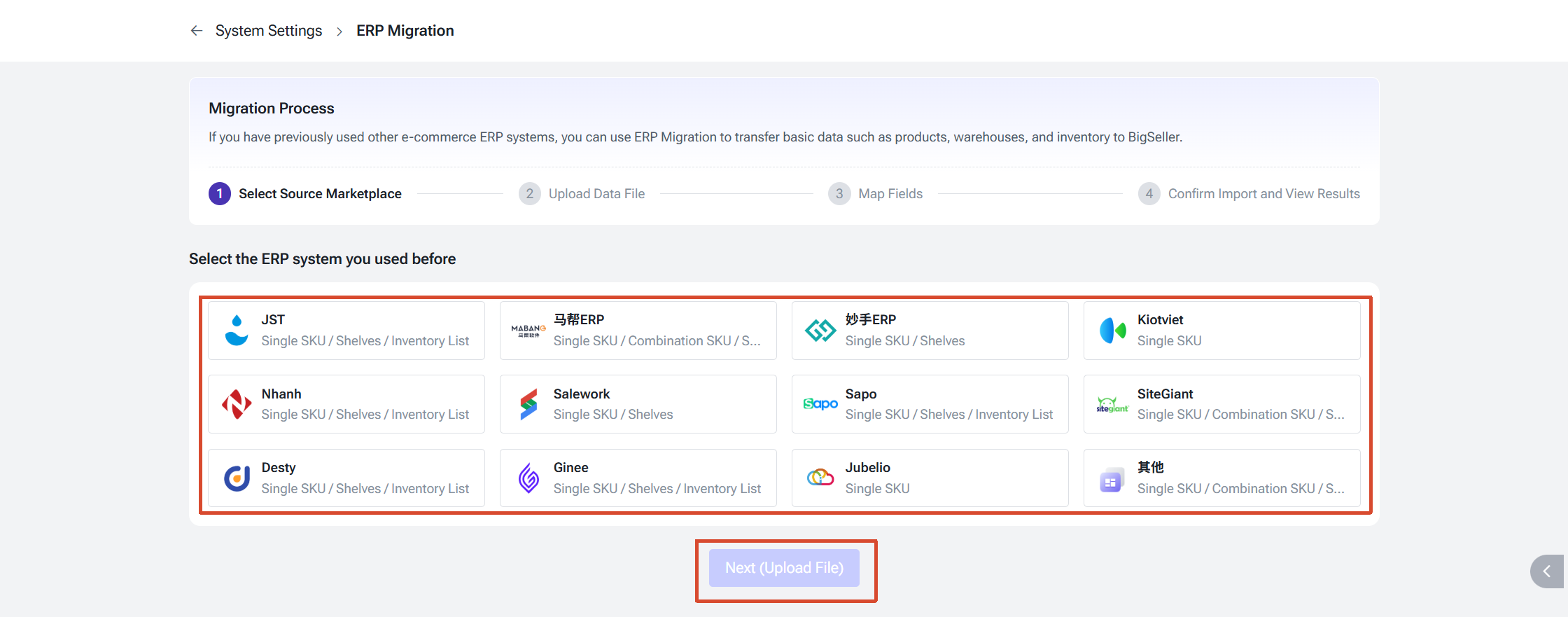
2. Choose the ERP you used before.
3. If you can't find yours in the list, you can choose "Other".
4. Click "Next (Upload File)".
Note: Different ERP supports different types of data for migration.
Step 2: Upload your data file
1. Select the type of data you'd like to migrate (Product, Stock, or Shelf).
2. For stock data and shelf data, you also need to prepare your BigSeller warehouse to ensure a successful match during import.
2. For stock data and shelf data, you also need to prepare your BigSeller warehouse to ensure a successful match during import.
3. Upload the file you exported from your previous ERP.
4. Click "Next (Map Fields)".
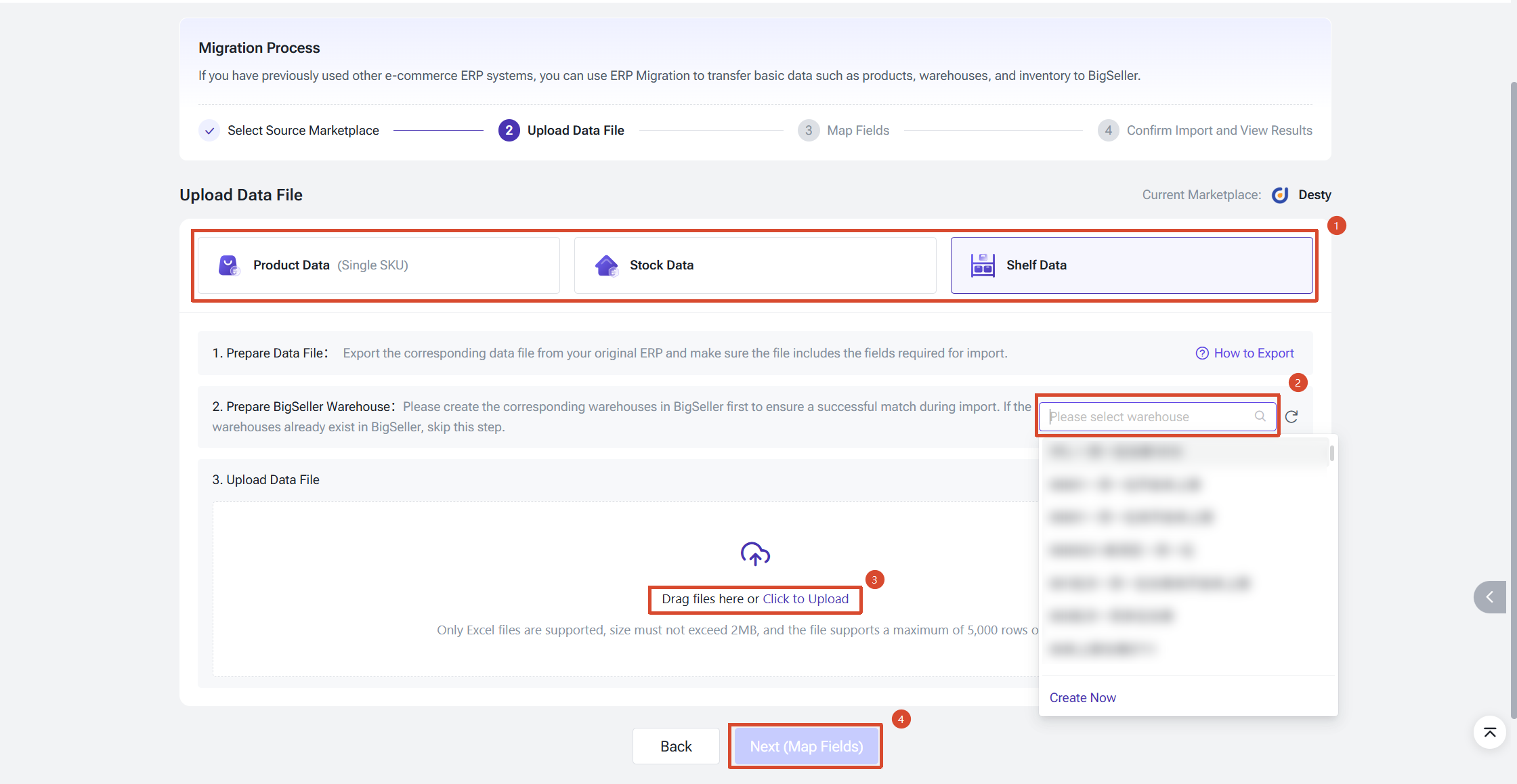
Note: We recommend importing your products first, followed by your shelf locations, and finally your stock. This is also the default order of the steps on the page.
Step 3: Map your fields
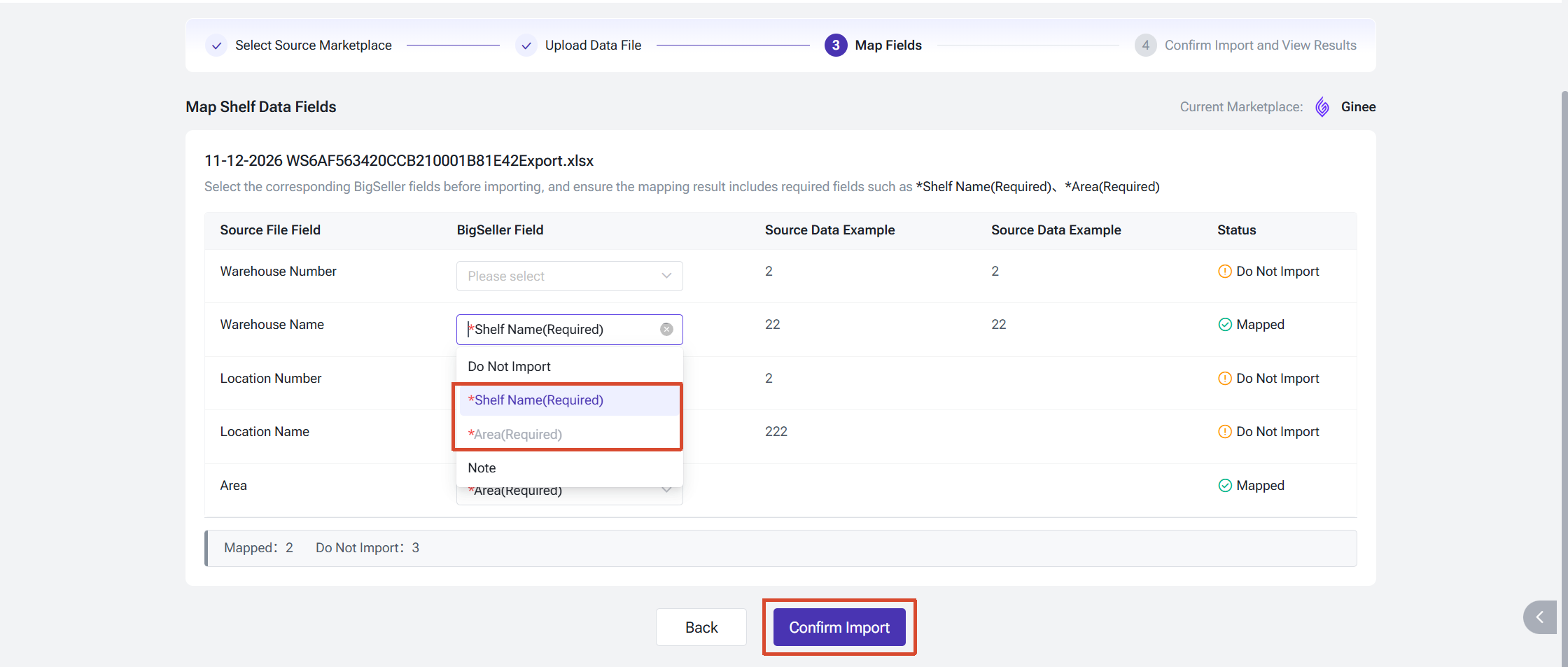
1. Let BigSeller match your fields automatically
Once your file is uploaded, BigSeller will read your column headers and use fuzzy name matching to pair each column with the right BigSeller field for you.
2. Adjust anything that needs fixing
If a column was matched incorrectly, or wasn't matched at all, you can adjust it yourself on top of the automatic results by choosing the BigSeller field it should map to.
3. Confirm your import
Once you have confirmed the field mapping, click "Confirm Import". BigSeller will then parse your file and write the data into your account.
Please note:
4. Review your results
Please note:
- Importing Shelf Data is only supported by One SKU One Shelf.
- Imports for One SKU Multiple Shelves will fail due to the lack of shelf location type mapping.
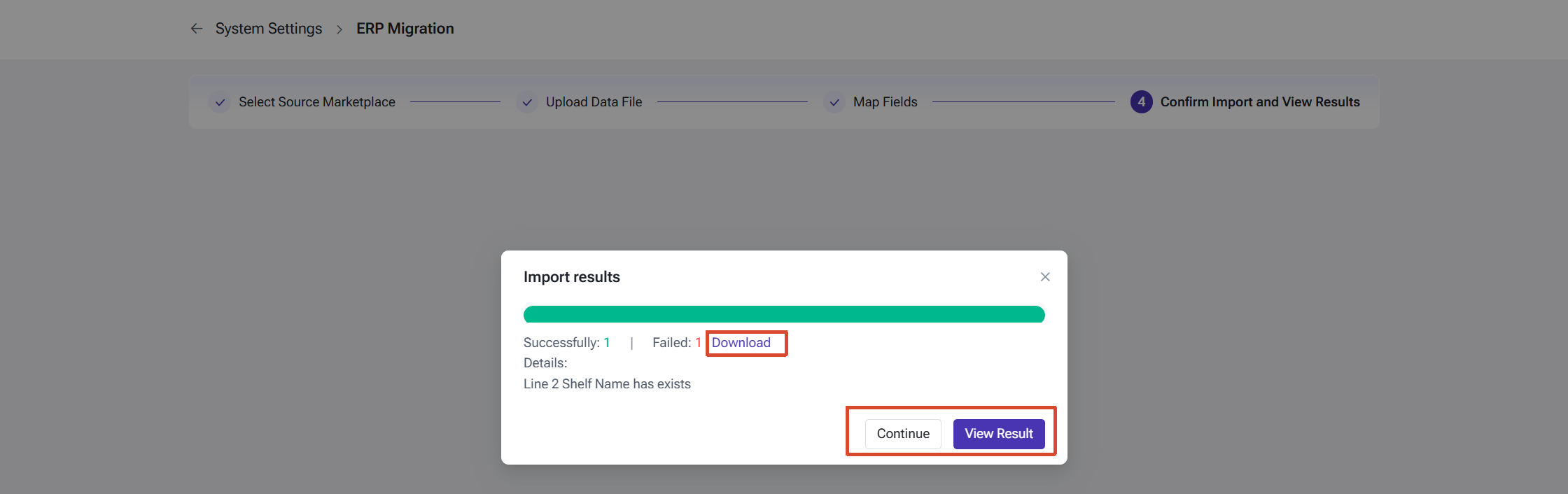
When the import is finished, the page will display the results. If any records fail, you can download the failed data and fix it based on the error reasons provided. You may also click Continue to go on and upload your other data files.
Please note:
Please note:
- Please use tables in Excel format for your import.
- Before importing, we recommend reviewing your field mapping, especially the fields marked as required.
- As long as a required field hasn't been mapped, the "Confirm Import" button will stay disabled.
2. Permissions
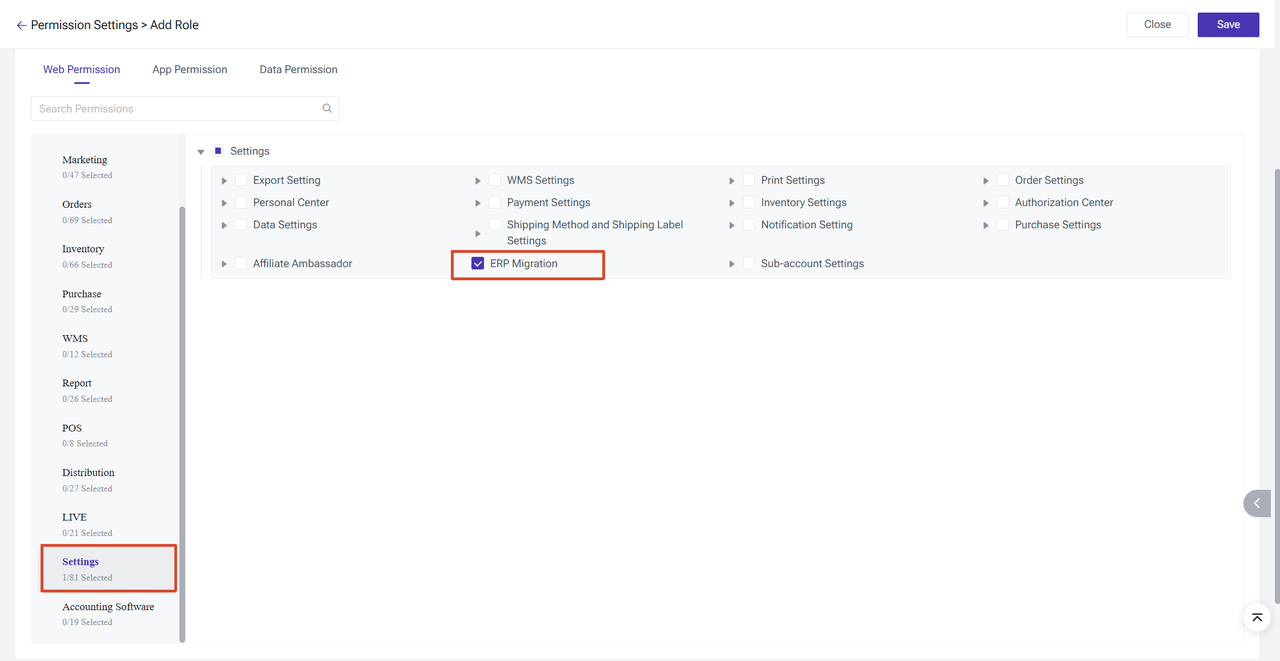
If you'd like a sub-account to use this feature, go to "Permission Settings > Edit Role", find "Settings" under "Web Permissions", tick "ERP Migration", and save your changes.
Note: Once the permissions are updated, the affected sub-accounts will need to log in again before the change takes effect.
Note: Once the permissions are updated, the affected sub-accounts will need to log in again before the change takes effect.
3. FAQs
Q1: Why doesn't my process include the "Import Shelf Data" step?
That's because the ERP you selected doesn't support this type of migration yet. BigSeller will proceed to the next step automatically.
Q2: Why is the "Confirm Import" button grayed out?
This means some required fields haven't been mapped yet. Please check the field mapping page, and once they're all filled in, you'll be able to click the button.
Q3: What should I do if the automatic matching is incorrect?
You can adjust it manually by reassigning the column to the correct BigSeller field.
Q4: What should I do if some of my data failed to import?
The results page will show you how many records failed. We'd suggest checking your original data against the error messages, correcting it, and then importing the failed records again.
That's because the ERP you selected doesn't support this type of migration yet. BigSeller will proceed to the next step automatically.
Q2: Why is the "Confirm Import" button grayed out?
This means some required fields haven't been mapped yet. Please check the field mapping page, and once they're all filled in, you'll be able to click the button.
Q3: What should I do if the automatic matching is incorrect?
You can adjust it manually by reassigning the column to the correct BigSeller field.
Q4: What should I do if some of my data failed to import?
The results page will show you how many records failed. We'd suggest checking your original data against the error messages, correcting it, and then importing the failed records again.
Is this content helpful?
Thank you for your feedback. It drives us to provide better service.
Please contact us if the document can't answer your questions