How to Map Finished Goods to Combination SKUs?
Copy link & title
Update Time: 24 Mar 2026 08:43
BigSeller now supports the Finished Good Mapping feature, which can effectively meet users' inventory management needs for Print-on-Demand (POD) and customized products.
1.What is the Finished Good
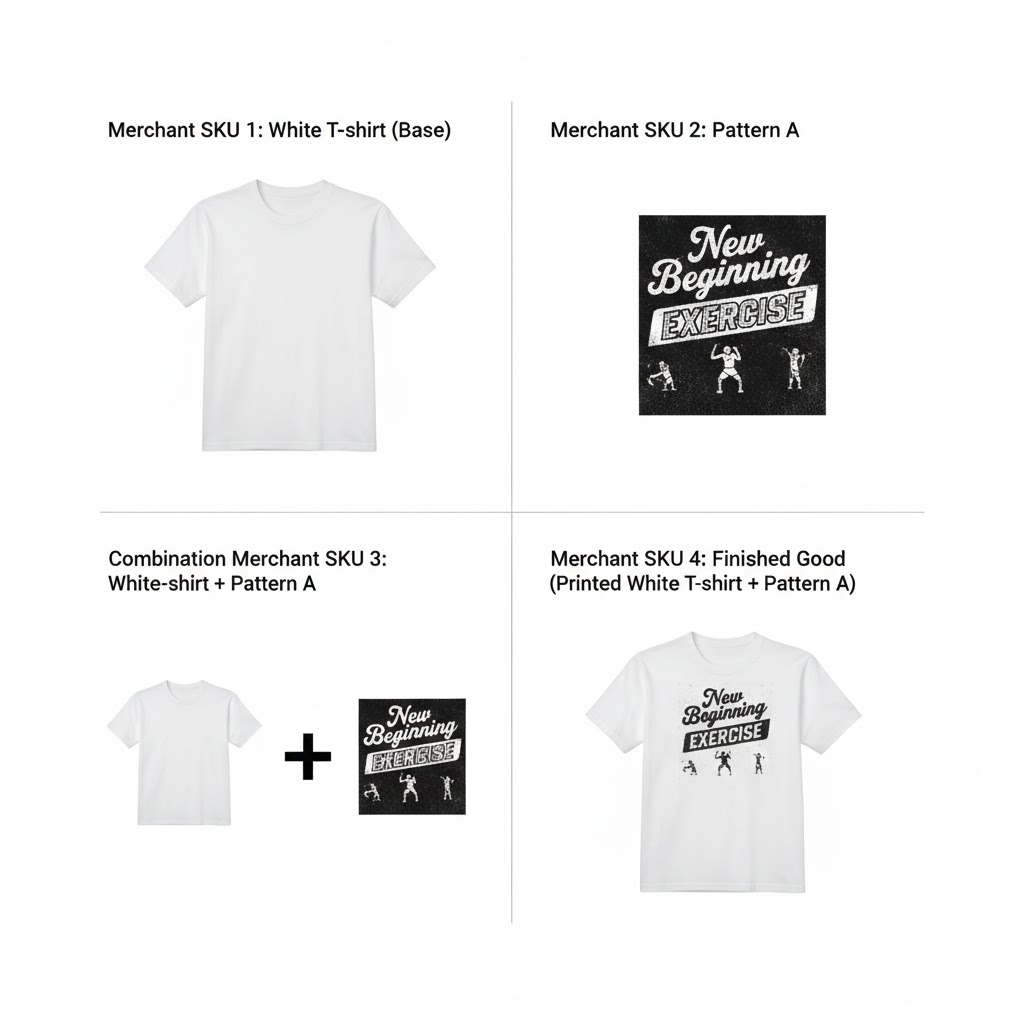
The Finished Good Mapping feature is designed to help you manage customized products like pattern-printed clothes, including base materials (plain shirts), pattern materials, and the final Finished Good.
Please refer to the diagram below to understand the relationship between Raw Materials(Single SKU), Combination SKUs, and Finished Good SKUs.
All these materials are treated as Merchant SKUs held in stock. If you are a seller in the printing industry or sell customized printed products, you will need to use this feature.
Please refer to the diagram below to understand the relationship between Raw Materials(Single SKU), Combination SKUs, and Finished Good SKUs.
All these materials are treated as Merchant SKUs held in stock. If you are a seller in the printing industry or sell customized printed products, you will need to use this feature.
2. How to enable/disable the Finished Good Mapping feature
Finished Good Mapping is currently a whitelist feature.
2.1 How to enable
- You must enable the Inventory Feature first.
- This feature is restricted to Business Plan and above. If a user is downgraded to below Business Plan, this feature will be simultaneously deactivated and no longer supported.
- Contact customer service to assist in opening this feature (manual activation by the user is currently not supported).
2.2 How to disable
- Automatic Disable: Once the Inventory Feature is turned off, the system will immediately stop using the Finished Good Mapping feature.
- Manual Disable: Contact customer service to assist in turning off this feature.
3.How to use the Finished Good Mapping feature
You may set your finished good mapping with the following percedures:
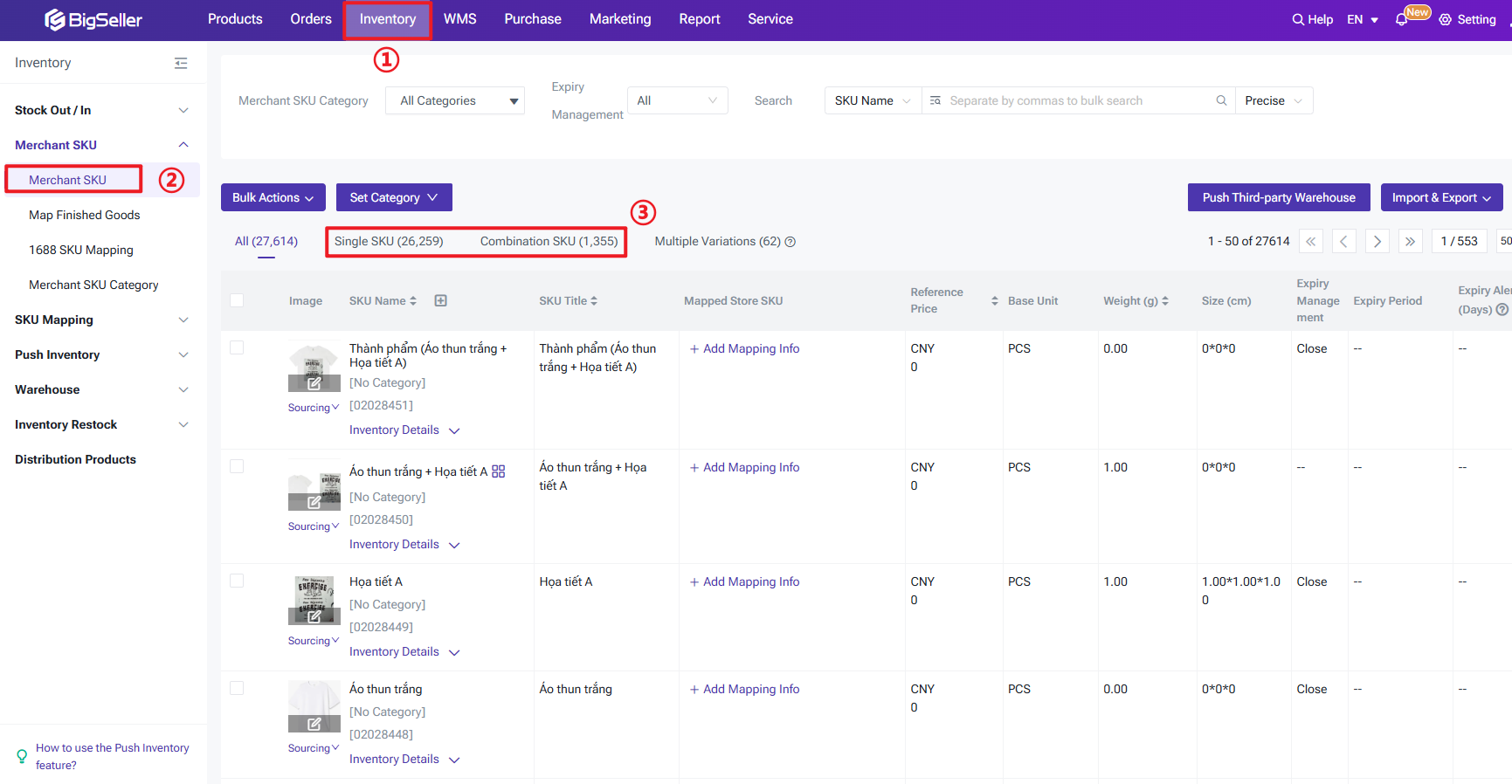
3.1 Set up SKUs
Before officially enabling Finished Good Mapping, you need to set up the corresponding Sub-SKUs and Combination SKUs based on your business requirements. For example:
- Individual Merchant SKU: White T-shirt, Pattern A, Finished Good (White T-shirt + Pattern A).
- Combination Merchant SKU: White T-shirt + Pattern A.
3.2 Establish Finished Good Mapping
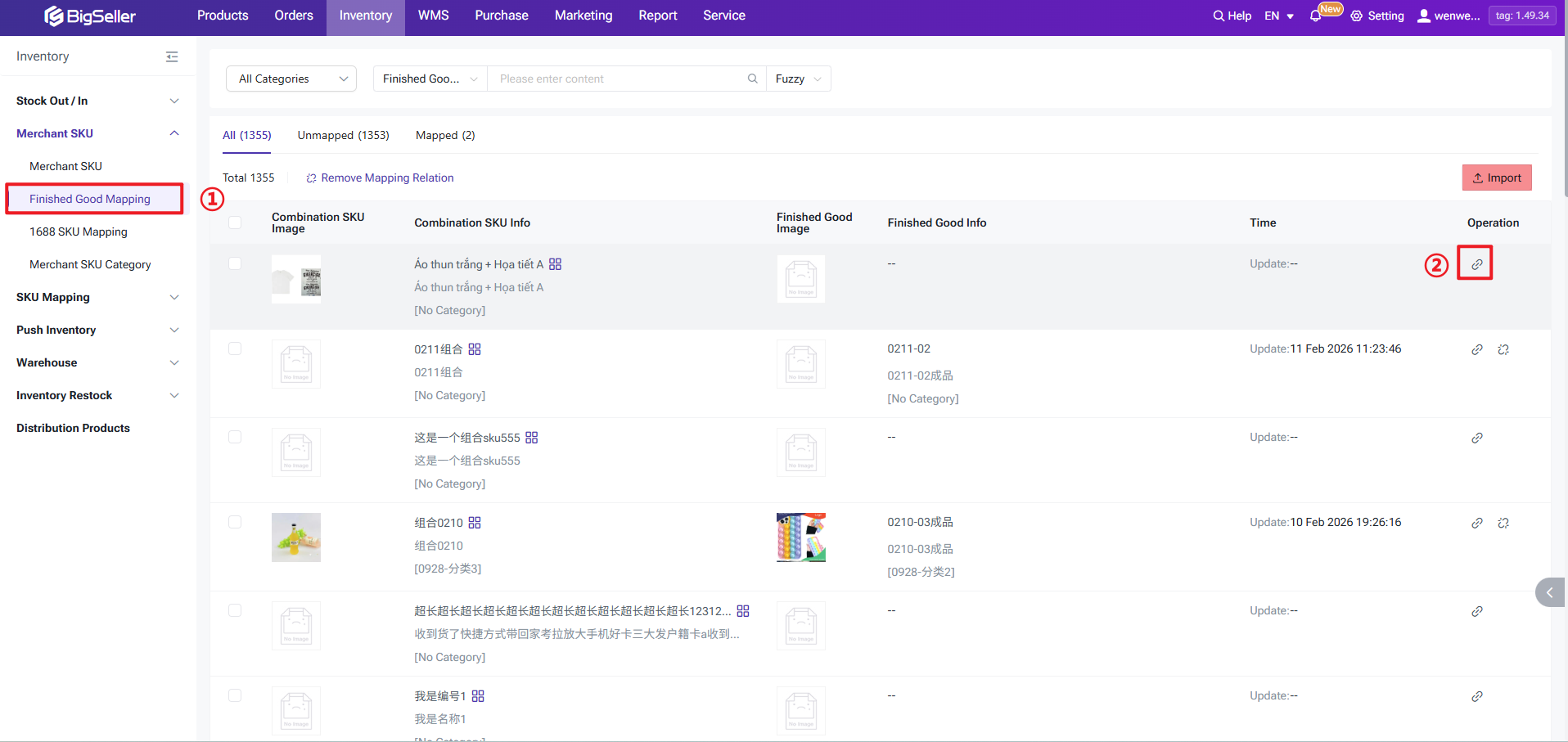
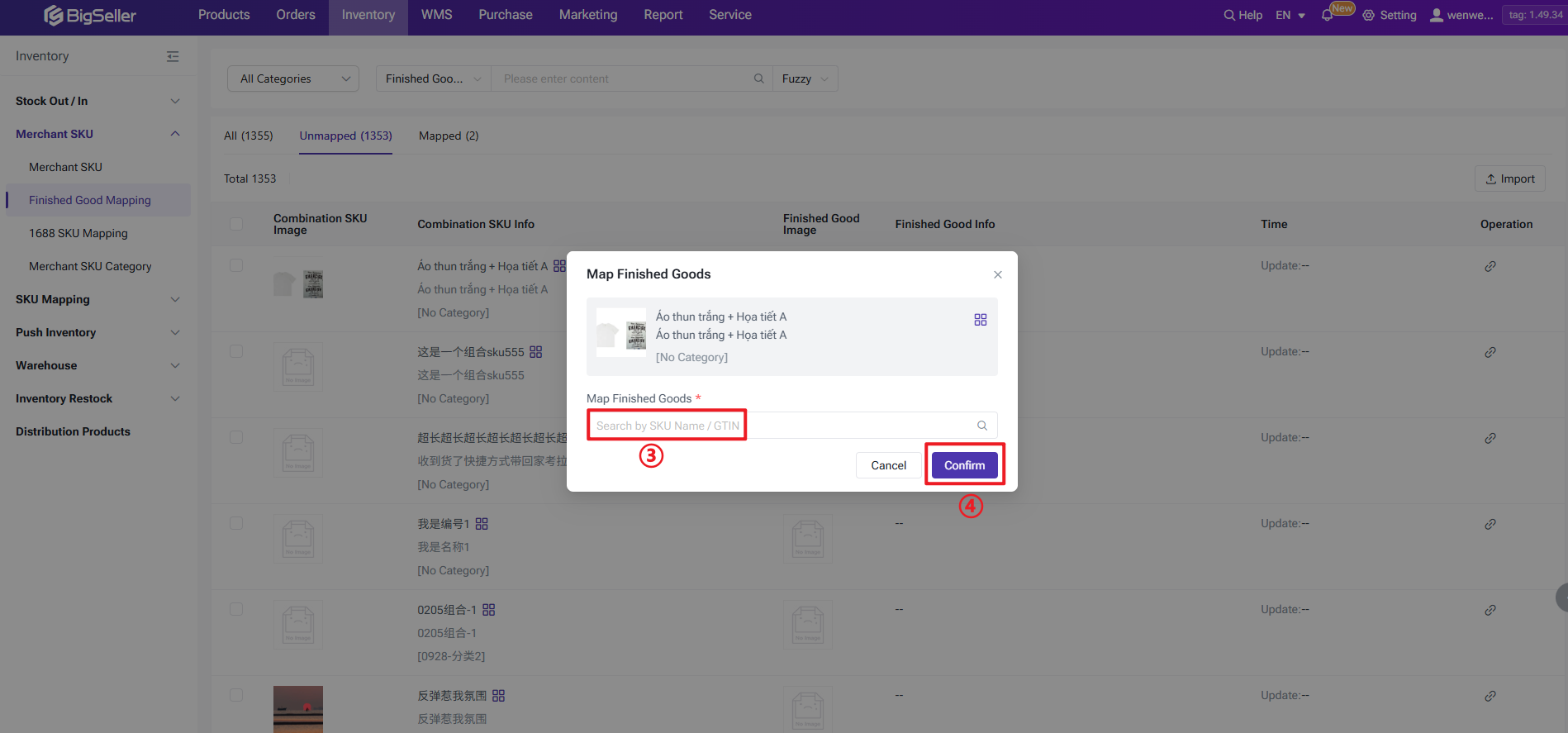
Go to the Finished Good Mapping page > Search for the Combination Merchant SKU in the "All" or "Unmapped" section > Click Map > Mapped successfully. You can also create batch finished good mapping by impored excels.
4. Inventory Push Rule Logic
After mapping the Combination SKU to the Finished Good, you only need to map the Combination SKU to the Store SKU. This allows the Finished Good to be automatically mapped to the Store SKU. Furthermore, you only need to add the Combination SKU to the inventory push rules, and the system will push stock according to the following logic:
- Push Quantity = Available Stock of Combination SKU + Available Stock of Finished Good SKU + Promotion Reserve Stock
Eg: If the Combination SKU has 5 in stock and the Finished Good has 5 in stock, with 0 Reserved Inventory for campaigns, the actual "Whole Warehouse Available" stock pushed to the Combination SKU will be 10.
If you add the Finished Good SKU directly to the Push Rule, the system will automatically skip it and will not push stock to the marketplace.
5. Order Processing Logic
Once Finished Good Mapping is enabled, the allocation and deduction of stock for orders involving Finished Goods will follow the logic below:
- If Available Stock of Finished Good SKU ≥ Order Quantity: The system locks and deducts from the Finished Good SKU stock.
- If Available Stock of Finished Good SKU < Order Quantity: The system locks and deducts from the Combination SKU stock.
Note: The system will not lock stock for both the Finished Good SKU and the Combination SKU simultaneously for the same item in one order.
⚠ Important: Cases where pushed stock does not match reality (Overselling)
After enabling Finished Good Mapping, overselling may occur based on the aforementioned inventory push rules and order allocation/deduction logic. A specific example is as follows:
Based on this, it is also recommended to reserve some stock to avoid overselling.
After enabling Finished Good Mapping, overselling may occur based on the aforementioned inventory push rules and order allocation/deduction logic. A specific example is as follows:
- SKUs: Combination SKU A, Finished Good A1.
- Initial Available Stock: A=5, A1=5.
- Scenario: When an order syncs to BigSeller requiring 6 units, and the Finished Good SKU only has 5 units (insufficient to lock), the system will lock 5 units of the Combination SKU and report 1 unit as "Out of Stock." According to the push logic, the system will push 5 units (the remaining finished good stock) to the store (A=0, A1=5), but in reality, it should only push 4 units (10 - 6 = 4). This can easily lead to a pushed quantity higher than actual stock, resulting in overselling.
It is recommended that you modify the order's "To Allocate" to 5 (so will convert to finished good), then add 1 gift item (can select combination SKU here). This will allow the order to be shipped normally, and the stock pushed will be based on the remaining 4 (combination SKU stock).
Based on this, it is also recommended to reserve some stock to avoid overselling.
6. Other Features Related.
Q: How to stock in returned finished goods?
When returning and restocking a Combination SKU, if the system detects that it is mapped to a Finished Good, the Combination SKU will be automatically replaced by the Finished Good for stock-in processing. This means that only the stock of the Finished Good will increase (stocked-in), while the stock of the Combination SKU's Sub-SKUs will remain unchanged.
Q:How to set up Allocation Rules?
Simply add the Combination SKU to the Inventory Allocation Rule. So is for Gift Rule feature.
Q:How to set up Auto-Pack?
You need to add both the Finished Good SKU and the Combination SKU. When processing orders, the system will act based on the final mapped SKU.
Q: Should I add finished good to warehouse?
Finished Good SKUs, Combination SKUs, and Individual SKUs must all be added to the warehouse list and assigned a Shelf Level.
Q: How is finished goods' sales calculated?
Currently, sales of Finished Goods are counted under the Finished Good itself, not under the Sub-SKUs of the related Combination SKU.
Q:How is orders estimated profit/profit report calculated if Finished Good Mapping is enabled?
Costs are calculated based on the Merchant SKU actually mapped in the order. This means if the order is mapped to a Finished Good, the cost will be calculated using that Finished Good.
Is this content helpful?
Thank you for your feedback. It drives us to provide better service.
Please contact us if the document can't answer your questions