What is the Download Center?
Copy link & title
Update Time: 18 Aug 2026 11:12
The Download Center is where all your exported files are kept in one place.
In the past, exporting large amounts of data (say, tens of thousands of orders) meant you had to stay on the page and wait until it finished before you could save it. If you closed your laptop, stepped away, or your computer went to sleep, the export would fail and you'd have to start all over again — a real waste of time.
Not anymore. Once you start an export, you can close the page and go do something else. The system keeps working on it in the background, saves the file automatically once it's done, and you can come back anytime to download it — no need to wait around, and no risk of it getting interrupted. Every file you've exported can be found in the Download Center, where you can also search by name or date, and download the same file again whenever you need it.
Note: Files in the Download Center are kept for 3 days only. Once this period has passed, files are automatically cleared by the system and cannot be recovered. If you need to keep a file longer, be sure to download it locally soon after it's generated.
In the past, exporting large amounts of data (say, tens of thousands of orders) meant you had to stay on the page and wait until it finished before you could save it. If you closed your laptop, stepped away, or your computer went to sleep, the export would fail and you'd have to start all over again — a real waste of time.
Not anymore. Once you start an export, you can close the page and go do something else. The system keeps working on it in the background, saves the file automatically once it's done, and you can come back anytime to download it — no need to wait around, and no risk of it getting interrupted. Every file you've exported can be found in the Download Center, where you can also search by name or date, and download the same file again whenever you need it.
Note: Files in the Download Center are kept for 3 days only. Once this period has passed, files are automatically cleared by the system and cannot be recovered. If you need to keep a file longer, be sure to download it locally soon after it's generated.
1.How Exported Files End Up in the Download Center
Currently, exports from the Products and Marketing modules are sent to the Download Center (support for other modules is coming soon). When you start an export, you'll see this message:
You can close this window and continue with other tasks — the file will be available in the Download Center.
Click [Close] or simply leave the page, and the export will keep processing in the background. You can also click [Download] to get the file right away, or go to the Download Center later.
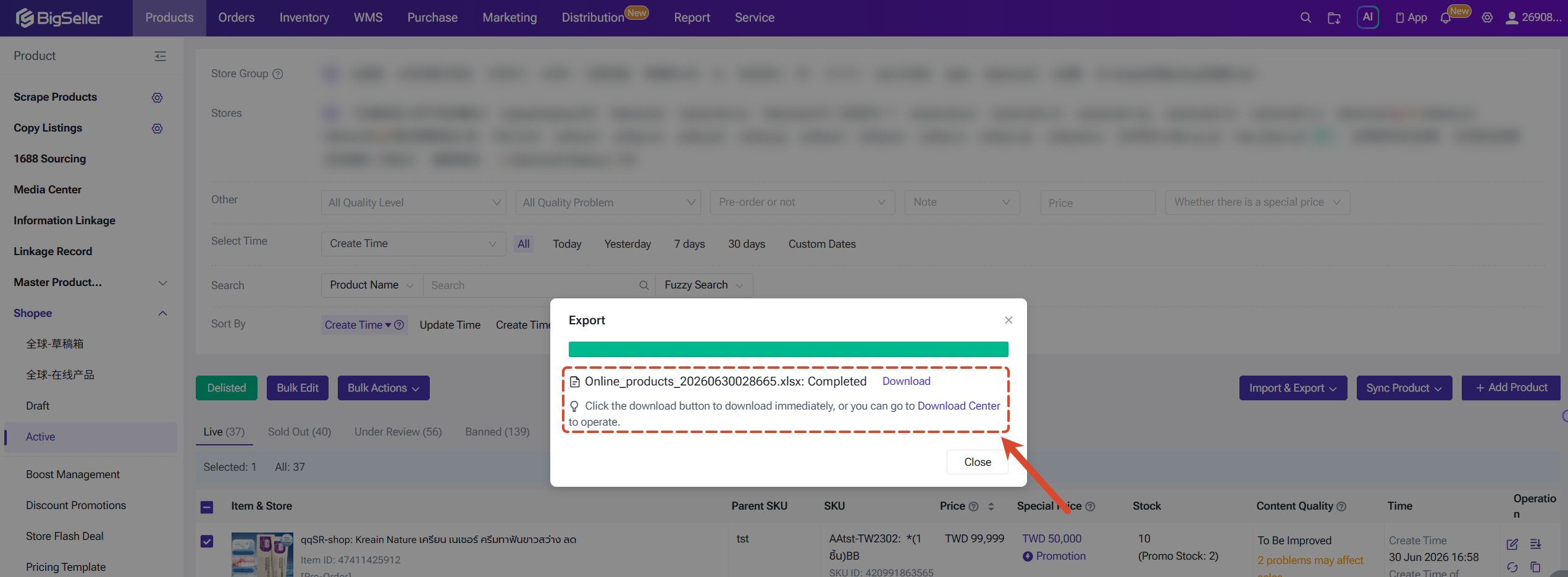
Once the export is complete, the file will be saved in the Download Center regardless of whether you stayed on the original page — ready for you to view and download anytime.
You can close this window and continue with other tasks — the file will be available in the Download Center.
Click [Close] or simply leave the page, and the export will keep processing in the background. You can also click [Download] to get the file right away, or go to the Download Center later.
Once the export is complete, the file will be saved in the Download Center regardless of whether you stayed on the original page — ready for you to view and download anytime.
2. Accessing the Download Center
Path: Settings > Download Center
A Download Center icon is also pinned at the top of the system — click it for quick access, with the same functionality.
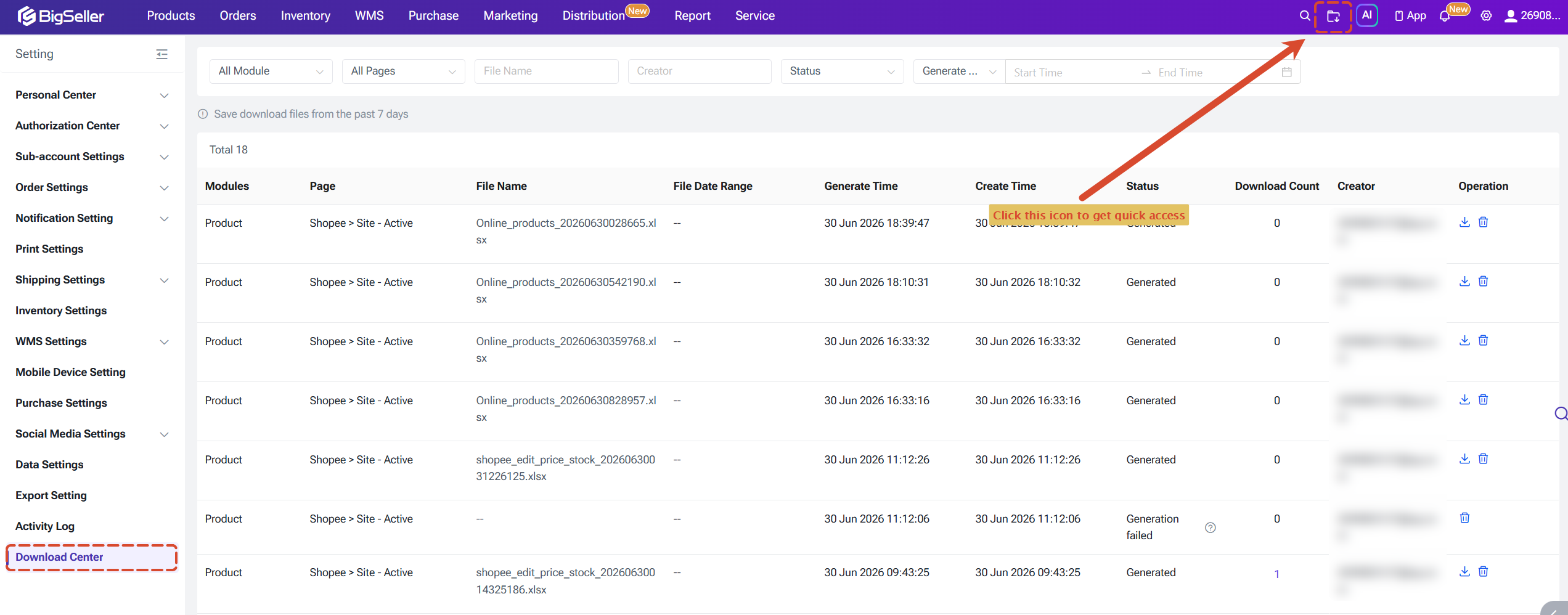
A Download Center icon is also pinned at the top of the system — click it for quick access, with the same functionality.
3. Understanding the Page
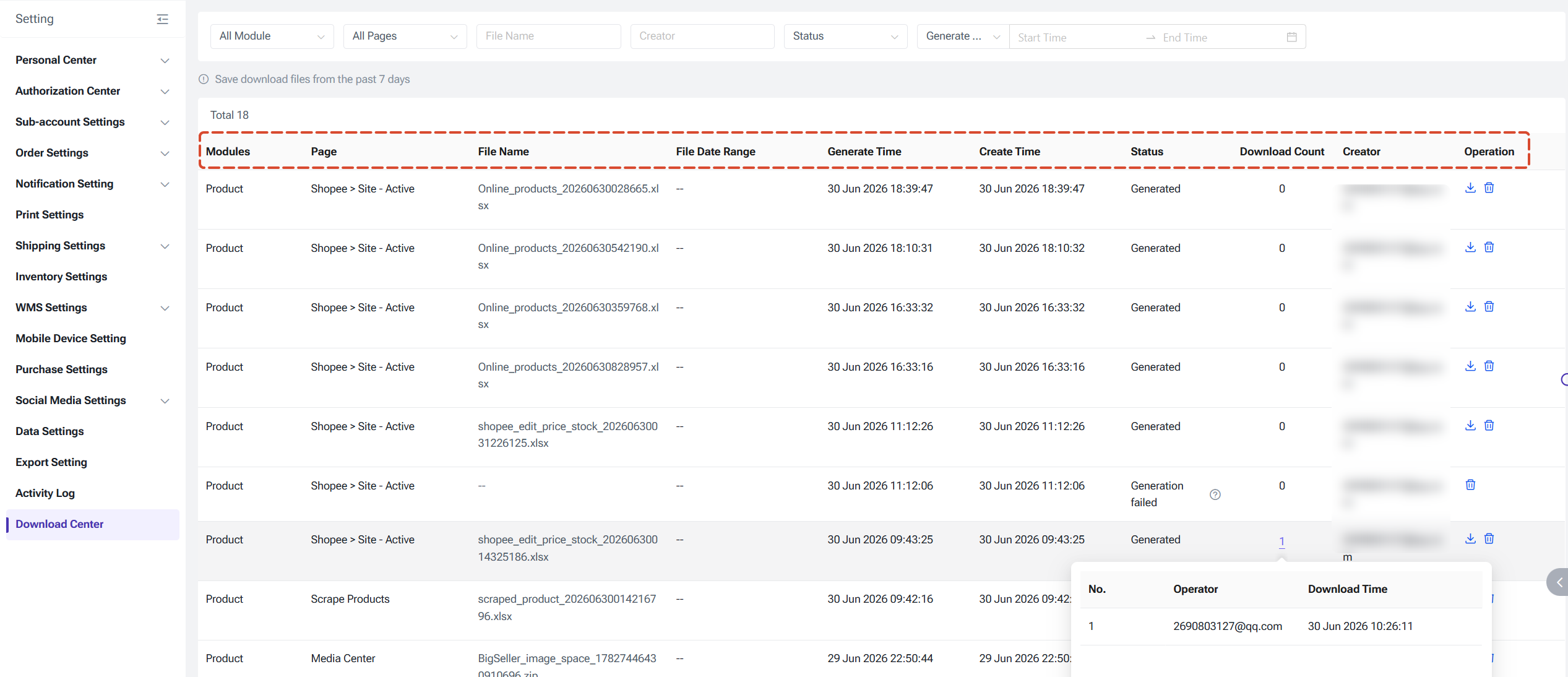
The Download Center lists all your export tasks, showing the following details:
● Module: the feature module the export belongs to (e.g. Products, Marketing)
● Page: the specific page the export was triggered from (e.g. Shopee > Site - Online Products, Ad Management > Ad Overview)
● File Name: the name of the exported file
● File Date Range: the date range the exported data covers; shows "–" if the export wasn't filtered by date
● Generated Time: when the file finished generating
● Created Time: when the export task was started
● Status: Generating, Generated, or Failed
● Download Count: the total number of times the file has been downloaded
● Creator: the account that triggered the export
● Operation: Download, Delete
Status definitions:
● Generating: the file is still being processed in the background and isn't downloadable yet
● Generated: the file is ready — click to download
● Failed: the export failed and cannot be downloaded; click the "?" icon to see the reason
Downloading Files
For files with a "Generated" status, click [Download] in the Operation column to save it locally. Files can be downloaded as many times as you like — each download adds to the Download Count.
If an export task produces multiple files at once (for example, exporting several online product lists in bulk), clicking [Download] will open a list where you can download each file individually.
Deleting Files
Click [Delete] in the Operation column to remove a file you no longer need and free up space. Deleted files cannot be recovered, so please proceed with caution.
● Module: the feature module the export belongs to (e.g. Products, Marketing)
● Page: the specific page the export was triggered from (e.g. Shopee > Site - Online Products, Ad Management > Ad Overview)
● File Name: the name of the exported file
● File Date Range: the date range the exported data covers; shows "–" if the export wasn't filtered by date
● Generated Time: when the file finished generating
● Created Time: when the export task was started
● Status: Generating, Generated, or Failed
● Download Count: the total number of times the file has been downloaded
● Creator: the account that triggered the export
● Operation: Download, Delete
Status definitions:
● Generating: the file is still being processed in the background and isn't downloadable yet
● Generated: the file is ready — click to download
● Failed: the export failed and cannot be downloaded; click the "?" icon to see the reason
Downloading Files
For files with a "Generated" status, click [Download] in the Operation column to save it locally. Files can be downloaded as many times as you like — each download adds to the Download Count.
If an export task produces multiple files at once (for example, exporting several online product lists in bulk), clicking [Download] will open a list where you can download each file individually.
Deleting Files
Click [Delete] in the Operation column to remove a file you no longer need and free up space. Deleted files cannot be recovered, so please proceed with caution.
Is this content helpful?
Thank you for your feedback. It drives us to provide better service.
Please contact us if the document can't answer your questions