How to Use Scan to Receive Stock (BigSeller App)
Copy link & title
Update Time: 27 May 2026 08:52
After installing the BigSeller App, you can scan and receive incoming stock directly on your mobile phone. Simply scan a Purchase Order number, Transfer Order number, or Tracking/Waybill number to complete the receiving process — no PC login required.
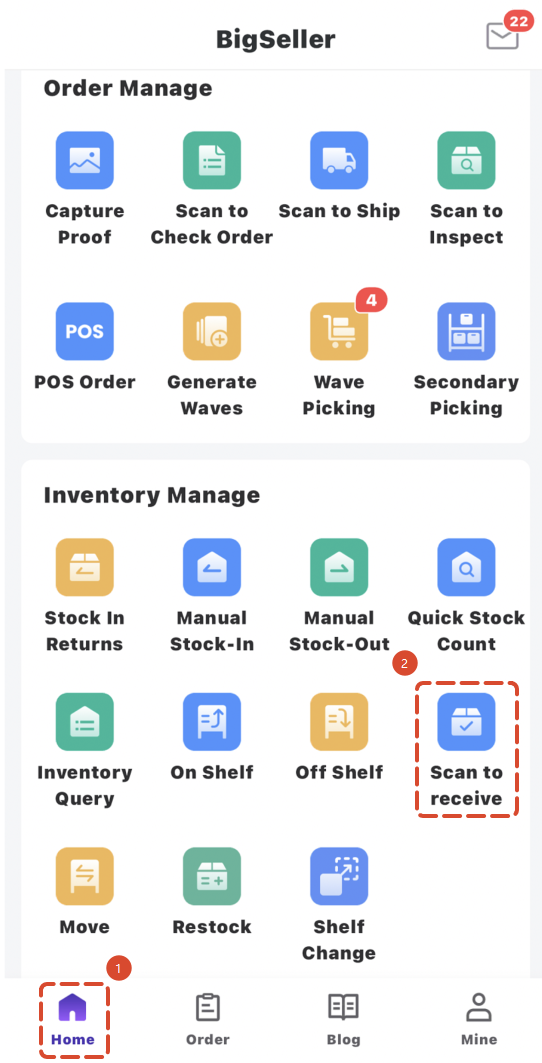
Step 1: Navigate to the Scan to Receive page
Open the BigSeller App and go to the Scan to Receive screen.
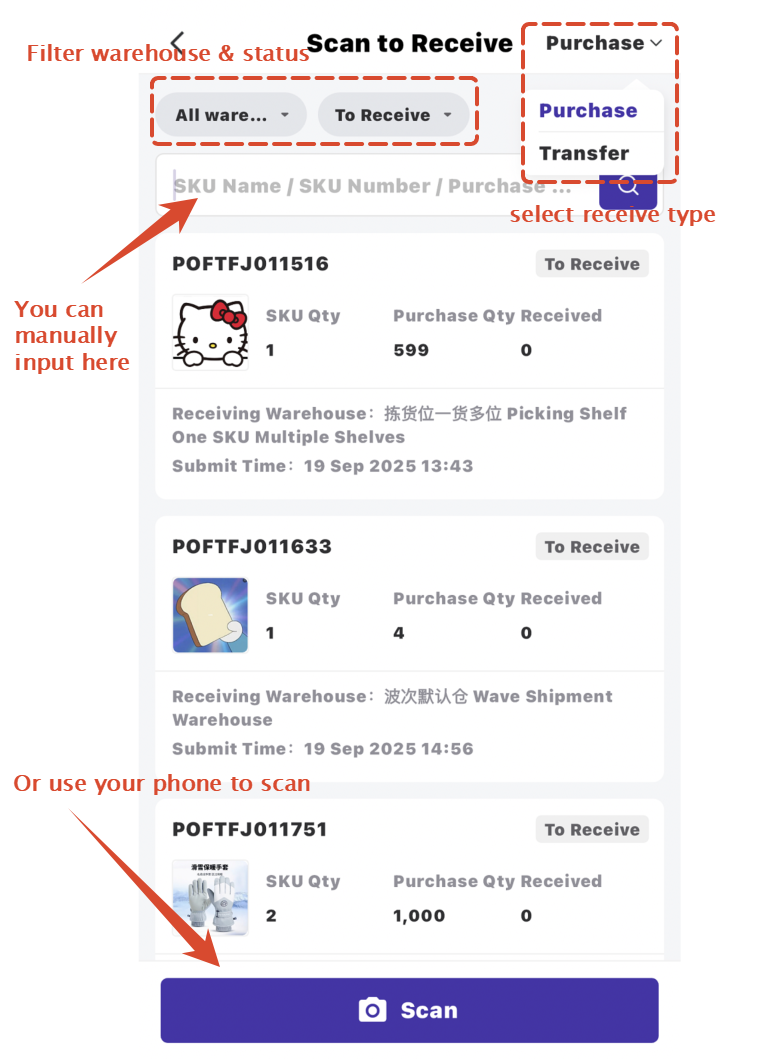
Step 2: Select the receiving type, then scan or enter the order number
Choose the receiving type (Purchase Order / Transfer Order), then use your phone camera to scan — or manually enter — the SKU Name Purchase Order number, Transfer Order number, or Waybill number.
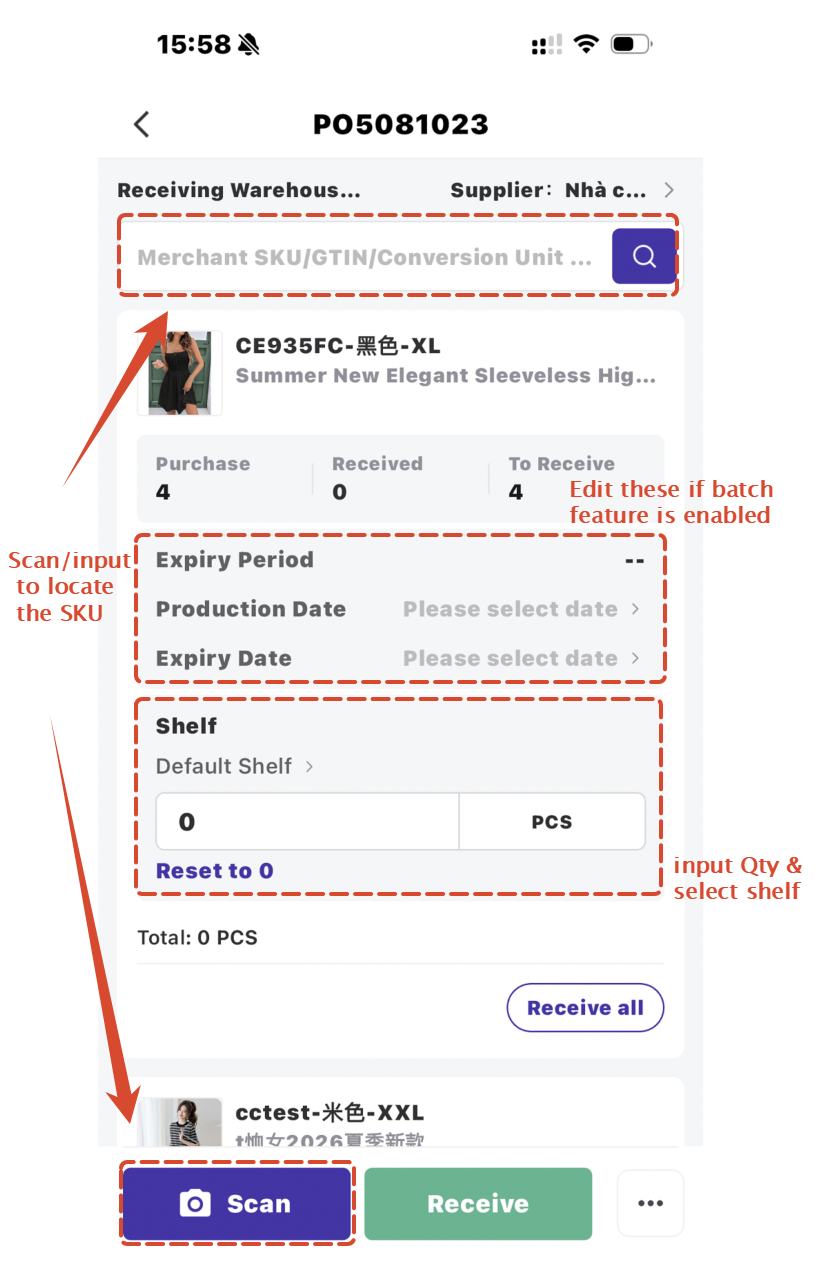
Step 3: Scan or enter the Merhcant SKU to receive items
Step 1: Navigate to the Scan to Receive page
Open the BigSeller App and go to the Scan to Receive screen.
Step 2: Select the receiving type, then scan or enter the order number
Choose the receiving type (Purchase Order / Transfer Order), then use your phone camera to scan — or manually enter — the SKU Name Purchase Order number, Transfer Order number, or Waybill number.
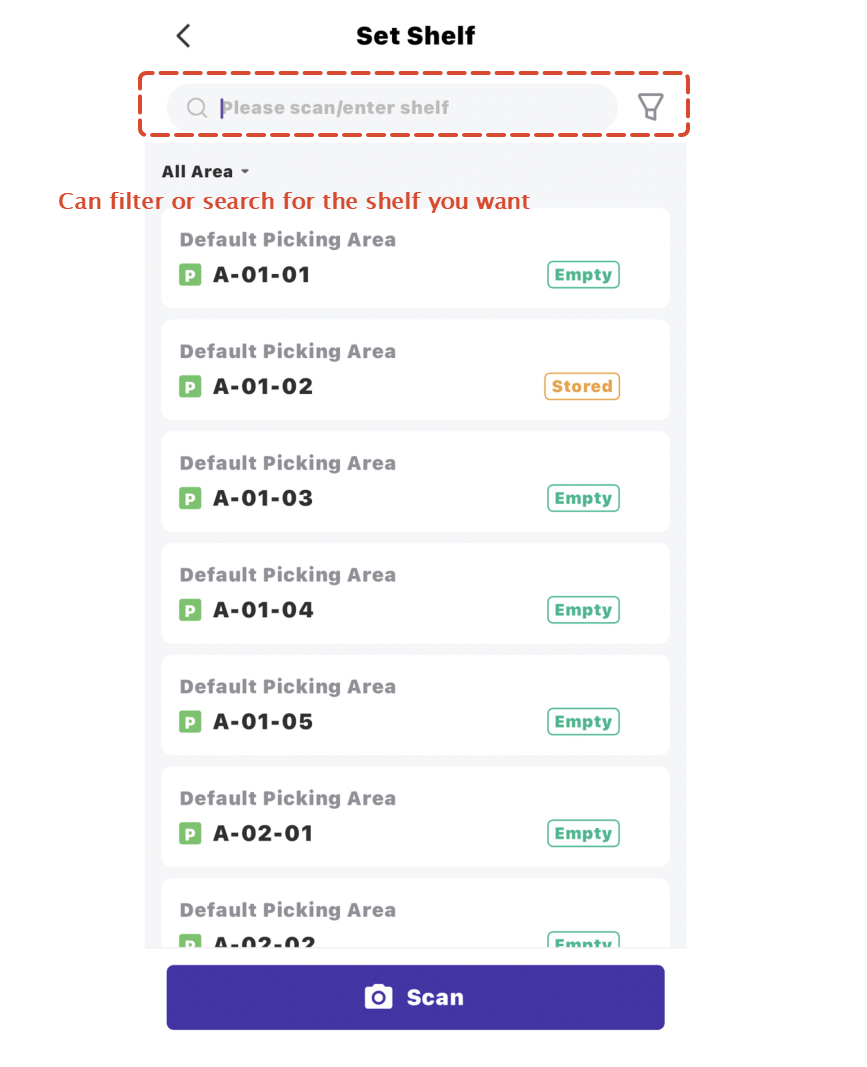
Step 3: Scan or enter the Merhcant SKU to receive items
- Scan the Merchant SKU barcode to receive items. Each scan counts as receiving 1 unit — scan multiple times to receive multiple units.
- Tap the "Receive All" button to automatically fill in the expected receiving quantity and complete the process in one step.
⚠️ Note:
- For Purchase Orders, the received quantity can exceed the expected quantity.
- For Transfer Orders, the received quantity cannot exceed the expected quantity.
Is this content helpful?
Thank you for your feedback. It drives us to provide better service.
Please contact us if the document can't answer your questions