What is Shopee Video?
Copy link & title
Update Time: 01 Jun 2026 07:23
Shopee is actively promoting its short video marketing feature — sellers can publish videos, link products directly, and drive sales through views. BigSeller is now fully integrated with Shopee's video features, so you can publish, manage, and analyze your videos without ever leaving BigSeller.
Key Benefits:
Steps:
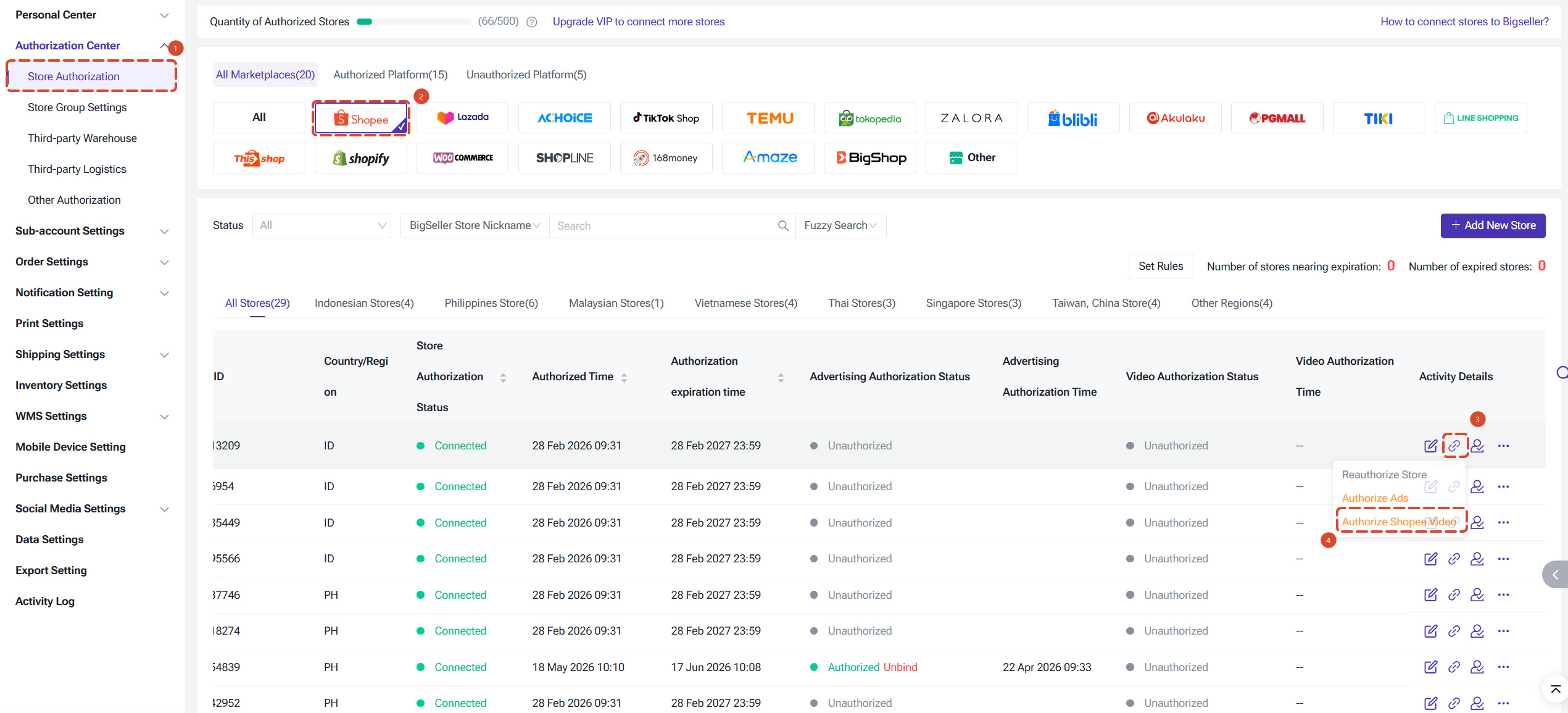
1. Go to Store Authorization → find the Shopee store
2. Click Authorize → check the "Shopee Video" permission scope
3. Complete authorization on the Shopee page
4. Return to BigSeller — status should show "Authorized"
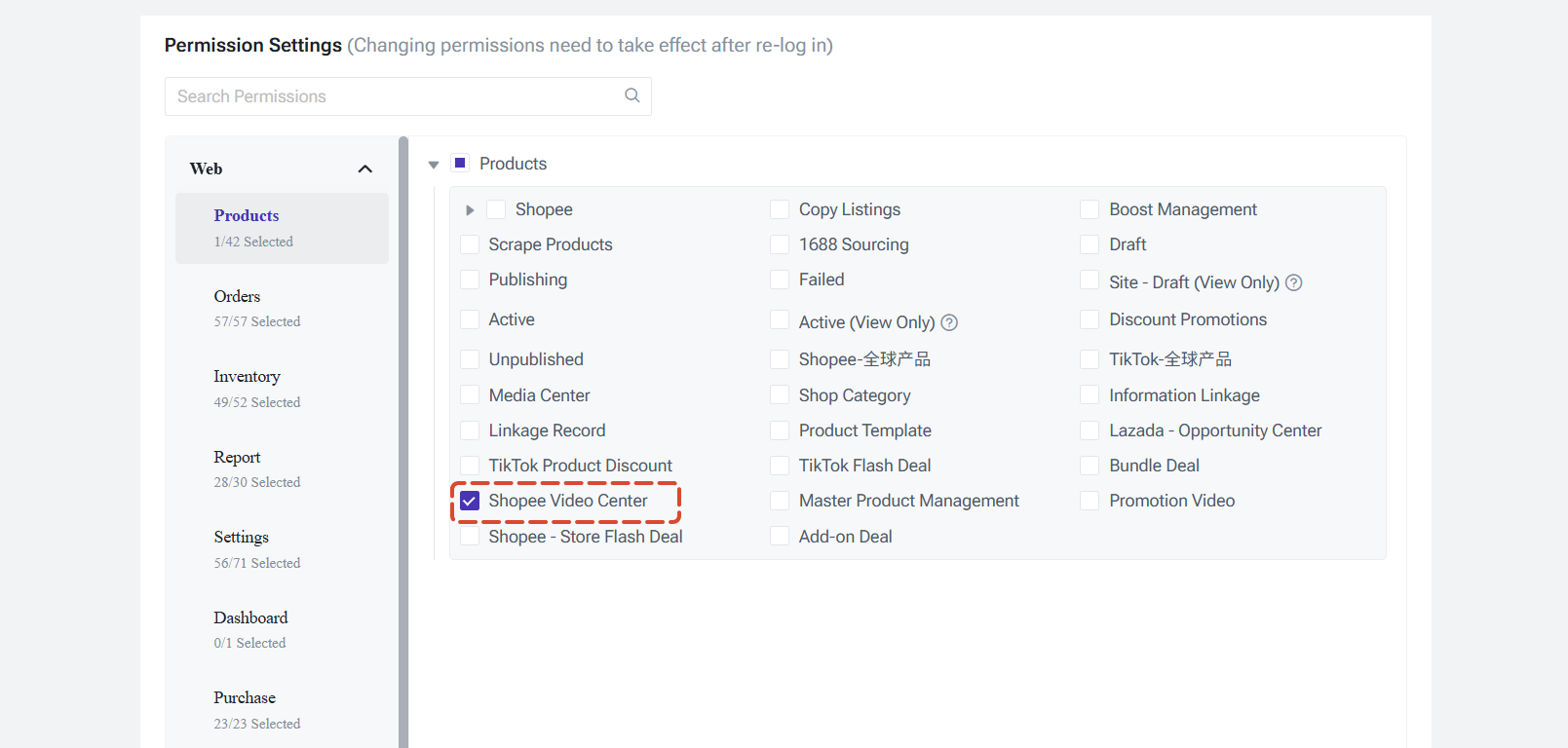
Admins can control which roles have access to Shopee Video features:
1. Go to Sub-acccount Management → edit the relevant role
2. Locate the "Shopee Video" module in the permissions list
3. Check the permissions to grant (view data, publish videos, delete videos, etc.)
4. Save
Step 1: Upload your video
Go to Shopee Video → Video Management → click Upload Video in the top right.
Video requirements: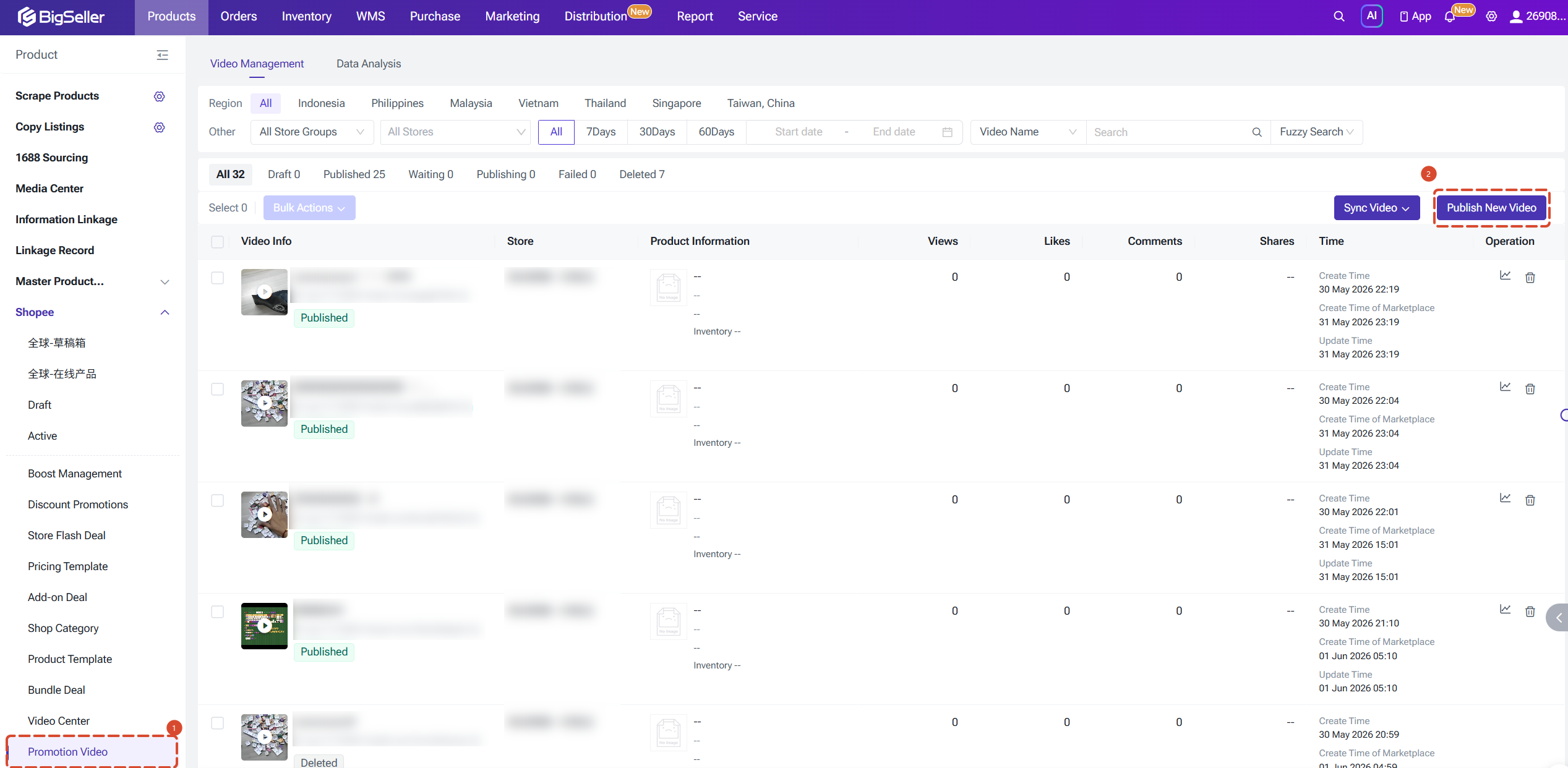
Step 2: Edit video details
After uploading, fill in the following fields and save as a draft: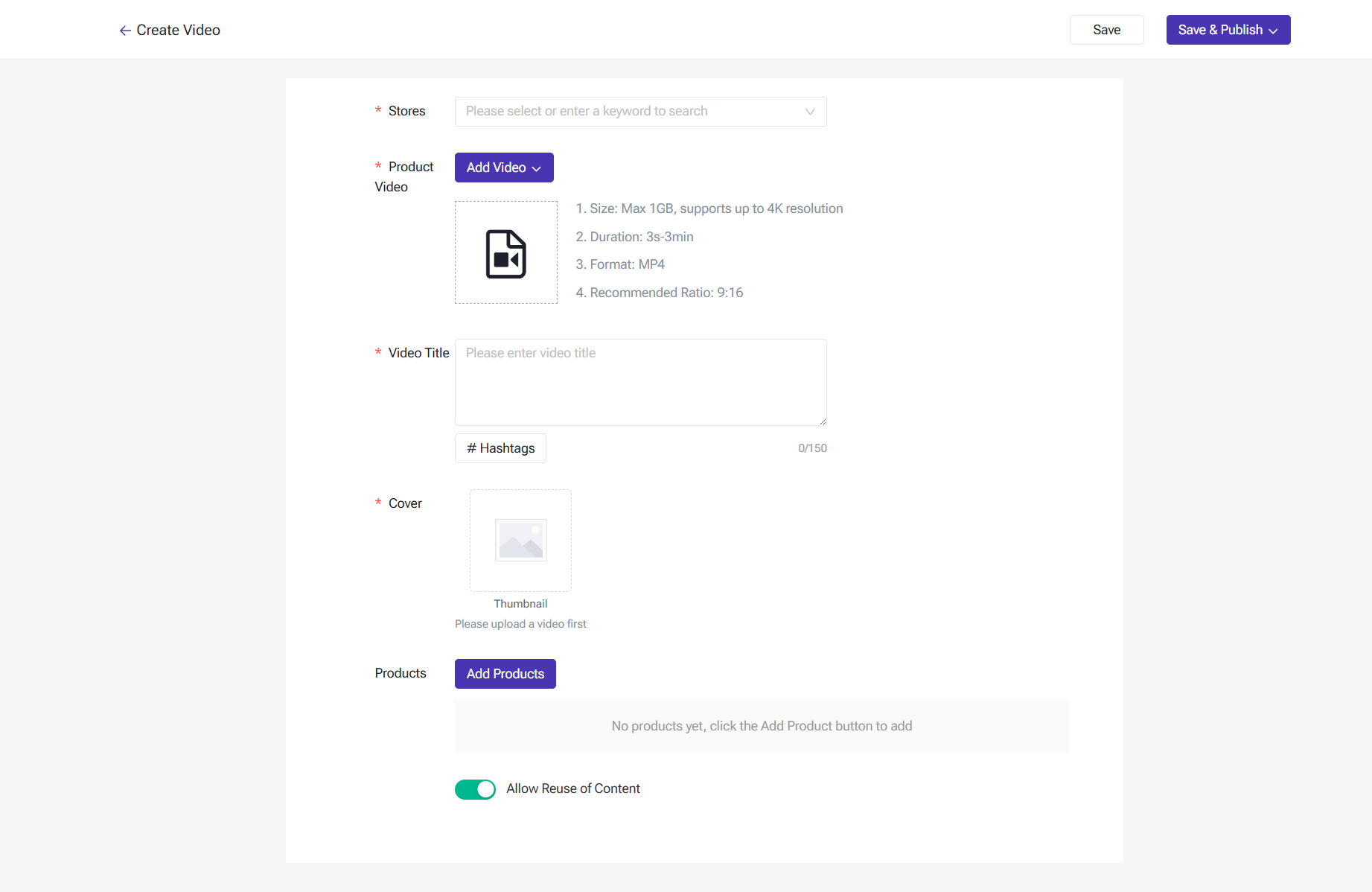
Step 3: Publish
After saving the draft, choose how to publish:
Video Status Explained
Bulk Actions
You can select multiple videos in the list to:
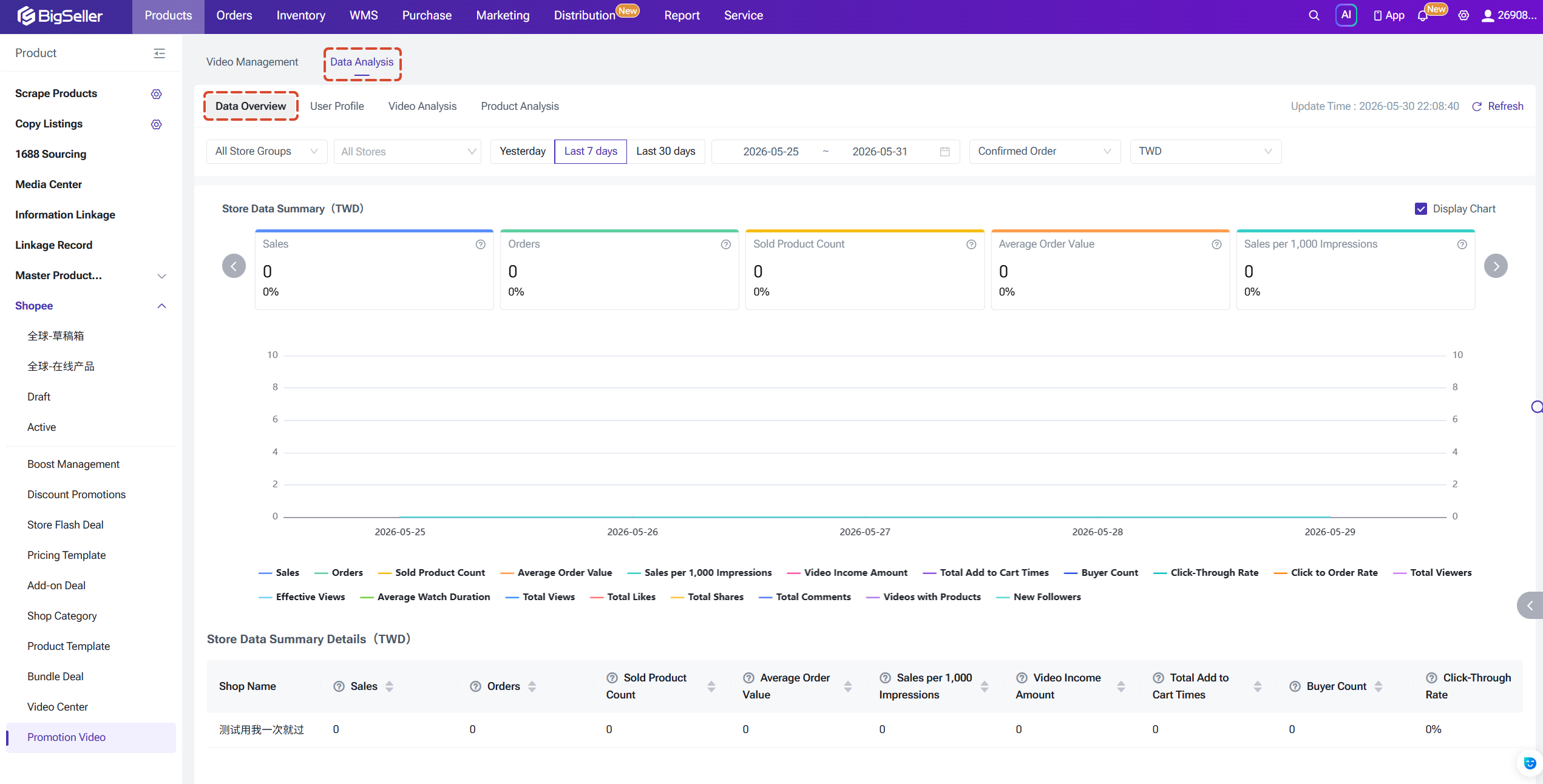
View aggregated metrics across all videos for a selected time period. Toggle between Confirmed Orders and Placed Orders views.
Sales & Conversion
2) User Profile
Understand your audience to fine-tune your content: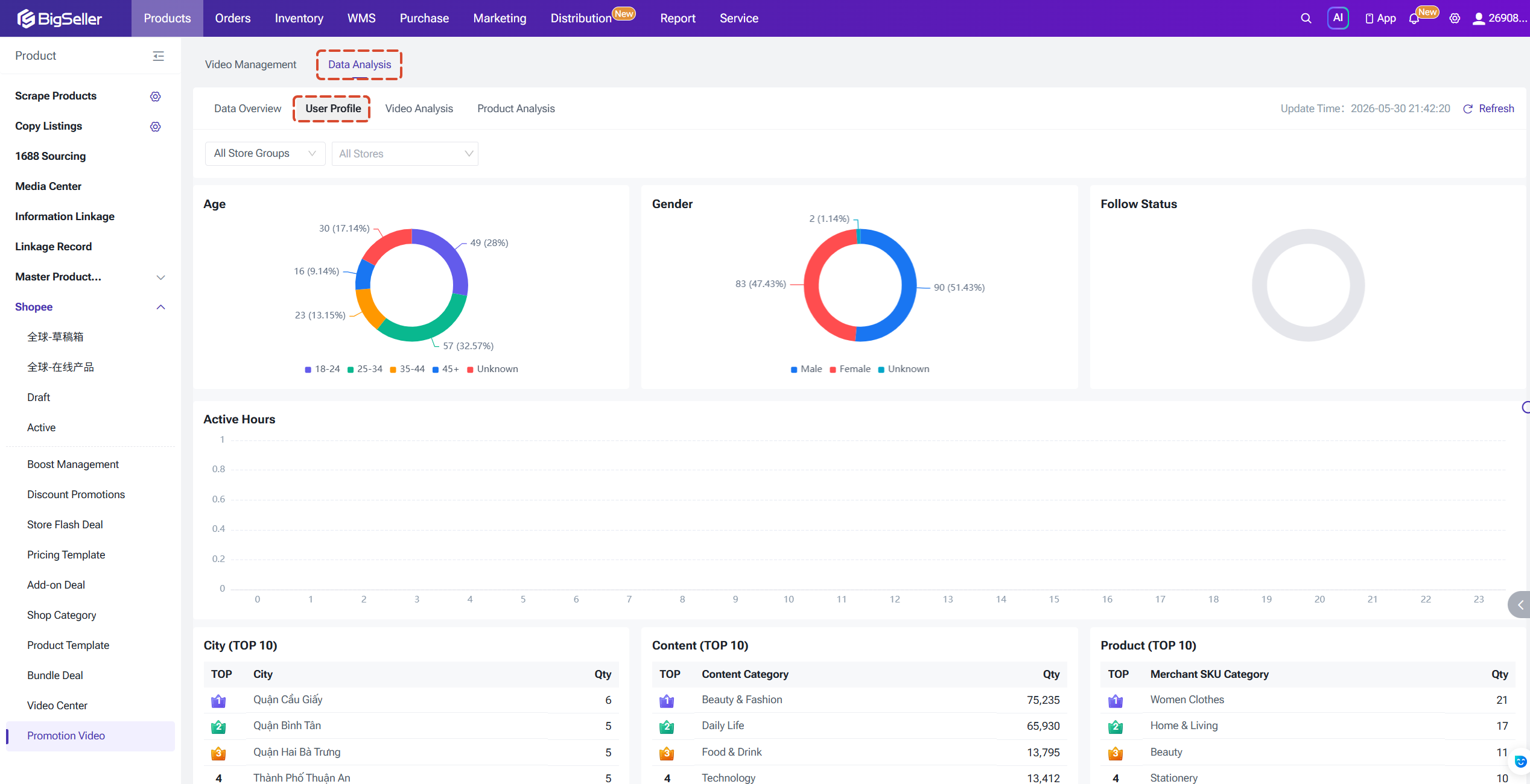
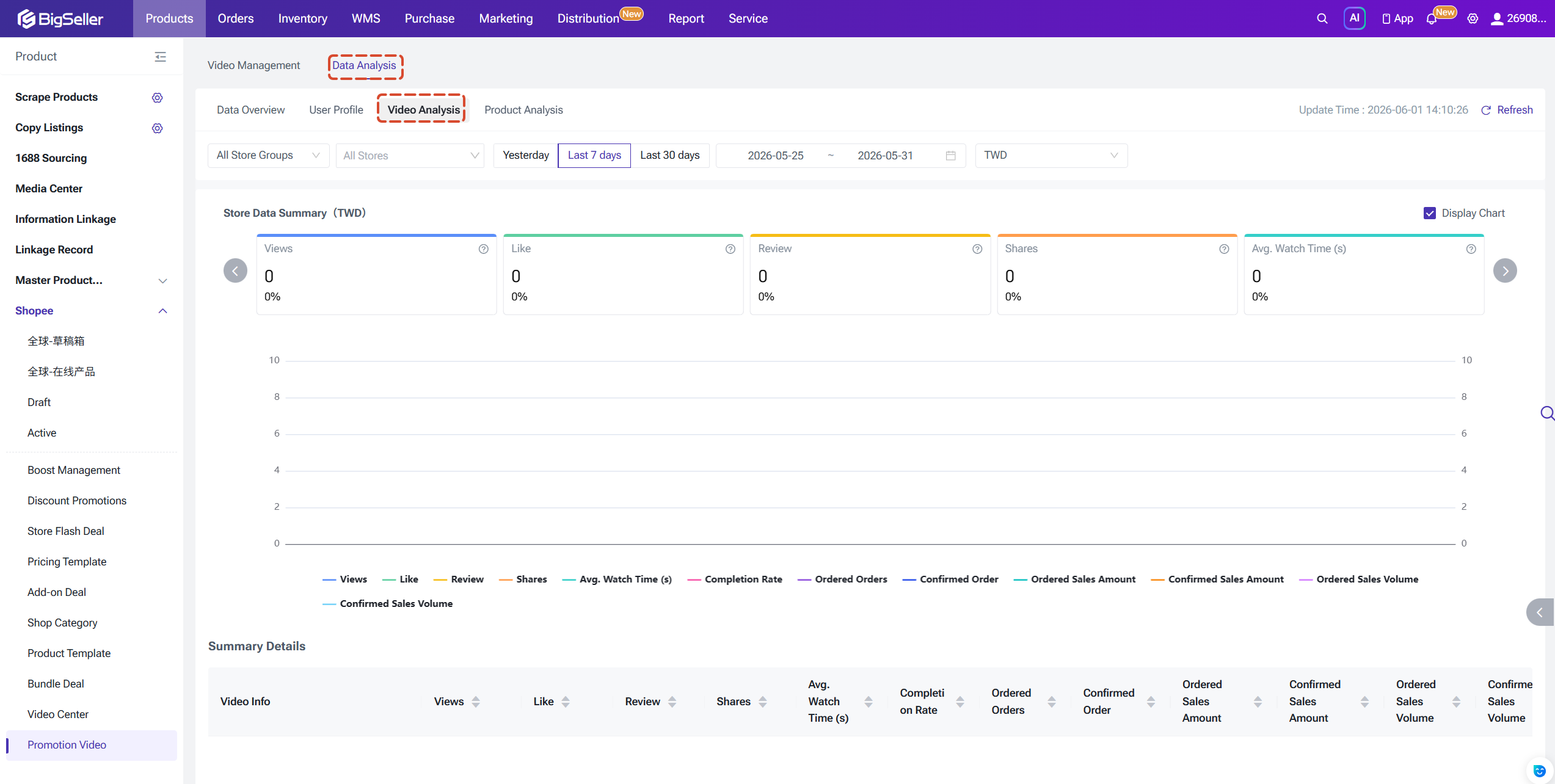
3) Video Analysis
View performance metrics broken down by individual video. Sort by views, likes, or average watch duration to quickly identify your top performers — or videos that need improvement.
Columns include: video title, views, likes, shares, and avg. watch duration.
4) Product Analysis
View performance by linked product to see which items are being driven by video content:
Key Benefits:
- Boost Conversions — Link products to videos so viewers can shop while watching
- Data-Driven Decisions — Track views, likes, CTR, GPM, and more to refine your content
- Centralized Management — Upload, edit, publish, and delete videos all in one place
- Audience Insights — Understand who watches your videos and optimize your content strategy
Authorization & Permissions
Shopee Video is split into two main sections: Data Analytics and Video Management. Before using Shopee Video, you need to authorize the video module for your Shopee store.Steps:
1. Go to Store Authorization → find the Shopee store
2. Click Authorize → check the "Shopee Video" permission scope
3. Complete authorization on the Shopee page
4. Return to BigSeller — status should show "Authorized"
Admins can control which roles have access to Shopee Video features:
1. Go to Sub-acccount Management → edit the relevant role
2. Locate the "Shopee Video" module in the permissions list
3. Check the permissions to grant (view data, publish videos, delete videos, etc.)
4. Save
Video Management
1. Upload & Publish a VideoStep 1: Upload your video
Go to Shopee Video → Video Management → click Upload Video in the top right.
Video requirements:
- Format: MP4, MOV
- Duration: 5 seconds minimum, 3 minutes maximum
- Resolution: 480p minimum; 9:16 portrait ratio recommended
Step 2: Edit video details
After uploading, fill in the following fields and save as a draft:
- Caption: Video title/description — include relevant keywords
- Cover Image: Choose from auto-generated frames or upload a custom image
- Linked Products: Search and attach products from your store; add a custom display name if needed
- Hashtags: dd topic tags to increase discoverability
- Allow Repost: Whether other users can repost this video
Step 3: Publish
After saving the draft, choose how to publish:
- Publish Now — Goes live on Shopee immediately
- Schedule — Set a future date and time; ideal for campaigns and promotions
Video Status Explained
- Draft: Saved but not yet published. Operations allowed are: Edit, Publish Now, Schedule, Delete
- Waiting: Awaiting scheduled publish time
- Publishing: Being submitted to Shopee
- Failed: Submission failed (reason shown). Operations allowed are: Edit, Republish, Delete
- Published: Live on Shopee. Operations allowed are: View Performance, Delete
- Deleted: Removed from draft or published state
Bulk Actions
You can select multiple videos in the list to:
- Sync Selected — Pull the latest status from Shopee for selected videos
- Sync All — Refresh all video data for the store
- Bulk Publish Now / Schedule / Delete (available for Draft and Failed statuses)
Data Analysis
1) Data OverviewView aggregated metrics across all videos for a selected time period. Toggle between Confirmed Orders and Placed Orders views.
Sales & Conversion
- Sales: Revenue from confirmed orders attributed to videos (after discounts)
- Orders: Total number of orders driven by videos
- Items Sold: Total product units sold via videos
- Buyers: Unique buyers from video-attributed orders
- CTR: Product clicks ÷ video views
- ABS (Avg. Basket Size): Total confirmed sales ÷ total confirmed orders
- GPM: Sales revenue per 1,000 video views
- Total Viewers: Number of unique viewers
- Effective Views: Views where watch time exceeded 3 seconds
- Avg. Watch Duration: Average time spent watching per video
- Total Likes: Likes received during the period
- Total Shares: Shares created during the period
- Total Comments: Comments left on videos
- New Followers: New store followers gained via videos
- Add-to-Cart: Times "Add to Cart" was clicked while watching a video
- Videos with Products: Videos with at least one product in the shopping cart icon
- Revenue-Generating Videos: Videos that resulted in at least one order
2) User Profile
Understand your audience to fine-tune your content:
- Gender — Male / Female / Unknown breakdown
- Age Groups — 18–24 / 25–34 / 35–44 / 45+ / Unknown
- Activity Time — When your audience is most active throughout the day
- Location — Geographic distribution by city or country
3) Video Analysis
View performance metrics broken down by individual video. Sort by views, likes, or average watch duration to quickly identify your top performers — or videos that need improvement.
Columns include: video title, views, likes, shares, and avg. watch duration.
4) Product Analysis
View performance by linked product to see which items are being driven by video content:
- Orders
- Sales Revenue
- Unique Buyers
Is this content helpful?
Thank you for your feedback. It drives us to provide better service.
Please contact us if the document can't answer your questions