Purchase Order Review & Change Management
Copy link & title
Update Time: 29 Jun 2026 08:24
BigSeller now supports Purchase Order Review and Purchase Order Change — two features that give your team greater control over the procurement process. Review adds a supervisor approval step before orders move forward. Change lets purchasers update orders already in progress without cancelling and rebuilding them from scratch.
Together, they reduce the risk of over-purchasing, cost miscalculations, and duplicate orders that typically arise when teams have no structured way to catch and correct procurement decisions mid-flow.
Together, they reduce the risk of over-purchasing, cost miscalculations, and duplicate orders that typically arise when teams have no structured way to catch and correct procurement decisions mid-flow.
Feature 1: Purchase Order Review
When Purchase Order Review is enabled, a purchase order submitted from the Draft status does not move directly to Pending Shipment or In Transit. Instead, it enters a new Pending Review state, where a supervisor can verify quantities, unit prices, and other key details before approving. If the order looks correct, the supervisor approves it and it moves to its intended target state. If not, they reject it with a written explanation, and the purchaser can revise and resubmit.
Note: 1688 purchase orders do not support the review workflow.
You can go to Settings > Purchase Settings > Purchase Review, then toggle on Purchase Order Review.
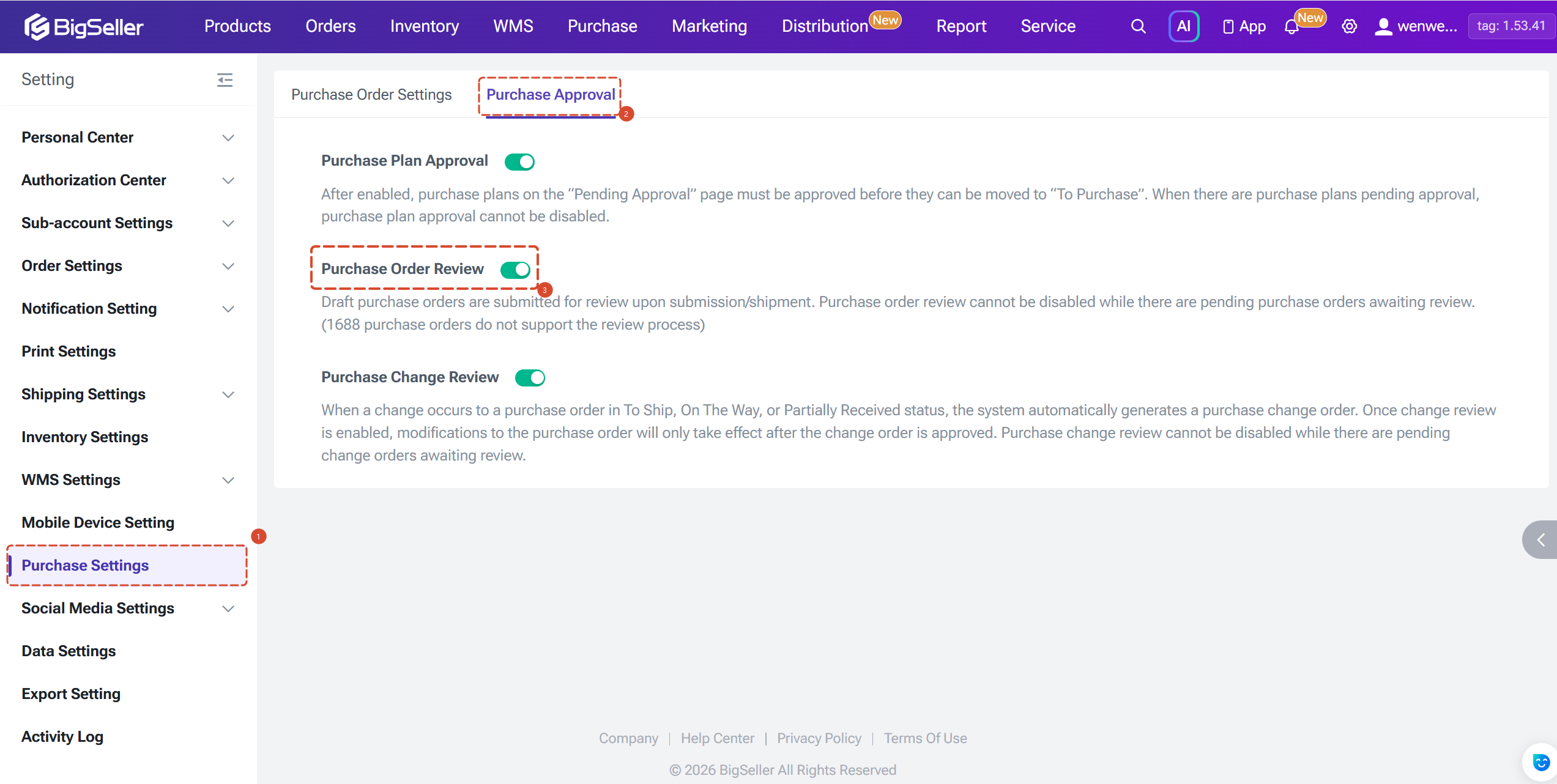
Note: 1688 purchase orders do not support the review workflow.
You can go to Settings > Purchase Settings > Purchase Review, then toggle on Purchase Order Review.
1.1 Status flow
Enabling Purchase Order Review adds two new statuses — Pending Review and Rejected — to the standard purchase order lifecycle. The diagram above shows how orders move between states once review is turned on.
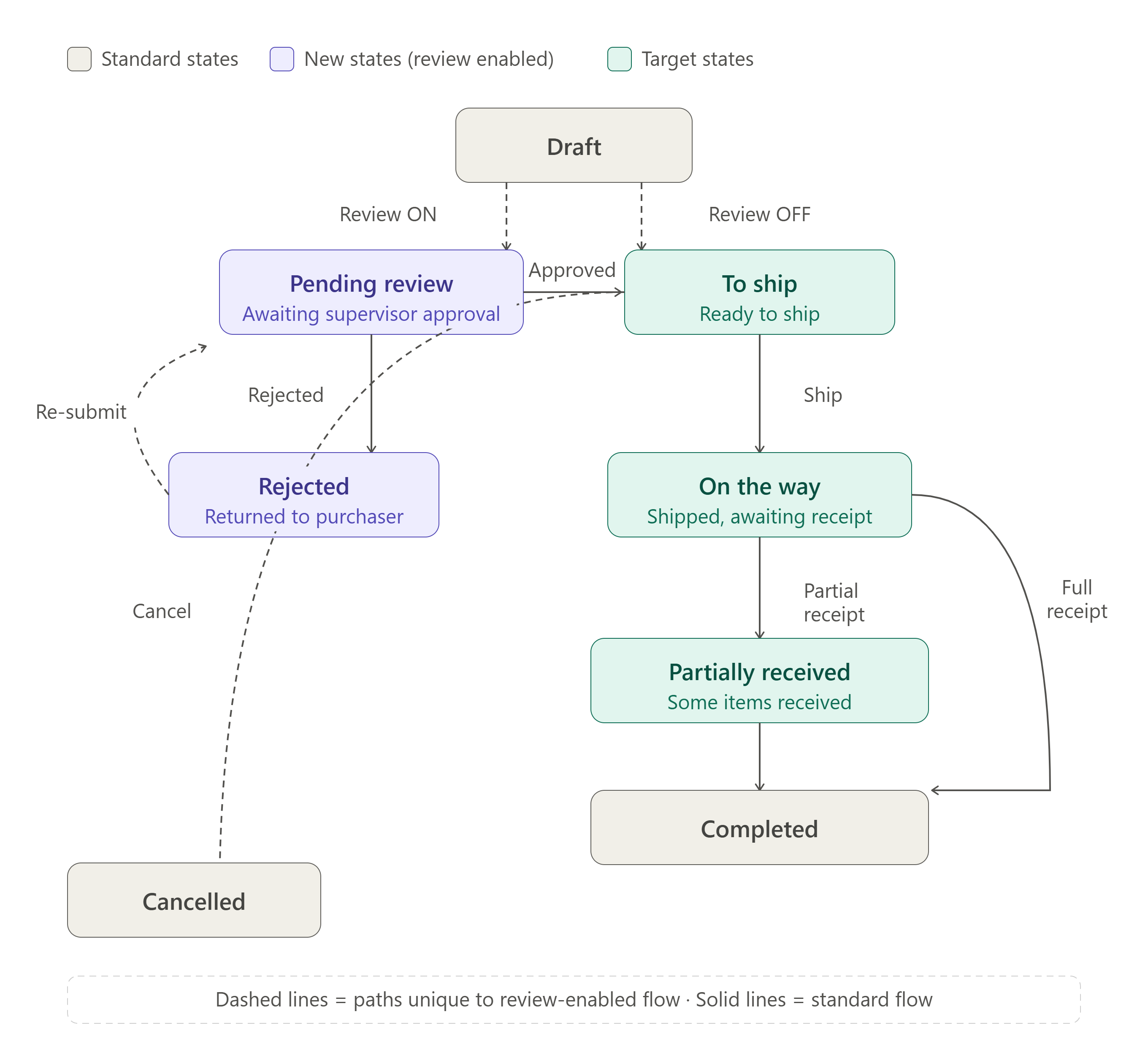
- Draft / Rejected → Submit or Ship → Pending Review
- Pending Review → Approved → Pending Shipment or In Transit (depending on the action taken)
- Pending Review → Rejected → Rejected
- Rejected → Revise and resubmit → Pending Review
1.2 Pending Review page
A new Pending Review tab appears in the Purchase Order module. It displays all purchase orders currently awaiting approval, filtered to show only the orders the current account has permission to review (based on whether the creator or purchaser falls within the sub-account's permission scope).
Supervisors can approve or reject orders in bulk from this list, or open individual order details to review them one by one.
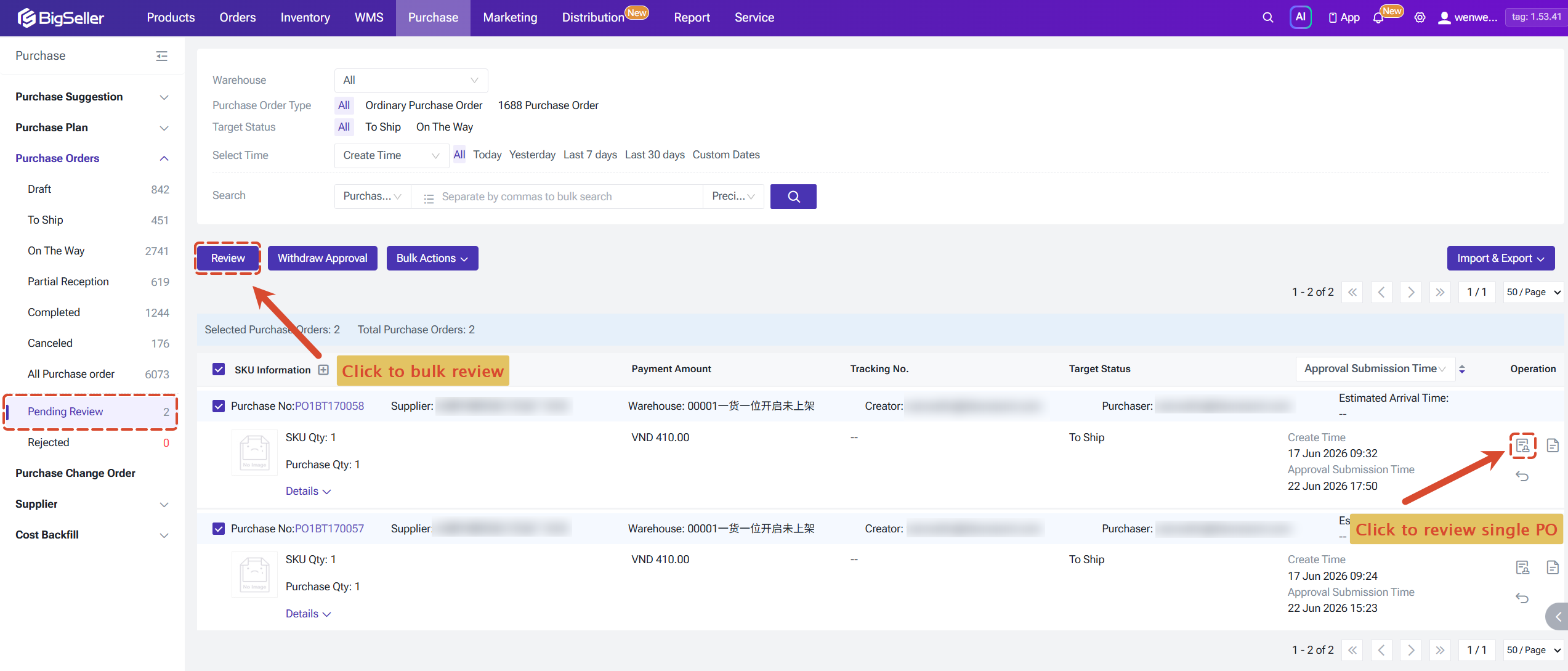
Supervisors can approve or reject orders in bulk from this list, or open individual order details to review them one by one.
1.3 Rejected page
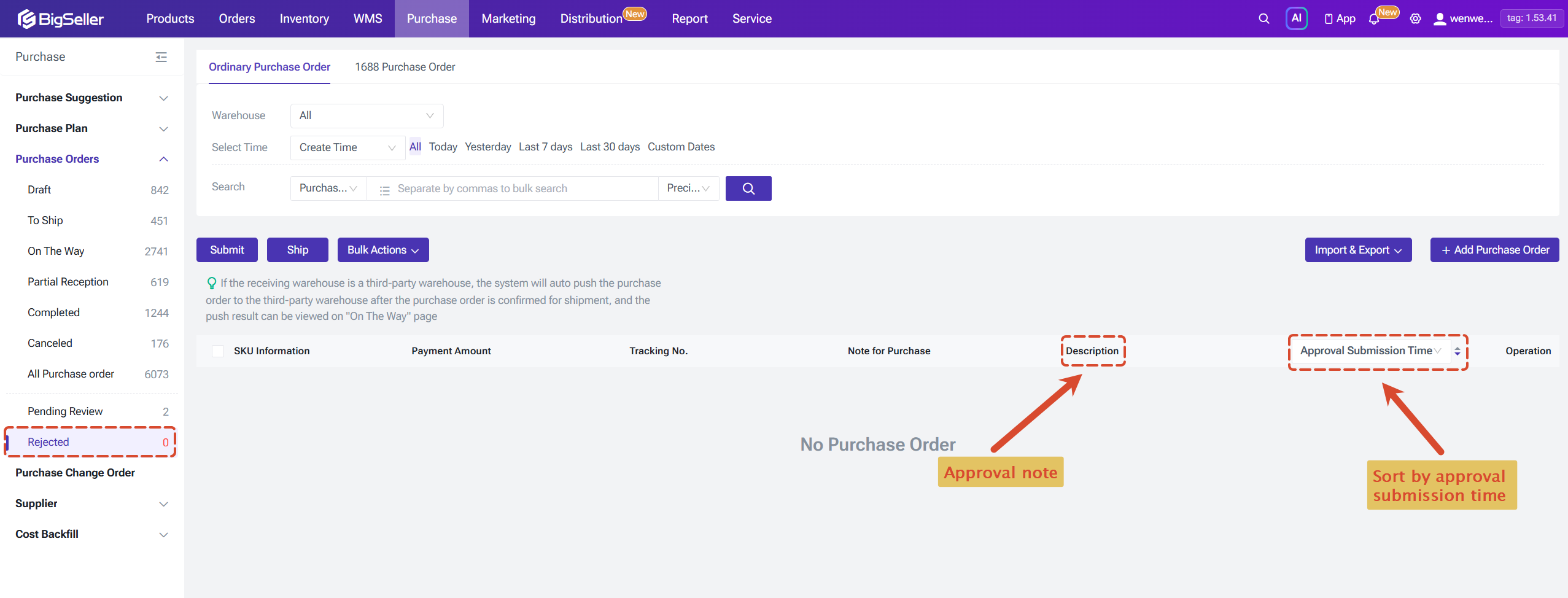
Rejected orders appear in a new Rejected tab. The page works the same as the Draft tab, with two additions:
- An Approval Notes field showing the reviewer's rejection reason
- A Review Submission Time filter and sort option to help purchasers triage and prioritise their queue.
- When merging or splitting purchase orders: if the order's status is Rejected, apply the same logic as Draft.
1.4 Submitting for re-review
A Rejected order can be edited just like a Draft. Once the purchaser has made corrections, clicking Submit or Ship sends it back to Pending Review for another round of approval.
Feature 2: Purchase Order Change
Purchase Order Change allows purchasers to modify key fields on orders that are already in To Ship, On The Way, or Partially Received status — without cancelling the original order.
When a change is submitted, the system creates a separate change order record that captures what was modified.
The original purchase order remains unchanged until the change order is approved. Once approved, only the fields that were actually modified are updated.
This means your purchase order number, original records, and cost calculations stay intact regardless of how many adjustments happen along the way.
BigSeller also provides a Purchase Change Review option, you can go to Settings > Purchase Settings > Purchase Review, then toggle on Purchase Order Change Review.
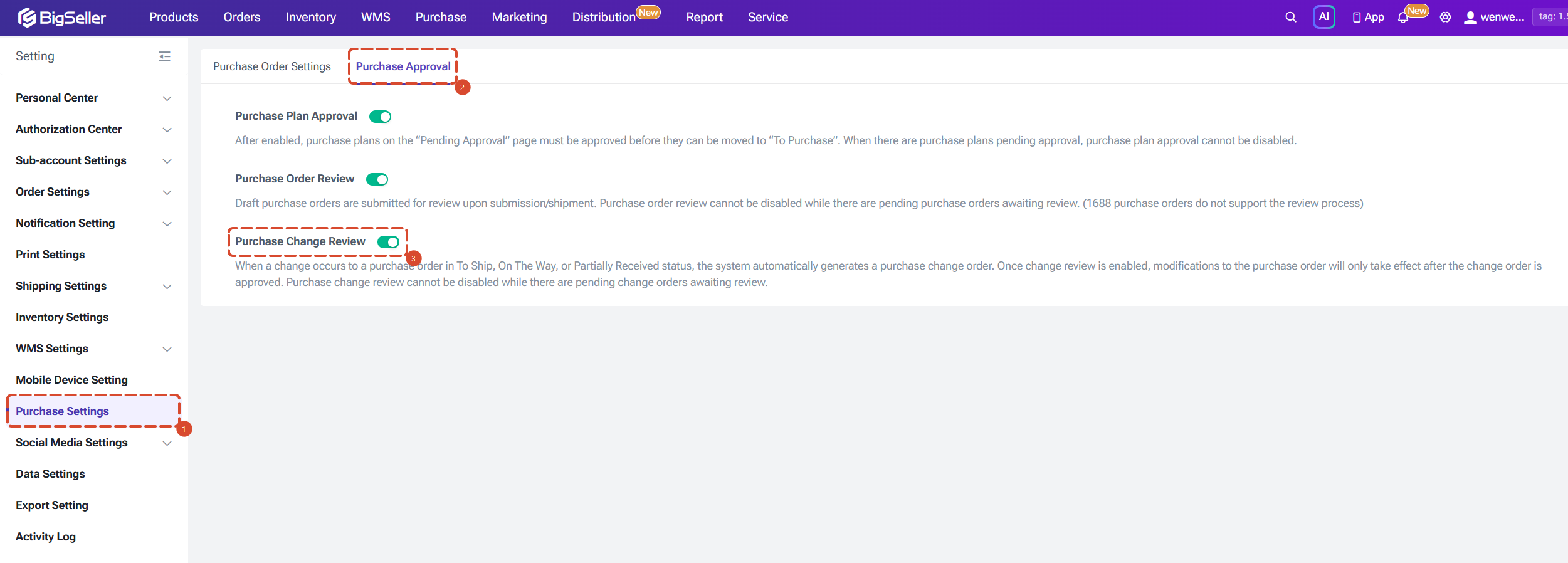
Change Review is optional. If it is off, submitted change orders take effect immediately without manual approval. If it is on, a reviewer must approve each change order before the updated values are written back to the purchase order.
When a change is submitted, the system creates a separate change order record that captures what was modified.
The original purchase order remains unchanged until the change order is approved. Once approved, only the fields that were actually modified are updated.
This means your purchase order number, original records, and cost calculations stay intact regardless of how many adjustments happen along the way.
BigSeller also provides a Purchase Change Review option, you can go to Settings > Purchase Settings > Purchase Review, then toggle on Purchase Order Change Review.
Change Review is optional. If it is off, submitted change orders take effect immediately without manual approval. If it is on, a reviewer must approve each change order before the updated values are written back to the purchase order.
2.2 Editable fields by status
To Ship / On The Way (own warehouse or third-party warehouse, including push-failed) — standard purchase orders
- Receiving warehouse, supplier, estimated arrival date, purchase currency / cost currency
- Exchange rate, freight, other fees, tax, first-mile fees, custom fees (including allocation method)
- SKU purchase quantity, unit price, production date, expiry date
On The Way (Third-party warehouse push-successful) — standard purchase orders
- Supplier, estimated arrival date, exchange rate, freight, other fees, tax, first-mile fees, custom fees, unit price
Partially Received (own warehouse) — standard purchase orders
- Fee information (freight, tax, other fees, first-mile fees, custom fees), purchase quantity, unit price, packing information
1688 purchase orders (Draft-ordered, Pending Shipment, In Transit — own warehouse or push-failed 3PL) support changes to:
- Tracking number, estimated arrival date, exchange rate type, freight, other fees, tax, first-mile fees, custom fees, SKU matching relationships, production date, expiry date, and 1688 delivery address.
2.3 Step-by-step: submitting a change
1.Enable or disable Change Review in Purchase Settings.
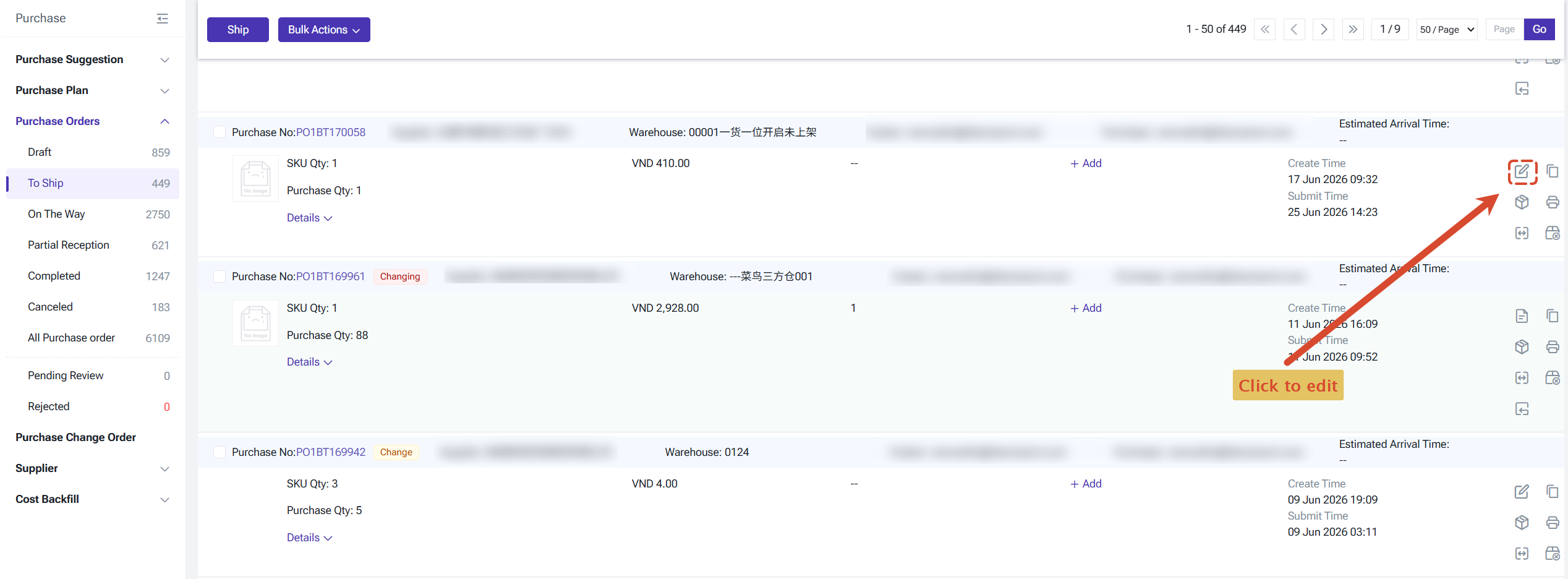
2.In the To Ship, On The Way, or Partially Received list, click Edit on the relevant order.
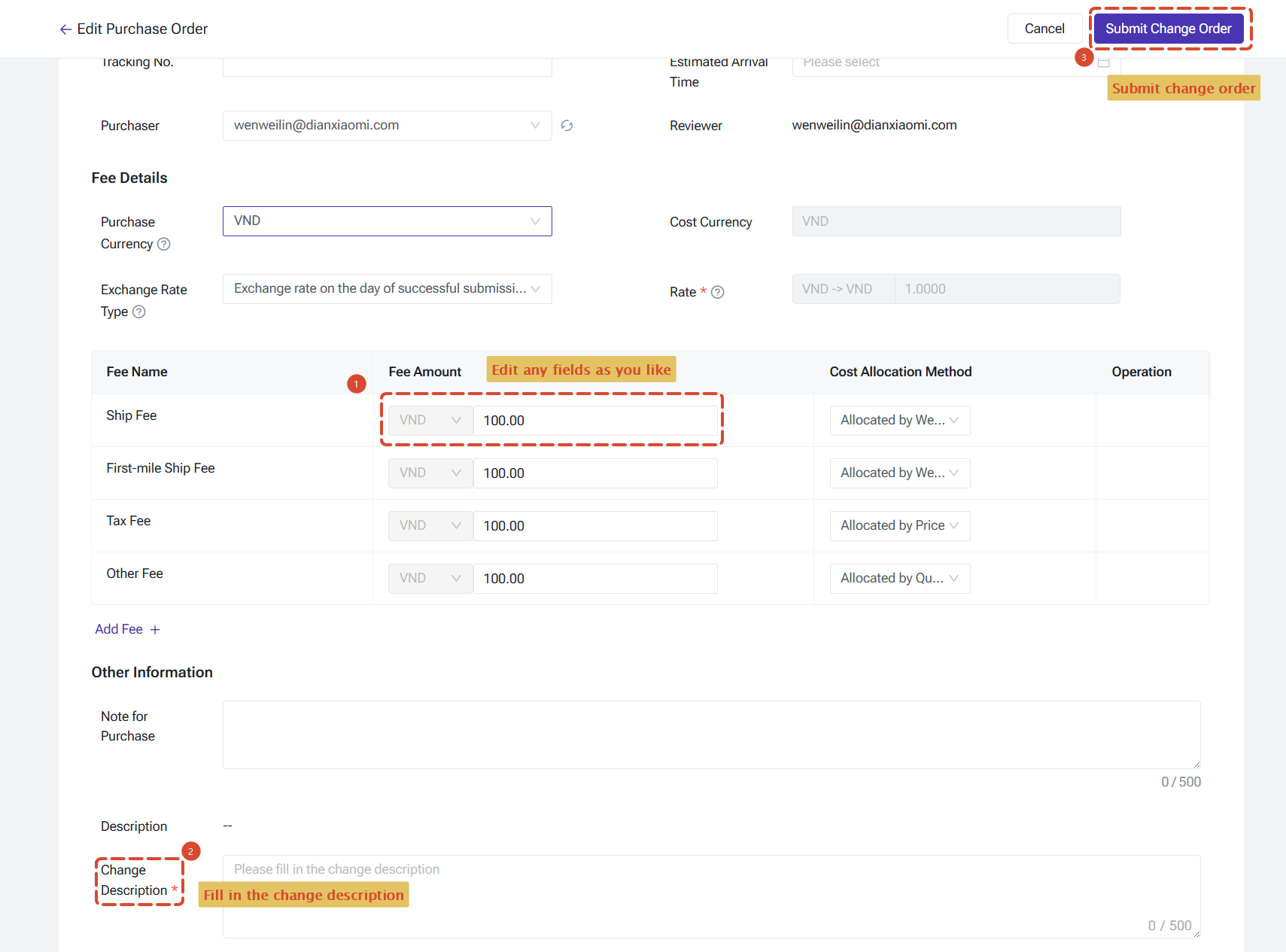
3.Modify the purchase order fields and fill in a change description, then click Submit Change Order.
4.The system generates a change order recording the before and after values for every modified field.
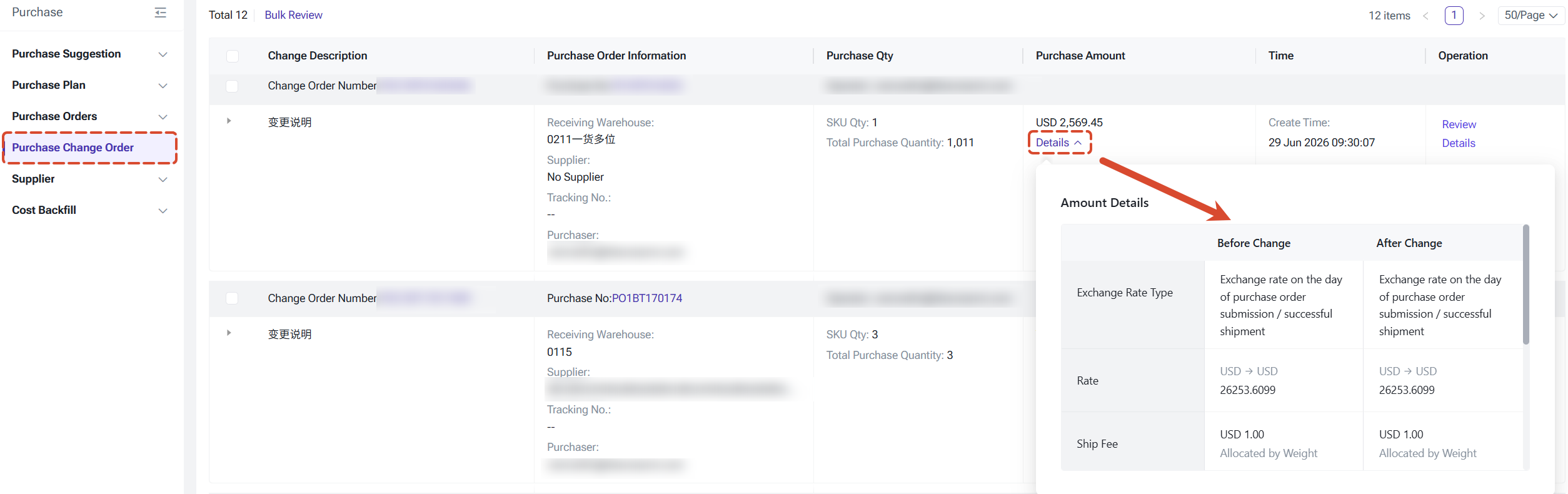
5.Review and approve or reject the change order from the Purchase Change Order list or detail page (or the system auto-approves if Change Review is off).
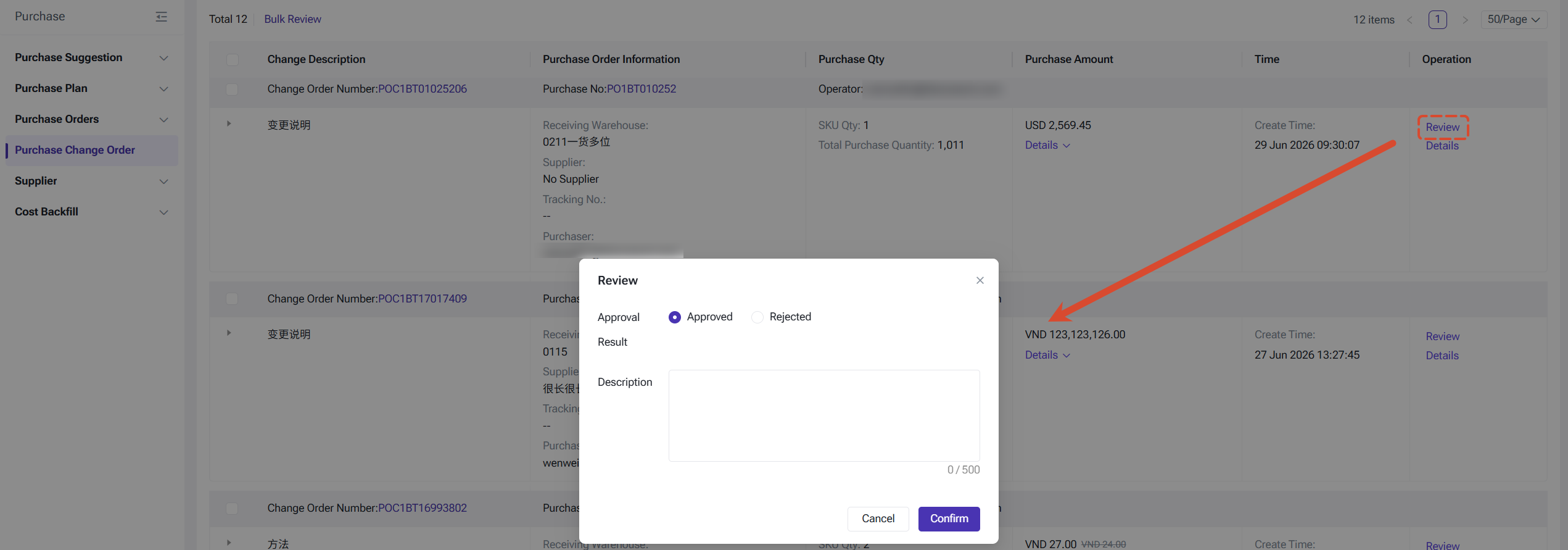
6.On approval, changes take effect. On rejection, the purchase order reverts to its previous state.
Restrictions while a change is in progress
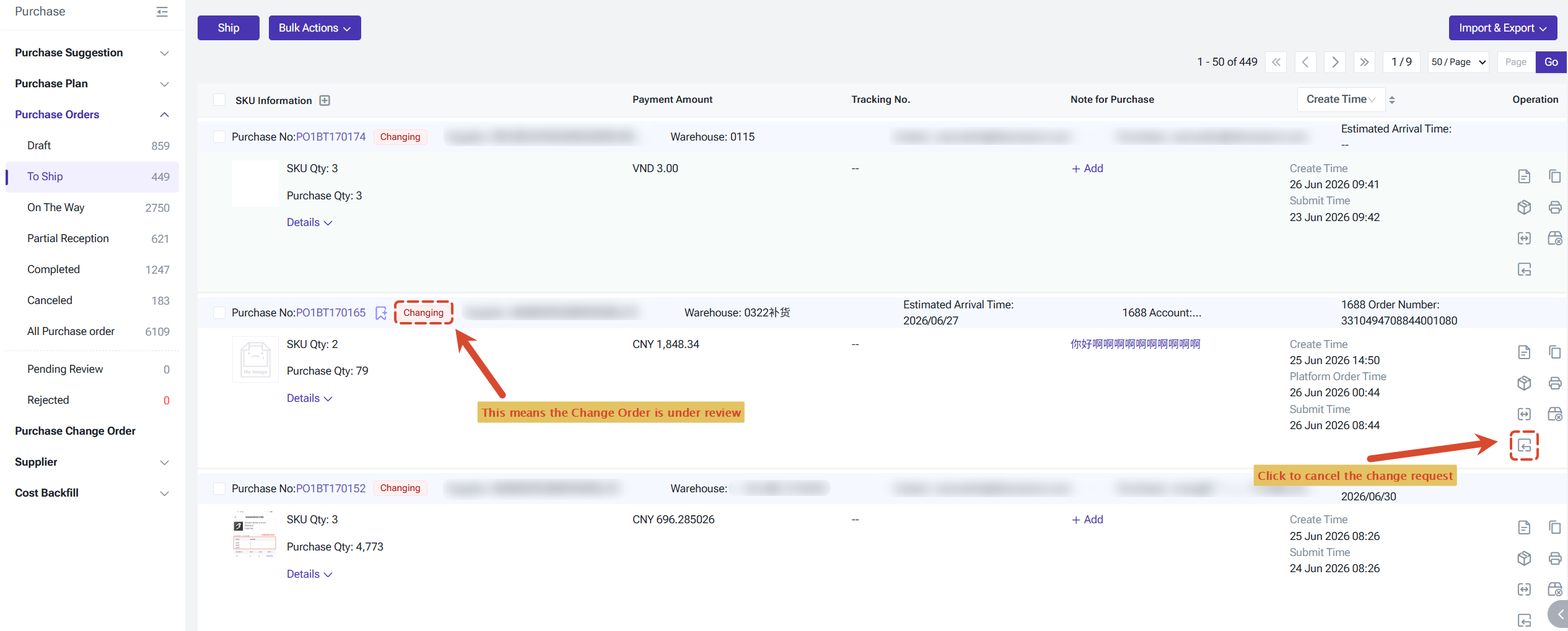
While a purchase order has a change order in Pending Review (shown with a "Changing" tag), the following operations are blocked:
2.In the To Ship, On The Way, or Partially Received list, click Edit on the relevant order.
3.Modify the purchase order fields and fill in a change description, then click Submit Change Order.
4.The system generates a change order recording the before and after values for every modified field.
5.Review and approve or reject the change order from the Purchase Change Order list or detail page (or the system auto-approves if Change Review is off).
6.On approval, changes take effect. On rejection, the purchase order reverts to its previous state.
Restrictions while a change is in progress
While a purchase order has a change order in Pending Review (shown with a "Changing" tag), the following operations are blocked:
- Editing the purchase order again (the Edit button switches to Detail view only)
- Receiving goods (In Transit / Partially Received)
- Batch operations that include this order will skip it and report it as failed, with the reason: "Purchase order change in progress, operation not allowed"
To withdraw a pending change, click Cancel Change. This deletes the pending change order and clears the "Changing" tag.
What updates automatically when a change is approved
SKU changes (add, remove, or adjust quantity)
What updates automatically when a change is approved
SKU changes (add, remove, or adjust quantity)
- On The Way inventory quantities are reduced for the old warehouse and added to the new one
- The purchase order list, purchase receiving, and scan-to-receive pages update the receiving warehouse in real time
- Restock suggestions are recalculated for all SKUs in the order, using the replenishment strategies linked to each SKU in the new warehouse
- If the warehouse type changes (own warehouse ↔ 3PL), the system handles the push logic automatically
Fee or unit price changes
- Individual allocated fees, stock-in cost price, purchase order total, and variance amount are all recalculated
- For Partially Received orders where products have already been received, SKU cost prices are recalculated after the change is approved
Change tags on the purchase order list
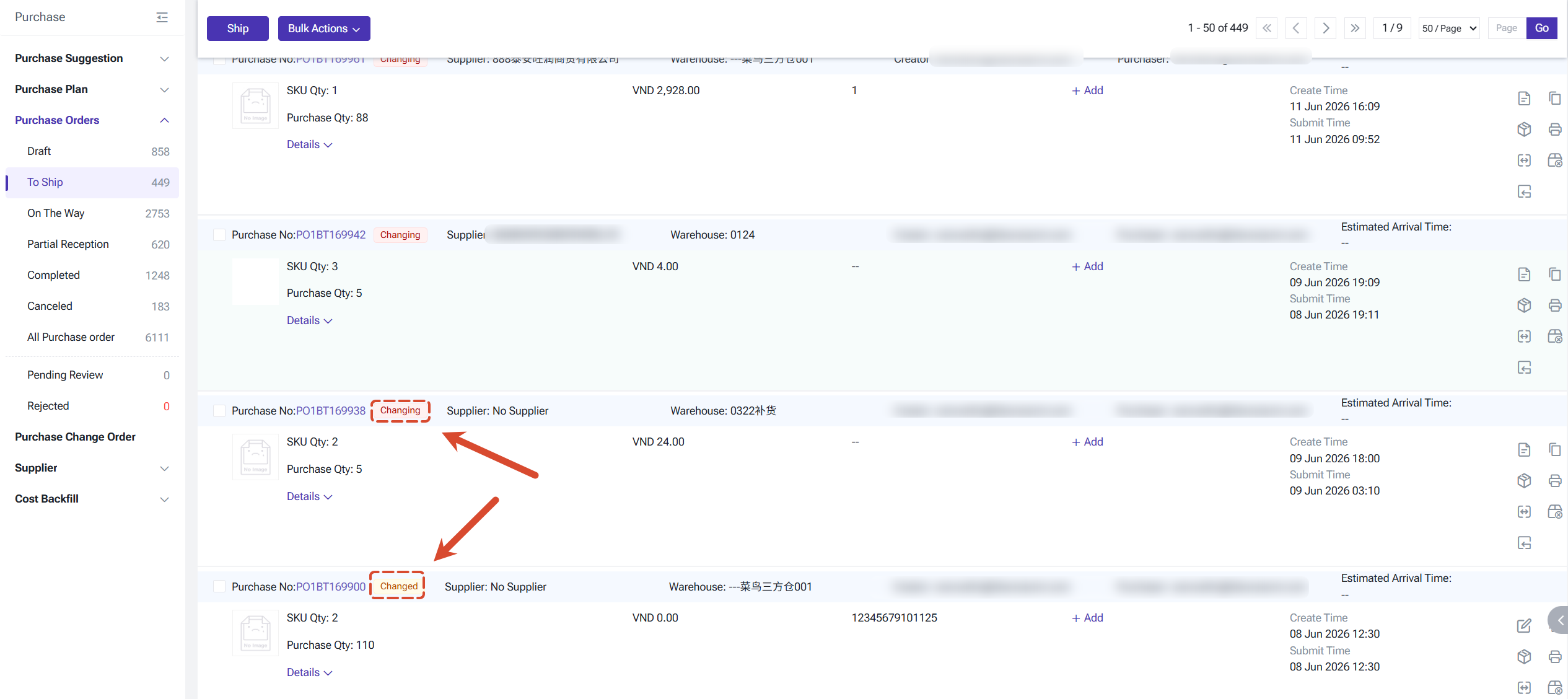
In all statuses except Draft, the purchase order number is displayed alongside a change tag:
- Changing — a change order has been submitted and is awaiting review
- Changed — a change order has been approved and the update has taken effect
Clicking either tag navigates directly to the corresponding change order record in Purchase Change Order page.
Permission settings
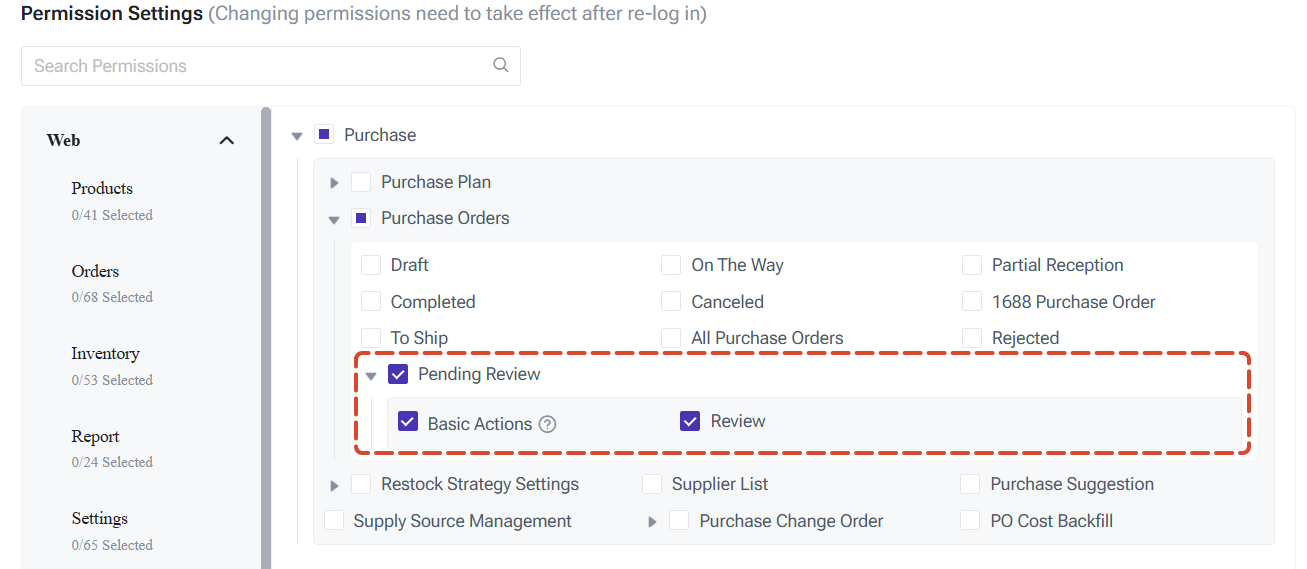
The following new permissions are required and must be configured in Permission Settings:
Purchase module
Purchase module
- Purchase Orders > Pending Review (Basic Actions, Review)
- Purchase Orders > Rejected
- Purchase Change Orders (Basic Actions, Review)
Settings module
- Purchase Settings > Purchase Order Settings
- Purchase Settings > Purchase Review
Note: accounts must have the Purchase Change Orders — Basic Action permission to see the Edit button on standard and 1688 purchase order lists. Without this permission, only a Detail button is shown.
Is this content helpful?
Thank you for your feedback. It drives us to provide better service.
Please contact us if the document can't answer your questions
Related Articles