Create standout product videos with BigSeller AI Agent Assistant. Generate engaging scripts, preserve authentic visuals, reach global audiences, and recreate trending styles — all with flexible BigCoin-based generation.
BigSeller's AI Video Generation is powered by five industry-leading models. The table below shows the cost for each model:
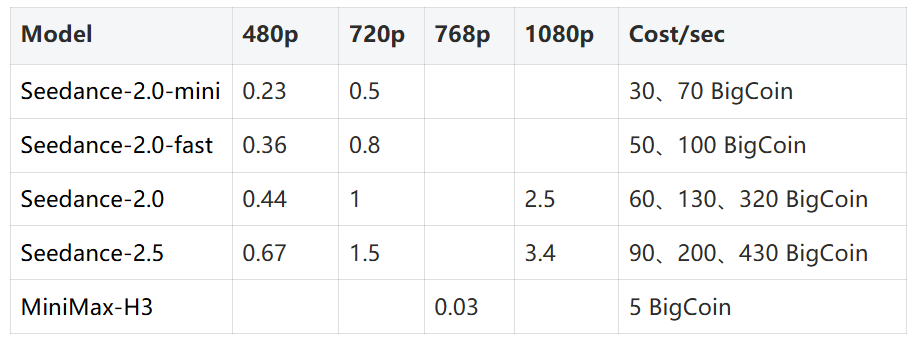
Need more BigCoin? Learn how to purchase BigCoin →What is BigCoin?
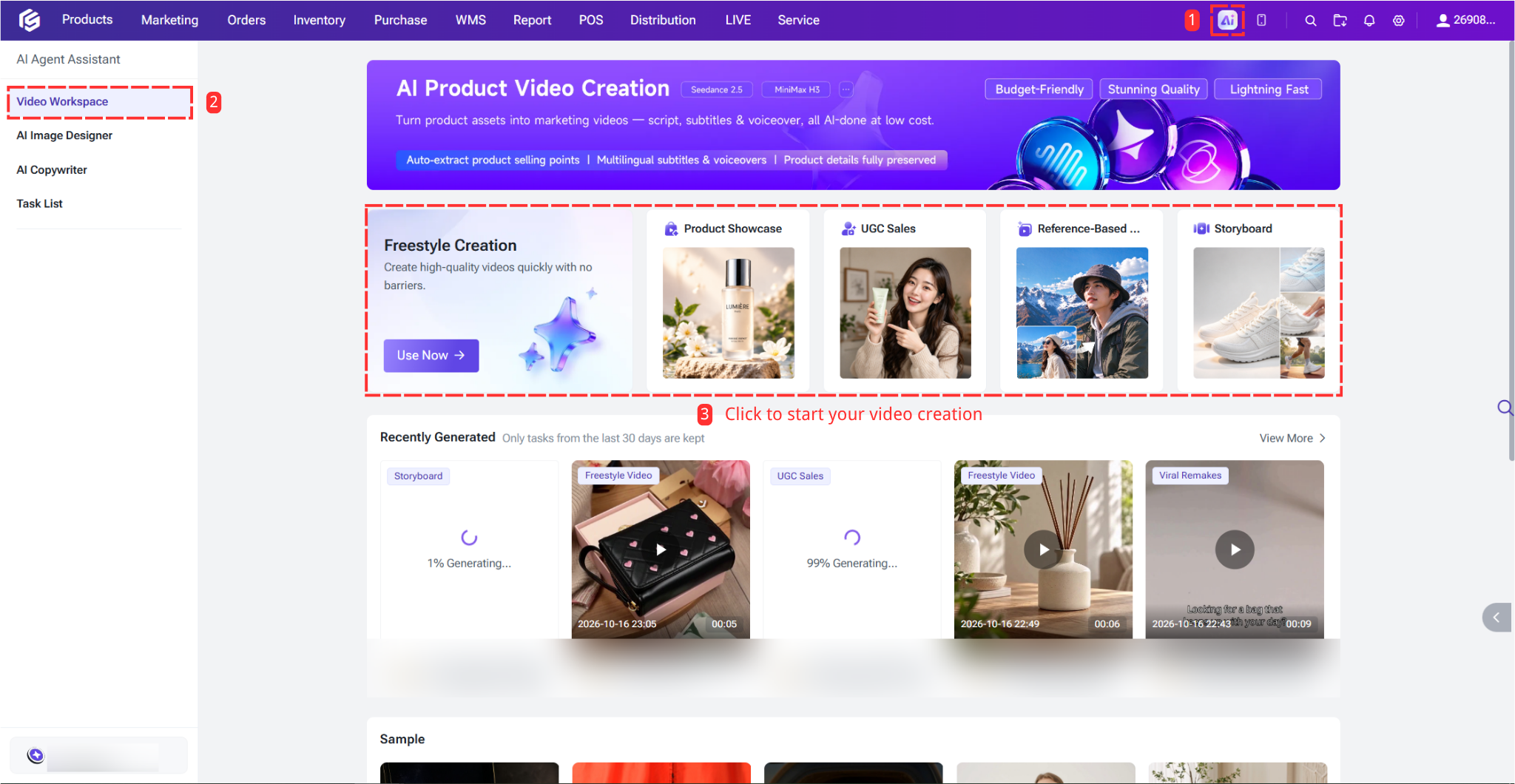
1. Video Workspace
Bring multiple video creation scenarios into one workspace, including Freestyle Video, Product Showcase, UGC Sales, Recreate Viral Video, and Storyboard. Integrate these agents with product data, media assets, Listings, and task management.
This page also lets you browse your video generation history from the past 30 days and explore sample videos for inspiration.
Access: AI Agent Assistant > Video Workspace
1.1 Freestyle Video
The Free Creation feature in Video Workspace lets you create videos from scratch by providing reference images, videos, or audio, along with a prompt and video settings.
Step 1: Open Freestyle Creation
Go to AI Agent assistant > Video Workspace > Freestyle Creation.
The page is divided into two sections:
Creation Input: Configure the model, media, prompt, and video settings.
Generation Results: View your current and previous video generation tasks.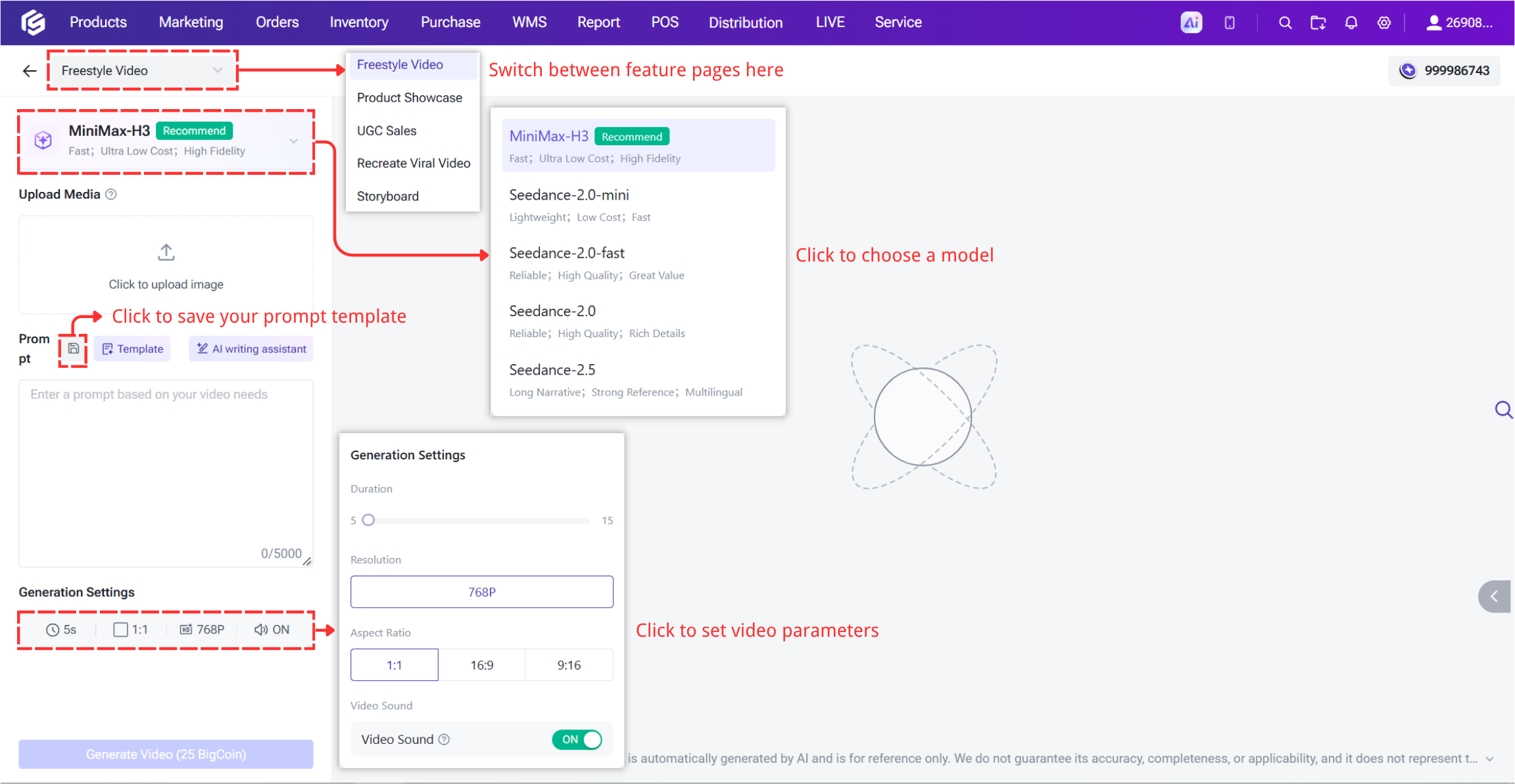
Step 2: Select a Model
Choose a model based on your video requirements. MiniMax-H3 is selected by default.
Different models offer different speeds, quality levels, and reference capabilities. The available video settings and BigCoin cost may vary by model.
Step 3: Upload Reference Media
Option 1: You can upload reference media to guide video generation.
For Seedance models, you can upload:
- Up to 9 images, with each image up to 5 MB
- Up to 1 video, in MP4 or MOV, up to 15 seconds and 30 MB
- Up to 1 audio file, in WAV or MP3, up to 15 seconds and 5 MB
For MiniMax-H3, only images are supported. You can upload up to 9 images, with each image up to 5 MB.
Option 2: You can upload media from the Media Center or from your local device.
Step 4: Enter a Generation Prompt or use a Prompt Template
Enter a prompt describing the video you want to create. The prompt is required and supports up to 5,000 characters.
You can click Template to choose a preset or custom template. Click Apply to automatically fill in the prompt. You can save your own prompts as custom templates, with up to 500 custom templates supported.
You can also click AI Writing Assistant next to the Prompt Template to have AI generate a video prompt based on your requirements and uploaded media.
Enter your video requirements and click Generate. This consumes 5 BigCoin.
If generation fails, the 5 BigCoin will be returned.
Step 5: Set Video Parameters & Generate the Video
After completing the required settings, click Generate Video.
The button shows the estimated BigCoin cost, such as Generate (20 BigCoin).
Make sure your BigCoin balance is sufficient before generating. BigCoin is deducted when the generation task is submitted.
You can continue editing the creation input or submit another generation task while the current task is processing.
If the task fails to submit or generate, the deducted BigCoin will be returned according to the failure status.
Step 6: View Generation Results
The Generation Results section displays your video tasks, with the latest task shown first.
Tasks can have the following statuses: Completed, Generating, Waiting to Generate, Generation Failed.
Note: Only completed status allow users to save, download, and apply the result to the Listing.
1.2 Product Showcase
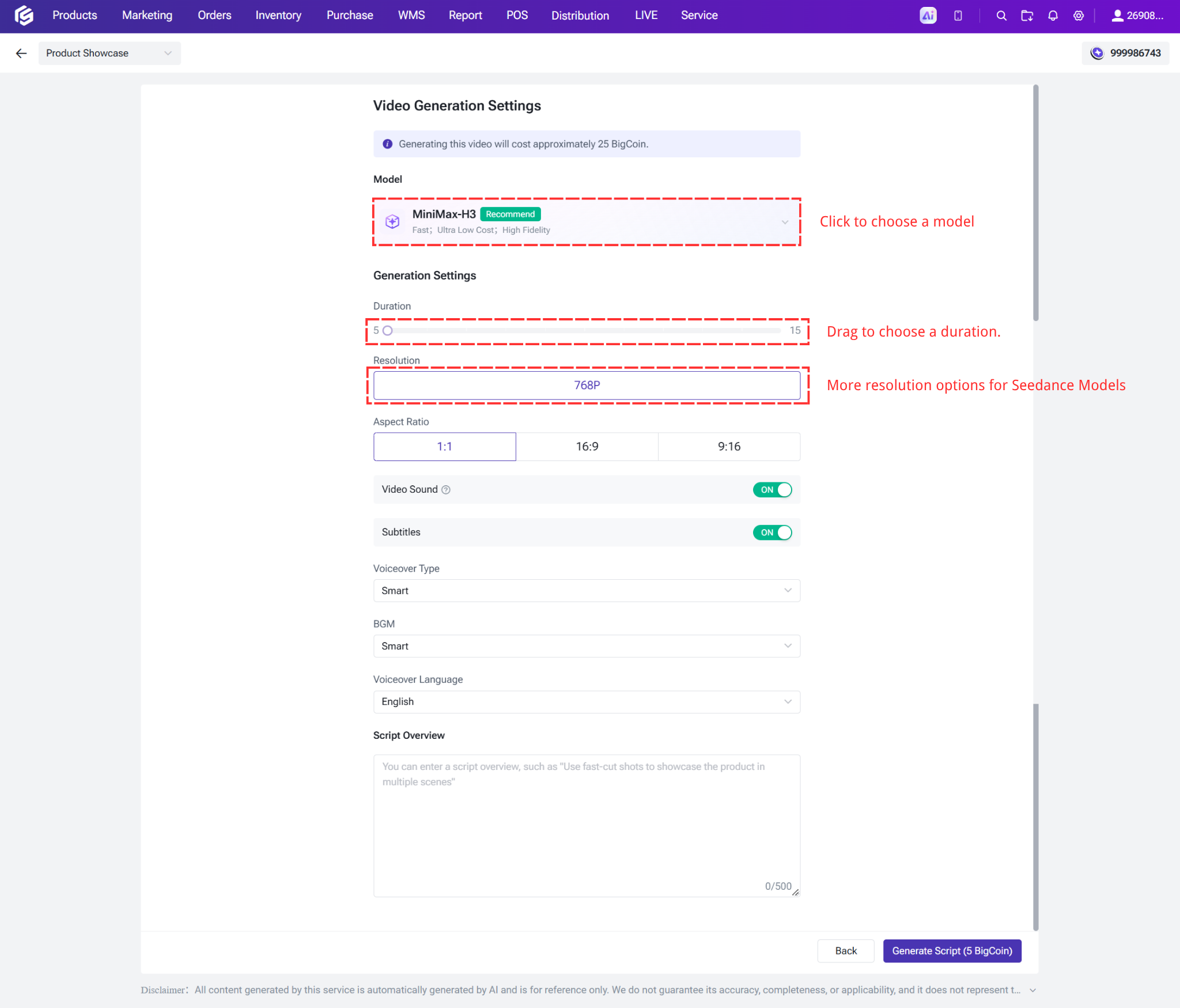
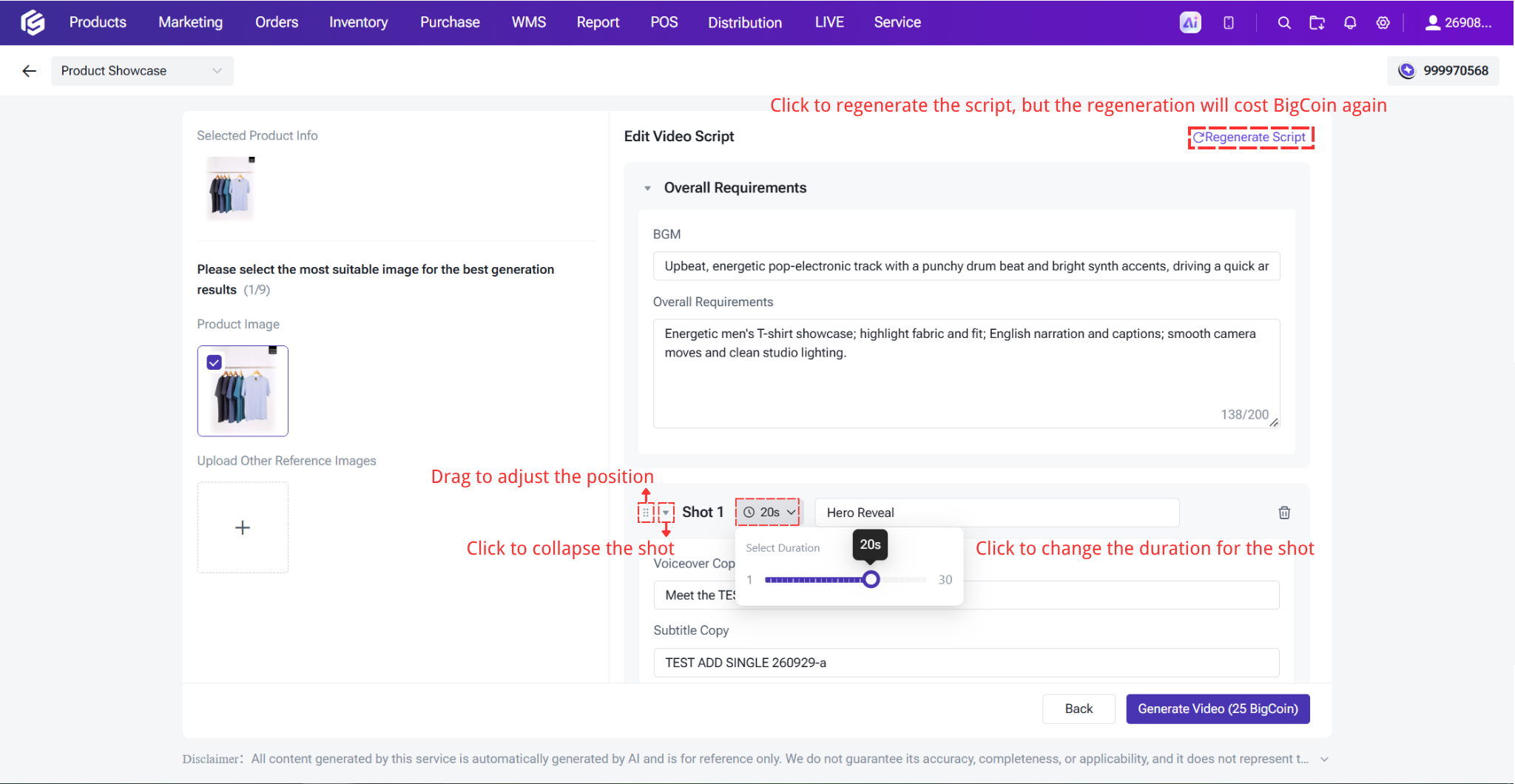
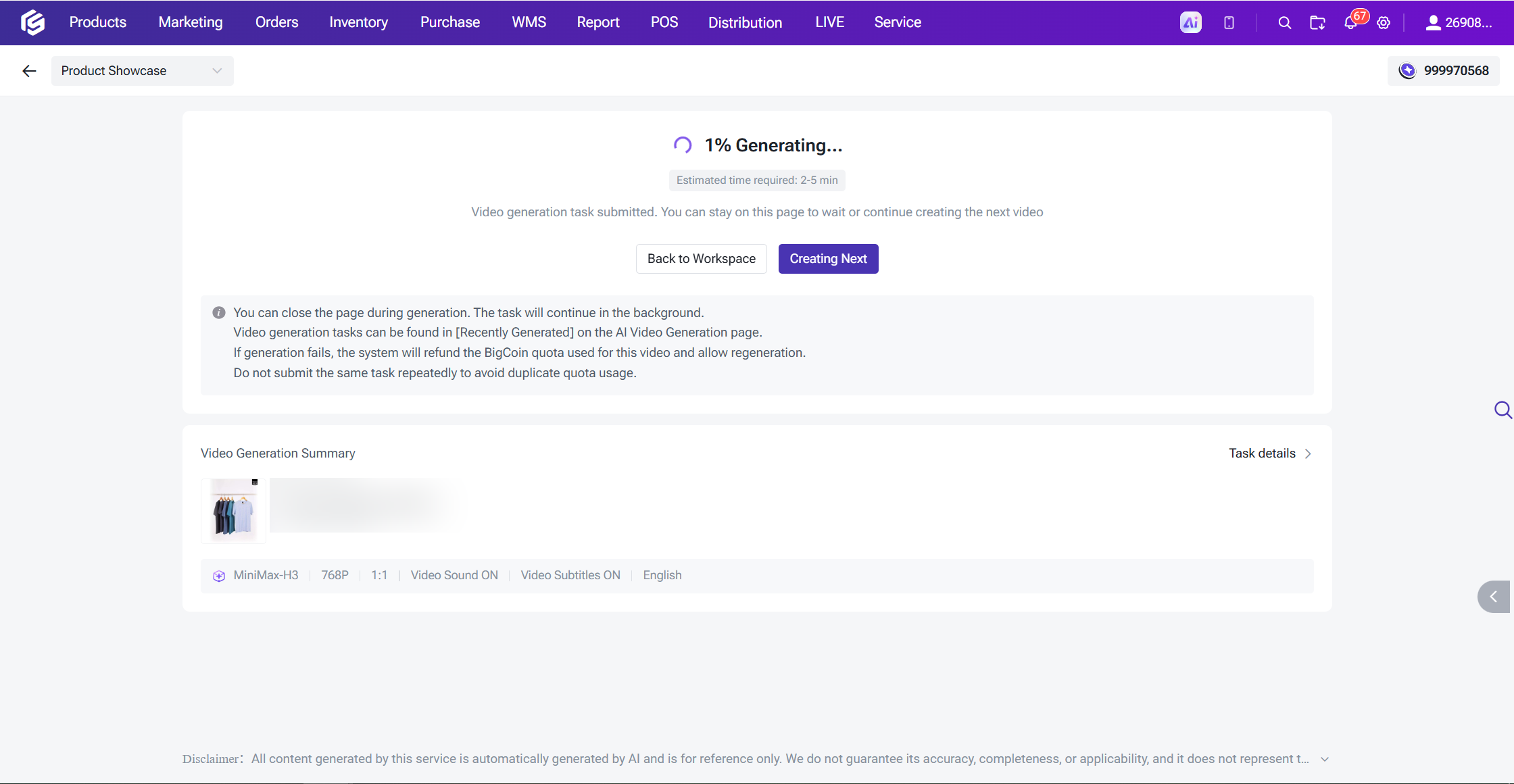
Generate product videos with scripts, subtitles, and voiceovers from BigSeller products or custom products.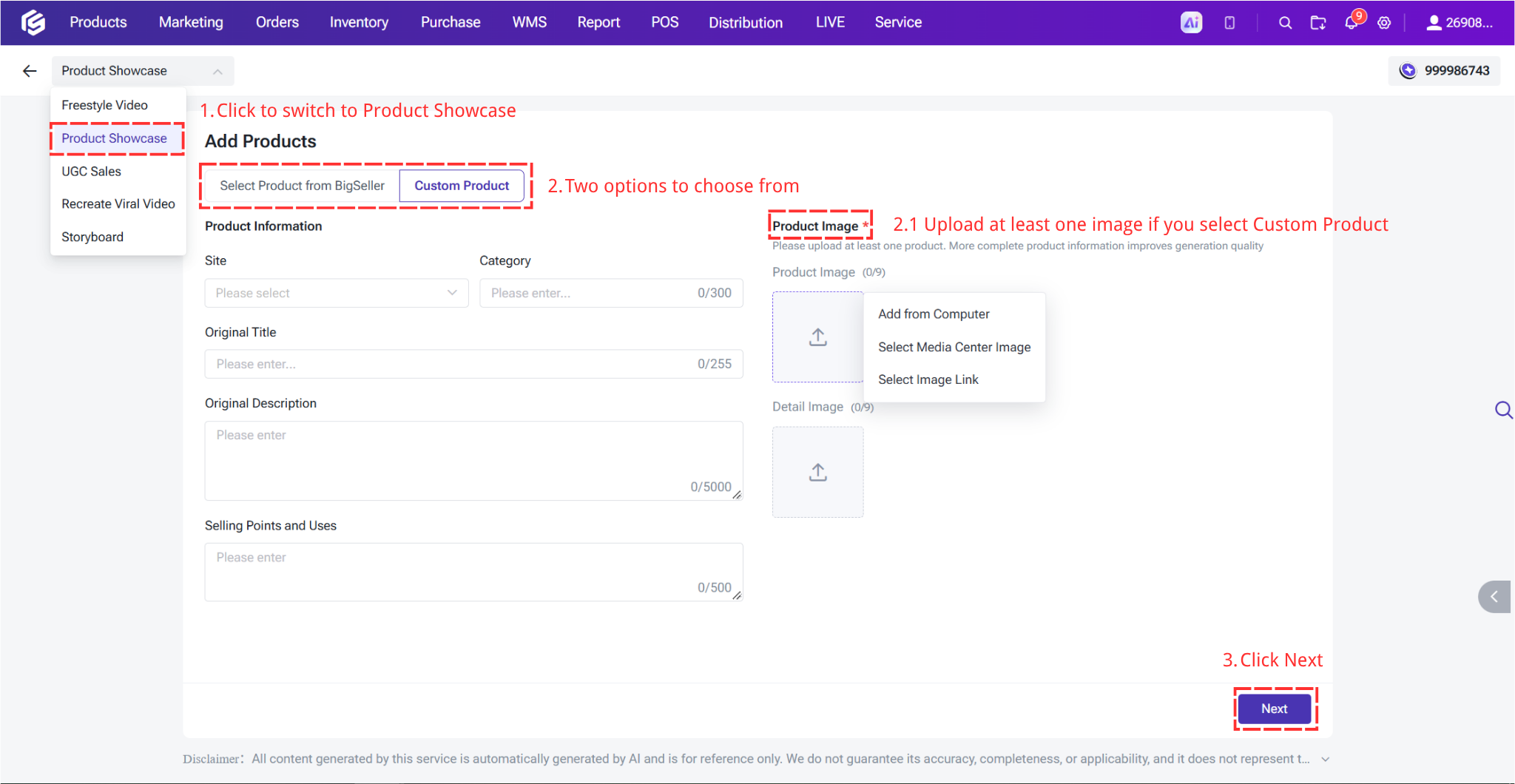
1.3 AI Agents for Other Scenarios
All three agents below follow a creation workflow similar to Product Showcase Video:
UGC Sales
Create UGC sales scripts from product or listing details, then generate promotional videos featuring authorized AI avatars, product assets, voiceovers, subtitles, and CTAs.
Recreate Viral Video
Upload a reference video for AI to analyze its structure, pacing, subtitle style, and scripting approach. The system then recreates the video using your product assets instead of directly reusing the original footage or music.
Storyboard
Produce high-quality videos through detailed shooting scripts and shot-by-shot control, enhanced with AI image generation.
2. Other Feature Entry Points
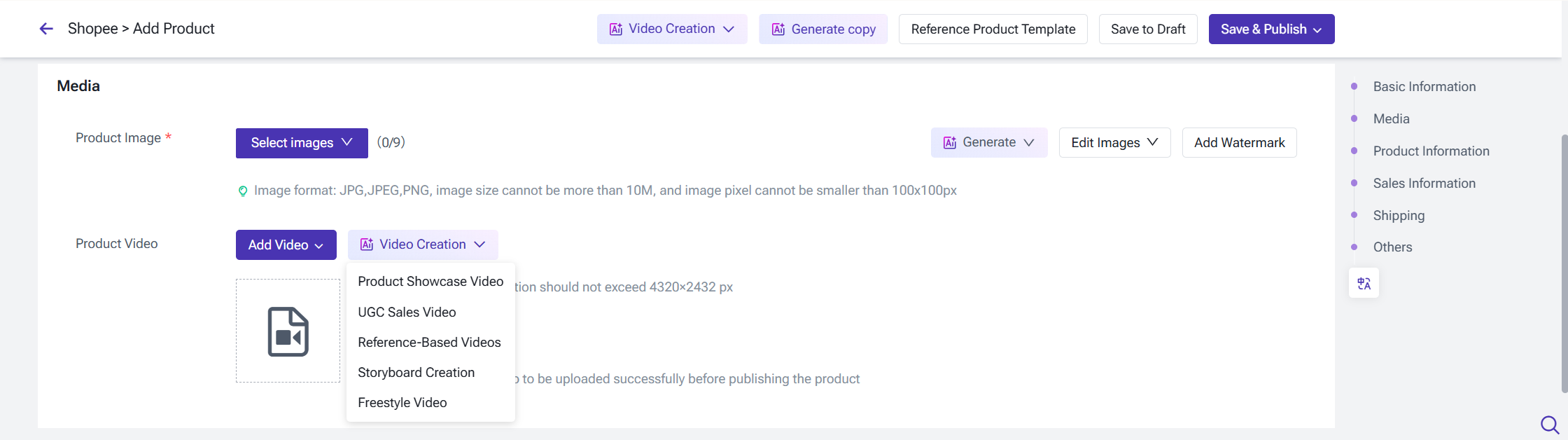
2.1 Draft/Active > Add/Edit Product > Video Creation
- Supported platform: Shopee and TikTok
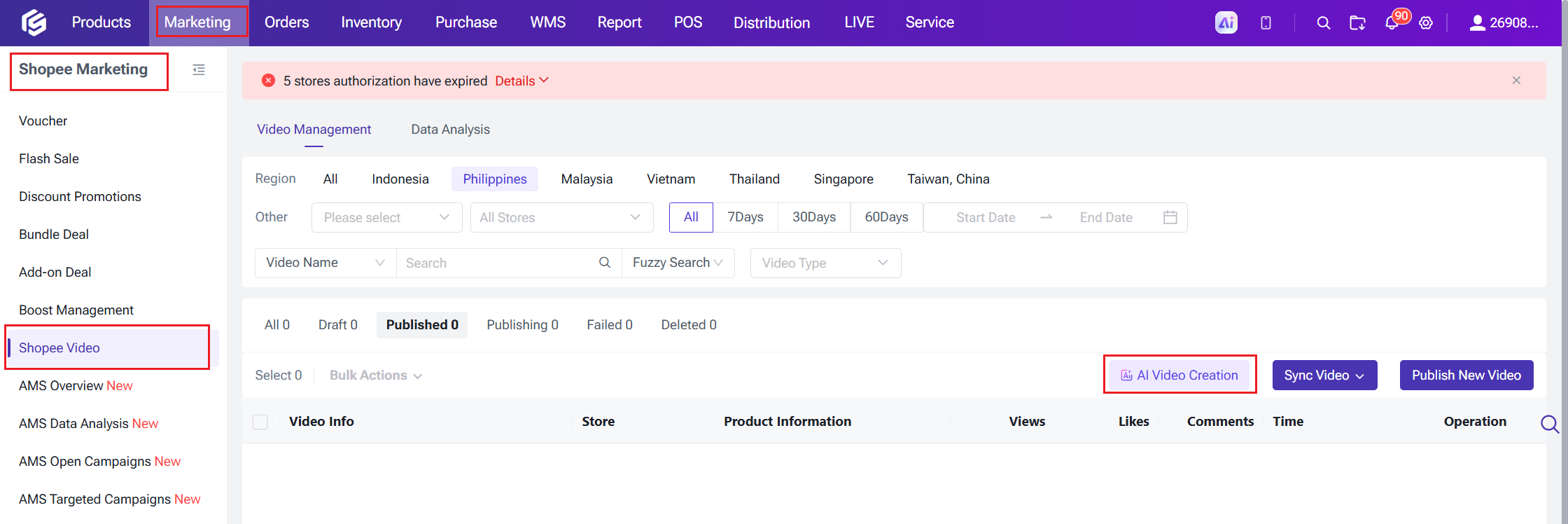
2.2 Marketing > Shopee Vide
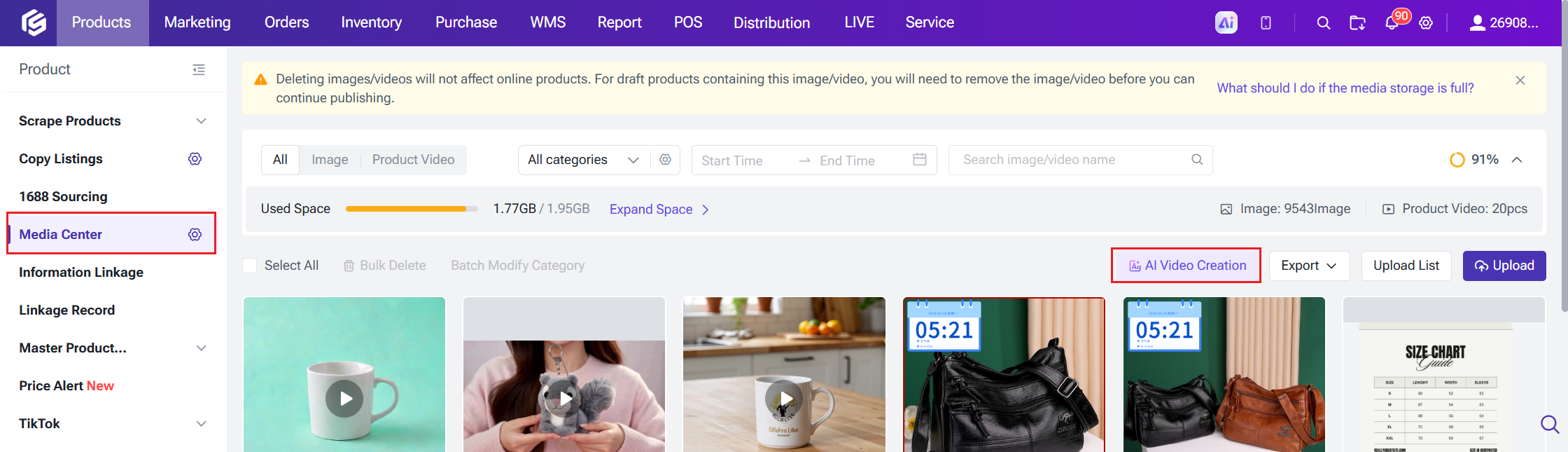
2.3 Products > Media Center