Shopee Marketplace Warehouse (FBS) Guide
Update Time: 21 Oct 2026 06:05
BigSeller now supports integration with the Shopee Marketplace Warehouse (FBS, Fulfilled by Shopee). Once connected, your marketplace warehouse inventory, stock age, orders, and after-sales data will be automatically synced to BigSeller — no more manual spreadsheets — so you can manage the entire marketplace warehouse workflow within one system.
1. What Is a Marketplace Warehouse?
A marketplace warehouse is a fulfillment system run by the e-commerce platform: stock your goods in advance, and picking, packing, and shipping are all handled by the platform. With Shopee's FBS (Fulfilled by Shopee), orders are handed over for delivery in about 1 hour.
Now on BigSeller, you can manage all your Shopee marketplace warehouses in one place:
- Inventory at a glance: Stock and stock age auto-synced, with sales data for restocking.
- Orders auto-tagged: FBS orders are labeled for one-click filtering.
- Costs auto-recorded: Costs are recorded after handover, for accurate profit.
- Hassle-free after-sales: Returns handled by the warehouse — just set "No stock-in" or "Auto stock-in for all".
Note: Marketplace warehouses are created automatically — no manual setup needed. Their inventory is stored on the Merchant SKU and is independent of product inventory: it does not appear in the inventory list, does not trigger restocking suggestions, and works even if the Inventory feature is not enabled.
2. Automatic Warehouse Creation
You do not need to add marketplace warehouses manually. They are created automatically in either of the following scenarios:
- Created when syncing orders: When an FBS flag (fulfilled_by_shopee) is identified in the order details, the system automatically creates the corresponding marketplace warehouse based on the order's fulfillment warehouse.
- Created when syncing inventory: After a store is authorized, during the daily scheduled sync, or when you manually trigger an inventory sync, the system automatically creates the marketplace warehouse as long as any inventory quantity in it is not 0.
Warehouse naming rule: Marketplace warehouses are named "FBS-warehouse code" by default, e.g. FBS-PHX1; if the name already exists, a suffix is appended automatically (e.g. FBS-PHX1001). The marketplace warehouse's service provider is marked as Shopee, while address, administrator, phone number, and similar details are managed by the platform and saved as empty in BigSeller.
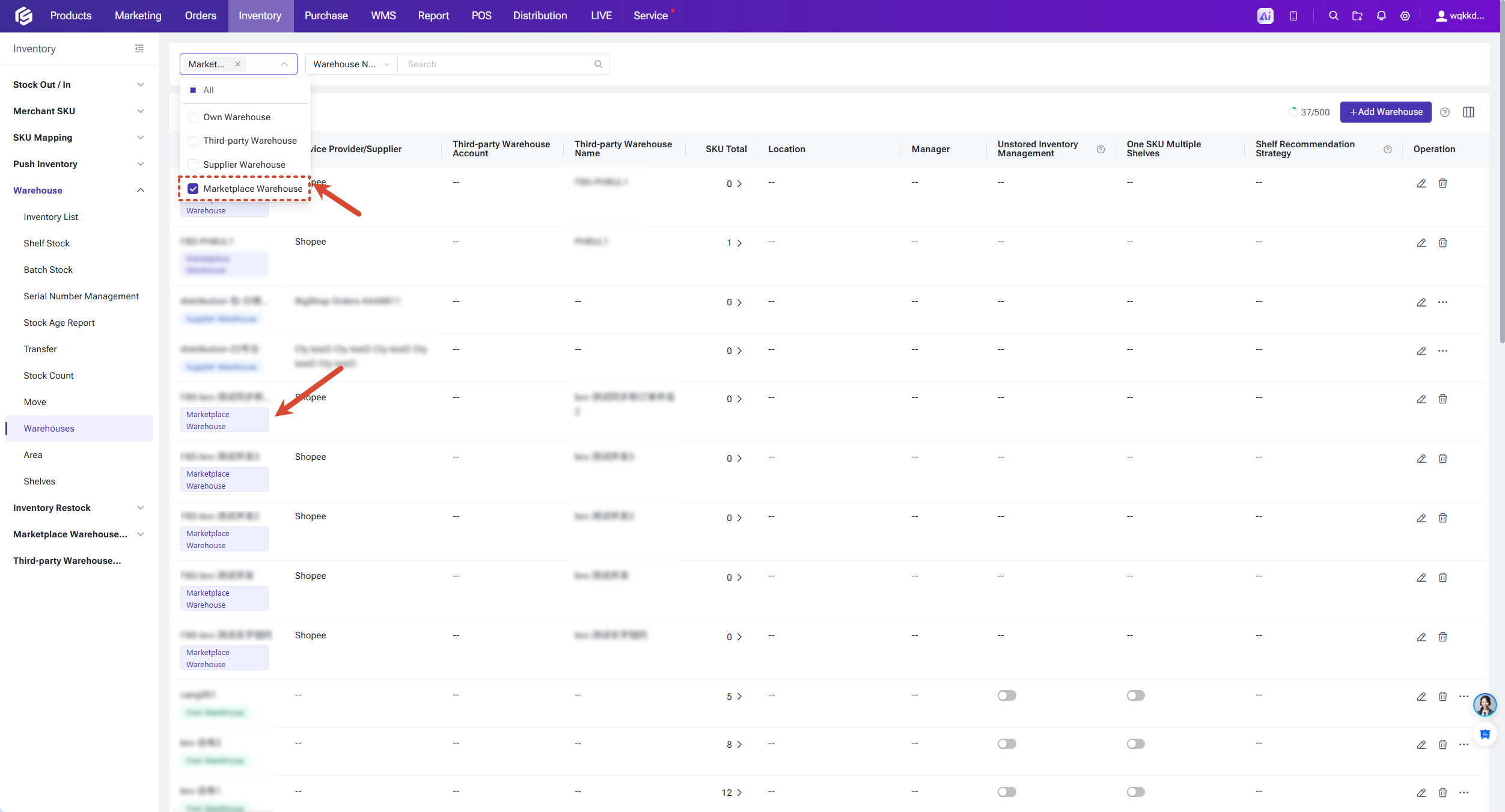
On the Inventory > Warehouses page, you can view all marketplace warehouses by filtering with "Warehouse Attribute = Marketplace Warehouse". Please note:
- Marketplace warehouses cannot be set as the default shipping warehouse or default return warehouse.
- When a marketplace warehouse is deleted, its inventory details are deleted as well; however, if the system later detects FBS orders or inventory for that warehouse again, the marketplace warehouse will be re-created automatically and its inventory synced on schedule — please delete with caution.
3. Marketplace Warehouse Inventory
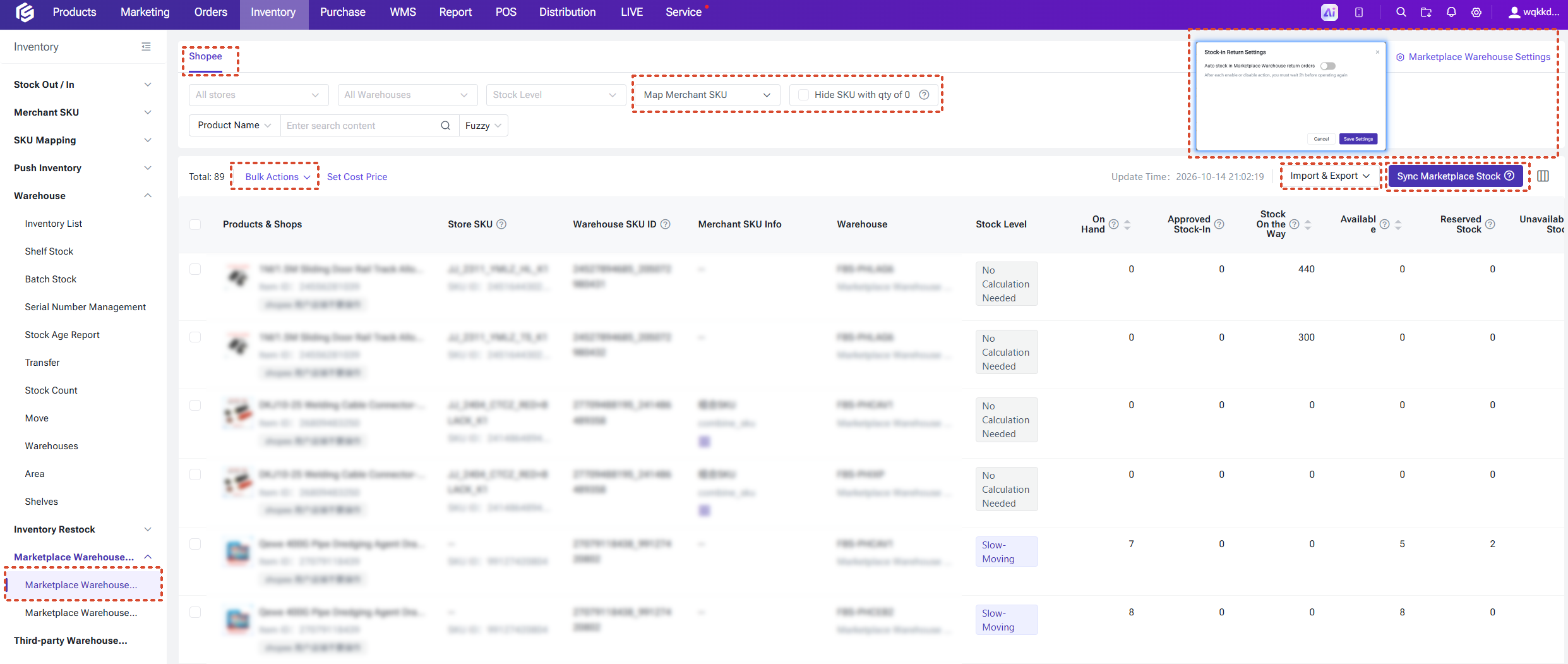
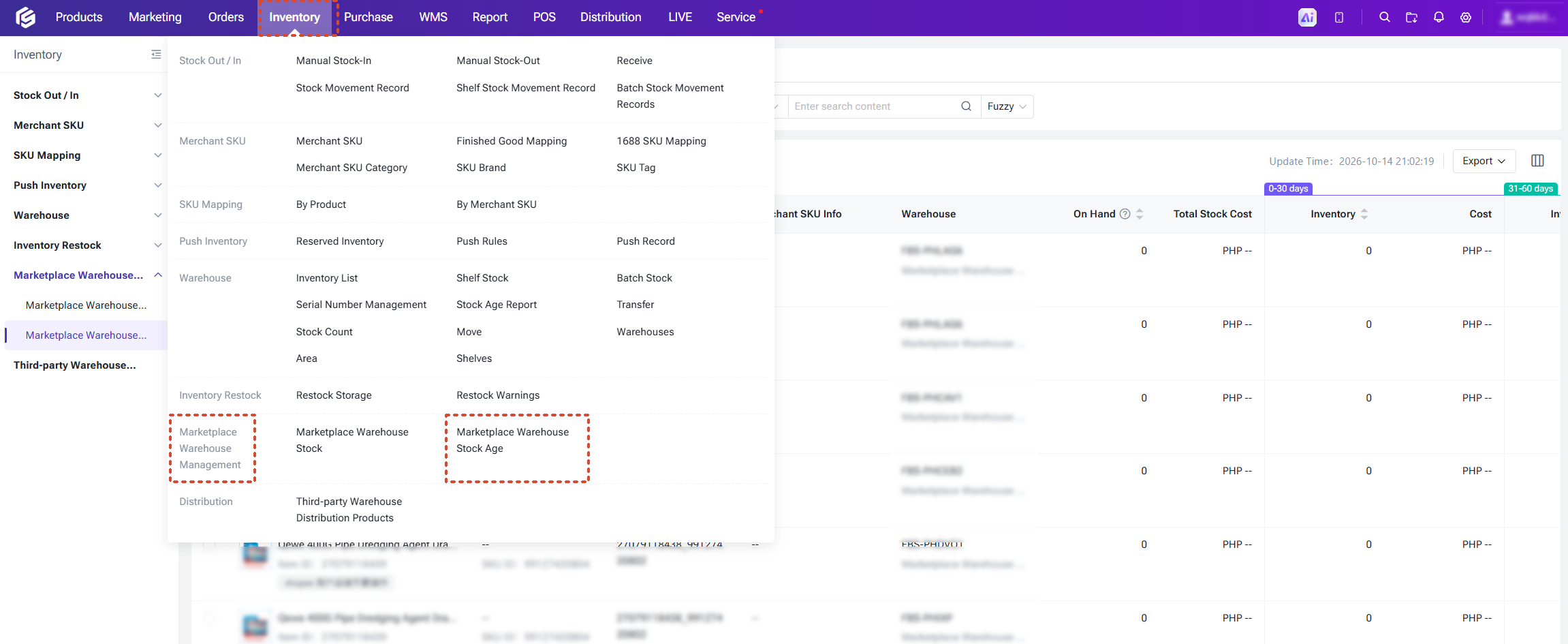
Entry path: Inventory > Marketplace Warehouse Management > Marketplace Warehouse Stock.
The page supports filtering by platform (currently Shopee), store, and warehouse, and supports single or bulk searches by shop SKU, Item ID, SKU ID, SKU name, and more. Key features include:
- Inventory details display
- Hide 0-stock Merchant SKUs
- View sales volume and days of supply to help you plan restocking.
- Print Merchant SKU labels
- Sync inventory — only one sync task can run at a time for each shop.
- Bulk import/export of inventory data
Inventory sync mechanism:
- The system automatically syncs marketplace warehouse inventory early every morning; after syncing, warehouse-wide stock, costs, and the page's last-updated time are refreshed automatically.
- You can also sync manually on the page.
4. Setting Cost Prices
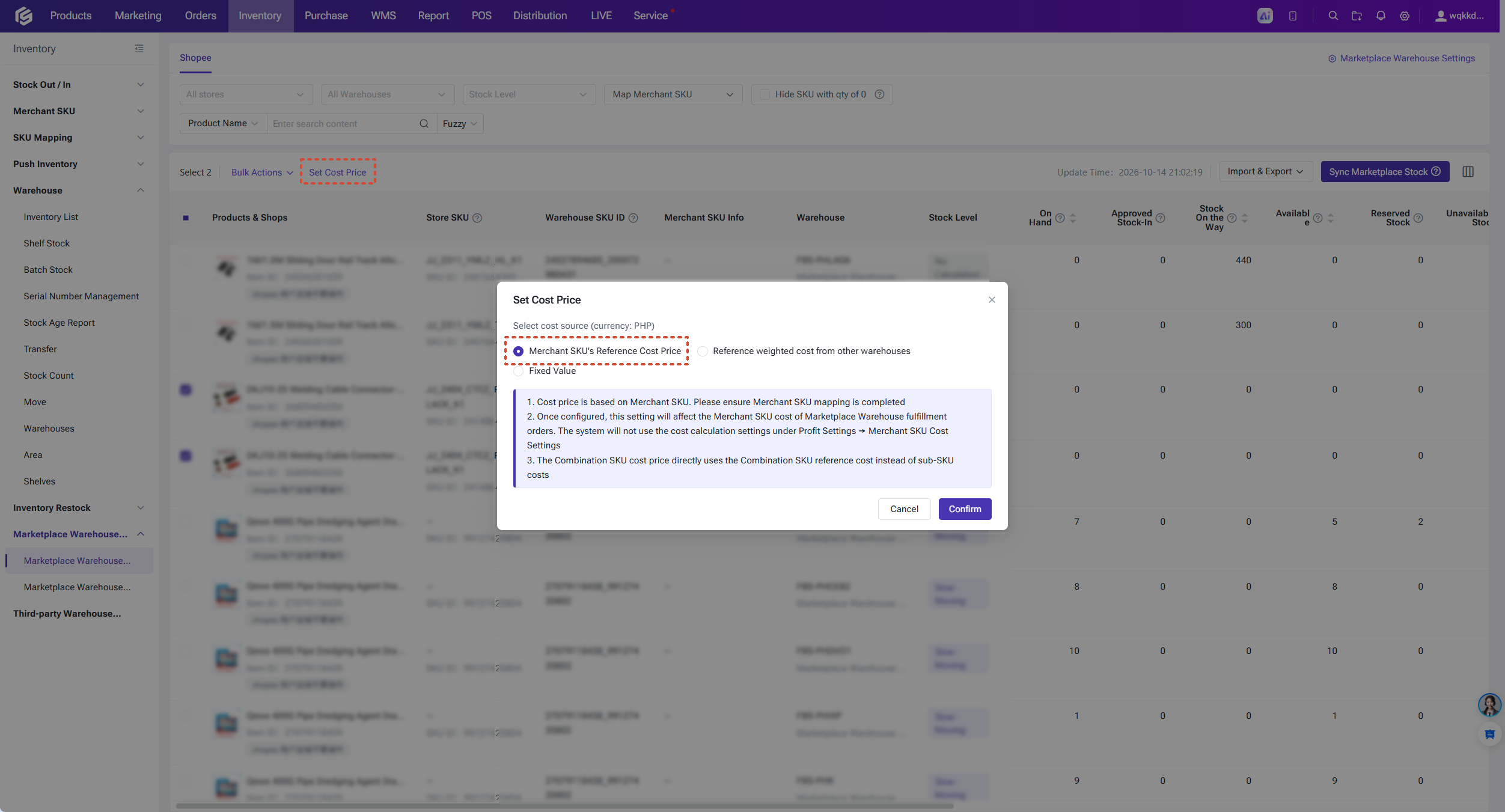
Entry path: Inventory > Marketplace Warehouse Management > Marketplace Warehouse Stock. Select records and click Set Cost Price, or click the cost price of a single record to edit it directly.
Cost prices are saved on the Merchant SKU, so please complete the mapping between store SKUs and Merchant SKUs first. Three cost sources are available:
- Merhchant SKU reference cost (default): uses the reference cost already maintained on the Merchant SKU.
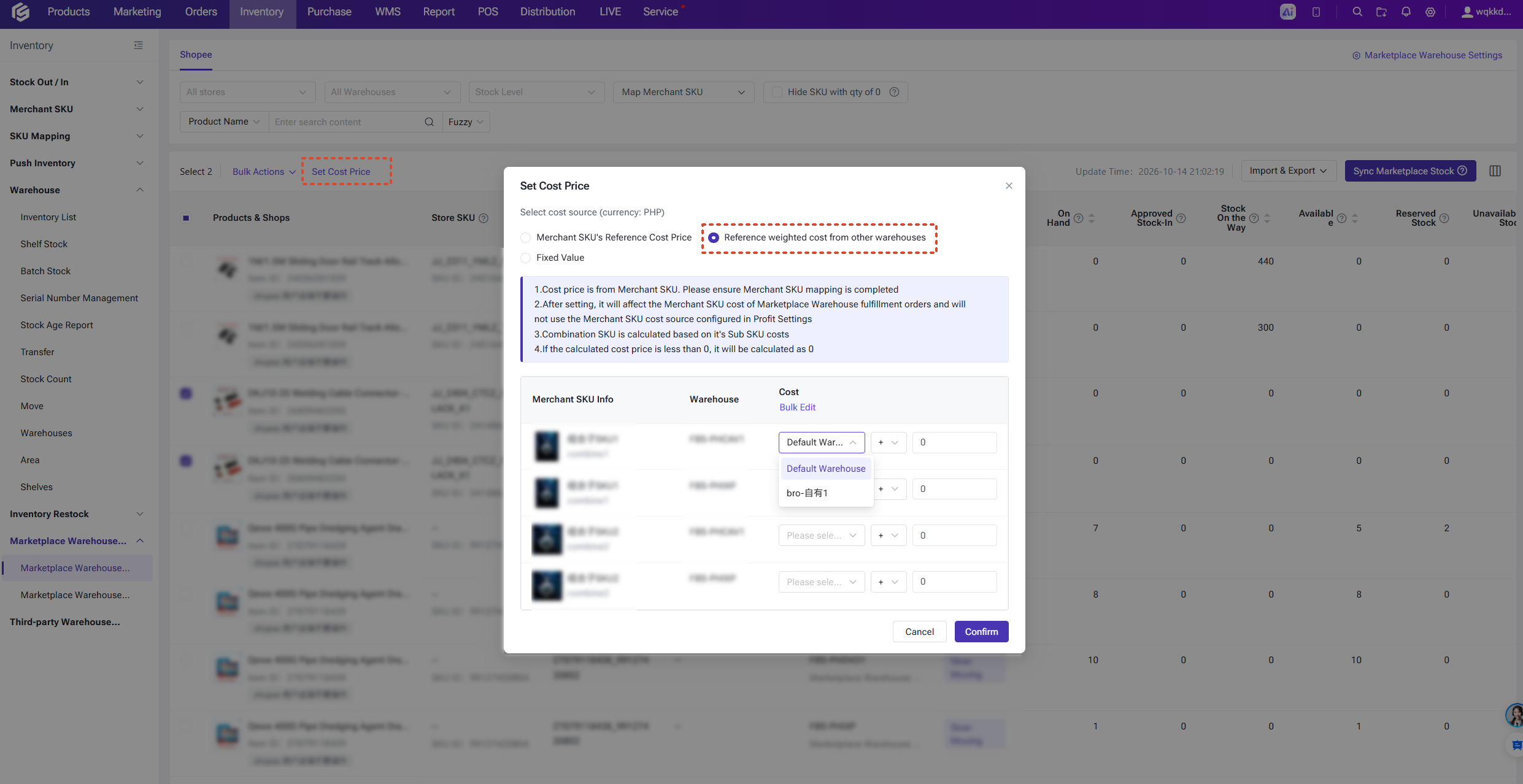
- Weighted cost of another warehouse: uses the weighted cost of a self-owned/third-party/supplier warehouse you specify, with an optional plus/minus adjustment.
- Fixed value: assigns a fixed cost directly to the Merchant SKU.
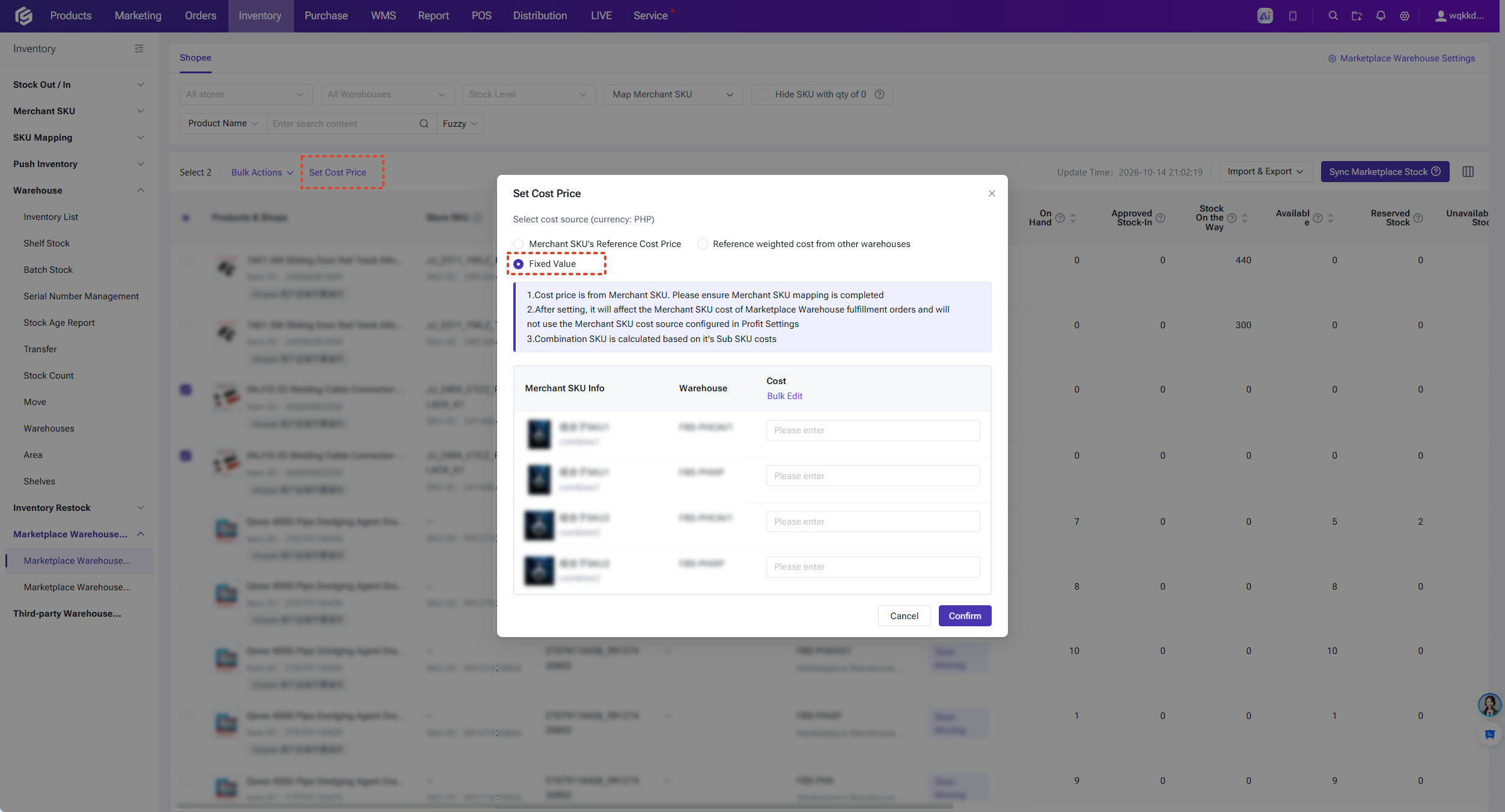
Once saved, the system recalculates the SKU's cost, total inventory value, and related data; when the same SKU is saved multiple times, the latest save prevails.
💡 Important notes:
- The cost price set here is used for the Merchant SKU cost records of marketplace-warehouse-fulfilled orders; the Merchant SKU cost configuration in Profit Settings will no longer apply.
- The cost of a combination SKU is calculated from its sub-SKU costs; when the source is "Merchant SKU reference cost", the combination SKU's own reference cost is used directly. If the calculated result is less than 0, it will be saved as 0.
- You need permissions such as SKU View and SKU Cost Edit; otherwise, you cannot edit or save cost prices.
5. FBS Order Flow
FBS orders are fulfilled by the marketplace warehouse, so BigSeller does not perform stock locking, stock-out, warehouse allocation, gift rules, or other warehouse operations for them — the warehouse is mapped directly to the marketplace warehouse. Order statuses flow automatically based on the platform status:
- When the platform status is Unpaid or New Orders (READY_TO_SHIP / RETRY_SHIP / PROCESSED / PENDING), the order enters Platform Processing.
- When the platform status changes to SHIPPED, the order automatically moves to Shipped, and the system records the product cost based on your set cost price and generates a shipment record.
- When the platform status changes to COMPLETED, the order moves to Completed.
- When the platform status is In Cancellation or Cancelled, the order enters Cancelled Orders; cancelled items are not supported to be returned to stock-in and are marked as no action required.
- Orders with buyer-initiated return/refund requests enter Return & Refund.
The above status transitions are performed automatically by the system and are not restricted by the auto order-moving tool switches.
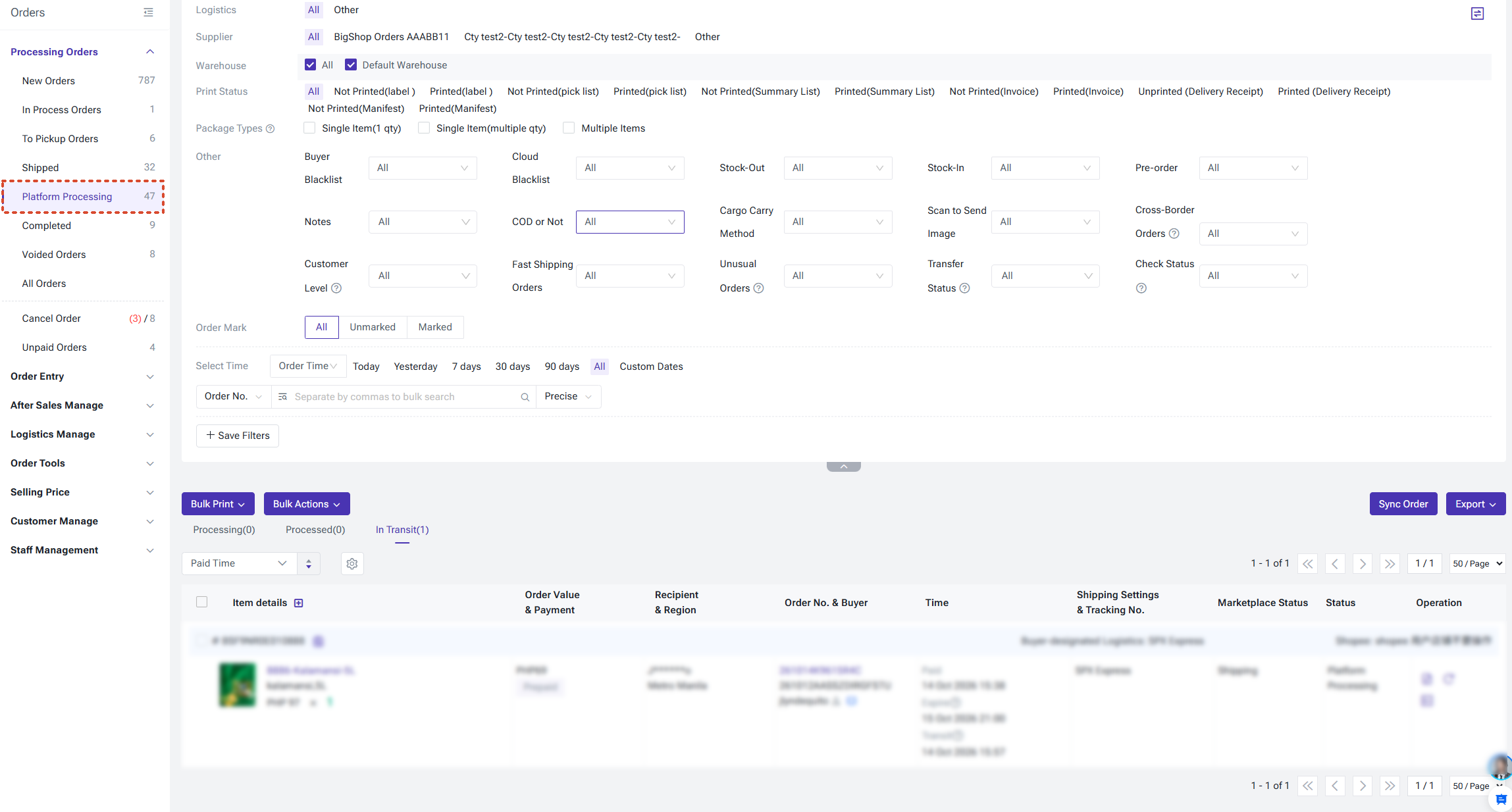
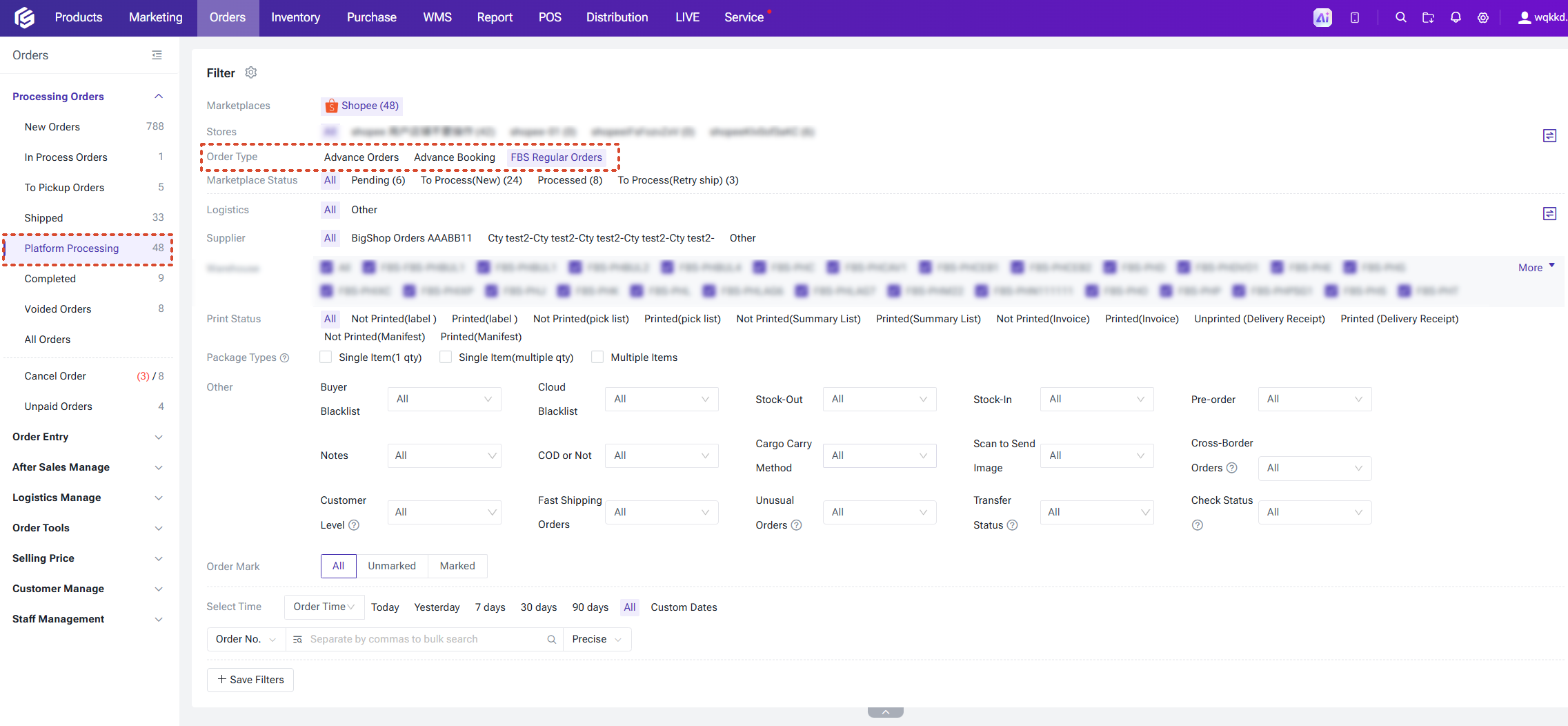
How to filter marketplace warehouse orders:
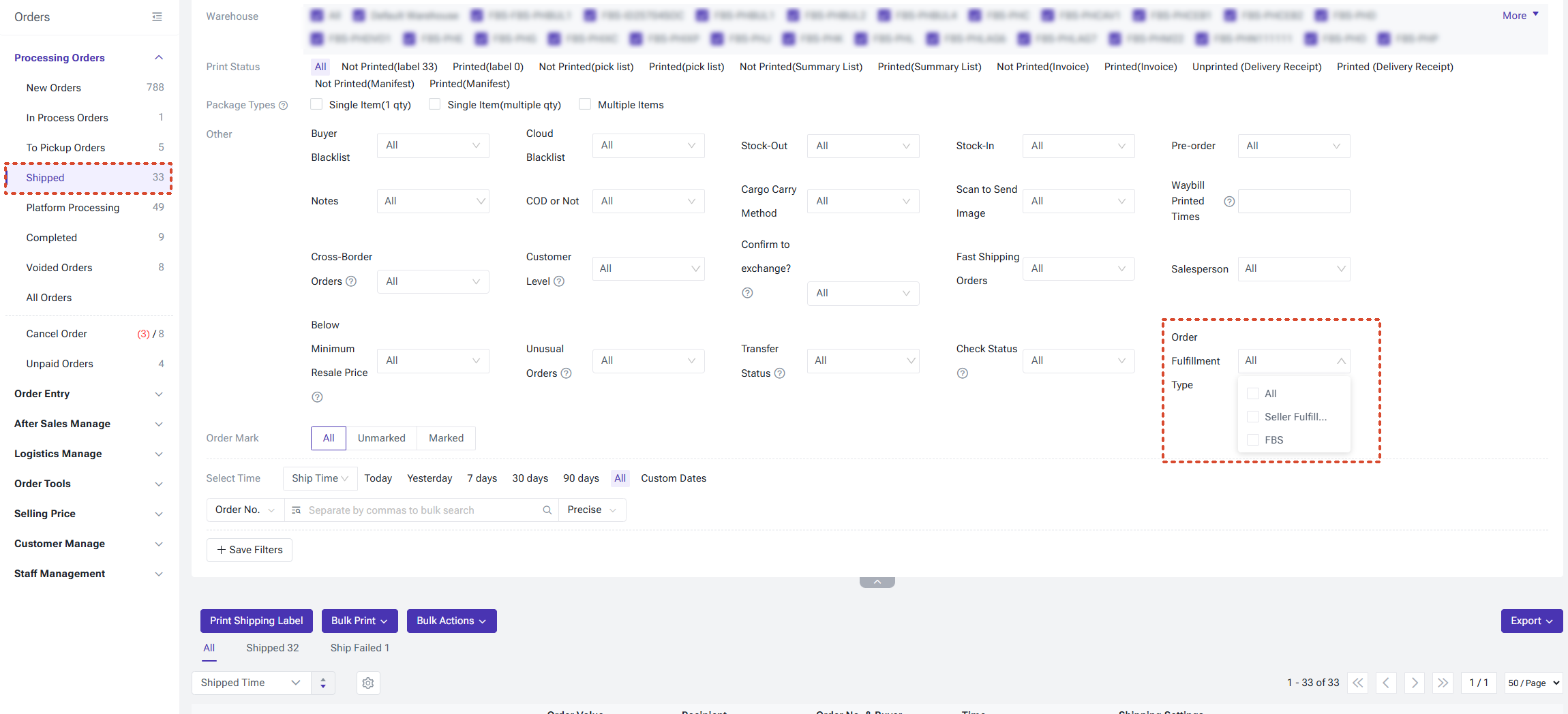
- On pages such as Platform Processing, and Shipped, use the "Order Fulfillment Type" filter to choose between "Seller Fulfillment" and "FBS" to quickly separate the two types of orders. Order export also supports filtering by fulfillment type.
6. After-Sales and Returns
Buyer returns of FBS orders are received and processed directly by the marketplace warehouse. In BigSeller:
- Default return warehouse = shipping warehouse (marketplace warehouse): Return stock-in for marketplace warehouse orders does not read the default return warehouse configured in the warehouse list.
- Stock-in status automatically marked: In the return stock-in settings under Marketplace Warehouse Settings, you can choose "Auto stock-in for all" or "No stock-in". Once enabled, the system automatically marks the stock-in status of marketplace warehouse after-sales orders according to the configuration, and can also process historical return orders that were not stocked in.
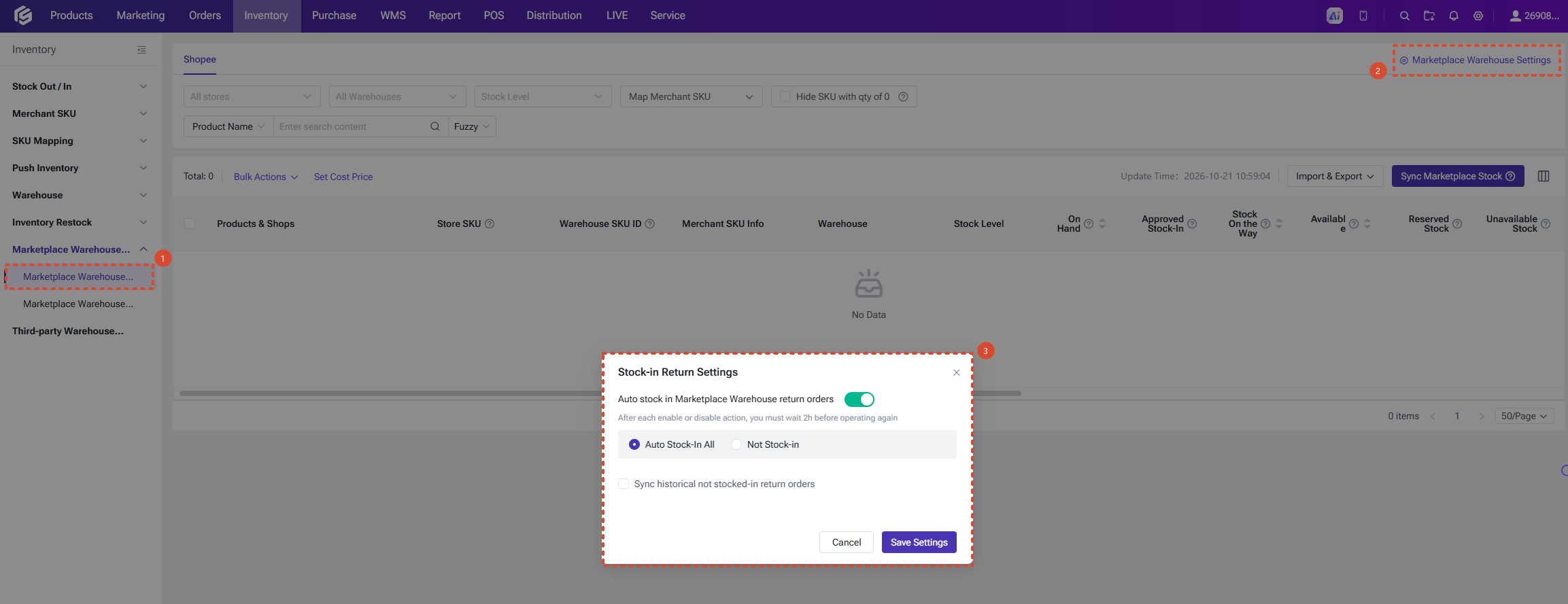
- Stock-in quantity: filled in automatically based on your configuration — equal to the stock-out quantity (stock-in for all) or 0 (no stock-in).
- Details requiring no manual input: if serial number management is enabled for a product, serial numbers are saved as empty when an FBS order is set to stock-in for all; the receiving shelf is saved as empty as well.
- FBS orders cannot be moved to a third-party warehouse for return stock-in.
7. Stock Age Analysis
Entry path: Inventory > Marketplace Warehouse Management > Marketplace Warehouse Stock Age.
The Marketplace Warehouse Stock Age page follows the design of the existing stock age report, showing each SKU's inventory quantity and inventory cost distribution across the ranges of 0–30 days, 31–60 days, 61–90 days, 91–120 days, 121–180 days, over 180 days, and slow-moving. This helps you quickly identify slow-moving and dead stock in the marketplace warehouse so you can arrange clearance promotions or adjust restocking plans in time.
Is this content helpful?
Thank you for your feedback. It drives us to provide better service.
Please contact us if the document can't answer your questions