How to Turn On or Turn off the Inventory Features?
Copy link & title
Update Time: 12 Nov 2026 12:21
Go to Setting , click on Inventory Settings > Turn on the Inventory Features switch
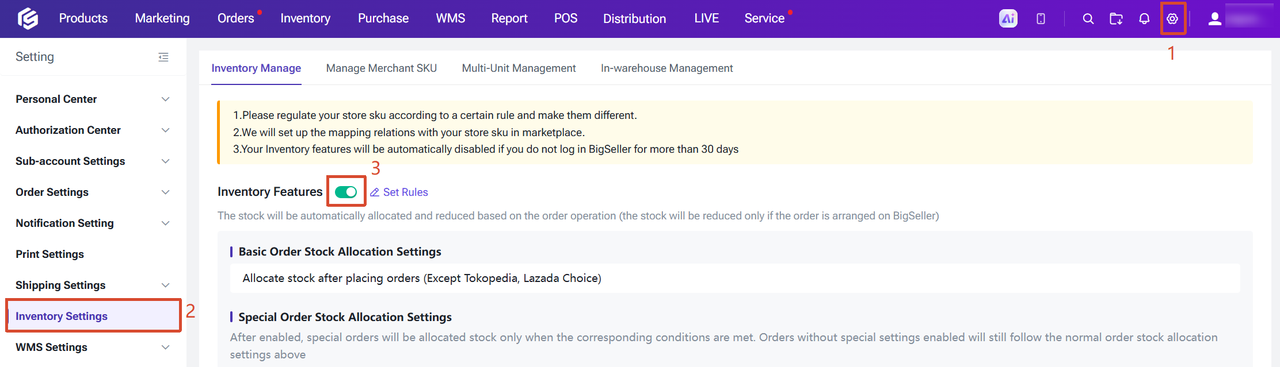
If you do not need BigSeller to allocate and deduct the stock, you can turn off the inventory features.
Note:
1. Please open it before processing orders on BigSeller if you need Bigseller to allocate and deduct the stock.
2. If you want to close this feature, you need to first process all orders under the In Process Order list.
For regular orders, you can choose whether the system locks inventory when a buyer places an order or when the buyer pays for it.
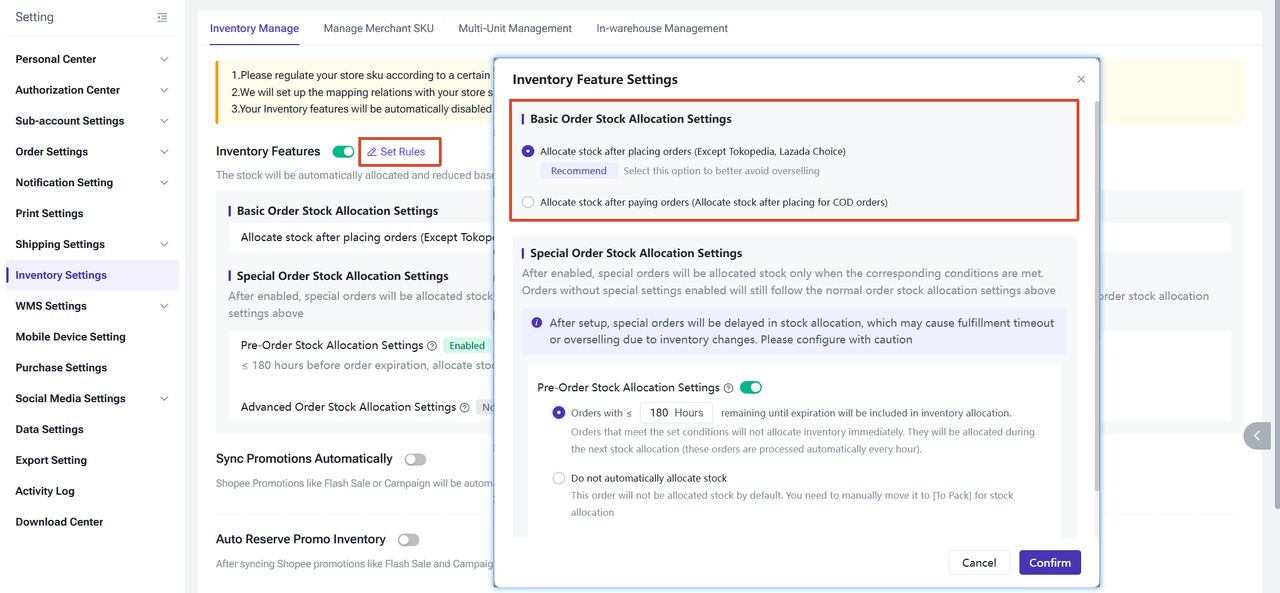
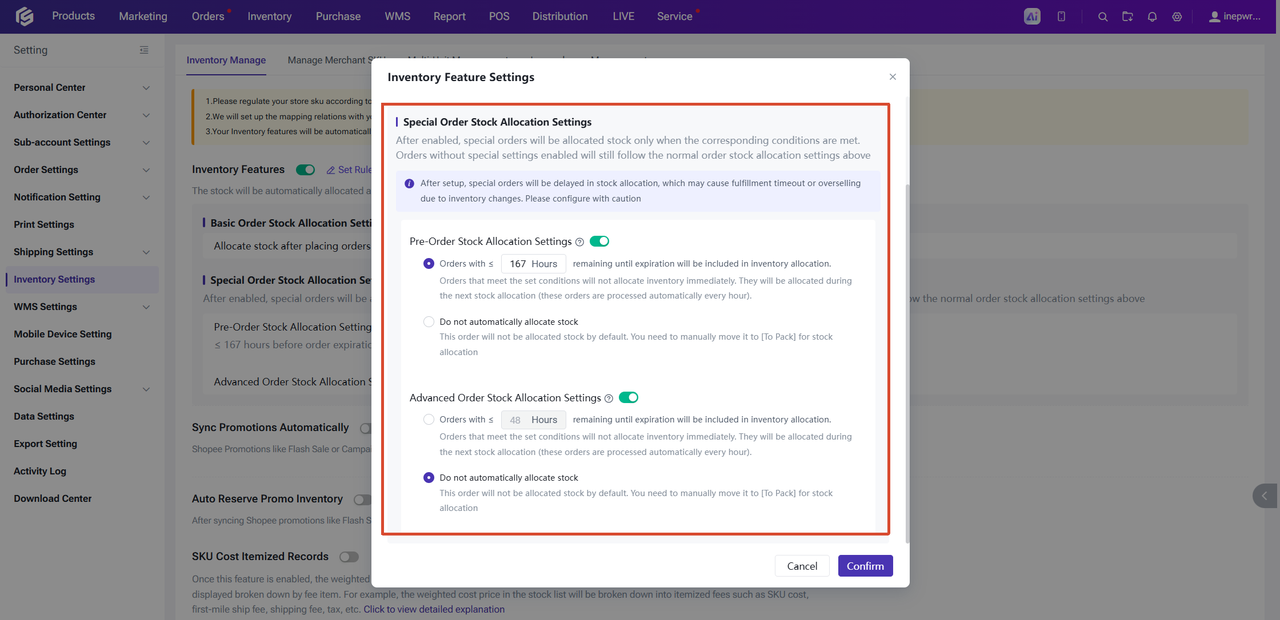
For orders that don’t need to be processed right away, such as “Pre Order” and “Advanced Order”, you can delay stock allocation by using Special Order Stock Allocation Settings. You can set a custom time here, and the system will allocate stock for special orders accordingly.
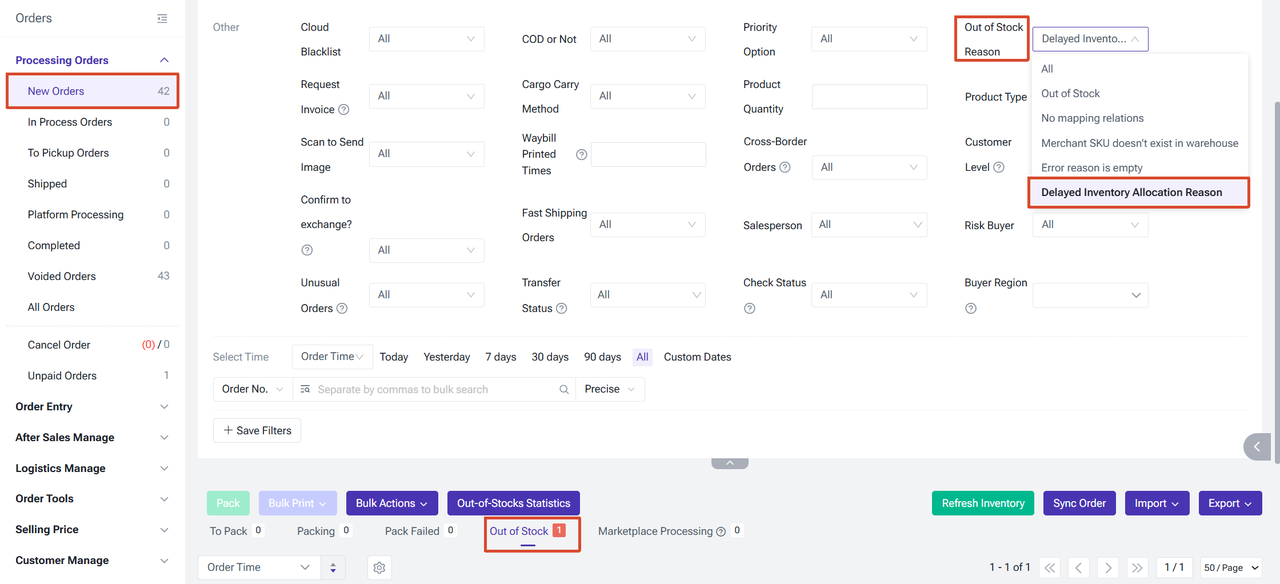
Orders that meet the configured conditions will be marked as Out of Stock. You can filter these orders by selecting Out of Stock Reason > Delayed Inventory Allocation Reason.
Note:
2. If you want to close this feature, you need to first process all orders under the In Process Order list.
For regular orders, you can choose whether the system locks inventory when a buyer places an order or when the buyer pays for it.
For orders that don’t need to be processed right away, such as “Pre Order” and “Advanced Order”, you can delay stock allocation by using Special Order Stock Allocation Settings. You can set a custom time here, and the system will allocate stock for special orders accordingly.
Orders that meet the configured conditions will be marked as Out of Stock. You can filter these orders by selecting Out of Stock Reason > Delayed Inventory Allocation Reason.
Note:
- The order time range must be set to at least 2 hours before the due date.
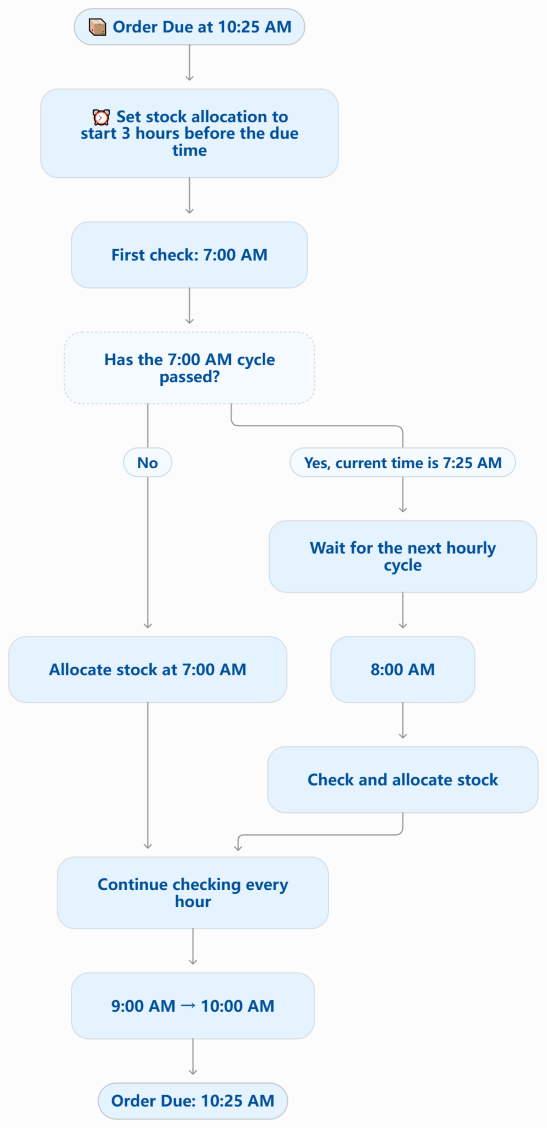
- The system automatically checks orders and allocates stock once every hour. If an order reaches the configured time but the next stock allocation cycle has not started yet, stock will only be allocated in the next cycle.
- Example: If you set the system to allocate stock for orders within 3 hours of their due date, and an order is due at 10:25 AM, the system will check and allocate stock at 7:00 AM, 8:00 AM, 9:00 AM, and so on. If the current time is already 7:25 AM, the system will not allocate stock for this order until 8:00 AM, when the next cycle begins.
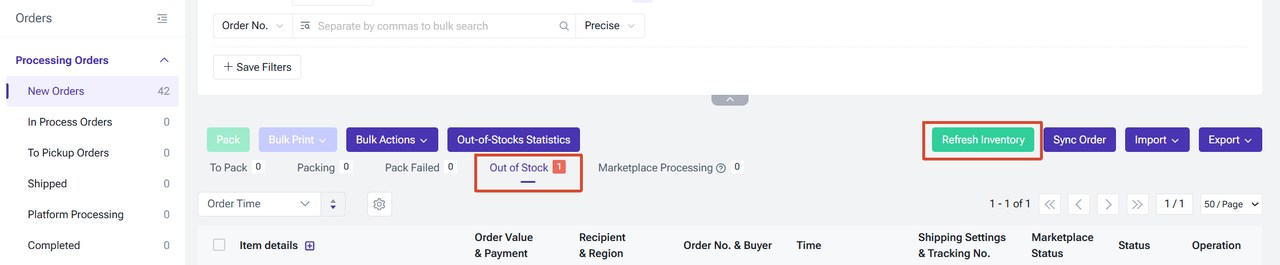
For orders that meet the configured time conditions but have not yet reached the next stock allocation cycle, you can trigger stock allocation manually by clicking Refresh Inventory under the Out of Stock tab.
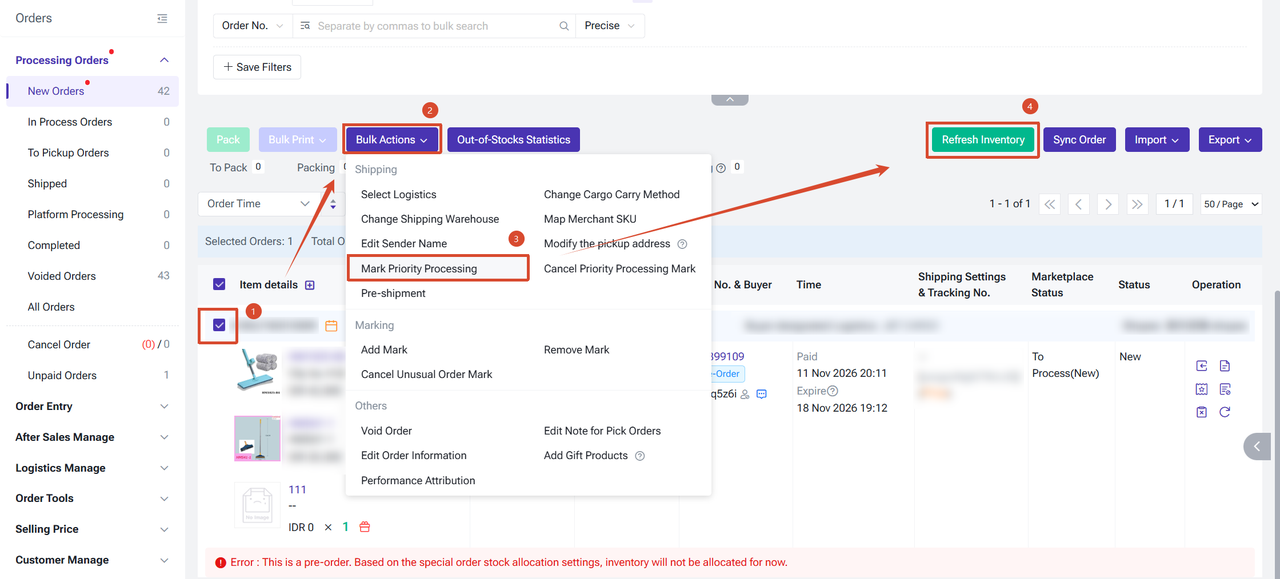
If you want to prevent certain special orders from being delayed, you can also follow these steps, regardless of whether the orders meet the configured time conditions:
Select the order > Bulk Actions > Mark Priority Processing > Click Refresh Inventory.
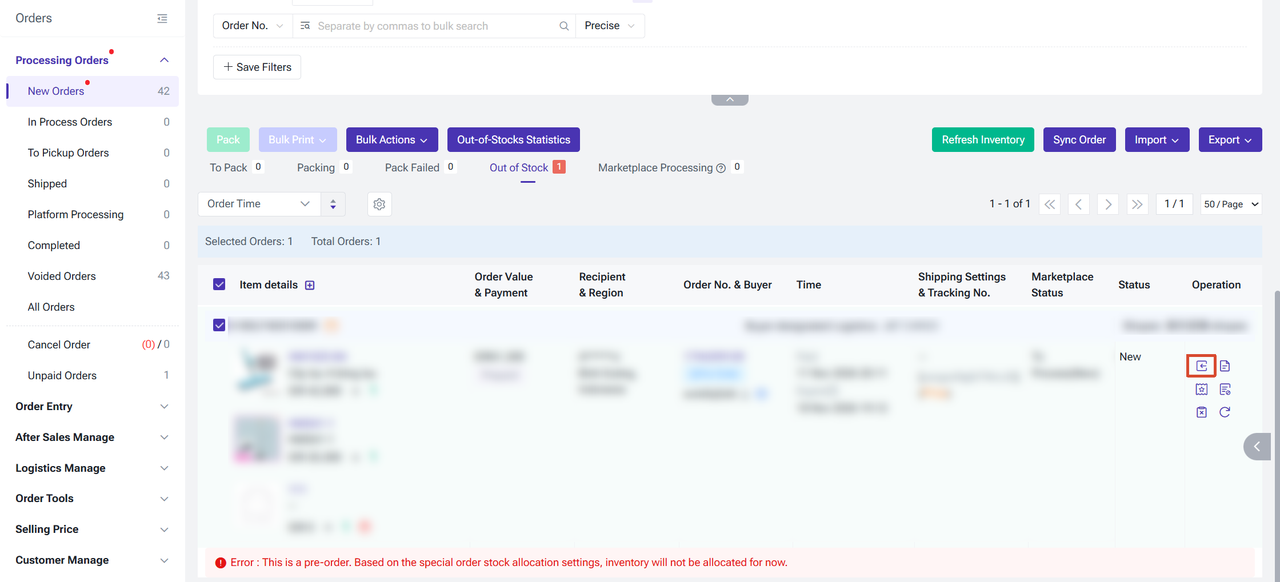
Or, manually update the order status to To Pack.
If an order is synced to the system while inventory is insufficient, and the user replenishes stock afterward, the system will automatically refresh the inventory and check whether the order meets the configured time conditions:
- Conditions met: : The order status will automatically change to To Pack.
- Conditions not met: The order will remain in Out of Stock status, and inventory will not be allocated.
Is this content helpful?
Thank you for your feedback. It drives us to provide better service.
Please contact us if the document can't answer your questions