How to Set Price Alert for Your Products?
Copy link & title
Update Time: 22 Sep 2026 08:50
Price Alert catches a wrong price before it goes live. Checking prices by hand across multiple shops and platforms is slow and easy to get wrong, and mistakes are often found only after the order comes in. Now BigSeller’s Price Alert feature helps check the price as soon as you list a product, change a price, or set a promotion, and warns you immediately.
- Price Alert Configuration: a shop-level price floor, plus optional Alert Prices for individual SKUs.
- Price Validation Notification: an on-page prompt and a push via PC, APP, and bot notification when a price or special price falls below the alert price.
An alert is triggered when the store alert status is enabled and a price or special price falls below the alert price. Price Alert currently supports Shopee, TikTok, and Lazada.
Before You Start
The alert price can be configured at two levels. Together, they cover every product in your shop.
- Store Fallback Alert Price: a general price floor set for a whole store. Enter it in the Default Alert Price field under store alert configuration. It applies to all products in that store.
- SKU Alert Price: a dedicated price floor set for an individual product. For products with a high cost, a thin margin, or a price you need to control strictly, set an alert price for a single SKU on the Alert Price page.
When both levels are configured for the same SKU, the SKU Alert Price takes precedence, and products without their own setting use the fallback alert price. You can therefore set the fallback alert price first to cover the whole store, and then set Alert Prices for the individual products that need a stricter standard.
💡: Please note that the alert price is not a "no-sell price" but a warning line. When a price falls below it, the system prompts you to check, and the decision to adjust remains yours. It does not block publishing or repricing.
💡: Please note that the alert price is not a "no-sell price" but a warning line. When a price falls below it, the system prompts you to check, and the decision to adjust remains yours. It does not block publishing or repricing.
The Applicable Alert Price Rule
During price validation, the system determines the applicable alert price in the following order. No manual priority setting is required:
- Match by Merchant SKU: if a mapping relation exists between the product being validated and a Merchant SKU in Alert Price, the alert price of that SKU is used.
- Match by SKU name: if no mapping relation exists, as is common for products in Drafts, the system searches the alert price list by the product's SKU name. An exact, case-insensitive match on the SKU name uses the alert price of that entry.
- Use the fallback alert price: if neither of the above matches, the alert price configured for the current store is used.
Currency conversion is also handled automatically. The alert price is first converted into the currency of the site where the validated SKU is listed, using the fixed exchange rate as a priority. If no fixed exchange rate is set, the real-time exchange rate is used.
You can therefore maintain alert prices in one currency and still have your cross-border, multi-site stores validated correctly.
You can therefore maintain alert prices in one currency and still have your cross-border, multi-site stores validated correctly.
Set Up Price Alert
You can go to the Products module homepage and open Price Alert Settings to configure both the store level and the SKU level.
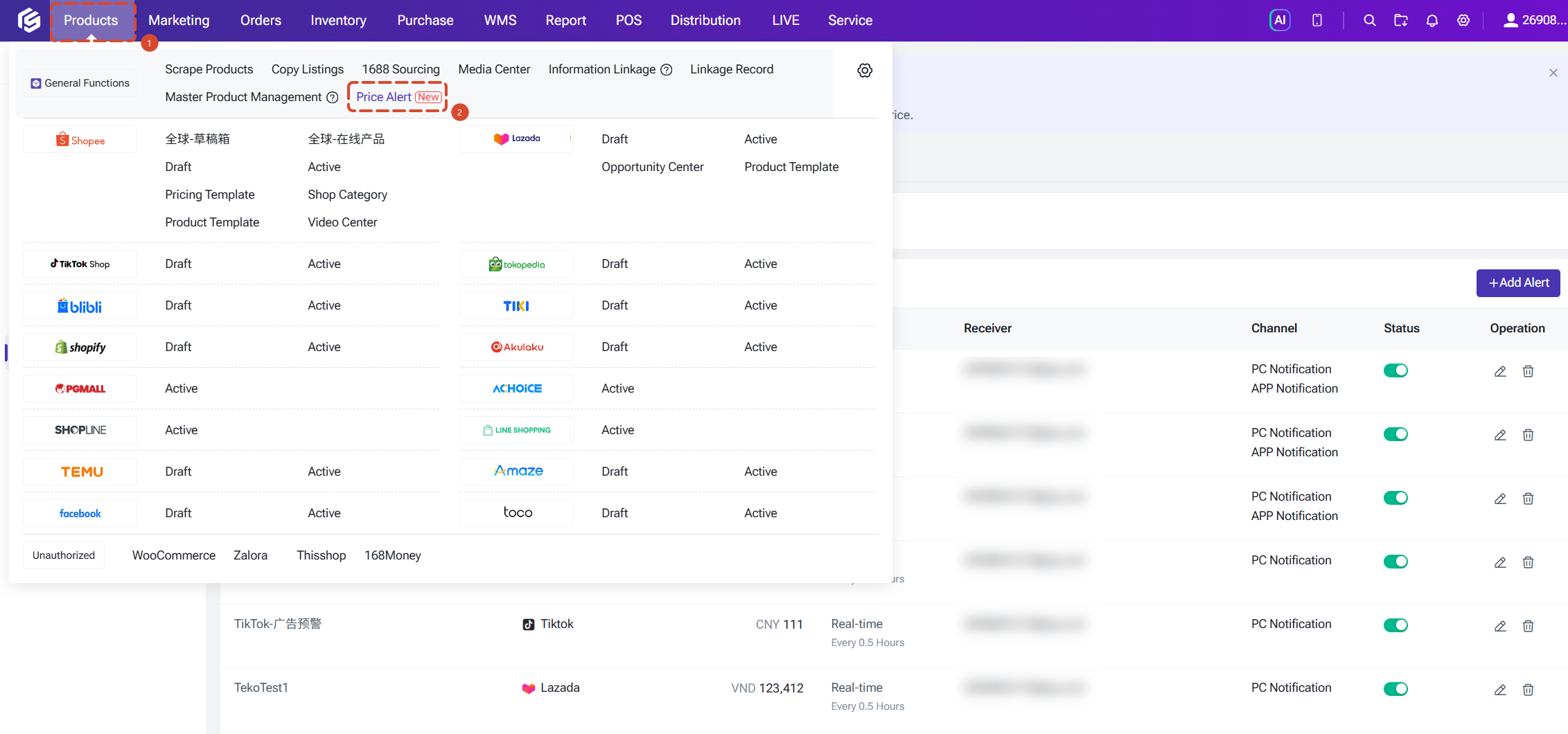
Step 1: Configure Store Alert Settings (Set the Fallback Alert Price and Notification Method)
Path: Price Alert Settings > Store Alert Configuration
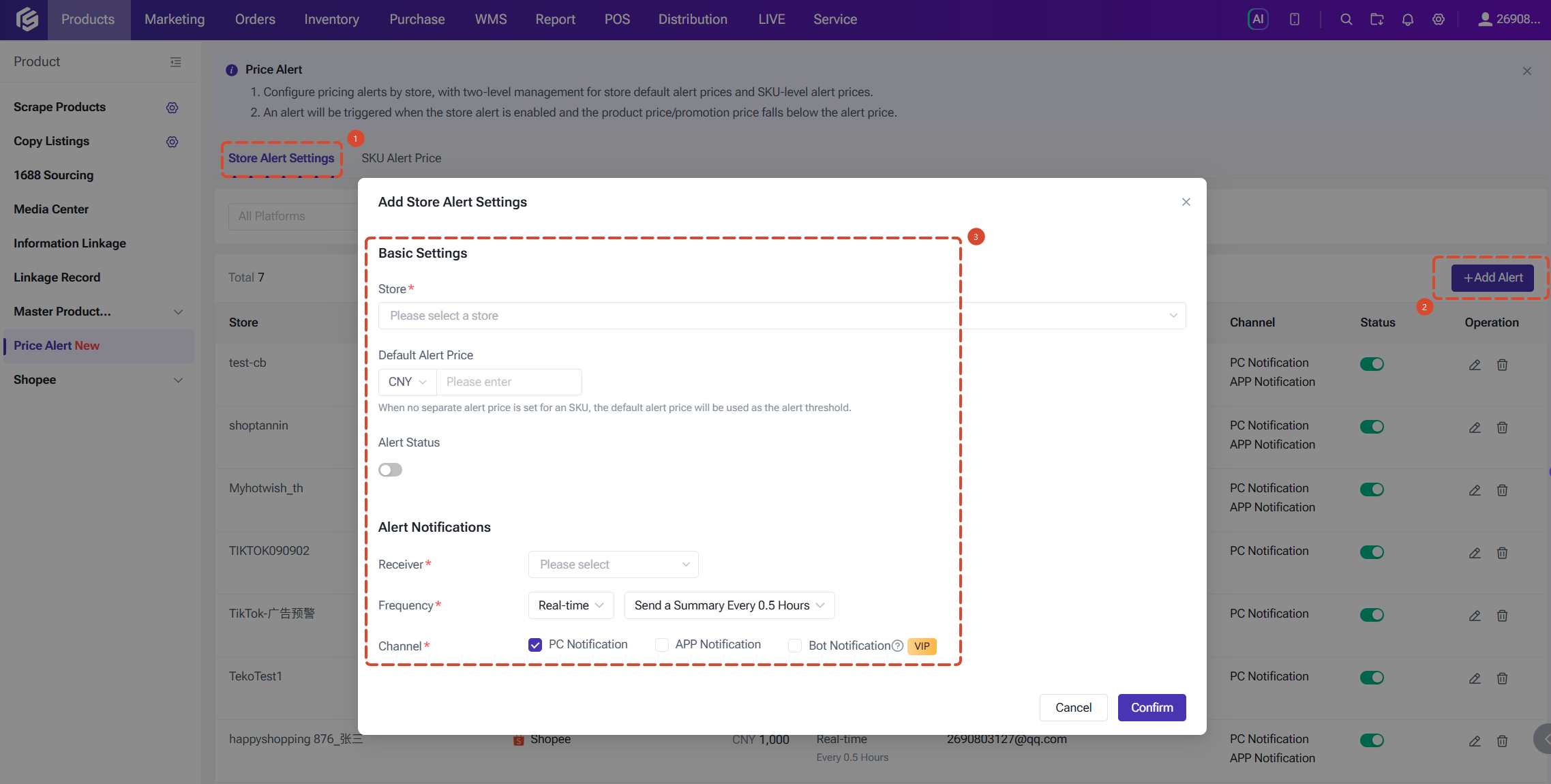
On this page, click Add Store Configuration and fill in the following:
Step 1: Configure Store Alert Settings (Set the Fallback Alert Price and Notification Method)
Path: Price Alert Settings > Store Alert Configuration
On this page, click Add Store Configuration and fill in the following:
- Store: select one or more stores to apply the same alert configuration in bulk.
- Default Alert Price: used as the validation baseline when a SKU has no alert price of its own.
- Alert Configuration Status: select Enabled or Disabled. Note that an enabled store alert status is a prerequisite for price validation to be triggered.
- Notification Frequency: supports Real-time, Every 30 minutes, Hourly, Daily, Weekly, Monthly, and Push when triggered.
- Notification Channel: supports PC notification, APP notification, and bot notification. Multiple options can be selected.
- Notification Recipient: select the accounts that should receive the alert messages.
- Bot Notification: when Bot notification is selected as a channel, select the push channel (Lark / WeCom / DingTalk) and enter the bot webhook URL and signature secret. After filling them in, click Test to verify that messages can be delivered.
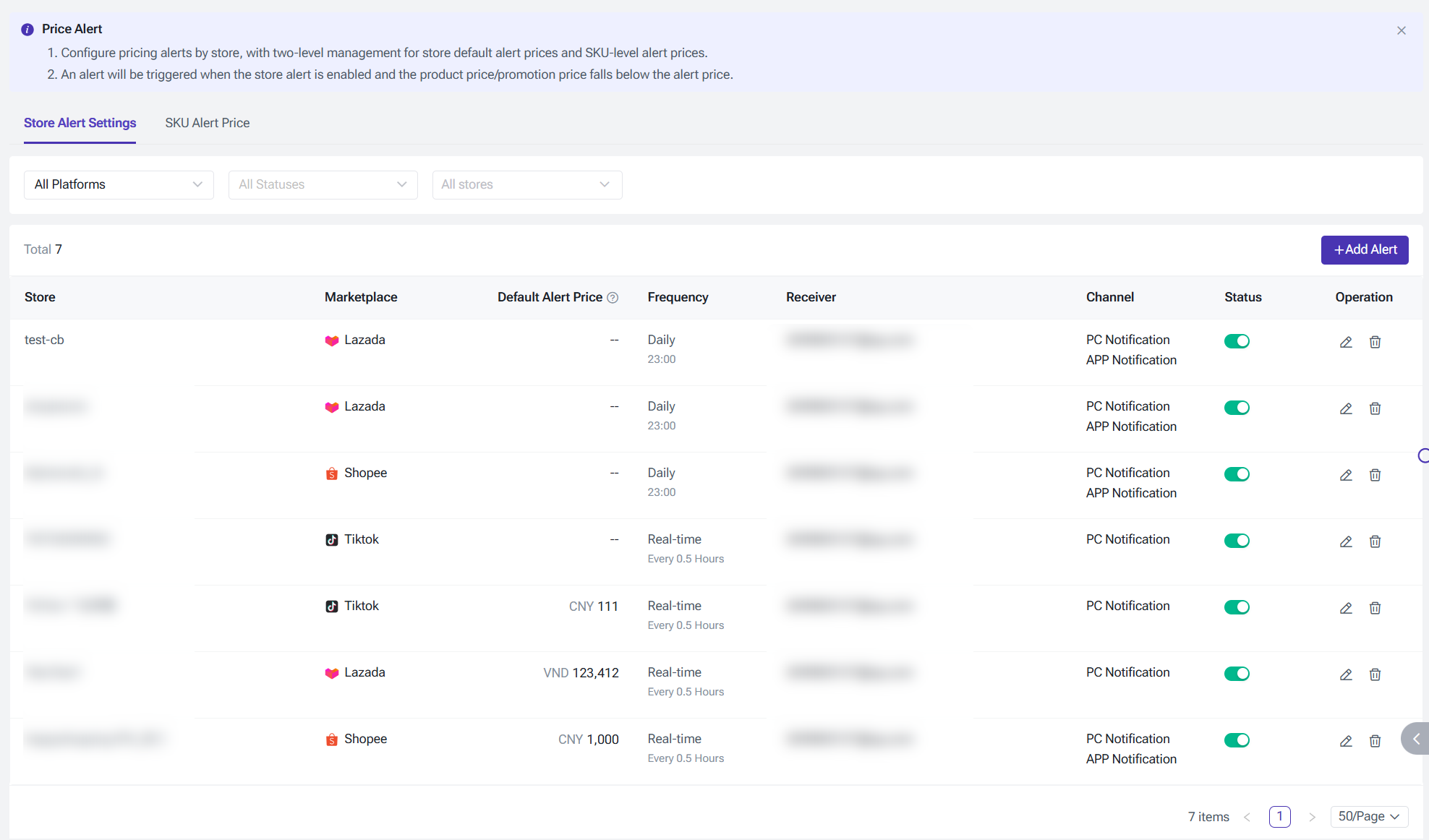
After you click Confirm, the configuration is saved and you return to the list. The list shows the marketplace, fallback alert price, notification frequency, recipients, channels, and alert status of each store, and you can edit or disable a configuration at any time.
The list can be filtered by platform (All Marketplaces / Shopee / TikTok / Lazada) and by status (Enabled / Disabled).
Step 2: Set Alert Prices for SKUs (Fine-Grained Price Control)
Path: Price Alert Settings > SKU Alert Price
For products with an unusual cost structure that must be controlled individually, you can set a SKU-level alert price on this page. SKUs can be added in bulk through Select from Merchant SKU Library, or created manually through Manual Entry.
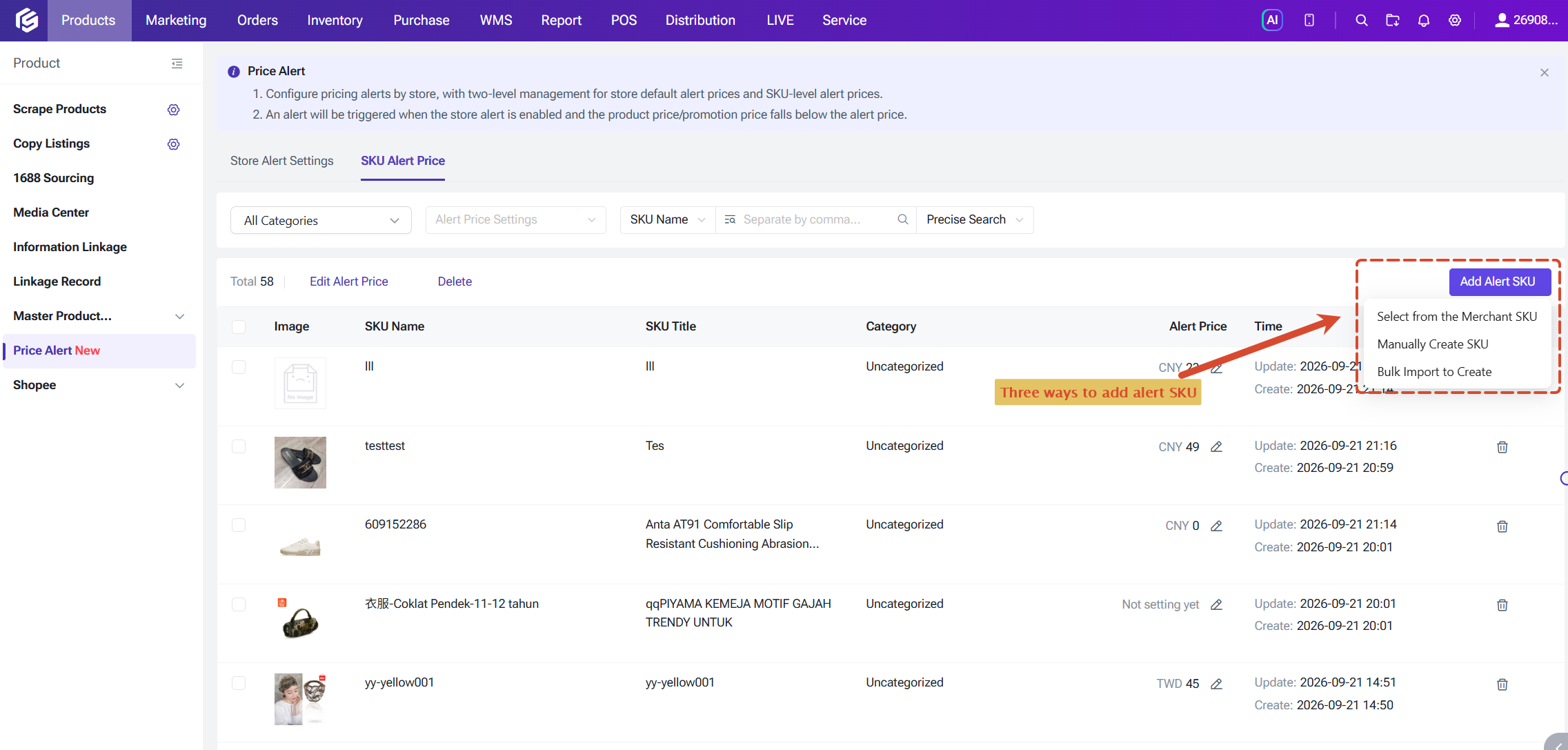
Alert Price supports three setup methods:
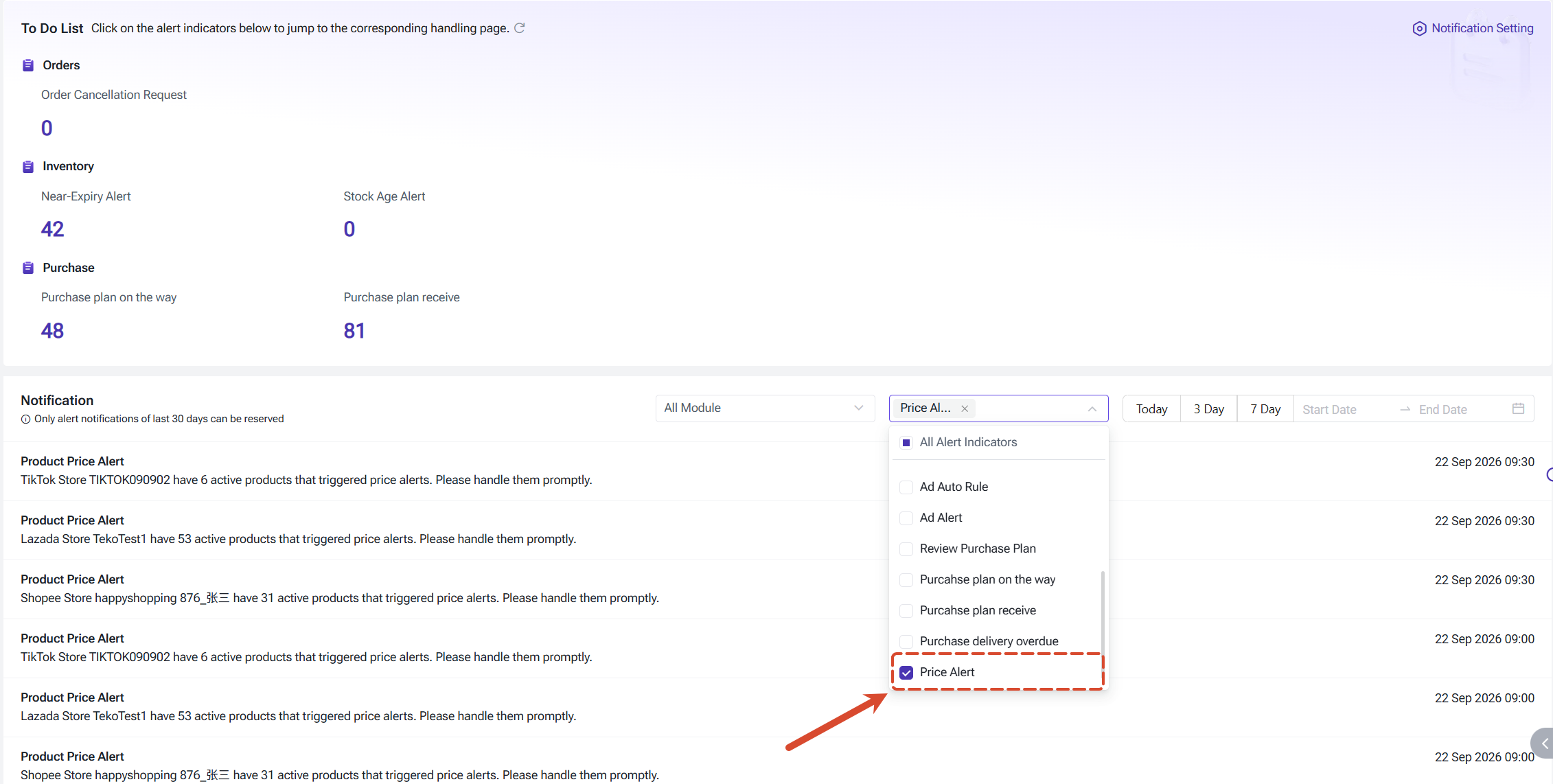
Messages are delivered through the channels you configure:
The list can be filtered by platform (All Marketplaces / Shopee / TikTok / Lazada) and by status (Enabled / Disabled).
Step 2: Set Alert Prices for SKUs (Fine-Grained Price Control)
Path: Price Alert Settings > SKU Alert Price
For products with an unusual cost structure that must be controlled individually, you can set a SKU-level alert price on this page. SKUs can be added in bulk through Select from Merchant SKU Library, or created manually through Manual Entry.
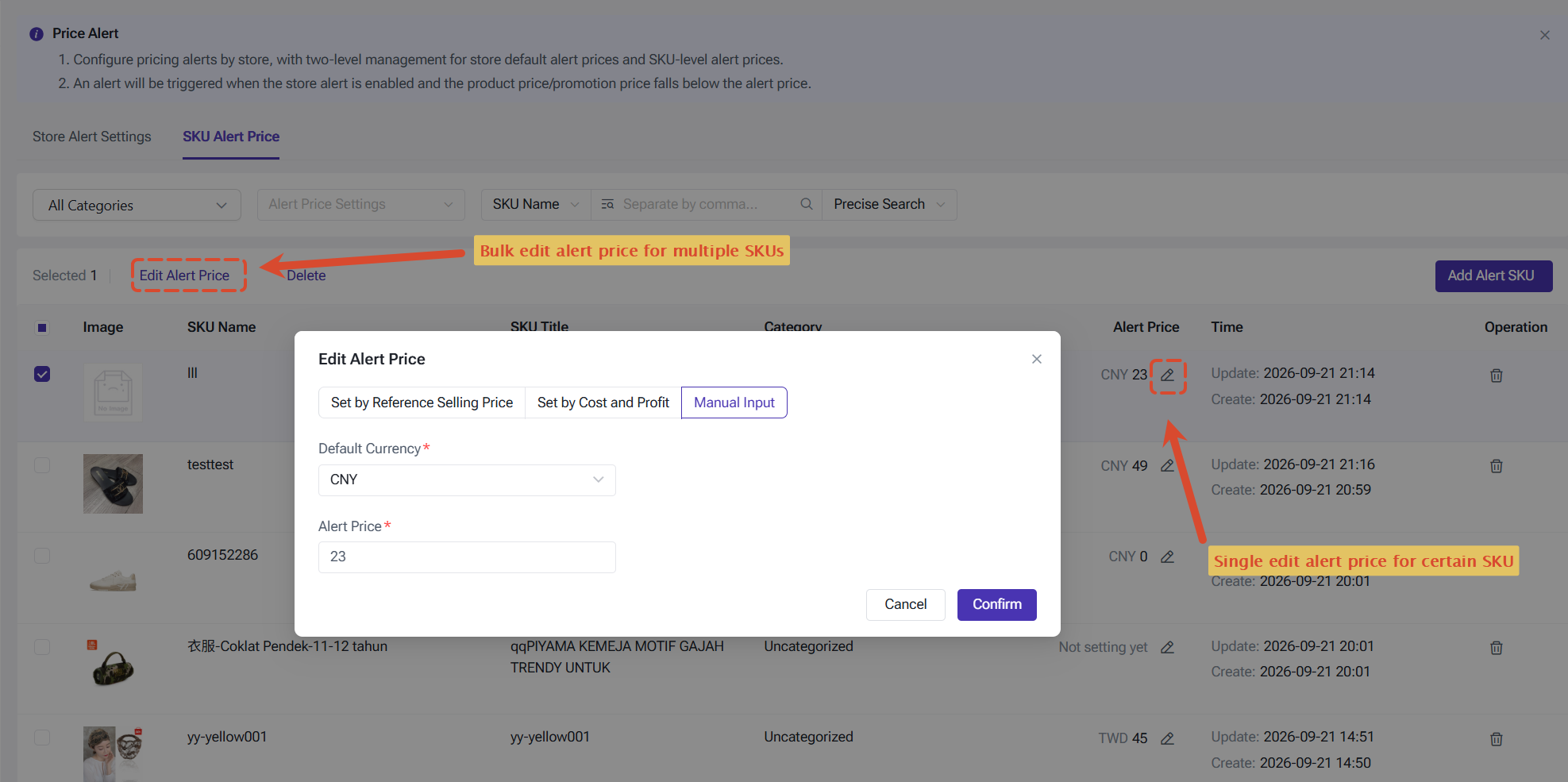
Alert Price supports three setup methods:
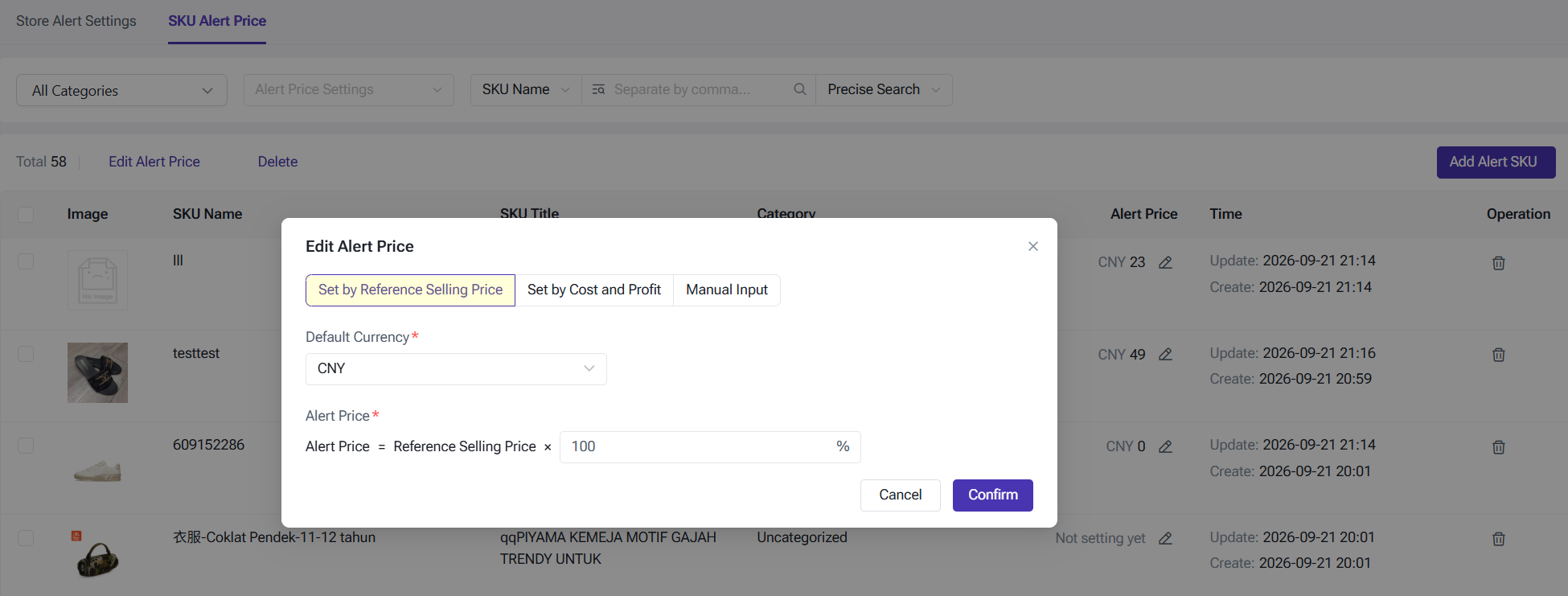
- By Reference Price: alert price = reference price × percentage.
This applies to sellers who already maintain a stable reference price system. For example, at 60%, an alert is triggered when the price falls below 60% of the reference price.
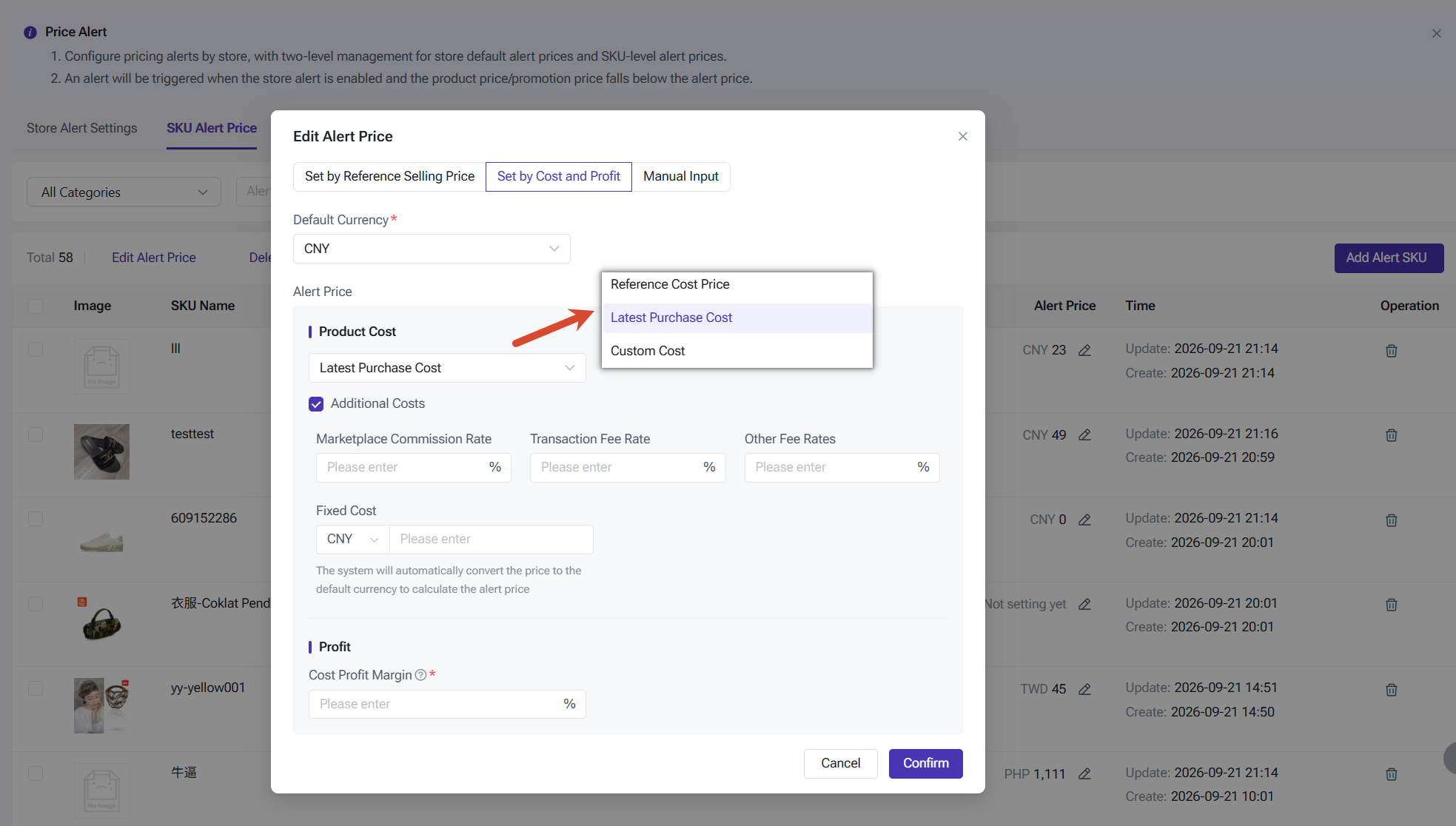
- By Cost and Profit Margin: the system calculates the alert price from the product cost and your expected margin.
The cost source can be Latest Purchase Price, Custom Product Cost, or Reference Cost. Clicking Additional Costs also lets you include the marketplace commission rate, transaction fee rate, other fee rates, and fixed costs, which brings the alert price closer to your actual profit.
- Manual Input: enter a fixed amount directly.
You can also select a default currency (CNY / PHP / VND) to match the settlement practice of different sites.
The Alert Price list supports Bulk Edit Alert Price, bulk deletion, and import. You can also filter by category, or by whether an alert price has been set, to quickly identify the products that do not yet have their own Alert Price.
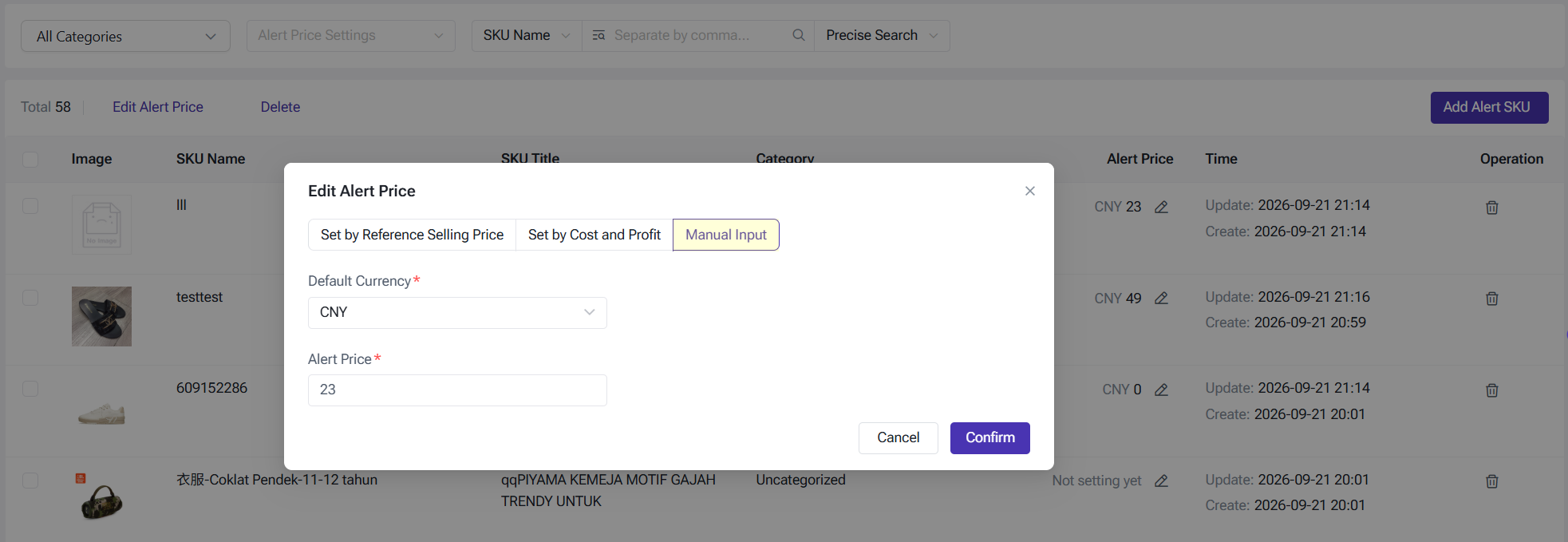
The Alert Price list supports Bulk Edit Alert Price, bulk deletion, and import. You can also filter by category, or by whether an alert price has been set, to quickly identify the products that do not yet have their own Alert Price.
Price Validation Triggered
Price Alert covers the main ways you reprice products. When the store alert status is enabled, validation is triggered in the following places:
- the product creation page of the three platforms;
- the single edit page and the bulk edit page of Drafts and Active Products;
- direct editing of the price or special price in the Active Products list;
- price edits in Master Product Management, including information linkage scenarios;
- bulk product import, including importing to update prices and importing to create products;
- entering a special price in Shopee and TikTok discount promotions and flash deals.
Validated fields are the price and the special price. If you run a semi-managed store, the supply price is validated as well.
After an alert is triggered, the page will display a red prompt and the affected products are also flagged. You can find all products with price exceptions by the Price Abnormal filter at once and handle them together.
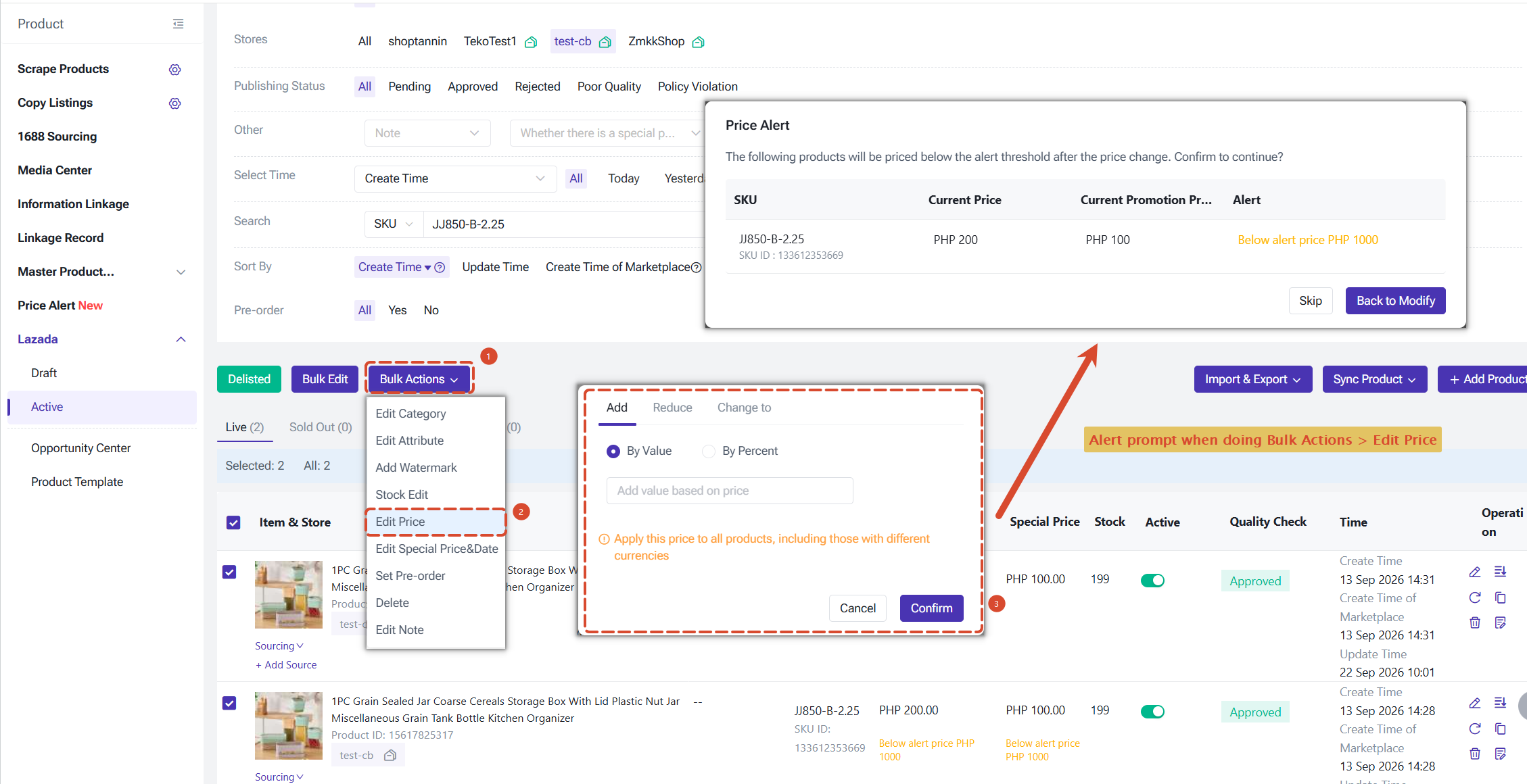
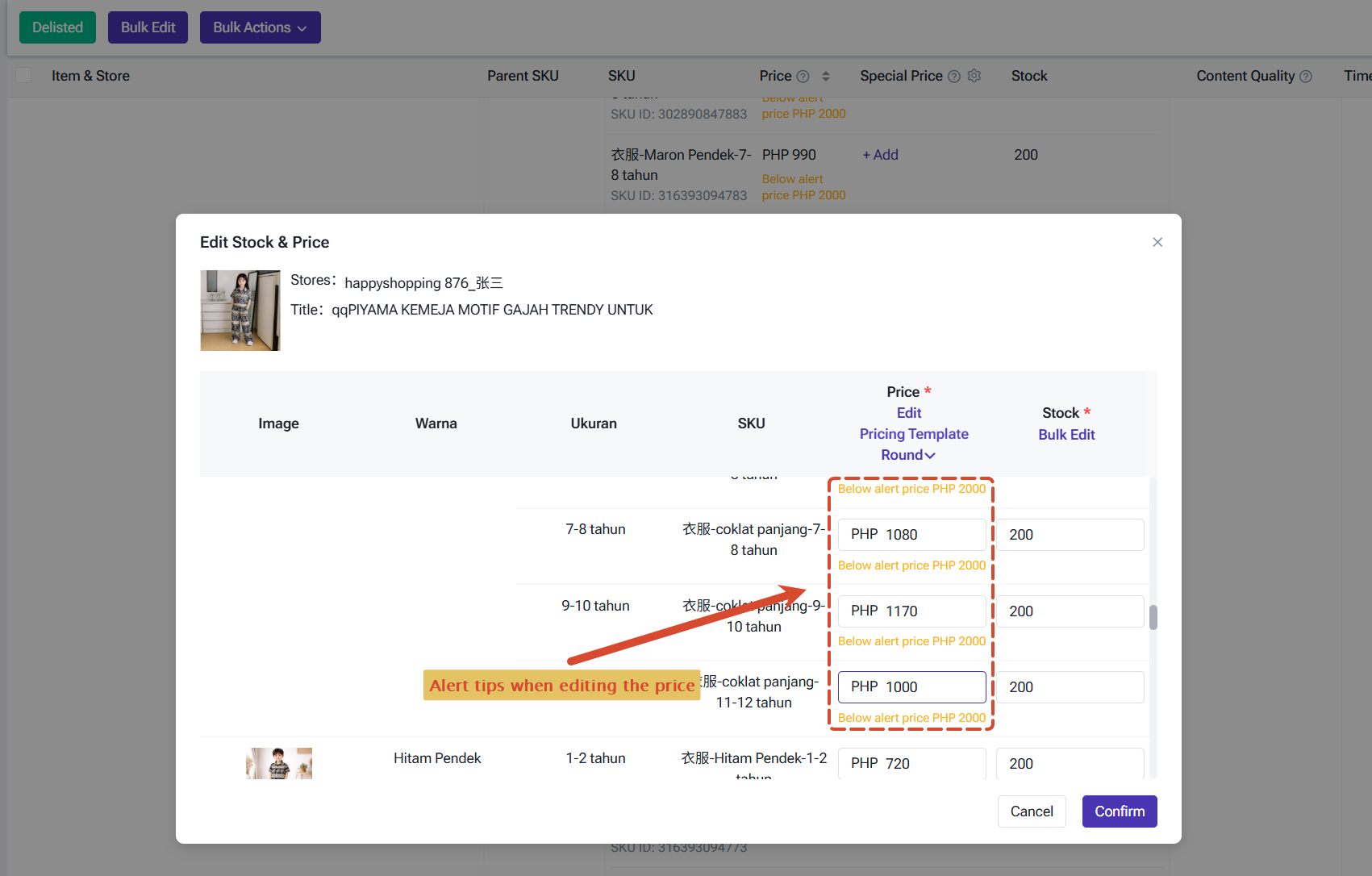
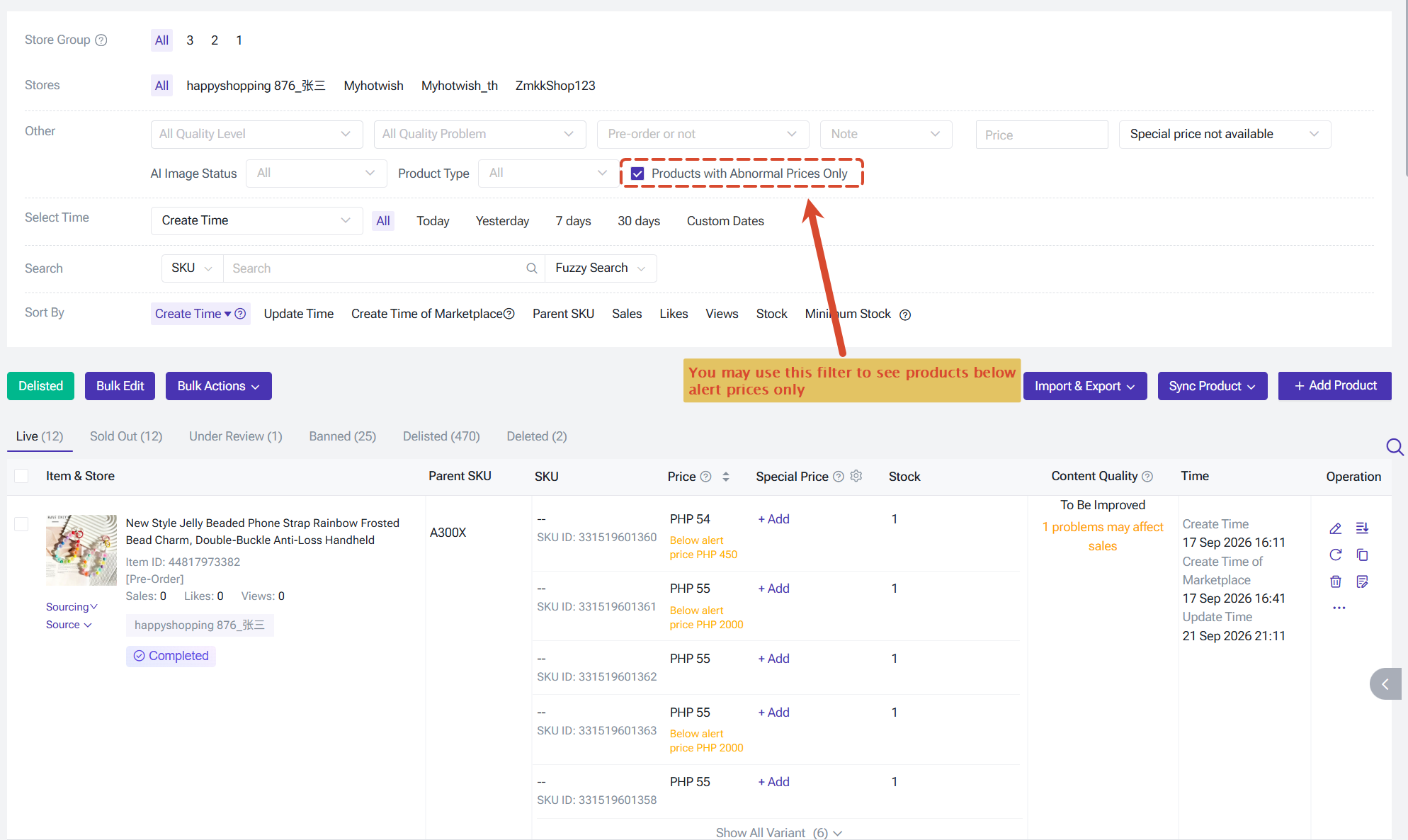
After an alert is triggered, the page will display a red prompt and the affected products are also flagged. You can find all products with price exceptions by the Price Abnormal filter at once and handle them together.
Notifications
Beyond the real-time prompt on the page, Price Alert also sends the message to the relevant members, so an alert is not seen by only one person.
Message template:
Message template:
- [Platform] {Store nickname} has {number of SKUs that triggered the alert} active SKUs that triggered a price alert. Please handle them as soon as possible.
Messages are delivered through the channels you configure:
- PC notification: view it under the Price Alert category in the Notification Center. It suits operations staff who work on a computer.
- APP notification: view it under the Price Alert category in the BigSeller APP, so you can check exceptions at any time.
- Bot notification: pushed to a Lark, WeCom, or DingTalk group, so the team can stay informed of the risk.
Permissions
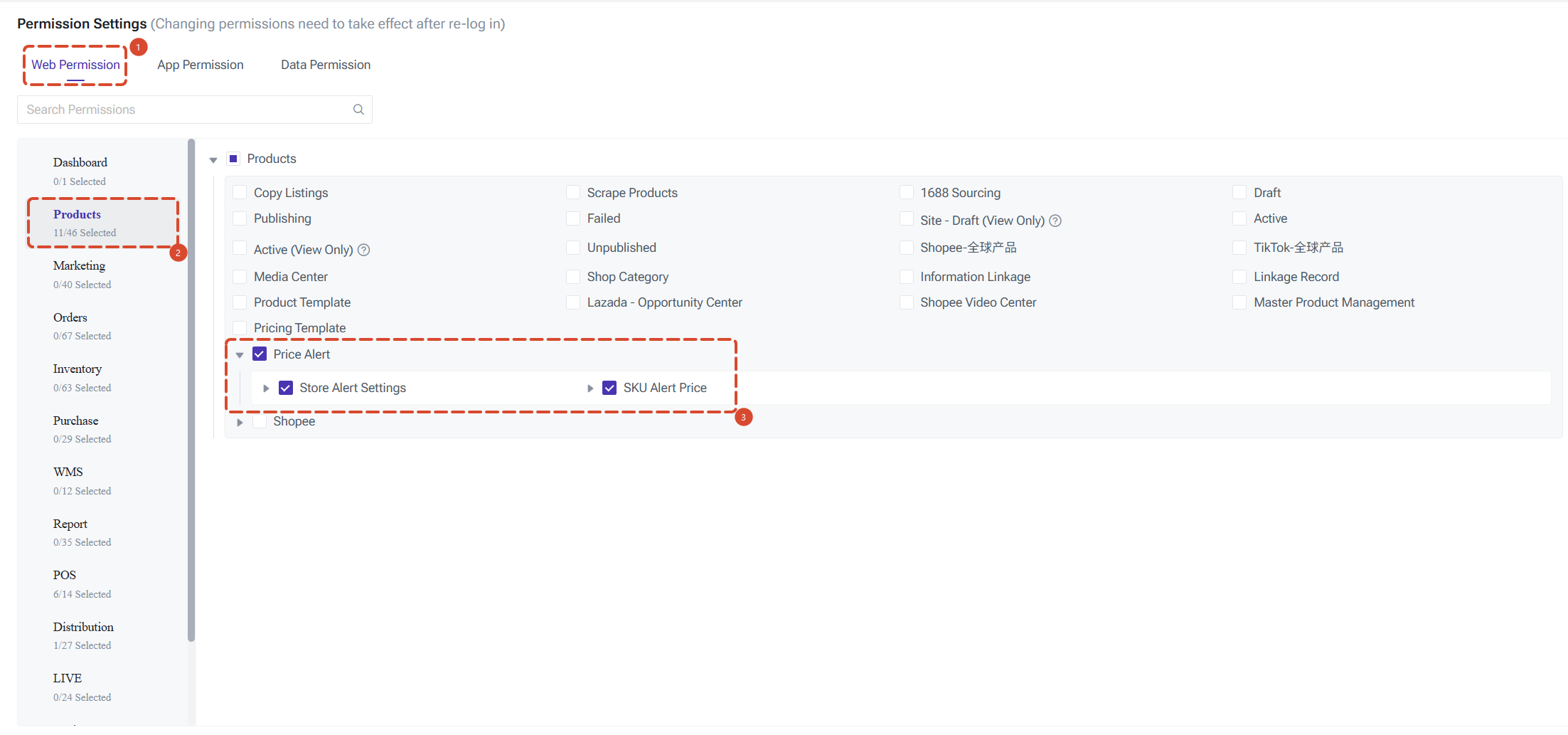
Price Alert operations are controlled by sub-account permissions. If a team member needs to view or maintain price alert configurations, enable the corresponding permission for the sub-account in role settings first.
Is this content helpful?
Thank you for your feedback. It drives us to provide better service.
Please contact us if the document can't answer your questions