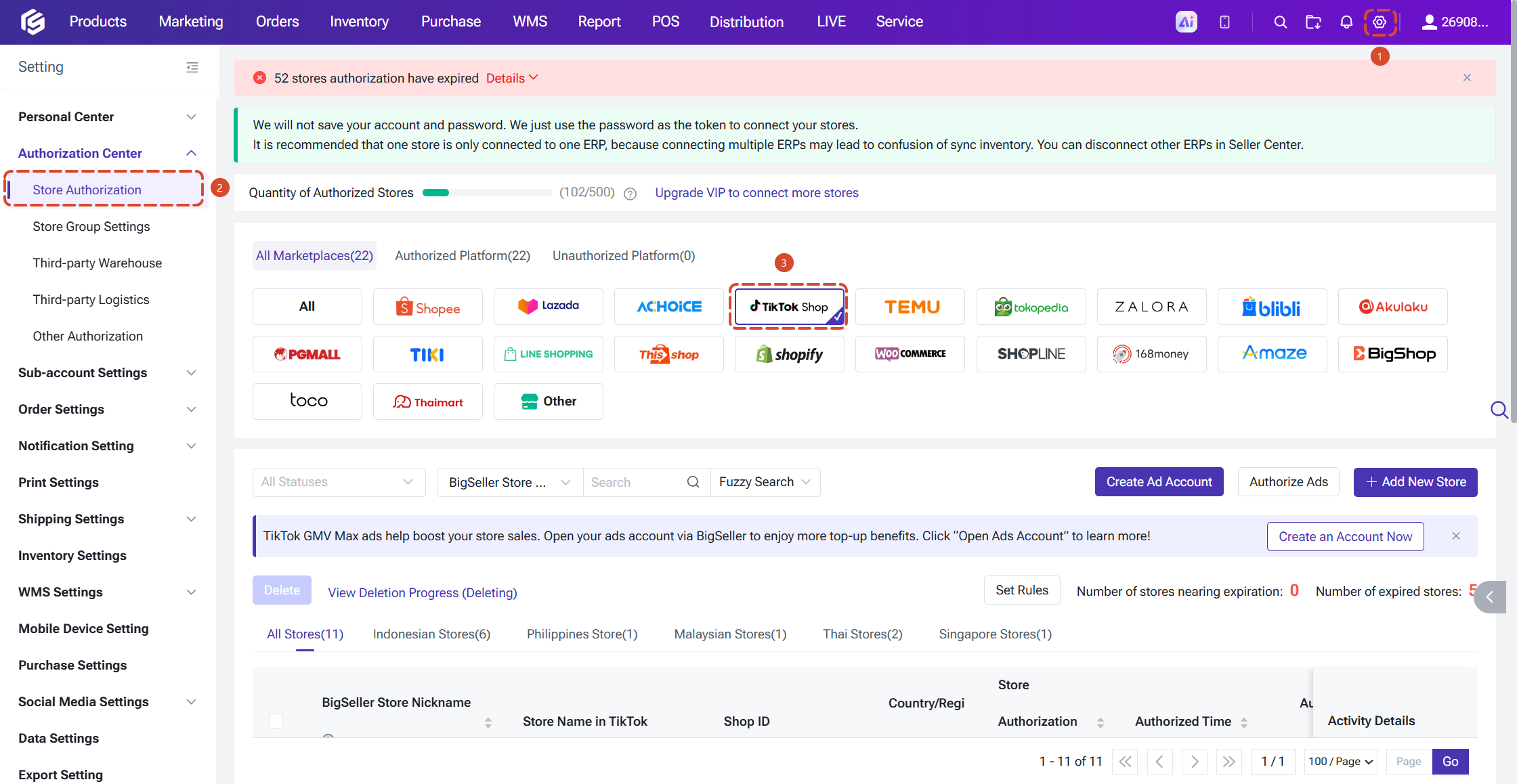
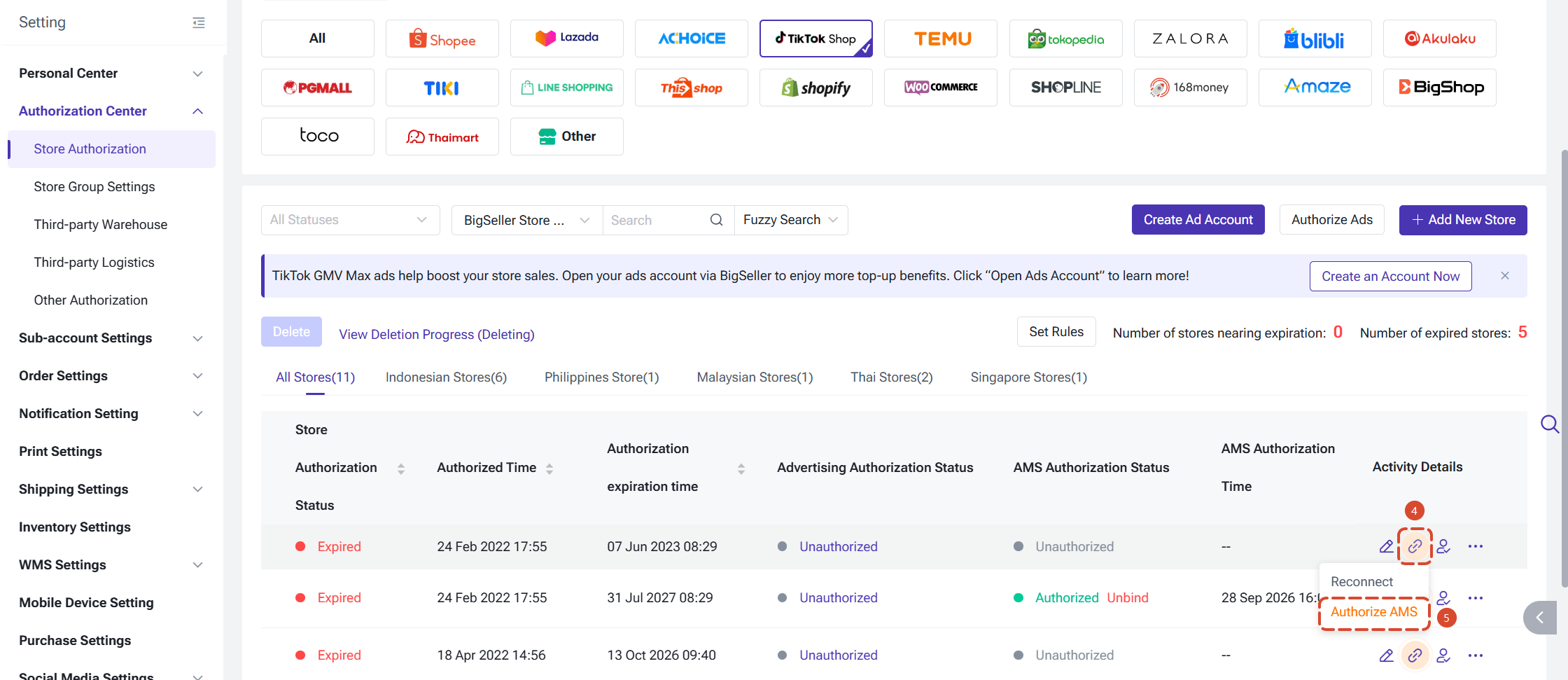
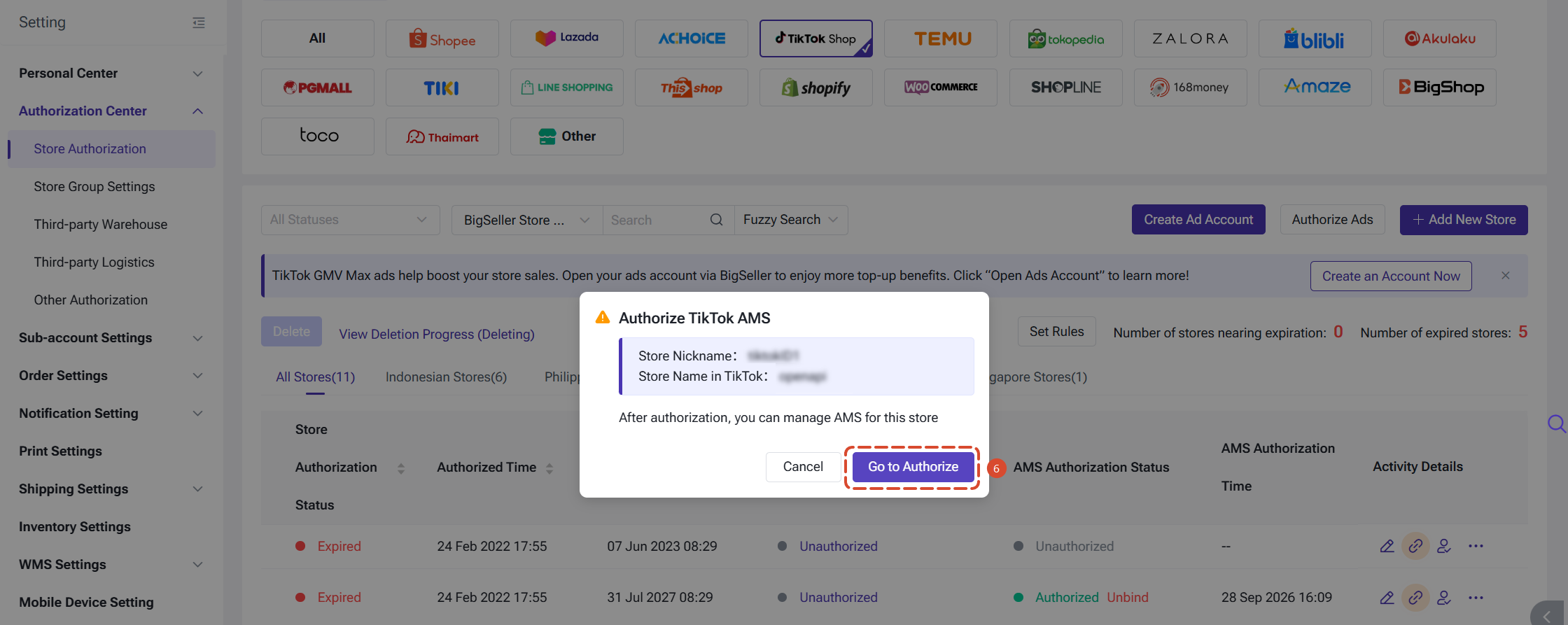
How to Unbind Authorization
Click [Unbind] next to the "Authorized" status, then confirm in the pop-up to unbind the AMS authorization.
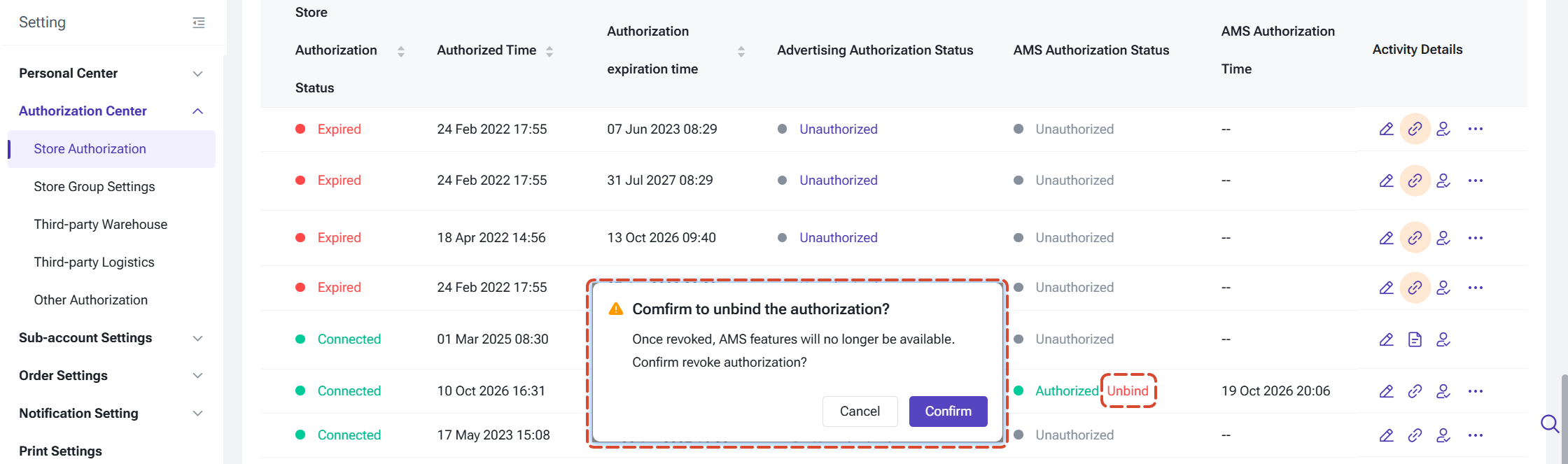
Note: After the authorization is unbound, the store can no longer use the related features of the Affiliate Center.
2. Creator Management
2.1 Discover Creators
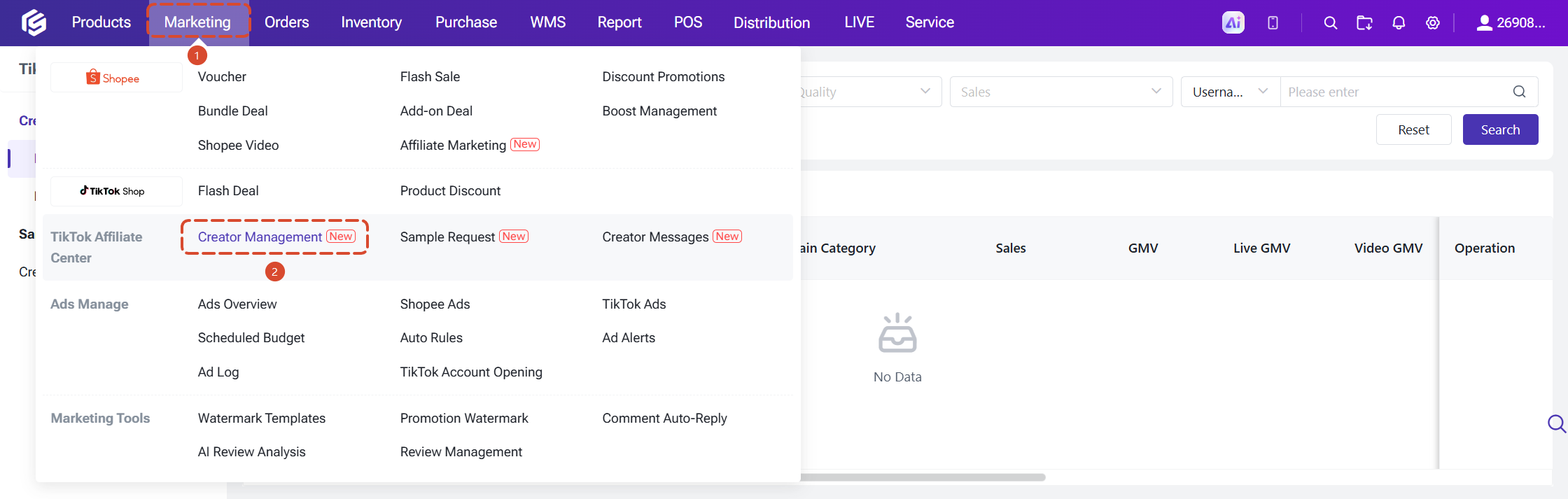
Go to: TikTok Affiliate Center > Creator Management > Discover Creators
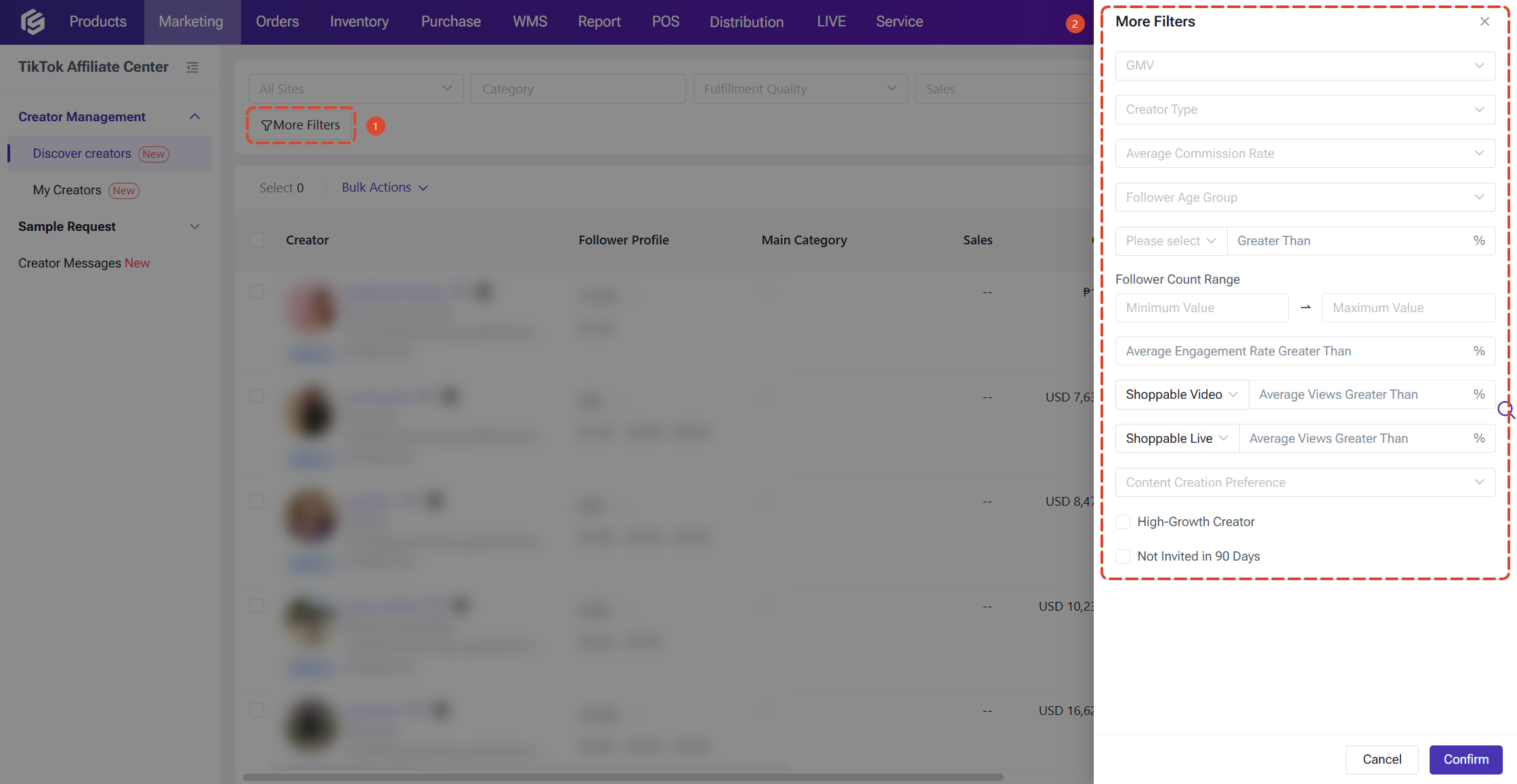
Here you can search for affiliate creators in the market your authorized store belongs to, and filter by business performance and follower profile to find the best fit for you. Data such as GMV, sales, ratings, fulfillment rate, and follower profile shown on the page comes directly from TikTok.

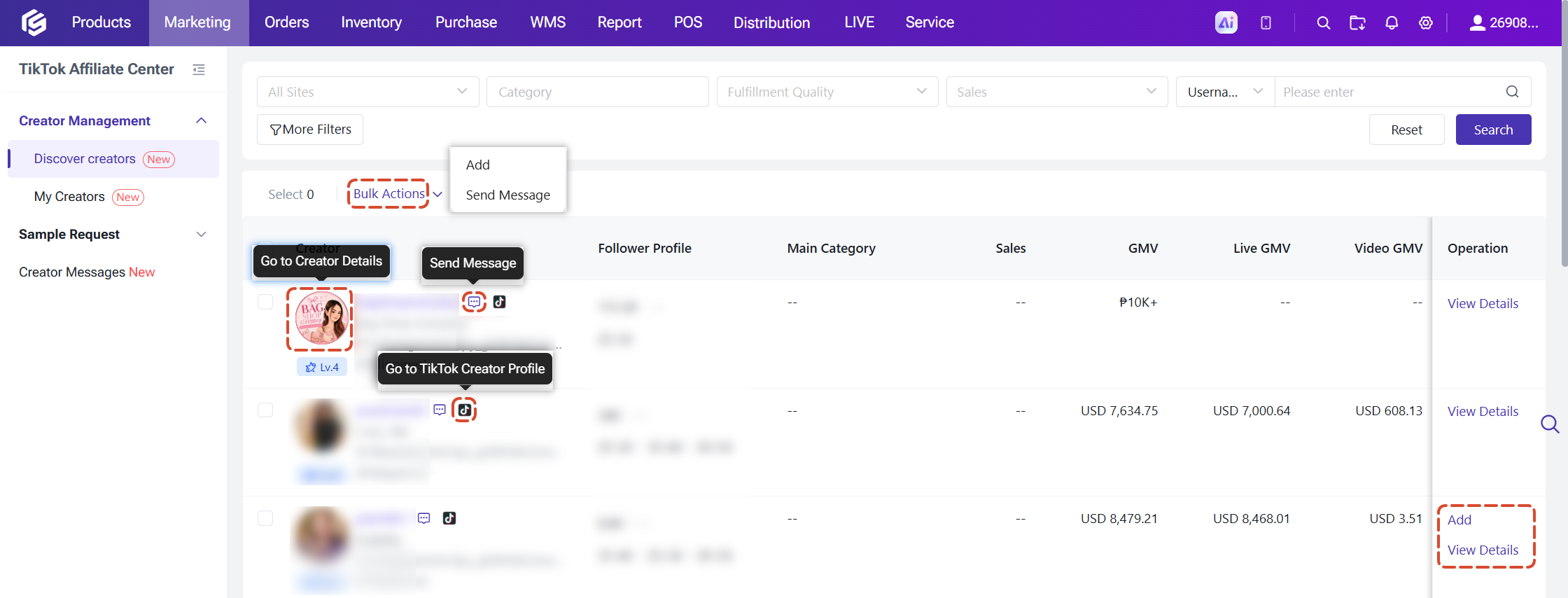
Work with Creators
- Add (single/bulk): Add creators to "My Creators" in one click.
- Send Message (single/bulk): Click the message icon and select an authorized store; you'll be taken to "Creator Messages" with the conversation opened.
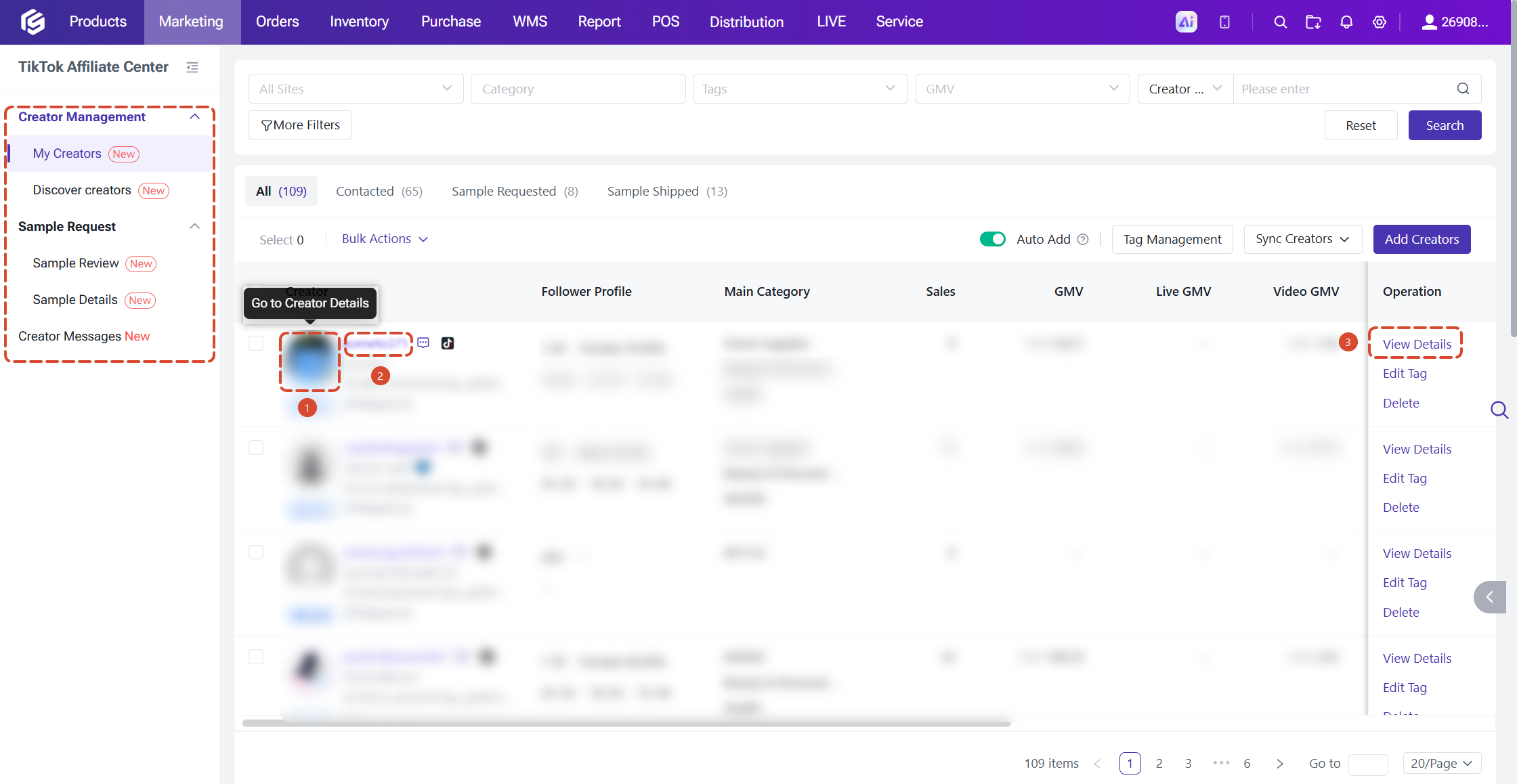
- View Details: Click [View Details], the creator's nickname, or avatar to view the full creator profile.
- Go to TikTok Creator profile: Opens the creator's TikTok profile in a new tab.
2.2 My Creators
Go to: TikTok Affiliate Center > Creator Management > My Creators
Collect the creators you've worked with or are interested in, tag them, and track their status, so every collaboration becomes a long-term asset.
Collaboration Status
The three statuses progress in order of collaboration stage: "Contacted→ Sample Requested → Sample Shipped." Each creator belongs to only one status. Your current filters are kept when you switch tabs.
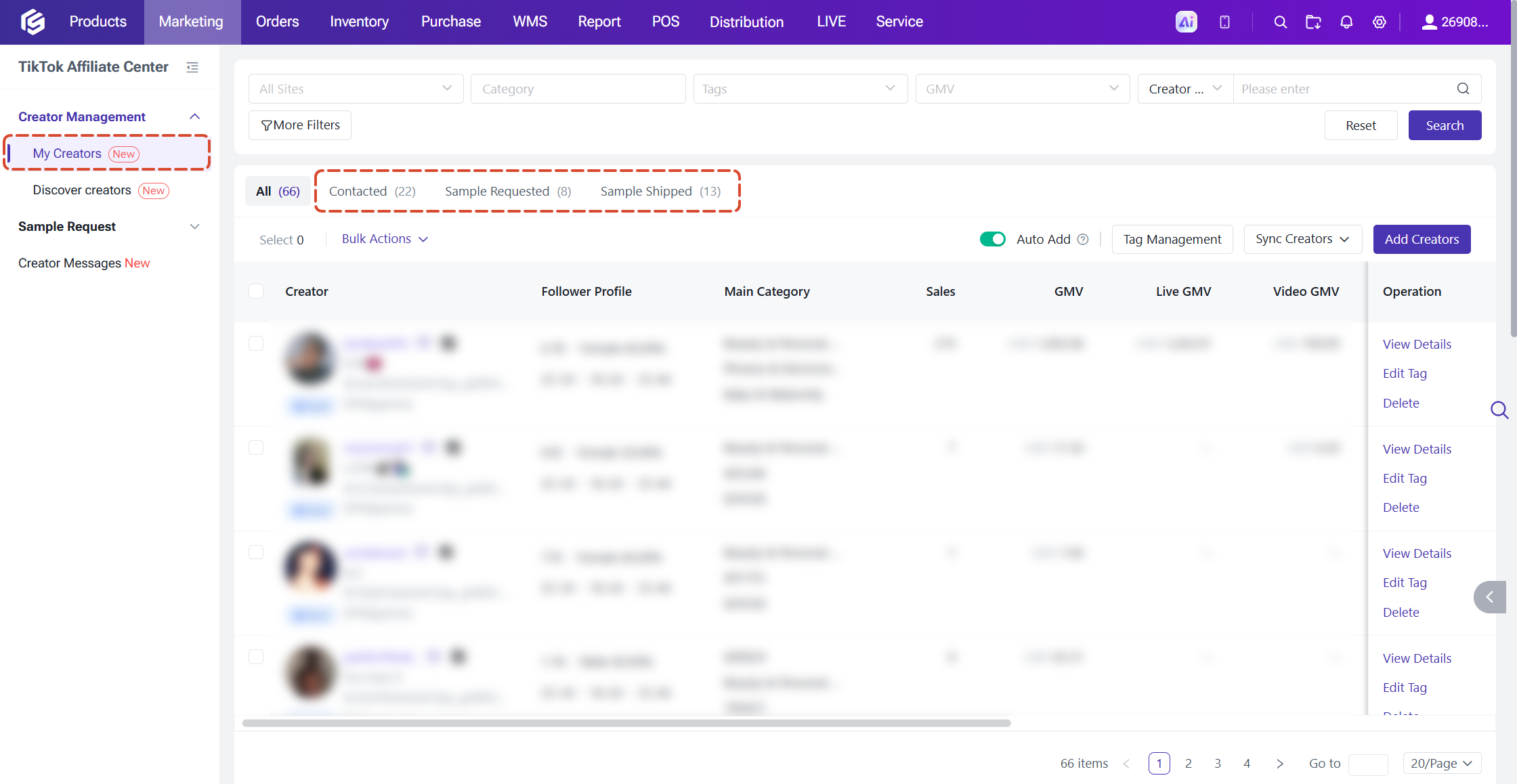
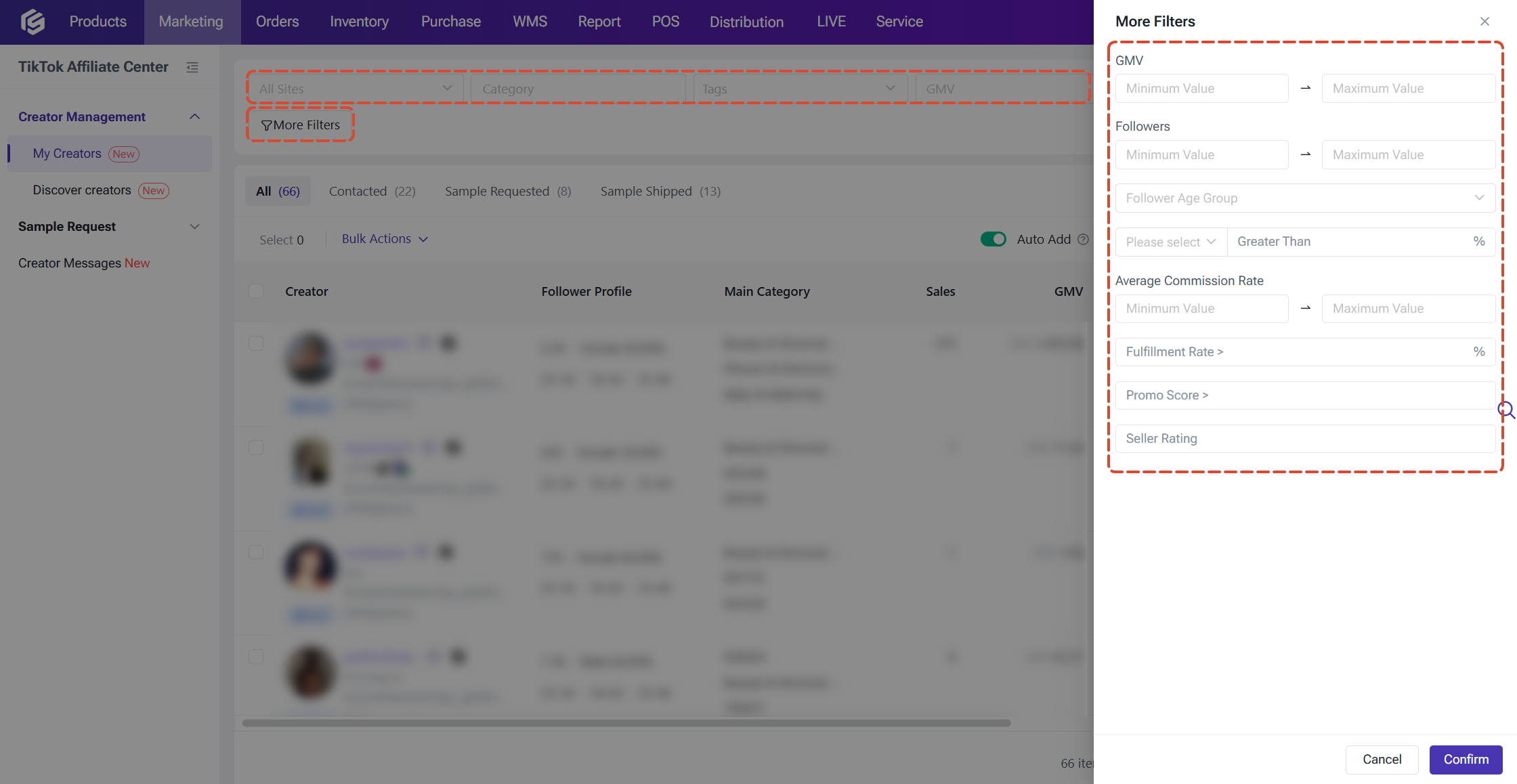
Basic filters: Site, category, creator tags (multi-select), GMV, username;
Advanced filters: GMV range, follower count range, follower age group, follower gender share, average commission rate range, fulfillment rate, promo score, seller rating.
Top Bar Actions
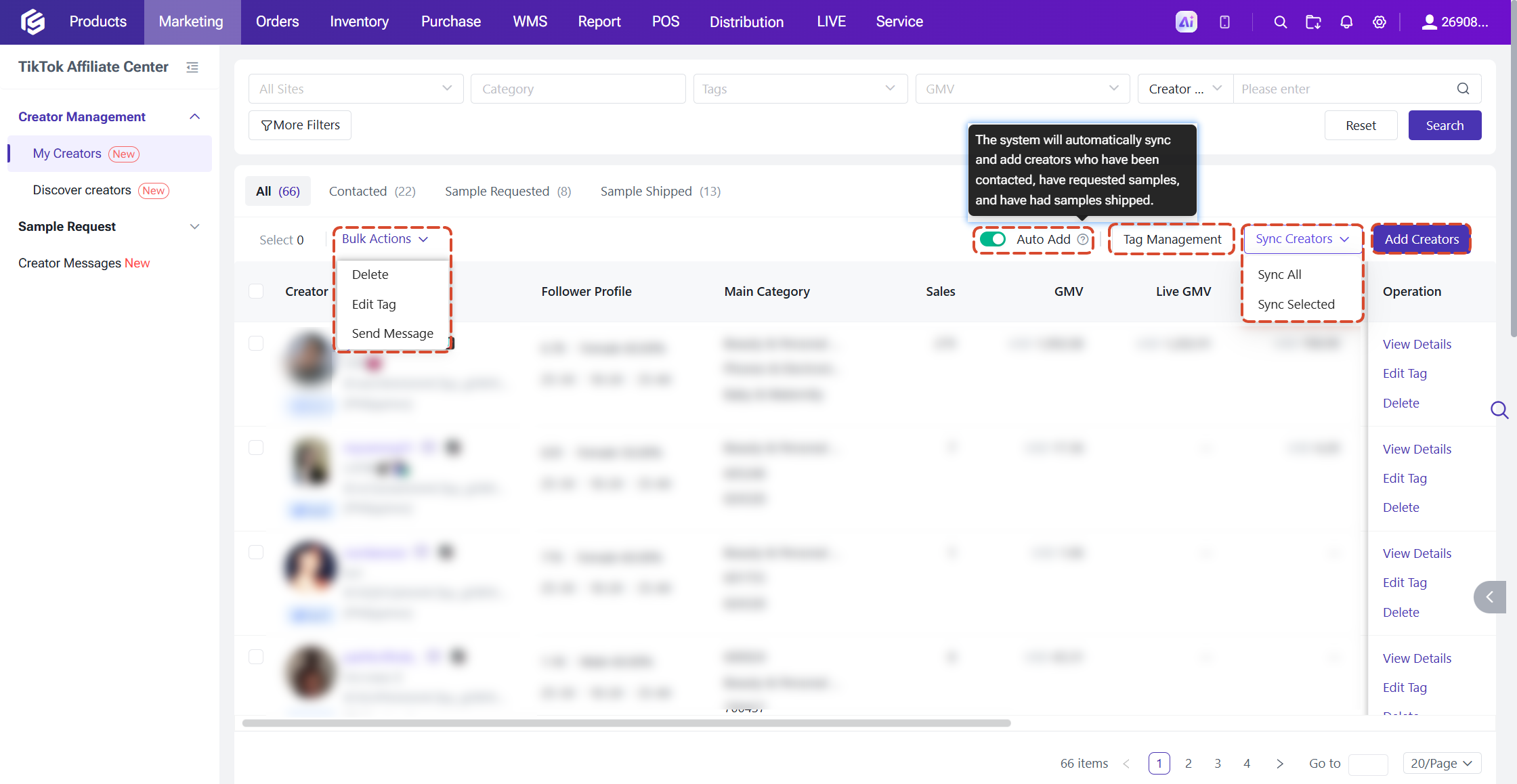
- Auto Add: When enabled, the system automatically adds creators who have communicated with you, requested samples, or been shipped samples to "My Creators."
- Tag Management: Create and edit creator tags, and see how many creators are linked to each tag.
- Sync Creators: Choose "Sync all" or "Sync selected" to get the latest creator data.
- Add Creators: Jump quickly to the Discover Creators to pick creators.
- Bulk Actions: Delete, edit tag, send messages.
3. Creator Details
In Creator Management, Sample Request or Creator Messages, click a creator's nickname, avatar, or "Details" to open the Creator Details pop-up.
3.1 Creator Details
This page brings a creator's basic profile, ratings, fulfillment performance, and collaboration history together in one place, so you can judge whether a creator is worth working with without switching pages, and spot risks such as blocked status in advance.
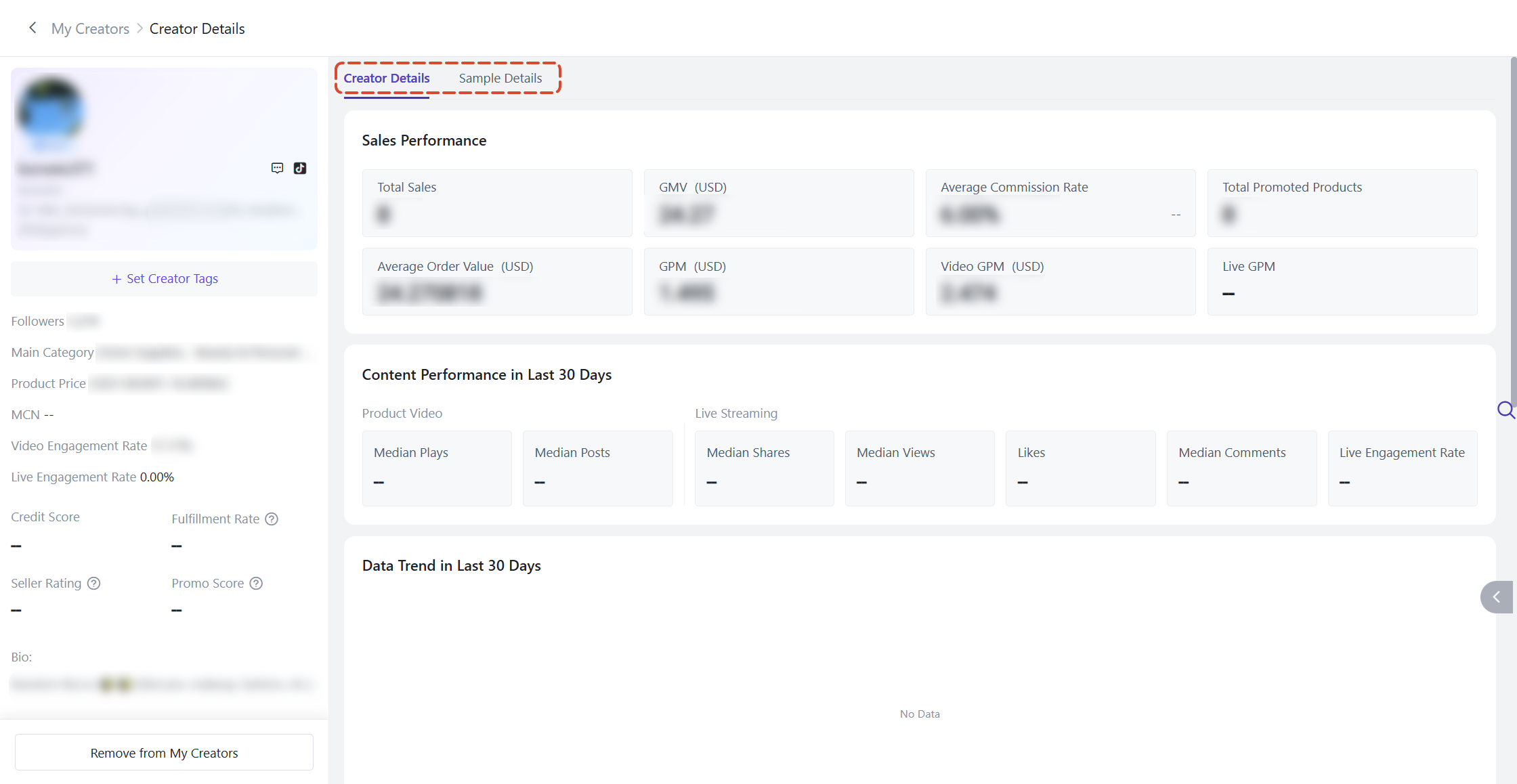
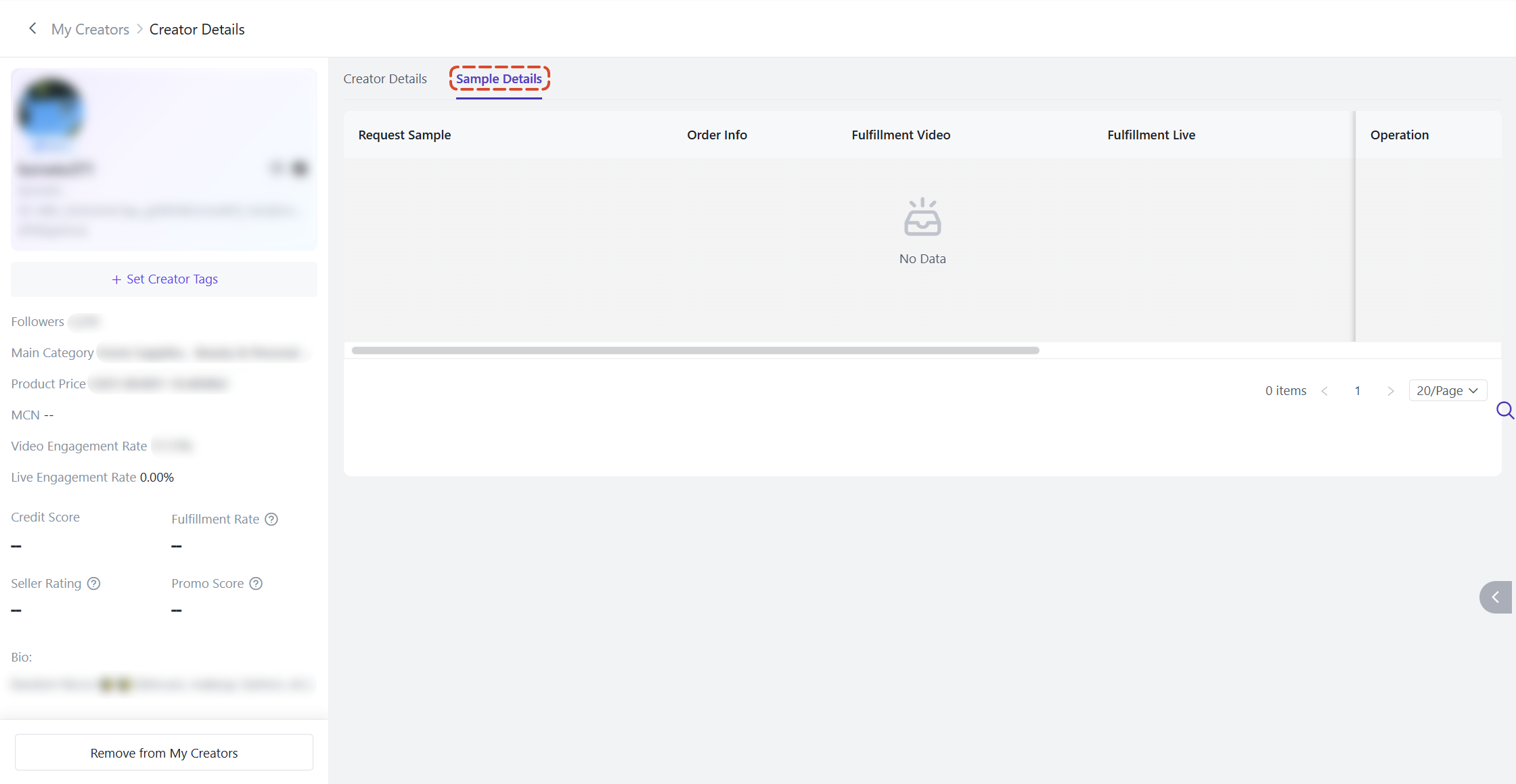
3.2 Sample Details
Here you can view all of this creator's sample records under the current store, including request sample, order info, fulfillment video / live, and more.
For pending requests, you can click [Agree] or [Reject] right here.
4. Sample Request
4.1 Sample Review
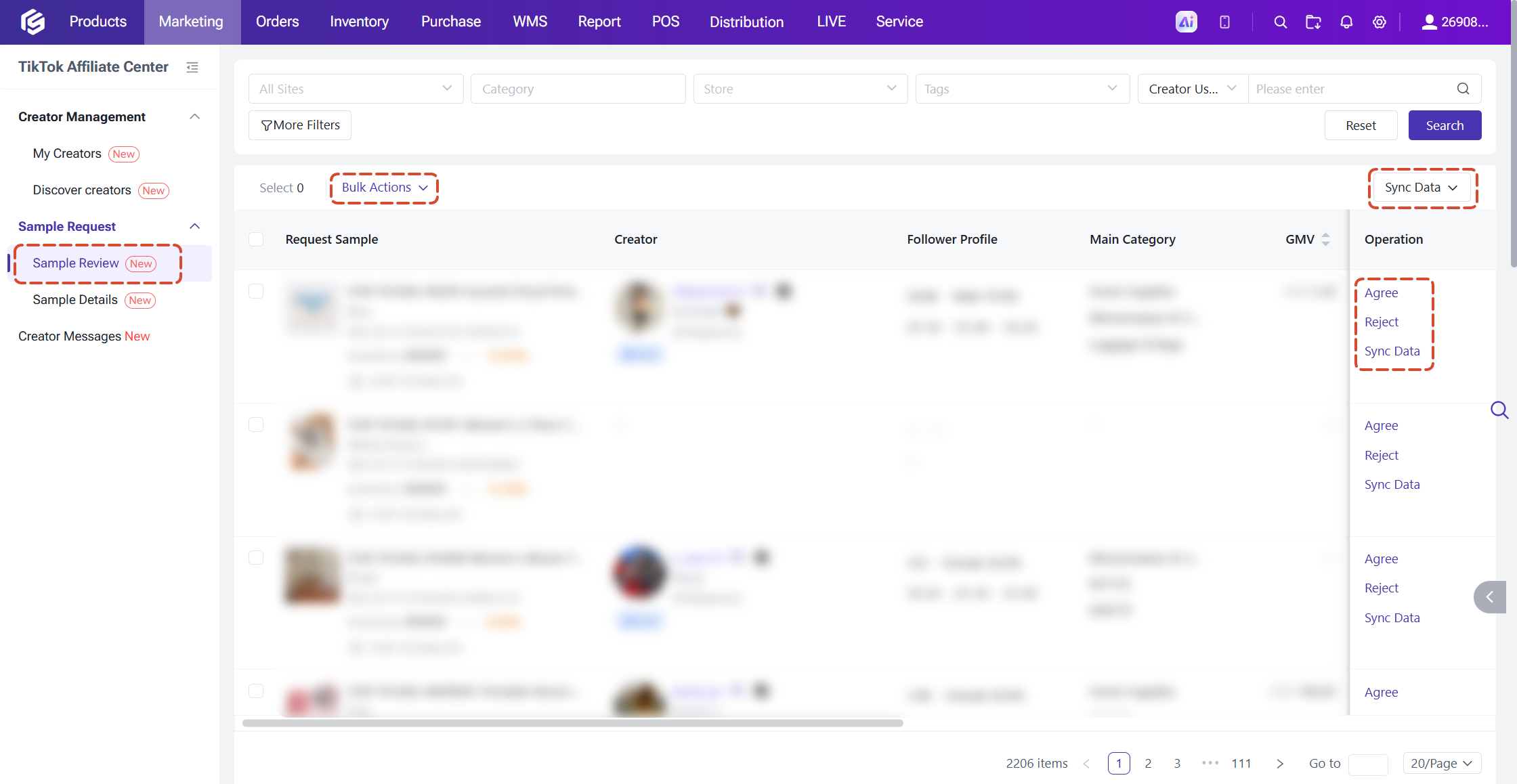
This page lists sample requests submitted by creators that are awaiting your review. Once a request is reviewed (agreed or rejected), it is removed from this page.
Review methods
● Single Review: Click [Agree] or [Reject]; a reason must be selected when rejecting
● Bulk Review: Select multiple requests, click [Bulk actions], and choose bulk agree or bulk reject;
● Sync Data: The system automatically syncs pending requests every 2 hours; you can also click [Sync data] and choose to sync all or only the selected requests.
4.2 Sample Details
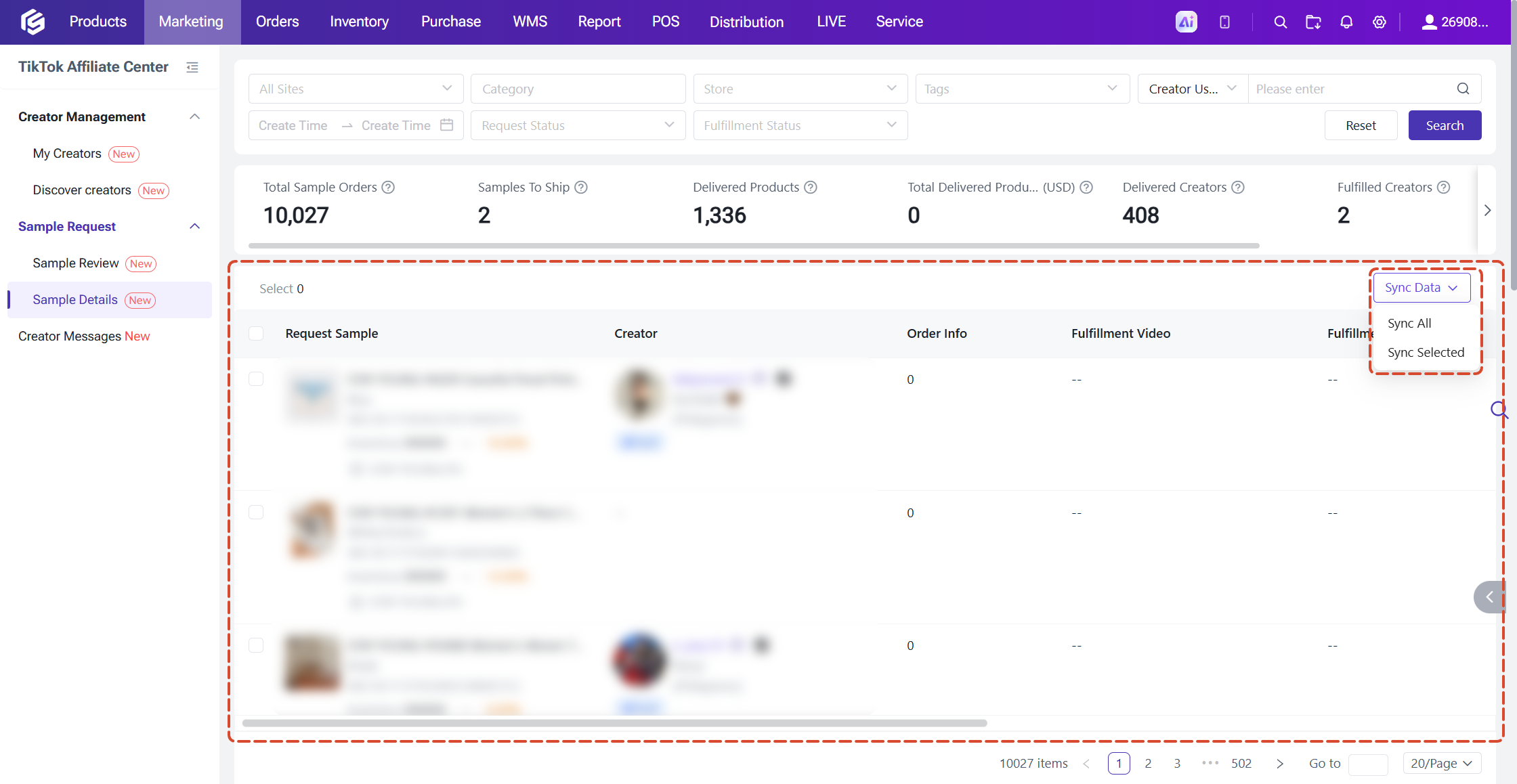
How did the samples perform after shipping? See it all in one place.
- Filters: site, category, store, tags, creator username, create time, request status, fulfillment status.

- Summary metrics (update in real time with your filters): total sample orders, samples to ship, delivered products, total delivered product value (converted to USD), delivered creators, fulfilled creators who, and number of orders generated by fulfillment content.

- List content: request sample, creator, order info, fulfillment video, fulfillment live (showing content ID, cumulative views / likes / comments / orders, and fulfillment time; click to open the original content on TikTok), request ID, request status, fulfillment status, shipping deadline, reviewer, and review time.
- Data sync: The system syncs automatically every day, and you can also manually sync all or selected records.
5. Creator Messages
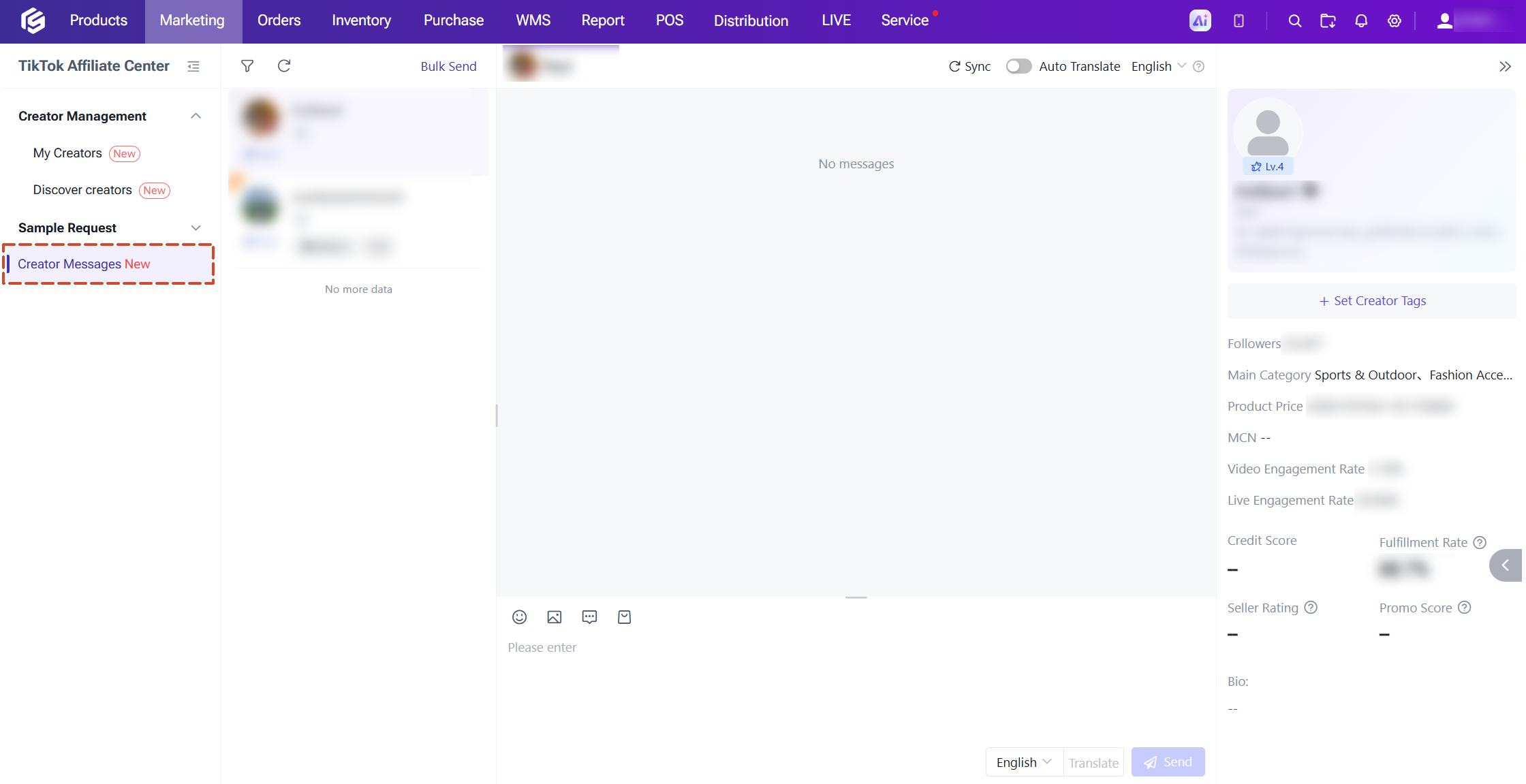
Here you can view and manage conversations with affiliate creators. Send text, images, and product cards, and check each creator’s basic information and performance data.
6. FAQ
Q1: How often is creator data updated?
Data in "My Creators" is updated automatically every day in the early morning; you can also click "Sync Creators" at any time to update it manually. Data in "Discover Creators" is a live search result.
Q2: Which creators does "Auto Add" add?
When enabled, the system automatically adds creators who have communicated with you, requested samples, or received samples to "My Creators."