BigSeller MCP User Guide
Update Time: 28 Sep 2026 09:31
This guide helps you connect the BigSeller MCP to AI agents such as Codex, Claude Code, and WorkBuddy, so you can quickly pull orders, inventory, settlement, and other data through MCP services for data analysis.
1. What Is MCP?
MCP (Model Context Protocol) is the standard protocol for AI agents to connect to external tools. Once connected, the AI automatically discovers the capabilities that MCP provides — you can simply use natural language to invoke these capabilities and meet your business needs.
2. What Can You Do After Connecting to BigSeller MCP?
BigSeller currently supports the following MCP capabilities:
- Query orders
- Query return inbound orders
- Query purchase orders
- Query profit reports — profit data by order and by SKU
- Query wallet transactions
These capabilities cover multiple business scenarios, including orders, inventory, purchasing, data analytics, and WMS. For more details, please contact our customer service team.
3. How to Connect BigSeller MCP to Your AI Client
Step 1. Get your URL, APP ID, and APP KEY
Contact BigSeller customer service to obtain them:
- URL (fixed for all users):
https://mcp.bigseller.pro/mcp
- APP ID and APP KEY: manually generated and provided to you by BigSeller
Step 2. Install BigSeller MCP into your AI client
The examples below use Codex and WorkBuddy.
2.1 Installing MCP in Codex
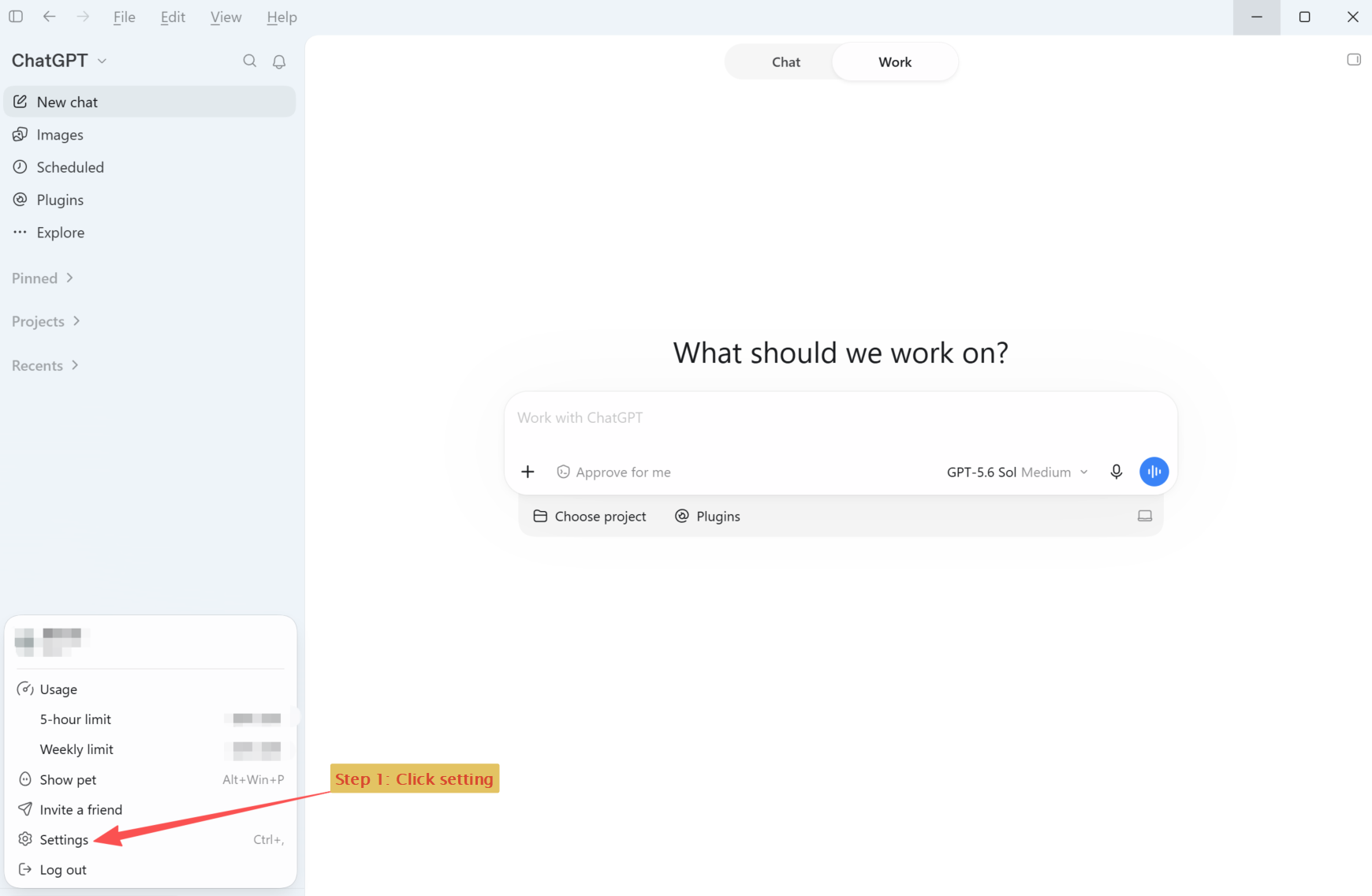
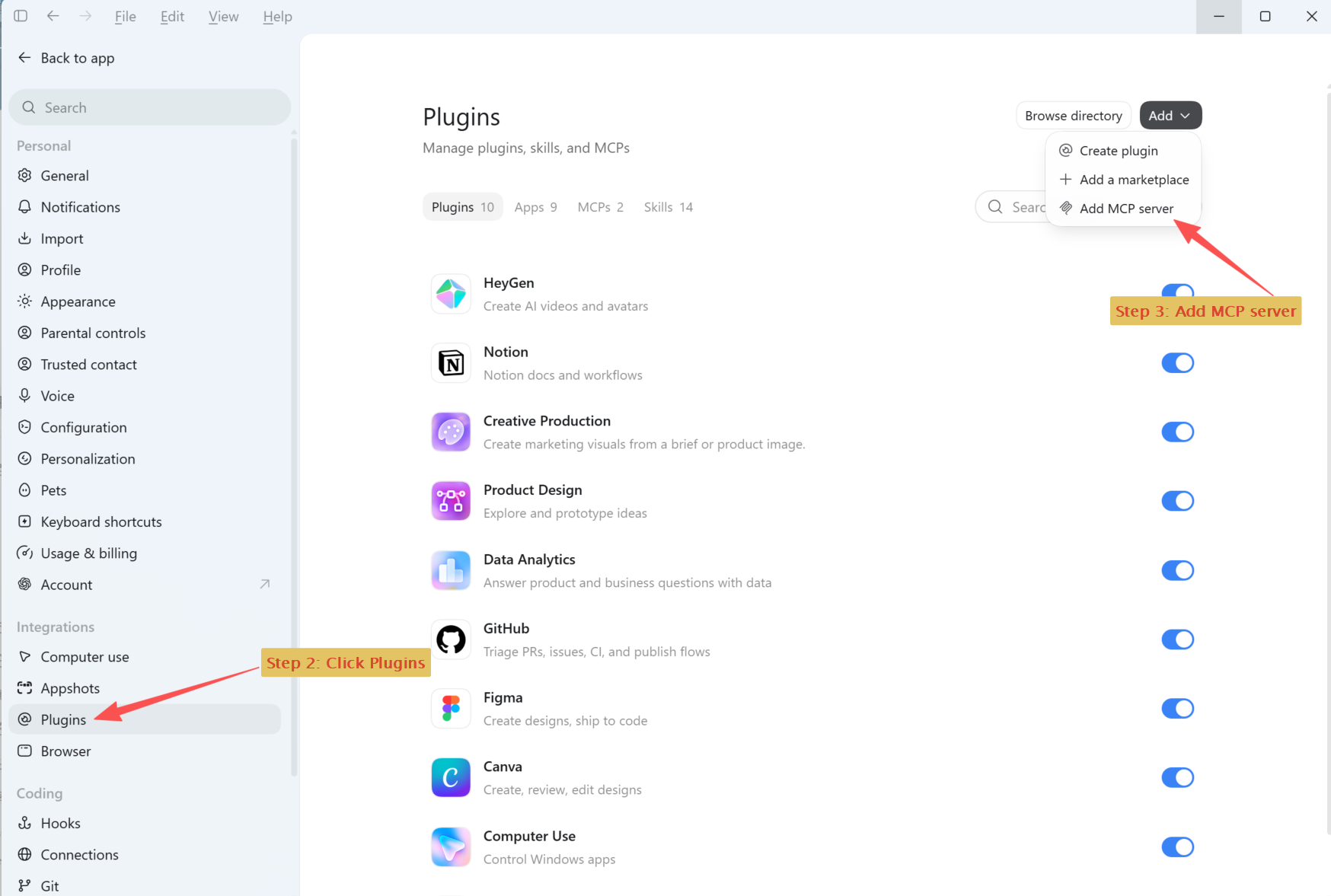
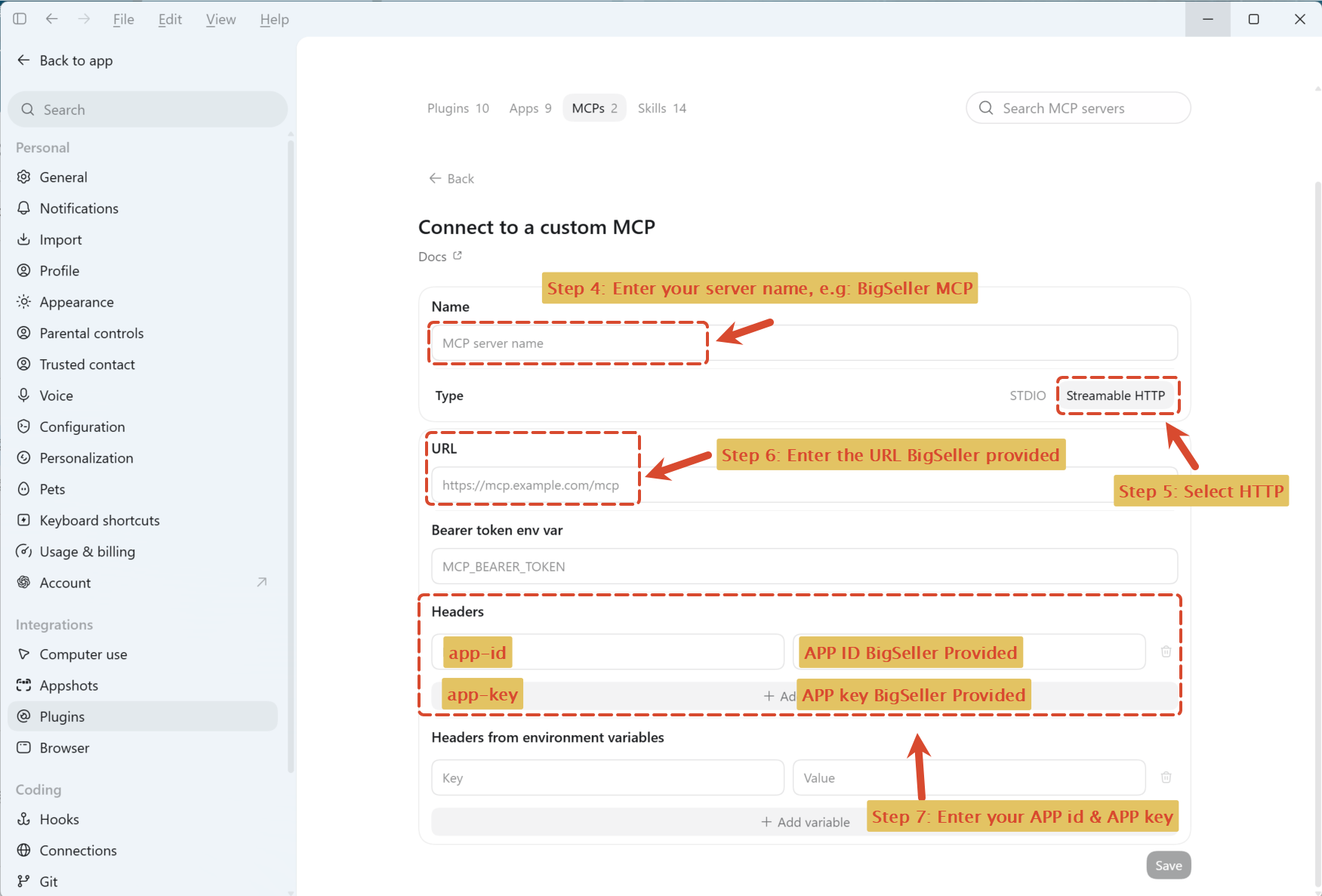
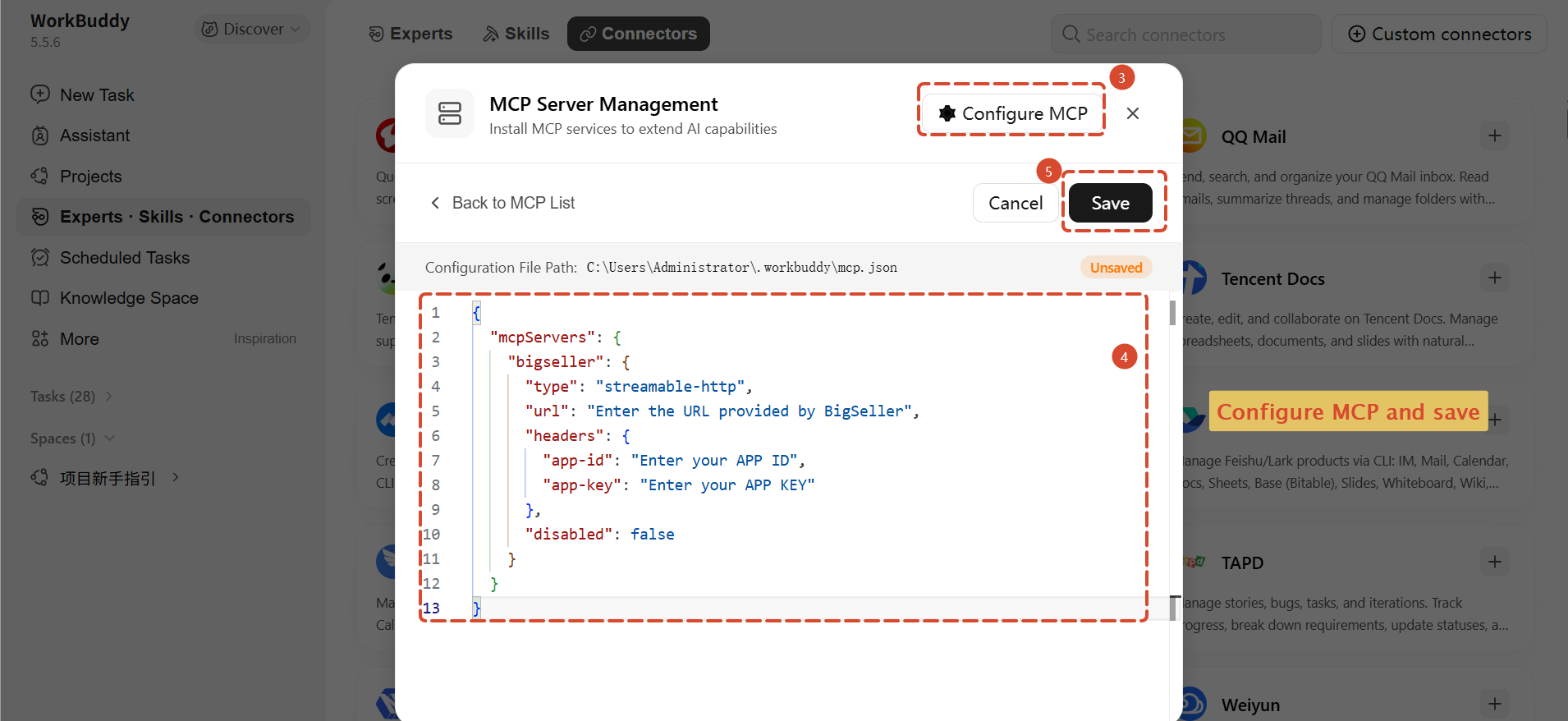
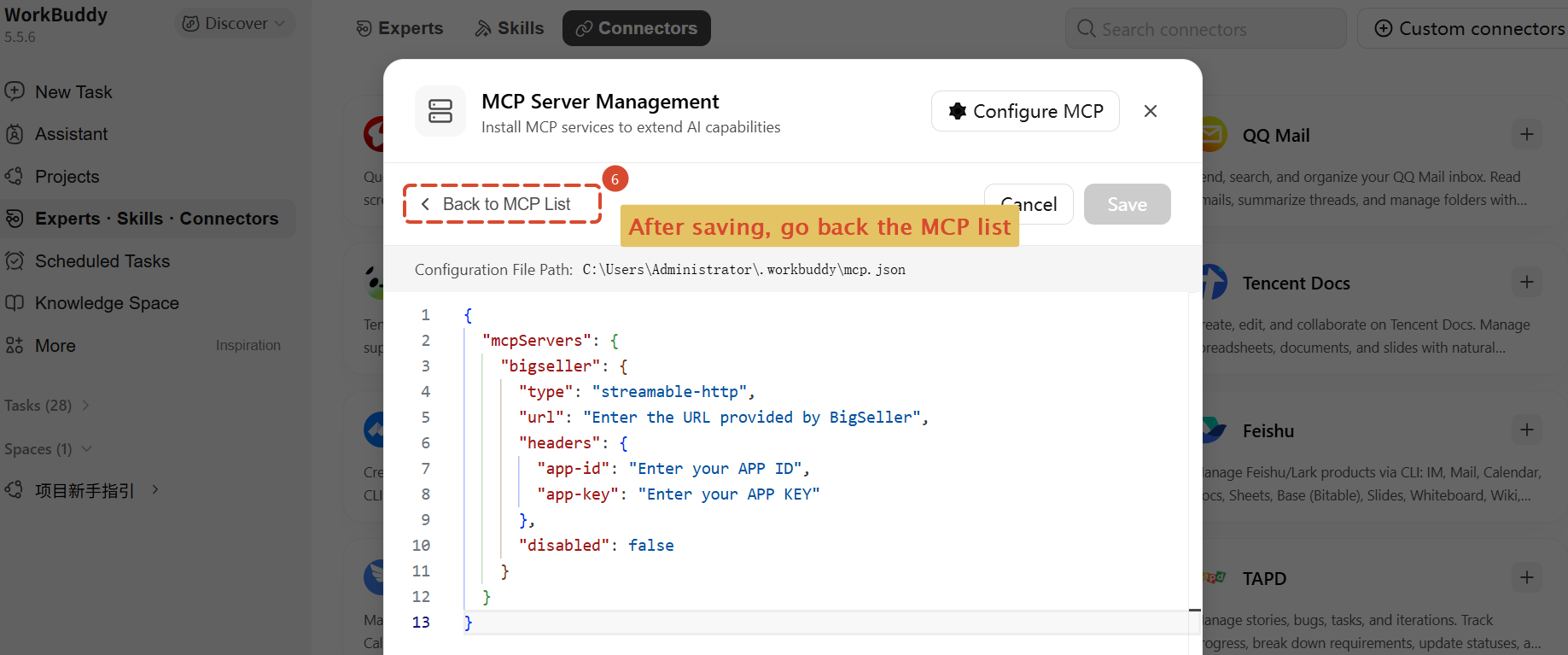
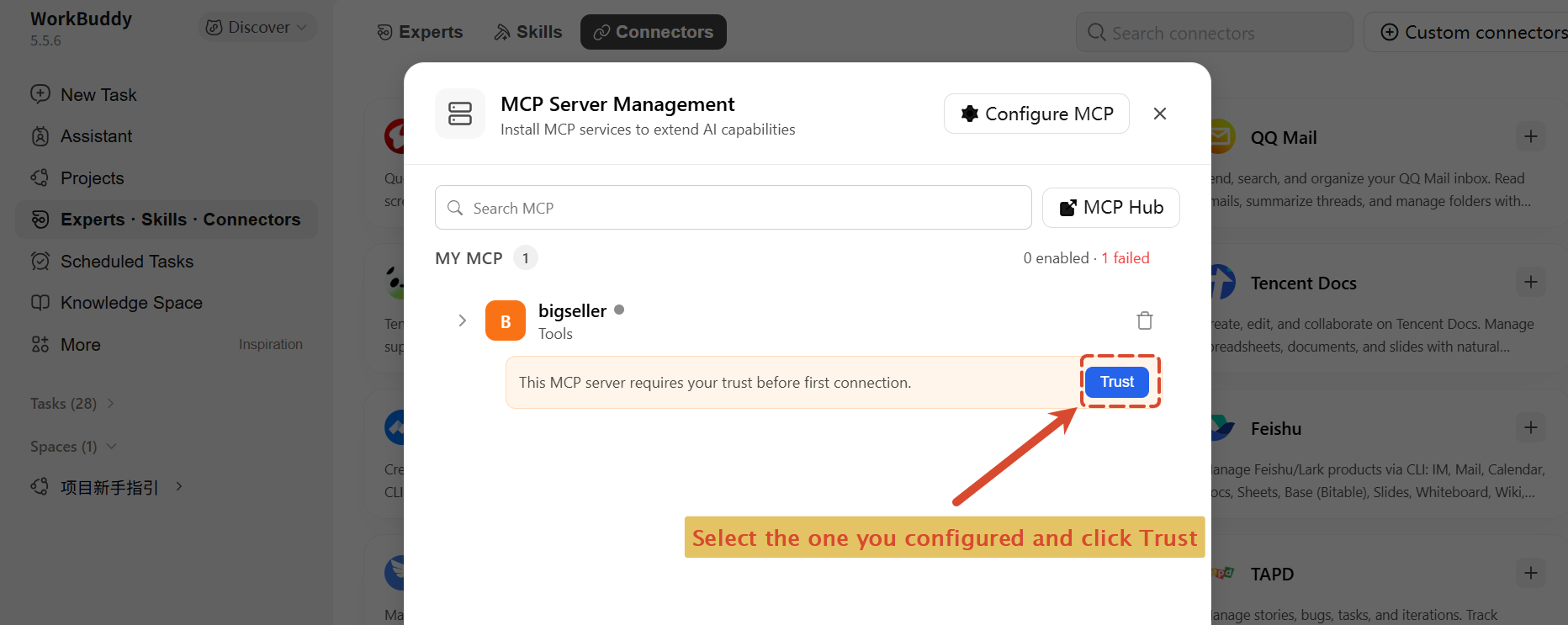
2.2 Installing MCP in WorkBuddy
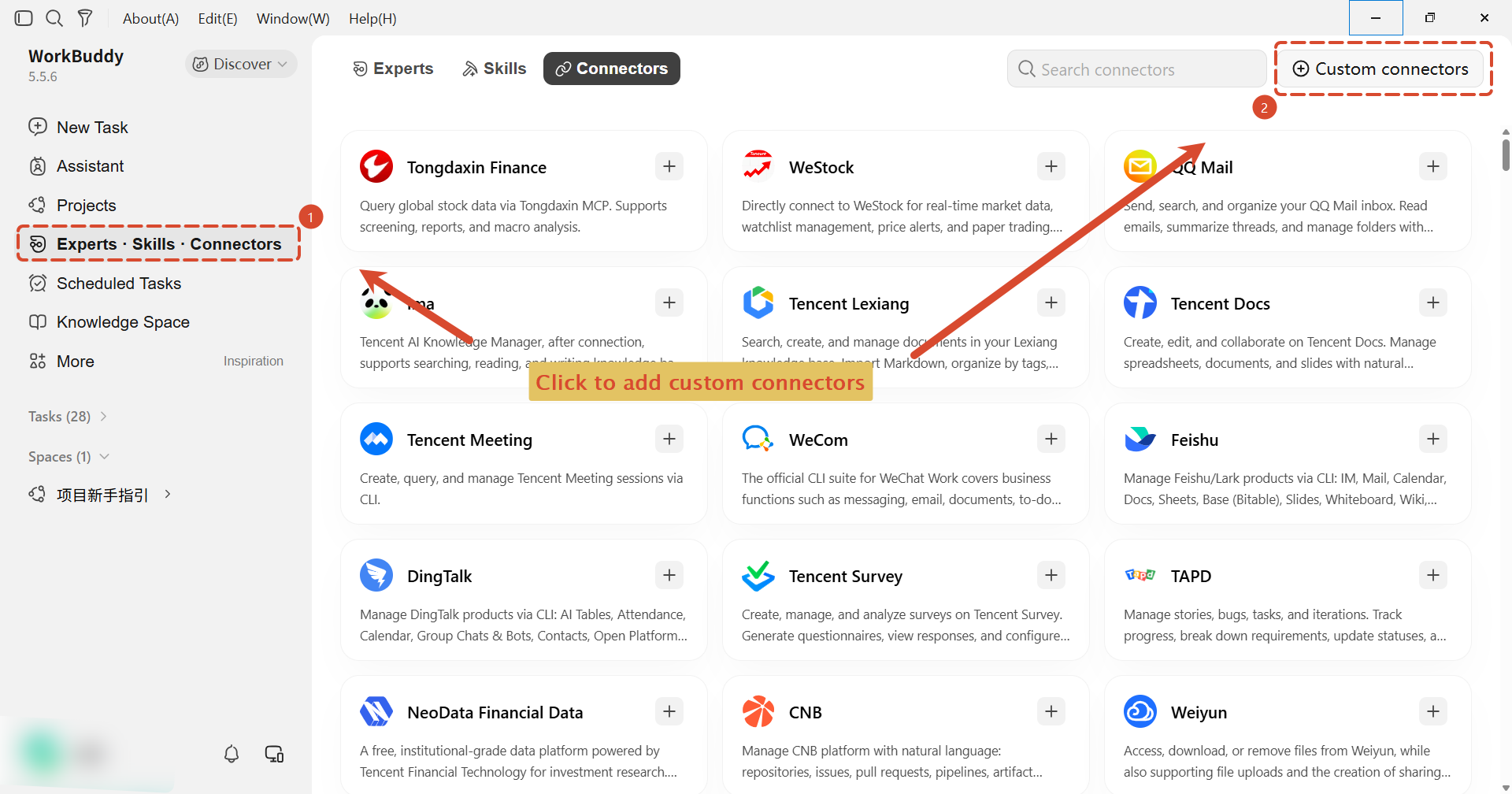
2.2.1 WorkBuddy installs MCP through JSON. Copy the JSON below into your MCP settings, then replace the url, app-id, and app-key values with the information provided by BigSeller:
2.2.2 Configuration path:
2.3 Installing MCP in other AI clients
You can simply ask in the AI client's chat window:
Then follow the instructions the AI provides.
4. Verify the MCP Works After Installation
- Open a new conversation in your AI client and enter:
5. MCP Use Case Example
- Scheduled tasks for data retrieval and analysis: If you need to pull BigSeller data on a schedule, ask your AI:
For a complete worked example, see: MCP Use Case Guide.
6. Important Notes
- Keep your APP ID and APP KEY safe. Do not disclose them!
- If an API call returns
code: 10100002,message: Too many request, it means the API is being called too frequently. Wait 30 seconds and retry. - Most times returned by BigSeller APIs are in UTC. To get data consistent with what you see in the BigSeller app, tell the AI the sales market of your BigSeller account, and ask it to first convert your query time from the sales market's time zone to UTC before querying.
Is this content helpful?
Thank you for your feedback. It drives us to provide better service.
Please contact us if the document can't answer your questions